
A Complete Guide for Publishers Managing Protected PDF Books
VeryPDF DRM Protector provides publishers with powerful controls to manage how readers access, view, and interact with encrypted PDF books. Among the most important configuration areas is the Other Options section inside each published book’s settings page. These options allow you to define device-locking rules, screen-shield protection, toolbar permissions, and message-box behaviors.
This article provides a step-by-step tutorial on how to access these settings and a detailed explanation of every parameter available under Other Options. Publishers can use these configurations to fine-tune digital rights, control user access, and create a secure reading environment.
How to Access and Edit Other Options
Follow the instructions below to edit the Other Options for any book you have published in VeryPDF DRM Protector.
Step 1 — Access the Book Management Page
Visit the following page:
https://drm.verypdf.com/wp-admin/admin.php?page=VeryPDFDRMFiles
If you do not have an account yet, please register using the email address you used to subscribe to this product. You will then be able to log in and manage your DRM-protected books.
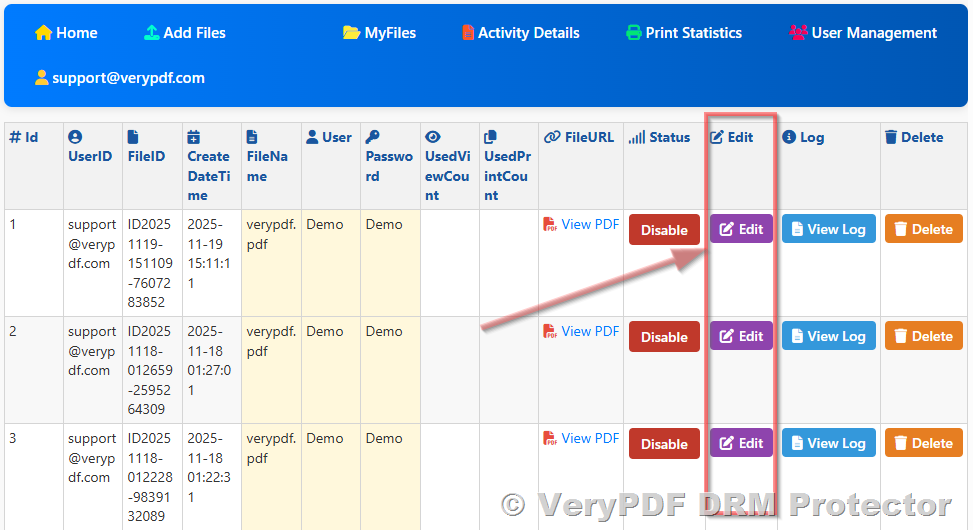
Step 2 — Click the “Edit” Button
On the right side of each published book entry, click the Edit button. This opens the detailed configuration page for that book.
Step 3 — Navigate to the “Other Options” Field
Scroll down to find the Other Options text field.
Here, you can add or edit configuration parameters one per line.
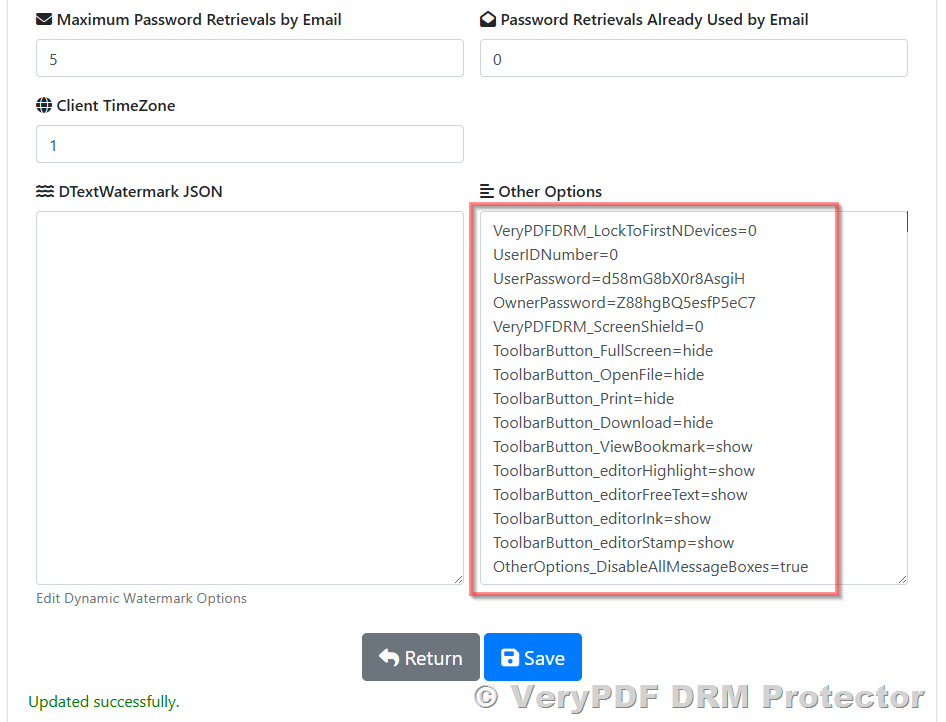
Each parameter defines advanced DRM behavior for this specific book.
Below is a full explanation of all available settings.
Detailed Explanation of All “Other Options” Parameters
| Setting | Current Value | Default Value | Description | Supported Values / Range |
|---|---|---|---|---|
| VeryPDFDRM_LockToFirstNDevices | 0 | 0 | Locks the PDF to the first N devices that open it. | 0 = disable, N > 0 = lock to first N devices |
| UserIDNumber | 0 | N/A | Unique ID number of the user. | Any integer (do not change) |
| UserPassword | XXXXXXXXXXXX | N/A | Password for the user to open the PDF. | Any string |
| OwnerPassword | XXXXXXXXXXXX | N/A | Password for the owner/administrator. | Any string |
| VeryPDFDRM_ScreenShield | 35 | 0 | Controls the screen shield opacity to prevent screenshot. | 0–50; 0 = disable |
| ToolbarButton_FullScreen | hide | show | Show or hide the Full Screen button in the toolbar. | hide / show |
| ToolbarButton_OpenFile | hide | show | Show or hide the Open File button. | hide / show |
| ToolbarButton_Print | show | show | Show or hide the Print button. | hide / show |
| ToolbarButton_Download | hide | show | Show or hide the Download button. | hide / show |
| ToolbarButton_ViewBookmark | show | show | Show or hide the View Bookmark button. | hide / show |
| ToolbarButton_editorHighlight | show | show | Show or hide the Highlight editor tool. | hide / show |
| ToolbarButton_editorFreeText | show | show | Show or hide the Free Text editor tool. | hide / show |
| ToolbarButton_editorInk | show | show | Show or hide the Ink/pen editor tool. | hide / show |
| ToolbarButton_editorStamp | show | show | Show or hide the Stamp editor tool. | hide / show |
| OtherOptions_DisableScreenCapture | false | false | Enable or disable screen capture protection. | true / false |
| OtherOptions_DisableAllMessageBoxes | true | false | Disable all message boxes to prevent interruptions. | true / false |
1. Device Locking Control
VeryPDFDRM_LockToFirstNDevices=0
This setting determines how many devices the PDF is allowed to open on.
- 0 (default) → No device locking is applied
- 1 → Locks the PDF to the reader’s first device only
- 2 or more → Allows additional devices, based on the value you set
Example:
VeryPDFDRM_LockToFirstNDevices=2
→ The user can open the book on two devices, but not more.
Use this option if you want to prevent users from sharing login credentials with others.
2. User ID (Do Not Modify)
UserIDNumber=0
This identifier is automatically generated by the system.
Do not change this value, as it is used internally to bind the license, user account, and DRM permissions.
3. PDF Passwords (Do Not Modify)
UserPassword=XXXXXXXXXXXX
OwnerPassword=XXXXXXXXXXXX
These are system-generated security passwords required for VeryPDF’s internal encryption process.
- UserPassword → Used by the reader to decrypt and open the protected PDF
- OwnerPassword → Prevents modification, extraction, or unauthorized editing
Important:
❗ Do not edit these passwords unless instructed by VeryPDF technical support.
Incorrect changes may break access for your users.
4. Screen Shield Percentage
VeryPDFDRM_ScreenShield=0
This parameter controls how much of the screen is covered by the Dynamic Screen Shield, which helps prevent screen capturing or screen recording.
- Range: 1–50 → Represents 1% to 50% shield coverage
- 0 (default) → Screen Shield disabled
Example:
VeryPDFDRM_ScreenShield=20
→ 20% of the reader’s screen will be overlaid with an active shield watermark.
This is useful for extremely sensitive content such as exam materials or proprietary training documents.
5. Toolbar Control Parameters
These options control whether toolbar buttons and menu items are shown or hidden in the DRM viewer.
Each setting accepts:
- show
- hide
ToolbarButton_FullScreen=hide
Determines whether the Full Screen button is visible.
ToolbarButton_OpenFile=hide
Controls whether users can open other files through the viewer.
ToolbarButton_Print=hide
Enables or disables the print button.
Set to hide to block all printing.
ToolbarButton_Download=hide
Prevents users from downloading the original PDF file.
ToolbarButton_ViewBookmark=show
Allows users to view bookmarks (Table of Contents).
ToolbarButton_editorHighlight=show
Shows or hides the Highlight tool.
ToolbarButton_editorFreeText=show
Shows or hides the Free Text annotation tool.
ToolbarButton_editorInk=show
Shows or hides the Ink (handwriting) annotation tool.
ToolbarButton_editorStamp=show
Shows or hides the Stamp annotation capability.
Publishers can fully customize the reading interface based on security needs.
6. Message Box Control
OtherOptions_DisableAllMessageBoxes=true
This option controls whether the DRM viewer should display pop-up message boxes.
- true → All informational message boxes are disabled
- false → Message boxes are displayed normally
Useful for organizations who want a cleaner interface without prompts or warnings.
7. VeryPDF Reader for Windows – Screenshot Protection Feature
The latest version of VeryPDF Reader for Windows introduces a screenshot protection feature, designed to prevent sensitive or copyright-protected PDF content from being captured or copied without authorization.
Key Features:
- Block Common Screenshot Methods
- Prevents the use of PrintScreen, Alt + PrintScreen, Win + Shift + S, and other standard screenshot shortcuts.
- Monitors Ctrl, Shift, Alt, and Win keys as well as system function keys (such as F4, F11, F12), which can be used for capturing or quickly copying content.
- Real-Time Screen Masking
- When a suspicious key is pressed, VeryPDF Reader displays a semi-transparent black overlay on the PDF window with the message:
“SCREEN CAPTURE IS NOT ALLOWED“. - Once all potentially dangerous keys are released, the overlay disappears automatically, allowing normal reading.
- When a suspicious key is pressed, VeryPDF Reader displays a semi-transparent black overlay on the PDF window with the message:
- Flexible Configuration
- By default, this feature is disabled. It can be enabled or disabled via Advanced Settings.
- Enable by adding:
OtherOptions_DisableScreenCapture=true
- Disable by setting it to false:
OtherOptions_DisableScreenCapture=false
- Compatibility and Stability
- Uses a low-level keyboard hook to monitor key presses globally, even if the application loses focus or the menu bar is active.
- Activating this feature does not interfere with normal reading or PDF interaction, ensuring both security and usability.
Ideal Use Cases:
- Education: Protect teacher-uploaded materials from being captured by students.
- Corporate Documents: Secure financial reports and internal documents from unauthorized sharing.
- Copyrighted Content: Safeguard eBooks, manuals, and other protected PDFs.
By enabling the Screenshot Protection feature, VeryPDF Reader helps keep PDF content secure while maintaining a seamless reading experience.
Conclusion
The Other Options section in VeryPDF DRM Protector offers a powerful and flexible way to manage how readers interact with your protected PDF content. By configuring device limits, screen shield strength, toolbar permissions, and message behaviors, publishers can create a secure and customized reading experience that meets their unique privacy and distribution requirements.
These parameters give you complete control over access, security, annotation tools, and user interface elements — ensuring your intellectual property remains protected.
If you need help with any setting or would like to implement advanced DRM workflows, VeryPDF technical support is always available to assist you.