
Protecting your digital content is more important than ever in today’s environment. With VeryPDF DRM Protector, you have full control over who can access your PDF files, for how long, and under what conditions. One powerful feature is the ability to set a protected PDF file to expire a certain number of days after it is first opened. This ensures that your content is only accessible for a limited period, even if the PDF file is copied or shared.
In this comprehensive guide, we will explain how to set this feature, step by step, and cover best practices for using it effectively.
Why Set a PDF to Expire After N Days?
Before we dive into the technical steps, it’s important to understand why this feature matters:
- Time-Limited Access
By allowing a PDF to expire after N days, you can give users access only for a predefined period. For example, if you are sharing an exam paper with students or a confidential report with business partners, the document will become inaccessible after the allotted time. - Prevent Unauthorized Distribution
Once the PDF expires, it cannot be opened, even if someone tries to share the file. This ensures that sensitive information stays under your control. - Track Document Usage
Combined with other DRM features, you can monitor who opens your documents and when, giving you valuable insights about your content distribution. - Simplify Content Management
Automatically expiring PDFs reduces the need for manual follow-up. You don’t have to send reminders or manually revoke access—the system handles it for you.
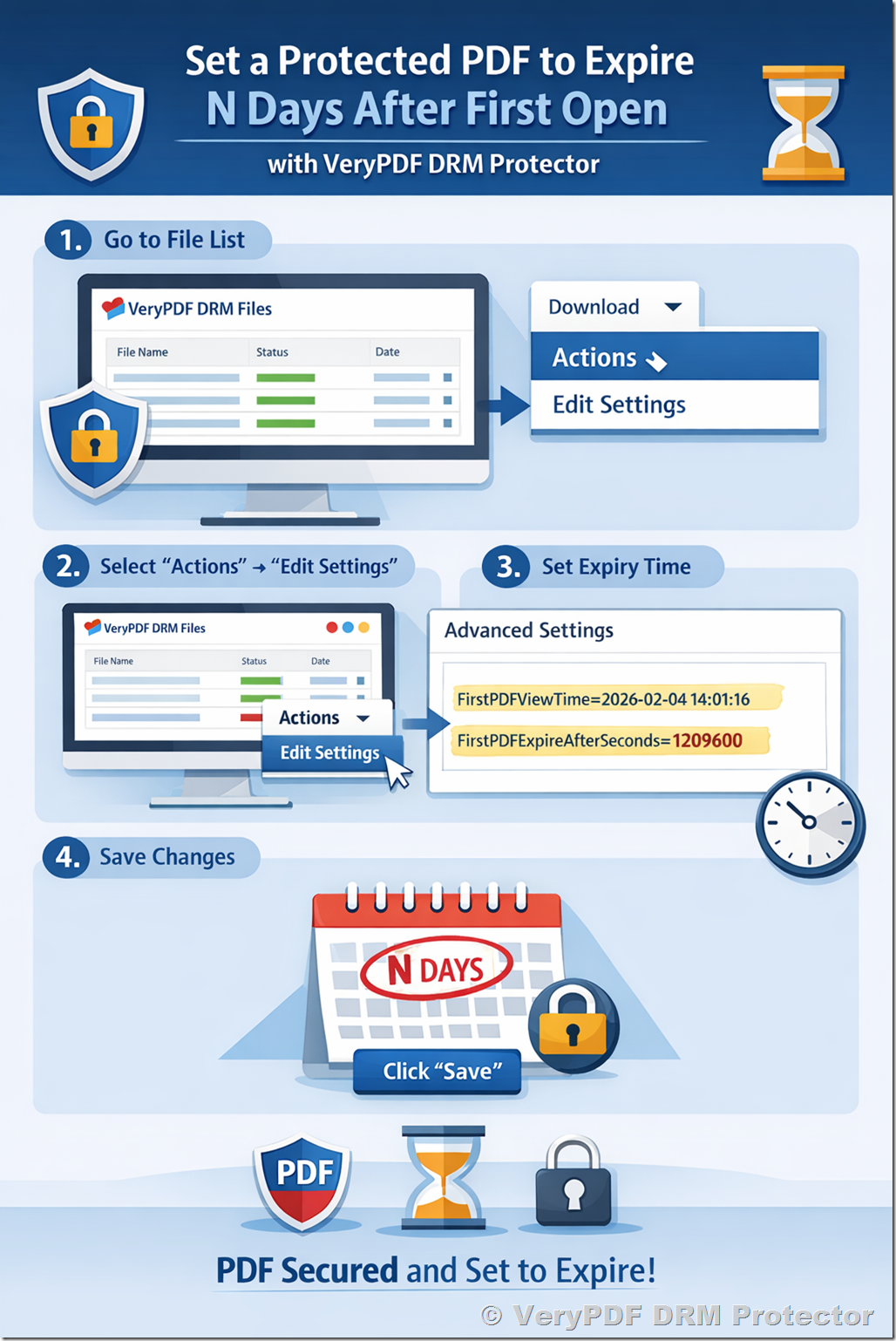
Step 1: Access Your File List
The first step is to navigate to the list of protected PDF files in your VeryPDF DRM account.
- Open your web browser and go to:
https://drm.verypdf.com/wp-admin/admin.php?page=VeryPDFDRMFiles - You will see a table of all your uploaded PDF files, including details such as the file name, upload date, status, and available actions.
- This page is your central hub for managing all your protected documents. You can quickly search for specific files, view their settings, and manage their access policies.
Step 2: Open File Settings
Once you locate the PDF file you want to set an expiration for:
- Click the “Actions” dropdown menu next to the file.
- Select “Edit Settings” from the dropdown. This will open the Advanced Settings panel for that specific file.
The Advanced Settings panel contains all system-level configurations for your PDF, including DRM policies, access controls, watermarking, and expiration settings.
Step 3: Understand the Advanced Settings Panel
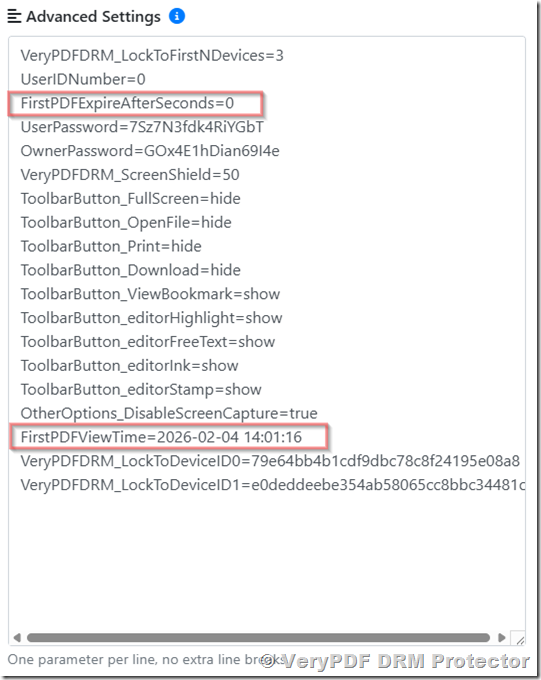
The Advanced Settings panel may look intimidating at first, but it is essentially a list of key-value pairs that control various aspects of the PDF. Two of the most important fields for controlling expiration are:
- FirstPDFViewTime
- FirstPDFExpireAfterSeconds
Let’s examine each in detail.
3.1 FirstPDFViewTime
//This is the UTC time of first open the document, please don’t change it, this value is set by system.
FirstPDFViewTime=2026-02-04 14:01:16
- What it does:
This field records the exact UTC timestamp when the document is first opened by any authorized user. - Important Notes:
- Do not modify this field manually. Changing this timestamp can disrupt the expiration countdown.
- The system automatically updates this value when the document is opened for the first time.
- Why it matters:
The expiration countdown starts based on this time. Even if the file is copied to another device, the countdown is linked to the first open timestamp.
3.2 FirstPDFExpireAfterSeconds
//Set the seconds of expire time after protected PDF file first time be opened, 0 is not expire
FirstPDFExpireAfterSeconds=0
- What it does:
This field sets the duration in seconds after the first open for which the PDF remains accessible. Once this time has elapsed, the PDF will automatically expire and cannot be opened. - How to set it for N days:
To convert N days to seconds, use this formula:
N days * 24 hours/day * 60 minutes/hour * 60 seconds/minute
- Example:
If you want the PDF to expire after 7 days:
7 * 24 * 60 * 60 = 604800 seconds
You would then update the field like this:
FirstPDFExpireAfterSeconds=604800
- Set to never expire:
If you set FirstPDFExpireAfterSeconds=0, the PDF will never expire, regardless of how long it has been opened.
Step 4: Save Your Changes
After setting the expiration duration:
- Scroll to the bottom of the Advanced Settings panel.
- Click the “Save” button.
⚠ Ensure that you have set the value correctly before saving. Incorrect values may result in PDFs expiring too early or not at all.
Once saved, your PDF is now configured to expire automatically N days after the first time it is opened.
Step 5: Verify the Expiration
It’s a good idea to verify that your settings are working correctly:
- Open the PDF on a test device with an authorized user account.
- Check the FirstPDFViewTime field in the Advanced Settings—this should now reflect the exact time you first opened the PDF.
- Make sure FirstPDFExpireAfterSeconds is set correctly.
The PDF will now automatically expire after the specified number of days.
Additional Tips and Best Practices
5.1 Use UTC Time Carefully
- All expiration settings are based on UTC time, not your local timezone.
- Make sure users understand this if you are distributing PDFs across different time zones.
5.2 Combine With Other DRM Features
- Device restrictions: Limit which devices can open your PDF.
- Dynamic watermarking: Add personalized watermarks to each copy to discourage sharing.
- IP restrictions: Allow access only from specific IP addresses.
These features can enhance security when combined with N-day expiration.
5.3 Setting Long-Term Access
- If you want the PDF accessible for a long period, calculate the seconds carefully. For example, 30 days = 30 * 24 * 60 * 60 = 2,592,000 seconds.
- Avoid setting extremely high numbers unnecessarily; it is better to control access in smaller increments.
5.4 Use Test Files
- Before distributing an important document, create a test PDF and configure the N-day expiration.
- Open the test PDF and monitor how the system tracks FirstPDFViewTime and enforces expiration.
Example: Setting a PDF to Expire After 14 Days
Let’s walk through an example of setting a PDF to expire 14 days after first open:
- Go to the file list:
https://drm.verypdf.com/wp-admin/admin.php?page=VeryPDFDRMFiles - Click Actions → Edit Settings for your PDF file.
- In the Advanced Settings field, leave FirstPDFViewTime unchanged. Then set:
FirstPDFExpireAfterSeconds=1209600
14 days * 24 hours * 60 minutes * 60 seconds = 1,209,600 seconds
- Click Save.
The PDF will now be accessible for 14 days after the first time a user opens it.
Why VeryPDF DRM Protector Makes This Easy
Many other DRM solutions require complex setup or manual tracking of document access. VeryPDF DRM Protector simplifies this by:
- Automatically recording first open time (FirstPDFViewTime)
- Allowing simple seconds-based expiration (FirstPDFExpireAfterSeconds)
- Integrating easily with device, IP, and watermark restrictions
- Requiring no software installation for the end user
This combination ensures strong protection while remaining user-friendly.
Summary
Setting a PDF file to expire N days after the first open is a powerful way to control access and protect your intellectual property. With VeryPDF DRM Protector, the process is straightforward:
- Open your file list.
- Edit the file’s settings.
- In the Advanced Settings panel:
- Leave FirstPDFViewTime unchanged.
- Set FirstPDFExpireAfterSeconds based on N days.
- Save your changes.
- Verify settings by opening the PDF and checking timestamps.
By following these steps, you can protect your sensitive documents, ensure time-limited access, and reduce the risk of unauthorized sharing.