
How to protect a PDF file online without copy, print, or download access
If you want to publish a PDF online but don’t want people to copy it, print it, or save it, this is usually where most tools fail. Either the protection is too weak, or the document becomes hard to open and read.
VeryPDF DRM Protector is built for this exact problem. It lets you share PDF files in a controlled way, so people can view the document but cannot easily take it out of your system.
Common problems when sharing important PDF files
Most people run into the same issues when they try to protect a PDF:
|
Problem |
What usually happens |
|
Copy and paste content |
Text is copied into Word or AI tools |
|
Print to PDF |
File is saved as a new unlocked version |
|
Screen capture |
Content is shared as screenshots |
|
File sharing |
One link gets forwarded to many people |
|
No control after sending |
You lose control once the file is downloaded |
For sensitive content like training materials, reports, research papers, or paid articles, these problems can quickly lead to content leakage.
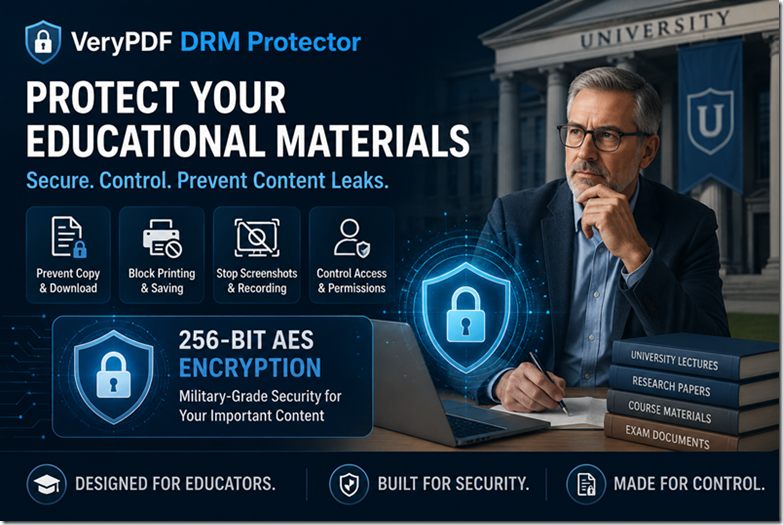
What VeryPDF DRM Protector actually does
VeryPDF DRM Protector changes how people access your PDF.
Instead of sending a normal file, you send a protected version that is controlled by your rules.
It helps you:
- Stop copy and paste from PDF files
- Block download or save-as in web viewing
- Disable print or limit printing rules
- Control how the document is opened
- Add dynamic watermark to track usage
- Set access limits by user or device
This is useful for online publishing, paid content, internal documents, and training materials.
Secure PDF online viewing vs normal PDF sharing
|
Feature |
Normal PDF |
VeryPDF DRM protected PDF |
|
Copy text |
Yes |
No |
|
|
Yes |
Controlled or blocked |
|
Download |
Yes |
Controlled |
|
Sharing link |
Unlimited |
Controlled access |
|
Tracking |
No |
Yes |
The key difference is control. Once a normal PDF is sent, you lose control. With DRM protection, access is still in your hands.
Screen Protection methods in VeryPDF DRM Protector
Screen protection is one of the most important parts of PDF security, because even if copy and print are blocked, people can still try to capture the screen.
VeryPDF uses several different layers of protection, depending on how sensitive your document is.
|
Protection method |
How it works |
What it protects against |
Where it is used |
|
Adjustable Screen Shield (Partial View) |
Only shows part of the page or hides full content until user interacts |
Screenshots, full-page screen capture |
Secure Web Viewer + VeryPDF Reader for Windows |
|
Screenshot Hotkey Blocking |
Blocks common keyboard shortcuts like Print Screen |
Basic OS-level screenshots |
Secure Web Viewer + VeryPDF Reader for Windows |
|
Focus & Mouse Behavior Control |
Detects abnormal behavior like switching tabs or losing focus |
Screen capture tools and automation tools |
Secure Web Viewer + VeryPDF Reader for Windows |
|
Dynamic Watermarking |
Adds user-specific watermark on screen in real time |
Screen recording, leaks, sharing screenshots |
Secure Web Viewer + VeryPDF Reader for Windows |
|
VeryPDF Secure Reader (Windows App) |
Dedicated desktop reader with stronger system-level control |
Zoom, Teams sharing, virtual camera, recording tools |
Windows desktop |
How these layers work together
No single method can stop every type of screen capture. That’s why VeryPDF combines multiple layers.
For example:
- If someone tries a simple screenshot → hotkey blocking may stop it
- If they use screen recording → dynamic watermark makes leaks traceable
- If they use screen sharing tools → Secure Reader can block them
- If they try normal viewing screenshots → partial view reduces visible content
The idea is not just to block one method, but to make copying and sharing extremely difficult and risky.
Why this matters in real use cases
Most leaks don’t come from hacking. They come from simple actions like:
- Taking screenshots and sending to others
- Recording a Zoom or Teams meeting
- Copying content into AI tools
- Sharing screen during online training
Screen protection is designed exactly for these everyday risks, especially for:
- Paid reports
- Training materials
- Research documents
- Investor decks
- Educational content
Screen protection and viewing control
Many users care about screen capture and screen sharing.
VeryPDF provides multiple layers of protection:
- Screen shield view mode (partial content display)
- Keyboard shortcut blocking for screenshots
- Mouse and focus behavior control
- Strong protection with Windows Secure Reader (blocks screen sharing tools like Zoom or Teams)
This is useful when you are publishing paid reports or confidential documents where screenshots are a real risk.
Virtual printer and “Print to PDF” issue
A common concern is “Print to PDF” tools.
In browser-based viewing:
- Printing can be controlled but not fully guaranteed in every environment
For stronger protection:
- Windows Secure Reader can block virtual printers completely
- It only allows real physical printing if you enable print permission
This is important for high-value documents like business plans or paid research.
Pricing and setup
All plans are priced in USD. Even the basic plan is enough for simple publishing use cases.
After subscription, your protected PDF files will be generated without watermark, and you can choose the protection level based on how sensitive your content is.
When should you use VeryPDF DRM Protector?
It works well if you are:
- Selling PDF reports or ebooks
- Publishing training materials online
- Sharing confidential business documents
- Sending investor pitch decks
- Protecting educational content from redistribution
If your problem is “I want people to read it, but not take it”, this is exactly the use case.
FAQ
1. Can users copy text from a protected PDF?
No, copy and paste can be blocked.
2. Can users print the PDF?
Yes or no depending on your settings. You can fully disable printing or allow limited printing.
3. Can users download the file?
You can control download behavior depending on the viewing mode.
4. Does it work in browser?
Yes, secure web viewer supports browser-based reading.
5. Is there a watermark?
No watermark on paid plans. Trial mode may include watermark.
6. Can users take screenshots?
Screen capture protection is available in multiple layers depending on setup.
7. Can I protect only one PDF file?
Yes, even a single document can be protected.
8. What happens if someone forwards the link?
Access is still controlled by your permission settings.
9. Can I remove access later?
Yes, you can revoke access at any time.
10. Does it support mobile devices?
Yes, it works on modern mobile browsers with controlled viewing.
11. What about virtual PDF printers?
Browser viewing has limitations, but Windows Secure Reader can block virtual printers.
12. Do I need technical skills to use it?
No, setup is simple and support is available if needed.