
When you protect a PDF eBook with DRM, you want to stop unauthorized sharing without making reading difficult for your customers. However, some security features, such as a black screen that appears when the reader moves the mouse away from the PDF window, may affect the reading experience.
VeryPDF DRM Protector lets you adjust these settings while keeping other PDF access controls in place. You can also limit the number of devices each customer can use, send secure reading links by email, and track document access.
This guide explains how to configure these options based on a real customer support case.
1. How to Disable the “This Content is Protected Screen” Message
A customer using VeryPDF DRM Protector reported that the message “This Content is Protected Screen” appeared when moving the mouse outside the PDF reading window. The customer wanted to remove this effect so readers could enjoy a more comfortable reading experience.
There are two ways to change this behavior, depending on how much screen protection you want to keep.
Option 1: Disable Screen Protection Completely
Open the DRM Protected Files Management page:
[VeryPDF DRM Protected Files Management]
https://drm.verypdf.com/wp-admin/admin.php?page=VeryPDFDRMFiles
Follow these steps:
- Find the protected PDF file.
- Click Actions → Edit Settings → Advanced Settings.
- Add or change the following setting:
OtherOptions_DisableScreenCapture=false4. Save your changes.
This setting disables Screen Protection completely.
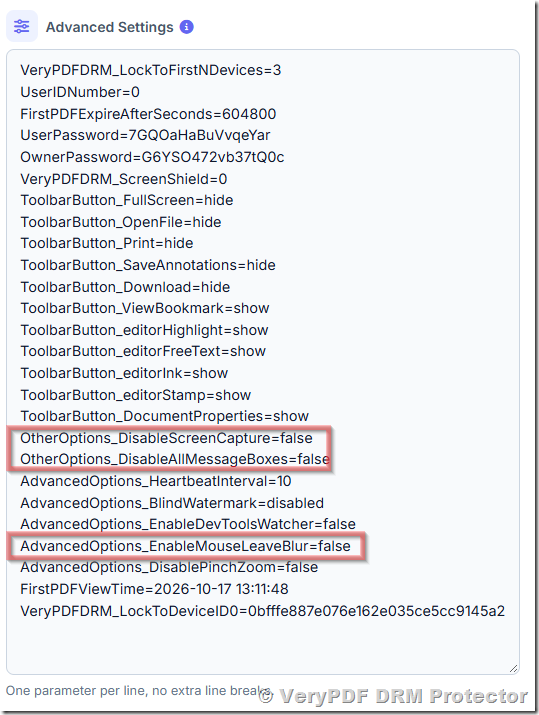
Option 2: Disable the Black Screen When the Window Loses Focus
If you only want to remove the black-screen effect when the mouse leaves the reading window or the window loses focus, use this setting instead:
AdvancedOptions_EnableMouseLeaveBlur=falseTo apply it:
- Open the DRM Protected Files Management page.
- Click Actions → Edit Settings → Advanced Settings for the PDF.
- Set
AdvancedOptions_EnableMouseLeaveBlur=false. - Click Save Changes.
This option is useful when you want to remove the black-screen effect without disabling Screen Protection completely.
| Setting | What it does | Best for |
|---|---|---|
OtherOptions_DisableScreenCapture=false |
Disables Screen Protection completely | Customers who do not want this protection feature |
AdvancedOptions_EnableMouseLeaveBlur=false |
Disables the mouse-leave or lost-focus blur effect | Customers who want a more comfortable reading experience |
Which option should you choose? If the black screen only appears when readers move the mouse outside the PDF window, try the second option first.
2. How to Turn Off PDF View Count Messages
Another common request is to stop the reader from displaying a message showing how many times a document has been viewed whenever it opens.
You can disable these message boxes through the advanced settings.
Open the [DRM Protected Files Management page]
https://drm.verypdf.com/wp-admin/admin.php?page=VeryPDFDRMFiles
then follow these steps:
- Find the PDF file.
- Click Actions → Edit Settings → Advanced Settings.
- Add or change this setting:
OtherOptions_DisableAllMessageBoxes=true4. Save your changes.
This setting turns off all message boxes covered by this option, not just the document view count message. If you still need other DRM notifications, consider this effect before enabling it.
3. How to Limit a PDF to One or Two Devices Per Customer
If you sell PDF books, training materials, legal publications, or other paid documents, you may want each customer to read their purchase on a limited number of devices.
VeryPDF DRM Protector supports device limits for individual users.
For example:
| Customer | Device limit |
|---|---|
| Customer A | 1 device |
| Customer B | 2 devices |
| Customer C | 3 devices |
You can configure the limit in different ways.
Set a Device Limit in the User Profile
Open [VeryPDF DRM User Management]
https://drm.verypdf.com/wp-admin/admin.php?page=VeryPDFDRMUserManagement
- Add the user.
- Click Actions → Edit User Options.
- Add the following setting under Advanced Settings for User:
LockToFirstNDevicesForUser=24. Save the changes.
This allows that user to access the protected PDF on up to two devices.
Set a Device Limit When Sending a Reading Link
You can also set the device limit when creating a reading link through Invite User or Send Reading Link.
This is useful for online bookstores and publishers that need different device limits for different customers.
Important: A device limit controls which devices can access the protected document. It does not limit how many times the document can be opened. If you want to limit viewing frequency as well, configure the relevant access settings separately.
4. How to Send Secure PDF Reading Links to Customers
You do not need to ask every customer to download and install a separate PDF reader. With VeryPDF DRM Protector, customers can read protected PDFs through a web browser using a secure reading link.
A typical sales process looks like this:
Step 1: Receive the order
A customer purchases your PDF book or other digital publication.
Step 2: Set up the customer
Add the customer as a user or use the Invite User function to create a reading invitation.
Step 3: Configure PDF access
Set the device limit and any other supported access restrictions you need.
Step 4: Send the reading link
Email the secure link to the customer. Depending on the setup, the system can also send the invitation email.
Step 5: Read in a browser
The customer clicks the link and opens the protected document in the web reader.
This approach is useful for publishers who want to sell digital books without distributing ordinary, unrestricted PDF files.
For more information, see [How to Use the Invite User Function to Securely Share PDFs with Expiring Links and Device Limits]
5. Can Customers Read the PDF as Many Times as They Want?
Yes. You can leave the view limit unlimited while setting a device limit for each customer.
For example, a publisher may want a customer to read a purchased book as often as needed, but only on two devices.
These are two different controls:
- View limit: Controls how many times the document can be opened, according to the configured access rules.
- Device limit: Controls how many devices can access the protected document.
Leaving the view limit unlimited does not mean the PDF is unprotected. Other access restrictions, such as device limits, can still apply.
6. Can the PDF Always Open on Page 1?
In the customer case described here, the reader automatically remembered the customer’s last reading position.
At the time of the support exchange, there was no available setting to force the document to reopen on page 1 every time.
For eBooks and long technical publications, remembering the last reading position can be helpful because readers can continue where they stopped. Publishers who require every session to begin at the first page should check whether this feature is available in their current version.
7. Is There a 10 MB File Size Limit?
The 10 MB limit mentioned in the support exchange applied to the trial version, not the customer’s actual use of the product.
For larger PDF files, the support team offered to protect a file supplied through a download URL so the customer could test the reading experience.
If you need to protect large eBooks, manuals, or other publications, contact VeryPDF to confirm the best setup for your file size and requirements.
8. Why Choose VeryPDF DRM Protector?
VeryPDF DRM Protector is designed for publishers, authors, training companies, and businesses that need to control access to PDF documents.
Its features help address common problems:
- Prevent casual PDF sharing: Limit access to authorized users and devices.
- Sell digital books securely: Send reading links after customers complete a purchase.
- Support browser-based reading: Let customers read PDFs without installing a separate reader.
- Adjust the reading experience: Change supported screen protection and message settings.
- Control document access: Configure device limits and other available restrictions.
- Support different customers: Apply different device limits to individual users.
No DRM system can guarantee that every form of copying is impossible. For example, a person may still photograph a screen with another device. The right approach is to combine suitable access controls with a reading experience that customers can use comfortably.
To learn more, visit [VeryPDF DRM Protector]
Frequently Asked Questions
1. How do I disable the “This Content is Protected Screen” message?
Set AdvancedOptions_EnableMouseLeaveBlur=false under Actions → Edit Settings → Advanced Settings, then save your changes.
2. How do I disable Screen Protection completely?
Set OtherOptions_DisableScreenCapture=false in the PDF’s advanced settings. This disables Screen Protection completely.
3. What is the difference between the two screen protection settings?
OtherOptions_DisableScreenCapture=false disables Screen Protection completely. AdvancedOptions_EnableMouseLeaveBlur=false disables the mouse-leave or lost-focus blur effect.
4. How do I stop the PDF view count message from appearing?
Set OtherOptions_DisableAllMessageBoxes=true. This turns off all message boxes covered by that setting, so check whether you still need other notifications.
5. Can I limit a customer to two devices?
Yes. You can set LockToFirstNDevicesForUser=2 in the user’s advanced settings or configure the device limit when creating a reading invitation.
6. Can different customers have different device limits?
Yes. You can configure individual limits, such as one device for one customer and two devices for another.
7. Can customers open a protected PDF in a web browser?
Yes. VeryPDF DRM Protector supports browser-based reading through secure reading links, so customers do not need to install a separate reader for this workflow.
8. Do customers need to enter their email address every time they read a PDF?
Not necessarily. With an invitation link or an appropriately configured user account, customers can use their reading link without entering their email address every time.
9. Can I send the PDF reading link from my own email account?
Yes. You can send the secure reading link to customers by email. Depending on your configuration, the system can also send invitation emails.
10. Can I leave the PDF view limit unlimited but restrict devices?
Yes. You can leave the view limit unlimited and set a device limit separately, allowing customers to read as often as permitted while restricting the number of devices.
11. Can I force a PDF to open on page 1 every time?
VeryPDF Secure Web Reader opens the PDF on page 1 the first time. After that, it automatically remembers the reader’s last page and reopens the PDF at that page.
12. Does the trial version support PDF files larger than 10 MB?
The trial discussed in the support exchange had a 10 MB limit. The support team confirmed that this limit did not apply to the customer’s actual use, but you should confirm current plan details with VeryPDF.
13. Can VeryPDF DRM Protector stop every kind of copying?
No DRM solution can guarantee that every possible copying method is blocked. VeryPDF DRM Protector helps restrict document access and common copying methods, but external cameras and other workarounds may still be possible.
14. Is VeryPDF DRM Protector suitable for selling PDF eBooks?
Yes. Its secure reading links, user management, device limits, and browser-based reader make it suitable for publishers selling eBooks, legal books, training materials, and other digital publications.
15. Where can I get help configuring VeryPDF DRM Protector?
Visit the VeryPDF Support Center or contact the support team at support@verypdf.com for help with configuration and troubleshooting.