
Integrating your VeryPDF account with a website, web application, or any third-party system may seem complicated and risky, especially if you are concerned about sharing sensitive login credentials. Giving someone your main username and password could potentially expose your account to unauthorized access or accidental misuse. Fortunately, VeryPDF provides a secure and professional solution through the use of App Passwords combined with API access. With this approach, you can safely grant developers or external applications the ability to interact with your PDFs—such as managing content, adding users, or generating protected links, without ever revealing your main account credentials. This ensures that your account remains fully protected while still allowing seamless integration and automated workflows for your website or server.
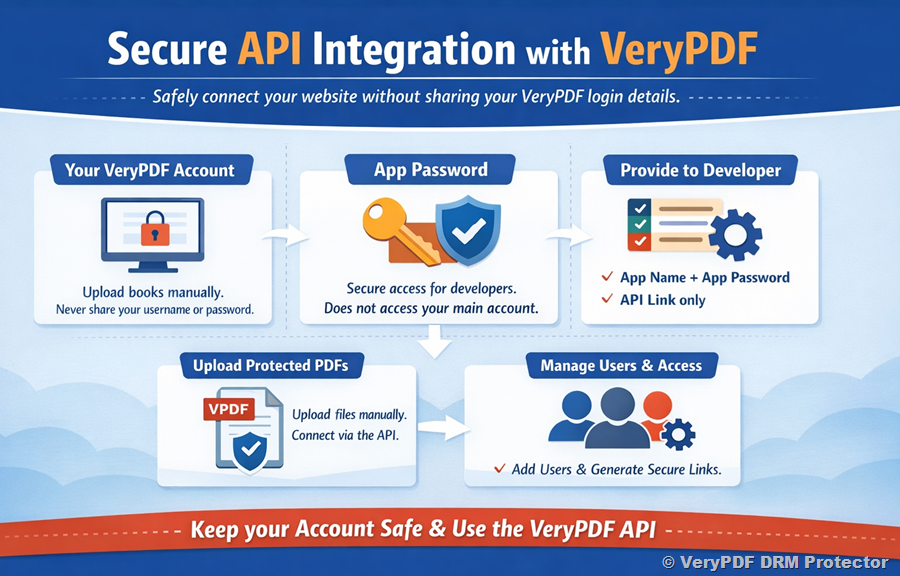
Below is a step-by-step guide, starting with how to create an App Password in VeryPDF DRM Protector.
1. How to Create an App Password in VeryPDF DRM Protector
To allow developers to securely manage your PDF content via API without exposing your main account password, VeryPDF DRM Protector supports creating App Passwords directly from your dashboard. Follow these steps:
Step 1: Log in to VeryPDF DRM Protector Dashboard
- Open your VeryPDF DRM Protector profile panel.
- Log in with your administrator account, which has permissions to manage users and plugin settings.
Note: Only admins or users with sufficient permissions can create App Passwords.
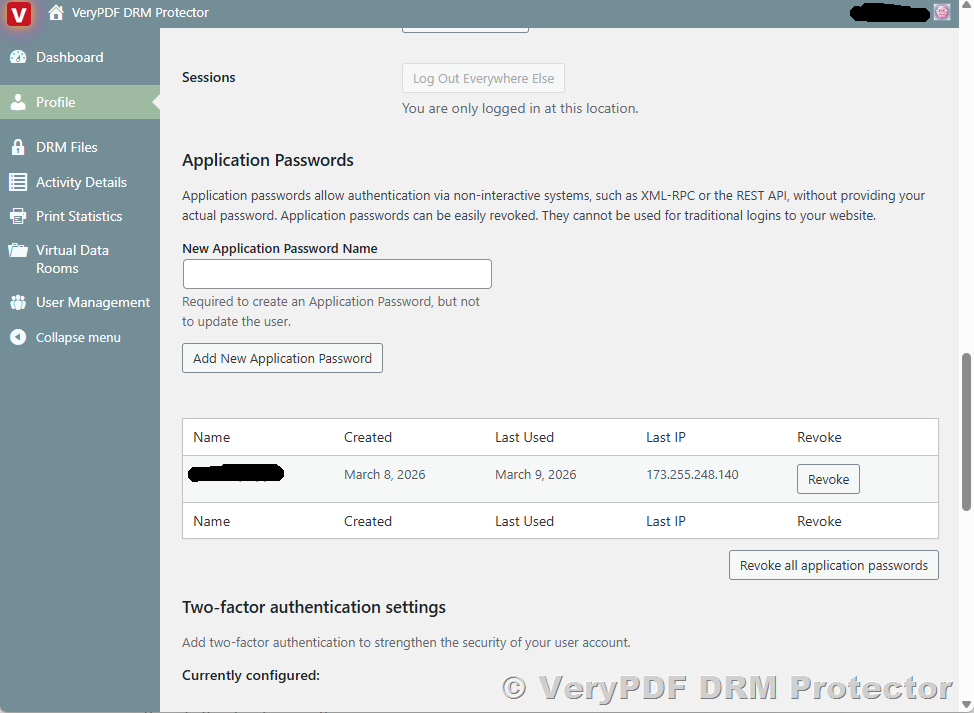
Step 2: Access DRM Protector User Settings
- Navigate to Users or your personal profile page.
- Click on Profile.
- Scroll down to the VeryPDF DRM Protector / App Password section.
Step 3: Generate a New App Password
- Click Generate New App Password.
- Enter a descriptive name, e.g., mywebsite.integration, to identify this password.
- Copy and save the generated password immediately, as it may only be displayed once.
Step 4: Share App Password with Your Developer
Provide the developer with:
- App Name
- App Password
- API Documentation Link
This allows them to access the API without needing your VeryPDF DRM Protector login credentials.
Step 5: Manage and Revoke App Passwords
- To stop an application’s access, go to the App Password list and click Revoke.
- You can create separate passwords for different applications or developers for flexible, secure access.
Summary
Creating App Passwords allows you to:
- Enable API access securely
- Assign separate passwords per developer or application
- Revoke or update passwords anytime
Your PDFs remain secure while developers integrate them into your website or server.
2. Your Personal VeryPDF Account
Your standard VeryPDF account is your hub for uploading and managing PDF files. You do not need to share your username or password. All uploads should be done manually to ensure security.
3. What is an App Password and Why It’s Safe
An App Password is a unique code created for a specific application:
- Allows the app to access specific API features, e.g., managing books or users.
- Does not allow logging in to your main account, keeping your profile secure.
Think of it as giving a key to a single room instead of the entire house.
4. What to Share with Your Developer
Provide only:
- App Name
- App Password
- API Documentation Link
This is sufficient for the developer to integrate your website with VeryPDF API securely.
5. Uploading Your PDF Books
- Upload books manually via your VeryPDF account.
- Once uploaded, you will receive a protected .vpdf file.
- Developers can use this .vpdf on your server and connect it to your site via API.
6. Using the VeryPDF API
The API allows developers to:
- Add new users
- List existing users
- Generate secure reading links
This can all be done without access to your main account credentials. Detailed instructions are available in the VeryPDF PDF DRM API documentation.
7. Key Takeaways
- Never share your main account credentials.
- Use App Passwords for secure third-party access.
- Upload PDFs manually for maximum security.
- Developers can manage users and protected PDFs via API without seeing your login details.
This ensures your protected PDF content remains secure while still integrating seamlessly with websites or servers.