
Many companies need to share PDF files with customers, students, employees, or members. One common problem is unauthorized sharing. Once a PDF leaves your system, users can easily forward it to others.
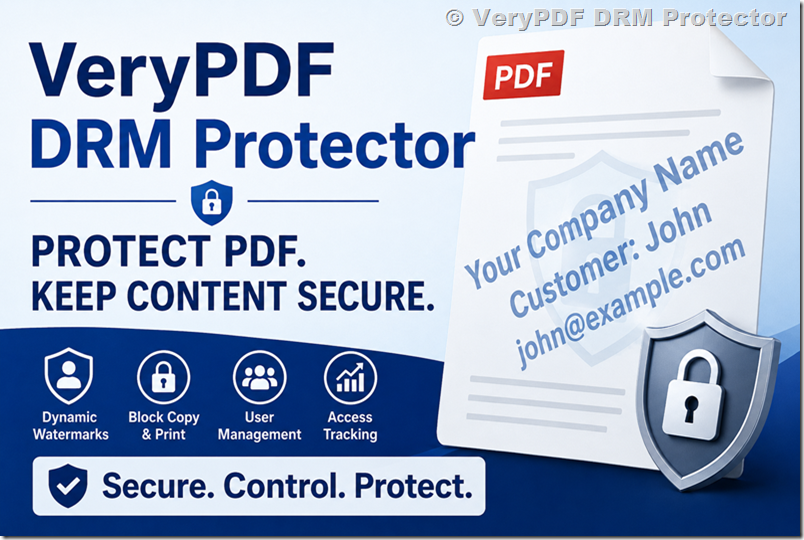
A dynamic username watermark helps solve this problem. When the user’s name, email address, or account information appears directly on every page, people are much less likely to share the document.
A customer recently asked:
“Can I pass a PHP variable and display the username as a watermark in a protected PDF?”
The answer is yes, but it depends on how your PDF protection system works.
This article explains how dynamic username watermarks work in VeryPDF DRM Protector and how you can use them to protect sensitive PDF documents.
Why Add a Username Watermark to a PDF?
Many websites allow users to download PDF files after login. These PDFs often contain:
- Training materials
- eBooks
- University course content
- Technical manuals
- Financial reports
- Membership documents
- Internal company files
Without a personalized watermark, users can easily share the file with others.
With a dynamic watermark, each reader sees their own information, such as:
Your Company Name\nCustomer: YourName\nYourEmail@gmail.com
This makes it easy to identify the source if a document is leaked.
Common Question
Can I Pass a PHP Variable Directly into a Watermark?
Many developers have a PHP portal or membership website.
They often want something like this:
$username = “YourName”;
Then they want the PDF viewer to display:
Customer: YourName
inside the watermark automatically.
This is possible, but there are different ways to do it.
How Dynamic Watermarks Work in VeryPDF DRM Protector
First, upload your PDF to VeryPDF DRM Protector.
Open:
https://drm.verypdf.com/online/
Go to:
Watermark → Dynamic Watermark
You can create a watermark template like:
Your Company Name\nCustomer: {username}\n{email}
The system automatically replaces the variables with user information.
Step-by-Step Setup
|
Step |
Action |
|
1 |
Open VeryPDF DRM Protector, https://drm.verypdf.com/online/ |
|
2 |
Configure Dynamic Watermark, Your Company Name\nCustomer: {username}\n{email} |
|
3 |
Select and Upload a PDF file |
|
4 |
click the “Upload and Secure PDF” button to create a DRM-protected PDF, after processing, you will receive a secure URL similar to the following: https://online.verypdf.com/app/reader2/reader.php?url=https://online.verypdf.com/u/public/api/20260625-151446-1756196252.vpdf&username=User47o6z8cNb3r2&password=Pass1f2c7pRfyh5d This URL contains the default username and password: |
|
5 |
Create User Account, This is the important step. The “{username}” variable currently supports only users that already exist in your DRM account. Therefore, you need to create user accounts in the User Management page: https://drm.verypdf.com/wp-admin/admin.php?page=VeryPDFDRMUserManagement For testing purposes, you may add a user such as: UserName: John |
|
6 |
Open PDF using Username and Password. Replace the default username and password in the protected URL with the credentials of the user you created. For example: https://online.verypdf.com/app/reader2/reader.php?url=https://online.verypdf.com/u/public/api/20260625-151446-1756196252.vpdf&username=John&password=a12345678 Open the new URL. You will see that the correct username and email information are displayed in the dynamic watermark. |
|
7 |
Watermark displays user’s information, include username, email or other information. |
Example Protected URL
After protecting the PDF, you may receive a URL like this:
https://online.verypdf.com/app/reader2/reader.php
?url=https://online.verypdf.com/u/public/api/sample.vpdf
&username=User47o6z8cNb3r2
&password=Pass1f2c7pRfyh5d
The username and password identify the reader.
When the user opens the document, the watermark shows the corresponding information.
!!! You can replace the username and password with any predefined user information stored in your account.
Why Must the User Exist First?
Some people expect the system to accept any username passed in the URL.
For example:
?username=Michael
?username=Robert
?username=Christopher
?username=Andrew
However, the current DRM system requires the user account to exist in advance.
This provides better security.
The system verifies:
|
Security Check |
Benefit |
|
User exists |
Prevents anonymous access |
|
Password validation |
Blocks unauthorized users |
|
User tracking |
Records document access |
|
User permissions |
Controls who can view files |
|
Watermark identity |
Shows verified user information |
Without user verification, anyone could modify the URL and pretend to be another user.
Example User Record
You can create a user account like:
|
Field |
Value |
|
Username |
John |
|
Password |
a12345678 |
|
|
|
|
First Name |
John |
|
Last Name |
Lastname |
|
Role |
User |
After creating the account, the dynamic watermark will display the correct information.
Dynamic Watermark Variables
VeryPDF DRM Protector supports user-based watermark information.
Common examples include:
|
Variable |
Description |
|
{username} |
Login username |
|
{email} |
User email |
|
{firstname} |
First name |
|
{lastname} |
Last name |
Example watermark:
Confidential\nUser: {username}\nEmail: {email}
Every reader sees their own information.
Real Example: Online Course Protection
Suppose a university sells online training materials.
Without protection:
- Student A downloads PDF
- Student A shares PDF with 100 people
- School loses revenue
With VeryPDF DRM Protector:
- Student A logs in
- PDF displays Student A’s name
- PDF displays Student A’s email
- Every page contains personalized watermark
If the file appears online, the source can be identified immediately.
Dynamic Watermark vs Static Watermark
|
Feature |
Dynamic Watermark |
Static Watermark |
|
Same text for all users |
No |
Yes |
|
User name shown |
Yes |
No |
|
Email shown |
Yes |
No |
|
User tracking |
Yes |
No |
|
Leak investigation |
Easy |
Difficult |
For sensitive documents, dynamic watermarks provide much better protection.
Can VeryPDF Support URL-Based Username Variables?
Some companies do not want to create user accounts in advance.
Instead, they want to pass values directly from:
- PHP
- ASP.NET
- Java
- Python
- Node.js
- Membership systems
- LMS platforms
For example:
?username=John
and immediately display:
Customer: John
inside the watermark.
This feature can be added as a custom solution after subscribing to VeryPDF DRM Protector.
The current version focuses on security and authorized access, so user verification is required before document viewing.
Why Many Companies Choose VeryPDF DRM Protector
Many PDF security products only encrypt documents.
VeryPDF DRM Protector provides additional protection features:
|
Feature |
Available |
|
PDF Encryption |
Yes |
|
Dynamic Watermarks |
Yes |
|
User Management |
Yes |
|
Block Copy |
Yes |
|
Block Print |
Yes |
|
Expiration Control |
Yes |
|
Device Restrictions |
Yes |
|
Online Viewing |
Yes |
|
Access Tracking |
Yes |
This makes it suitable for:
- Universities
- Publishers
- Training companies
- Financial institutions
- Engineering firms
- Government organizations
Frequently Asked Questions
1. Can I display a user’s name in a PDF watermark?
Yes. VeryPDF DRM Protector supports dynamic watermark variables such as {username}.
2. Can I display the user’s email address?
Yes. You can use the {email} variable.
3. Can I pass a PHP variable into the watermark?
Yes. The username can be associated with a DRM user account and displayed through dynamic watermark variables.
4. Does the user account need to exist first?
Yes. The current version requires user accounts to be created before accessing protected documents.
5. Why is user verification required?
It prevents unauthorized access and improves document security.
6. Can I use dynamic watermarks on every page?
Yes. The watermark can appear throughout the document.
7. Can I stop users from copying PDF content?
Yes. DRM protection can block copy operations.
8. Can I stop printing?
Yes. Printing can be disabled completely or restricted.
9. Can I track who opened a PDF?
Yes. User activity can be monitored through the DRM system.
10. Can I protect training materials and eBooks?
Yes. Many organizations use DRM protection for educational content.
11. Can I use VeryPDF DRM Protector with a membership website?
Yes. It can work alongside membership systems and user management platforms.
12. Can VeryPDF customize the watermark process?
Yes. Custom development services are available for organizations with special requirements.
Try VeryPDF DRM Protector
If you need to protect PDF files, display dynamic usernames, prevent unauthorized sharing, and control document access, VeryPDF DRM Protector is a practical solution.
Website:
Online Demo:
https://drm.verypdf.com/online/
You can test the system online and see how dynamic watermarking works with your own PDF files.