
If you are using VeryPDF DRM Protector to secure your PDF files and have enabled “Allow PDF to Be Opened Only on the First N Devices”, you may occasionally encounter an error stating that the PDF has reached the maximum number of allowed devices.
This article explains the actual causes, temporary solutions, and preventive measures to ensure legitimate readers can continue accessing their PDFs without consuming extra licenses.

Understanding the Problem
When using VeryPDF DRM Protector with the “Allow PDF to Be Opened Only on the First N Devices” setting, some legitimate readers may encounter the following error message:
CheckForFirstNDevices: [ERROR] This PDF file has reached the maximum number of allowed devices. Max allowed devices = 1.

At first glance, this may seem confusing, because the reader might have done nothing “wrong.” In many cases, they:
- Use the same machine they originally activated the PDF on.
- Keep the PDF in the same folder as when they first opened it.
- Have a stable internet connection, allowing the DRM server to communicate normally.
Despite all of these conditions being met, the DRM system may still block access.
Why This Happens
This occurs because VeryPDF DRM Protector identifies a device using a combination of hardware, software, and network information, not just the physical computer. Even minor changes in the environment can make the DRM system believe that a “new device” is attempting to open the PDF. Common triggers include:
- Switching browsers – Each browser (Chrome, Firefox, Edge) stores DRM-related device information differently. Opening the same PDF in a new browser can register a new device.
- Using VPNs or proxies – The DRM server detects a change in IP address, which may cause the PDF to appear as being accessed from another device.
- Changing hardware – Replacing network cards or hard drives alters system identifiers used to generate the device fingerprint.
In short, the error does not mean the reader is doing anything wrong—it simply indicates that the DRM system thinks the PDF has reached the maximum number of allowed devices based on its tracking rules.
Real-World Example
A reader opens a PDF for the first time in Chrome, then later tries to open it in Firefox. Even though it is the same physical computer and the PDF hasn’t been moved, the DRM system sees Firefox as a new device and may show the “maximum allowed devices” error.
This behavior ensures strong security and prevents unauthorized sharing but can sometimes affect legitimate readers if environmental changes occur.
Actual Causes of Device-Locking
VeryPDF DRM Protector identifies and tracks devices using a sophisticated combination of hardware and software fingerprints, along with network and browser information. This ensures that PDF files are only opened on authorized devices, preventing unauthorized sharing. However, this system is sensitive to changes in the computing environment. Even small changes can make the DRM system think a new device is attempting to access the PDF, triggering the “maximum allowed devices” error.
Here are the main triggers for device-limit errors in detail:
1. Using a VPN or Proxy
- What happens: When a reader connects to the internet via a VPN or proxy, their public IP address changes.
- Why it triggers a lock: VeryPDF DRM Protector monitors network environment as part of its device fingerprint. A new IP can make the system interpret the connection as a different device, even though the physical computer hasn’t changed.
- Real-world scenario: A reader opens a PDF at home, then connects via a VPN while traveling. The DRM system may block access, showing the “maximum allowed devices” error.
2. Switching Browsers
- What happens: Each browser (Chrome, Firefox, Edge, etc.) stores DRM-related device information differently.
- Why it triggers a lock: Opening the same PDF in a new browser registers it as a new device.
- Real-world scenario: A reader first opens the PDF in Chrome, later tries Firefox, then Edge. Each switch could register a separate device, consuming the limited device quota.
3. Changing Network Cards (NIC)
- What happens: Network cards have unique identifiers (MAC addresses). Replacing or changing the network card alters this identifier.
- Why it triggers a lock: The DRM system incorporates the MAC address into the device hash. A new MAC address is treated as a different device.
- Impact: Even if all other hardware is unchanged, replacing a NIC may require manual reactivation in the DRM panel.
4. Changing Hard Drives
- What happens: Installing a new hard drive changes certain system identifiers used for device fingerprinting.
- Why it triggers a lock: The DRM system detects these changes as a new device.
- Impact: Readers who replace or upgrade their hard drive may temporarily lose access until the new device hash is recognized or cleared in the DRM panel.
5. Other Major Hardware Changes
- What happens: Replacing the CPU, motherboard, or other critical hardware components significantly alters system fingerprints.
- Why it triggers a lock: The DRM system cannot match the new hardware fingerprint with the original device, triggering the device limit error.
- Impact: Access may require manual intervention in the DRM panel to restore the reader’s permissions.
Important Note: Certain changes do not trigger device locking, including:
- Moving the PDF to another folder or drive
- Normal system updates (OS patches, security updates, or software updates that do not change critical identifiers)
By understanding these triggers, administrators and readers can take preventive measures to avoid accidental device-limit errors and ensure smooth access to protected PDFs.
Step-by-Step Solutions
If a reader encounters the device-limit error, follow these detailed steps to restore access without consuming extra licenses. Each step explains why it matters, what to do, and what to check.
Step 1: Check Network Environment
- Why this matters: VeryPDF DRM Protector monitors the network environment (IP address) as part of the device fingerprint. VPNs or proxies can make the system interpret the connection as a different device.
- What to do:
- Ask the reader to disconnect any VPNs or proxy servers.
- Ensure the reader is on a stable internet connection.
- Reopen the PDF; the DRM system should now recognize the original device.
- Notes:
- If the PDF opens successfully after disconnecting the VPN, the issue was caused by network masking.
- Advise readers to avoid VPN usage when accessing DRM-protected PDFs in the future.
Step 2: Check Browser
- Why this matters: Each browser (Chrome, Firefox, Edge, etc.) stores DRM-related device information differently. Changing browsers or browser versions can register a new device in the DRM system.
- What to do:
- Confirm the reader is using the same browser and version that was used for the initial activation.
- If the reader switched browsers or updated to a new version, ask them to temporarily revert to the original browser and version.
- Notes:
- Using multiple browsers for the same PDF may consume multiple device licenses.
- Stick to one browser for accessing DRM-protected PDFs to avoid accidental device registration.
Step 3: Check Hardware Changes
- Why this matters: Major hardware changes can alter system fingerprints, which the DRM system uses to track devices.
- What to do:
- Ask the reader whether any critical hardware components have been changed recently (network cards, hard drives, CPU, motherboard).
- If hardware has been modified, a manual reactivation may be required in the DRM Panel.
- Notes:
- Minor changes (like RAM upgrades) usually do not trigger device locks.
- Document hardware changes to simplify future troubleshooting.
Step 4: How to Release a Locked Device Manually
Even with strict device restrictions, legitimate readers may occasionally encounter a device lock due to network, browser, or hardware changes. VeryPDF DRM Protector allows administrators to manually release a locked device, restoring access immediately without issuing a new license.
Step-by-Step Process
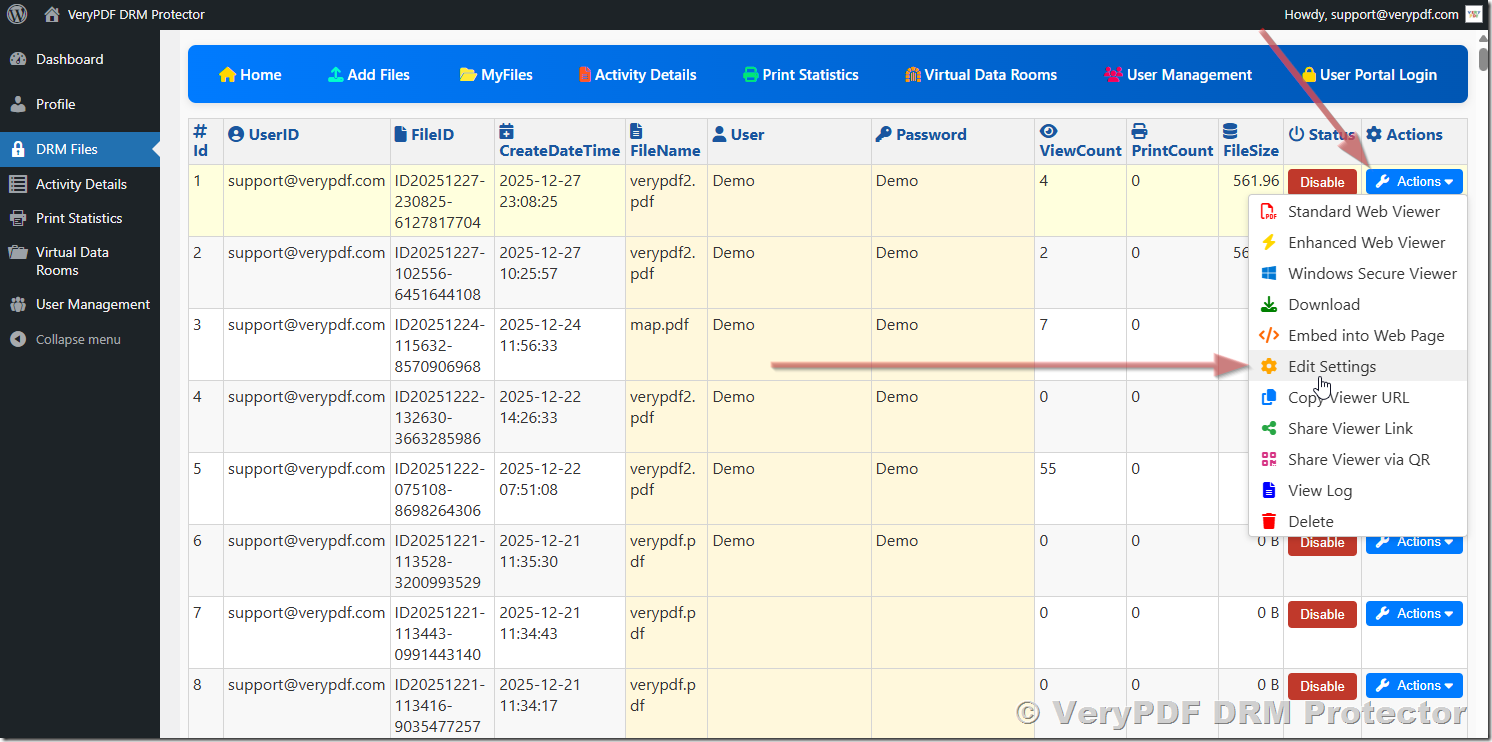
- Access the DRM Management Interface
- Open the administrator panel in a web browser:
- https://drm.verypdf.com/wp-admin/admin.php?page=VeryPDFDRMFiles
- Locate the Relevant PDF File
- Use the interface to search or browse for the File ID of the PDF that has locked the user’s device.
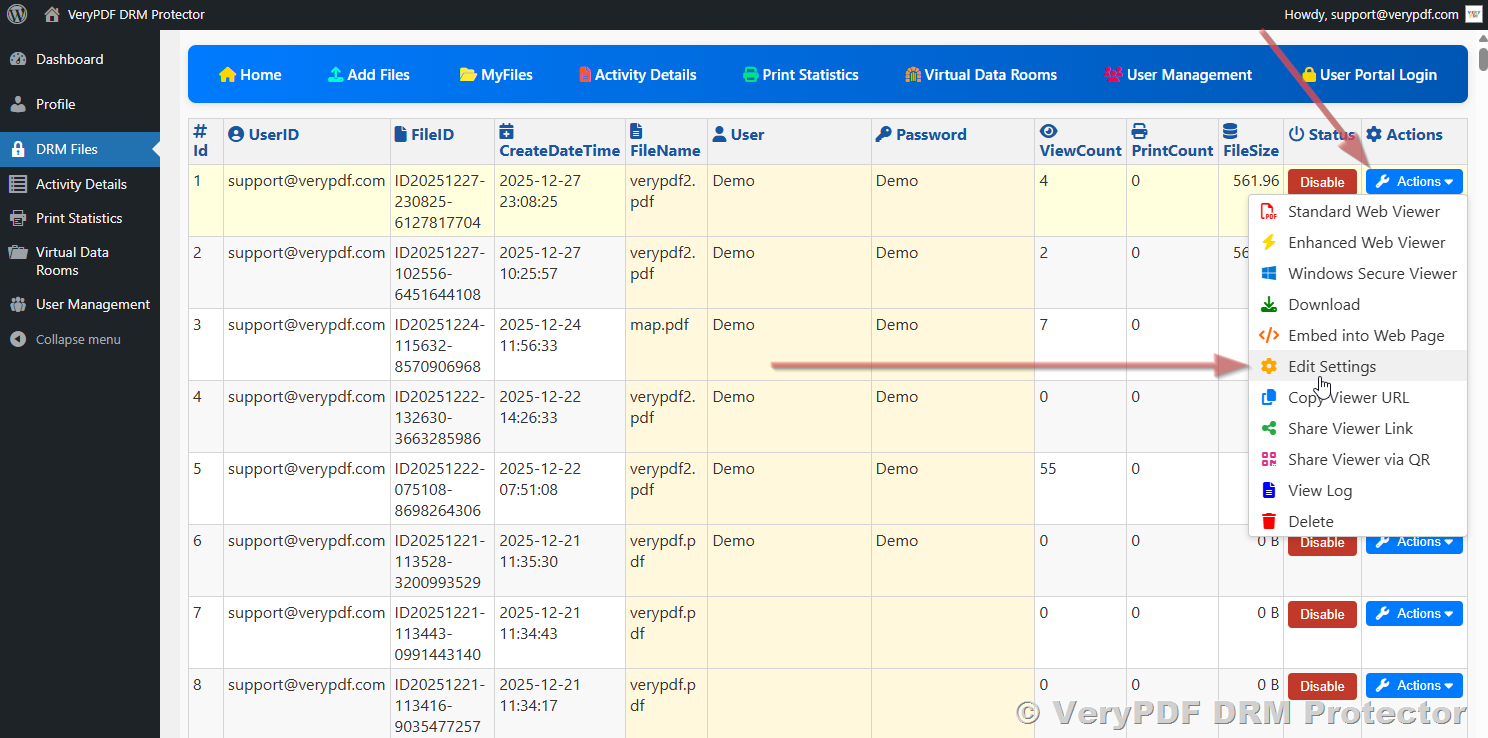
- Open Settings for the File
- Click the Actions button next to the target File ID.
- Select Settings from the dropdown menu.
- Scroll to Advanced Settings
- In the advanced settings section, you may see entries like:
- VeryPDFDRM_LockToFirstNDevices=3
- VeryPDFDRM_LockToDeviceID0=89cd096b401add3b5af126f090819ada
- VeryPDFDRM_LockToDeviceID1=85633fe8882217ae3846d1fb6f7cb628
- VeryPDFDRM_LockToDeviceID2=c3225f717ed455e9da6c205d26c4289d

Explanation of Settings
- VeryPDFDRM_LockToFirstNDevices → Maximum number of devices allowed for this PDF. In this example, 3 devices are permitted.
- VeryPDFDRM_LockToDeviceID0 → Represents the first registered device’s unique fingerprint.
- VeryPDFDRM_LockToDeviceID1 → Represents the second registered device’s fingerprint.
- VeryPDFDRM_LockToDeviceID2 → Represents the third registered device’s fingerprint.
Each VeryPDFDRM_LockToDeviceID entry corresponds to a device that has successfully opened the PDF. Device IDs are numbered from 0 to N-1, where N is the maximum number of allowed devices.
How to Release a Device Lock
- Remove the corresponding VeryPDFDRM_LockToDeviceID line from the advanced settings or set its value to empty:
- VeryPDFDRM_LockToDeviceID1=
- Click Save to apply changes.
- The DRM system will recalculate device bindings, freeing up the slot previously occupied by the locked device.
- The legitimate reader can now access the PDF immediately without consuming an additional license.
Key Points:
- Manual release does not compromise security; all other registered devices remain tracked.
- Useful for legitimate readers who temporarily changed networks, used a VPN, or switched browsers or hardware.
- Administrators can repeat this process as needed to ensure smooth access while maintaining strict device limits.
Step 5: Educate Readers
- Avoid VPNs or proxies while opening DRM-protected PDFs.
- Keep browser versions consistent with the original activation.
- Minimize critical hardware changes, especially network cards and hard drives.
- PDFs can be moved between folders without triggering device locks, but readers should maintain stable paths for consistency.
Conclusion
The “maximum allowed devices” error is typically triggered by changes in:
- Network environment (VPNs or proxies)
- Browser or browser version
- Critical hardware changes (especially network cards)
Temporary solutions include disconnecting VPNs, reverting to the original browser version, and checking the DRM Panel for false device activations. Following these steps allows legitimate readers to continue accessing the PDF without consuming extra licenses.
For a deeper understanding of device-limited PDFs, see:
How “Allow PDF to Be Opened Only on the First N Devices” Really Works