
Sharing a PDF by email or a normal download link is easy. The problem starts after the recipient gets the file.
Once a PDF is downloaded, it can be copied, forwarded, uploaded to cloud storage, or shared with other people. If the document contains a paid ebook, training material, business report, contract, exam paper, or confidential information, a normal PDF link does not give the document owner enough control.
VeryPDF DRM Protector provides a different approach. Instead of simply sending the PDF file, you can create a controlled invitation link for a specific document.
With the Invite User feature, you can control how many devices can open the PDF, when the link expires, how long the document remains available after the first access, and how many times the document can be viewed.
This makes it useful when you need to share a PDF securely without giving unlimited access to the file.
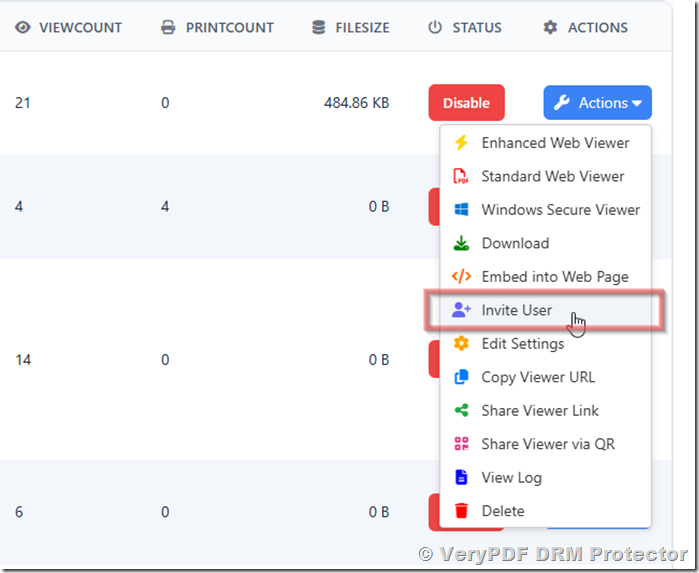
What Is Invite User in VeryPDF DRM Protector?
Invite User allows a document owner to create a special access link for a DRM-protected PDF.
The link can have its own access rules, independent of the normal document settings. You can create an invitation link for a customer, student, employee, business partner, reviewer, or other reader.
For example, you could create a link with these settings:
| Setting | Example |
|---|---|
| Device limit | 2 devices |
| Link expiration | 30 days |
| Expiration after first access | 24 hours |
| Maximum views | 5 views |
| Sharing method | Short link |
| Document | Protected PDF |
The recipient does not need to receive an unprotected PDF file. They receive a controlled reading link instead.
This is especially useful for secure PDF sharing, online course materials, paid ebooks, confidential reports, and temporary document access.
Why Is a Normal PDF Download Link Not Enough?
A normal PDF download link usually answers only one question:
Where can the user download the PDF?
It does not necessarily answer:
- Who can open the PDF?
- How many devices can they use?
- When should the link stop working?
- How many times can they view the document?
- What happens if the link is forwarded?
- Can the document be accessed after a limited period?
- Can you stop access later?
Consider an online training company that sells a $100 PDF course.
The company emails the PDF to a customer. The customer downloads it and sends it to five friends. Those people can now read the same course without paying.
The company has little control over the PDF after it has been downloaded.
With a DRM-protected invitation link, the company can instead give the customer controlled access and limit the number of devices and viewing period.
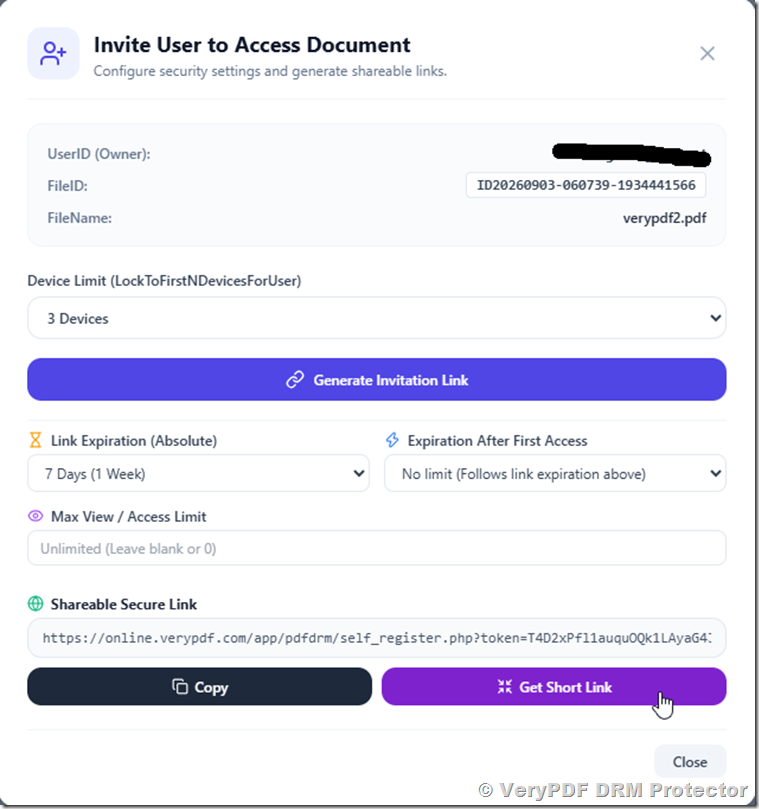
1. Limit the Number of Devices
One of the most useful Invite User options is the device limit.
When the recipient first opens the protected document, VeryPDF DRM Protector can record the device being used. The invitation can then be configured to allow access from a specific number of devices.
For example:
| Device Limit | Meaning |
|---|---|
-1 |
Keep the default document setting |
0 |
No device limit |
1 |
Allow one device |
2 |
Allow up to two devices |
3–20 |
Allow up to the selected number of devices |
This can help prevent a single invitation link from being freely shared with many people.
Example: Online Course PDF
A training company sells a PDF study guide together with an online course.
The company could set:
Device limit: 2 devices
A student could use the PDF on a laptop and tablet, but the same invitation would not be intended for unlimited devices.
This is much more practical than forcing every customer to use only one device, while still providing better control than a normal PDF download.
2. Set an Expiration Date for the PDF Link
Sometimes a document should only be available for a limited period.
Invite User supports an absolute expiration time for the invitation link.
You can select predefined periods such as:
- 10 minutes
- 30 minutes
- 1 hour
- 2 hours
- 5 hours
- 12 hours
- 1 day
- 3 days
- 7 days
- 14 days
- 30 days
- Never expire
You can also select a specific date and time.
For example:
The invitation link will expire on Monday at 9:00 AM.
After the expiration time is reached, the invitation can no longer be used to access the protected document.
When Is an Expiring PDF Link Useful?
An expiration date is useful when you are sending:
- Confidential business reports
- Contract drafts
- Financial documents
- Tender documents
- Examination papers
- Temporary training materials
- Private research reports
- Preview copies
- Paid digital content
Instead of remembering to manually remove the link later, you can set the expiration time when creating the invitation.
3. Expire the Link After the First Access
There is another useful option: expiration after first access.
This is different from setting a fixed calendar expiration date.
For example, you could create a link that remains unused until someone opens it. Once the recipient opens the document for the first time, the timer starts.
You could configure:
Expiration after first access: 2 hours
The user can then access the document during that period.
This works well when you do not know exactly when the recipient will open the document.
Example: Confidential Proposal
Suppose a company sends a confidential proposal to a potential customer.
The company does not want the recipient to have unlimited access to the document. However, it also does not know when the customer will open the email.
Instead of making the link expire two hours after sending the email, the company can configure the invitation to expire two hours after the first access.
This gives the recipient enough time to review the document while reducing the period during which the document remains available.
4. Limit the Number of Views
Invite User can also control the maximum number of times a document can be opened through an invitation.
For example:
Maximum views: 3
After the allowed number of views is reached, the invitation link can no longer be used to render the protected document.
This is useful when you want to provide limited access rather than permanent access.
Example: Paid Report Preview
A research company wants potential customers to read a report before purchasing it.
Instead of sending the complete PDF as an unrestricted attachment, the company can create an invitation link with:
- 1 device
- 3 maximum views
- 24-hour expiration
- DRM protection
The customer gets an opportunity to review the report, while the publisher has more control over access.
5. Create a Secure Invitation Link
When you generate an Invite User link, VeryPDF DRM Protector can include the information required to enforce the configured access rules.
The resulting URL may contain security-related information such as:
- Protected document information
- Invitation information
- Access rules
- Device restrictions
- Expiration information
- Security signatures
You do not need to manually build these parameters.
The system generates the invitation link for you.
This makes it easier for a non-technical user to create controlled PDF access.
6. Turn a Long Security Link into a Short Link
Security URLs can become long because they may contain several parameters.
If you need to send the link through email, WhatsApp, SMS, or another messaging service, a long URL may look complicated.
VeryPDF DRM Protector can provide a short link for the invitation.
For example, instead of sending a long URL containing many parameters, you can send a shorter URL that redirects to the protected invitation.
This makes the link easier to:
- Copy
- Paste
- Send by SMS
- Send through WhatsApp
- Share with customers
- Add to a customer message
The management interface also provides a convenient Copy button so the generated link can be copied to the clipboard quickly.
Invite User vs. Sending a PDF Attachment
The difference is important.
| Method | Normal PDF Attachment | VeryPDF DRM Invitation |
|---|---|---|
| Send a PDF file | Yes | No need to send the original PDF |
| Device limit | Usually no | Yes |
| Link expiration | No | Yes |
| Expiration after first access | No | Yes |
| Maximum views | Usually no | Yes |
| DRM protection | No | Yes |
| Short invitation link | No | Yes |
| Access control | Limited | Much more control |
A normal attachment is designed for file delivery.
An Invite User link is designed for controlled document access.
Practical Use Case: Sell Protected Ebooks
Authors, publishers, and digital content sellers often face the same problem.
They sell an ebook, but the PDF can easily be forwarded to another person.
With VeryPDF DRM Protector, a seller can create controlled access for each customer.
For example:
Customer A
- Maximum devices: 2
- Expiration: 30 days
- Maximum views: 50
Customer B
- Maximum devices: 2
- Expiration: 30 days
- Maximum views: 50
Each customer can receive a separate invitation.
This makes it much harder to treat a paid ebook like an unrestricted PDF attachment.
Practical Use Case: Online Training and Education
Training companies frequently distribute:
- Course PDFs
- Study guides
- Certification materials
- Training manuals
- Exam preparation books
- Instructor materials
A useful configuration might be:
2 devices + 30-day expiration
The student can use the material during the course but does not receive an unrestricted copy that can easily be redistributed.
For short exams or tests, a much shorter access period may be appropriate.
For example:
1 device + 1 hour after first access + 3 views
The exact settings depend on the course and business model.
Practical Use Case: Business Documents
Businesses regularly need to send confidential documents to people outside the company.
Examples include:
- Contracts
- Financial statements
- Sales proposals
- Tender documents
- Product specifications
- Business plans
- Due diligence documents
- Private reports
Instead of emailing an unrestricted PDF attachment, a company can create an invitation with limited access.
For example:
| Security Rule | Example |
|---|---|
| Devices | 1 |
| Expiration after first access | 2 hours |
| Maximum views | 2 |
| Delivery | Short link |
The recipient has enough time to review the document, but the invitation does not remain permanently available.
Practical Use Case: Research Reports and Paid Content
Research companies and consultants often need to give prospects a preview of a high-value report.
The problem is simple: the more valuable the report is, the more important it becomes to control who can read it.
Instead of sending the complete PDF as an unrestricted attachment, you can provide a protected invitation link.
For example:
1 device + 3 views + 24-hour expiration
This gives a potential customer enough access to evaluate the report while reducing uncontrolled sharing.
How to Use Invite User
The basic workflow is simple.
Step 1: Protect Your PDF
Upload the PDF to VeryPDF DRM Protector and apply your required DRM settings.
Step 2: Open the Invite User Feature
Select the protected document and use the Invite User option.
Step 3: Configure the Device Limit
Choose how many devices can use the invitation.
For example:
2 devices
Step 4: Configure the Expiration
Choose either:
- An absolute expiration date, or
- An expiration period after first access
You can use both when your business requires additional control.
Step 5: Set the Maximum Views
If necessary, specify the maximum number of times the document can be opened through the invitation.
Step 6: Generate the Invitation Link
Click Generate Invitation Link.
The system creates the controlled access URL.
Step 7: Get a Short Link
If the generated URL is too long for your email or message, use the short-link option.
Step 8: Send the Link
Send the invitation through:
- SMS
- Customer portal
- Learning platform
- Your own website
The recipient can then access the protected document according to the rules you configured.
A Good Way to Choose Security Settings
You do not always need the strongest possible restrictions.
The right settings depend on the document.
| Situation | Suggested Configuration |
|---|---|
| Paid ebook | 1–2 devices + longer expiration |
| Online course | 1–2 devices + course duration |
| Confidential proposal | 1 device + short expiration |
| Contract review | 1–2 devices + limited views |
| Exam paper | 1 device + short first-access period |
| Research preview | 1 device + limited views |
| Temporary report | 1–2 devices + fixed expiration |
The goal is to match the security settings to the real business need.
Too few restrictions can make sharing easy. Too many restrictions can make legitimate users frustrated.
Why VeryPDF DRM Protector Is Useful for Secure PDF Sharing
Many PDF tools focus on creating or editing documents.
VeryPDF DRM Protector focuses on a different problem:
What happens after you give someone access to the document?
The Invite User feature gives document owners more control over access without requiring them to manually create complicated rules for every reader.
You can combine:
- Device restrictions
- Link expiration
- First-access expiration
- View limits
- DRM protection
- Secure invitation links
- Short links
This is particularly useful for businesses that sell or distribute digital documents regularly.
If your business sends valuable PDFs to customers, students, partners, or reviewers, VeryPDF DRM Protector is worth considering instead of relying on ordinary PDF attachments or download links.
Frequently Asked Questions
1. What is VeryPDF DRM Protector?
VeryPDF DRM Protector is a document protection service designed to control access to protected PDF files. It provides DRM features such as device restrictions, expiration controls, and controlled document sharing.
2. What is Invite User?
Invite User allows a document owner to create a special access link for a protected PDF with its own access rules.
3. Can I limit a PDF to one or two devices?
Yes. You can configure the invitation to allow a specific number of devices, such as one or two devices.
4. Can I make a PDF link expire?
Yes. You can configure an absolute expiration date and time for an invitation link.
5. Can a PDF expire after the user opens it?
Yes. You can configure an expiration period that starts after the recipient’s first access.
6. Can I limit how many times someone views a PDF?
Yes. Invite User supports a maximum view or access limit.
7. Can I send a DRM PDF link by email?
Yes. You can send the generated invitation link through email. A short link can also make the message cleaner.
8. Can I send the link through WhatsApp or SMS?
Yes. A short invitation link is useful for email, WhatsApp, SMS, and other messaging services.
9. What happens if someone forwards the invitation link?
The result depends on the access rules you configured. Device limits, expiration settings, and view limits can reduce the usefulness of a forwarded invitation.
10. Can I use Invite User for paid ebooks?
Yes. Paid ebooks are one of the practical use cases. You can give customers controlled access instead of sending an unrestricted PDF attachment.
11. Is Invite User useful for online courses?
Yes. Training companies can use device limits and expiration periods to control access to course PDFs and study materials.
12. Can I use it for confidential business documents?
Yes. It can be useful for contracts, proposals, reports, financial documents, and other files that should only be available for a limited time.
13. Can I create different access rules for different users?
Yes. Invitation links can be created with their own access settings, allowing different recipients to receive different restrictions.
14. Can I create a short link for a protected PDF?
Yes. VeryPDF DRM Protector provides a short-link option for invitation URLs.
15. Is a DRM invitation the same as sending a PDF attachment?
No. A PDF attachment gives the recipient the file. A DRM invitation provides controlled access to the protected document.
16. What is the best device limit for an ebook?
For many ebook and course scenarios, one or two devices can be a reasonable starting point. The best setting depends on whether readers are expected to use a computer, tablet, phone, or multiple devices.
17. What is the difference between link expiration and first-access expiration?
A normal expiration date is based on a fixed calendar time. First-access expiration starts the timer when the recipient first opens the document.
18. Who should use VeryPDF DRM Protector?
It can be useful for publishers, authors, training companies, educators, consultants, research companies, and businesses that need better control over PDF access.
Final Thoughts
Sending a PDF is easy. Controlling what happens after the PDF is shared is much harder.
If a document has commercial value or contains confidential information, a normal download link may provide too little control.
VeryPDF DRM Protector Invite User gives you a practical way to create controlled PDF access with device limits, expiration dates, first-access expiration, view limits, and short invitation links.
For businesses that regularly distribute ebooks, training materials, reports, proposals, contracts, or other valuable PDFs, this can be a much safer approach than simply emailing the original file.
If you need to share a PDF while keeping control over who can access it, how many devices they can use, how long they can read it, and how many times they can open it, try VeryPDF DRM Protector.