
Adding watermarks to a PDF is an effective way to protect your documents from unauthorized distribution or copying. If you want to add a repeated, tiled watermark to a PDF file, you can easily do so with VeryPDF’s online tool. Follow these simple steps to create a PDF with a watermark that repeats across the pages:

Step-by-Step Guide
- Go to the VeryPDF Watermark Tool
Open your web browser and go to the following link:
VeryPDF Online Watermark Tool. - Navigate to the “Watermark” Section
Once you’re on the website, find the “Watermark” option in the menu and click on it. Then, choose the “Text” option to add a text watermark to your PDF. - Enter Your Watermark Text
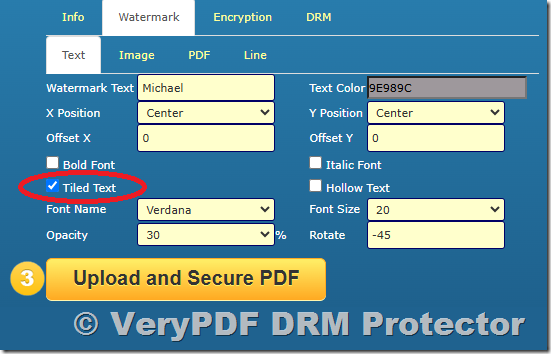
In the “Watermark Text” field, enter the text you want to appear as your watermark. For example, you can enter names like “VeryPDF,” “Michael,” “David,” or any other text relevant to your PDF document. - Enable the “Tiled Text” Option
Check the box for the “Tiled Text” option. This ensures that the watermark will repeat and tile across the page, covering the background in a consistent pattern.
- Set the Font Size
Adjust the “Font Size” to your preferred value. A good starting point is a font size of 20, but feel free to experiment with different sizes to achieve the look you want. - Adjust the Opacity
Set the “Opacity” to control the transparency of the watermark. A typical setting might be 30, but you can adjust it based on how visible you want the watermark to be. - Rotate the Watermark (Optional)
If you want your watermark to appear at an angle, set the “Rotate” value to 45 or another number. This will rotate the watermark text to your desired angle. - Configure Encryption and DRM Options (Optional)
If you want to add extra protection to your PDF, you can explore the “Encryption” and “DRM” tabs for additional security features. These options help protect your document from unauthorized access and distribution. - Upload Your PDF and Add the Watermark
Once you’ve set your watermark and other options, click the “Upload and Secure PDF” button. This will upload your PDF, apply the watermark, and secure the document with the settings you’ve configured. - Download the Watermarked PDF
After the process is complete, you will be able to download the protected PDF file with the repeated and tiled watermark.
Conclusion
Adding a repeated and tiled watermark to your PDF document is an excellent way to maintain brand identity or protect sensitive content. With VeryPDF’s online watermark tool, you can easily personalize your document by adding text watermarks, adjusting their appearance, and securing your files. Give it a try and safeguard your documents with ease!
Related posts:
Preventing PDF Sharing and Controlling Printing — Including Blocking Virtual Printers: Why Bas...
Microsoft IRM vs. VeryPDF DRM Protector for Online Courses: Secure Your Content with Ease
The Best DRM Solution to Protect Research Data, PDF Documents, and Intellectual Property with VeryPD...
How to Automatically Send a DRM-Protected eBook After a Customer Places an Order
Managing Device Bind Limits in VeryPDF DRM Protector: Preventing Incorrect Device Bind Consumption o...
Your Udemy Course Is Being Stolen Right Now — And Most Creators Only Realize It When It’...
Preventing Screenshots of PDFs: A Solution for eBook Stores with VeryPDF DRM Protector
[Solution] How VeryPDF DRM Protector Secures PDFs for Digital Publishing, Education, and Training In...
How to Sell DRM Protected PDFs to Unlimited Customers Without User Limits
How to Add Repeated and Tiled Watermark to PDF Pages?