
✅ Preface / Introduction
Welcome to VeryPDF DRM Protector.
This user manual is designed to help administrators and technical staff fully understand and utilize the VeryPDF DRM Protector Management Console, including protected PDF file management, user and permission control, access and print auditing, print statistics, Virtual Data Room (VDR) management, and automated batch PDF DRM protection.
By following this manual, you will learn how to:
- Securely upload, manage, and control DRM-protected PDF files
- Precisely restrict file viewing, printing, downloading, and sharing
- Audit and track user activity with detailed logs and print statistics
- Use Virtual Data Rooms (VDRs) to manage multiple files with centralized access control
- Efficiently create and manage user accounts and their access rights
- Batch-protect large collections of PDF files via command-line scripts
VeryPDF DRM Protector employs enterprise-level DRM technology, making it suitable for educational institutions, publishers, training platforms, corporate document management, financial and legal industries, or any scenario requiring strict document security and controlled distribution.
This manual is organized by functional modules, providing clear explanations, field descriptions, and practical usage tips to help you quickly get started and securely manage your PDF content in production environments.
Intended Audience
- System Administrators
- IT / Operations Staff
- Technical Integration Engineers
- Content and Document Security Managers
It is recommended to read this manual before first using the system and to keep it as a reference while performing day-to-day operations.
✅ My Files Page Overview
https://drm.verypdf.com/wp-admin/admin.php?page=VeryPDFDRMFiles
The My Files page displays a list of all protected PDF files. Here, you can manage your files by:
- Enable / Disable: Allow or restrict access to a file.
- Delete: Remove a file.
- Modify Filename, Username, Password: Editable directly in the table cells.
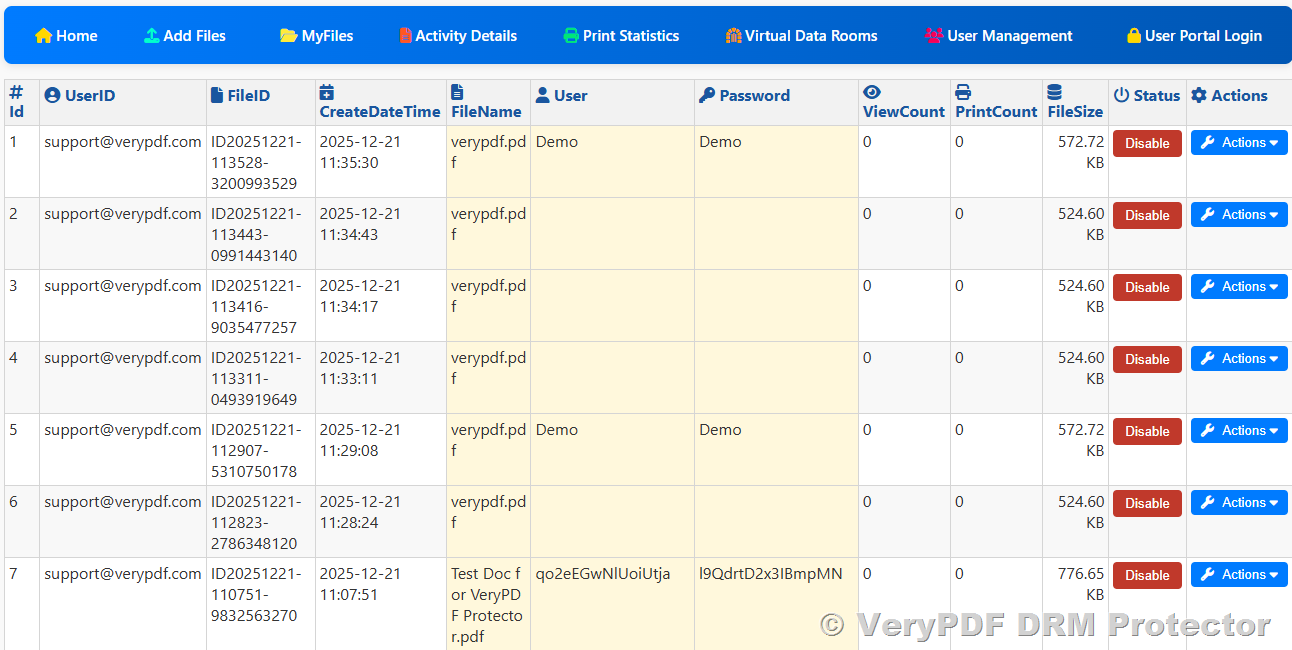
File List Columns
|
Column |
Description |
|
Id |
Unique identifier for the file in the system. |
|
UserID |
ID of the user who uploaded or owns the file. |
|
FileID |
Unique file ID in the system. |
|
CreateDateTime |
Upload or creation timestamp, helps distinguish different versions. |
|
FileName |
Name of the file; can be edited directly in the cell. |
|
User |
Username allowed to access the file; editable in the cell. |
|
Password |
Password for file access; editable in the cell. |
|
ViewCount |
Number of times the file has been viewed. |
|
PrintCount |
Number of times the file has been printed. |
|
FileSize |
File size information. |
|
Status |
File access status; can Enable or Disable access. |
|
Actions |
Dropdown menu with various operations (see below). |
Version Note: If files have the same filename but different CreateDateTime, they are different versions uploaded at different times.
- You may delete older versions and keep the latest.
- Or keep multiple versions as historical backup.
Actions Dropdown Menu
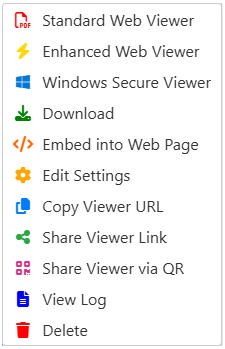
|
Action |
Description |
|
Standard Web Viewer |
Open the PDF in the standard web viewer. |
|
Enhanced Web Viewer |
Open the PDF in the enhanced web viewer with additional security and interactivity. |
|
Windows Secure Viewer |
Open the PDF using the Windows secure viewer for stricter DRM protection. |
|
Download |
Download the PDF file locally (if download permission is granted). |
|
Embed into Web Page |
Get the embed code to display the PDF on a web page. |
|
Edit Settings |
Edit access settings such as username, password, view/print permissions, expiration date, etc. |
|
Copy Viewer URL |
Copy the PDF viewer URL for sharing or embedding. |
|
Share Viewer Link |
Share the PDF viewer link with others to view online. |
|
Share Viewer via QR |
Generate a QR code for sharing; scanning the code opens the PDF viewer. |
|
View Log |
View the file’s activity log, including views, prints, and downloads. |
|
Delete |
Permanently delete the file. Use with caution. |
✅ Activity Details Page Overview
https://drm.verypdf.com/wp-admin/admin.php?page=VeryPDFDRMActivityDetails
The Activity Details page provides a complete log of file activities. It is used for auditing and monitoring access to protected PDF files. You can filter logs by date, user, file, or activity type to quickly find relevant information.
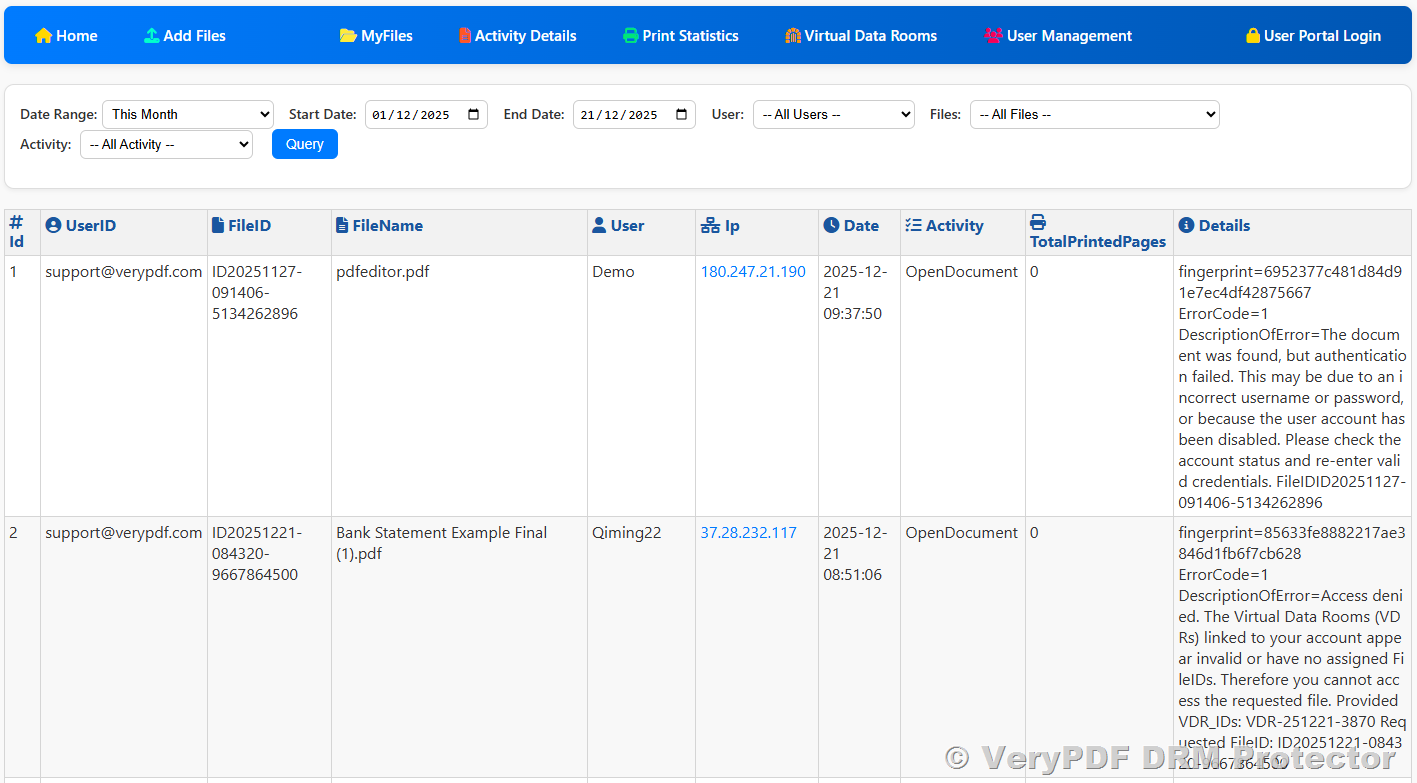
Log Filtering Options
You can filter logs using the following criteria:
|
Filter |
Description |
|
Date Range |
Predefined ranges for quick selection: |
|
Start Date / End Date |
Specify custom start and end dates to filter logs. |
|
User |
Filter logs by the user who accessed the document. |
|
Files |
Filter logs by document name or FileID. |
|
Activity |
Filter by type of activity. Options include: |
Tip: Using multiple filters together (e.g., date range + user + file) helps narrow down the logs for audit or troubleshooting.
Log Table Columns
The activity logs are displayed in a table with the following columns:
|
Column |
Description |
|
Id |
Unique identifier for the log entry. |
|
UserID |
ID of the user who performed the activity. |
|
FileID |
ID of the file involved in the activity. |
|
FileName |
Name of the file; useful for identifying the document. |
|
User |
Username of the person who performed the action. |
|
Ip |
IP address from which the action was performed. |
|
Date |
Date and time of the activity. |
|
Activity |
Type of activity performed, e.g., OpenDocument, PrintDocument, etc. |
|
TotalPrintedPages |
Number of pages printed (if the activity was printing). |
|
Details |
Additional information about the activity, such as errors, restrictions, or special events. |
Activity Types Explained
|
Activity |
Description |
|
CloseDocument |
User closed the document. |
|
GetDocumentPassword |
User retrieved the document password (if allowed). |
|
OpenDocument |
User opened/viewed the document. |
|
PrintDocument |
User printed the document. |
|
PrintLog-Blocked |
A print attempt was blocked due to DRM restrictions. |
|
PrintLog-Passed |
A print attempt was allowed and completed. |
|
UserPortal-Login |
User logged into the DRM portal. |
|
UserPortal-Logout |
User logged out from the DRM portal. |
Audit Tip: You can track unusual activity such as multiple blocked prints or unexpected access from unknown IPs to detect misuse.
✅ Print Statistics Page Overview
https://drm.verypdf.com/wp-admin/admin.php?page=VeryPDFDRMPrintStatistics
The Print Statistics page provides a summary of printing activity for protected PDF files. It allows administrators to monitor print usage by user and by file. Key features include:
- Total Pages Printed per User: Shows overall printing activity for each user.
- Total Pages Printed per User per File: Shows detailed printing activity for each user per specific file.
- Export CSV: Allows you to export the currently displayed statistics to an Excel CSV file for further analysis or record keeping.
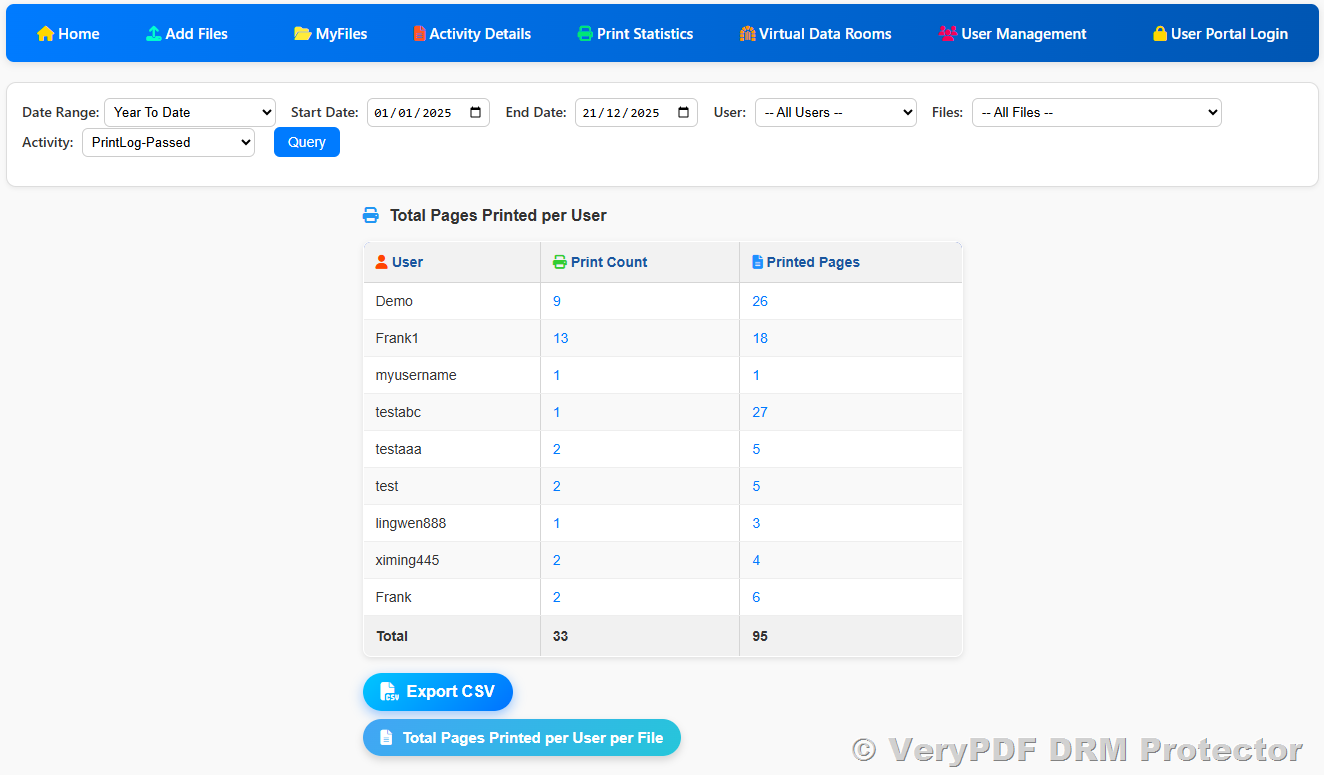
1. Total Pages Printed per User
This table summarizes printing activity for each user.
|
Column |
Description |
|
User |
Username of the person who printed files. |
|
Print Count |
Number of print operations performed by this user. |
|
Printed Pages |
Total number of pages printed by this user. |
Example:
|
User |
Print Count |
Printed Pages |
|
Demo |
9 |
26 |
|
Frank1 |
13 |
18 |
|
myusername |
1 |
1 |
|
testabc |
1 |
27 |
|
testaaa |
2 |
5 |
|
test |
2 |
5 |
|
lingwen888 |
1 |
3 |
|
test445 |
2 |
4 |
|
Frank |
2 |
6 |
|
Total |
33 |
95 |
Tip: Clicking on any number in the table lets you see detailed print logs for that user, including which files were printed, when, and page counts.
2. Total Pages Printed per User per File
This table provides a breakdown of printing activity by user and by file.
|
Column |
Description |
|
User |
Username of the person who printed. |
|
File |
File name that was printed. |
|
Print Count |
Number of times this file was printed by this user. |
|
Printed Pages |
Total number of pages printed for this file by this user. |
Example:
|
User |
File |
Print Count |
Printed Pages |
|
Demo |
verypdf2.pdf |
2 |
6 |
|
Demo |
verypdf2.pdf |
7 |
20 |
|
Frank1 |
MC02.pdf |
12 |
17 |
|
Frank1 |
TESTA.pdf |
1 |
1 |
|
myusername |
test10100.pdf |
1 |
1 |
|
testabc |
test10100.pdf |
1 |
27 |
|
testaaa |
verypdf2.pdf |
2 |
5 |
|
test |
verypdf2.pdf |
2 |
5 |
|
lingwen888 |
verypdf2.pdf |
1 |
3 |
|
test445 |
verypdf2.pdf |
2 |
4 |
|
Frank |
verypdf2.pdf |
2 |
6 |
|
Total |
33 |
95 |
Tip: Clicking on any number in this table shows detailed print records, including:
- Which user printed the file
- Date and time of printing
- Number of pages printed
- Page range printed
- Printer used
3. Print Security Notes
- Virtual Printers: If a user tries to print to a virtual printer, VeryPDF Reader will automatically block the operation.
- This blocked print action is recorded in Activity Logs under PrintLog-Blocked, providing a traceable record for auditing.
✅ Virtual Data Rooms Page Overview
https://drm.verypdf.com/wp-admin/admin.php?page=VeryPDFDRMVDR
1. What is a Virtual Data Room (VDR)?
A Virtual Data Room (VDR) is a secure online repository for storing and managing sensitive documents. It allows controlled access to files, ensuring that only authorized users can view, download, or interact with them.
Key Purposes of a VDR
|
Purpose |
Description |
|
Secure Storage |
Keep sensitive PDF files and other documents protected in a centralized, secure location. |
|
Access Control |
Assign specific users to a VDR so only authorized personnel can access the files. |
|
Audit & Monitoring |
Track user activity, including which files are accessed, when, and for how long. |
|
Collaboration |
Facilitate sharing documents with multiple users in a controlled environment. |
Benefits to Users
|
Benefit |
Description |
|
Convenience |
Users can access all files in a VDR without needing separate permissions for each file. |
|
Security |
Files are protected with DRM; unauthorized printing or sharing can be blocked. |
|
Transparency |
Activity Details logs record who accessed the VDR and what actions were taken. |
|
Efficiency |
Assigning a VDR to a user automatically grants access to all included files, saving administrative effort. |
2. How VDR Works in VeryPDF DRM Protector
- Administrators create a VDR and add files to it.
- In User Management, a VDR can be assigned to one or more users.
- Assigned users can access all files within the VDR.
- Activity Details logs track access events, including:
- When a user enters a VDR
- Which files were accessed
- Duration of file viewing
- Actions like print attempts or downloads
3. VDR List Columns
The VDR list displays all Virtual Data Rooms with the following columns:
|
Column |
Description |
|
No. |
Sequential number for reference. |
|
RoomID |
Unique identifier of the Virtual Data Room. |
|
RoomName |
Name of the VDR (Required, max 100 characters). Special characters like <, >, ‘, “, , ;, ` are automatically removed. Allowed: letters, numbers, spaces, hyphens, underscores, periods. |
|
Description |
Optional detailed description of the VDR’s purpose or contents (max 500 characters). Special characters like <, >, ‘, “, , ;, ` are automatically removed. |
|
Visibility |
Controls who can see the VDR: |
|
Status |
Indicates whether the VDR is active or inactive: |
|
MaxUsers |
Maximum number of users allowed in the VDR (e.g., 20 users). Determines how many users can be assigned to this room. |
|
FileIDs |
List of FileIDs included in this VDR, one per line. Only letters, numbers, underscores (_), and hyphens (-) are allowed. If left blank, the VDR contains no files. |
|
Options |
Optional configuration in key=value format, one parameter per line. Special characters like <, >, ‘, “, , ;, ` are removed. |
|
Action |
Allows editing, deleting, or managing the VDR. |
4. Creating or Editing a VDR
|
Field |
Notes |
|
Room Name |
Required. Max 100 characters. Invalid characters automatically removed. |
|
Max Users |
Set the maximum number of users who can be assigned. |
|
Visibility |
Choose Public or Private. |
|
Status |
Choose Active or Inactive. |
|
Description |
Optional, max 500 characters, plain text only. |
|
FileIDs |
Add FileIDs line by line to include files in the VDR. Only valid characters allowed. |
|
Options |
Optional extra configuration in key=value format, one per line. |
Summary:
The Virtual Data Room feature in VeryPDF DRM Protector is a convenient, secure way to manage multiple protected files as a single group. It simplifies access control, ensures security, and provides detailed auditing of user activity.
✅ User Management Page Overview
https://drm.verypdf.com/wp-admin/admin.php?page=VeryPDFDRMUserManagement
The User Management page allows administrators to create, edit, and manage users who can access protected PDF files.
Key Functions
|
Function |
Description |
|
Add User |
Create new users with a unique username and password. |
|
Edit User |
Modify existing user details, access permissions, and assigned files or VDRs. |
|
Delete User |
Remove a user from the system. |
|
Enable / Disable User |
Enable allows the user to access protected PDFs; disabling immediately blocks all access. |
Example scenario: You upload 100 protected PDFs and want 20 users to access them. You can create 20 users here, assign usernames/passwords, and control which files or VDRs each user can access.
- Users can log in to view PDFs at: User Login Page
2. User Parameters
When adding or editing a user, the following parameters are supported:
|
Parameter |
Rules / Description |
|
Username |
3–30 characters (letters, numbers, . _ % + -) OR a valid email address. Spaces and invalid characters are removed automatically. |
|
Password |
Minimum 8 characters, must contain at least one letter and one number. Password strength is displayed while typing. |
|
First Name |
Allowed: letters (Unicode), spaces, hyphen (-), apostrophe (‘). Other characters removed automatically. |
|
Last Name |
Allowed: letters (Unicode), spaces, hyphen (-), apostrophe (‘). Other characters removed automatically. |
|
|
Must be a valid email address (contain @ and domain). |
|
Phone |
Allowed: digits, + – ( ) . and spaces. Minimum 3 digits required. |
|
FileIDs (optional) |
Enter allowed FileIDs, one per line. Only letters, numbers, underscores (_), hyphens (-) allowed. Leave blank for access to all files. |
|
Virtual Data Room IDs (optional) |
Enter allowed VDR IDs, one per line (e.g., VDR-251129-E26C). Only letters, numbers, underscores (_), hyphens (-) allowed. Leave blank if no VDR assigned. |
|
Role |
Select permission level: |
3. User Management Actions
|
Action |
Description |
|
Add |
Create a new user with specific access permissions. |
|
Edit |
Modify existing user details, file or VDR assignments, and roles. |
|
Delete |
Permanently remove a user from the system. |
|
Enable / Disable |
Toggle user’s access. Disabling immediately blocks all PDF access. |
4. Access Control Notes
- File Access: Assigning FileIDs to a user restricts their access to only those files. Leaving it blank gives access to all uploaded PDFs.
- VDR Access: Assigning Virtual Data Room IDs grants access to all files within those VDRs. Leaving it blank means no VDR access.
- Role: Admin users can manage other users and files, while regular users can only access assigned PDFs and VDRs.
Summary:
The User Management page is the central hub for controlling access to protected PDF files. It allows precise control over which files or VDRs a user can access, sets limits on permissions, and supports auditing through Activity Details logs.
✅ Batch Upload and Protect PDF files (PHP Application)
# PDF Batch DRM Protection Script
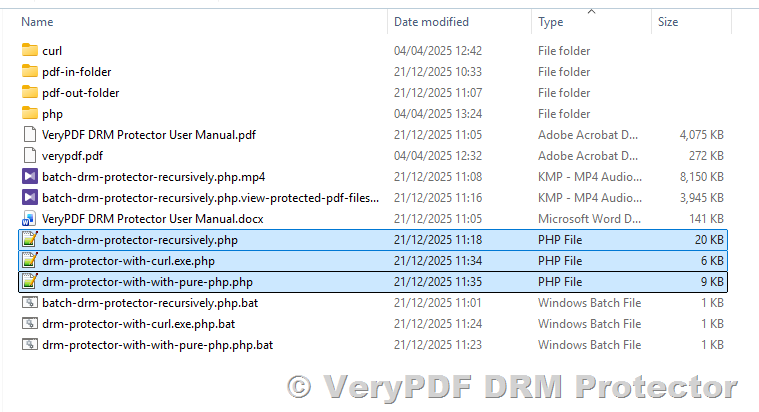
This PHP script (`drm-protector-batch.php`) is designed to batch-protect PDF files with VeryPDF DRM.
It recursively scans an input directory, uploads each PDF file to the VeryPDF DRM online service, applies DRM protection, and downloads the protected file into an output directory while preserving the original directory structure.
The script is intended to be executed from the command line (CLI) and is suitable for processing a large number of PDF files.
https://drm.verypdf.com/downloads/
https://online.verypdf.com/app/pdfdrm/VeryPDF-DRM-Protector-Command-Line.zip
# Command-Line Usage
Run the script using the following command:
php batch-drm-protector-recursively.php <email> <input_directory> <output_directory>
Parameters
- <input_directory>
Directory containing the original PDF files to be protected.- All .pdf files inside this directory and its subdirectories will be processed.
- Non-PDF files are automatically ignored.
- <output_directory>
Directory where DRM-protected PDF files will be saved.- The script will automatically create subdirectories as needed.
- The directory structure from the input directory is preserved.
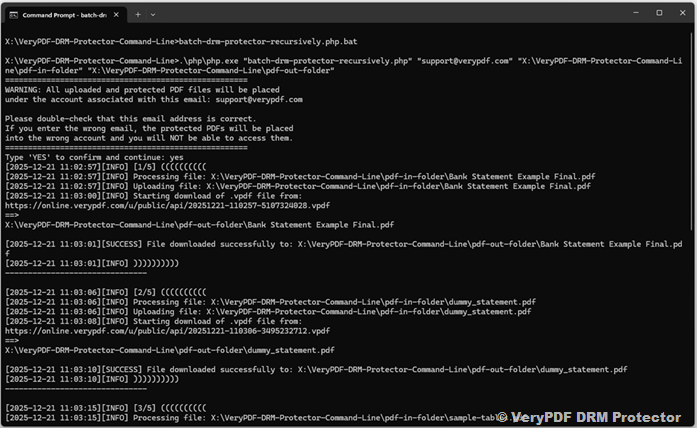
Example
php batch-drm-protector-recursively.php /data/original_pdfs /data/drm_protected_pdfs
This command will:
- Scan /data/original_pdfs recursively.
- Upload each PDF file to the VeryPDF DRM service.
- Apply encryption and DRM restrictions.
- Download the protected file (.vpdf) to /data/drm_protected_pdfs.
- Keep the same folder hierarchy as the original files.
Important Notes About Email Account
All uploaded files will be associated with the account specified in the ‘Email’ parameter of the script:
‘Email’ => ‘support@verypdf.com’, // Administrator’s email address
* Use the correct email account.
* If an incorrect account is used, the protected PDF files will be placed under the wrong account.
* Make sure the email corresponds to the intended DRM account to avoid confusion or misplacement of protected files.
Testing Before Full Run
Before running the script on a large batch, it is highly recommended to:
1. Test with 1-2 PDF files first.
2. Verify that the DRM protection, download, and output directory placement work correctly.
3. Once confirmed, proceed to process all PDF files in the input directory.
This ensures that:
* The correct email account is used.
* Output directories and file naming are correct.
* Any potential issues are caught before processing many files.
Handling Server Upload Rate Limits
Due to server-side upload frequency limits imposed by the DRM service, it is normal that:
- Some PDF files may fail or be skipped during a single execution.
- Temporary upload failures do not indicate a script error.
This behavior is expected and handled intentionally by the script.
Safe to Run Multiple Times (Idempotent Design)
The script is designed to be safe to run multiple times:
- Before processing a PDF, it checks whether the corresponding protected file already exists in the output directory.
- If the output file exists, the script automatically skips that PDF.
- Only PDFs that have not yet been protected will be processed.
You can simply run the same command multiple times:
php batch-drm-protector-recursively.php <email> <input_directory> <output_directory>
Each run will:
- Skip PDFs that were already protected in previous runs.
- Retry PDFs that were skipped earlier due to upload limits or temporary errors.
- Gradually complete DRM protection for all PDF files.
Repeat the command until all PDF files are successfully protected.
Recommended Workflow for Large Batches
For large collections of PDFs:
- Run the script once.
- Wait for it to finish.
- Run the same command again.
- Repeat until no new files are processed.
This incremental approach:
- Avoids overwhelming the DRM server.
- Works reliably with upload rate limits.
- Requires no manual tracking of completed files.
System Requirements
- PHP CLI (recommended PHP 7.4+)
- PHP curl extension enabled
- Internet access to VeryPDF DRM service
To verify cURL is enabled:
php -m | grep curl
Summary
- ✔ Batch-process PDFs with DRM protection
- ✔ Recursive directory support
- ✔ Automatically skips already protected files
- ✔ Safe to re-run multiple times
- ✔ Designed for real-world server rate limits
This makes the script reliable and practical for large-scale PDF DRM deployment in production environments.