
In VeryPDF DRM Protector, the MyFiles interface provides a centralized file management system. Each file in the list includes an Actions button on the far right. Clicking this button opens a dropdown menu with several operations you can perform on the file. Below is a detailed explanation of each menu item and its functionality.
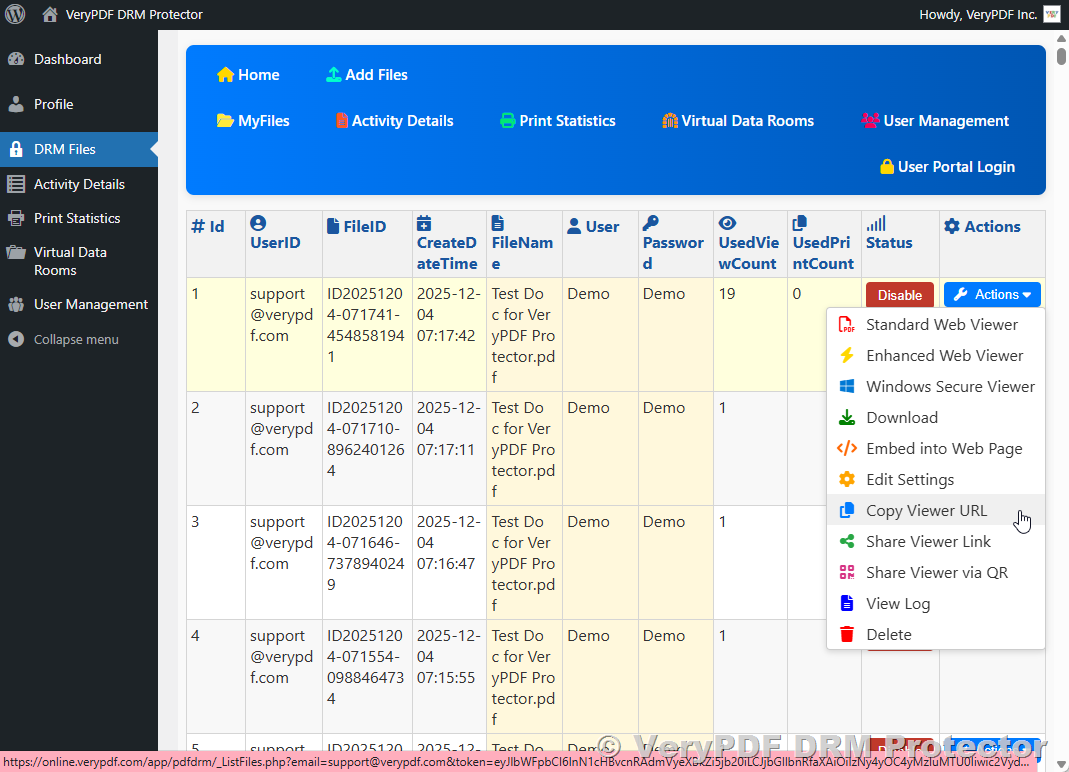
1. Standard Web Viewer
The Standard Web Viewer allows you to open your protected PDF or document in a basic browser-based viewer.
Key Features:
- Simple interface with essential viewing controls (zoom, page navigation, search).
- DRM protection remains active, preventing unauthorized copying, printing, or downloading.
- Ideal for quick document previews without additional features.
Use Case: Share a document with users who need simple, fast access without complex interactive features.
2. Enhanced Web Viewer
The Enhanced Web Viewer offers a more feature-rich viewing experience for protected files.
Key Features:
- Advanced navigation controls (thumbnails, bookmarks, table of contents).
- Supports annotations, highlights, and notes (if enabled in DRM settings).
- Maintains full DRM protection, including print restrictions, watermarking, and access control.
- Responsive design for desktops, tablets, and mobile devices.
Use Case: Share documents that require a professional, interactive reading experience while maintaining security.
3. Windows Secure Viewer
The Windows Secure Viewer opens the protected file in a standalone desktop application designed for Windows.
Key Features:
- Local viewer for Windows computers.
- Enforces DRM policies even outside the browser (printing, copying, and screen capture restrictions).
- Ideal for large files or complex documents that perform better in a desktop environment.
Use Case: Provide secure offline access to your documents for Windows users.
4. Download
This option allows authorized users to download the protected file to their device.
Key Features:
- Downloads are controlled by DRM policies.
- File may include embedded protections (e.g., watermarking, expiration dates).
- Prevents unauthorized users from accessing the file, even if downloaded.
Use Case: Allow trusted users to work offline while maintaining document security.
5. Embed into Web Page
The Embed option generates an HTML code snippet that allows you to embed the protected document directly into a website or web application.
Key Features:
- Provides an <iframe> or JavaScript snippet ready for embedding.
- DRM protection remains active even when embedded.
- Customizable viewer size and display options may be available.
Use Case: Display your protected content on your website or LMS without giving full download access.
6. Edit Settings
Edit Settings allows you to modify the document’s DRM configuration after upload.
Key Features:
- Adjust access controls (who can view the document, maximum users, expiration).
- Enable or disable printing, copying, or annotations.
- Update watermarking options (dynamic watermark text or image).
- Change document metadata (title, description, tags).
Use Case: Update document permissions or appearance without re-uploading the file.
7. Copy Viewer URL
This option copies a direct link to the file’s web viewer to your clipboard.
Key Features:
- Link can be shared with users who have permission to view the document.
- Maintains all DRM restrictions configured for the file.
- Quick and convenient for emailing or messaging the viewer link.
Use Case: Quickly share a secure viewing link with colleagues or clients.
8. Share Viewer Link
Share Viewer Link provides an interface for distributing the document’s secure viewing link.
Key Features:
- Can include email or messaging integration.
- Optionally, customize the link access (expiration, allowed devices, or users).
- Supports tracking who accesses the file.
Use Case: Send controlled access links to specific users while monitoring usage.
9. Share Viewer via QR
This option generates a QR code that points to the file’s web viewer.
Key Features:
- Quick access for mobile users.
- Maintains DRM protection even when accessed via QR code.
- QR code can be downloaded or printed for distribution.
Use Case: Share documents in physical locations, classrooms, or conferences for instant mobile access.
10. View Log
View Log provides detailed access and activity logs for the file.
Key Features:
- Track who viewed the file, when, and on which device.
- Monitor attempted unauthorized access.
- Analyze usage patterns and user activity.
Use Case: Audit document usage and ensure compliance with security policies.
11. Delete
Delete permanently removes the file from your MyFiles repository.
Key Features:
- Prompts for confirmation to prevent accidental deletion.
- Deletes associated DRM records and viewing access.
- Once deleted, the file cannot be restored unless a backup exists.
Use Case: Remove obsolete or sensitive documents from your secure storage.
Summary
The Actions menu in VeryPDF DRM Protector provides a complete suite of tools for managing, sharing, and protecting your files. Whether you need simple viewing, advanced embedding, secure downloads, or detailed activity logs, these options give you full control over your documents while maintaining strong DRM protections.