
Managing users and sending PDF reading links one by one can take a lot of time, especially when you have many customers. You need to create user accounts, assign PDF files, set access permissions, and send emails manually.
VeryPDF DRM Protector makes this process much easier with its Invite User feature.
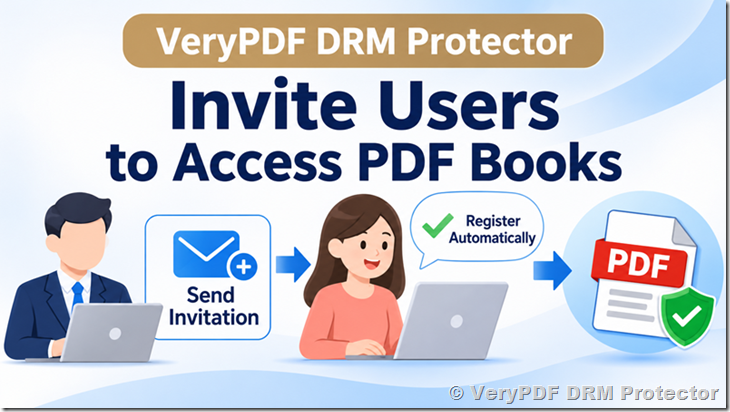
You can send an invitation to a customer’s email address and let the customer register an account automatically. The customer can then access assigned PDF books or Virtual Data Rooms (VDRs) without waiting for you to create an account manually.
Even better, customers can return to their original invitation email and click the invitation link again whenever they need to get their online reading links. They do not need to ask you to send a new invitation or use a different email address.
Why Use the Invite User Feature?
When you sell or share PDF books online, you may need to give different customers access to different files. You may also want to limit how many devices each customer can use to read the documents.
Without an invitation system, the process usually involves several manual steps:
- Create a user account.
- Enter the customer’s email address.
- Assign PDF files or VDR folders.
- Set the allowed number of reading devices.
- Send login information or reading links by email.
- Help customers find their reading links again when they need them.
This can become difficult when you have hundreds or thousands of customers.
With VeryPDF DRM Protector, you can complete these steps from one invitation page. Customers can register independently and receive access without waiting for you to create accounts manually.
How to Invite a User to Read PDF Books
Follow these steps to invite a customer to your VeryPDF DRM Protector system.
Step 1: Open the User Management Page
Log in to your VeryPDF DRM Protector admin account and open the User Management page:
https://drm.verypdf.com/wp-admin/admin.php?page=VeryPDFDRMUserManagement
This page allows you to manage users who can access your protected PDF documents and Virtual Data Rooms.
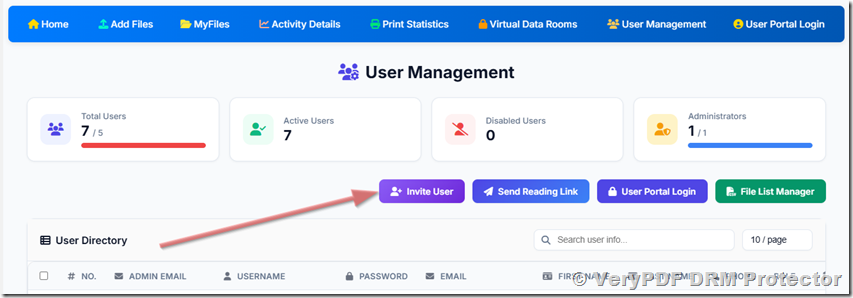
Step 2: Click the Invite User Button
Find and click the Invite User button.
The system will open the Invite User Access page, where you can configure the customer’s reading permissions.
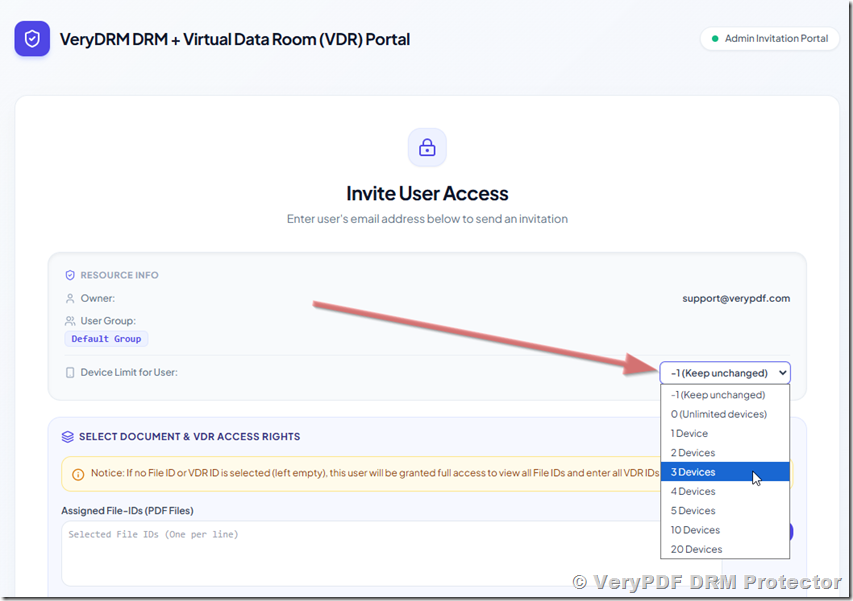
Step 3: Set the Allowed Number of Devices
You can limit how many devices the invited user is allowed to use to read PDF books.
For example, you may allow a customer to read protected PDF documents on one, two, or three devices, depending on your licensing rules.
This is useful when you want to prevent customers from sharing their accounts with too many people.
Step 4: Assign PDF Files or Virtual Data Rooms
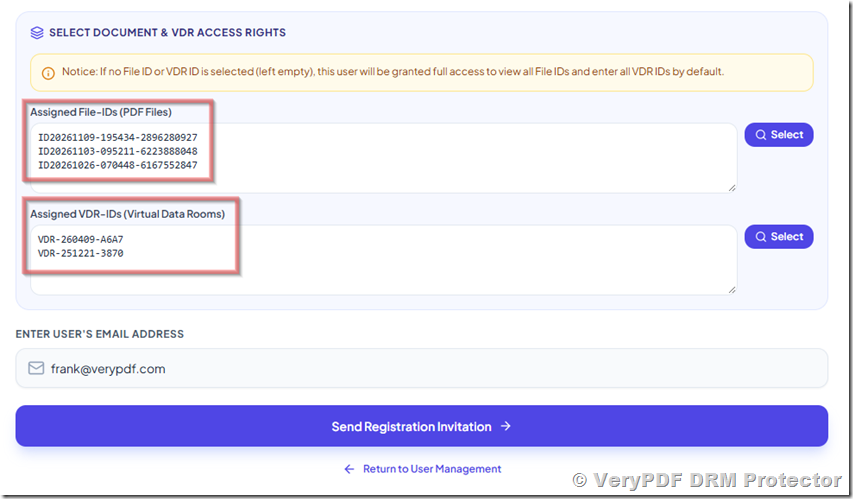
You can choose which documents or Virtual Data Rooms the customer will be allowed to access.
VeryPDF DRM Protector provides two assignment options:
| Assignment option | Description |
|---|---|
| Assigned File-IDs (PDF Files) | Select individual PDF files that the customer can read. |
| Assigned VDR-IDs (Virtual Data Rooms) | Select the Virtual Data Rooms that the customer can access. |
For example, if a customer purchases three PDF books, you can assign those three PDF files to the customer’s account.
If you want to share a collection of business documents, you can assign a Virtual Data Room instead.
This means each customer only gets access to the documents you have selected for them.
Step 5: Enter the User’s Email Address
Enter the customer’s email address in the email address field.
Make sure the email address is correct because VeryPDF DRM Protector will send the registration invitation to this address.
Step 6: Send the Registration Invitation
Click the Send Registration Invitation button to complete the invitation.
VeryPDF DRM Protector will send an invitation email to the customer.
You do not need to create the customer’s account yourself or send a separate registration link.
What Happens After the Customer Receives the Invitation?
The registration process is simple for customers.
After receiving the invitation email, the customer can follow these steps:
- Open the invitation email.
- Click the Confirm Email & Get Access → button.
- Go to the VeryPDF DRM Protector web page.
- Complete the email confirmation and activate access.
- Open the assigned PDF reading links and start reading books online.
The customer does not need to contact your support team to request an account or wait for you to create one manually.
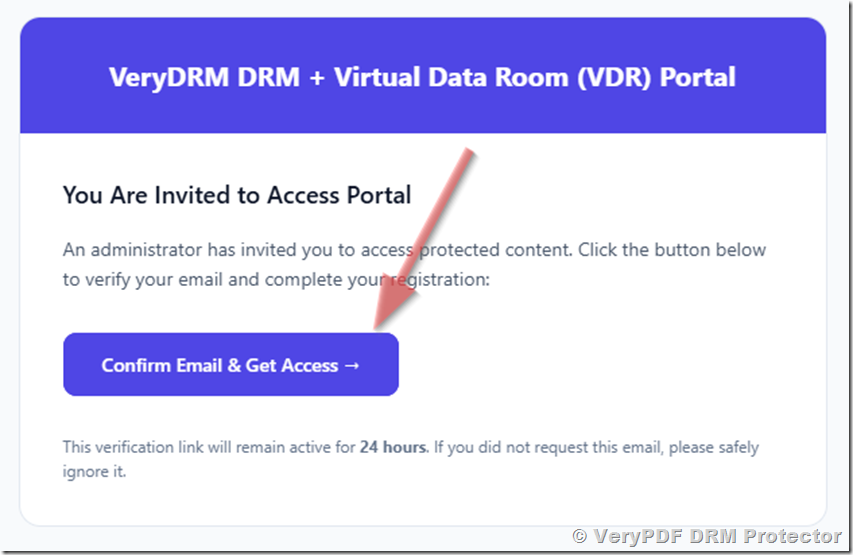
Can Customers Click the Same Invitation Link More Than Once?
Yes! This is an important feature that makes the invitation process much easier for both customers and administrators.
Some customers may not bookmark their reading page or may accidentally close the browser. Later, they may return to the original invitation email and click the invitation link again.
Previously, this could cause problems for some users. Administrators sometimes had to create a new invitation and send it again. In a few cases, sending another invitation to the same email address also caused difficulties.
This problem has now been resolved.
Customers can click the original invitation link in their email multiple times to obtain their online reading links again.
For example:
- A customer receives an invitation email on Monday and activates access.
- The customer reads the assigned PDF books online.
- On Friday, the customer wants to read the books again but cannot find the previous reading page.
- The customer opens the original invitation email and clicks the invitation link again.
- The customer can obtain the online reading links and continue reading.
There is no need for the administrator to create another invitation link or send another email.
There is also no need for customers to provide a different email address. They can continue using the same email address throughout the process.
This is especially helpful for publishers and online PDF book stores that have many customers.
Do Customers Need to Remember Usernames and Passwords?
Not necessarily for this invitation-based reading process.
Customers can keep the original invitation email and use its link again whenever they need to obtain their online reading links.
We also recommend asking customers to bookmark their reading page in their web browser after opening it for the first time.
This gives customers two convenient ways to return to their PDF books:
- Open the bookmarked reading page.
- Open the original invitation email and click the invitation link again.
This is much easier than asking every customer to remember account information or contact customer support whenever they lose a reading link.
Customers Also Receive Their Reading Links by Email
VeryPDF DRM Protector also sends customers an email containing their PDF reading links.
This makes it easier for customers to access their books again later.
For example, a customer may want to read a PDF book today and open it again next week. Instead of searching through the website or asking your support team for the link, the customer can find the email and click the reading link again.
Together with the original invitation link, this provides customers with convenient ways to return to their protected documents.
Manual User Creation vs. Automatic User Invitation
Here is a comparison of the two methods:
| Task | Manual user management | Invite User feature |
|---|---|---|
| Create user account | Admin creates it manually | User registers through the invitation |
| Enter email address | Yes | Yes |
| Assign PDF files | Admin assigns manually | Select during invitation |
| Assign VDR access | Admin assigns manually | Select during invitation |
| Set device limits | Admin configures access | Set during invitation |
| Send registration email | Admin handles it | System sends it |
| Provide reading links | Admin sends them | System emails the links |
| Recover reading links | Admin may need to help | Customer can click the original invitation link again |
| Register with another email | May be requested in some situations | Not necessary for this issue |
| Customer registration | Requires admin assistance | Customer completes it independently |
The Invite User feature saves time, especially when you need to provide PDF access to many customers.
Who Should Use the Invite User Feature?
This feature is useful for several types of businesses and organizations.
1. Online PDF Book Sellers
If you sell PDF books online, you can invite each buyer to register and access the books they purchased.
Customers can return to their original invitation email whenever they need to obtain their reading links again.
2. Online Course Providers
If your courses include PDF textbooks, training manuals, or learning materials, you can assign the correct documents to each student.
3. Publishers
Publishers can invite readers to access specific books without manually creating every reader account.
4. Business Document Sharing
Companies can invite employees, partners, or customers to access selected business documents or Virtual Data Rooms.
5. Legal and Financial Companies
Law firms and financial companies can use invitations to give clients access to selected confidential PDF documents.
Frequently Asked Questions
1. Do I need to create a user account before sending an invitation?
No. You only need to enter the customer’s email address and send the registration invitation. The customer can complete the registration process independently.
2. Can customers register their own accounts?
Yes. Customers can click the Confirm Email & Get Access button in the invitation email and follow the registration process.
3. Can I assign specific PDF books to each user?
Yes. You can select individual PDF files using the Assigned File-IDs (PDF Files) option.
4. Can I assign an entire Virtual Data Room to a user?
Yes. You can use the Assigned VDR-IDs (Virtual Data Rooms) option to assign access to selected VDRs.
5. Can I limit the number of devices a customer can use?
Yes. You can set the allowed number of reading devices when creating the invitation.
6. Can customers click the same invitation link multiple times?
Yes. Customers can return to the original invitation email and click the same invitation link multiple times to obtain their online reading links again.
7. What if a customer loses the original reading page?
The customer can open the original invitation email and click the invitation link again to get the online reading links.
8. Do I need to send a new invitation if a customer loses the reading link?
No. Customers can use the original invitation link again. Administrators do not need to create and send a new invitation.
9. Does the customer need to use a different email address?
No. Customers can continue using the same email address. They do not need to register with another email address just because they want to access their reading links again.
10. Do customers need to remember usernames and passwords?
For this invitation-based reading process, customers can use their original invitation email to obtain their reading links again. We also recommend bookmarking the reading page for easier access.
11. Will customers receive their PDF reading links by email?
Yes. Customers also receive an email containing their reading links, making it easier to open their PDF books again later.
12. Can I invite multiple customers?
Yes. You can use the Invite User feature to send invitations to different customers. Each invitation can have its own email address and access settings.
13. Can different customers access different PDF books?
Yes. You can assign different PDF files or Virtual Data Rooms to different customers, depending on what they are allowed to read.
14. Can customers read PDF books online?
Yes. After completing registration and activating access, customers can open their assigned reading links and read protected PDF books online.
15. Is the Invite User feature useful for online PDF book stores?
Yes. It is particularly useful for online PDF book stores because buyers can register and access their purchased books without waiting for the store administrator to create accounts manually.
16. Does the invitation process reduce customer support work?
Yes. Automatic registration, document assignment, and email delivery of reading links reduce manual work. Customers can also recover their reading links by clicking the original invitation link again instead of contacting your support team.
Protect and Share PDF Books More Easily with VeryPDF DRM Protector
Managing PDF readers should not require hours of manual account creation and email delivery.
With the Invite User feature in VeryPDF DRM Protector, you can invite customers, set device limits, assign PDF books or Virtual Data Rooms, and let customers complete their own registration.
Customers receive their reading links by email and can click the original invitation link again whenever they need to access their books. They can also bookmark their reading page for quick access.
There is no need to create a new invitation every time a customer loses a reading link, and customers do not need to use a different email address.
VeryPDF DRM Protector also provides PDF document security features such as dynamic watermarks, access control, printing restrictions, copying restrictions, and document expiration.
If you sell PDF books, publish digital content, provide online training, or share confidential business documents, VeryPDF DRM Protector can help you manage users and protect your documents in one system.
Learn more: https://drm.verypdf.com/