
If you sell or distribute ebooks, PDFs, training materials, or other digital books, managing reader access can become difficult. You may need to give each customer a personal reading link, limit the number of devices they can use, and send the link at the right time.
VeryPDF DRM Protector now provides two new options that make this process easier: Invite User and Send Reading Link.
These options are useful when you want to give customers access to protected PDF books without simply sending them the original PDF file.
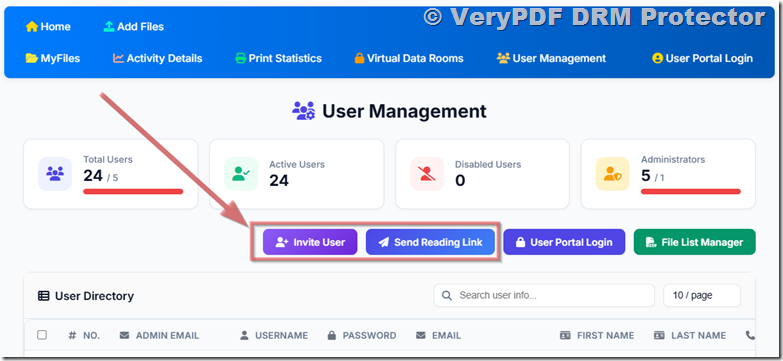
1. Invite User: Give a Reader Access to a PDF Book
The Invite User option is useful when you already know the reader’s email address.
For example, imagine that you sell an ebook to:
john@example.com
Instead of sending John the PDF file directly, you can invite him to read the book using his email address.
You can also set a device limit when creating the invitation.
For example:
| Setting | Example |
|---|---|
| Reader email | john@example.com |
| Book | Business Training Guide |
| Device limit | 2 devices |
| Access | Personal reading access |
This means you can allow the customer to read the book on their own devices while making it harder for the reading link to be shared with many other people.
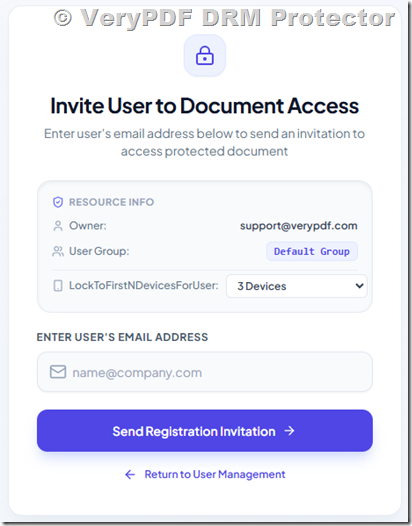
When should you use Invite User?
Invite User is a good choice when you have just received a new order and already know the customer’s email address.
A typical workflow is:
Customer buys the book → You enter the customer’s email → Invite User → Customer receives access → Customer reads the book
This can work well for publishers, authors, training companies, and businesses that sell PDF ebooks directly to customers.
2. Send Reading Link: Send the Link Later
The Send Reading Link option works a little differently.
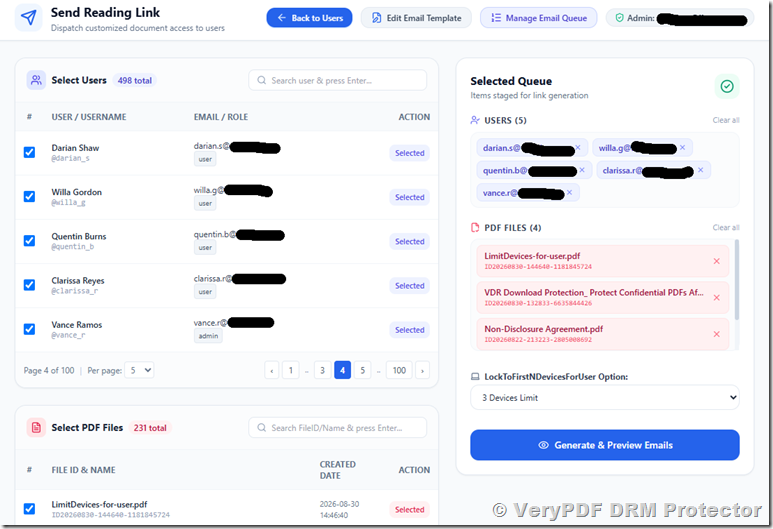
You can add users to your group first. You do not have to send the reading email immediately.
Later, when you are ready, you can send a reading link to a specific user.
You can also set a maximum number of devices for the user.
For example:
| Step | Action |
|---|---|
| 1 | Add the customer to your group |
| 2 | Give the customer access to the book |
| 3 | Keep the customer in the group |
| 4 | Send the reading link later |
| 5 | Limit the number of devices |
This can be useful when you manage customers in groups or when you want to prepare customer accounts before sending their reading links.
Example
Suppose a training company has 50 customers who purchased a PDF training manual.
The company can first add all 50 customers to the appropriate group. It can then send reading links when the training starts.
This gives the company more control over when customers receive access.
Invite User vs. Send Reading Link
Although these two options are similar, they are designed for slightly different situations.
| Feature | Invite User | Send Reading Link |
|---|---|---|
| Add user by email | Yes | Yes |
| Send reading access | Immediately | Later |
| Add user to a group first | Not required | Yes |
| Limit devices | Yes | Yes |
| Send to one user | Yes | Yes |
| Batch email | Not the main purpose | Available when enabled |
| Best for | New customer orders | Existing users and groups |
A simple way to remember the difference is:
Invite User = invite the customer now.
Send Reading Link = add the customer first and send the link later.
Why Use a Personal Reading Link Instead of Sending the PDF?
Sending a normal PDF attachment is simple, but it also creates several problems.
Once a customer downloads the PDF, you usually have very little control over what happens to it. They can forward the file to another person, upload it somewhere else, or keep copies on many devices.
A protected online reading link gives you more control.
For example:
| Normal PDF file | Protected reading link |
|---|---|
| Easy to forward | Access can be tied to a user |
| Difficult to control after download | Access can be managed |
| No simple device limit | Device limit can be configured |
| Copies can spread easily | Better control over sharing |
| Difficult to revoke access | Access can be managed or revoked |
This is especially important for paid ebooks, premium PDF reports, training manuals, exam materials, and other digital content that has commercial value.
Limit the Number of Devices
One common problem for digital publishers is account sharing.
For example, a customer buys an ebook and gives the login information to several friends. If there is no device limit, many people may end up using the same purchase.
With Invite User and Send Reading Link, you can limit the number of devices.
For example:
- 1 device for an individual license
- 2 devices for a normal ebook customer
- 3–5 devices for a training customer
- A larger limit for a business or team
The right limit depends on your business model.
A two-device limit can be useful when customers normally read on both a computer and a phone or tablet.
Batch Email Sending Is Currently Disabled
The batch email sending option is currently disabled.
If you only need to send a reading link to one customer at a time, this should not be a problem.
However, if you have a large customer list, manually sending hundreds of emails can take a lot of time.
For example, a publisher may have:
- 100 ebook customers
- 500 training customers
- 1,000 existing readers
In this situation, batch email sending can make the process much easier.
If you need to send reading links to many users at once, please contact VeryPDF. The batch email sending option can be enabled for your account.
How This Can Help Ebook Sellers
Consider a small publisher selling a $49 PDF book.
Before using a controlled reading system, the publisher might send the PDF by email after each order.
The process is simple:
Payment → Email PDF → Customer downloads PDF
But after the PDF is sent, the publisher has little control over the file.
With VeryPDF DRM Protector, the process can instead be:
Payment → Create or add user → Give book access → Generate reading link → Customer reads the book
The publisher can also limit the number of devices.
This does not completely stop piracy, but it can make casual sharing much harder and gives the publisher more control over paid digital content.
VeryPDF DRM Protector for Secure PDF Distribution
If you sell PDF ebooks or distribute paid digital documents, VeryPDF DRM Protector is worth considering.
It is designed to help publishers and businesses protect PDF content and control how readers access it. Depending on your setup, you can use DRM controls such as device limits, printing restrictions, copy restrictions, watermarks, and access management.
The new Invite User and Send Reading Link options are especially useful when you want to connect a customer’s email address with their personal reading access.
This can be a better fit than simply emailing the original PDF file to every customer.
Frequently Asked Questions
1. What is Invite User?
Invite User lets you invite a person to read a protected book using their email address. You can also set a device limit for that user.
2. What is Send Reading Link?
Send Reading Link lets you add users to a group first and send them their reading link later.
3. What is the difference between Invite User and Send Reading Link?
Invite User is mainly for giving a user access when you know their email address and want to invite them. Send Reading Link is useful when users have already been added to your group and you want to send their reading links later.
4. Can I limit how many devices a customer can use?
Yes. Both options allow you to set a maximum number of devices.
5. Can I use a two-device limit for an ebook?
Yes. A two-device limit can be useful when a customer needs to read the same ebook on a computer and a phone or tablet.
6. Do I need the customer’s email address?
Yes. These user invitation and reading-link features are designed to work with the user’s email address.
7. Can I add users to a group before sending the reading link?
Yes. This is one of the main uses of Send Reading Link.
8. Can I send the reading link later?
Yes. You can add the user first and send the reading link later.
9. Can I send reading links to many users at once?
The batch email option is currently disabled. If you need batch email sending, you can contact VeryPDF and request that it be enabled for your account.
10. Can I use these features for paid ebooks?
Yes. They can be useful for paid ebooks, digital books, training manuals, reports, and other protected PDF content.
11. Why should I send a reading link instead of the PDF file?
A reading link gives you more control over access than simply sending the original PDF file. You can use features such as user-based access and device limits.
12. Can I use VeryPDF DRM Protector for online PDF reading?
Yes. VeryPDF DRM Protector is designed to protect PDF documents and provide controlled access through its web-based reading system.
13. Who can benefit from Invite User?
Authors, publishers, training companies, course creators, and businesses that sell or distribute protected PDF content can use this feature.
14. Who can benefit from Send Reading Link?
It is particularly useful for organizations that already manage users in groups and want to send reading links at a later time.
15. How can I test these two new options?
You can test Invite User and Send Reading Link from your VeryPDF DRM Protector web page and see which workflow fits your business better.