
Engineering drawings are core assets in disciplines such as mechanical design, civil engineering, architecture, and product development. These files contain proprietary designs, specifications, and intellectual property. In many organizations, unauthorized access, redistribution, or copying of drawings can lead to financial loss, project delays, and compliance issues.
Digital Rights Management (DRM) adds a layer of control on top of file storage. It lets you define who can open, view, print, edit, or share engineering drawings—effectively preventing misuse even if the file is distributed outside your network.
VeryPDF DRM Protector is a DRM solution designed to secure PDF and other document types. It wraps files in access rules, encryption, and permission controls that can be enforced on desktops, mobile devices, and in cloud delivery.
This article explains how to use VeryPDF DRM Protector specifically to protect engineering drawings, including configuration, encryption, distribution, and access control.
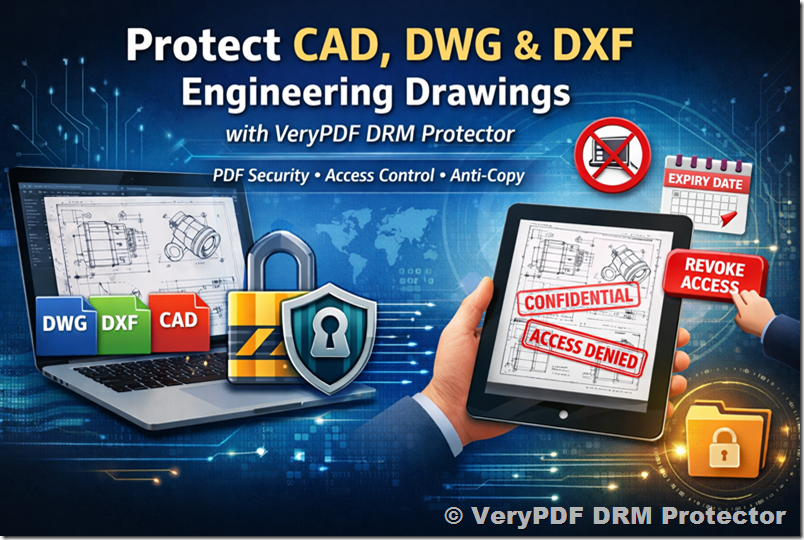
Table of Contents
- Overview: Why DRM for Engineering Drawings
- What VeryPDF DRM Protector Does
- Preparation: File Formats and Workflow
- Step‑by‑Step Protection with VeryPDF DRM Protector
4.1 Installation and Licensing
4.2 Importing Engineering Drawings
4.3 Setting DRM Policies
4.4 Encryption and Protection Options
4.5 Assigning Users and Roles
4.6 Publishing Protected Files - Accessing Protected Drawings: User Experience
- Advanced Controls: Revocation, Expiry, and Watermarking
- Integrations and Automation
- Best Practices for Engineering Teams
- Common Challenges and Troubleshooting
- Summary
1. Overview: Why DRM for Engineering Drawings
Engineering drawings are often shared across teams, contractors, and supply chains. Typical file formats include:
- PDF (most common)
- DWG / DXF (CAD formats)
- TIFF / JPEG (rasterized copies)
Without DRM, anyone who receives a file can:
✔ redistribute it freely
✘ reprint or edit without permission
✘ expose sensitive dimensions or specs
DRM ensures:
- Only authorized individuals can open a file
- Permissions (print, copy, export) are enforced
- Access can be revoked remotely
- Usage is logged and controlled
2. What VeryPDF DRM Protector Does
VeryPDF DRM Protector provides:
|
Capability |
Benefit |
|
Encryption |
Prevents unauthorized reading |
|
Permissions |
Control printing, editing, export |
|
User Authentication |
Ties access to individual accounts |
|
Document Expiry |
Forced expiry after date or use count |
|
Watermarking |
Adds dynamic watermarks for traceability |
|
Revocation |
Cancel access at any time |
|
Logs & Auditing |
Track who accessed which file |
The software works with user accounts and can integrate with enterprise IAM (Identity & Access Management).
3. Preparation: File Formats and Workflow
Supported Input Formats:
- PDF (native engineering drawings or CAD exports)
- Raster formats (TIFF, JPEG)
- CAD formats if first converted to PDF
Recommended Workflow:
- Convert CAD drawings to vector PDF for best clarity.
- Review layers and visibility — remove unnecessary metadata.
- Decide which recipients need access and what permissions they require.
4. Step‑by‑Step Protection with VeryPDF DRM Protector
4.1 Install and License the Software
- Download and install VeryPDF DRM Protector from VeryPDF.
- Activate your license key — you’ll see the license status in the application dashboard.
- Connect to your user directory (LDAP/Active Directory) if used.
4.2 Import Engineering Drawings
- Open VeryPDF DRM Protector.
- Click New Project or Protect Documents.
- Select the drawings you want to protect (multi‑select supported).
- Confirm that the input files appear in the job list.
4.3 Set DRM Policies
DRM policies are the heart of protection.
Common policy options:
|
Policy |
What It Does |
|
View Only |
File can be opened and viewed |
|
No Print |
Prevents printing |
|
No Copy |
Blocks copy/paste or extracting content |
|
Expiry |
File becomes unreadable after a date or uses |
|
Offline Access Control |
Limits how long a file can be viewed offline |
Choose the policy that matches your security needs.
4.4 Configure Encryption and Protection Options
- Enable AES 256‑bit encryption — industry standard.
- Decide if files should open only in a controlled viewer application.
- Enable watermarking:
- Static (e.g., “Confidential”)
- Dynamic (user name, timestamp)
Dynamic watermarks discourage screenshots and leaks.
4.5 Assign Users and Roles
Assign who can access the protected drawings.
Options:
- Individual user accounts
- Groups (e.g., “Engineering”, “Contractors”)
- Departments
You can import users from directory services or manually enter them.
Important: Assign roles carefully — contractors may need view‑only access, while internal engineers may need print access.
4.6 Publish Protected Files
Once policies and users are set:
- Click Protect / Encrypt / Publish.
- The system generates DRM‑wrapped files.
- Output files will have a DRM extension (e.g., .tpdf, .drm.pdf) that only opens in compliant viewers.
Deliver these files via your standard channels: email, file server, project portal, or PDM/PLM systems.
5. Accessing Protected Drawings: User Experience
Recipients:
- Receive the DRM‑wrapped file.
- Open it with the VeryPDF DRM Viewer or authorized reader.
- Authenticate (user ID, password, or token).
- View within the permitted rights (e.g., no print if disabled).
- If offline use is allowed, the viewer will enforce time‑limited access.
6. Advanced Controls
Revocation
Administrators can revoke access at any time. A revoked file will no longer open, even if previously delivered.
Expiry
Set files to expire after:
- A certain date (e.g., 90 days)
- Number of opens
- Number of days since first open
Audit Logs
Track:
- Who opened what file
- When and where
- Actions taken (print, copy attempt, etc.)
This supports compliance audits.
7. Integrations and Automation
VeryPDF DRM Protector can integrate with:
- Enterprise IAM
- Document Management Systems (DMS)
- Project Management and Engineering software (via API or batch protection)
Automation via command line or scripts lets you protect files as part of build pipelines or project releases.
8. Best Practices for Engineering Teams
- Convert CAD to PDF at the highest resolution to preserve detail.
- Use role‑based permissions — contractors get minimal rights.
- Rotate passwords or keys periodically.
- Combine DRM with network security policies.
- Train teams on the viewer software.
9. Common Challenges and Troubleshooting
|
Issue |
Solution |
|
Users can’t open files |
Ensure they have correct viewer and credentials |
|
Printing unexpectedly allowed |
Check the permission set in DRM policy |
|
Offline access not working |
Confirm offline rights were granted |
|
Watermarks not showing |
Adjust watermark template and re‑publish |
For persistent issues, consult VeryPDF technical support.
10. Summary
Protecting engineering drawings with DRM goes beyond simple file encryption. It gives granular control over access rights, ensures usage policies are enforced, and allows organizations to audit and revoke access as needed.
VeryPDF DRM Protector provides a robust platform to:
- Encrypt and wrap drawings
- Assign user or group rights
- Control permissions (view, print, copy)
- Add watermarks and expiration
- Link to enterprise user directories
Used correctly, this enhances your document security posture while minimizing friction for authorized collaborators.