
If you sell PDF ebooks, training materials, manuals, reports, or other digital documents, you may want each customer to read the PDF on only one or two devices.
For example, you may want:
- Customer A to use the PDF on 1 device
- Customer B to use it on 2 devices
- Customer C to use it on 3 devices
- Each customer to have a personal reading link
- Customers to read the PDF in a web browser
- Customers to be unable to share the link with other people
With VeryPDF DRM Protector, you can set a different device limit for different users.
This is useful when you sell protected PDF ebooks or provide private PDF documents to customers.
Can I Set a Different Device Limit for Each Customer?
Yes.
You do not have to use the same device limit for every customer.
For example, suppose you sell an ebook to three customers:
| Customer | Allowed Devices |
|---|---|
| Customer A | 1 device |
| Customer B | 2 devices |
| Customer C | 3 devices |
You can configure the device limit separately for each user.
This is different from setting one global limit for the entire PDF.
A global setting might be suitable if every customer should have exactly the same access. But if you have different products, customer types, or sales packages, a user-level device limit gives you more control.
What Does LockToFirstNDevicesForUser Mean?
VeryPDF DRM Protector uses the following user setting:
LockToFirstNDevicesForUser=2
The number 2 means that the user can open the protected PDF on up to two devices.
For example:
LockToFirstNDevicesForUser=1→ 1 deviceLockToFirstNDevicesForUser=2→ 2 devicesLockToFirstNDevicesForUser=3→ 3 devices
When the customer opens the protected PDF, VeryPDF DRM can remember the device used by that customer.
If the customer has a two-device limit and opens the PDF on a third device, the third device will not be allowed to access the protected document.
This can make it much harder for customers to simply forward their personal reading link to other people.
How to Set a 1 or 2 Device Limit for a User
There are several ways to configure the device limit.
Method 1: Add the Setting to the User Profile
Go to the VeryPDF DRM User Management page:
First, add the customer as a user.
Then click:
Actions → Edit User Options
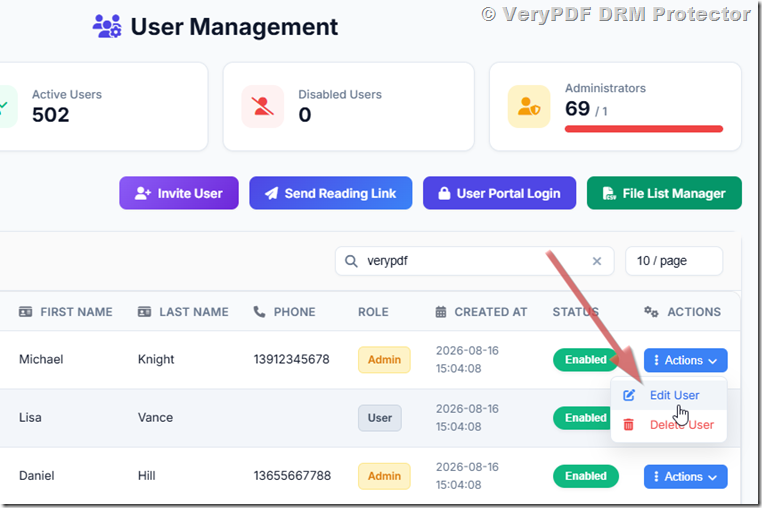
On the Edit User Profile page, find:
Advanced Settings for User (optional)
Add:
LockToFirstNDevicesForUser=2
Then click Save Changes.
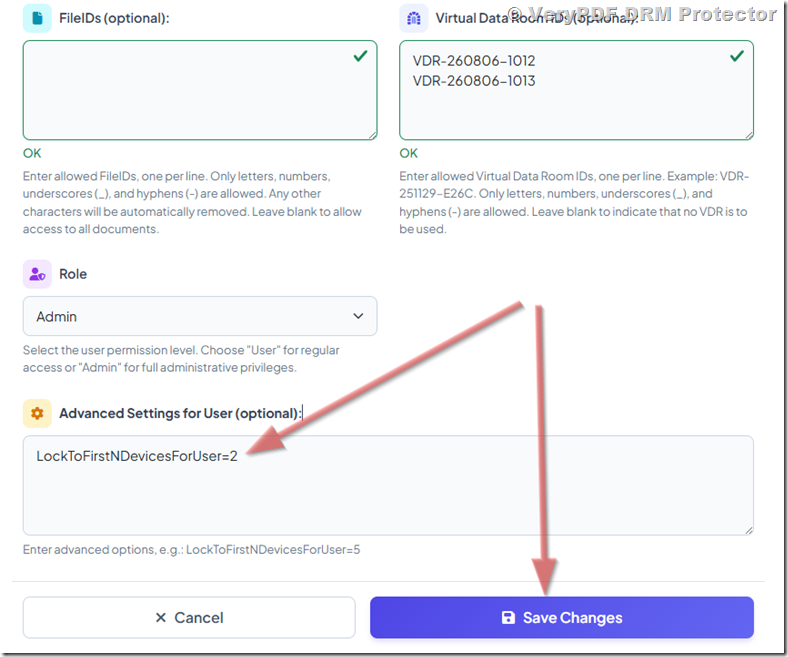
That customer will now have a two-device limit.
If you want to allow only one device, use:
LockToFirstNDevicesForUser=1
Example
Suppose you sell an ebook to John and want John to read it on his computer and phone.
You can set:
LockToFirstNDevicesForUser=2
John can then use two devices.
If another customer purchased a license that allows only one device, you can set:
LockToFirstNDevicesForUser=1
The two customers can therefore have different device limits.
Method 2: Set the Device Limit When Sending a Reading Link
You can also choose the device limit when you send a reading link to a customer.
Go to:
After adding the user, click Invite User or Send Reading Link.
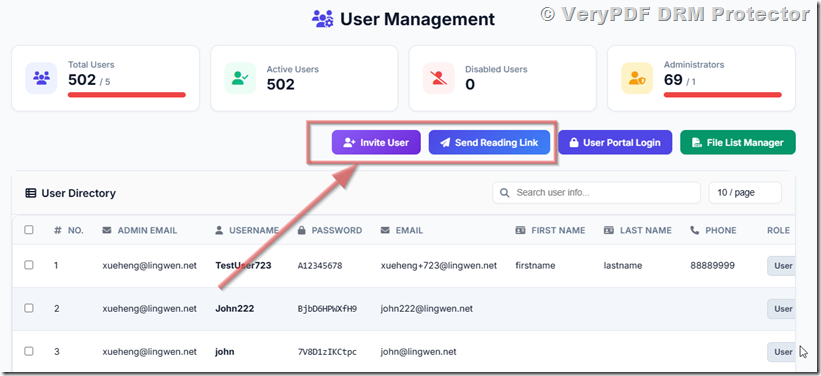
In “Invite User” Page, you can select “LockToFirstNDevicesForUser” option before send an email to your client,
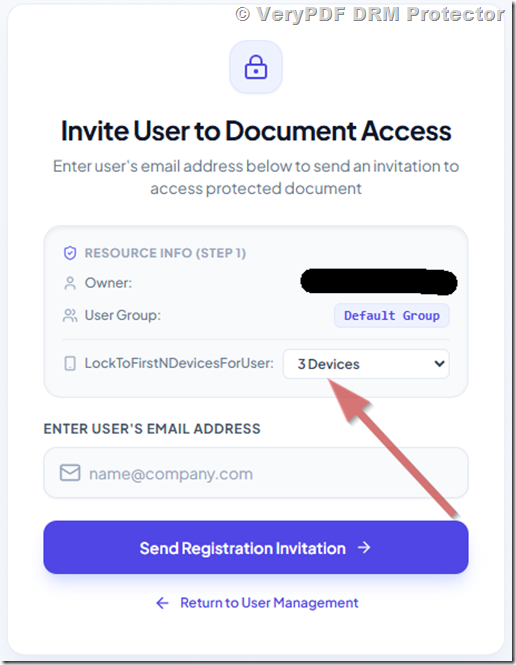
In “Send Reading Link” Page, you can also select “LockToFirstNDevicesForUser” option before batch send emails to your clients,
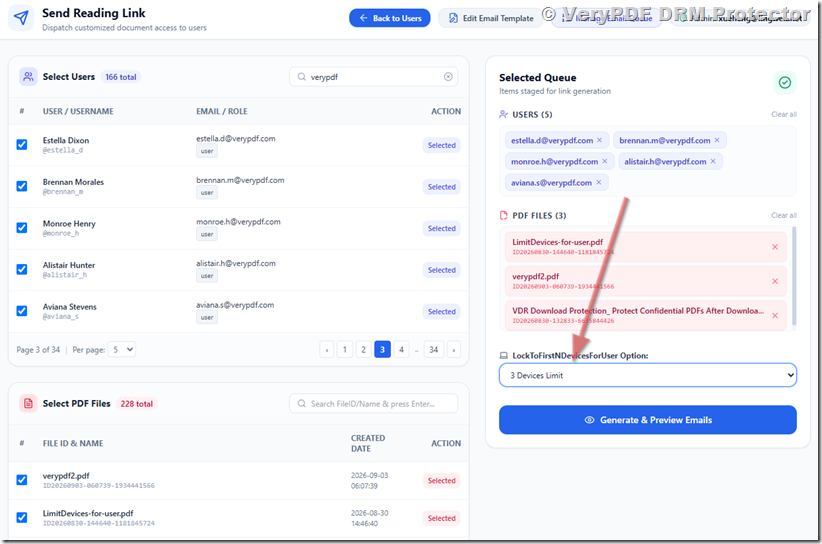
You can select the LockToFirstNDevicesForUser value before generating the secure reading URL.
This method can be convenient when you receive an order and want to create access for that specific customer.
For example:
| Order | Device Limit |
|---|---|
| Standard ebook | 1 |
| Family ebook | 2 |
| Training package | 3 |
You can use a different device limit depending on what the customer purchased.
Method 3: Set the Device Limit When Inviting a User for a PDF
There is another option when you are working with a specific PDF file.
Go to:
Find the PDF and click:
Actions → Invite User
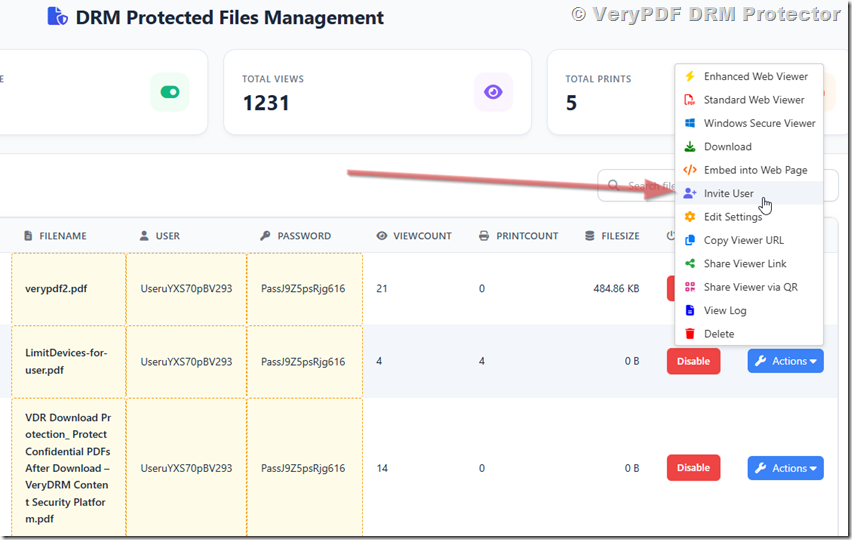
You can then set:
Device Limit (LockToFirstNDevicesForUser)
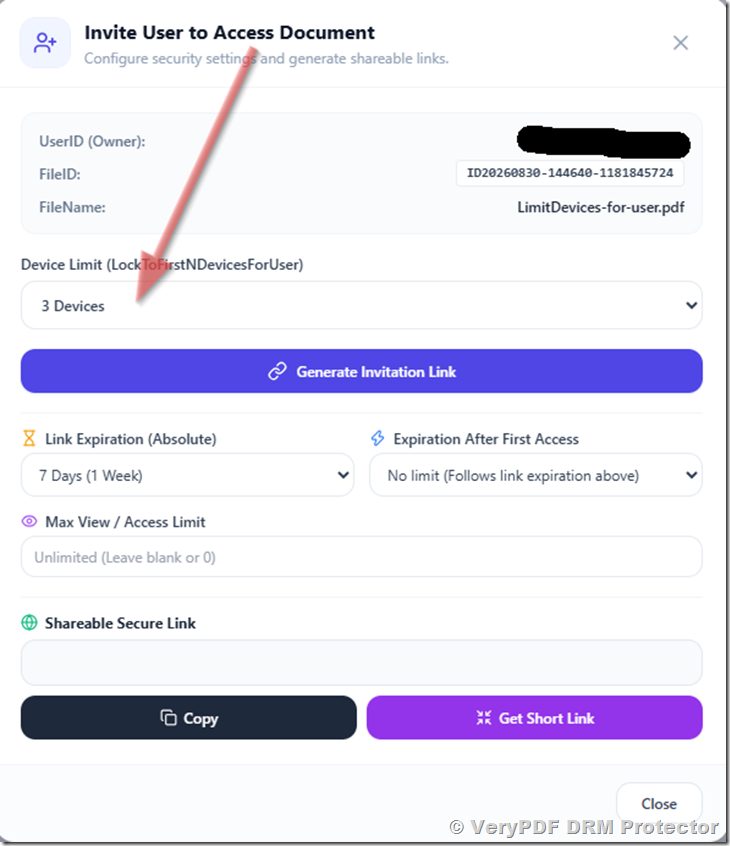
After choosing the number of devices, you can generate a Shareable Secure Link for the customer.
This is useful if you want to control access to a particular PDF without changing the settings for all users.
Which Method Should You Use?
The three methods are similar, but they fit different situations.
| Method | Best For | Device Limit |
|---|---|---|
| User Profile | Permanent customer settings | Per user |
| Send Reading Link | Sending access after an order | Per user/link |
| PDF → Invite User | Giving access to a specific PDF | Per user/PDF |
If you sell ebooks online and need to process many orders, Send Reading Link may be the easiest workflow.
If you have long-term customers with different access rules, setting the limit in the User Profile may be more convenient.
Can Customers Read the PDF in a Web Browser?
Yes.
This is one of the useful features of VeryPDF DRM Protector.
Instead of asking customers to download a special PDF reader, you can send them a secure reading link.
The customer can click the link and open the protected PDF in a web browser.
This can be useful for:
- ebooks
- online courses
- training manuals
- paid reports
- technical documentation
- company documents
- educational materials
- private publications
For customers, the process can be as simple as:
Receive email → Click reading link → Read PDF
They do not need to install another PDF reader just to open the document.
Why Limit PDF Access to 1 or 2 Devices?
A secure reading link by itself may not be enough if you are selling digital content.
Imagine that you sell a $50 ebook.
You send the buyer a personal reading link.
The buyer forwards that link to ten friends.
If all ten people can open the PDF, one sale could effectively become eleven copies.
This is a common concern for people selling digital documents.
A device limit adds another layer of protection.
For example, if the customer has a two-device limit:
Customer’s computer → Allowed
Customer’s phone → Allowed
Friend’s computer → Blocked
The exact behavior depends on the DRM settings and access method, but the basic purpose is to prevent unlimited device sharing.
1 Device vs. 2 Devices: Which Is Better?
There is no single answer.
It depends on how customers normally read your content.
| Device Limit | Advantages | Possible Problem |
|---|---|---|
| 1 device | Stronger sharing control | Customer may be unhappy when changing devices |
| 2 devices | Good balance for many ebooks | Slightly more sharing flexibility |
| 3+ devices | More convenient | Easier for customers to share access |
For a normal ebook, 2 devices can be a practical choice.
For example, a customer may want to read the book on a desktop computer at home and a phone while traveling.
If you set the limit to only one device, the customer may have to contact you when they replace their computer.
A two-device limit gives the customer more flexibility while still limiting casual account sharing.
What Happens When a Customer Gets a New Device?
This is an important issue when using device limits.
Suppose a customer has a two-device license:
- Windows PC
- iPhone
Later, the customer buys a new laptop.
If the old device is still registered, the customer may have reached the allowed device limit.
For this reason, you should decide how you want to handle device replacement.
For example, you may provide customer support to reset the customer’s device registration when there is a legitimate reason.
This is especially important for ebooks that customers expect to keep for a long time.
Can I Use Different Device Limits for Different Customers?
Yes.
This is one of the most useful parts of the user-specific setting.
For example:
| Customer Type | Setting |
|---|---|
| Individual buyer | LockToFirstNDevicesForUser=1 |
| Premium buyer | LockToFirstNDevicesForUser=2 |
| Family license | LockToFirstNDevicesForUser=3 |
| Organization | Custom setting |
You can therefore create different access rules without changing the device limit for everyone else.
Can I Use This With Personalized Reading Links?
Yes.
A common setup is to create a named user for the customer and send that customer a personalized secure reading link.
The basic workflow can look like this:
1. Customer purchases your PDF
↓
2. You create or identify the customer
↓
3. Set the customer’s device limit
↓
4. Select the PDF
↓
5. Generate the secure reading link
↓
6. Send the link to the customer
↓
7. Customer reads the PDF in a web browser
This can be much easier than manually sending a protected PDF file to every customer.
VeryPDF DRM Protector for Secure PDF Sharing
If you sell PDF ebooks or need to share private PDF documents with specific users, VeryPDF DRM Protector is worth considering.
It is designed to help control how protected PDF files are accessed.
Depending on your setup, you can use features such as:
- Secure PDF reading links
- Web-based PDF viewing
- User-specific access
- Device limits
- PDF printing restrictions
- Copying restrictions
- Screenshot protection
- Dynamic text watermarks
- Access control
- Revoking user access
The important point is that you can combine these controls instead of relying on a simple PDF password.
For example, an ebook seller could use:
Personal reading link + named user + 2-device limit + dynamic watermark
This provides more control than simply emailing an ordinary PDF attachment.
A Simple Setup for Selling PDF Ebooks
If your main goal is to sell ebooks and let customers read them online, you can start with a simple setup.
Recommended setup
Customer buys ebook
→
Create customer account
→
Give access to the purchased PDF
→
Set device limit to 2
→
Generate personal reading link
→
Email the link
The customer clicks the link and reads the ebook in a web browser.
You can later add stronger controls if you need them.
For example, you may add dynamic watermarks containing the customer’s email address.
This can discourage customers from taking screenshots and sharing them with other people.
Frequently Asked Questions
1. Can I limit a PDF to one device?
Yes. Set the user’s device limit to:
LockToFirstNDevicesForUser=1
The PDF will be locked to the first permitted device used by that user.
2. Can I allow two devices instead?
Yes. Use:
LockToFirstNDevicesForUser=2
This is useful when customers need to read an ebook on both a computer and a phone.
3. Can different customers have different device limits?
Yes. You can set the device limit for individual users.
For example, one customer can have one device while another customer can have two devices.
4. Do I need to use the same device limit for every PDF?
No. Depending on your setup, you can configure access for specific users and PDFs.
5. Can customers read the PDF in a web browser?
Yes. VeryPDF DRM Protector supports web-based PDF reading, so customers can open a secure reading link in their browser.
6. Do customers need to install a special PDF reader?
For web viewing, customers can read the PDF directly in a supported web browser.
7. Can customers share their reading link?
You can use device limits and user access controls to reduce unauthorized sharing. For example, a two-device limit prevents the same user from freely using the link on unlimited devices.
8. What does LockToFirstNDevicesForUser=2 mean?
It means the user can be locked to the first two devices that are registered for that user’s protected PDF access.
9. Can I change the device limit later?
The device limit can be managed through the user and access settings. If you need to change an existing customer’s access, you can update the appropriate user settings.
10. Is one device better than two devices?
Not always. One device provides tighter control, but two devices are often more convenient because customers commonly use a computer and a phone or tablet.
11. Can I give different customers different numbers of devices?
Yes. This is exactly what the user-specific setting is designed for.
12. Can I send a secure reading link after a customer buys an ebook?
Yes. You can use the Invite User or Send Reading Link workflow to give a customer access to a protected PDF.
13. Can I protect a PDF without using a download link?
Yes. You can use a web-based reading link so the customer can read the protected PDF in the browser instead of receiving a normal PDF download.
14. Can I add a watermark for each customer?
Yes. VeryPDF DRM Protector supports dynamic watermarking, which can be useful when you want to show information such as the customer’s email address on the document.
15. Is a device limit enough to stop PDF piracy?
A device limit can reduce unauthorized sharing, but no DRM system should be described as making digital content impossible to copy or pirate. For better protection, combine device limits with user authentication, secure links, watermarks, printing/copy restrictions, and other DRM controls.
Final Example
If you want a customer to read an ebook on up to two devices, you can use:
LockToFirstNDevicesForUser=2
If another customer should only use one device, use:
LockToFirstNDevicesForUser=1
This lets you control PDF access customer by customer, rather than applying one device limit to everyone.
For publishers, ebook sellers, training companies, and organizations that need to securely share PDFs online, VeryPDF DRM Protector provides a practical way to combine secure web viewing, personalized reading links, user access control, and device limits.