
Digital Rights Management (DRM) is a powerful tool used by media companies to protect their content from piracy and unauthorized distribution. However, as a result, it has made simple tasks like screen recording DRM-protected videos more challenging. For instance, when trying to screen record a video from platforms like Netflix, Hulu, or Disney+, users often encounter the frustrating problem of a black screen – the audio may be recorded, but the video content remains blank.
In this article, we’ll explore why this happens, how disabling hardware acceleration might help, and why big companies haven’t fully solved this issue despite years of public knowledge on workarounds. Furthermore, we’ll also take a look at how to protect your own videos with DRM using VeryPDF’s custom-built solutions.
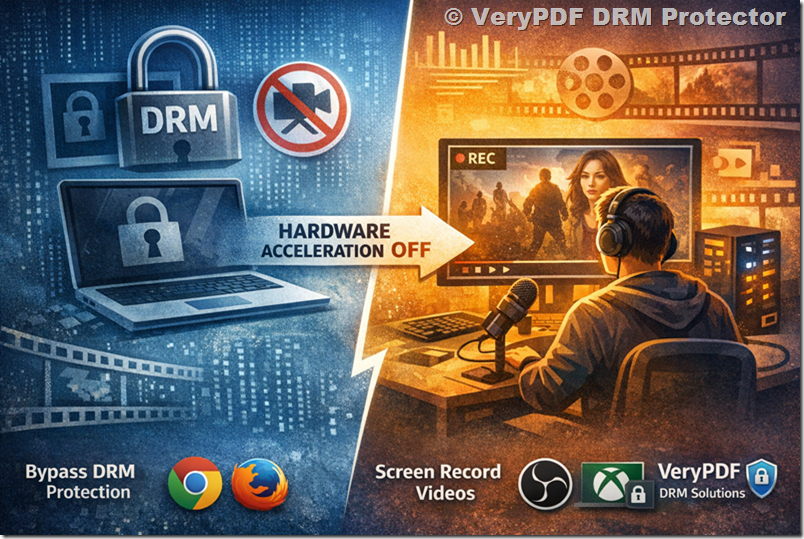
What is DRM?
Digital Rights Management (DRM) refers to a set of technologies and processes that media companies use to restrict how their digital content can be used, distributed, or copied. The goal of DRM is to prevent unauthorized sharing or piracy of media files, such as movies, TV shows, music, and e-books. DRM is often implemented in streaming platforms like Netflix, Amazon Prime, Hulu, and Disney+, making it impossible to copy or record videos directly.
While DRM successfully prevents unauthorized distribution, it can also create unintended challenges for users who want to record videos for personal use. The inability to record DRM-protected videos is one of the key limitations faced by users today.
Why Does DRM Cause Black Screens When Screen Recording?
The black screen issue while screen recording DRM-protected videos occurs because of a feature within DRM technologies designed to prevent unauthorized screen captures. These protections are built into both the video playback software (such as web browsers or streaming applications) and the hardware level (such as the graphics card in your computer).
Here’s how it works:
- Video Decryption and Display: DRM-protected videos are encrypted. To be viewed, they need to be decrypted by the media player or browser at some point. In most modern systems, video decryption and rendering are offloaded to the GPU (Graphics Processing Unit) for efficiency.
- Hardware Acceleration: Hardware acceleration refers to the use of the GPU for tasks like video rendering, which increases performance and reduces CPU usage. When DRM content is being played, hardware acceleration is typically employed to decrypt and render the video.
- Screen Recording Interference: Screen recording software, such as OBS (Open Broadcaster Software) or Game Bar, relies on the GPU’s display output. However, because the video is decrypted at the hardware level (GPU), the screen recorder cannot capture it effectively. As a result, the screen recording software detects a black screen instead of the video content.
- CPU Rendering and Video Capture: If hardware acceleration is turned off, the video decryption and rendering process is shifted from the GPU to the CPU. While this may lower performance, it allows the screen capture software to access the video feed and successfully record it. This is why users often find that disabling hardware acceleration resolves the black screen issue.
How to Disable Hardware Acceleration to Avoid the Black Screen
If you’re trying to screen record DRM-protected content and encountering black screens, disabling hardware acceleration in your browser or video playback software can help resolve this issue. Here’s how to turn it off in different browsers:
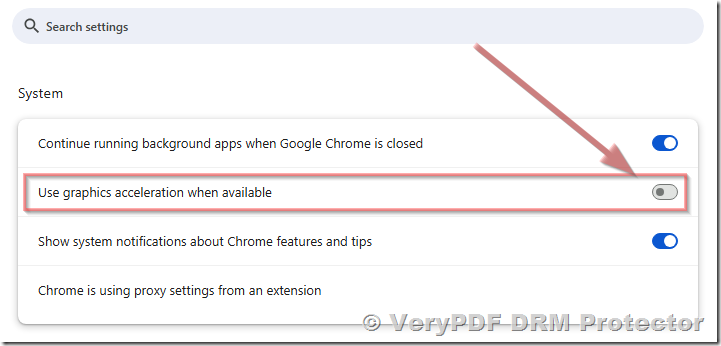
For Google Chrome:
- Open Settings.
- Scroll down to System.
- Toggle off the option Use hardware acceleration when available.
- Relaunch the browser for the changes to take effect.
 For Mozilla Firefox:
- Open Settings.
- Go to General > Performance.
- Uncheck Use recommended performance settings.
- Uncheck Use hardware acceleration when available.
- Restart the browser for the changes to take effect.
For Microsoft Edge:
- Open Settings.
- Go to System.
- Toggle off Use hardware acceleration when available.
- Relaunch the browser to apply the changes.
Disabling hardware acceleration forces the browser to use software rendering, which may bypass the DRM protections and allow you to screen record DRM-protected videos. However, be aware that this can affect video playback performance, especially for high-resolution content or complex video streams.
Performance Implications of Disabling Hardware Acceleration
Disabling hardware acceleration can have both positive and negative effects, depending on the context in which you’re using your computer.
- Positive Impact: By using software rendering, screen recording software can capture the decrypted video content because the video processing is being handled by the CPU, which the screen recording software can access. This solves the issue of black screens when recording DRM-protected videos.
- Negative Impact: CPU rendering is much more resource-intensive than GPU rendering. For high-definition videos or demanding media like games, turning off hardware acceleration can cause lag, buffering, and decreased performance. The video quality might also degrade as the CPU struggles to handle the decryption and rendering tasks.
Why Haven’t Big Companies Solved the Black Screen Issue?
Despite the widespread knowledge of this workaround (disabling hardware acceleration), it remains a viable option for many people who wish to record DRM-protected videos. So, why hasn’t the issue been fully solved by big media companies like Netflix, Disney+, and Hulu?
There are a few reasons why these companies haven’t fully closed this loophole:
- Encryption and Protection Complexity: While DRM technology is complex, it still requires the video content to be decrypted at some point for playback. Decrypting video at the hardware level (via the GPU) is efficient but doesn’t provide a direct means to capture the decrypted content.
- Consumer Experience: Blocking screen recording entirely would negatively impact the user experience for legitimate users. It would require additional layers of protection, potentially interfering with other applications like screen sharing, video calling, and gaming. This would cause frustration for users who simply want to share or record their content for personal use.
- Resource Limitations: Fully preventing screen recording while preserving performance and usability is a challenge. Video streaming services have to balance security and user experience, which is why the loophole exists. Most users are unlikely to ever need to screen record, so companies may not prioritize implementing stricter measures.
- Workaround Discovery: As long as a portion of the user base can bypass these protections by disabling hardware acceleration, companies have less incentive to implement stricter DRM mechanisms. This may be because they recognize that these measures would hurt the overall experience for legitimate users.
VeryPDF Provides a Video DRM Solution
If you’re concerned about DRM-protecting your own videos, VeryPDF offers a comprehensive video DRM solution designed to protect your content from unauthorized use. Whether you’re a content creator, educator, or business owner, VeryPDF’s DRM technology can ensure your videos remain secure.
VeryPDF’s custom-built solutions offer several advanced features:
- Encryption: Strong encryption methods prevent unauthorized copying and distribution.
- Access Control: Restrict access to videos based on specific users or IP addresses.
- Watermarking: Dynamic watermarking allows you to personalize video content and track potential leaks.
- License Management: Custom license management systems ensure that only authorized users can view your videos.
By contacting VeryPDF DRM, you can receive a tailored solution to meet your specific needs. Whether you’re looking to protect sensitive educational content, corporate training videos, or any other digital media, VeryPDF can help secure your video assets.
Conclusion
While there are workarounds to screen record DRM-protected videos—such as disabling hardware acceleration—the issue of black screens remains a significant challenge for those wishing to capture streaming content. Disabling hardware acceleration allows screen recording software to access the video feed, but it comes with the tradeoff of potentially reduced performance and quality.
For creators and businesses looking to protect their own videos, DRM technologies like those offered by VeryPDF can ensure your content is safeguarded from unauthorized access. By using video DRM protection, you can have peace of mind knowing that your digital media is secure, while offering a seamless experience for your audience.
If you’re in need of a custom-built DRM solution for your video content, please contact VeryPDF DRM for more information and to get started with protecting your valuable media assets.
Keywords: DRM, screen recording, black screen, hardware acceleration, VeryPDF, video DRM solution, encryption, content protection, media security.