
If you share confidential PDF files, you probably worry about screenshots, screen recording, and screen sharing. Password protection is helpful, but it cannot stop someone from opening a document and recording everything on the screen.
To solve this problem, VeryPDF has released a major update for VeryPDF Secure Reader. The latest version of verypdf-reader.jar adds more protection for PDF files on Windows, macOS, and Linux.
The new version supports Dynamic Watermark, Screen Shield, AES 256-bit DRM protected PDF files, and, on Windows, it can also block screenshots, screen recording, and screen sharing during online meetings.
If you distribute ebooks, training materials, engineering drawings, financial reports, legal documents, or examination papers, these new features can help protect your content from unauthorized copying.
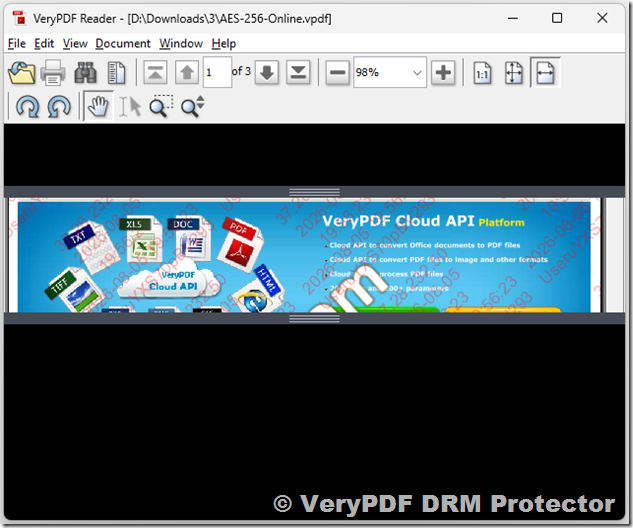
What’s New in VeryPDF Secure Reader?
The latest release adds several important security features.
| Feature | Windows | macOS | Linux |
|---|---|---|---|
| Dynamic Watermark | ✔ | ✔ | ✔ |
| Screen Shield | ✔ | ✔ | ✔ |
| Adjustable Screen Shield (1%-99%) | ✔ | ✔ | ✔ |
| AES 256-bit DRM PDF Support | ✔ | ✔ | ✔ |
| Block Screenshots | ✔ | — | — |
| Block Screen Recording | ✔ | — | — |
| Block Screen Sharing | ✔ | — | — |
Open AES 256-bit DRM Protected PDF Files
The latest version now supports AES 256-bit DRM protected PDF files.
AES 256-bit encryption is widely used to protect sensitive documents because it offers a very high level of security.
With this update, users can securely open encrypted PDF files while still benefiting from all DRM protection features, including:
- Dynamic Watermark
- Screen Shield
- Print control
- Copy protection
- Screenshot protection
- Screen recording protection
This gives organizations strong protection both before and after a document is opened.
Dynamic Watermark on Windows, macOS, and Linux
Dynamic Watermark is now available on all supported operating systems.
Each user sees a personalized watermark that may include:
- User name
- Email address
- Company name
- Date and time
- IP address
- Custom information
Because every watermark is different, users know that shared copies can be traced back to them.
This simple feature helps reduce intentional document leaks.
Screen Shield Shows Only Part of the Document
Another major feature is Screen Shield.
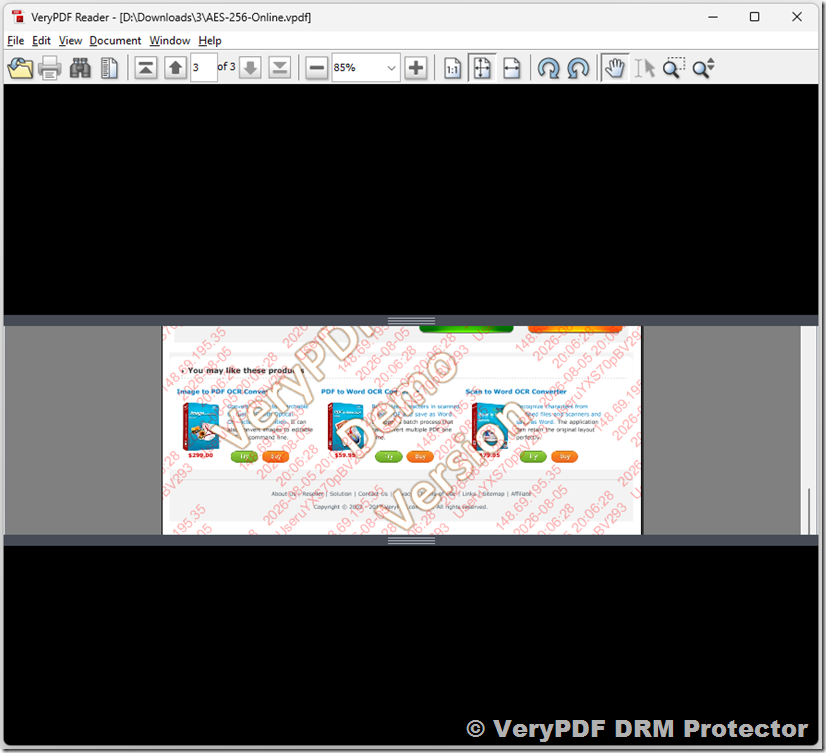
Instead of displaying the complete page, Screen Shield only shows part of the document.
The visible area can be adjusted from 1% to 99%.
Use this parameter:
VeryPDFDRM_ScreenShield=Examples:
| Value | Visible Area |
|---|---|
| 5 | 5% of the page |
| 20 | One small reading area |
| 50 | Half of the page |
| 99 | Almost the full page |
Screen Shield makes it much harder to:
- Capture full-page screenshots
- Record complete documents
- Photograph the screen
- Copy confidential information
This feature is especially useful for online reading.
Block Screenshots on Windows
The Windows version now blocks many popular screenshot tools.
Supported applications include:
| Screenshot Software | Blocked |
|---|---|
| Windows Snipping Tool | ✔ |
| Win + Shift + S | ✔ |
| Print Screen | ✔ |
| ShareX | ✔ |
| Snagit | ✔ |
| PicPick | ✔ |
| Greenshot | ✔ |
| FastStone Capture | ✔ |
| Lightshot | ✔ |
| Flameshot | ✔ |
| Screenpresso | ✔ |
Even if users try different screenshot programs, protected documents remain secure.
Stop Screen Recording Software
Many users try to record a document instead of taking screenshots.
VeryPDF Secure Reader blocks many popular recording applications.
| Screen Recording Software | Blocked |
|---|---|
| OBS Studio | ✔ |
| Windows Game Bar | ✔ |
| ShareX | ✔ |
| Bandicam | ✔ |
| Camtasia | ✔ |
| ScreenPal | ✔ |
| ScreenFlow | ✔ |
| Screen Studio | ✔ |
| Loom | ✔ |
| QuickTime Player | ✔ |
| VLC Desktop Capture | ✔ |
| FFmpeg | ✔ |
OBS Studio, Bandicam, Camtasia, and ShareX are among the most common desktop recording programs, and they are included in the supported list.
Stop Screen Sharing During Video Meetings
Many confidential documents are leaked during online meetings.
A user simply clicks Share Screen, and everyone in the meeting can view the protected document.
VeryPDF Secure Reader helps prevent this.
Supported meeting software includes:
| Video Meeting Platform | Protected |
|---|---|
| Zoom | ✔ |
| Microsoft Teams | ✔ |
| Google Meet | ✔ |
| Cisco Webex | ✔ |
| Slack | ✔ |
| Discord | ✔ |
| Skype | ✔ |
| Tencent Meeting | ✔ |
| DingTalk | ✔ |
| Feishu (Lark) | ✔ |
| Jitsi Meet | ✔ |
| GoTo Meeting | ✔ |
| RingCentral | ✔ |
| Zoho Meeting | ✔ |
This reduces the chance of confidential documents being shared during meetings.
Remote Desktop Software Is Also Considered
Some users attempt to bypass security through remote desktop software.
VeryPDF also tests protection against applications such as:
- TeamViewer
- AnyDesk
- RustDesk
- Chrome Remote Desktop
- Splashtop
- Microsoft Remote Desktop
These applications are commonly used in business environments, making them important targets for DRM protection.
Browser Screen Capture Is Included in Testing
Modern browsers support screen capture through browser APIs.
Examples include:
- Google Chrome
- Microsoft Edge
- Mozilla Firefox
Common APIs include:
- getDisplayMedia()
- Chrome desktopCapture API
These technologies are widely used by browser-based meeting software and screen recording extensions.
VeryPDF includes these APIs in its testing process to improve document protection.
Installation Requirements
Java 8 must be installed before running VeryPDF Secure Reader.
| Operating System | Required Package |
|---|---|
| Windows | jdk-8u202-windows-x64.exe |
| macOS | jre-8u202-macosx-x64.dmg |
| Linux | Java 8 Runtime Environment |
How to Start VeryPDF Secure Reader
Windows
Install jdk-8u202-windows-x64.exe, then run:
javaw -jar verypdf-reader.jarmacOS
Install jre-8u202-macosx-x64.dmg, then run:
java -jar verypdf-reader.jarLinux
Install Java 8, then run:
java -jar verypdf-reader.jarWhy These Features Matter
Most PDF security products stop protecting a document after it is opened.
That is no longer enough.
People can still:
- Take screenshots
- Record videos
- Share screens
- Use browser screen capture
- Open documents through remote desktop software
VeryPDF Secure Reader continues protecting documents while they are being viewed.
This greatly reduces the risk of confidential information being copied or shared.
Who Uses VeryPDF Secure Reader?
Many organizations need stronger PDF protection.
Typical users include:
- Publishers
- Universities
- Schools
- Training companies
- Government departments
- Banks
- Insurance companies
- Healthcare providers
- Manufacturing companies
- Engineering firms
- Legal offices
- Research organizations
If you send confidential PDF files to customers or employees, these features can help protect your intellectual property.
Why Choose VeryPDF DRM Protector?
VeryPDF DRM Protector is designed to protect PDF files throughout their entire lifecycle.
It provides much more than password protection.
| Feature | Supported |
|---|---|
| AES 256-bit Encryption | ✔ |
| DRM Protection | ✔ |
| Dynamic Watermark | ✔ |
| Screen Shield | ✔ |
| Adjustable Reading Area | ✔ |
| Screenshot Protection | ✔ |
| Screen Recording Protection | ✔ |
| Screen Sharing Protection | ✔ |
| Print Control | ✔ |
| Copy Protection | ✔ |
| Device Locking | ✔ |
| Expiration Control | ✔ |
| Online Viewing | ✔ |
| Offline Viewing | ✔ |
| Windows | ✔ |
| macOS | ✔ |
| Linux | ✔ |
| Android | ✔ |
| iPhone & iPad | ✔ |
VeryPDF DRM Protector helps businesses safely distribute confidential PDF documents while reducing the risk of unauthorized copying and sharing.
Frequently Asked Questions
1. Can VeryPDF Secure Reader open AES 256-bit DRM protected PDF files?
Yes. The latest version fully supports AES 256-bit DRM protected PDF documents.
2. Does Dynamic Watermark work on macOS and Linux?
Yes. Dynamic Watermark is supported on Windows, macOS, and Linux.
3. What is Screen Shield?
Screen Shield only displays part of a document. The visible area can be adjusted from 1% to 99%.
4. How do I change the Screen Shield size?
Use the following parameter:
VeryPDFDRM_ScreenShield=
Choose a value between 1 and 99.
5. Can Windows users take screenshots?
No. When protection is enabled, many popular screenshot tools are blocked.
6. Does it stop OBS Studio and Bandicam?
Yes. Both applications are included in the supported screen recording protection list.
7. Can it prevent Zoom screen sharing?
Yes. Protected PDF documents cannot be shared normally through supported video meeting software.
8. Does it support Microsoft Teams and Google Meet?
Yes. Microsoft Teams, Google Meet, Cisco Webex, Slack, Discord, and many other meeting platforms are supported.
9. Which Java version is required?
Java 8 is recommended.
Windows users should install jdk-8u202-windows-x64.exe.
macOS users should install jre-8u202-macosx-x64.dmg.
10. How do I start VeryPDF Secure Reader?
On Windows:
javaw -jar verypdf-reader.jar
On macOS and Linux:
java -jar verypdf-reader.jar
11. Does VeryPDF protect against remote desktop software?
Yes. Protection has been tested with TeamViewer, AnyDesk, RustDesk, Chrome Remote Desktop, Splashtop, and Microsoft Remote Desktop.
12. Who should use VeryPDF DRM Protector?
Anyone who needs to protect confidential PDF files, including publishers, schools, universities, government agencies, financial institutions, healthcare providers, engineering companies, legal firms, and training organizations.