
Dear VeryPDF Support Team,
I hope you are doing well.
I have some questions regarding the user access control features in VeryPDF DRM Protector. I would like to understand whether the admin has full control over which users can view specific PDF files. Specifically:
- Can the admin choose specific users who are allowed to view a particular PDF?
- Can the admin prevent certain users from viewing the same PDF?
- Can the admin revoke access at any time after the document has been shared?
- Is it possible to control access based on user email login?
If these features are available, could you please provide a step-by-step guide on how to enable and configure them in the system?
Additionally, I would like to know:
- Which subscription plan includes this feature?
- Is this feature available in the free trial version?
I would greatly appreciate your detailed guidance.
Thank you for your support.
Best regards,
Customer
Protecting sensitive PDF documents is becoming increasingly important for businesses, educational institutions, and organizations that distribute confidential or copyrighted materials. One of the most common concerns among administrators is controlling exactly who can view, share, or access specific documents. VeryPDF DRM Protector provides a powerful and flexible solution that allows administrators to manage user-level permissions with full control.
This article answers common questions about user-specific access control and provides a detailed step-by-step guide on how to configure and manage these features within VeryPDF DRM Protector.
Try the free online demo now: https://drm.verypdf.com
Understanding User-Specific Access Control
User-specific access control allows administrators to define exactly which users are allowed to view particular PDF documents. Instead of sharing a document with a broad group or making it publicly accessible, administrators can restrict access to individual users or selected groups. This ensures that sensitive information remains protected and that documents are only available to authorized recipients.
Can the Administrator Choose Specific Users Who Are Allowed to View a Particular PDF?
Yes. VeryPDF DRM Protector allows administrators to assign access rights at the individual user level. Each protected PDF document is assigned a unique FileID. Administrators can assign one or more FileIDs to each user account. Only users who have been assigned the corresponding FileID will be able to access and view that PDF document.
This feature is particularly useful for organizations that need to distribute different documents to different departments, students, employees, or clients while maintaining strict security controls.
Can the Administrator Prevent Certain Users from Viewing the Same PDF?
Yes. The system ensures that users who are not assigned a specific FileID cannot access the associated PDF file. If a user attempts to access a document that has not been assigned to their account, the system will block access automatically.
This allows administrators to easily prevent unauthorized viewing without needing to modify or redistribute the document itself.
Can Access Be Revoked After the Document Has Been Shared?
Yes. VeryPDF DRM Protector provides real-time control over document access. Administrators can revoke access at any time using several methods:
- Disabling the protected PDF file. Once disabled, no users will be able to open the document.
- Removing the FileID assignment from a user. This immediately removes that user’s access to the document.
- Disabling the user account entirely. This prevents the user from logging in or accessing any protected documents.
All changes take effect immediately, even if the document has already been distributed.
Is It Possible to Control Access Based on User Email Login?
Yes. User authentication is handled through registered email addresses. Each user must log in using their assigned email credentials before accessing protected PDF documents. The system verifies user permissions based on the FileIDs associated with their email account. This ensures that only verified users with proper authorization can open specific files.
Step-by-Step Guide to Configuring User-Specific Access Control
Step 1: Upload and Protect Your PDF Document
First, administrators need to upload and secure their PDF files using the online DRM protection system.
Visit the following page and log in using your email address:
https://drm.verypdf.com/online/
After uploading the PDF file, the system will automatically generate a protected version of the document. Each protected file is assigned a unique FileID. This FileID is essential because it is used to control which users can access the document.
An example FileID might look like this:
ID20260211-135923-2053261544
Administrators should record or copy the FileID because it will be used when assigning access permissions to users.
Step 2: View and Manage Protected PDF Files
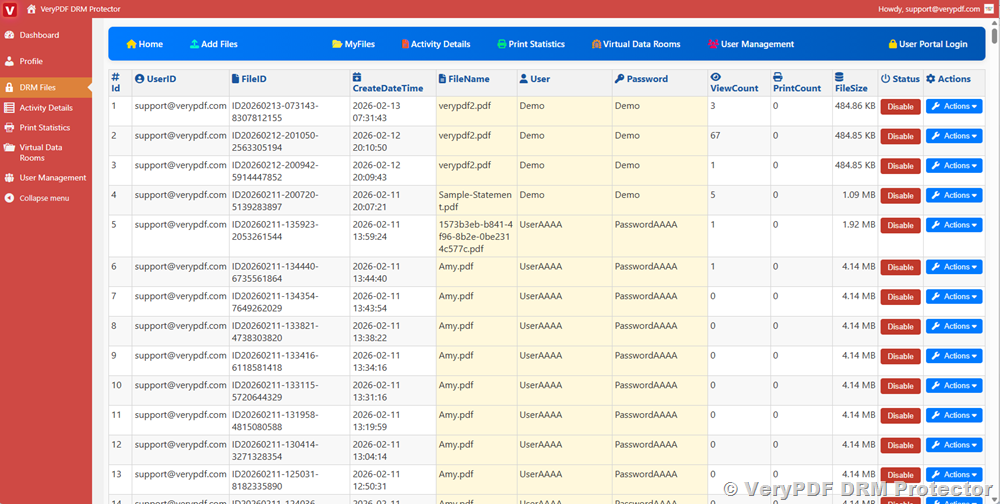
After uploading and protecting your documents, administrators can view the complete list of protected files by visiting the following management page:
https://drm.verypdf.com/wp-admin/admin.php?page=VeryPDFDRMFiles
This page displays all protected PDFs along with their corresponding FileIDs and status. From here, administrators can monitor document availability and manage access settings.
Step 3: Add Users and Assign Document Access
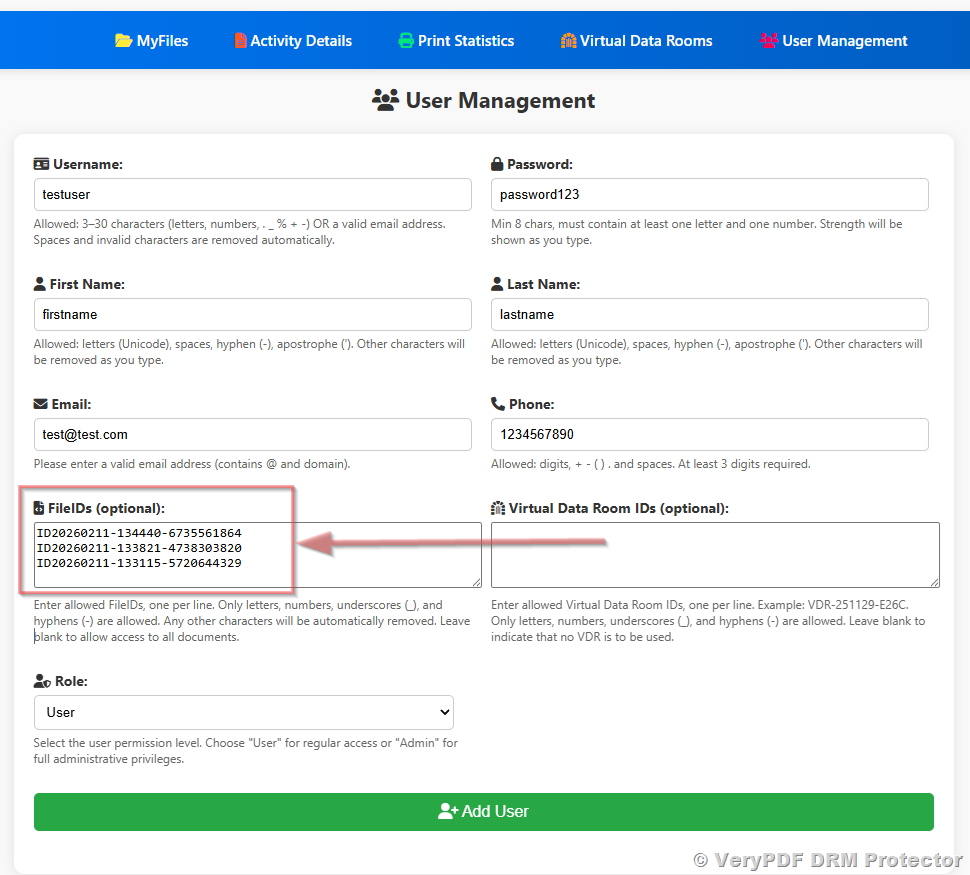
To allow specific users to view protected documents, administrators need to create user accounts and assign FileIDs.
Navigate to the same management page:
https://drm.verypdf.com/wp-admin/admin.php?page=VeryPDFDRMFiles
When adding a new user:
- Enter the user’s email address.
- Locate the FileIDs field.
- Enter the FileID of the document that the user is allowed to access.
For example, if the user should only access one document, enter:
ID20260211-135923-2053261544
If the user should access multiple documents, multiple FileIDs can be entered, such as:
ID20260211-134440-6735561864
ID20260211-133821-4738303820
ID20260211-133115-5720644329
Each FileID should be entered on a separate line. The user will then have access to all documents associated with those FileIDs.
If the FileIDs field is left empty, the user will have permission to view all documents.
Administrators can also enable or disable users at any time. Disabling a user immediately revokes access to all assigned PDFs.
Step 4: Enable or Disable PDF Files at Any Time
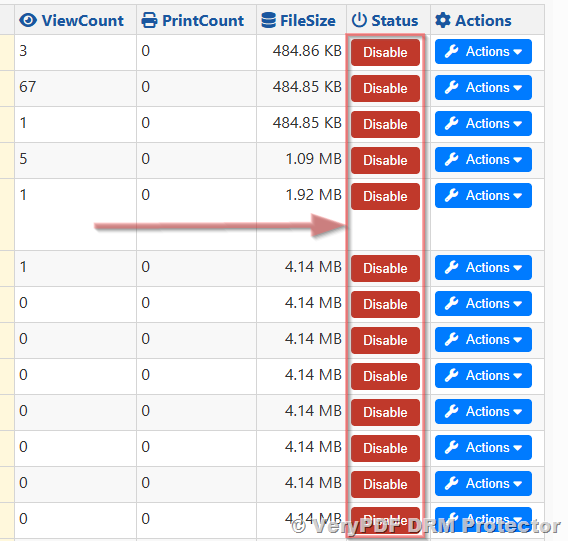
Administrators can enable or disable protected PDF documents at any time through the file management list. Disabling a file immediately prevents all users from accessing that document, even if they were previously authorized.
This feature is useful when documents need to be withdrawn, updated, or restricted after distribution.
Step 5: Enable or Disable User Accounts
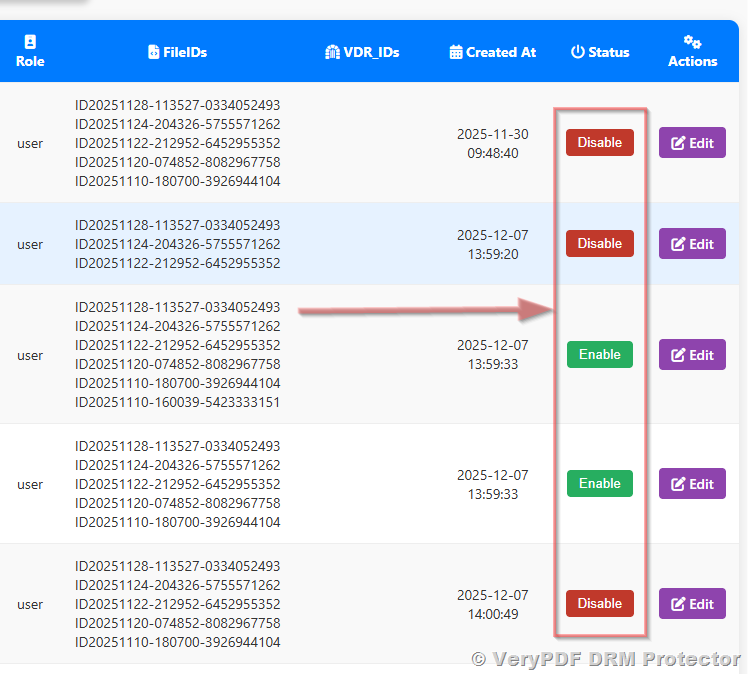
Administrators also have full control over user accounts. From the user management list, administrators can enable or disable any user account.
If a user account is disabled, the user will no longer be able to log in or access any protected documents. This provides an effective way to revoke access when users leave an organization or no longer require document access.
Step 6: Users Log In and Access Assigned PDF Files
Once a user has been added and assigned FileIDs, they can securely access their allowed PDFs:
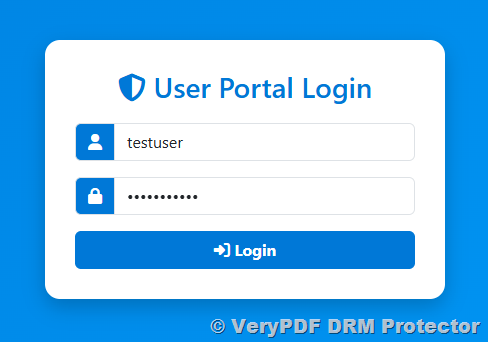
- Go to the login page
https://online.verypdf.com/app/pdfdrm/login.php - Enter the username and password provided by the admin
Users must use the credentials created by the administrator to verify their identity and permissions.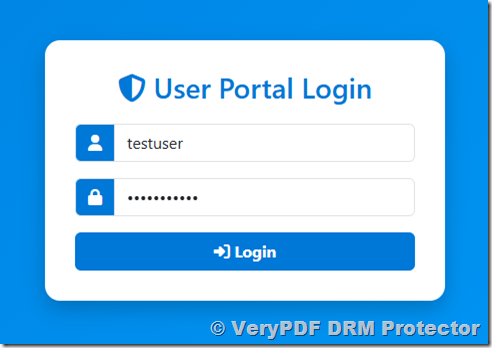
- View assigned PDFs
After logging in, the system displays a list of PDF files the user is allowed to access. Files not assigned to their account will remain inaccessible. - Security enforcement
Unauthorized attempts to open unassigned PDFs are blocked automatically, ensuring full protection of your documents. - Real-time access updates
Any changes made by the administrator—adding or removing FileIDs, or disabling the user account—take effect immediately. Users will see updated access without needing to download new files.
This step ensures that each user can safely and securely view only the PDFs they are authorized to access.
Which Subscription Plans Include User-Specific Access Control?
User-specific access control is included in the all subscription plans. These plans are designed for organizations that require advanced document security and detailed permission management.
Organizations that require larger user capacity, enhanced monitoring, or extended administrative control typically choose the Enterprise plan.
Is User-Specific Access Control Available in the Free Trial Version?
Yes. The free trial version includes full support for user-specific access control features. Administrators can upload and protect PDF documents, create user accounts, assign FileIDs, and enable or disable both users and files.
This allows organizations to thoroughly evaluate the system before committing to a paid subscription.
Advantages of Using VeryPDF DRM Protector for User Access Control
VeryPDF DRM Protector offers several important advantages:
First, it provides real-time control over document access, allowing administrators to modify permissions instantly.
Second, it uses secure user authentication based on email login credentials, ensuring that only authorized users can open protected files.
Third, it allows granular permission control through FileIDs, enabling administrators to assign different access rights to different users.
Fourth, it supports immediate access revocation without requiring document redistribution.
Finally, it provides a centralized management system that simplifies document security administration.
Conclusion
User-specific access control is an essential feature for organizations that need to protect sensitive or confidential PDF documents. VeryPDF DRM Protector offers a reliable and flexible system that allows administrators to control exactly who can access each document, revoke access at any time, and manage permissions through a simple and centralized interface.
By implementing these controls, organizations can protect intellectual property, prevent unauthorized distribution, and maintain full control over their digital documents.
To explore these features and test the system yourself, visit: