
Protecting a PDF while still allowing printing is a sensitive decision in any DRM workflow. Before enabling printing, it is absolutely critical to understand the security implications. Once printing is allowed, the document can be printed to a virtual printer, saved as another PDF, or printed onto paper and scanned back into digital form. In all these scenarios, the protected document may completely escape your control.
Please think very carefully before granting print permission.
Once printing is enabled, no DRM system can fully prevent all forms of content leakage.
With that warning clearly stated, the following tutorial explains how to create a DRM-Protected PDF that is allowed to be printed on both Windows and macOS using VeryPDF DRM Protector and the Enhanced Edition of VeryPDF Secure Web Viewer.
Step-by-Step Guide
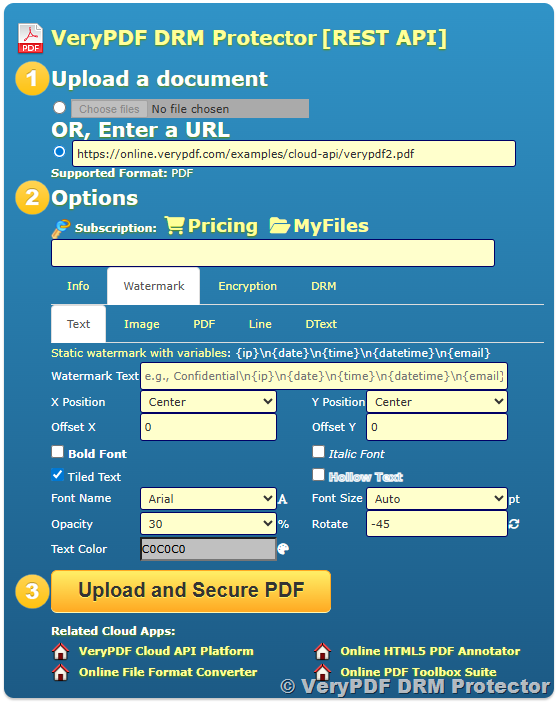
1. Open the Online DRM Protector Page
Visit the following URL and choose the PDF file you want to protect:
https://drm.verypdf.com/online/
You will upload your original PDF here before applying encryption and DRM protections.
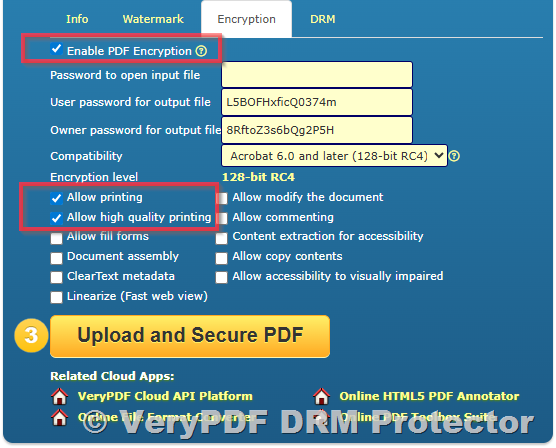
2. Configure Encryption Settings (PDF Standard Permissions)
Navigate to the Encryption tab.
Enable and configure the following options:
- ✔ Enable PDF Encryption
- ✔ Allow printing
- ✔ Allow high quality printing
These parameters control the internal PDF permission flags, meaning the PDF itself must allow printing.
Set them exactly as shown above so that the PDF standard permissions explicitly allow the user to print.
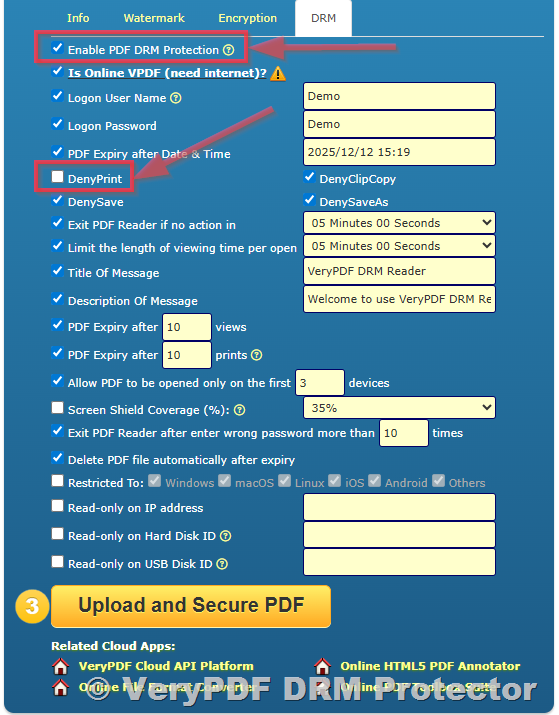
3. Configure DRM Settings (DRM-Level Permissions)
Switch to the DRM tab.
Set the following parameters:
- ✔ Enable PDF DRM Protection
- ✘ DenyPrint (must be unchecked)
- ✘ Screen Shield Coverage (must be unchecked)
These settings control the DRM permissions, which operate on top of the native PDF permissions.
By unchecking DenyPrint, you explicitly allow printing through the DRM layer.
By unchecking Screen Shield Coverage, the viewer will not block the print interface.
4. Generate the Protected PDF
Click the “Upload and Secure PDF” button.
The system will process your file and generate a DRM-protected PDF with both PDF permissions and DRM permissions configured for printing.
Once completed, the system will provide a URL for viewing the protected file.
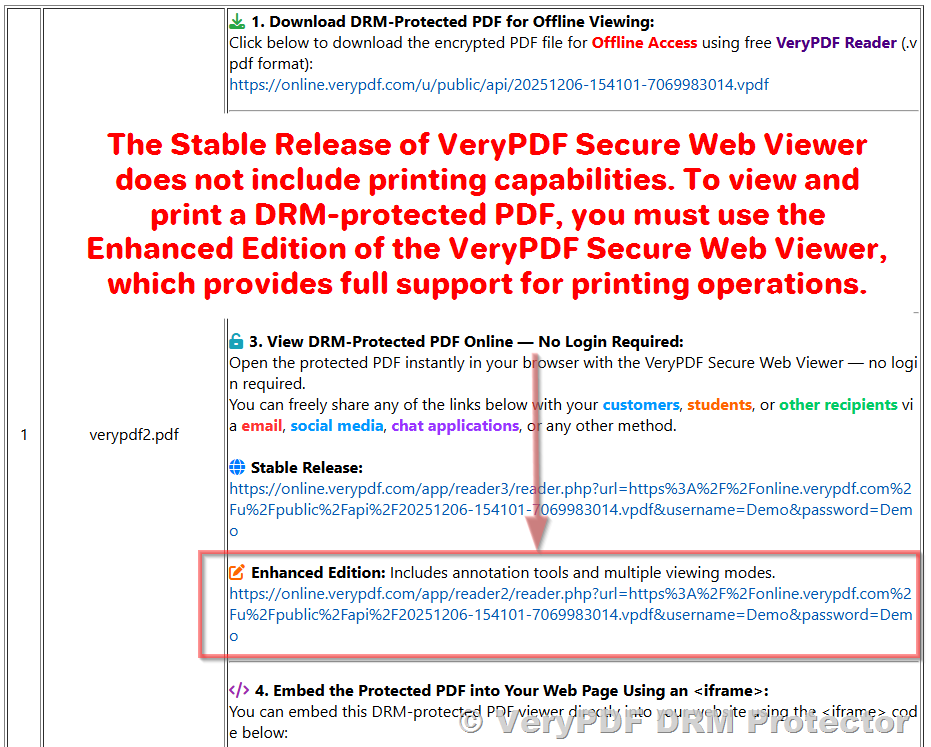
5. Use the Enhanced Edition of VeryPDF Secure Web Viewer
The Stable Release of VeryPDF Secure Web Viewer does NOT support printing.
Therefore, you must use the Enhanced Edition, whose viewer URLs start with:
https://online.verypdf.com/app/reader2/reader.php
Example:
https://online.verypdf.com/app/reader2/reader.php?url=XXXXXXXXXXXXXXXX
The Enhanced Edition includes features such as:
- Annotation tools
- Multiple viewing modes
- Compatibility for PDF printing
Copy this URL for later use.
6. Enable the Print Button in the Viewer Toolbar (Admin Panel)
By default, the Enhanced Viewer interface does not display the Print button.
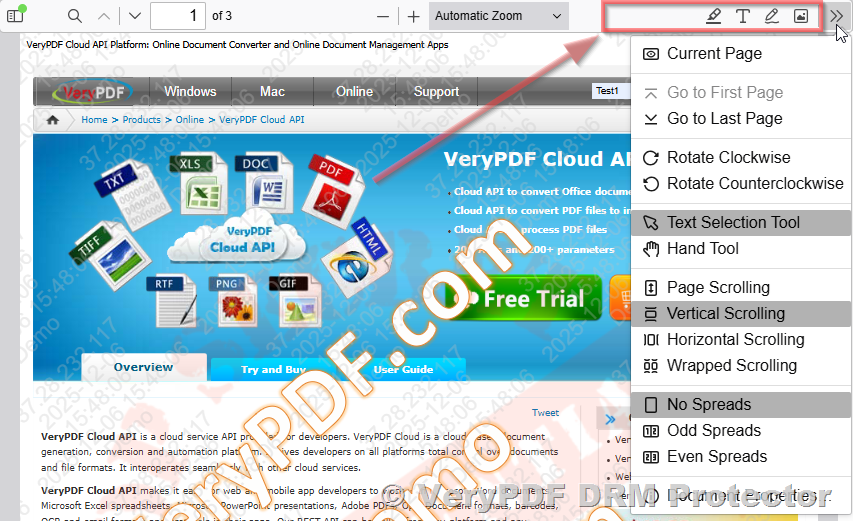 To enable and show the Print button, follow these steps.
6.1 Open the DRM Control Center
Go to:
https://drm.verypdf.com/wp-admin/admin.php?page=VeryPDFDRMFiles
Log into your DRM management console.
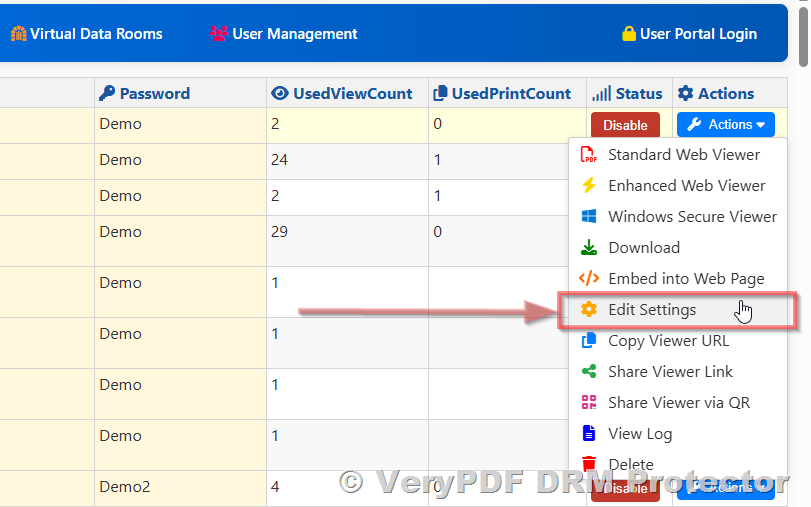
6.2 Open the PDF’s Settings Page
- Locate the PDF you uploaded.
- Click Actions → Edit Settings.
This opens the settings for the selected protected file.
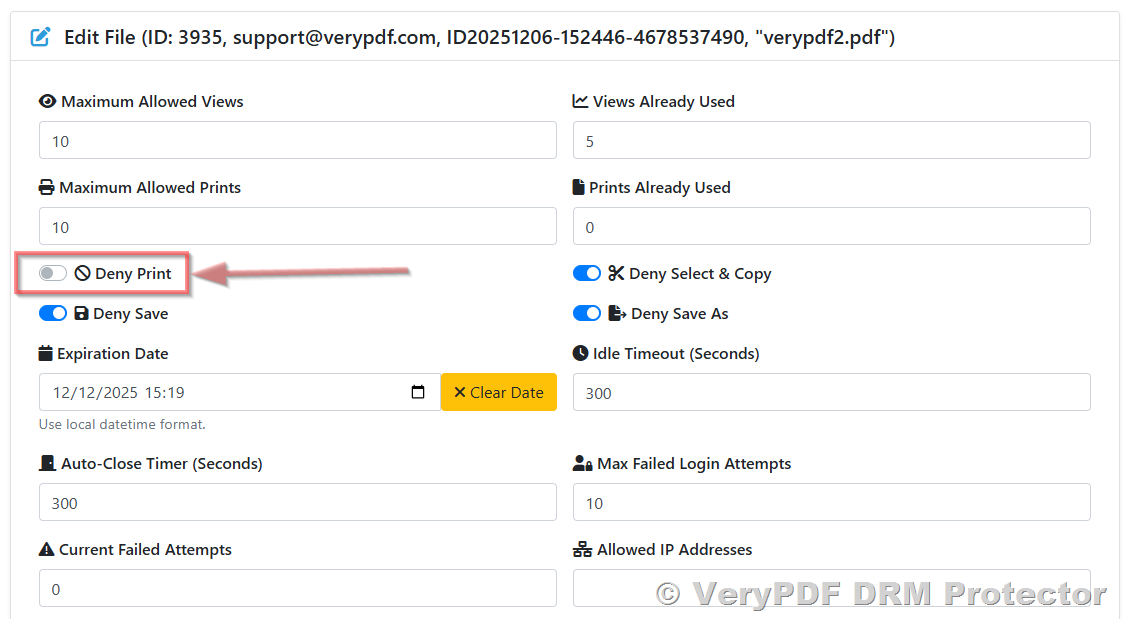
6.2 Confirm “Deny Print” option is disabled
The “Deny Print” option controls whether the DRM layer blocks all printing for the protected PDF. Even if the PDF’s encryption settings allow printing, enabling this option will override those permissions and completely prevent users from printing.
To allow printing on Windows and macOS, you must ensure that “Deny Print” is disabled. When this option is unchecked, the Enhanced Edition Secure Web Viewer can display the Print button and process print requests normally.
Always double-check that this setting is turned off if your goal is to permit printing.
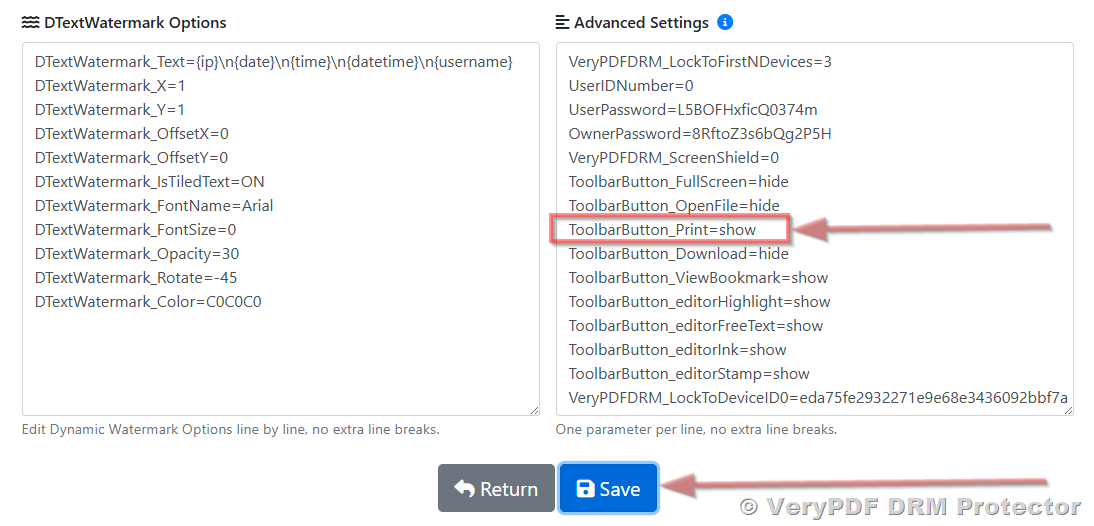
6.4 Modify Advanced Settings to Show the Print Button
Scroll to the bottom of the page until you see Advanced Settings.
Locate the parameter:
ToolbarButton_Print=hide
Change it to:
ToolbarButton_Print=show
Click Save to apply the changes.
7. View the Protected PDF with Printing Enabled
Now go back to the URL you previously copied for the Enhanced Viewer.
Paste the URL into your browser and press Enter.
You should now see:
- The enhanced PDF viewing interface
- A Print button in the toolbar
- Full support for printing on both Windows and macOS
At this point, the DRM-protected PDF can be printed using the Enhanced Secure Web Viewer.
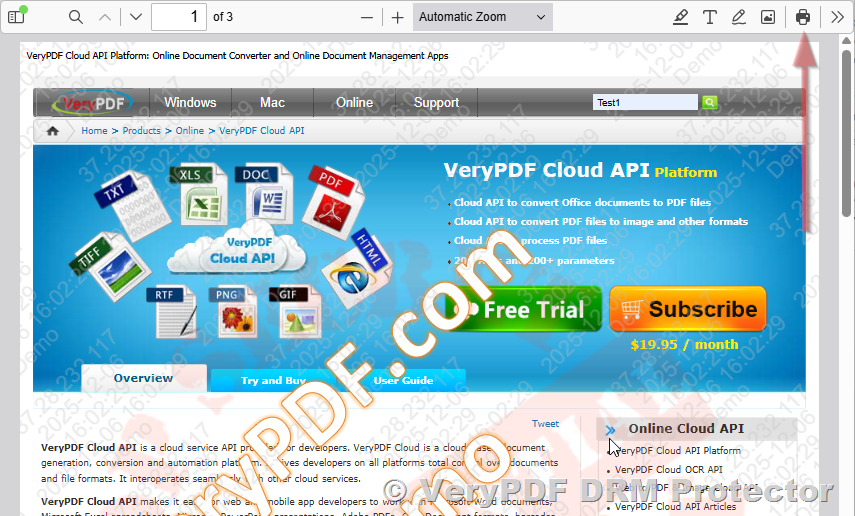
8. Print the DRM-Protected PDF
Simply click the Print button in the viewer toolbar to print your secured PDF.
The document will print according to the permissions you set at both the PDF level and the DRM level.
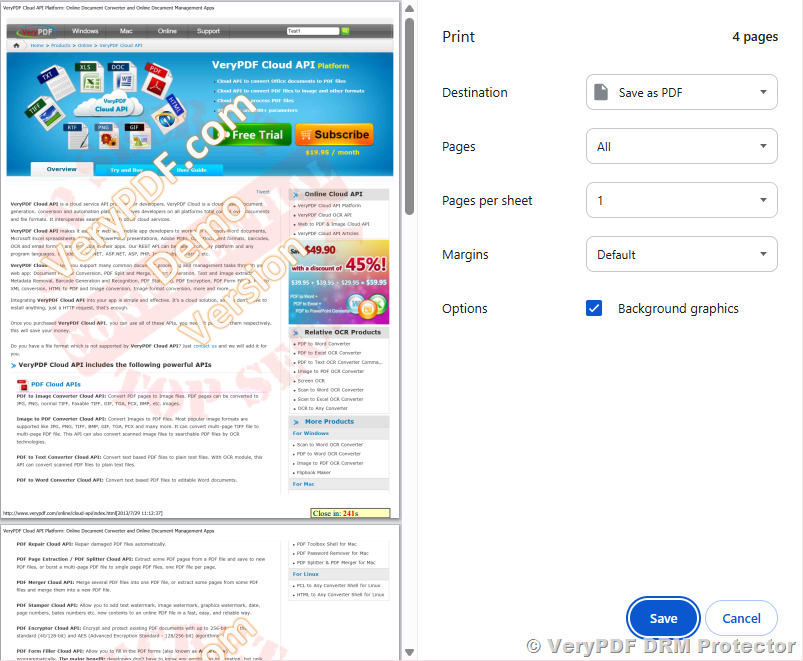
Important Security Warning (Please Read Again Carefully)
Even though this system enforces DRM, allowing printing reduces the level of control you have over your document.
When printing is allowed:
- Users may print to virtual PDF printers, creating an unrestricted PDF.
- Users may print to physical paper, then scan the pages to create a new unprotected PDF.
- Once printed or scanned, your document is completely outside of DRM protection.

Please think carefully before enabling printing.
If you require maximum security, do NOT allow printing.