
Protecting your intellectual property and sensitive documents has become more important than ever. Whether you are sharing proprietary research, educational materials, business reports, or copyrighted content, keeping your PDF files secure and accessible only to authorized users is essential. VeryPDF DRM Protector offers a complete solution by enabling you to create .vpdf files, a secure, DRM-protected PDF format that safeguards your content against unauthorized access and distribution.
Many users, however, encounter challenges when trying to host .vpdf files on their own server, such as Superhosting, and make them accessible through the VeryPDF Secure Online Reader. The process may seem confusing, especially for those unfamiliar with server operations or DRM technology. This guide provides a complete, step-by-step workflow to host .vpdf files on your own server, create secure online access links, and ensure a smooth experience for your users.
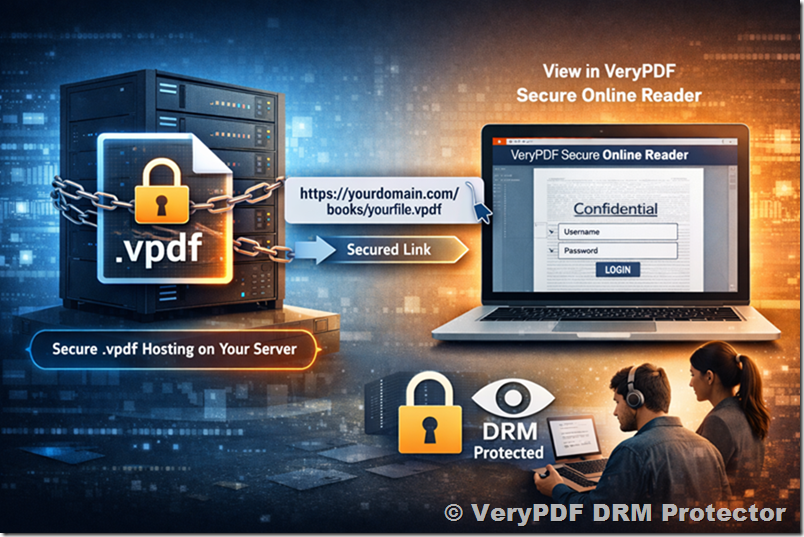
Understanding .vpdf Files and DRM Protection
Before diving into the hosting steps, it is important to understand what a .vpdf file is and why it is different from a regular PDF:
- .vpdf is a proprietary file format created by VeryPDF to protect PDF content.
- It incorporates DRM rules, including view-only, print-only, watermarking, expiration, and user-specific password protection.
- Unlike standard PDF files, .vpdf cannot be opened with Adobe Acrobat or other PDF readers. Only VeryPDF Secure Online Reader or VeryPDF desktop readers can open them.
- This ensures that sensitive content cannot be easily copied, printed, or shared without your permission.
Using .vpdf files is particularly useful for organizations distributing paid content, course materials, or confidential reports. Combined with your own server, it gives you full control over file distribution while providing users a seamless online reading experience.
Step 1: Upload Your PDF and Configure DRM Settings
The first step in creating a secure .vpdf file is uploading your PDF to VeryPDF and configuring DRM options. Here’s a detailed workflow:
- Login to VeryPDF Account
Access your VeryPDF account using your credentials. If you do not have an account, register on the VeryPDF website and verify your email.
https://drm.verypdf.com/wp-admin/admin.php?page=VeryPDFDRMFiles - Upload PDF File
- Go to VeryPDF DRM Online App web page,
- https://drm.verypdf.com/online/
- Select the PDF file from your computer. VeryPDF supports standard PDF formats, including text-based PDFs and image-based PDFs generated from scans.
- Configure DRM Settings
VeryPDF allows you to configure several DRM options:- View permissions: Control whether users can read the file online. You can restrict the file to view-only mode.
- Print permissions: Allow or deny printing. You can enable print-only mode if necessary.
- User authentication: Set usernames and passwords for individual users. Each .vpdf file can have unique access credentials.
- Watermarking: Apply dynamic or static watermarks to discourage unauthorized sharing.
- Expiration: Set expiration dates for access if you want the file to be available for a limited time.
- Device restrictions: Limit access to specific devices or IP addresses if needed.
- Generate .vpdf File
After configuring your DRM options, click Generate. VeryPDF will create a .vpdf file that encapsulates your PDF content and all DRM rules.
Note: At this stage, the .vpdf file resides in your VeryPDF account. It is not yet available on your local system or your own server.
Step 2: Download .vpdf File to Your Local System
To host the file on your own server, you must first download it to your local computer. This step is crucial because hosting servers cannot directly access files stored in VeryPDF accounts.
- Navigate to your VeryPDF DRM Files in VeryPDF DRM Account.
- https://drm.verypdf.com/wp-admin/admin.php?page=VeryPDFDRMFiles
- Click Download menu item to download the .vpdf file.
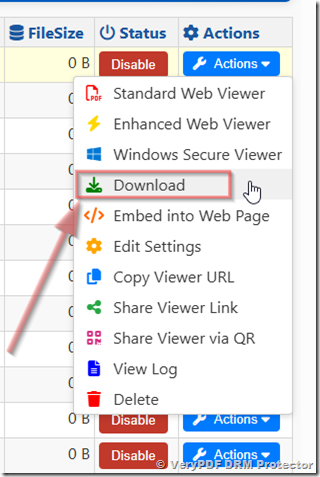
- Save the file in a convenient location, such as your Desktop or Downloads folder.
Tip: Create a dedicated folder for .vpdf files on your computer to keep your protected content organized and easily accessible.
At this stage, your .vpdf file is on your local system and ready for upload to your server.
Step 3: Prepare Your Server for Hosting
Before uploading, ensure your server environment is ready to host .vpdf files. This guide uses Superhosting as an example, but the steps are similar for other hosting providers.
- Log in to Your Hosting Account
Access the Superhosting dashboard with your credentials. - Select Subdomain or Folder
- Decide where you want to host your .vpdf file.
- You may create a dedicated subdomain such as books.yourdomain.com or a folder like /protected/.
- Check Permissions
- Ensure that the folder has the correct permissions for public access.
- Users must be able to reach the .vpdf file via its URL, but only authorized users should be able to open it using VeryPDF Online Reader credentials.
Tip: If you are unsure about folder permissions, contact your hosting provider or moderator for guidance.
Step 4: Upload .vpdf File to Server
Now, upload the .vpdf file you downloaded in Step 2:
- Navigate to the folder or subdomain you selected.
- Click Add File or Browse, then select the .vpdf file from your local system.
- Wait for the file to upload completely.
After upload, the file will have a public URL. For example:
https://yourdomain.com/books/yourbook.vpdf
Important: The public URL is necessary to create the secure link for users.
Step 5: Create VeryPDF Secure Online Reader Link
Once your .vpdf file is hosted on your server, you need to create a link that allows users to access it securely through VeryPDF Online Reader.
- Copy your .vpdf file URL from your server.
- Combine the URL with the VeryPDF Online Reader address and the user credentials.
Example format:
https://online.verypdf.com/app/reader2/reader.php?url=https://yourdomain.com/books/yourbook.vpdf&username=User001&password=123456
- This URL acts as a secure portal. Users who click it will be prompted for credentials and can view the file according to the DRM settings you configured (view-only, print-only, etc.).
Note: Each user can have unique credentials. You can generate multiple links for different users while maintaining file protection.
Step 6: Share the Link with Users
Once the link is ready:
- Send the URL to your authorized users via email or another secure channel.
- Provide instructions for accessing the file, such as entering their username and password.
- Users can open the .vpdf file in VeryPDF Secure Online Reader without downloading or installing additional software.
Benefit: The content remains protected, and you retain full control over file distribution.
Step 7: Verify and Troubleshoot
Before sharing widely, it is important to verify that everything works correctly:
- Test the Link
- Log in as a test user to ensure the link opens the .vpdf file.
- Confirm that the DRM permissions are enforced correctly.
- Check Server Accessibility
- Ensure the .vpdf file is accessible via its public URL.
- Verify that firewall or server settings are not blocking access.
- Troubleshoot Common Issues
- File not appearing in Browse menu: Ensure you have downloaded it locally first.
- Access denied: Check folder permissions on the server.
- Credentials not working: Reconfirm username and password settings in VeryPDF.
Tip: Keep local backups of .vpdf files in case you need to re-upload or share additional links.
Advanced Tips and Best Practices
- Organize Your Files: Store .vpdf files in a structured folder hierarchy on your server, e.g., /protected/books/2026/.
- Maintain File Naming Consistency: Use clear and descriptive file names for easy identification.
- Regular Backups: Keep copies of .vpdf files locally in case of server failure or accidental deletion.
- Monitoring Access: Some hosting providers allow logging of file downloads or access attempts. Monitor this to ensure only authorized users are accessing your content.
- Update DRM Settings When Needed: You can regenerate .vpdf files if you need to change permissions, watermarks, or expiration dates.
Benefits of Hosting .vpdf Files on Your Own Server
- Full Control Over Content
- You decide where files are hosted, who can access them, and for how long.
- Secure Distribution
- Files remain protected by DRM even if the public URL is exposed.
- Seamless User Experience
- Users can open the file online without additional software.
- VeryPDF Online Reader enforces DRM rules automatically.
- Scalable for Multiple Users
- Assign unique credentials for each user.
- Support multiple files and users on the same server efficiently.
- Integration with Your Existing Systems
- Hosted .vpdf files can be integrated with websites, online courses, or subscription services.
Conclusion
Hosting DRM-protected .vpdf files on your own server and viewing them online using VeryPDF Secure Online Reader combines the flexibility of self-hosting with the robust security of VeryPDF DRM. By following the steps outlined in this guide, generate .vpdf, download locally, upload to server, create Secure Online Reader link, and share with users, you can confidently distribute sensitive PDFs while maintaining full control over access and permissions.
This workflow is ideal for educators, businesses, authors, and any organization that needs to securely distribute PDF content online. With careful implementation, .vpdf files offer a professional and reliable method to protect intellectual property and ensure secure online viewing.