
Managing PDF security effectively is critical for businesses, educational institutions, and publishers who distribute sensitive PDF content. VeryPDF DRM Protector is a robust solution that allows you to protect your PDF files, control user access, and prevent unauthorized sharing. In this detailed guide, we will walk you through the process of adding administrators, setting up their accounts, and ensuring smooth management of your protected PDFs.
This guide is perfect for anyone looking for:
- PDF protection solutions
- DRM (Digital Rights Management) for PDF
- Secure PDF sharing
- Admin setup in PDF security software
- Managing user permissions for protected PDF files
Step 1: Register and Log In as Super Administrator
Before you can manage other administrators or users, you need to log in as a Super Administrator. The Super Administrator account has full control over your DRM system, including adding new administrators and assigning access to protected PDFs.
Super Administrator login page:
https://drm.verypdf.com/wp-login.php
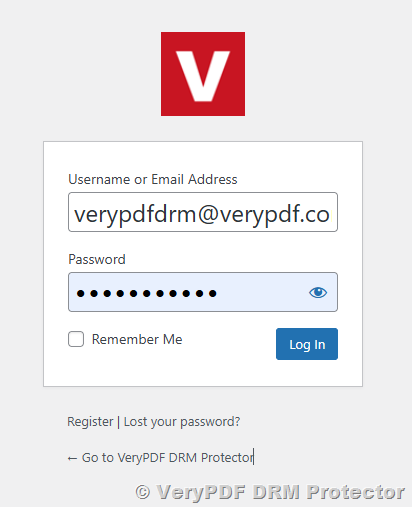
Instructions:
- Register your Super Administrator account if it hasn’t been created yet.
- Use the registered email to log in. This email is linked to your DRM system and ensures that all protected PDFs you upload are assigned correctly.
Pro tip: Always use a secure, unique email for your Super Administrator account to prevent unauthorized access.
Step 2: Add a New Administrator
Adding administrators allows your team members to manage protected PDF files, configure settings, and access DRM-protected content.
Access User Management
Go to the User Management page in your admin dashboard:
https://drm.verypdf.com/wp-admin/admin.php?page=VeryPDFDRMUserManagement
Add a New User
- Click Add User.
- Fill in the required fields carefully:
- Role: Select Admin to grant full administrative privileges.
- Email: Enter the user’s email correctly. This email will also serve for their normal user account login.
- Save the new user.
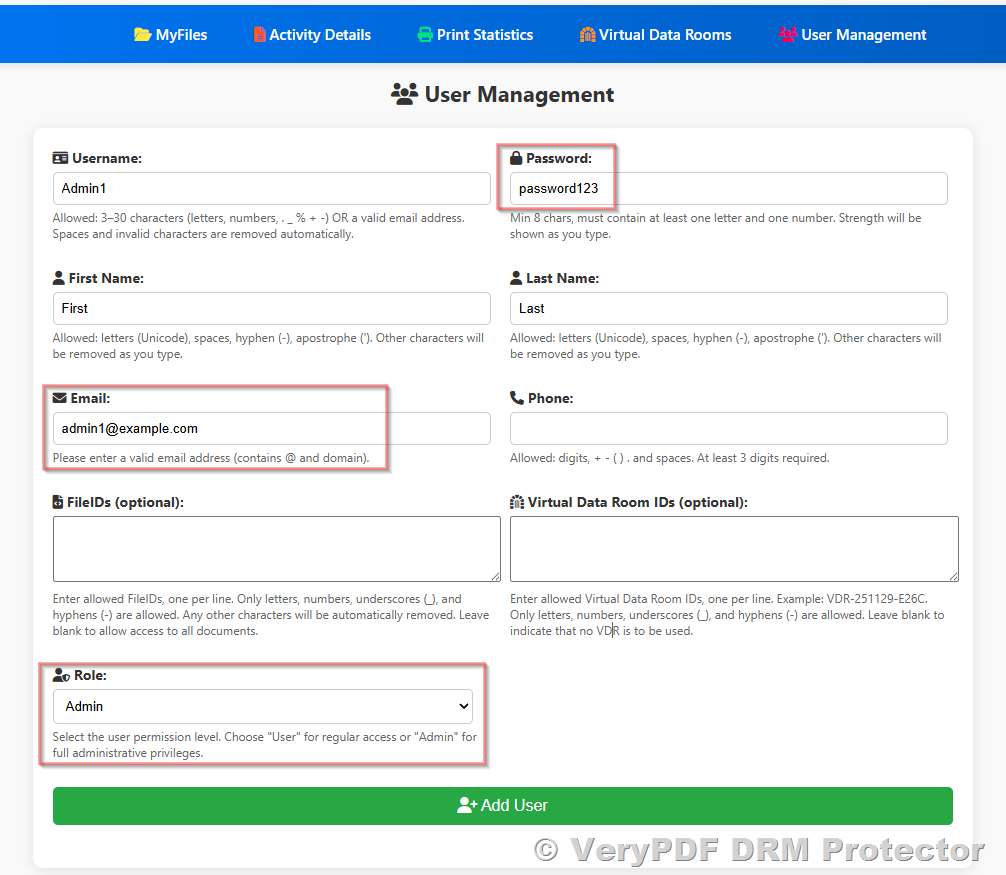
Important Notes:
- Admin users have two identities:
- Administrator identity: Can manage users, protected PDFs, and settings.
- Regular user identity: Can access DRM-protected PDF content.
- The password you set here will be used for the user’s regular user login.
Example User Setup:
|
Field |
Example Value |
|
First Name |
First |
|
Last Name |
Last |
|
Username |
UserAAA |
|
Password |
PasswordAAA |
|
|
user@example.com |
Regular user login page for accessing protected PDFs:
https://online.verypdf.com/app/pdfdrm/login.php
- Username: UserAAA
- Password: PasswordAAA
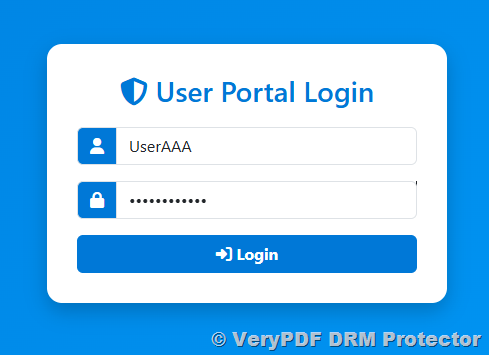
Step 3: Administrator Login and Password Setup
When a new user logs in as an administrator, they should use the VeryPDF DRM Protector login page:
https://drm.verypdf.com/wp-login.php
Since the Super Administrator has already linked this email to the DRM system, the user will automatically see all protected PDF titles after logging in.
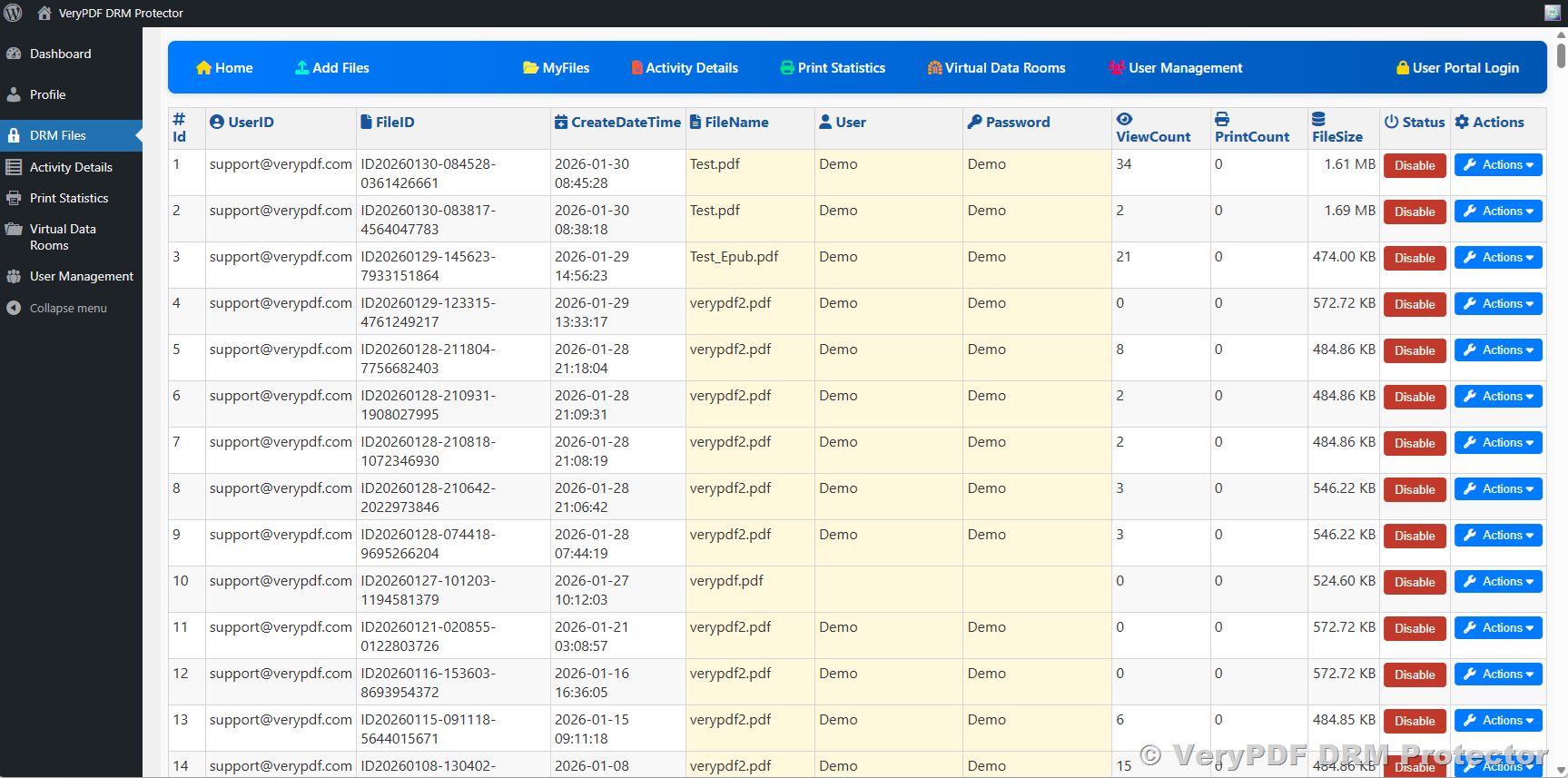
Administrator privileges include:
- Adding and managing other admins and users
- Configuring PDF access levels
- Uploading and publishing protected PDFs
Using DRM ensures that your PDFs are protected from unauthorized copying, sharing, and printing, which is essential for schools, publishers, and companies managing confidential information.
Step 4: Publishing Protected PDFs
To upload and publish protected PDFs, use the VeryPDF DRM online platform:
https://drm.verypdf.com/online/
Important Steps for Publishing:
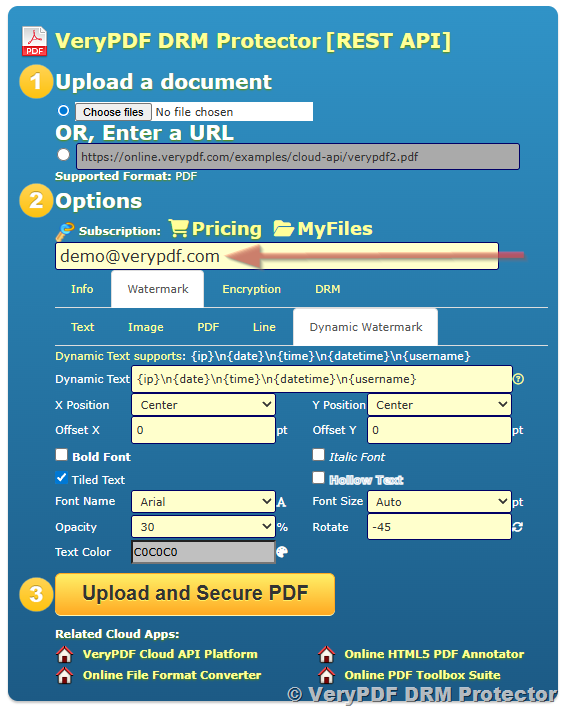
- In the Subscription field, enter your Super Administrator email.
- This ensures the PDF is automatically assigned to the correct account.
- All assigned administrators and users can now access the protected PDF.
- Upload the PDF file and configure permissions (view-only, download-restricted, watermarking, etc.).
FAQ – Administrator Setup and Protected PDF Management
Q1: Can admins see all protected PDFs immediately?
Yes. Once their email is linked by the Super Administrator, all protected PDFs assigned to the account are automatically visible in their dashboard.
Q2: Do admins need separate passwords for admin and user access?
No. The password set during user creation is used for normal user login. Admin login uses the same email but automatically grants admin privileges.
Q3: How do I manage user permissions for protected PDFs?
Permissions are configured during PDF upload. You can assign options like view-only, print-restricted, download-disabled, and dynamic watermarking for additional protection.
Q4: Can an administrator add other admins?
Yes. Administrators with full privileges can add new admins or regular users, but Super Administrator approval may be required depending on your account settings.
Q5: How do I remove an administrator if they no longer need access?
You can remove an admin by navigating to the User Management page, selecting the user, and clicking Delete. This immediately revokes access to all protected PDFs.
Q6: Can admins edit the permissions of existing PDFs?
Yes. Admins can update access settings, including download restrictions, watermarking, or subscription assignments for any PDF already uploaded.
Q7: What happens if an admin forgets their password?
Admins can use the “Forgot Password” feature on the login page to reset their password. Password recovery emails are sent to the email linked to their account.
Q8: Are protected PDFs accessible offline?
No. DRM-protected PDFs require online authentication for access. This ensures that only authorized users can view the content, preventing unauthorized sharing.
Q9: Can multiple admins manage the same PDF simultaneously?
Yes. All admins linked to the same Super Administrator account can access, edit, and manage protected PDFs without conflicts.
Q10: How can I track which users accessed a protected PDF?
VeryPDF DRM Protector provides access logs for each PDF, showing when users viewed or downloaded files. This is useful for audit and compliance purposes.
Q11: Can an admin assign PDFs to a specific group of users?
Yes. After upload PDF files, admins can specify access to particular users or groups, ensuring that sensitive content is only available to the intended audience.
Q12: Is it possible to revoke access to a PDF after it has been published?
Absolutely. Admins can immediately revoke access to any published PDF. Users will no longer be able to open or download the file once access is revoked.
Q13: Can I use the same admin account for multiple companies or departments?
It is possible, but it is recommended to create separate Super Administrator accounts for each organization to avoid accidental access conflicts and maintain clear auditing.
Q14: How do dynamic watermarks work for protected PDFs?
Dynamic watermarks automatically display user-specific information (such as name, email, or timestamp) on each page of the PDF. This discourages unauthorized sharing or printing.
Q15: Is there a limit to the number of administrators I can add?
Yes. The number of administrators you can add depends on your purchased plan. Each plan defines a maximum number of admin accounts. Every admin must have a unique email and username, and all activity is tied to the Super Administrator account for security and tracking purposes. If you need more admins than your plan allows, you can upgrade to a higher plan.
Conclusion
Properly setting up administrators in VeryPDF DRM Protector is a critical step for maintaining secure and efficient PDF distribution within your organization. By carefully following the step-by-step process outlined above, you can ensure that your team has the right access and control over all protected PDF content.
With this setup, you can:
- Add multiple administrators with full privileges: Assign admin roles to trusted team members, allowing them to manage users, configure DRM policies, and oversee protected content without compromising security.
- Ensure accurate and seamless access to all protected PDFs: Once an administrator’s email is linked by the Super Administrator, they automatically gain visibility to all relevant PDF titles. This guarantees smooth workflow management and avoids delays in content distribution.
- Maintain strict control over PDF security and distribution: Administrators can manage user permissions, enforce view-only or print-restricted access, and apply dynamic watermarking to prevent unauthorized sharing. All activities are logged for monitoring and auditing purposes.
- Optimize workflow for both digital and subscription-based PDF distribution: The system supports one-time downloads, subscription access, and tiered user permissions, ensuring that both your internal team and your end users have the correct access levels.
- Scale your DRM system according to your business plan: Depending on your subscription plan, you can manage multiple administrators and users efficiently, while having the option to upgrade if your organization’s needs grow.
In short, a correctly configured administrator setup not only empowers your team to manage protected PDF content effectively but also provides peace of mind by safeguarding your intellectual property and sensitive documents from unauthorized access or sharing. Following this guide ensures that your VeryPDF DRM Protector account is optimized for secure, professional, and scalable PDF management.