
A Practical Guide Based on Real User Feedback
When deploying DRM-protected PDFs inside a WordPress website, especially in educational environments, performance and user experience become just as important as security. A recent support case highlights a very common scenario:
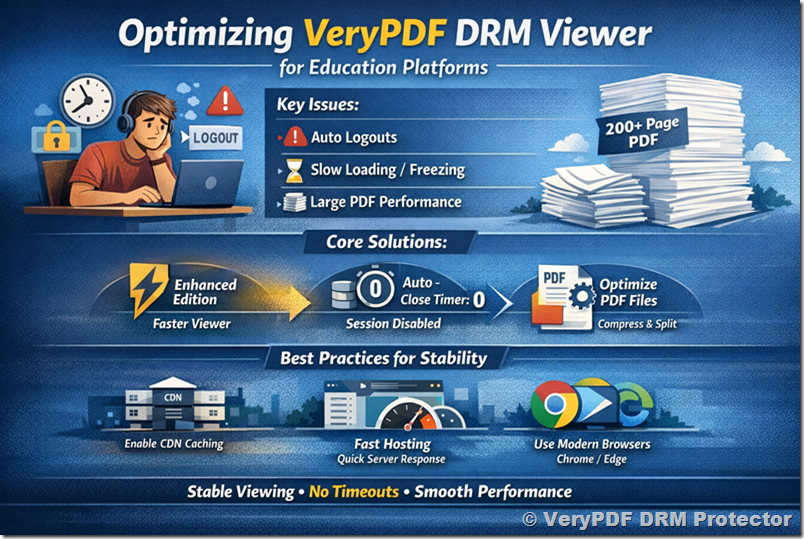
A university-style platform using VeryPDF DRM Viewer reported that students were experiencing:
- Very slow PDF loading speed
- Freezing during scrolling or reading
- Unexpected logouts during study sessions
- Repeated login prompts disrupting learning
- Poor performance with large PDFs (200–300 pages)
This article breaks down the root causes and provides clear, actionable solutions based on the support response and system configuration analysis.
1. Understanding the Core Problem
At first glance, these issues may appear to be random performance bugs. However, they are usually caused by three interconnected factors:
1. Default session timeout behavior (security feature)
2. Viewer edition limitations (performance optimization level)
3. Heavy rendering load from large PDF files in browser
Even when no strict DRM rules are manually configured, the system still applies baseline security controls to ensure content protection.
2. Why Users Are Being Logged Out Automatically
One of the most critical issues reported was:
“Students are automatically logged out while reading PDFs.”
This is not a bug, it is caused by a default system setting.
Default Auto-Close Timer (300 seconds)
VeryPDF DRM includes a built-in safety mechanism:
- Default Auto-Close Timer: 300 seconds (5 minutes)
- Purpose: prevent unattended or abandoned sessions
- Behavior: automatically closes or resets viewer session after inactivity threshold
Why this affects students
In real learning environments:
- Students may pause reading
- They may scroll slowly or switch tabs
- They may read without active interaction for several minutes
This can incorrectly trigger the timeout mechanism.
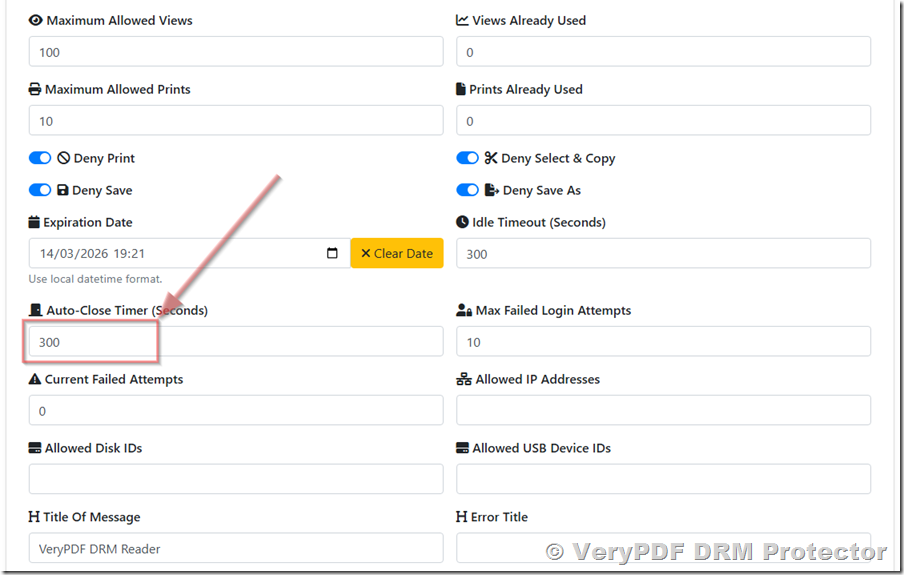
Solution: Disable or Extend Auto-Close Timer
To fix this issue:
- Go to WordPress admin panel
- Navigate to DRM settings:
VeryPDF DRM Files → Actions → Settings - Locate: Auto-Close Timer (Seconds)
- Set value:
|
Value |
Behavior |
|
300 |
Default (strict timeout) |
|
3600 |
1 hour session |
|
0 |
Disable auto logout completely |
Recommended setting for education platforms:
Set to 0 (disabled)
This ensures uninterrupted reading sessions for students.
3. Are There Hidden Restrictions in DRM?
A common concern from users is:
“I did not configure restrictions, so why are limitations happening?”
The answer is:
Yes, but they are baseline security defaults—not user-added restrictions.
Even if you only enable:
- DRM protection
- Disable download
- Disable print
The system still applies:
- Session control
- Security validation
- Basic timeout handling
These are designed to:
- Prevent abuse of shared links
- Reduce unauthorized long-term sessions
- Maintain licensing integrity
However, they can be adjusted or disabled depending on use case.
4. Why the PDF Viewer Becomes Slow or Freezes
Another major issue reported:
“The PDF becomes unresponsive or freezes during scrolling.”
This is typically not caused by DRM restrictions, but by rendering performance limits in the browser viewer engine.
Root Cause
Large PDF files (200–300 pages) can cause:
- Heavy DOM rendering load
- High memory usage in browser
- Slow page chunk loading
- Scroll lag due to continuous rendering updates
This is especially noticeable when using:
- Standard viewer builds
- Older rendering engines
- Embedded WordPress iframe setups
5. The Most Important Fix: Use Enhanced Edition
VeryPDF provides multiple viewer builds, and performance varies significantly between them.
Official Stable Release vs Enhanced Edition
|
Version |
Performance |
|
Official Stable Release |
Standard performance |
|
Enhanced Edition |
Optimized for speed, large files, smoother rendering |
Why Enhanced Edition is better
The Enhanced Edition improves:
- PDF loading speed
- Scroll responsiveness
- Memory management
- Large file rendering efficiency
- Mobile performance
Example:
This version is specifically optimized for:
- Educational content platforms
- High-page-count documents
- Multi-user access environments
6. Best Practices for Large PDF Files (200–300 Pages)
If you are serving large academic or training documents, follow these guidelines:
Recommended configuration
1. Viewer selection
- Always use Enhanced Edition
2. Session settings
- Set Auto-Close Timer = 0
3. Document optimization
- Compress images inside PDF
- Avoid embedding high-resolution scanned pages
- Split chapters if possible
4. Hosting optimization
- Enable CDN caching
- Use fast server response time
- Avoid overloaded shared hosting for heavy traffic
5. Browser compatibility
- Recommend latest Chrome or Edge
- Avoid outdated mobile browsers
7. Why These Issues Are Common in Education Platforms
This case is especially common in universities and online training systems because:
- Students read for long continuous periods
- PDFs are large and content-heavy
- Many simultaneous users access same material
- Sessions appear “idle” even when reading
From the system perspective:
- Long reading sessions may look like inactivity
- Large documents stress browser rendering engines
- Embedded viewers amplify performance limitations
8. Recommended Stable Setup for Production Use
For a smooth experience in real-world deployment:
Viewer configuration
- Enhanced Edition: Enabled
Session configuration
- Auto-Close Timer: 0 (disabled)
DRM features
- Enable:
- Disable download
- Disable print
- Keep other restrictions minimal unless required
Infrastructure
- Use CDN for PDF delivery
- Optimize WordPress caching
- Monitor server memory usage
9. Summary of Root Causes
The issues reported can be traced to three main sources:
1. Default 300-second session timeout
Causes unexpected logout behavior
2. Standard viewer performance limitations
Causes lag and freezing on large PDFs
3. Heavy PDF rendering load
Affects scrolling and responsiveness
10. Final Recommendation
To ensure a stable, smooth student experience:
✔ Switch to Enhanced Edition
✔ Disable Auto-Close Timer (set to 0)
✔ Optimize large PDF files
✔ Improve hosting/CDN performance
Conclusion
Most DRM-related “performance issues” are not actually DRM restrictions—they are a combination of security defaults and browser rendering limitations. With correct configuration, VeryPDF DRM Viewer can deliver:
- Stable long-session reading
- Smooth large-document performance
- Secure content protection without user disruption
If needed, further tuning can be done based on real traffic load and document structure to achieve even better performance in large-scale educational deployments.