
Practical methods to safeguard your digital PDF content from unauthorized copying
PDF documents have become the standard format for sharing digital content across industries. From academic research papers and online course materials to corporate reports, legal contracts, and financial statements, PDFs are used everywhere because they preserve formatting and are easy to distribute.
However, this convenience comes with a major drawback: once a PDF file is shared, it can be easily copied, edited, or redistributed without the author’s permission. For individuals and organizations that rely on digital documents as part of their business model or intellectual property, this creates a serious risk.
Unauthorized copying can lead to revenue loss, copyright violations, data leaks, and reputational damage. For educators, it may mean students sharing paid course materials freely. For publishers, it could result in pirated eBooks circulating online. For businesses, it might expose confidential information.
To address these risks, various methods have been developed to protect PDF documents from copying. Some are simple and widely accessible, while others provide more advanced and robust protection.
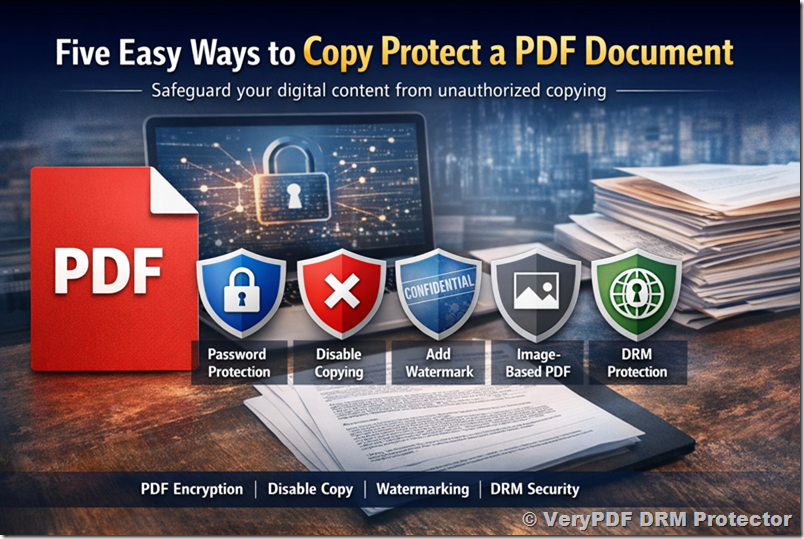
In this article, we will explore five practical and effective ways to copy protect a PDF document. We will also analyze their strengths, weaknesses, and ideal use cases so you can choose the best solution based on your needs.
1. Password-Protecting the Document (Document Encryption)
Password protection is the most basic and commonly used method for securing a PDF. It involves encrypting the document and requiring a password to open or modify it.
How it works
When you apply password protection to a PDF, you are essentially encrypting the file using a cryptographic algorithm such as AES (Advanced Encryption Standard). Most modern PDF tools support 128-bit or 256-bit AES encryption.
There are typically two types of passwords you can apply:
- Open password (also called user password): This password is required to open the document. Without it, the file cannot be viewed.
- Permissions password (also called owner password): This controls what actions are allowed, such as printing, copying, or editing.
For example, you can allow users to view the document but prevent them from copying text or printing it.
Advantages
Password protection is simple to implement and does not require advanced technical knowledge. Most PDF editors, including free ones, allow you to add passwords easily.
It provides a basic level of security by preventing unauthorized users from opening the document. Encryption ensures that the file cannot be read without the correct password.
It is widely supported across devices and platforms, so users can access protected PDFs without needing special software.
Limitations
Despite its simplicity, password protection has significant weaknesses.
Passwords can be easily shared. Once a legitimate user has access to the document, they can distribute the password along with the file, making it impossible to control access.
There are many tools available online that can remove PDF passwords, especially if weak passwords are used. Even strong encryption can be vulnerable if the password is compromised.
Password protection does not provide any control after the document is opened. Users can take screenshots, copy content manually, or use other tools to extract information.
There is no way to track who accessed the document or how it was used.
Best use cases
Password protection is suitable for low-risk scenarios, such as internal document sharing or temporary protection. It should not be relied upon for high-value or sensitive content.
2. Disabling the Text Copying
Another commonly used method is disabling the ability to copy text from a PDF. This is done by restricting permissions within the document.
How it works
PDF files contain a permission system that allows authors to control actions such as copying, printing, and editing.
By disabling the “copy” or “content extraction” permission, you can prevent users from selecting and copying text directly from the document.
This is usually applied together with a permissions password to enforce the restrictions.
Advantages
This method is easy to apply and does not affect the readability of the document. Users can still view the content normally.
It acts as a deterrent against casual copying. For example, a student trying to copy text from a course PDF may be blocked by the restriction.
It requires minimal setup and is supported by most PDF editing tools.
Limitations
Disabling text copying is not a strong security measure.
Many third-party tools can bypass these restrictions and extract text from the PDF. Even basic PDF readers may ignore permission settings.
Users can take screenshots of the content and use OCR (Optical Character Recognition) software to convert the image back into text.
It does not prevent screen recording or manual retyping.
Like password protection, it does not provide tracking or control after distribution.
Best use cases
This method is best used as a supplementary measure rather than a primary protection strategy. It can help reduce casual misuse but is not sufficient for protecting valuable content.
3. Adding a Watermark to the Document
Watermarking is a visual technique used to discourage unauthorized copying and sharing by embedding identifiable information into the document.
How it works
A watermark is a visible overlay placed on each page of the document. It can be text, images, or patterns.
There are two main types of watermarks:
Static watermark: The same text appears on every page, such as “Confidential” or “Do Not Copy.”
Dynamic watermark: Personalized information is added for each user, such as their name, email address, IP address, or access time.
Dynamic watermarks are typically applied at the time of viewing or downloading.
Advantages
Watermarking does not prevent copying directly, but it discourages unauthorized sharing by making it traceable.
If a document is leaked, the watermark can help identify the source. This is especially effective with dynamic watermarks.
It increases the perceived value and security of the document, making users less likely to misuse it.
It is easy to implement and can be combined with other protection methods.
Limitations
Watermarks do not technically block copying. Users can still extract content if they choose to ignore the watermark.
Static watermarks are less effective because they do not identify individual users.
In some cases, watermarks can be removed or obscured using editing tools.
Heavy watermarking may affect readability and user experience.
Best use cases
Watermarking is ideal for scenarios where tracking and deterrence are important, such as distributing paid content, internal documents, or confidential reports.
4. Convert to Image-Based PDF
Converting a PDF into an image-based format is another way to prevent text copying.
How it works
In a standard PDF, text is stored as selectable and searchable data. In an image-based PDF, each page is converted into a raster image, removing the text layer entirely.
This means users cannot select, copy, or search text within the document.
Advantages
This method effectively prevents direct text copying because there is no text layer to extract.
It preserves the visual appearance of the document exactly, making it suitable for design-heavy content.
It can be implemented using various tools that convert PDFs into images and back into PDF format.
Limitations
Image-based PDFs have several drawbacks.
File sizes are usually much larger, especially for high-resolution images.
The document becomes non-searchable, which reduces usability.
Accessibility is significantly reduced, as screen readers cannot interpret image-based text.
OCR software can still be used to extract text from images, although this requires additional effort.
It does not prevent screenshots or screen recording.
Best use cases
This method is suitable for documents where visual integrity is more important than functionality, such as brochures, catalogs, or scanned documents.
5. Use VeryPDF DRM Protector (Advanced Protection)
While the methods discussed above provide basic levels of protection, they all share a common limitation: they can be bypassed relatively easily and do not provide control after the document is distributed.
For organizations and individuals who need strong, reliable protection, a Digital Rights Management (DRM) solution is the most effective approach.
VeryPDF DRM Protector is a professional solution designed specifically to protect PDF documents from unauthorized copying, sharing, and misuse.
How DRM protection works
Unlike traditional PDF security, DRM does not rely on embedded permissions within the file. Instead, it controls how the document is accessed and used through a secure environment.
The document is encrypted and managed by a central system, which enforces access rules and monitors usage.
Key capabilities
VeryPDF DRM Protector provides comprehensive protection features that address the limitations of basic methods.
It uses strong encryption that cannot be easily removed or bypassed. This ensures that the document remains protected even if it is downloaded or shared.
It allows you to completely disable copying, printing, and editing. Users cannot extract content using standard tools.
It includes screen protection technology that blocks screenshots and screen recording attempts. This significantly reduces the risk of content leakage.
It supports dynamic watermarking, displaying user-specific information directly on the document. This discourages sharing and enables traceability.
It provides detailed usage tracking and analytics. You can see who accessed the document, when it was opened, how long it was viewed, and other engagement metrics.
It allows you to set access controls such as expiration dates, device limits, and usage restrictions. You can also revoke access at any time, even after the document has been distributed.
It works in both browser and desktop environments, providing flexibility for different use cases.
Advantages
DRM protection offers a much higher level of security compared to traditional methods.
It prevents most common copying techniques, including text extraction, screenshots, and screen recording.
It gives you full control over your documents, even after they have been shared.
It provides valuable insights into how your content is being used.
It is suitable for commercial applications where protecting intellectual property is critical.
Limitations
DRM solutions require users to access documents through a controlled environment, which may involve a learning curve.
Initial setup may take more time compared to basic methods.
However, these limitations are minor compared to the level of protection provided.
Best use cases
VeryPDF DRM Protector is ideal for:
- Educational institutions distributing course materials
- Publishers selling eBooks and digital content
- Businesses sharing confidential documents
- Training organizations providing paid resources
- Financial and legal industries handling sensitive data
Here’s a quick comparison:
|
Method |
Security Level |
Ease of Use |
Effectiveness |
|
Password Protection |
Low |
Easy |
Limited |
|
Disable Copying |
Low |
Easy |
Weak |
|
Watermarking |
Medium |
Easy |
Moderate |
|
Image-based PDF |
Medium |
Moderate |
Partial |
|
DRM Protection |
High |
Moderate |
Strong |
Final Thoughts
Protecting PDF documents from unauthorized copying is not a one-size-fits-all problem. Different methods offer different levels of security, usability, and complexity.
Basic techniques such as password protection and copy restriction are easy to implement but provide limited protection. Watermarking and image-based conversion add additional layers but still have weaknesses.
For high-value content, relying solely on these methods is not sufficient.
A comprehensive DRM solution like VeryPDF DRM Protector provides the strongest level of protection by combining encryption, access control, usage tracking, and anti-copy technologies.
Ultimately, the best approach depends on the value of your content and the level of risk you are willing to accept. In many cases, combining multiple methods can provide better results.
If your documents represent significant intellectual property or revenue, investing in advanced protection is not just an option, it is a necessity.
By choosing the right strategy, you can ensure that your PDF content remains secure, your rights are protected, and your business is safeguarded against unauthorized use.