
VeryPDF USB Video DRM Protector — Product Overview, Key Features and User Manual
Product: VeryPDF USB Video DRM Protector
Developer: VeryPDF
Output Format: .vdrm
Supported Playback Platform: Windows
Playback Mode: Offline, USB-bound playback
Part 1. Product Overview
1. Introduction
VeryPDF USB Video DRM Protector is a video encryption and Digital Rights Management (DRM) solution designed to protect video content distributed through standard USB flash drives.
It allows content owners, video publishers, training companies, educational institutions, and businesses to distribute protected videos without requiring customers to purchase special USB hardware or maintain an internet connection during playback.
The software encrypts video files and binds them to the hardware serial number of an authorized USB storage device. Only the USB drive used during encryption can unlock and play the protected videos.
A portable secure video player is provided for customers. They can run the player directly from the USB drive and watch protected videos on Windows computers without installing additional playback software.
The solution also provides expiration control, dynamic watermarking, screen capture protection, and automatic deletion options to help content owners control the distribution and use of their video content.
Screenshots
2. Key Features
2.1 Standard USB Flash Drive Support
Use your own standard USB flash drives to distribute protected videos.
There is no need to purchase expensive proprietary USB dongles, special security hardware, or customized USB devices.
The software identifies USB storage devices through their hardware serial numbers and uses the selected device as the hardware authorization key.
Benefits:
- Supports standard USB flash drives.
- No special hardware purchase is required.
- USB devices can be selected directly from the software.
- Suitable for video distribution, training courses, educational materials, and commercial content delivery.
Note: The USB device must expose a readable hardware serial number for USB binding to work correctly.
2.2 Offline Video Playback
Protected videos can be played on Windows computers without an internet connection.
Once the video has been encrypted and authorized, customers do not need to connect to a license server to watch it.
The original authorized USB drive serves as the playback key.
This makes the solution suitable for:
- Locations without internet access.
- Offline training and education.
- Industrial and corporate environments.
- Secure video distribution.
- Portable learning materials.
- Video delivery through physical USB media.
2.3 Portable Secure Video Player
The solution includes VeryPDFDRM Secure Media Viewer, a portable Windows video player.
Customers can launch the player directly from the USB drive without installing additional playback software.
The player supports:
- Opening encrypted
.vdrmvideo files. - Play and pause.
- Stop playback.
- 10-second forward and backward navigation.
- Timeline seeking.
- Playback speed adjustment.
- Full-screen playback.
- Automatic DRM policy enforcement.
The player automatically checks the connected USB hardware and verifies whether it matches the USB device used to encrypt the video.
2.4 USB Hardware Binding
Each protected video is cryptographically associated with the hardware serial number of the selected USB drive.
The software derives an encryption key from the USB hardware serial number.
During playback, the secure player reads the serial numbers of connected USB storage devices and attempts to verify the encrypted video using the corresponding keys.
Playback requirements:
- The original authorized USB drive must be connected.
- The encrypted video must be accessible.
- The player must successfully verify the USB hardware key.
Copying the encrypted video to another USB drive or a computer without the authorized USB key will not enable playback.
The authorized USB drive can also be connected to another compatible Windows computer. The video remains playable because authorization is based on the USB hardware rather than a specific computer.
2.5 Video Expiration Control
Content owners can configure expiration policies for protected videos.
Three expiration options are available:
Never Expire
The video remains playable as long as the authorized USB hardware key is available.
Expire After a Duration
Set a relative expiration period, such as:
- 7 days.
- 30 days.
- 3 months.
- 6 months.
- A custom number of hours, minutes, or seconds.
Expire at an Exact Date and Time
Specify an exact expiration date and time.
Once the expiration time is reached, the player automatically prevents further playback.
2.6 Automatic Deletion After Expiration
An optional self-destruct policy allows the encrypted .vdrm video file to be automatically deleted when it expires.
When this option is enabled, the player attempts to permanently delete the expired encrypted video file from its storage location.
This feature is useful for:
- Temporary training courses.
- Limited-time video access.
- Subscription-based video distribution.
- Confidential business presentations.
- Time-limited educational materials.
2.7 Dynamic Moving Watermark
The software supports dynamic watermarks displayed over protected videos.
Watermarks can contain identifying information, including:
- Authorized user name.
- User email address or ID.
- Current date.
- Current time.
A customizable watermark template is available.
Example:
John Smith | john@example.com | 2026-11-21 | 10:30:00
Watermark settings include:
- Enable or disable dynamic watermarking.
- Custom watermark text.
- Moving or stationary watermark display.
- Movement speed.
- Opacity adjustment.
The watermark can move smoothly across the video screen, making it more difficult to remove by cropping or recording only one fixed area.
This feature helps discourage unauthorized recording and makes leaked video content easier to trace.
2.8 Screen Shield Protection
VeryPDF USB Video DRM Protector includes a Screen Shield feature.
When enabled, a movable black overlay covers a configurable percentage of the video display.
The content owner can configure the coverage percentage during encryption.
During playback, the screen shield is automatically applied according to the encrypted DRM policy.
The viewer can reposition the shield using its drag handles, but cannot disable the protection through the player interface.
This feature adds an additional visual barrier against unauthorized screen capture and recording.
2.9 Windows Screen Capture Protection
The secure player uses Windows display-affinity functionality to request exclusion of protected application windows from supported screen capture operations.
The player also displays an anti-capture status indicator.
Together with dynamic watermarks and Screen Shield, these features provide additional protection against unauthorized video copying.
Screen capture protection depends on Windows support and the capture method being used. It should not be considered an absolute guarantee against external cameras or every possible recording technique.
2.10 AES-256 Video Encryption
Video content is encrypted using AES-256 in CTR mode.
The encryption key is derived from the selected USB hardware serial number and a fixed application salt.
The DRM policy metadata is also encrypted and stored inside the protected video file.
The player verifies the USB key before accessing the encrypted video content.
During playback, encrypted video data is decrypted through an in-memory streaming device. The player does not create a temporary decrypted video file on the computer.
2.11 Flexible Video Encryption Modes
Two video processing modes are available.
Lossless Stream Copy
Copies the original video and audio streams into a standard MP4 container without re-encoding.
Advantages:
- Very fast processing.
- No additional video or audio quality loss.
- Suitable for compatible source videos.
Compatible Re-encode
Re-encodes video using H.264 and audio using AAC.
Advantages:
- Improved compatibility with the playback engine.
- Suitable when direct stream copying fails.
- Produces a standardized MP4 video container.
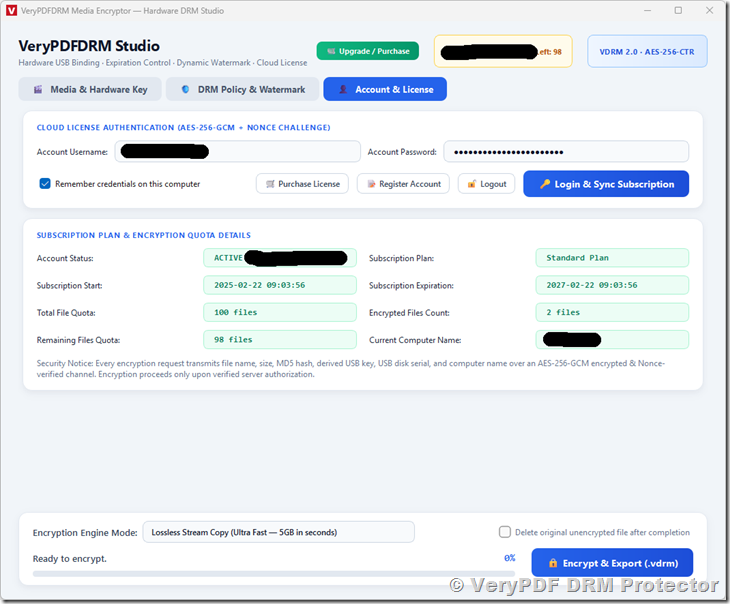
2.12 Subscription and License Management
Video encryption requires a valid VeryPDF DRM account and server authorization.
The encryption application provides an account and license management section displaying:
- Account status.
- Subscription plan.
- Subscription start date.
- Subscription expiration date.
- Total encrypted-file quota.
- Number of encrypted files.
- Remaining file quota.
- Current computer name.
Each encryption request is submitted to the VeryPDF authorization server for verification before local encryption begins.
The communication channel uses AES-256-GCM encryption and nonce verification.
Important: Internet access is required for account login and encryption authorization. Internet access is not required for normal playback of previously authorized videos.
Part 2. System Components
The solution consists of two main applications.
1. VeryPDF DRM Studio
VeryPDF DRM Studio is the content owner’s video encryption application.
Its main functions include:
- Detecting connected USB storage devices.
- Selecting the target USB hardware key.
- Loading and previewing source videos.
- Displaying video information.
- Configuring expiration policies.
- Configuring dynamic watermarks.
- Configuring Screen Shield protection.
- Encrypting video files.
- Generating
.vdrmprotected video files. - Managing account and subscription information.
- Checking encryption quotas.
2. VeryPDFDRM Secure Media Viewer
VeryPDFDRM Secure Media Viewer is the customer’s playback application.
Its main functions include:
- Opening encrypted
.vdrmfiles. - Detecting connected USB hardware.
- Verifying the authorized USB serial number.
- Checking video expiration policies.
- Applying dynamic watermarks.
- Applying Screen Shield protection.
- Enforcing Windows screen capture exclusion.
- Decrypting video streams in memory.
- Playing protected videos offline.
The portable player can be distributed together with the encrypted videos on the USB drive.
Part 3. Software Usage Instructions
1. Preparing the USB Drive
Before encrypting videos:
- Prepare a standard USB flash drive.
- Connect it to a Windows computer.
- Wait for Windows to recognize the USB drive.
- Make sure the USB drive has sufficient free storage space.
No special USB hardware is required.
The software reads the hardware serial number of the connected USB storage device. This serial number is used to generate the encryption key.
Important: Use the same USB drive throughout the encryption and distribution process. Replacing it with another USB drive will result in a different hardware key.
2. Starting VeryPDF DRM Studio
Launch VeryPDF DRM Studio on your Windows computer.
The main interface contains three tabs:
- Media & Hardware Key
- DRM Policy & Watermark
- Account & License
Follow the steps below to encrypt your videos.
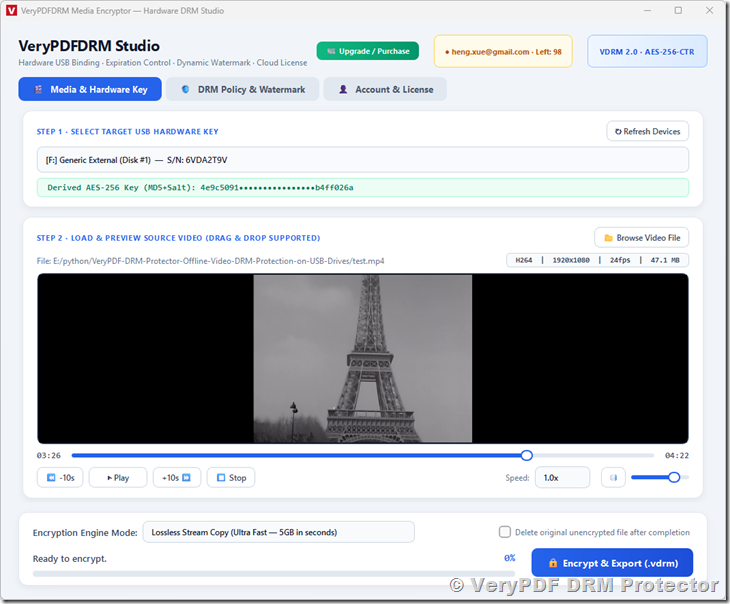
3. Step 1 – Select the Target USB Drive
Open the Media & Hardware Key tab.
The software automatically scans connected USB storage devices when it starts.
Click Refresh Devices to scan again.
Select the USB drive you want to use as the hardware authorization key.
The device list displays information such as:
- USB drive letter.
- Manufacturer and product model.
- Disk number.
- Hardware serial number.
After selecting a USB drive, the application displays a masked fingerprint of the derived encryption key.
This USB device will be permanently associated with the protected video.
4. Step 2 – Select a Source Video
Click Browse Video File to select the original video.
Alternatively, drag and drop a video file into the application window.
The application supports the following source file extensions:
- MP4
- MKV
- AVI
- MOV
- FLV
- WMV
- WebM
- TS
After loading the video, the software displays available media information, including:
- File size.
- Video resolution.
- Video codec.
- Frame rate.
- Video duration, when available.
You can preview the original video before encryption.
The preview controls include:
- Play and pause.
- Stop.
- 10-second rewind.
- 10-second forward.
- Playback speed selection.
- Volume adjustment.
- Mute.
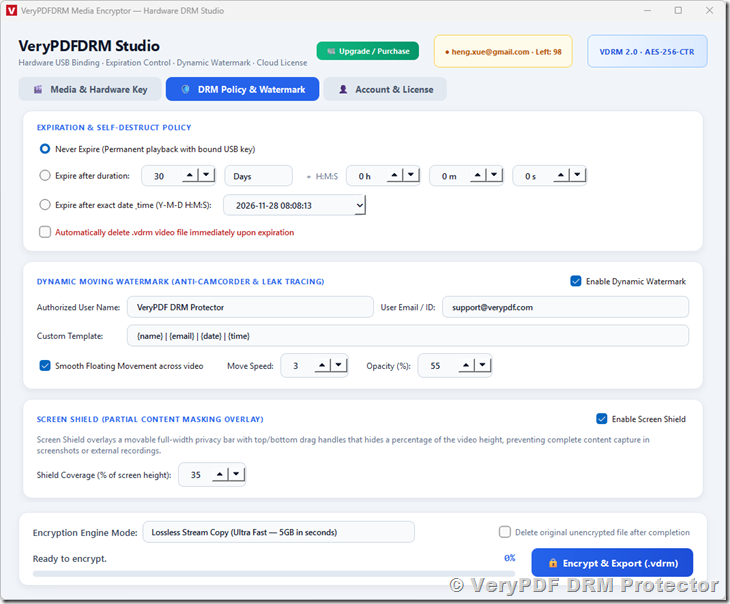
5. Step 3 – Configure DRM Expiration Policies
Open the DRM Policy & Watermark tab.
Find the Expiration & Self-Destruct Policy section.
Choose one of the following options.
Option A: Never Expire
Select:
Never Expire (Permanent playback with bound USB key)
The video can be played indefinitely, provided the authorized USB drive is available.
Option B: Expire After a Duration
Select:
Expire after duration
Enter the desired expiration period.
You can configure:
- Days.
- Weeks.
- Months.
- Hours.
- Minutes.
- Seconds.
Additional hours, minutes, and seconds can be specified for more precise expiration control.
For example:
- Duration: 30 Days.
- Additional Hours: 0.
- Additional Minutes: 0.
- Additional Seconds: 0.
The video will expire 30 days after its creation time.
Option C: Expire at an Exact Date and Time
Select:
Expire after exact date & time
Choose the required expiration date and time using the date and time selector.
The protected video will become unavailable after the specified expiration time.
Automatic Deletion
To automatically delete the encrypted video after expiration, enable:
Automatically delete .vdrm video file immediately upon expiration
When the video expires, the player will attempt to delete the encrypted file.
If this option is disabled, the expired file remains on the USB drive but cannot be played.
6. Step 4 – Configure Dynamic Watermarks
In the same DRM Policy & Watermark tab, locate:
Dynamic Moving Watermark
Enable:
Enable Dynamic Watermark
Configure the following fields.
Authorized User Name
Enter the name or identifier that should appear in the watermark.
Example:
John Smith
User Email / ID
Enter the user’s email address or another identifying value.
Example:
john@example.com
Custom Template
Configure the watermark display format.
The following variables are supported:
{name}– Authorized user name.{email}– User email address or ID.{date}– Current date.{time}– Current time.
Example template:
{name} | {email} | {date} | {time}
Smooth Floating Movement
Enable this option to make the watermark move smoothly across the video.
Move Speed
Adjust the watermark movement speed from 1 to 10.
Opacity
Adjust the watermark opacity from 1% to 100%.
A higher opacity makes the watermark more visible.
The watermark settings are embedded in the encrypted video and automatically applied during playback.
7. Step 5 – Configure Screen Shield
Find the Screen Shield section.
Enable:
Enable Screen Shield
Then configure:
Shield Coverage (% of screen height)
Choose the percentage of the video display that should be covered by the black shield.
The available setting is 10% to 85%.
The screen shield is automatically activated when the protected video is played.
The viewer can reposition the shield by dragging its handles, but the protection remains enabled according to the encrypted DRM policy.
8. Step 6 – Log In to Your VeryPDF DRM Account
Open the Account & License tab.
Enter your VeryPDF DRM account username and password.
Click Login.
A valid account and subscription authorization are required before video encryption can proceed.
After successful login, the application displays your subscription information, including:
- Account status.
- Subscription plan.
- Subscription period.
- Total encryption quota.
- Number of encrypted files.
- Remaining encryption quota.
If the account is not authorized or the available quota is insufficient, the encryption request will be rejected.
9. Step 7 – Select the Encryption Mode
Return to the main encryption interface.
Choose an encryption mode.
Lossless Stream Copy
Select this option when your source video and audio streams are compatible with the MP4 container and playback engine.
This mode avoids re-encoding and is generally faster.
Compatible Re-encode (H.264 / AAC)
Select this option when you need a more standardized video and audio format.
This mode re-encodes video into H.264 and audio into AAC.
If lossless stream copying fails because of an incompatible container or codec, try this mode.
The encryption process requires FFmpeg. Make sure ffmpeg.exe is available in the application directory or in the Windows system PATH.
10. Step 8 – Encrypt and Export the Protected Video
Before starting, confirm:
- A target USB drive is selected.
- A source video is loaded.
- The DRM expiration policy is configured.
- Watermark and Screen Shield settings are correct.
- Your VeryPDF DRM account is logged in.
- The USB drive has sufficient free space.
Click:
Encrypt & Export (.vdrm)
The application performs the following operations:
- Checks the account login status.
- Verifies the selected USB device.
- Calculates the source video file’s MD5 checksum.
- Submits the encryption request to the VeryPDF authorization server.
- Waits for server authorization.
- Converts or remuxes the source video into a standard MP4 container.
- Encrypts the video stream using AES-256.
- Encrypts and embeds the DRM policy metadata.
- Saves the protected
.vdrmvideo file. - Copies the portable player to the output directory if
VeryPDFDRM-Player.exeis available alongside the encryption application.
A progress bar displays the encryption status.
You can also cancel an encryption operation before it completes.
Output Location
The encrypted video is automatically saved to the root directory of the selected USB drive when a drive letter is available.
The output file uses the .vdrm extension.
For example:
MyTrainingVideo.vdrm
If a usable drive letter is unavailable, the application allows you to select an output location manually.
Delete Original Video
An optional setting is available:
Delete original unencrypted file after completion
Enable this option if you want the application to attempt to delete the original source video after successful encryption.
Make sure the encrypted video has been generated successfully before relying on this option.
11. Step 9 – Prepare the USB Drive for Distribution
After encryption, check the USB drive.
The distribution package should contain:
- The encrypted
.vdrmvideo file. VeryPDFDRM-Player.exe, the portable player.
Example USB directory:
USB Drive
│
├── VeryPDFDRM-Player.exe
│
├── MyTrainingVideo.vdrm
│
├── Lesson01.vdrm
│
└── Lesson02.vdrm
If the portable player was not copied automatically, obtain the player executable from the supplied VeryPDF distribution package and copy it to the USB drive manually.
You can now distribute the USB drive to your customers.
Part 4. Customer Playback Instructions
1. Connect the Authorized USB Drive
Insert the USB drive containing the protected videos into a Windows computer.
The USB drive used for encryption must be connected.
The customer does not need to connect to the internet.
2. Start the Portable Player
Open the USB drive in Windows File Explorer.
Double-click:
VeryPDFDRM-Player.exe
The VeryPDFDRM Secure Media Viewer application will start.
No additional video player installation is required.
3. Open an Encrypted Video
Click:
Open Media
Browse to the encrypted video file with the .vdrm extension.
Select the video and click Open.
Alternatively, use the player interface to open the protected media.
4. USB Hardware Verification
Before playback, the player:
- Scans connected USB storage devices.
- Reads their hardware serial numbers.
- Derives the corresponding encryption keys.
- Attempts to verify the encrypted video.
- Reads the embedded DRM policy.
- Checks the expiration date.
If the authorized USB hardware key is found and the video has not expired, playback begins.
If the correct USB drive is missing or a different USB drive is used, playback will be denied.
5. Video Playback Controls
The player provides the following controls.
Play / Pause
Start or pause the video.
Stop
Stop playback and return the video to its initial position.
10-Second Rewind
Move backward by 10 seconds.
10-Second Forward
Move forward by 10 seconds.
Timeline Slider
Click or drag the timeline to jump to a specific position in the video.
Playback Speed
Available playback speeds:
- 0.5x
- 0.75x
- 1.0x
- 1.25x
- 1.5x
- 2.0x
Fullscreen
Switch between normal and full-screen playback.
Keyboard Shortcuts
- Space: Play / Pause.
- Left Arrow: Rewind 5 seconds.
- Right Arrow: Forward 5 seconds.
- Escape: Exit full-screen mode.
6. DRM Protection During Playback
During playback, the player automatically applies the DRM policies stored inside the encrypted video.
Depending on the settings selected by the content owner, the player may:
- Display a dynamic moving watermark.
- Show the Screen Shield overlay.
- Apply Windows screen capture exclusion.
- Display the video expiration status.
- Prevent playback after expiration.
Customers cannot disable or modify these DRM policies through the player interface.
7. Expired Video Handling
When a protected video reaches its expiration time, the player stops playback and displays an expiration notification.
If automatic deletion was enabled during encryption, the player also attempts to permanently delete the expired .vdrm file.
The video cannot be played again after expiration.
Part 5. Important Technical Notes
1. USB Hardware Compatibility
The solution uses the hardware serial number exposed by the USB storage device.
Most standard USB flash drives can be used without special hardware.
However, some USB devices may not expose a readable or unique hardware serial number. Such devices may not be suitable for USB hardware binding.
We recommend testing the target USB drive before encrypting and distributing a large number of videos.
2. Computer Compatibility
The supplied secure player is designed for Windows computers.
The current implementation uses native Windows storage-device APIs to identify USB hardware and Windows display-affinity functionality for screen capture protection.
The protected video is not designed for direct playback in ordinary media players.
Customers must use VeryPDFDRM Secure Media Viewer.
3. Offline Playback and Internet Requirements
The encryption application requires internet connectivity to log in and obtain server authorization for each encryption request.
However, once a protected video has been successfully encrypted, normal playback does not require an internet connection.
This makes the solution suitable for offline video distribution.
4. USB Replacement
The encrypted video is bound to the USB hardware serial number.
If the original USB drive is lost, damaged, or replaced with another USB device, the replacement drive will not automatically become an authorized playback key.
The videos must be encrypted again using the replacement USB drive if a different hardware key is required.
5. Expiration and Computer Clock
Expiration is checked by the secure player using the Windows system clock.
Customers should keep their Windows date and time settings accurate.
6. Screen Capture Protection Limitations
The software provides Windows screen capture exclusion, dynamic watermarking, and Screen Shield protection.
These features help reduce unauthorized capture and redistribution.
However, no software-based video protection system can guarantee complete prevention of all forms of recording, including external cameras or unsupported capture methods.
7. Encrypted Video Files
Protected video files use the .vdrm extension.
They contain encrypted video data and encrypted DRM policy metadata.
The files should not be modified or renamed to ordinary video formats in an attempt to play them in standard media players.
Part 6. Troubleshooting
Problem 1: No USB Drive Detected
Possible causes:
- The USB drive is not connected properly.
- Windows has not recognized the USB device.
- The device does not expose a readable hardware serial number.
Solutions:
- Reconnect the USB drive.
- Check that it appears in Windows File Explorer.
- Click Refresh Devices in VeryPDF DRM Studio.
- Try another standard USB flash drive if necessary.
Problem 2: USB Hardware Key Verification Failed
Possible causes:
- The wrong USB drive is connected.
- The encrypted video belongs to another USB drive.
- The USB device’s hardware serial number cannot be read correctly.
Solutions:
- Connect the original USB drive used during encryption.
- Restart the secure player.
- Open the encrypted video again.
Problem 3: Video Encryption Is Rejected
Possible causes:
- The user is not logged in.
- The account subscription has expired.
- The encryption quota has been exhausted.
- The authorization server rejected the request.
- The internet connection is unavailable.
Solutions:
- Open Account & License.
- Log in to your VeryPDF DRM account.
- Check the subscription status and remaining quota.
- Verify internet connectivity.
- Retry the encryption operation.
Problem 4: FFmpeg Not Found
The encryption application requires FFmpeg for video processing.
Solution:
Place ffmpeg.exe in the application directory or configure its location in the Windows system PATH.
Restart the encryption application and try again.
Problem 5: Lossless Encryption Mode Failed
Some video containers or codecs may not support direct stream copying into MP4.
Solution:
Change the encryption mode to:
Compatible Re-encode (H.264 / AAC)
Then encrypt the video again.
Problem 6: Video Has Expired
If the video has reached its configured expiration time, playback will be blocked.
If automatic deletion was enabled, the player will also attempt to delete the expired file.
Contact the content provider if a new authorized copy is required.
Part 7. Summary
VeryPDF USB Video DRM Protector provides a practical way to distribute protected videos through ordinary USB flash drives.
Its main advantages include:
- No special USB hardware required.
- Hardware-based USB binding.
- Offline Windows video playback.
- Portable video player without installation.
- AES-256 video encryption.
- Flexible expiration policies.
- Optional automatic deletion after expiration.
- Dynamic moving watermarks.
- Screen Shield protection.
- Windows screen capture exclusion.
- Two video encryption modes.
- Online authorization for content encryption.
- No internet connection required for normal video playback.
By combining USB hardware binding, encrypted video files, offline playback, and configurable DRM policies, VeryPDF USB Video DRM Protector helps content owners distribute and protect their video materials through a simple USB-based delivery process.
Website: https://drm.verypdf.com/
Purchase: https://drm.verypdf.com/purchase/
Support: support@verypdf.com