
Sharing a PDF by email or a normal download link is easy. The problem starts when you need to control who can access the PDF, how many devices they can use, how long the link works, or how many times the document can be opened.
VeryPDF DRM Protector has now completed and optimized its new Invite User to Access Document feature. It lets PDF owners create a secure invitation link with specific access rules before sharing a document with another person.
You can set a device limit, link expiration time, access lifetime after the first visit, and maximum view or access count. You can also generate a shorter sharing link for easier distribution.
This is useful for eBooks, paid PDF downloads, training materials, private reports, business documents, course materials, manuals, and other digital content that should not be freely shared.
https://drm.verypdf.com/wp-admin/admin.php?page=VeryPDFDRMFiles
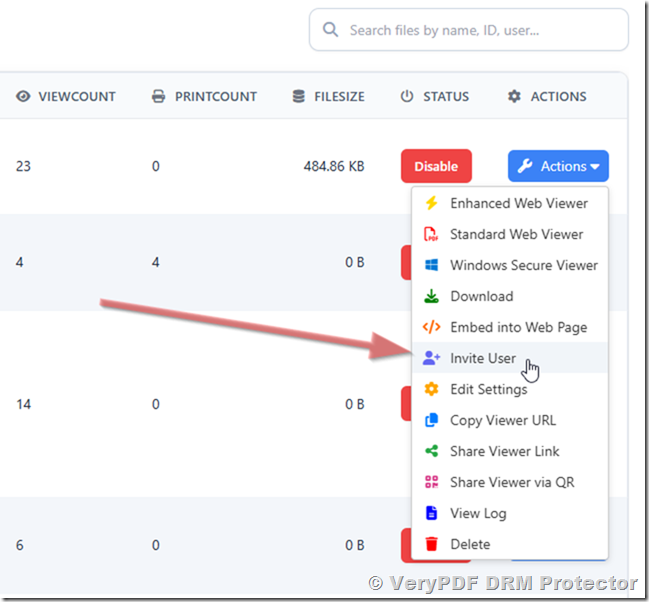
In “DRM Protected Files Management” page, upload a PDF file and click “Actions“->”Invite User” options,
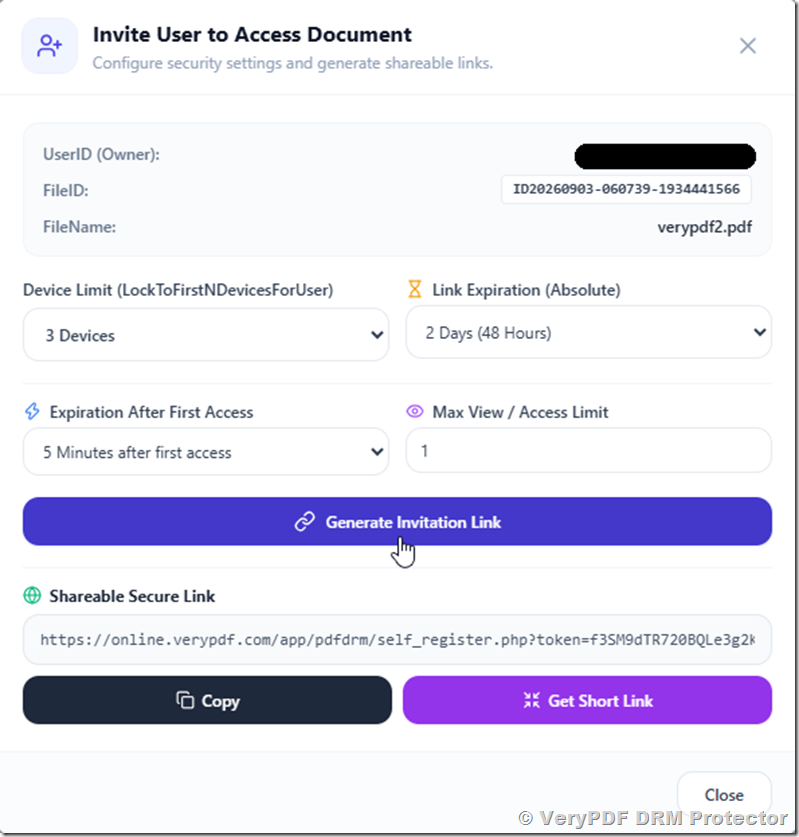
In the “Invite User” page, you can set security options and generate Invitation Link, you can send this Invitation Link to your customers and allow your customer to obtain their reading link,
What Is the Invite User Feature?
The Invite User to Access Document feature allows a PDF owner to create a controlled access link for a specific document.
Instead of simply sending someone a PDF file, you can create a secure link and decide how the recipient can use it.
For example:
| Security setting | Example |
|---|---|
| Device Limit | 2 devices |
| Link Expiration | 7 days |
| Expiration After First Access | 24 hours |
| Maximum Views | 5 views |
| Secure Link | Generated automatically |
| Short Link | Optional |
This gives you much more control than a normal PDF download URL.
For example, imagine that you sell an online training course and provide a PDF workbook to each customer.
You could create a link with:
2 devices + 30-day link expiration + 10 views
The customer can access the document, but sharing the same link with many other people becomes much harder.
Why a Normal PDF Download Link Is Not Enough
A normal PDF URL usually works like this:
PDF URL → Download PDF → Keep PDF → Share PDF
Once someone downloads the file, you have very little control over what happens next.
They may:
- Send the PDF to another person
- Upload it to a file-sharing website
- Put the PDF in a private group
- Share the original download link
- Open the document on many devices
- Keep using an old link for a long time
This creates a common problem for people selling digital content.
Example: Selling an eBook
Suppose you sell a $49 eBook.
A customer buys the eBook and receives a normal PDF download link. The customer downloads it and sends the PDF to five friends.
You made one sale, but six people now have the book.
A secure PDF sharing link can reduce this problem by applying access rules before the document is opened.
With VeryPDF DRM Protector, you can create an invitation link such as:
Maximum 2 devices + link expires after 7 days + maximum 10 accesses
The customer can still read the PDF, but the access is controlled.
How the VeryPDF DRM Protector Invitation Link Works
The process is simple.
Step 1: Select the PDF
Choose the protected PDF document you want to share.
The invitation window shows information such as:
- Document owner
- File ID
- File name
- Protected file information
This helps you confirm that you are creating the invitation for the correct document.
Step 2: Set the Device Limit
The Device Limit controls how many devices a user can use to access the document.
Available options include:
- Keep unchanged
- Unlimited devices
- 1 device
- 2 devices
- 3 devices
- 4 devices
- 5 devices
- 10 devices
- 20 devices
For paid eBooks, a limit of 1 or 2 devices may be suitable.
For business documents shared with a small team, you may need a higher limit.
Step 3: Set Link Expiration
You can control how long the invitation link remains valid.
The available options include:
- 10 minutes
- 30 minutes
- 1 hour
- 2 hours
- 5 hours
- 12 hours
- 1 day
- 2 days
- 3 days
- 7 days
- 14 days
- 30 days
- Custom date and time
- Never expire
This is useful when different documents require different security rules.
For example:
| Situation | Suggested link expiration |
|---|---|
| Temporary file sharing | 10–30 minutes |
| Customer download | 1–7 days |
| Online course material | 7–30 days |
| Long-term customer access | Never expire |
| Private business document | Custom date |
A short expiration time can reduce the risk of an old link being reused.
What Is “Expiration After First Access”?
This is different from normal link expiration.
There are two different time controls.
Link Expiration
This controls the maximum lifetime of the invitation link.
For example:
Link expiration: 7 days
The link can be used for up to seven days.
Expiration After First Access
This starts the timer when the recipient first opens the link.
For example:
Expiration after first access: 24 hours
A user may receive the link today but not open it until tomorrow.
Once the user first accesses the document, the 24-hour reading period starts.
This can be useful for temporary content, exams, event documents, temporary reports, and other documents that should only be available for a limited period after the recipient starts using them.
You can also leave this setting without an additional limit so that it follows the main link expiration setting.
Limit How Many Times a PDF Can Be Viewed
The Max View / Access Limit setting lets you limit the number of times the document can be accessed.
For example:
Maximum access: 5
After the allowed number of accesses has been reached, further access can be blocked according to the protection rules.
This can be useful when sharing:
- Paid reports
- Training materials
- Examination documents
- Temporary documents
- Private research
- Customer-only manuals
- Preview copies
- Evaluation documents
If you do not want to limit the number of views, you can leave this setting empty or use the unlimited option.
Create a Secure PDF Sharing Link
After selecting the security settings, click:
Generate Invitation Link
VeryPDF DRM Protector creates a shareable secure link for the document.
You can then copy the link and send it to the recipient.
The generated link is designed to provide controlled access instead of simply exposing the original protected PDF file URL.
You can use the link in:
- Customer thank-you pages
- Order confirmation pages
- Membership websites
- Course platforms
- Private messages
- Support tickets
- Customer portals
Get a Short Link for Easier PDF Sharing
Long URLs can be difficult to copy, read, or send.
The Invite User feature also provides a Get Short Link option.
After generating the secure invitation URL, you can create a shorter sharing link.
This can be useful when the link needs to be included in:
- Email messages
- SMS messages
- Customer instructions
- Printed documents
- QR codes
- Online checkout pages
The important point is that shortening the link does not mean removing the access controls. The secure invitation settings remain associated with the protected document access.
Secure PDF Sharing for eBook Sellers
One of the most useful applications is selling eBooks.
Many authors and publishers want customers to have convenient access without simply giving them an unrestricted PDF file.
For example, you could configure an eBook like this:
Device limit: 2 devices
Link expiration: 30 days
First access lifetime: No additional limit
Maximum views: Unlimited
The customer can use the secure link on their allowed devices while the seller has much more control than with a normal PDF download.
For another type of eBook, you could use:
Device limit: 2 devices
Link expiration: 7 days
Maximum views: 10
The correct settings depend on your business model.
Secure PDF Sharing for Online Courses
Course creators often provide PDF workbooks, lesson notes, manuals, and premium training materials.
A normal PDF download makes it easy for students to share the file.
With an invitation link, you can create different rules for different types of content.
For example:
| Content | Device Limit | Link Expiration |
|---|---|---|
| Free sample | 1 | 1 day |
| Course workbook | 2 | 30 days |
| Premium manual | 2 | 90 days |
| Temporary assignment | 1 | 24 hours |
This makes PDF access control more flexible.
Secure PDF Sharing for Business Documents
The feature is not limited to eBooks.
Businesses can use secure invitation links for private documents such as:
- Sales reports
- Product manuals
- Internal documents
- Customer documents
- Technical documentation
- Project reports
- Training manuals
- Private proposals
- Research reports
For a confidential document, you may choose a short expiration time and a low device limit.
For example:
1 device + 24-hour expiration + 5 maximum accesses
This is very different from sending an unrestricted PDF attachment.
Secure PDF Sharing vs. Normal PDF Download
| Feature | Normal PDF Link | VeryPDF DRM Protector |
|---|---|---|
| Share PDF with a link | Yes | Yes |
| Device limit | Usually no | Yes |
| Link expiration | Usually no | Yes |
| Expiration after first access | No | Yes |
| Maximum access limit | No | Yes |
| Custom expiration date | No | Yes |
| Short sharing link | Depends on system | Yes |
| PDF access control | Limited | Yes |
| Suitable for paid PDFs | Risky | Yes |
| Suitable for private documents | Limited | Yes |
A normal link is designed mainly for file delivery.
A DRM-protected invitation link is designed for controlled document access.
Real Example: Limit a PDF to Two Devices
Suppose you sell a premium PDF course for $99.
You want each customer to use the course on:
- One laptop
- One mobile device
You could set:
Device Limit: 2 Devices
You can also set:
Link Expiration: 30 Days
And:
Max View / Access Limit: Unlimited
The customer gets convenient access while the same account or invitation is not intended to become an unlimited sharing method.
This is especially useful when the value of your product is in the PDF content itself.
Real Example: Send a Private PDF for 24 Hours
Suppose you need to send a confidential report to a customer.
You do not want the link to remain active for months.
You could use:
Device Limit: 1 Device
Link Expiration: 24 Hours
Expiration After First Access: 2 Hours
Maximum Access: 3
This gives the recipient enough time to review the document while reducing the lifetime of the shared access.
Real Example: Give Customers Permanent eBook Access
Some sellers do not want customers to have an expiration date.
For example, an author may want:
Device Limit: 2 Devices
Link Expiration: Never Expire
Expiration After First Access: No Limit
Maximum Access: Unlimited
This provides long-term access while still applying a device limit.
The “Never Expire” option should be used carefully because a permanent link has a longer lifetime and therefore needs stronger access controls where appropriate.
Who Needs Secure PDF Invitation Links?
VeryPDF DRM Protector can be useful for anyone who needs to share PDFs but does not want to give up all control after sending the document.
Typical users include:
- Authors
- eBook sellers
- Publishers
- Course creators
- Training companies
- Coaches
- Consultants
- Schools
- Universities
- Businesses
- Software companies
- Research organizations
- Technical writers
- Membership websites
If you sell or distribute valuable PDF content, a normal download link may not provide enough control.
What Problems Does Invite User Solve?
The feature is designed around several common PDF sharing problems.
Problem 1: “I don’t want customers to use unlimited devices.”
Set a device limit such as 1, 2, or 3 devices.
Problem 2: “I only want the link to work for a few days.”
Set the link expiration to 1 day, 3 days, 7 days, or another period.
Problem 3: “I want the timer to start when the customer first opens it.”
Use Expiration After First Access.
Problem 4: “I only want the PDF to be accessed a limited number of times.”
Set Max View / Access Limit.
Problem 5: “The secure URL is too long.”
Use Get Short Link.
Problem 6: “Different customers need different rules.”
Create invitation links with different security settings for different recipients or use cases.
How to Choose the Right PDF Access Settings
There is no single setting that works for every situation.
A simple starting point is:
| Use Case | Device Limit | Link Expiration | Access Limit |
|---|---|---|---|
| Paid eBook | 2 | 30 days | Unlimited |
| Course PDF | 2 | 30 days | Unlimited |
| Private report | 1–2 | 1–7 days | Limited |
| Temporary document | 1 | 24 hours | Limited |
| Exam material | 1 | Short period | Limited |
| Long-term customer access | 2–3 | Never expire | Unlimited |
These are examples, not fixed rules. Your settings should match how your customers are expected to use the content.
Why Device Limits Matter for PDF Protection
A device limit does not stop every form of piracy, but it can reduce casual account and link sharing.
Consider two situations.
Without a device limit
A customer receives a link and shares it with many people. Each person may try to use the same access from their own computer or phone.
With a device limit
You can restrict the document to a specific number of devices.
For paid content, this creates a much better balance between customer convenience and content protection.
For many eBook sellers, 2 devices per customer is a practical starting point.
Why Expiring PDF Links Matter
A PDF link that works forever can become a security problem.
An old link may be:
- Forwarded to another person
- Posted in a private group
- Saved in an old email
- Shared through a messaging app
- Accidentally exposed
An expiration date reduces the period during which the link can be used.
For sensitive documents, shorter expiration periods are usually safer.
For permanent customer access, you can choose Never Expire and rely on other access controls.
VeryPDF DRM Protector for Controlled PDF Sharing
VeryPDF DRM Protector is designed for people who need more than a simple PDF download link.
The new Invite User to Access Document feature brings several controls into one place:
- Device limit
- Link expiration
- Custom expiration date
- Expiration after first access
- Custom first-access lifetime
- Maximum view/access limit
- Secure shareable link
- Short link generation
Instead of creating a separate system for every rule, you can configure the access conditions when generating the invitation link.
If you sell eBooks, training PDFs, reports, manuals, or other valuable documents, this gives you a practical way to add PDF access control to your sharing process.
Try VeryPDF DRM Protector
If your current PDF delivery system is simply:
Customer pays → Send PDF → Customer keeps and shares PDF
it may be time to add more control.
With VeryPDF DRM Protector, you can create a protected PDF access link and decide how many devices can use it, when the link expires, how long access lasts after the first visit, and how many times the document can be accessed.
This makes it a useful solution for secure PDF sharing, eBook protection, PDF access control, protected download links, and digital content protection.
Frequently Asked Questions
1. What is a secure PDF sharing link?
A secure PDF sharing link is a URL that provides controlled access to a protected PDF instead of simply exposing an unrestricted PDF download. With VeryPDF DRM Protector, you can apply rules such as device limits and expiration times.
2. Can I limit a PDF to two devices?
Yes. The Invite User feature includes a Device Limit setting. You can select 1, 2, 3, 4, 5, 10, or 20 devices, or choose unlimited devices.
3. Can I make a PDF link expire?
Yes. You can select expiration periods from minutes to days, or choose a custom date and time.
4. Can I create a PDF link that never expires?
Yes. The invitation settings include a Never Expire option. Use it when customers need long-term access.
5. What does expiration after first access mean?
It lets you start a separate access timer when the recipient first opens the invitation link. For example, you can allow access for 24 hours after the first access.
6. Can I limit how many times someone accesses a PDF?
Yes. The Max View / Access Limit setting can be used to limit the number of allowed accesses. You can leave it unlimited when you do not need an access limit.
7. Can I set a custom expiration date?
Yes. Select Custom Date & Time and choose the date and time when the invitation link should expire.
8. Can I create a short PDF sharing link?
Yes. After generating the secure invitation URL, you can use Get Short Link to create a shorter link that is easier to share.
9. Is this useful for selling eBooks?
Yes. It is especially useful for sellers who want to give customers convenient PDF access while applying device, time, or access limits.
10. Can course creators use this feature?
Yes. Online course creators can use secure invitation links for workbooks, course notes, manuals, training PDFs, and other paid materials.
11. Can I use the invitation link for business documents?
Yes. The feature can be used for private reports, manuals, proposals, technical documents, customer files, and other business PDFs.
12. Does a device limit stop PDF piracy completely?
No security system can guarantee that a digital document can never be copied or captured. A device limit is one part of a larger PDF protection strategy. VeryPDF DRM Protector can combine access controls with other DRM protection features to make unauthorized sharing more difficult.
13. Can different documents have different access rules?
Yes. You can configure the invitation settings for the document you are sharing, so different documents can use different device limits, expiration periods, and access limits.
14. What is the best device limit for an eBook?
For many paid eBooks, 1 or 2 devices is a reasonable starting point. You should choose the limit based on how your customers normally read the book.
15. What is the difference between a normal download link and a DRM-protected link?
A normal download link mainly provides file delivery. A DRM-protected link can apply access rules such as device limits, expiration, and access limits, giving the document owner more control over how the PDF is accessed.
16. Can I use this for temporary PDF access?
Yes. You can combine a short link expiration with a first-access expiration and an access limit to create temporary PDF access.
17. Can I give a customer permanent access but limit the number of devices?
Yes. For example, you can use Never Expire together with a 2-device limit. This can be useful for customers who should keep access to a purchased eBook or manual.
18. Why should I use VeryPDF DRM Protector instead of sending a PDF attachment?
Sending an attachment gives the customer a copy of the PDF with very little control after delivery. VeryPDF DRM Protector lets you use controlled access links and apply rules before the document is opened.
Related PDF Security Topics
If you are looking for ways to protect paid or private PDF documents, these are common areas to consider:
- Secure PDF sharing
- PDF access control
- PDF DRM protection
- Protected PDF download links
- Expiring PDF links
- PDF device limits
- eBook DRM protection
- Digital document protection
- Secure eBook delivery
- PDF sharing restrictions
- Online PDF protection
- PDF piracy prevention
- Customer-specific PDF access
- Temporary PDF access
- Secure document sharing