
A Complete Guide to Manual Workflow, User Portal Access, and Automated Integration
VeryPDF DRM Protector offers multiple flexible and scalable methods for uploading, protecting, and distributing PDF documents—ranging from simple manual file uploads to fully automated API-driven workflows. Users are not limited to a single approach; instead, they can choose from several upload and delivery channels depending on how many PDF files they need to secure, how frequently they perform protection tasks, and how they prefer to distribute the final protected documents.
With VeryPDF DRM Protector, PDF files can be uploaded manually through the web interface, automatically through PHP or REST API integration, or assigned through structured Virtual Data Rooms via the user portal. Each upload method supports the full range of DRM features, including static and dynamic watermarks, print/view restrictions, expiration controls, online tracking, and direct integration with user accounts. After protection, PDF files can be shared by downloading the encrypted .vpdf package, distributing secure-view URLs, or allowing end-users to access files through a dedicated login portal.
This guide explains each upload method in detail, compares their strengths and limitations, and helps you determine the best workflow for protecting and sharing multiple PDF documents based on your operational and business requirements.
Solution 1: Manually Upload and Protect Single or Multiple PDF Files
This method is the simplest and most user-friendly approach for protecting PDF files. It is especially suitable for teachers, small businesses, or any user who wants to secure documents without programming knowledge.
Key features and advantages include:
- No technical skills required: Users do not need to know any coding or scripting to protect files.
- Easy upload process: Simply select one or multiple PDF files via the online interface and configure your DRM settings.
- Quick access to protected files: After upload, you immediately receive the secured PDF files and/or secure URLs.
- Simple sharing: These secure links can be shared directly with recipients via email, chat, or social media, allowing controlled viewing without sending the original files.
- Full DRM control: Even with this simple workflow, you can apply advanced protection such as watermarks, print/view restrictions, expiration dates, and other DRM parameters.
Overall, this method provides a fast, straightforward way to protect and share PDFs, making it ideal for users who need quick results without dealing with complex account management or automation.
Step 1: Open the Online Protection Page
Visit the online DRM protection portal:
https://drm.verypdf.com/online/
Step 2: Upload One or Multiple PDF Files
Click “Choose Files”, then select:
- a single PDF file, or
- multiple PDF files (batch upload)
Step 3: Set Your DRM Protection Parameters
You can configure a wide range of protection settings, including:
Watermark Options
- Static watermark (custom text)
- Dynamic watermark (email, date, IP, username, etc.)
- PDF watermark with transparency
and opacity - Image watermark with transparency
and opacity - Line markup
DRM Control Options
- DRM expiration date
- View count control
- Print count control
- Disable printing
- Disable copy & paste
- Disable screen capture (client software only)
- Idle timeout
- Close-after-seconds
- Lock to first N devices
- And more
Enter your email address carefully. This email will serve two important purposes:
- Registration and Login: It will be used to register and log in to the VeryPDF DRM Protector system, where you can manage all your protected PDF files, adjust DRM settings, assign files to users, and track access.
- Customer Identification: This email also represents the payer’s or end-customer’s email. It will be associated with the protected PDFs for sending secure links, notifications, or access credentials.
Important: Make sure you enter a correct and active email address. If the email is incorrect, you may lose access to managing your files and the customer will not receive proper access to the protected documents.
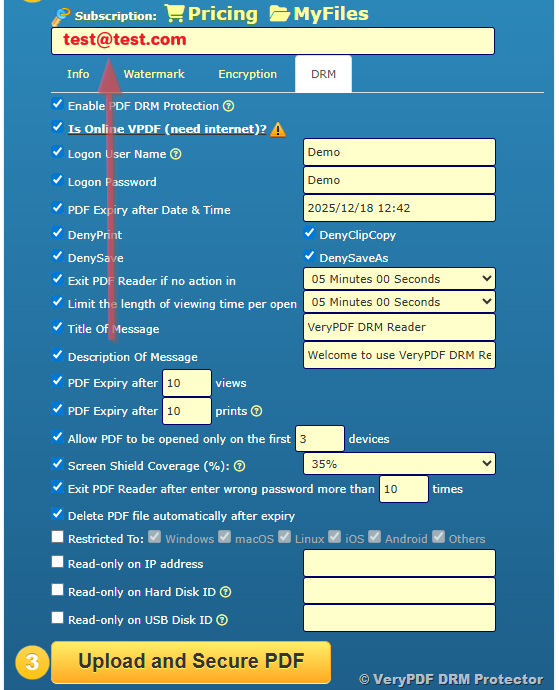
Step 4: Click “Upload and Secure PDF”
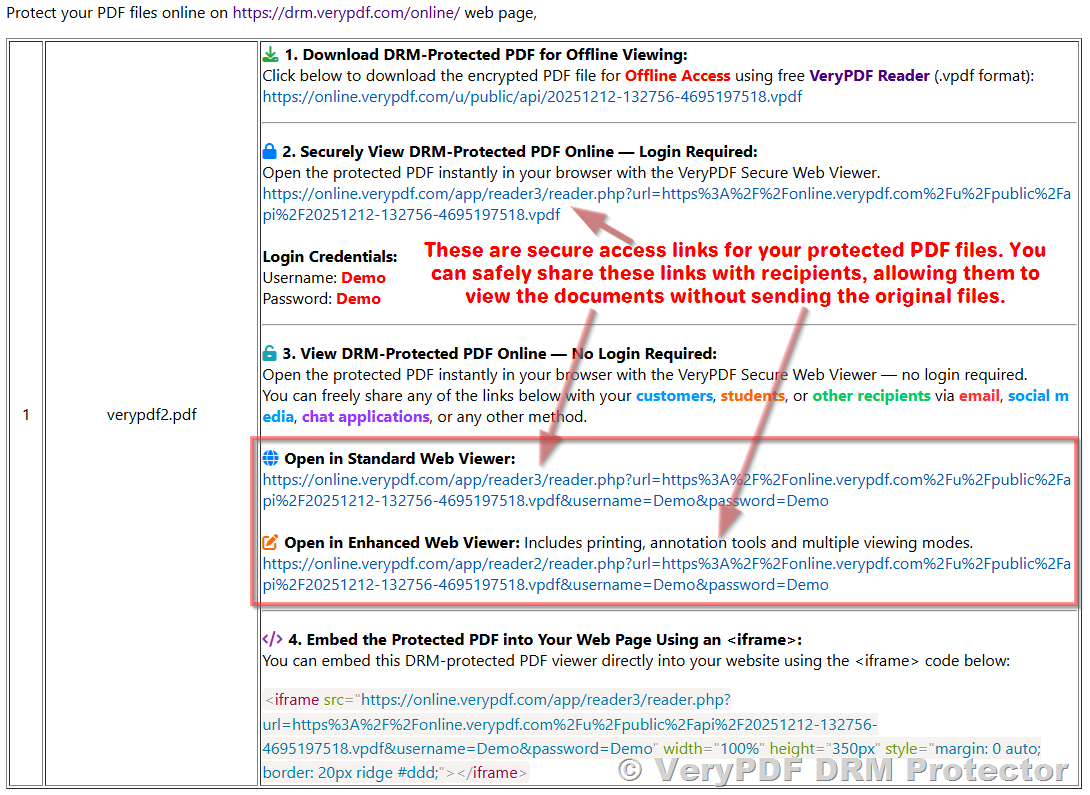
After the upload completes:
- You can download the protected .vpdf file(s),
- Or copy the secure viewing URL for each protected document.
You may share the file links by:
- Social media
- LMS platforms
- Or any communication method you prefer
Solution 2: Use the User Portal Login to Provide Access to Protected Files
This method is ideal for schools, companies, or any organization that requires account-based access control. After protecting your PDF files as described in Solution 1, you can assign them to users through the User Management interface.
The main advantages of this approach include:
- Full account control: You can activate or deactivate any user account at any time, instantly controlling who has access to your protected files.
- Detailed usage tracking: For each user, you can monitor which files they have accessed, how many times they viewed each file, and the duration of each session.
- Comprehensive audit logs: Every user action is recorded in detail, including file access, attempts to exceed DRM limits, and activity timestamps. These logs are invaluable for internal audits, compliance, or tracking user engagement.
By using account-based access, organizations gain centralized, secure management of PDF files, making it easy to protect intellectual property while maintaining complete oversight of user activity.
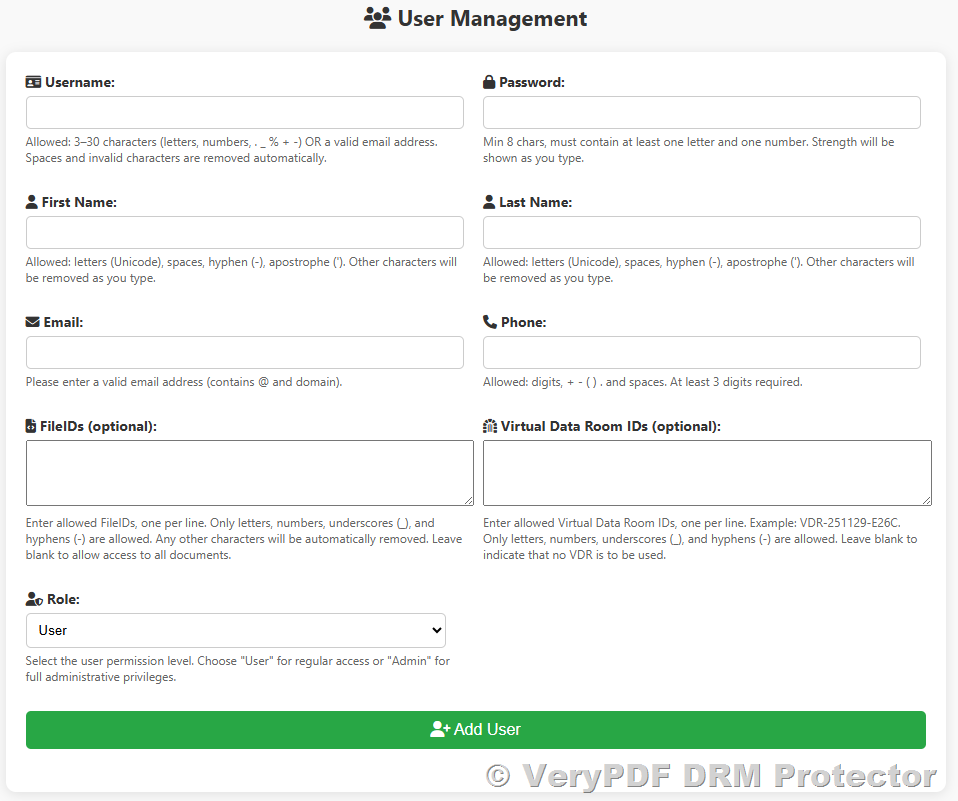
Step 1: Add Users and Passwords
Visit the User Management page:
https://drm.verypdf.com/wp-admin/admin.php?page=VeryPDFDRMUserManagement
You may:
- Add users manually
- Or bulk-import users via CSV
CSV Bulk Import Format
To efficiently manage large numbers of users, VeryPDF DRM Protector supports CSV-based bulk import. Your CSV file should contain the following columns:
id,username,password,useremail,role,phone,firstname,lastname,FileID,VDR_IDs
1,test1,password,test1@verypdf.com,user,8589399988,test,test,,
2,test2,password,test2@verypdf.com,user,8589399989,test,test,,
How it works and why it’s useful:
- You can export users from your existing system into a CSV file.
- Adjust the exported CSV so that it matches the format recognized by VeryPDF DRM Protector.
- Bulk import the CSV into the User Management system.
Advantages:
- Time-saving: Creating hundreds or thousands of users manually would be very labor-intensive; bulk import automates this process.
- Automated account generation: You can generate CSV files programmatically (e.g., via PHP or other backend systems) to create user accounts automatically.
- File assignment flexibility: You can pre-assign specific PDF files or Virtual Data Rooms (VDRs) to each user in the CSV, making setup faster and more organized.
This method is ideal for organizations with a large user base, such as schools, enterprises, or online course platforms, allowing you to set up access quickly and efficiently.
Step 2: (Optional) Use Virtual Data Rooms (VDR)
A Virtual Data Room (VDR) is a powerful feature that allows you to group multiple protected PDF files together for easier management and controlled access.
Key advantages of using a VDR:
- Organized file management: One VDR can contain multiple protected PDF files, making it easier to assign and manage collections of documents instead of handling individual files.
- Flexible user access: You can allow a user to access one or multiple VDRs, giving them permission to view all files within the assigned VDRs.
- Dynamic and fully controlled: Each VDR is completely under your control. You can enable or disable a VDR at any time, instantly controlling whether assigned users can access the contained files.
- Simplified distribution: Instead of managing access to each PDF individually, you can manage access at the VDR level, which is ideal for classrooms, corporate teams, or online training courses.
- Detailed tracking and audit: All user actions within a VDR—including file access and session activity—are logged for audit and compliance purposes.
- Scalable solution: VDRs are particularly useful when you have many documents and many users, as it reduces administrative overhead while keeping access structured.
How to create a VDR:
- Visit the VDR management page:
https://drm.verypdf.com/wp-admin/admin.php?page=VeryPDFDRMVDR - Create a new VDR.
- Add the FileIDs of your protected PDF files into the VDR.
By using VDRs, you can efficiently manage large sets of documents and users, maintain complete control over access, and simplify the process of sharing multiple files securely at once.
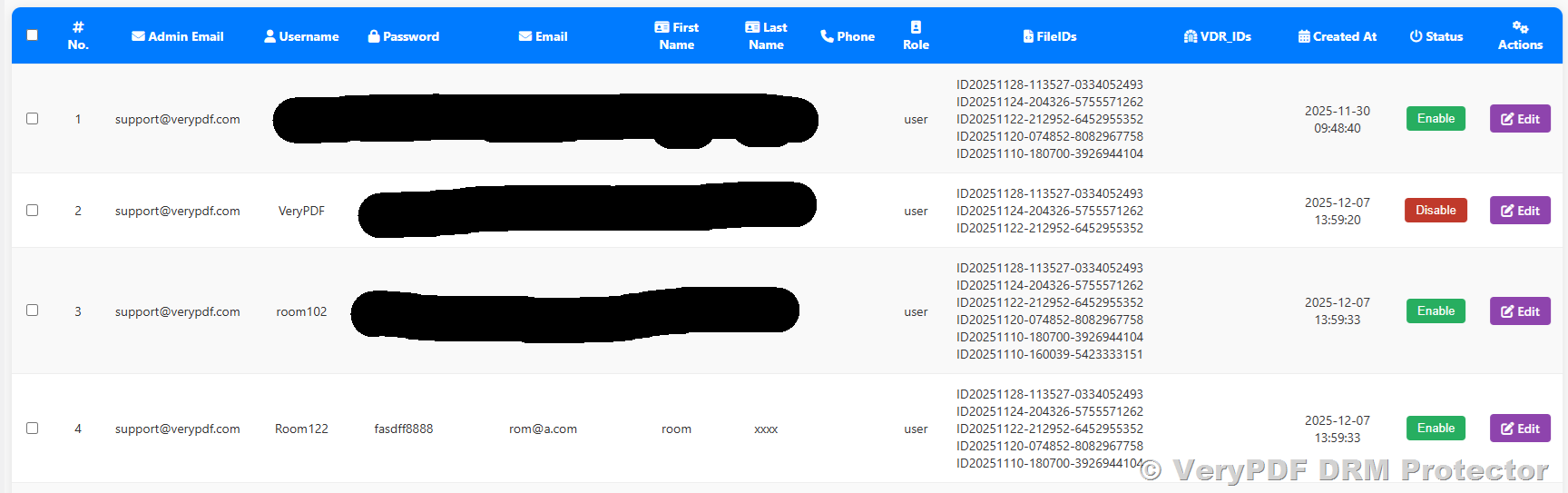
Step 3: Assign VDRs or Individual Files to Users
After creating your users and (optionally) setting up Virtual Data Rooms (VDRs), the next step is to assign access permissions. This is done through the User Management interface:
User Management Page:
https://drm.verypdf.com/wp-admin/admin.php?page=VeryPDFDRMUserManagement
Assignment options:
- Assign individual FileIDs: You can grant a user access to specific protected PDF files. This is useful when different users need access to different documents.
- Assign one or multiple VDRs: You can grant a user access to entire Virtual Data Rooms, which may contain multiple protected PDF files. This is ideal for giving a user access to a group of files at once.
Flexibility and control:
- A single user can be assigned multiple individual files and/or multiple VDRs simultaneously.
- You can modify assignments at any time, adding or removing files and VDRs as needed.
- Access can be enabled or disabled instantly, giving you full control over who can view which files.
Advantages of this approach:
- Centralized access control: All permissions are managed in one interface, making it easy to keep track of which users have access to which files.
- Scalable for large organizations: Whether you have dozens or thousands of users, assignments can be managed efficiently.
- Audit-friendly: Every action, including file or VDR assignment changes, is logged, supporting compliance and internal audits.
- Time-saving: By assigning VDRs instead of individual files, you can grant access to multiple documents in a single step, reducing administrative overhead.
This step ensures that each user has precisely the access they need while giving administrators complete control and visibility over document distribution.
Step 4: User Login to View Protected Documents
Once you have created users and assigned access to files or Virtual Data Rooms (VDRs), your users can log in to the VeryPDF DRM Protector portal to securely view their assigned documents.
Login Page:
https://online.verypdf.com/app/pdfdrm/login.php
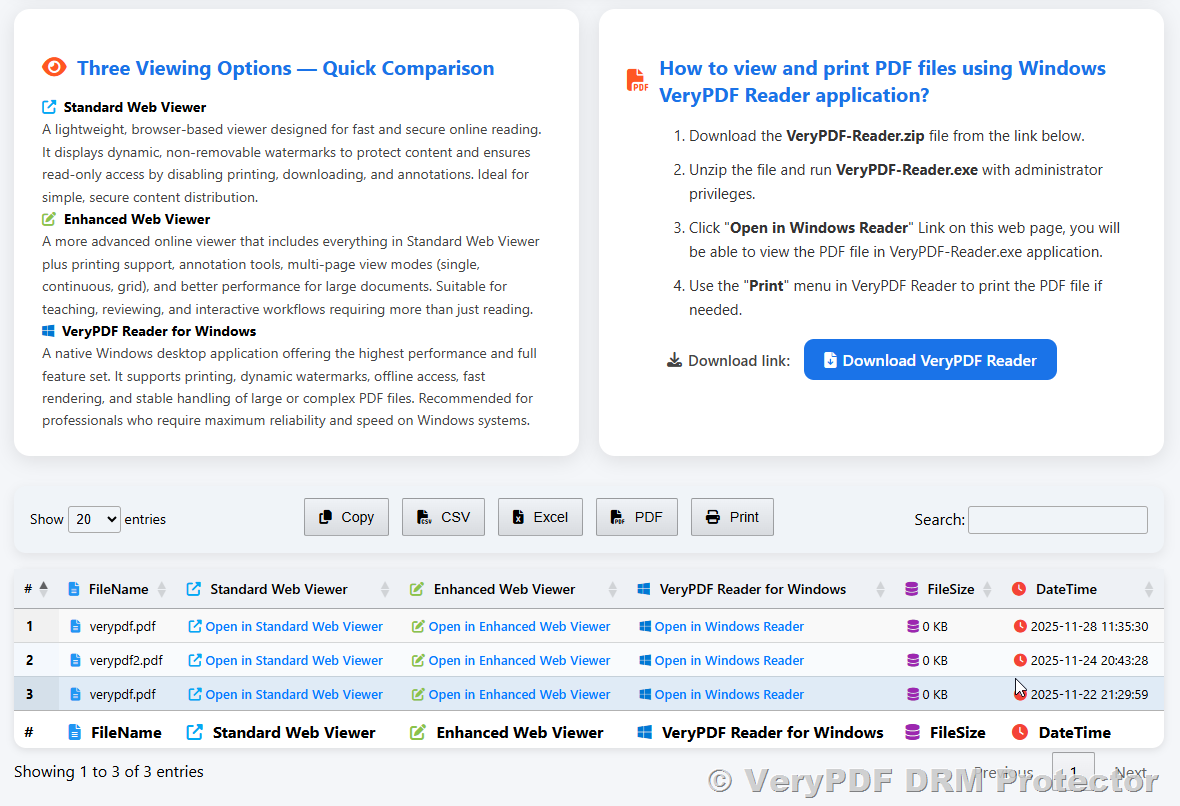
Login process:
- Each user logs in using their username and password that you assigned or imported via CSV.
- The system verifies credentials and ensures that the user can only access files or VDRs assigned to them.
- The login interface is simple and user-friendly, requiring no technical knowledge.
Access after login:
- Users can instantly access all files and VDRs assigned to them.
- The system enforces DRM restrictions such as view count, print restrictions, copy/paste prevention, and expiration dates.
- Users will only see the documents they are authorized to access; unauthorized files are never visible.
Security and tracking:
- Every action is logged, including file views, session duration, and attempts to exceed DRM limits.
- This allows administrators to monitor user activity, maintain audit trails, and ensure compliance with document security policies.
- Users can safely view documents without downloading unprotected copies, preserving the integrity of your PDF content.
Advantages:
- Centralized access control: One login gives access to multiple files or entire VDRs.
- User-friendly experience: Intuitive interface suitable for non-technical users such as students or team members.
- Secure and auditable: All activity is logged, and DRM restrictions are enforced automatically.
This step completes the end-to-end workflow of managing user access and ensuring secure, controlled distribution of your protected PDF files.
Solution 3: Automatically Upload and Protect PDF Files Using PHP (or Any Language)
This method is designed for developers and businesses that require automation, such as e-commerce platforms, online courses, or enterprise systems. By integrating VeryPDF DRM Protector via PHP, REST API, or Command Line, you can automate the entire workflow:
Key advantages:
- Fully automated upload and protection: PDFs are automatically secured immediately after purchase or upload.
- Automatic DRM configuration: Apply protection settings, watermarks, and access restrictions programmatically.
- Seamless delivery: Receive the secure .vpdf files or direct access URLs, which can be emailed to customers or displayed on your website.
- Webhook support: Track user activity in real-time, trigger events, or record logs for auditing.
- Scalable and efficient: Handle hundreds or thousands of PDF files and users without manual intervention.
This solution is perfect for organizations that need to integrate PDF protection into existing systems and maintain high efficiency at scale.
This solution is designed for developers who want full automation. It is the best choice for:
- E-commerce websites selling digital books
- Subscription platforms
- Online training systems
- Enterprise document management
- Automated workflow pipelines
With automation, your system can:
- Upload a PDF automatically
- Set DRM protection parameters
- Receive the secure .vpdf file or secure-view URL
- Email the access link to the customer
- Or show the link directly in the order confirmation page
No manual work required.
✅ Developer Resources for Automating PDF Protection
VeryPDF DRM Protector provides a variety of developer-friendly APIs and tools to integrate PDF protection into your existing systems, automate workflows, and track document usage in real time.
1. Command Line API
- Purpose: Automate PDF protection using scripts or server-side programs without manual intervention.
- Capabilities: Upload PDF files, apply DRM settings (watermarks, printing/view restrictions, expiration), download .vpdf files or retrieve secure URLs.
- Documentation and examples:
Command Line PHP Integration Guide - Use cases: Automating PDF protection for e-commerce platforms, online courses, or batch processing large numbers of documents.
2. Cloud REST API
- Purpose: Programmatically protect PDFs, manage users, and control access through a fully featured REST API.
- Supported languages: C, C++, Java, JavaScript, PHP, C#, VB.NET, and more.
- Documentation and examples:
Cloud REST API Examples - Capabilities:
- Upload PDFs automatically and apply DRM parameters.
- Retrieve secure download or viewing URLs.
- Manage users, assign files or VDRs, and track access.
- Use cases: Integration with LMS, e-commerce systems, SaaS platforms, or any system requiring automated PDF distribution and protection.
3. Webhook API (Optional)
- Purpose: Receive real-time notifications when users interact with protected PDF files.
- How it works: When a user opens, prints, or performs other actions on a protected document:
- VeryPDF DRM Protector can call a custom endpoint on your server.
- You can capture details such as activity type, user, IP address, access time, and session duration.
- Use cases:
- Learning Management Systems (LMS): Track student engagement with course materials.
- Audit tracking: Maintain a complete log of who accessed which documents and when.
- Compliance: Meet internal or external regulatory requirements for document access monitoring.
Advantages of developer integration:
- Full automation: Reduce manual work by automatically protecting PDFs and assigning access after purchase or upload.
- Real-time tracking: Get detailed usage logs for auditing, analytics, or compliance.
- Scalability: Handle thousands of PDF files and users efficiently.
- Flexibility: Integrate PDF protection seamlessly into your existing systems using your preferred programming language.
✅ Example: Managing Access for 10 Users
When managing access for multiple users, VeryPDF DRM Protector supports two primary workflows for sharing the same PDF with multiple recipients. Each has its own advantages depending on your needs.
Option A: Upload 1 PDF File and Let 10 Users Access It
How it works:
- You upload the PDF once and assign the same FileID or VDR to all 10 users.
- Each user logs in with their own account to access the same protected file.
Advantages:
- Simpler management: Only one copy of the file exists in the system. Any updates or changes need to be applied to only one PDF.
- Resource-efficient: Saves storage and avoids unnecessary duplication.
- Easier assignment: Users can be assigned individually or in bulk via CSV, and permissions are managed centrally.
- Recommended for most scenarios where the same content is shared with multiple users.
Limitations:
- Uniform DRM settings: All users share the same protection parameters (watermarks, expiration, print limits).
- Less personalization: Cannot apply individual watermarks or unique DRM settings for each user.
Use case:
- Ideal for classrooms, corporate training, newsletters, or reference materials where all recipients can access the same protected content.
Option B: Upload the Same PDF 10 Times (10 Copies)
How it works:
- You upload the same PDF 10 separate times, each protected as a distinct file with a unique FileID.
- Each user receives a completely separate protected copy.
Advantages:
- Individualized DRM settings: Each copy can have different watermarks, expiration dates, or print/view restrictions.
- Enhanced traceability: If a file is shared improperly, you can identify which user’s copy was leaked.
- Custom access control: Each copy can have different permissions or VDR assignments.
Limitations:
- Higher storage and management overhead: 10 files must be managed separately.
- More administrative work: Updating the content requires repeating the protection process for each copy.
- More complex assignment: Each file must be mapped to its respective user.
Use case:
- Necessary when personalized watermarks, different DRM settings, or strict auditing requirements are required for each user, such as paid e-books, confidential reports, or exam materials.
Summary Comparison
|
Feature |
Option A: Single File for All Users |
Option B: Separate Copies for Each User |
|
Number of PDF copies |
1 |
10 |
|
Storage & resource efficiency |
High |
Low |
|
DRM personalization |
None |
Full |
|
Management simplicity |
Simple |
Complex |
|
Traceability of leaks |
Low |
Low |
|
Recommended for |
General sharing, classrooms |
Personalized documents, sensitive files |
Conclusion:
Both workflows are fully supported. Option A is simpler, more efficient, and easier to manage, making it suitable for most general scenarios. Option B is best when you need individualized protection, tracking, or unique DRM settings for each recipient.
✅ Comparison of All Three Solutions
|
Feature |
Solution 1: Manual Upload |
Solution 2: User Portal Login |
Solution 3: Automation API |
|
Protect multiple files |
✔ Batch upload |
✔ Assign many files per user |
✔ Unlimited automation |
|
Add users |
Not needed |
✔ Manual or CSV bulk import |
✔ Automatically create users |
|
Access by login |
✘ No login (direct URL) |
✔ Yes |
✔ Optional |
|
Best for |
Teachers, small teams |
Schools, enterprises |
Developers, e-commerce |
|
VDR grouping |
✘ |
✔ |
✔ |
|
Automated workflow |
✘ Manual |
✘ Semi-manual |
✔ Fully automatic |
|
Watermarks + DRM |
✔ |
✔ |
✔ |
|
Webhook tracking |
✘ |
✘ |
✔ Optional |
✅ Conclusion
VeryPDF DRM Protector offers complete flexibility and control for protecting PDF documents, whether you are managing a single file or thousands of files. The platform supports multiple workflows, giving you the freedom to choose the approach that best fits your technical expertise, organizational needs, and security requirements.
Key highlights across all workflows:
- Manual Uploads (Solution 1):
- Designed for non-technical users such as teachers, small businesses, or individuals.
- Upload single or multiple PDFs via the online interface.
- Apply full DRM protection, including watermarks, print/view restrictions, expiration settings, and download secure URLs in minutes.
- Ideal for quick and simple document protection without any programming or system integration.
- User Portal and Virtual Data Rooms (Solution 2):
- Designed for organizations, schools, and enterprises requiring account-based access control.
- Manage users through the portal, assign individual files or group multiple files using Virtual Data Rooms (VDRs).
- Provides complete control over access, including the ability to activate/deactivate users or VDRs at any time.
- Offers detailed usage tracking and audit logs for compliance, monitoring, and reporting.
- Perfect for structured environments with multiple users and documents.
- Developer API and Automation (Solution 3):
- Designed for developers and businesses needing automated workflows.
- Supports PHP, REST API, Command Line, and Webhook integration.
- Automate PDF upload, protection, access assignment, and secure URL delivery.
- Real-time notifications via Webhooks allow tracking user activity, session times, and DRM events, ideal for LMS, e-commerce, and compliance scenarios.
- Scalable solution for hundreds or thousands of users and documents.
Advantages across all methods:
- Flexible file management: Protect one file, multiple files, or thousands of PDFs efficiently.
- Secure distribution: Provide controlled access via secure links, user accounts, or VDRs.
- Customizable DRM settings: Apply different levels of restrictions, watermarks, expiration dates, and usage limits as needed.
- Audit and compliance-ready: Every user action can be logged, making it easy to monitor, report, and comply with internal or external regulations.
Support and customization:
- VeryPDF DRM Protector’s team is available to help with custom workflow design, API integration, or Webhook setup.
- Whether you need simple manual protection, organized user management, or fully automated enterprise integration, our solutions are designed to provide secure, reliable, and enterprise-grade DRM protection with minimal effort.
By combining these capabilities, VeryPDF DRM Protector ensures that your PDF content is secure, controlled, and trackable, regardless of the size or complexity of your operation.