
In the digital era, protecting intellectual property has never been more important. Educational institutions, publishers, and businesses frequently distribute PDF materials that contain sensitive information, proprietary content, or client-specific data. A key method to secure these documents is through the use of watermarks. Watermarks act as both a visible deterrent against unauthorized sharing and a means to track the source of any leak.
VeryPDF DRM Protector provides an advanced platform for applying dynamic watermarks to PDF documents. Unlike static watermarks, dynamic watermarks can include variable information such as usernames, dates, times, and IP addresses, making each copy of a PDF unique to the user. However, many users encounter difficulty positioning the watermark exactly where they want it on a page, especially at the top-center, which is a preferred placement for professional documents.
This article provides a complete, step-by-step guide to setting a dynamic watermark at the top-center of each page in VeryPDF DRM Protector SaaS. It covers everything from the meaning of each setting to advanced tips, common pitfalls, and best practices for professional-quality watermarking.
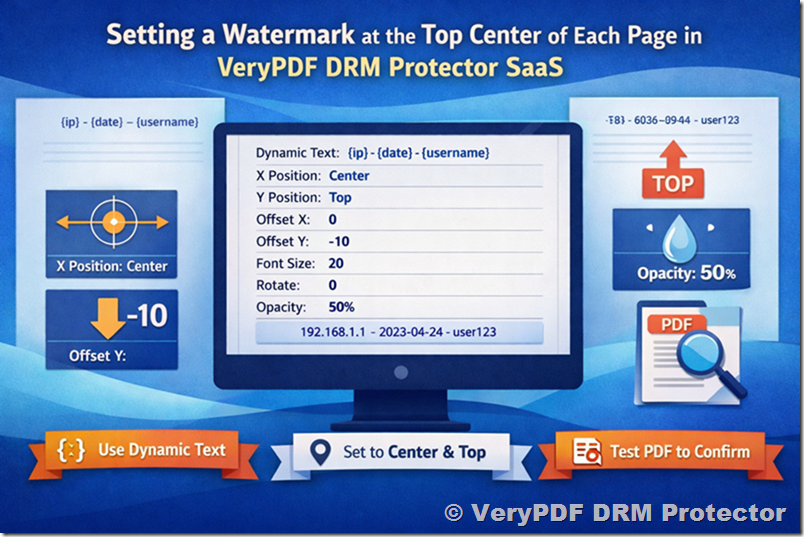
Understanding Dynamic Watermarks
Before discussing positioning, it is crucial to understand what dynamic watermarks are and how they function in VeryPDF DRM Protector.
Dynamic watermarks differ from static watermarks in several ways:
- Personalized Content: They can include variables like {username}, {date}, {time}, {ip}, or {datetime}. This makes each PDF copy unique to the user.
- Tracking Capabilities: By embedding user-specific data, you can trace any unauthorized sharing back to the source.
- Flexibility: Dynamic watermarks can adjust automatically based on page numbers, dates, or other PDF metadata.
For example, an educational PDF might display the following watermark dynamically:
JohnDoe, 2026-04-08, 10:30AM, IP: 192.168.1.100
This not only identifies the authorized user but also serves as a deterrent against distributing the PDF illegally.
Key Watermark Settings in VeryPDF DRM Protector
VeryPDF DRM Protector offers a range of settings for configuring dynamic watermarks. Each option influences how the watermark appears on the page. To set a watermark at the top-center, it is essential to understand the following options:
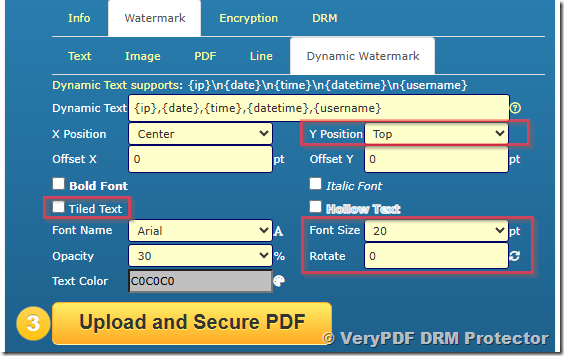
- Dynamic Text – Determines the content displayed in the watermark. Placeholders allow automatic insertion of user and session information.
- X Position – Controls horizontal alignment. Options include Left, Center, or Right. For top-center placement, select Center.
- Y Position – Controls vertical alignment. Options include Top, Center, or Bottom. For top placement, select Top.
- Offset X and Y – Pixel-level adjustments from the chosen alignment. Fine-tuning ensures the watermark is not too close to page edges or overlaps important content.
- Font Settings – Font name, size, bold, italic, and hollow text options affect visibility and readability. Recommended fonts for clarity include Arial, Arial Black, Courier New, and Verdana.
- Rotate – Determines the angle of the watermark. Zero degrees aligns text horizontally.
- Opacity – Controls transparency. A typical value is 50% for semi-transparent watermarks.
- Text Color – Select a subtle color like C0C0C0 (silver) to avoid distracting from main content.
- Tiled Text – When checked, the watermark repeats across the page. For a single top-center watermark, this should be unchecked.
 Step-by-Step Guide: Positioning a Watermark at Top-Center
Step 1: Access the Watermark Settings
- Log in to your VeryPDF DRM Protector SaaS account.
- Navigate to Watermark Settings or Dynamic Watermark.
- Click Add New Watermark or Edit an existing watermark configuration.
Step 2: Configure Dynamic Text
- Enter the following in the Dynamic Text field:
{ip},{date},{time},{datetime},{username}
- This ensures the watermark contains user-specific information, date, time, and IP address dynamically.
Step 3: Set Horizontal and Vertical Alignment
- X Position: Select Center to horizontally align the watermark.
- Y Position: Select Top to vertically position the watermark near the top edge of each page.
Step 4: Adjust Offset Values
- Offset X: Set to 0 to keep the watermark horizontally centered.
- Offset Y: Set to -10 (adjustable between -5 and -15) to move the watermark slightly down, preventing clipping with page margins.
Step 5: Choose Font Settings
- Bold Font: Unchecked (unless bold styling is desired).
- Italic Font: Unchecked.
- Hollow Text: Unchecked.
- Font Name: Arial, Arial Black, Courier New, Verdana, or any readable font.
- Font Size: 20 (adjust based on document size and page layout).
Step 6: Configure Rotation, Opacity, and Color
- Rotate: Set to 0 for horizontal text.
- Opacity: 50% for semi-transparent watermarking.
- Text Color: C0C0C0 (silver) or any subtle color that does not distract from content.
Step 7: Disable Tiled Text
- Make sure Tiled Text is unchecked.
- A tiled watermark will repeat across the page, which is not desired for a single top-centered watermark.
Step 8: Apply and Test
- Apply the watermark settings to a test PDF first.
- Verify the following:
- Watermark appears at the top-center of each page.
- Text is readable and semi-transparent.
- No part of the watermark is clipped or overlapping important content.
- Adjust Offset Y, font size, or opacity as needed.
Common Placement Issues and Solutions
Even with proper configuration, users may experience placement issues. Here’s how to resolve them:
Issue 1: Watermark Cut Off
- Cause: Page margins or printer settings.
- Solution: Slightly adjust Offset Y to move the watermark down.
Issue 2: Watermark Not Centered Horizontally
- Cause: Extra horizontal offset or incorrect X Position.
- Solution: Ensure X Position = Center and Offset X = 0.
Issue 3: Watermark Repeats Across the Page
- Cause: Tiled Text option enabled.
- Solution: Uncheck Tiled Text.
Issue 4: Watermark Overlaps Content
- Cause: Font size too large or opacity too high.
- Solution: Reduce font size or opacity.
Issue 5: Changes Not Visible
- Cause: Watermark not applied to the PDF after editing settings.
- Solution: Reapply watermark to document and refresh PDF viewer.
Advanced Tips for Educational PDFs
- Combine With Page Numbers
- Position watermark slightly above page numbers to avoid overlap.
- Use Multiple Dynamic Fields
- Include {username}, {ip}, {date}, and institution branding for maximum traceability.
- Choose Readable Fonts
- Sans-serif fonts like Arial or Verdana maintain clarity.
- Bold or italic can be applied if you want emphasis, but excessive styling can obscure content.
- Conditional Placement
- Special pages (cover, title pages) may need different offsets or font sizes. VeryPDF allows per-page customization.
- Batch Processing
- Once settings are optimized, apply watermarks to multiple PDFs in batch mode to ensure consistency.
Practical Configuration Example
|
Setting |
Value |
|
Dynamic Text |
{ip},{date},{time},{datetime},{username} |
|
X Position |
Center |
|
Y Position |
Top |
|
Offset X |
0 |
|
Offset Y |
0 |
|
Bold Font |
Unchecked |
|
Italic Font |
Unchecked |
|
Hollow Text |
Unchecked |
|
Font Name |
Arial |
|
Font Size |
20 |
|
Rotate |
0 |
|
Opacity |
50 |
|
Text Color |
C0C0C0 |
|
Tiled Text |
Unchecked |
This setup produces a clean, professional, and traceable watermark at the top-center of each page.
Benefits of Top-Center Watermark Placement
- High Visibility: Immediately noticeable without obstructing page content.
- Professional Appearance: Maintains document aesthetics.
- Effective Tracking: Ensures leaks can be traced to specific users.
- Consistency Across Pages: All pages receive the watermark in the same position.
Best Practices
- Always Test – Verify watermark across multiple PDF viewers.
- Maintain Margins – Ensure watermark does not clash with headers or logos.
- Keep Backup Copies – Store unwatermarked PDFs for future edits.
- Combine with DRM Features – Use password protection, printing restrictions, and access control alongside watermarks.
Conclusion
Setting a dynamic watermark at the top-center of each page in VeryPDF DRM Protector SaaS is straightforward when you understand the X/Y positioning, offsets, and font settings. This placement balances visibility, professional aesthetics, and content security.
By following this guide, educational institutions, publishers, and businesses can protect their PDFs effectively while ensuring readability and traceability. Top-center watermarks, combined with dynamic user-specific text, provide a strong deterrent against unauthorized distribution while maintaining a polished document appearance.
For more information and to try VeryPDF DRM Protector SaaS, visit: