If you sell, publish, or distribute PDF documents, a normal PDF file gives you very little control after it reaches the reader.
A customer can download it, copy text, print pages, take screenshots, forward the file, or keep using it after their subscription ends.
PDF DRM software solves this problem by connecting the PDF to a set of access and usage rules.
With VeryPDF DRM Protector, you can control who can open a PDF, which devices can access it, where it can be opened, how long it remains available, how many times it can be viewed or printed, and whether access can later be revoked.
This page explains the most important PDF DRM features and shows how they work in real situations.
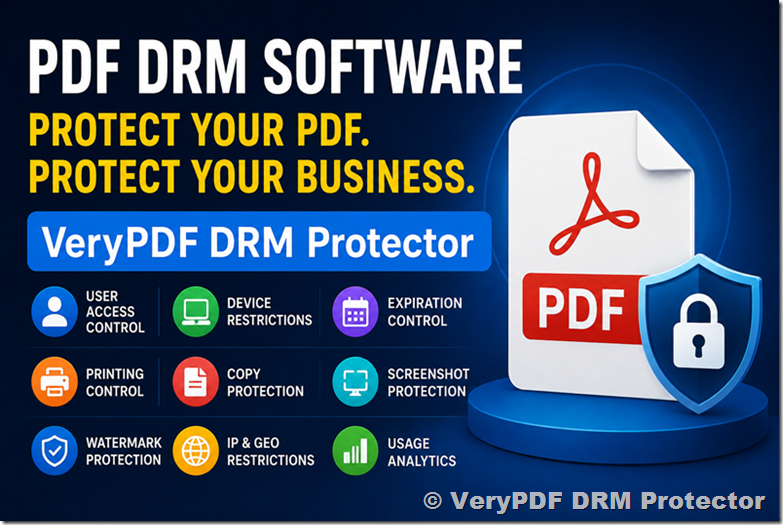
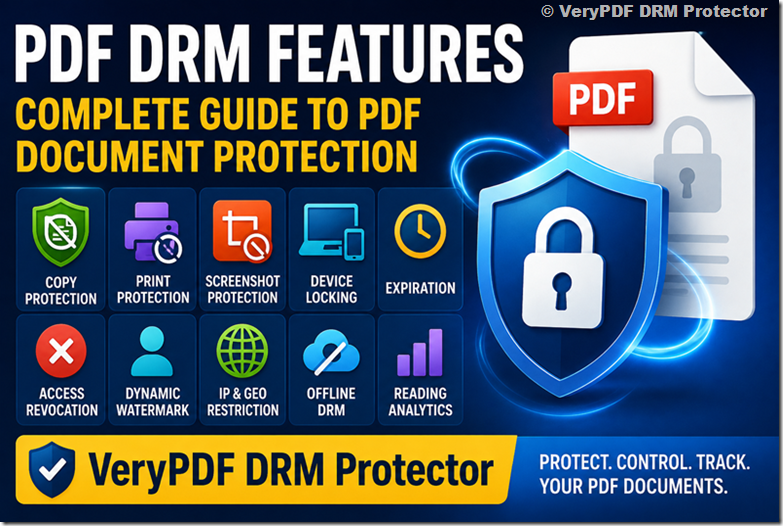
PDF DRM Features at a Glance
| PDF DRM Feature | Main Purpose | VeryPDF DRM Protector |
|---|---|---|
| PDF Encryption | Protect the document itself | ✓ |
| PDF Copy Protection | Stop text and content copying | ✓ |
| PDF Print Protection | Stop or limit printing | ✓ |
| PDF Screenshot Protection | Block common screen capture tools | ✓ |
| PDF Editing Protection | Prevent unauthorized modification | ✓ |
| PDF Device Locking | Bind access to approved devices | ✓ |
| PDF User Access Control | Control who can open a document | ✓ |
| PDF Expiration | Make access expire | ✓ |
| PDF Access Revocation | Remove access after distribution | ✓ |
| PDF Dynamic Watermark | Identify the authorized user | ✓ |
| PDF IP Restriction | Limit access by IP address | ✓ |
| PDF Geographic Restriction | Limit access by country or location | ✓ |
| PDF Offline DRM | Allow controlled offline reading | ✓ |
| PDF Reading Analytics | Monitor document activity | ✓ |
| PDF View Limits | Limit document opens/views | ✓ |
| PDF Secure Viewer | Enforce DRM rules during reading | ✓ |
| PDF Download Control | Reduce uncontrolled file sharing | ✓ |
| PDF API Integration | Connect DRM to your own system | ✓ |
VeryPDF’s current product documentation describes PDF encryption, copying and printing controls, screenshot protection, device locking, expiration, revocation, dynamic watermarks, IP and country restrictions, online/offline viewing, and document usage tracking.
Try VeryPDF DRM Protector Online
What Is PDF DRM?
PDF DRM, or PDF Digital Rights Management, is a technology used to control how protected PDF documents are accessed and used.
Traditional PDF security usually depends on a password or standard PDF permissions. PDF DRM goes further by connecting the document to a license, user, device, location, time limit, and other rules.
For example, a publisher could sell a technical eBook and configure it like this:
- Only the registered customer can open it
- The customer can use up to two devices
- Copying is disabled
- Printing is limited to 10 pages
- A watermark shows the customer’s email address
- Access expires after 12 months
- The publisher can revoke access later
This is the basic idea behind modern PDF DRM software.
PDF Encryption
Encryption is the foundation of PDF DRM.
Problem
A normal PDF can be copied from one computer to another. Even if you add a password, the password and file can often be shared together.
If the PDF contains a valuable eBook, training manual, paid report, or confidential document, simply hiding the file behind a password may not provide enough control.
How it works
PDF DRM encryption protects the document so that the protected content cannot simply be opened in a normal PDF reader without the required DRM authorization.
The encryption works together with the DRM license and secure viewer. The user may have the PDF file, but having the file alone is not enough to gain access.
VeryPDF DRM Protector uses AES encryption and a secure viewer to enforce its DRM controls. Its product documentation describes 256-bit AES encryption and protection that does not rely on ordinary PDF passwords or certificates.
Example
A training company sells a 500-page certification manual.
Without DRM:
Customer downloads PDF → Customer owns an unrestricted copy
With DRM:
Customer receives protected PDF → DRM checks authorization → PDF opens only when the access rules are satisfied
This makes the protected file much harder to share freely.
VeryPDF solution
VeryPDF DRM Protector combines PDF encryption with access controls, device restrictions, expiration, watermarking, print controls, copy protection, and revocation.
The important point is that encryption is not used alone. It works as part of the complete DRM system.
Demo: Test PDF DRM encryption online with VeryPDF
PDF Copy Protection
Problem
Copying is one of the easiest ways to steal information from a PDF.
A customer can select a few pages, copy the text, paste it into another document, and send it to someone else.
For technical books, training manuals, research reports, and paid educational content, this can be a serious problem.
How it works
PDF copy protection disables normal text and content copying inside the protected viewing environment.
Depending on the DRM policy, users may be prevented from:
- Selecting text
- Copying text
- Copying images
- Copying and pasting content
- Extracting content
- Editing the protected document
Copy protection is particularly useful when the PDF is sold as premium content.
Example
Imagine that you sell a $299 professional training manual.
One customer copies 50 pages into a new PDF and uploads it to a private group.
Without DRM, it is difficult to control what happens after the sale.
With PDF DRM, copying can be disabled before the document is delivered.
VeryPDF solution
VeryPDF DRM Protector provides controls designed to prevent copying and unauthorized sharing of protected PDF documents.
It can also combine copy protection with dynamic watermarks and screenshot protection.
This is important because copy protection alone is not enough. A complete PDF DRM system should address several different ways that content can be extracted.
Demo: Test PDF copy protection online
PDF Print Protection
Problem
Printing creates another easy way to bypass digital document protection.
A customer may receive a protected PDF, print 500 pages, scan the pages, and create another digital copy.
For some businesses, printing should be completely disabled. For others, customers need limited printing.
How it works
PDF DRM can provide several printing policies:
- Printing disabled
- Unlimited printing
- Limited number of prints
- Printing allowed only for selected users
- Printing combined with document expiration
- Printing combined with view limits
The right setting depends on the type of content.
Example
A publisher sells a $100 exam preparation PDF.
The publisher may allow:
5 printed copies
but prevent unlimited printing.
A training company may instead allow:
20 pages of printing
while an online course creator may disable printing completely.
VeryPDF solution
VeryPDF DRM Protector supports printing controls that can disable printing, limit the number of prints, or allow printing based on the selected policy. Its documentation also describes expiration based on print counts.
Print control can also work together with dynamic watermarking.
For example, every printed page can identify the authorized user. This can make unauthorized photocopying less attractive.
Demo: Test PDF print protection online
PDF Screenshot Protection
Problem
Copy protection and print protection do not completely solve the problem.
A user can potentially take a screenshot of the screen.
For valuable documents, screenshots can be used to create new images, share pages on social media, or run OCR software to recover text.
How it works
PDF screenshot protection attempts to block common screen capture tools and screen grabbing methods while the protected document is displayed.
A DRM viewer can monitor the viewing environment and prevent or hide the protected content when certain capture methods are detected.
No software can guarantee protection against every possible camera or recording method. A person can always point a separate camera at a screen.
The goal is to stop common digital screen capture methods and make content theft harder.
Example
A paid medical training PDF is displayed in a secure viewer.
The customer cannot copy text or print the document.
When a supported screen capture tool attempts to capture the viewer, the DRM protection can block the capture or protect the document display.
VeryPDF solution
VeryPDF DRM Protector provides screenshot and screen-capture protection as part of its PDF DRM controls.
This is especially useful when combined with dynamic watermarks.
If someone photographs a page with a phone, a user-specific watermark can still identify the person who had access to the document.
Demo: Test PDF screenshot protection online
PDF Editing and Save Protection
Problem
A PDF may contain valuable information that you do not want customers to modify.
For example:
- Certification documents
- Legal documents
- Technical manuals
- Official forms
- Training materials
- Paid reports
If users can edit or save modified copies, the document may lose its value or integrity.
How it works
PDF DRM can restrict editing, modification, saving, and exporting.
The protected document remains readable, but users cannot freely turn it into an editable copy.
This is different from simply setting a PDF permission flag. DRM protection is enforced by the protected viewing environment.
Example
A certification organization distributes an official 200-page certification guide.
The customer should be able to read it but should not be able to modify the official content and distribute a changed version.
PDF DRM can keep the document in a controlled reading environment.
VeryPDF solution
VeryPDF DRM Protector provides protection against modification, copying, and unauthorized saving as part of its PDF DRM system.
This works particularly well when editing protection is combined with watermarking and access control.
Demo: Test PDF editing protection online
PDF Device Locking
Problem
One of the biggest problems with selling digital content is account sharing.
A customer buys one license and gives their username and password to several friends.
Even if the account requires authentication, unlimited device access can still create a problem.
How it works
PDF device locking connects a license to an approved computer, phone, tablet, browser, or other authorized reading environment.
You can set a device limit such as:
One user → two approved devices
When the user tries to open the protected PDF on another device, the DRM system can require additional authorization or deny access.
Example
An eBook customer is allowed to read the book on:
- One Windows PC
- One iPhone
The customer forwards the protected PDF to another person.
The second person’s device is not authorized, so the PDF cannot simply be opened there.
VeryPDF solution
VeryPDF DRM Protector supports device-based PDF protection for computers, mobile devices, tablets, USB drives, and its Web Viewer. Its documentation also describes device limits and device-based authentication.
Device locking is one of the most useful controls for reducing casual account sharing.
Demo: Test PDF device locking online
PDF User Access Control
Problem
Not every person who receives a PDF should automatically be able to read it.
A company may need to give different documents to different customers, employees, members, or students.
How it works
PDF DRM connects the protected document with an authorized user or group.
You can create rules such as:
- User A can open Document A
- User B can open Documents A and B
- Group C can open all training documents
- Customer D can access the document until a specific date
This creates a relationship between:
User → License → Document → DRM Rules
Example
A training company has 1,000 customers.
Customer A purchased Course 1.
Customer B purchased Course 2.
Customer C purchased both.
Instead of creating three different PDF files with different security settings, the DRM system can use user permissions to control access.
VeryPDF solution
VeryPDF DRM Protector supports user-specific access and licensing rules. Its documentation describes locking PDFs to individual users or groups and using user-specific licenses to control access.
This is especially useful for publishers, training providers, membership sites, and businesses with paid digital content.
Demo: Test PDF user access control online
PDF Expiration
Problem
Some PDFs should not remain available forever.
Examples include:
- Subscription documents
- Temporary training materials
- Trial documents
- Limited-time reports
- Course materials
- Event documents
- Confidential project files
A normal PDF download does not automatically stop working when the subscription ends.
How it works
PDF expiration sets a date or usage rule after which access is no longer allowed.
Possible rules include:
- Fixed expiration date
- Number of days
- Number of views
- Number of prints
- Time after first use
Example
A company sells a one-year subscription to a research report.
The customer purchases access on August 15, 2026.
The PDF can be configured to expire after the subscription period.
The customer does not need to receive a new PDF every month.
VeryPDF solution
VeryPDF DRM Protector supports expiration based on time, views, prints, or a fixed date.
Expiration is especially useful for subscription businesses because it connects document access to the customer’s license period.
Demo: Test PDF expiration online
PDF Access Revocation
Problem
Imagine that you send a PDF to a customer and later discover that the customer should no longer have access.
Perhaps:
- The customer requested a refund
- A contract ended
- An employee left the company
- A partner violated the agreement
- A document was leaked
- A license was canceled
With an ordinary PDF, you cannot easily take the document back.
How it works
PDF access revocation lets the content owner invalidate an existing license or document permission.
The PDF may already have been distributed, but the DRM server can refuse future access when the user attempts to open it again.
Example
A consulting company sends a confidential report to a client.
The client relationship ends two months later.
The company does not need to find every copy of the PDF manually. It can revoke the authorized access.
VeryPDF solution
VeryPDF DRM Protector supports remote document revocation, including revoking access after protected documents have already been distributed.
This is one of the biggest differences between DRM and a normal PDF download.
Demo: Test PDF access revocation online
PDF Dynamic Watermark
Problem
A normal watermark might say:
CONFIDENTIAL
But that does not tell you who received the document.
If the PDF is leaked, it may be difficult to identify the source.
How it works
A dynamic PDF watermark inserts information about the actual user when the document is viewed or printed.
For example:
John Smith
john@example.com
August 12, 2026
The same protected PDF can be distributed to many users while displaying different user information.
Example
A publisher sells a professional eBook to 1,000 customers.
Instead of creating 1,000 manually watermarked PDFs, the publisher protects one source PDF.
When John opens it, the viewer displays John’s information.
When Mary opens it, Mary’s information appears.
VeryPDF solution
VeryPDF DRM Protector supports dynamic watermarks containing user and system information such as name, email, and date/time.
Dynamic watermarking works especially well with screenshot protection because a screen photograph can still contain information identifying the authorized reader.
For high-value documents, watermarking should be considered a key part of the DRM strategy rather than simply a design feature.
Demo: Test dynamic PDF watermarking online
PDF IP Restriction
Problem
Sometimes you do not want a PDF to be accessible from every network.
For example, a company may distribute an internal document and allow access only from:
203.0.113.0/24
Or a training provider may want access to work only from an organization’s network.
How it works
PDF IP restriction checks the user’s network address when access is requested.
You can create rules such as:
- Allow specific IP addresses
- Allow IP ranges
- Block specific IP addresses
- Restrict access to an office network
- Apply different rules to different users
IP restrictions can be combined with user authentication and device locking.
Example
A company has a confidential technical manual that should only be available inside its office network.
The DRM policy can require the user to access the document from an approved IP range.
VeryPDF solution
VeryPDF DRM Protector supports IP-based access restrictions and can use IP ranges as part of PDF access control.
IP restrictions should not be treated as a complete security solution because IP addresses can change, especially for mobile users. They are most useful as one layer in a larger DRM policy.
Demo: Test PDF IP restrictions online
PDF Geographic Restriction
Problem
Some digital content has geographic licensing restrictions.
A publisher may have permission to sell a report in one country but not another.
A training company may want to restrict access to users in specific regions.
A company may also want to block access from known restricted countries.
How it works
PDF geographic restriction uses location information, usually based on the user’s network or device information, to determine whether access should be allowed.
For example:
Allow: United States, United Kingdom
Block: all other countries
More detailed policies may also be possible depending on the deployment.
Example
A publisher has distribution rights for a professional eBook in the United States and Canada.
The PDF DRM policy can allow access from approved locations and reject unauthorized regions.
VeryPDF solution
VeryPDF documentation describes geographic controls based on countries and, in some configurations, more detailed locations, together with IP-based restrictions.
Geographic controls are most useful when combined with user authentication, device controls, expiration, and watermarking.
Demo: Test PDF geographic restrictions online
PDF Offline DRM
Problem
Customers do not always have an Internet connection.
A student may be traveling.
A consultant may be on an airplane.
A technician may work at a remote site.
A customer may simply want to read an eBook offline.
If DRM requires a permanent Internet connection, the reading experience can become frustrating.
How it works
Offline PDF DRM allows an authorized user to read protected content without being continuously connected to the DRM server.
The DRM license and security rules are stored in the protected reading environment.
The system can still enforce rules such as:
- Device limits
- Expiration
- Offline access periods
- Print limits
- Copy protection
Offline DRM requires careful design because the system cannot constantly contact the server.
Example
A technical training company gives employees a protected manual for a remote installation project.
The employees download the protected PDF before leaving the office.
They can read it offline while the DRM rules remain active.
VeryPDF solution
VeryPDF DRM Protector supports online and offline PDF viewing, with controls for whether users can view documents offline or must remain connected.
VeryPDF also documents device binding for offline scenarios, which is useful because offline protection needs another way to recognize authorized devices.
Demo: Test PDF offline DRM online
PDF Reading Analytics
Problem
Security tells you what users are allowed to do.
Analytics tells you what users actually do.
Without analytics, you may not know:
- Who opened the PDF
- When they opened it
- How often they opened it
- Which documents are popular
- Which documents were printed
- Which users are active
How it works
PDF DRM can record document activity and present it through an administrative dashboard.
Useful metrics may include:
- Document views
- Prints
- Access time
- User activity
- Device information
- Location information
- Popular documents
Example
A training company has 200 PDF manuals.
Analytics show that one manual is opened 20 times more often than the others.
The company can use this information to improve the course and focus its sales efforts.
Security analytics can also help identify unusual behavior.
For example:
One account accesses the same PDF from many locations within a short period.
That could indicate account sharing.
VeryPDF solution
VeryPDF DRM Protector provides tracking and logging for document views and prints and can show highly accessed documents. Its documentation also describes tracking device and operating-system information and exporting analytics.
This turns PDF DRM from a simple protection tool into a document usage system.
Demo: Test PDF reading analytics online
PDF View and Open Limits
Problem
Sometimes a time limit is not enough.
You may want a user to open a document only a certain number of times.
For example:
5 views
or:
10 opens
This can be useful for trials, paid reports, exam materials, and temporary documents.
How it works
The DRM system records document access and reduces the available view or open count.
Once the limit is reached, the license can expire or access can be denied.
This can also be combined with a date limit.
For example:
Maximum 10 views or 30 days, whichever comes first.
Example
A consulting company sells a confidential market report with a five-view limit.
The customer can open the report several times, but cannot keep accessing it indefinitely.
VeryPDF solution
VeryPDF DRM Protector supports view limits and can combine view and print limits with document expiration and revocation.
This gives content owners another way to build different licensing models.
Demo: Test PDF view limits online
PDF Secure Viewer
Problem
A DRM policy is only useful if the software displaying the document can enforce it.
If the user opens the protected PDF in a normal PDF reader, many DRM rules may not be enforceable.
How it works
A secure PDF viewer provides a controlled environment for viewing protected documents.
The viewer can enforce rules such as:
- Copy protection
- Print protection
- Screenshot protection
- Watermarking
- Device controls
- Expiration
- Access authorization
This is why PDF DRM is fundamentally different from simply setting PDF permissions.
Example
A publisher distributes a protected technical manual.
The customer receives the protected file but must open it through the supported secure viewer.
The viewer checks the license before displaying the content.
VeryPDF solution
VeryPDF DRM Protector supports browser-based PDF viewing through its Web Viewer as well as other protected viewing options. Its product documentation describes Web Viewer access across operating systems and device-based viewing.
The secure viewer is the enforcement layer between the user and the protected PDF.
Demo: Open the VeryPDF secure PDF demo
PDF Download and Sharing Control
Problem
A common PDF delivery method is:
Upload PDF → Create download link → Send link to customer
The problem is that the customer can forward the link or download the PDF and distribute it elsewhere.
Even a password-protected ZIP file can be forwarded.
How it works
PDF DRM reduces the value of simply possessing the file.
A protected PDF remains tied to DRM rules after distribution.
The file can be sent through:
- Cloud storage
- USB
- Customer portal
- Website
- Other normal file delivery methods
But opening the protected document still requires the appropriate authorization.
Example
A publisher sends a protected eBook as an email attachment.
The customer forwards the attachment to a friend.
The friend does not automatically gain the same rights because the document is protected by DRM rather than relying only on the delivery channel.
VeryPDF solution
VeryPDF states that protected PDFs can be distributed like regular files while the DRM rules continue to control access and usage.
This is an important concept:
The file can travel, but the rights do not travel freely with it.
Demo: Test protected PDF distribution online
PDF Licensing and Access Rules
Problem
Different customers may purchase different rights.
For example:
- Customer A: read only
- Customer B: read + print
- Customer C: read for 30 days
- Customer D: read for one year
- Customer E: use on two devices
Creating separate PDF files for every customer would be difficult to manage.
How it works
PDF DRM separates the content from the rights.
The same protected PDF can be distributed to different users with different license policies.
This makes DRM suitable for subscription models and commercial digital publishing.
Example
A publisher sells three products:
| License | Access |
|---|---|
| Basic | Read only |
| Professional | Read + 10 prints |
| Enterprise | Read + print + multiple devices |
The publisher does not need to manually edit the PDF for every customer.
VeryPDF solution
VeryPDF DRM Protector is designed around document licenses and access rules, allowing content owners to control views, prints, devices, locations, expiration, and other conditions.
This is particularly useful when PDF DRM is part of a commercial sales system.
Demo: Test PDF licensing online
PDF DRM API and Integration
Problem
A PDF DRM system becomes much more useful when it can connect to your existing website.
Imagine a course platform:
Customer pays → Account created → PDF license generated → Protected PDF delivered
You do not want employees manually creating DRM licenses for every purchase.
How it works
An API allows your application to communicate with the DRM platform.
Typical workflows include:
- Customer logs in
- Customer purchases a product
- Your website confirms the order
- Your website creates or updates the DRM license
- Customer receives access
- Your system can later revoke or change access
Example
A publisher sells PDF eBooks through its own website.
When a customer purchases an eBook, the website can automatically create the appropriate DRM access.
When the customer requests a refund, the website can revoke access.
VeryPDF solution
VeryPDF provides API and integration options for connecting DRM with websites, eCommerce systems, LMS platforms, CRM systems, and other business workflows.
This is important if you want PDF DRM to become part of your sales system rather than a separate manual tool.
Demo: Read VeryPDF PDF DRM API Manual online
PDF DRM for Publishers
Publishers have one of the clearest use cases for PDF DRM.
They may need to protect:
- eBooks
- Technical books
- Professional manuals
- Research reports
- Industry reports
- Standards documents
- Paid publications
The main problem is simple:
A customer buys one PDF, but the publisher wants to sell one license.
PDF DRM helps separate those two things.
A publisher can combine:
Encryption + Device Locking + Copy Protection + Print Limits + Dynamic Watermark + Expiration + Revocation
This creates a much stronger distribution model than simply sending an unrestricted PDF download.
PDF DRM for Online Courses
Online courses often protect video content but leave PDF materials unprotected.
This can create an obvious weak point.
A course may contain:
- Workbooks
- Course notes
- Study guides
- Exam preparation
- Technical manuals
- PDF textbooks
A course provider can use PDF DRM to protect these materials and connect document access to the student’s course license.
VeryPDF DRM Protector supports controls that are useful for online courses, including device restrictions, expiration, printing controls, watermarking, and access management.
PDF DRM for eBooks
PDF is still widely used for professional and technical eBooks.
A high-value eBook can be copied and shared very quickly when distributed as a normal PDF.
PDF DRM allows publishers to add controls such as:
- User access
- Device limits
- Copy protection
- Print limits
- Dynamic watermarks
- Expiration
- Revocation
- Offline access
This makes PDF DRM for eBooks one of the strongest commercial use cases for VeryPDF DRM Protector.
PDF DRM for Training Materials
Training materials are another strong use case.
Training companies often invest thousands of hours creating:
- Certification manuals
- Instructor guides
- Student workbooks
- Technical training
- Compliance documents
- Corporate training materials
If those materials are delivered as normal PDFs, one customer can share them with hundreds of people.
PDF DRM lets the training provider control access after distribution.
For example:
Customer purchases training → receives protected PDF → access is linked to the customer’s license → printing is limited → watermark identifies the user → access expires when the course ends.
PDF DRM for Paid Reports
Paid reports are often expensive and contain valuable information.
Examples include:
- Market research
- Financial analysis
- Industry reports
- Consulting reports
- Competitive intelligence
- Technical research
A company may charge $500, $1,000, or more for one report.
For such documents, ordinary PDF passwords may not provide enough protection.
PDF DRM can control:
- Who reads the report
- How many devices can access it
- How long access remains active
- Whether it can be printed
- Whether it can be copied
- Which location can access it
- Whether access can later be revoked
PDF DRM Comparison: Top PDF DRM Software
There are several established PDF and document DRM products, but they do not all have the same focus.
The following comparison is based on publicly documented product features available from the vendors. A dash means the feature is not clearly listed in the current public documentation reviewed for this comparison; it should not be interpreted as proof that the vendor can never provide it. Some features are also plan-dependent.
| Product | PDF DRM | Print Control | Copy Control | Watermark | Expiration | Revocation | Analytics |
|---|---|---|---|---|---|---|---|
| VeryPDF DRM Protector | ✓ | ✓ | ✓ | ✓ | ✓ | ✓ | ✓ |
| Locklizard Safeguard | ✓ | ✓ | ✓ | ✓ | ✓ | ✓ | ✓ |
| Vitrium Security | ✓ | ✓ | ✓ | ✓ | ✓ | ✓ | ✓ |
| FileOpen | ✓ | ✓ | ✓ | ✓ | ✓ | ✓ | — |
| Digify | ✓ | ✓ | ✓ | ✓ | ✓ | ✓ | ✓ |
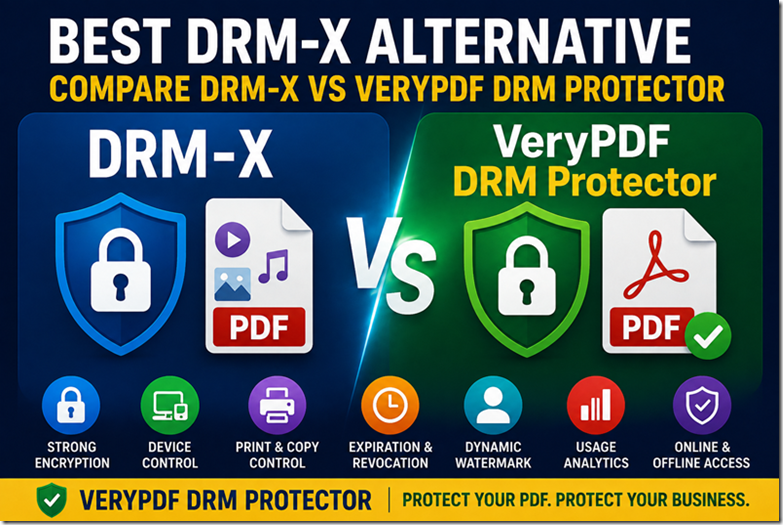
| DRM-X 5.0 | ✓ | ✓ | ✓ | ✓ | ✓ | ✓* | — |
- DRM-X 5.0 publicly documents remote license revocation, with availability depending on the plan. Its current pricing page shows end-user license revocation at the Enterprise level.
VeryPDF DRM Protector
VeryPDF documents PDF encryption, copy protection, print controls, screenshot protection, device locking, expiration, revocation, dynamic watermarks, IP/country restrictions, offline access, and usage tracking.
Locklizard Safeguard
Locklizard has a strong PDF DRM focus. Its current documentation describes copy and screen-grab protection, print controls, device/location locking, expiration, revocation, dynamic watermarks, and PDF usage tracking.
Vitrium Security
Vitrium Security Enterprise provides more than 20 DRM controls, including device limits, open limits, expiry dates, printing, offline access, IP restrictions, country restrictions, and user/group permissions. It also provides tracking and analytics.
FileOpen
FileOpen provides PDF DRM with browser viewing, dynamic watermarks, print and copy controls, expiration/revocation, device authentication, and offline access. Its current subscription page also lists page-level printing controls in the Pro plan.
Digify
Digify focuses strongly on secure document sharing and DRM. Its current DRM documentation describes printing, copying, downloading controls, user access, revocation, expiration, dynamic watermarks, and detailed activity analytics.
DRM-X 5.0
DRM-X 5.0 is broader than a PDF-only DRM platform. It supports PDF, video, audio, HTML, JavaScript, CSS, and image protection. Its current documentation also lists print controls, device binding, expiration, open counts, screen recording prevention, multiple watermark types, and remote license revocation.
PDF DRM Feature Comparison Beyond the Basic Matrix
For a serious software evaluation, the seven basic features are not enough.
| Feature | VeryPDF | Locklizard | Vitrium | FileOpen | Digify | DRM-X |
|---|---|---|---|---|---|---|
| PDF encryption | ✓ | ✓ | ✓ | ✓ | ✓ | ✓ |
| Copy protection | ✓ | ✓ | ✓ | ✓ | ✓ | ✓ |
| Print control | ✓ | ✓ | ✓ | ✓ | ✓ | ✓ |
| Screenshot protection | ✓ | ✓ | — | ✓ | — | ✓ |
| Device control | ✓ | ✓ | ✓ | ✓ | ✓ | ✓ |
| Expiration | ✓ | ✓ | ✓ | ✓ | ✓ | ✓ |
| Remote revocation | ✓ | ✓ | ✓ | ✓ | ✓ | ✓* |
| Dynamic watermark | ✓ | ✓ | ✓ | ✓ | ✓ | ✓ |
| IP restriction | ✓ | ✓ | ✓ | ✓ | — | — |
| Geographic restriction | ✓ | ✓ | ✓ | — | — | — |
| Offline access | ✓ | ✓ | ✓ | ✓ | — | ✓ |
| Usage analytics | ✓ | ✓ | ✓ | — | ✓ | — |
| Browser viewer | ✓ | — | ✓ | ✓ | ✓ | ✓ |
| API integration | ✓ | ✓ | ✓ | ✓ | ✓ | ✓ |
| Multi-format DRM | ✓ | ✓ | ✓ | ✓ | ✓ | ✓ |
This broader comparison shows something important:
There is no single “best” DRM product for every situation.
Locklizard is strongly focused on protected PDF distribution. Vitrium is positioned as enterprise DRM across multiple content types. FileOpen has a strong PDF and Adobe Reader integration story. Digify is especially strong around secure document sharing. DRM-X is a broad multi-format DRM platform.
VeryPDF’s opportunity is to position VeryPDF DRM Protector as a strong PDF-focused DRM platform with broad document controls and flexible delivery options.
Why VeryPDF DRM Protector Is Different
The most important question is not:
How many DRM features does the product have?
The better question is:
Can the product solve the real PDF protection problem?
VeryPDF DRM Protector combines the controls that matter most for commercial PDF distribution:
Protect
- PDF encryption
- Copy protection
- Editing protection
- Screenshot protection
- Print protection
Control
- User access
- Device access
- IP access
- Geographic access
- View limits
- Print limits
- Expiration
Identify
- Dynamic watermarks
- User information
- Access logs
- Usage analytics
Respond
- Remote revocation
- Expiration
- License changes
- Access restrictions
Deliver
- Browser-based viewing
- Online reading
- Offline reading
- USB-based scenarios
- API integration
VeryPDF documents these capabilities across its current product and feature pages.
PDF DRM vs PDF Password Protection
This is one of the most important questions for anyone evaluating PDF security.
| Capability | PDF Password | PDF DRM |
|---|---|---|
| Open password | ✓ | Optional/different model |
| Copy control | Limited | ✓ |
| Print control | Limited | ✓ |
| User-specific access | — | ✓ |
| Device locking | — | ✓ |
| Expiration | — | ✓ |
| Remote revocation | — | ✓ |
| Dynamic watermark | Limited | ✓ |
| Usage tracking | — | ✓ |
| Geographic control | — | ✓ |
| License management | — | ✓ |
A password protects the PDF.
DRM controls the rights around the PDF.
That distinction is why PDF DRM is more suitable for paid digital content and controlled document distribution.
How to Choose the Right PDF DRM Features
You do not necessarily need every DRM feature.
The right combination depends on your business.
| Use Case | Most Important Features |
|---|---|
| eBook publishing | Copy, print, watermark, device, expiration |
| Online courses | Device, expiration, copy, screenshot, watermark |
| Training materials | User, device, print, watermark, expiration |
| Paid reports | User, watermark, print, expiration, analytics |
| Corporate documents | User, device, IP, location, revocation |
| Confidential reports | Encryption, watermark, IP, location, revocation |
| Subscription content | Expiration, device, analytics, revocation |
| Certification materials | Copy, print, screenshot, watermark, expiration |
Do not make your customers suffer through unnecessary security controls.
For example, an eBook reader may need offline access.
A confidential corporate document may require online authorization every time.
A training manual may need limited printing.
Good PDF DRM should let the content owner choose the right balance.
PDF DRM Should Be Multi-Layered
No single DRM feature solves every problem.
A better approach is to combine several controls.
For example:
Layer 1 — Encryption
Protect the PDF itself.
Layer 2 — User Authentication
Make sure the correct person is requesting access.
Layer 3 — Device Control
Reduce account sharing.
Layer 4 — Copy and Print Control
Reduce normal content extraction.
Layer 5 — Screenshot Protection
Reduce common digital screen capture.
Layer 6 — Dynamic Watermark
Identify the authorized user.
Layer 7 — Expiration
Stop access after the license ends.
Layer 8 — Revocation
Remove access when necessary.
Layer 9 — Analytics
Monitor how the document is being used.
This is much stronger than relying on a single password or PDF permission flag.
Try PDF DRM Online
Reading about PDF DRM is useful, but testing it is better.
VeryPDF provides an online environment where you can test PDF DRM protection and see how the controls work.
You can experiment with different PDF protection settings and evaluate the user experience before deciding how to deploy DRM for your own content.
Try VeryPDF DRM Protector Online Demo
PDF DRM Features FAQ
1. What is PDF DRM?
PDF DRM is Digital Rights Management technology for PDF documents. It controls who can access a PDF and what they can do with it.
2. What are the most important PDF DRM features?
The most important features include encryption, copy protection, print control, screenshot protection, device locking, expiration, revocation, dynamic watermarking, access control, and usage tracking.
3. Can PDF DRM prevent copying?
Yes. PDF DRM can disable normal text and content copying inside the protected viewing environment.
4. Can PDF DRM prevent printing?
Yes. PDF DRM can disable printing or limit the number of times a document can be printed.
5. Can PDF DRM prevent screenshots?
Some PDF DRM systems can block common screen capture tools. VeryPDF DRM Protector provides screenshot protection. However, no software can guarantee protection against a separate camera photographing a screen.
6. Can PDF DRM documents expire?
Yes. A DRM license can expire on a fixed date or based on time, views, or prints, depending on the product and configuration.
7. Can I revoke a PDF after sending it to a customer?
Yes. PDF DRM can allow the content owner to revoke access after the protected document has already been distributed.
8. Can I lock a PDF to one computer?
Yes. Device locking can connect a protected PDF license to an approved computer or other supported device.
9. Can PDF DRM work offline?
Yes. Some PDF DRM systems support controlled offline reading. VeryPDF DRM Protector supports online and offline viewing.
10. Can PDF DRM add a user’s email address as a watermark?
Yes. Dynamic watermarks can display information such as the user’s name, email address, and date/time.
11. Can PDF DRM restrict access by IP address?
Yes. VeryPDF DRM Protector supports IP-based access restrictions.
12. Can PDF DRM restrict access by country?
Yes. Geographic DRM can restrict access based on country and, in some VeryPDF configurations, more detailed geographic rules.
13. Is PDF DRM better than a PDF password?
For valuable commercial content, PDF DRM provides much more control than a simple PDF password because it can manage users, devices, expiration, printing, copying, watermarking, analytics, and revocation.
14. What is the best PDF DRM software?
The best PDF DRM software depends on your needs. For businesses that mainly need to protect PDF documents, eBooks, training materials, online course PDFs, and paid reports, VeryPDF DRM Protector is a strong PDF DRM solution to evaluate.
15. What is PDF DRM for publishers?
PDF DRM for publishers protects eBooks, technical books, reports, standards, and other paid publications from uncontrolled copying and sharing.
16. What is PDF DRM for online courses?
PDF DRM for online courses protects course workbooks, textbooks, study guides, manuals, and other PDF materials provided to students.
17. What is PDF DRM for eBooks?
PDF DRM for eBooks applies access and usage rules to PDF books, such as device limits, copy protection, print limits, expiration, and watermarks.
18. What is PDF DRM for training materials?
It is DRM protection designed to control access to training manuals, certification guides, course materials, and corporate training PDFs.
19. Can PDF DRM track document usage?
Yes. Some DRM systems provide analytics for views, prints, users, locations, devices, and other document activity. VeryPDF DRM Protector provides document usage tracking and logging.
20. Can PDF DRM completely stop piracy?
No. No DRM system can guarantee that a document can never be copied. A person can always use a camera or other external method to capture information. Good PDF DRM reduces easy copying and sharing and gives the content owner more control.
21. Does VeryPDF DRM Protector support PDF device locking?
Yes. VeryPDF documents device-based protection for computers, mobile devices, tablets, USB drives, and Web Viewer access.
22. Does VeryPDF DRM Protector support dynamic watermarks?
Yes. VeryPDF supports dynamic watermarks that can display user and system information on protected documents.
23. Does VeryPDF DRM Protector support PDF expiration?
Yes. VeryPDF supports expiration based on dates, views, prints, and other access conditions.
24. Does VeryPDF DRM Protector support access revocation?
Yes. Protected document access can be revoked after distribution.
25. Where can I test VeryPDF PDF DRM?
You can test VeryPDF DRM Protector online here:
VeryPDF DRM Protector Online Demo
Conclusion: Build PDF Protection Around Real Business Needs
The best PDF DRM software is not simply the product with the longest feature list.
A good PDF DRM system should solve the real problems that publishers, course creators, training companies, and businesses face when they distribute valuable PDF files.
The key PDF DRM features include:
PDF encryption to protect the document.
Copy protection to reduce content extraction.
Print protection to control physical copies.
Screenshot protection to reduce digital capture.
Device locking to reduce account sharing.
User access control to decide who can read the document.
Expiration to connect access with a license period.
Revocation to remove access after distribution.
Dynamic watermarking to identify the authorized reader.
IP and geographic restrictions to control where documents can be accessed.
Offline DRM to support legitimate users who need to read without an Internet connection.
Reading analytics to understand how protected documents are being used.
For businesses that need these controls in one system, VeryPDF DRM Protector provides a strong PDF-focused DRM solution to evaluate. It is particularly suitable for publishers, eBook sellers, online course providers, training companies, professional associations, consultants, and businesses distributing valuable PDF documents.