
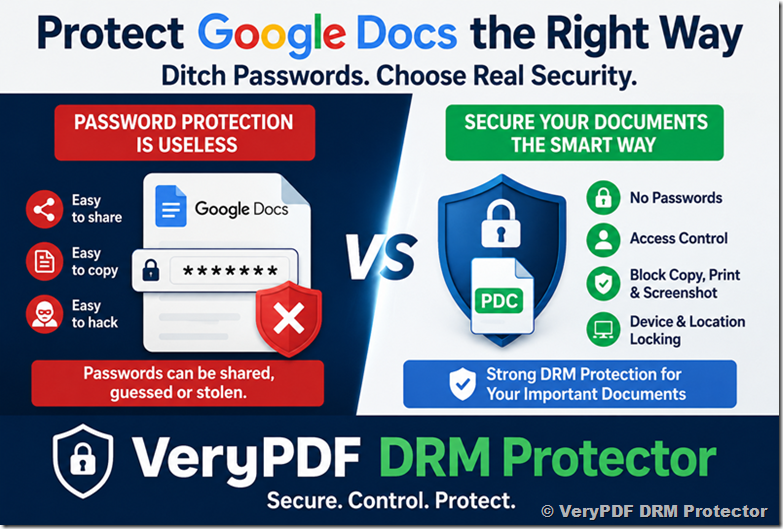
Many people search for ways to password protect a Google Doc because they want to stop unauthorized access, document leaks, copying, printing, or sharing.
The problem is simple: Google Docs does not include a built-in password protection feature for individual documents.
While there are workarounds, most of them provide only basic protection and can create new security problems. If your documents contain confidential business information, contracts, training materials, financial reports, legal documents, or intellectual property, a password alone is rarely enough.
This guide explains:
- How to password protect a Google Doc
- Why password protection is not a complete security solution
- The risks of relying on Google Docs permissions
- Better ways to protect sensitive documents
- How VeryPDF DRM Protector can secure documents without passwords
Can You Password Protect a Google Doc?
The short answer is no.
Google Docs does not provide a built-in option to add a password directly to a document.
If you want password protection, you must:
- Download the document.
- Open it in Microsoft Word or Excel.
- Add password encryption.
- Save the file.
- Upload it back to Google Drive.
This process works, but it has several limitations.
How to Password Protect a Google Doc
Follow these steps:
|
Step |
Action |
|
1 |
Open your Google Doc |
|
2 |
Click File > Download > Microsoft Word (.docx) |
|
3 |
Open the file in Microsoft Word |
|
4 |
Click File > Info |
|
5 |
Select Protect Document |
|
6 |
Choose Encrypt with Password |
|
7 |
Enter a strong password |
|
8 |
Confirm the password |
|
9 |
Save the document |
|
10 |
Upload it back to Google Drive |
The same process can be used for Google Sheets by downloading the file as Microsoft Excel format.
Why People Want to Password Protect Google Docs
Most users are trying to solve one of these problems:
|
Concern |
Goal |
|
Unauthorized access |
Stop outsiders from opening documents |
|
Employee leaks |
Prevent staff from sharing files |
|
Third-party access |
Protect files shared with contractors |
|
Account hacking |
Add another security layer |
|
Compliance requirements |
Protect confidential information |
|
Intellectual property theft |
Stop copying and redistribution |
Unfortunately, passwords only solve a small part of these problems.
Why Google Docs Password Protection Is Weak
Many users assume that adding a password makes a document secure.
In reality, password protection has several major weaknesses.
1. Passwords Can Be Shared
If a user can open a document, they can also share the password.
For example:
- Employee downloads document
- Employee sends file to someone else
- Employee sends password in a message
The password becomes useless.
2. Passwords Can Be Stolen
Many users store passwords in:
- Sticky notes
- Browser notes
- Text files
- Email messages
- Chat applications
A compromised computer can expose both the document and its password.
3. Passwords Can Be Guessed
Weak passwords remain extremely common.
Examples include:
- company123
- password2025
- welcome123
- admin123
Many password-protected files can be cracked quickly using password recovery tools.
4. Managing Passwords Creates Extra Work
Imagine protecting 500 documents.
Now imagine:
- Creating 500 passwords
- Sending 500 passwords
- Resetting forgotten passwords
- Tracking who received each password
This quickly becomes difficult for any organization.
5. Passwords Do Not Stop Copying
Even if the file is password protected:
- Users can copy text
- Users can take screenshots
- Users can print the document
- Users can photograph the screen
- Users can save unprotected versions
The password only protects initial access.
It does not protect the content after the file is opened.
Are Google Docs Sharing Controls Enough?
Google Docs includes options such as:
- Viewer permissions
- Commenter permissions
- Editor permissions
- Download restrictions
- Print restrictions
- Copy restrictions
At first glance these seem useful.
However, they have limitations.
Common Problems
|
Restriction |
Limitation |
|
Disable downloading |
Users can still capture content |
|
Disable printing |
Can often be bypassed |
|
Disable copying |
Screenshots still work |
|
Watermarks |
Can be removed or cropped |
|
View-only access |
Does not stop screen recording |
If someone truly wants to leak a document, these controls provide very little protection.
Real Example: Employee Data Leak
Imagine a company shares a confidential pricing document through Google Docs.
The company:
- Disables downloading
- Disables printing
- Disables copying
An employee simply:
- Opens the document
- Takes screenshots
- Sends images to a competitor
The restrictions did not stop the leak.
This happens more often than many organizations realize.
A Better Alternative: Protect Documents With DRM
Instead of relying on passwords, many organizations use Digital Rights Management (DRM).
DRM protects the document itself rather than simply controlling access to an account.
This means security remains with the file wherever it goes.
Why VeryPDF DRM Protector Is More Secure Than Passwords
VeryPDF DRM Protector uses:
- Strong encryption
- Device-based licensing
- Secure document viewing
- Access controls
- Dynamic watermarking
- Anti-copy protection
- Anti-print controls
- Screenshot protection
Unlike password-protected files, there is no password for users to share.
Only authorized devices can open protected documents.
Google Docs Passwords vs VeryPDF DRM Protector
|
Feature |
Google Docs Password |
VeryPDF DRM Protector |
|
Password sharing risk |
Yes |
No |
|
Device locking |
No |
Yes |
|
Block copying |
No |
Yes |
|
Block printing |
Limited |
Yes |
|
Dynamic watermarks |
No |
Yes |
|
Screenshot protection |
No |
Yes |
|
Expiration controls |
No |
Yes |
|
Offline protection |
No |
Yes |
|
User revocation |
No |
Yes |
|
Secure document viewer |
No |
Yes |
How to Protect Google Docs With VeryPDF DRM Protector
A common workflow is:
Step 1: Create Your Document
Use Google Docs normally for collaboration.
Step 2: Export to PDF
Download the final version as a PDF file.
Step 3: Protect the PDF
Right-click the PDF and select:
Make Secure PDF
Step 4: Apply DRM Controls
Choose restrictions such as:
- Disable printing
- Disable copying
- Disable editing
- Block screenshots
- Add watermarks
- Restrict by location
- Restrict by device
- Set expiry dates
Step 5: Publish the Protected File
VeryPDF DRM Protector creates a protected document.
Only authorized users can open it.
Step 6: Distribute the File
You can share the protected document through:
- Google Drive
- Gmail
- Outlook
- Dropbox
- OneDrive
- Slack
- Teams
- Websites
Even if the file is copied, unauthorized users cannot open it.
Who Should Use DRM Protection?
DRM is especially useful for:
|
Industry |
Example Documents |
|
Education |
Course materials |
|
Legal |
Contracts |
|
Finance |
Reports |
|
Healthcare |
Patient information |
|
Manufacturing |
Technical drawings |
|
Publishing |
eBooks |
|
Training |
Employee manuals |
|
Government |
Sensitive records |
If document leaks would cause financial or legal damage, DRM is often a much safer option than passwords.
Why Many Businesses Stop Using Password-Protected Documents
Organizations often discover that password protection creates more problems than it solves.
Common complaints include:
- Forgotten passwords
- Shared passwords
- Weak passwords
- Password reset requests
- Security breaches
- Administrative overhead
DRM removes many of these issues because access is controlled through licensing and device authorization instead of passwords.
Final Thoughts
If you’re looking for how to password protect a Google Doc, the workaround using Microsoft Word will work.
The bigger question is whether a password actually protects your document.
For sensitive information, the answer is usually no.
Passwords can be shared, guessed, stolen, or bypassed. Google Docs permissions and watermarks also provide limited protection against intentional leaks.
A better approach is to use Google Docs for collaboration and then secure the final document with a dedicated DRM solution.
VeryPDF DRM Protector gives you much stronger protection by controlling who can open a document, which devices can access it, whether users can print or copy content, and how long access remains valid.
For businesses that need real document security, DRM protection is a much safer choice than password-protected Google Docs.
Frequently Asked Questions (FAQs)
1. Can Google Docs be password protected directly?
No. Google Docs does not include a built-in password protection feature for individual documents.
2. How do I add a password to a Google Doc?
Download the document as a Microsoft Word file, encrypt it with a password in Word, and upload it back to Google Drive.
3. Is password protection enough for confidential documents?
Usually not. Passwords can be shared, guessed, stolen, or cracked.
4. Can users share a password-protected Google Doc?
Yes. They can share both the document and the password with others.
5. Does two-factor authentication protect Google Docs?
It helps reduce account hacking risks but does not prevent intentional sharing by authorized users.
6. Can Google Docs stop users from copying content?
Not reliably. Users can still use screenshots, screen recording, or manual retyping.
7. Are Google Docs watermarks effective?
No. Watermarks may discourage sharing but do not stop someone from copying content.
8. Is Adobe PDF password protection better?
Not significantly. PDF passwords have many of the same weaknesses as Word document passwords.
9. What is the safest way to protect a Google Doc?
Create the document in Google Docs, export it as PDF, and protect it with DRM software such as VeryPDF DRM Protector.
10. Can DRM stop document sharing?
DRM greatly reduces unauthorized sharing because only authorized users and devices can open protected files.
11. Can VeryPDF DRM Protector block printing?
Yes. You can completely disable printing or allow limited printing rights.
12. Can VeryPDF DRM Protector stop screenshots?
Yes. Screenshot protection options are available on supported platforms.
13. Can I revoke access after sending a document?
Yes. You can revoke access even after the document has been distributed.
14. Does DRM work if the file is uploaded to Google Drive?
Yes. The protection stays with the file regardless of where it is stored.
15. Which operating systems support VeryPDF DRM Protector?
VeryPDF DRM Protector supports Windows protection tools and secure viewing on Windows, Mac, iOS, Android, and web browsers.