API to Convert Website Content Into Static Images for Print-Ready Documentation

API to Convert Website Content Into Static Images for Print-Ready Documentation

Every time I had to grab a screenshot of a webpage for a report, I found myself battling with messy pop-ups, distracting ads, and unpredictable layouts. Sure, you could use the snipping tool or browser extensions, but they never delivered clean, consistent resultsespecially when I needed screenshots for professional documentation.

API to Convert Website Content Into Static Images for Print-Ready Documentation

That’s when I discovered the VeryPDF Website Screenshot API. If you’re like me and need reliable, precise screenshots without the hassle, you’ll appreciate how this tool turned my headache into a breeze. Let me walk you through how it works and why it’s a game-changer.

How the VeryPDF Website Screenshot API Simplified My Workflow

Before this API, I spent way too much time manually cropping images, blocking ads, and dealing with broken website elements. Not to mention, creating custom scripts to control what parts of the webpage were captured? Forget it. It felt like more work than it was worth.

But when I stumbled upon VeryPDF’s Website Screenshot API, everything changed. It lets you automate the entire screenshot process, taking clean, perfectly rendered screenshots in just a single API call. No more worrying about ads or hidden pop-ups; the tool does it all for you.

Key Features That Stand Out

  1. Ad Blocking

    One of my biggest frustrations with taking screenshots is the inevitable appearance of ads. No matter how many times I try, they always show up in the most inconvenient spots. But with the VeryPDF Website Screenshot API, I can easily block ads by setting just one parameter. The tool takes care of the rest, giving me a clear image free from distractions.

  2. GDPR and Cookie Banner Removal

    If you’ve ever tried to take a screenshot of a website, only to be bombarded by cookie consent banners, you know the struggle. These banners can ruin the user experience and mess up your screenshot. Fortunately, this API has a built-in feature to remove these banners. With a database of over 50,000 rules to block these annoyances, I never have to worry about them again.

  3. Full Customization Options

    Whether you need to capture the website in dark mode or want to exclude specific elements like navigation bars or chat widgets, this API allows you to customize the screenshot exactly how you want it. Even if you have a specific need, like adding custom JavaScript or CSS, the API supports that too. This feature alone saved me countless hours of trial and error.

  4. Supports Any Screen Size

    When I needed screenshots for print-ready documentation, they had to look sharp, whether it was for a standard desktop display or a Retina display. The VeryPDF Website Screenshot API offers screenshots in a variety of screen sizes, from the most common ones to custom sizes. It also ensures that even lazy-loaded imagesthe ones that only appear when you scrollare fully captured.

  5. Scrolling Screenshots

    For websites with long pages that require scrolling, this API makes it simple to capture the entire page in one go. Whether you want a GIF animation, MP4 video, or even a PDF file, this tool can handle it, no problem.

Real-World Use Cases for the Website Screenshot API

The possibilities with this API are endless. Here are just a few real-world scenarios where it can make a difference:

  • Web Development

    As a web developer, I frequently need to capture full-page screenshots for documentation, client reviews, or even design portfolios. With this API, I can quickly automate the process, saving both time and effort.

  • Legal & Compliance Teams

    For those in the legal or compliance industries, capturing an exact record of a webpage as evidence is crucial. This API ensures that the screenshot is accurate and free from interference by ads or pop-ups.

  • Marketing Teams

    If you’re creating reports or marketing materials that feature web-based content, this API ensures that your screenshots look professionalno need to spend extra time cropping or editing. Plus, you can automate the process for bulk tasks.

  • SEO Audits

    SEO specialists can use this tool to capture clean, full-page screenshots of website pages, which are often required for reporting or audits. The customization options allow for specific captures of only the content needed, without irrelevant elements.

Core Advantages of VeryPDF Website Screenshot API

The main selling point for me was the simplicity and efficiency of the VeryPDF Website Screenshot API. Let’s break down why this tool is worth considering:

  • No Need for Browser Clusters

    Managing multiple browsers or instances to render a screenshot is tedious. With this API, it’s all handled in the background. The result? More time to focus on your core tasks.

  • Automatic Blocking of Pop-Ups

    From GDPR notifications to chat widgets, the API automatically blocks all the nuisance elements that would otherwise ruin your screenshot. It’s a huge time-saver.

  • Multiple Output Formats

    Whether you need a static image, PDF, or even a video, this API has you covered. It supports various output formats, including PNG, JPG, and even GIF or MP4 for animated screenshots.

  • Incredible Support and Documentation

    If you ever run into any edge cases (which, trust me, I have), VeryPDF’s team is there to help you troubleshoot. They’ve been super responsive and have resolved issues within hours. Plus, their documentation is top-notch, making integration a breeze.

A Personal Recommendation

In my experience, the VeryPDF Website Screenshot API has been an absolute lifesaver. Whether I’m capturing a website for a professional report or creating documentation for a client, I can rely on this tool to do the heavy lifting.

The best part? You don’t need to be a coding expert to use it. With easy-to-understand SDKs and even no-code tools, anyone can start automating website screenshot captures.

So, if you’re tired of manually dealing with annoying pop-ups, ads, and layout issues when taking screenshots, I highly recommend giving the VeryPDF Website Screenshot API a try. It’s a game-changer for anyone who needs high-quality, print-ready screenshots fast.

Start Your Free Trial Today

Ready to ditch the hassle and save time? Start your free trial now and experience the power of automated, perfect screenshots.

Custom Development Services by VeryPDF

If you need custom development to tailor the Website Screenshot API to your specific requirements, VeryPDF offers bespoke solutions. From handling advanced scenarios in Linux, Windows, or macOS environments, to integrating with technologies like Python, PHP, JavaScript, and .NET, VeryPDF’s development team can create a solution that fits your needs perfectly.

Whether it’s developing custom features, extending the functionality of the Website Screenshot API, or creating a complete system around it, VeryPDF’s team has the expertise to bring your ideas to life.

Contact VeryPDF for more information and let them help you solve your unique challenges.


FAQs

1. Can I use this API for capturing full-page screenshots?

Yes, the VeryPDF Website Screenshot API is designed to capture full-page screenshots, even scrolling ones. It ensures that all the content, including lazy-loaded images, is rendered perfectly.

2. Is the API capable of blocking ads and cookie banners?

Absolutely. The API automatically blocks annoying ads, GDPR cookie banners, and other pop-ups, ensuring that your screenshots are clean and professional.

3. Can I customize the appearance of the screenshots?

Yes! You can adjust various settings, including dark mode, custom CSS, and JavaScript to tailor the appearance of your screenshots.

4. What file formats can I output from the API?

The API supports several formats, including PNG, JPG, PDF, GIF, and MP4 for animated screenshots.

5. How do I get started with the API?

You can begin by checking out the extensive documentation on VeryPDF’s website. They offer SDKs and no-code tools to get you started quickly.

Keywords:

  • Website Screenshot API

  • Convert Website to Static Image

  • Print-Ready Web Content Capture

  • Full Page Screenshot API

  • Automated Screenshot Service

Why Designers Love Our Website Screenshot API for Mobile and Retina Testing

Why Designers Love Our Website Screenshot API for Mobile and Retina Testing

Every time I had to manually check how a website looked on different devices, it felt like an endless chore. Mobile layouts breaking, retina images not crisp enough, and annoying cookie pop-ups blocking the viewthese were daily headaches. If you’re a designer or developer, you know exactly what I’m talking about. Getting accurate website screenshots across devices used to eat up hours that I’d rather spend on actual design work.

Why Designers Love Our Website Screenshot API for Mobile and Retina Testing

That’s when I discovered the VeryPDF Website Screenshot API for Developers. It changed the game completely.

Why the VeryPDF Website Screenshot API Stands Out for Designers

This tool is a straightforward API that lets you capture website screenshots with one simple call. Forget juggling browser clusters or building complex automation scriptsVeryPDF handles all the nitty-gritty details for you. It’s designed for developers, QA engineers, and digital designers who need reliable, precise screenshots without the usual fuss.

The API’s power lies in how it’s tailored for real-world testing scenarios. Whether you’re checking mobile responsiveness, retina display quality, or dark mode rendering, this tool covers all bases. Plus, it tackles the biggest pain points: blocking cookie banners, ads, and chat widgets so your screenshots are clean and distraction-free.

My Experience with VeryPDF Website Screenshot API

I started using this API when working on a client’s mobile-first design. Previously, I had to manually open sites on multiple devices or emulate screens, often getting cluttered images with pop-ups. With VeryPDF, I just plug in the URL, specify the device dimensions, and booma crisp, full-page screenshot without cookie notices or ads.

Here are some features that blew me away:

  • Ad and Cookie Banner Blocking: You simply set a parameter, and the API removes ads, cookie banners, and even chat widgets automatically. This meant I didn’t have to waste time with clunky workarounds or browser extensions that barely worked. The API’s constantly updated ruleset covers over 50,000 websites, so I knew it was reliable.

  • Retina and Custom Screen Size Support: The API lets me specify exact screen dimensions, including Apple’s Retina displays. I was able to test how images looked on high-density screens, ensuring logos and graphics stayed sharp. No more guessing or blurry mockups.

  • Dark Mode and Custom JavaScript: For sites with dark mode themes or tricky animations, I could toggle dark mode rendering or inject custom CSS and JavaScript. This flexibility made the screenshots feel like real user experiences rather than static snaps.

  • Full-page and Lazy-loaded Content: Sometimes, important content loads only when you scroll. The API smartly scrolls through the page, triggers lazy-loaded images, and captures everything in a seamless screenshot. This was a massive time saver for comprehensive design reviews.

How VeryPDF Compares to Other Screenshot Tools

I tried other screenshot tools beforebrowser plugins, desktop apps, and cloud services. Here’s why VeryPDF stands apart:

  • Simplicity: Most tools require complex setups or manual cleaning of screenshots. VeryPDF’s one-call API cuts through that, giving me clean images every time.

  • Reliability: Other services often missed blocking cookie banners or ads, leading to inconsistent results. VeryPDF’s blocking engine is rock-solid and always up-to-date.

  • Speed: The turnaround time for screenshots was noticeably faster. I could automate capturing hundreds of pages overnight without worrying about crashes or rate limits.

  • Support: When I hit a rare edge case with a specific website, the VeryPDF team fixed it within hours. That responsiveness made me feel supported, unlike some faceless tech companies.

Who Should Use This API?

If you work in web design, front-end development, QA testing, or digital marketing, this API is a godsend. Here’s who benefits most:

  • Designers checking pixel-perfect layouts across devices.

  • QA testers automating visual regression tests.

  • Developers needing screenshots for documentation or demos.

  • Marketing teams capturing snapshots for social media or reports.

  • Agencies managing multiple client websites across platforms.

Real Use Cases That Saved Me Hours

  1. Mobile Responsiveness Testing: I captured screenshots at multiple resolutionsiPhone, Android, tabletswith a single script. The API ensured each image was free from pop-ups and perfectly scaled for Retina displays.

  2. Dark Mode Previews: Clients wanted to see how their website looked with dark mode enabled. Instead of manually toggling settings, I automated it via the API’s dark mode option. It was spot-on every time.

  3. Automated Visual QA: After every website update, I ran a batch job to capture screenshots of all key pages and compared them for visual regressions. The full-page capture with lazy loading was crucial here, catching every detail.

Final Thoughts and Recommendation

The VeryPDF Website Screenshot API solved a real problem for me: how to get clean, accurate screenshots for mobile and retina testing without endless manual labour. It’s straightforward, powerful, and backed by a responsive team that actually listens.

If you’re tired of juggling devices, battling cookie pop-ups, or settling for blurry images, I’d highly recommend giving this API a try. It’s a no-brainer for anyone who deals with web design or testing at scale.

Ready to boost your workflow? Click here to try it out for yourself: https://www.verypdf.com/online/webpage-to-pdf-converter-cloud-api/

Start your free trial now and see how much time you can save.


Custom Development Services by VeryPDF

VeryPDF doesn’t just stop at APIsthey offer tailored development solutions to meet your unique needs. Whether you need custom PDF processing tools for Linux, macOS, or Windows, or want specialized utilities built on Python, PHP, C/C++, or .NET, VeryPDF has the expertise.

They also develop Windows Virtual Printer Drivers that create PDFs, EMFs, and images directly from print jobs. For more advanced scenarios, they can intercept and monitor printer activity or Windows API calls to help with document management and automation.

If you work with document formats like PDF, PCL, PRN, or Postscript, or need barcode recognition, OCR, or layout analysis tools, VeryPDF can build bespoke solutions tailored to your workflow.

Got a complex project or a niche requirement? Reach out to VeryPDF through their support centre at http://support.verypdf.com/ and discuss your needs directly with the team.


FAQs

Q: Can I use the VeryPDF Website Screenshot API to capture screenshots of password-protected sites?

A: Yes, you can add custom JavaScript to handle login flows or inject authentication tokens as needed.

Q: Does the API support capturing screenshots on retina displays?

A: Absolutely. You can specify device screen size including Apple Retina display resolutions for crystal-clear images.

Q: How does the API handle cookie consent banners and ads?

A: It uses an up-to-date blocking engine with 50,000+ rules to automatically remove cookie banners, ads, and chat widgets from screenshots.

Q: Can I generate full-page scrolling screenshots?

A: Yes, the API scrolls through pages, triggers lazy loading, and captures the entire page in one screenshot.

Q: Is there support for dark mode rendering?

A: Yes, you can request screenshots rendered in dark mode to preview themes and designs easily.


Tags/Keywords

  • Website screenshot API

  • Mobile and retina testing

  • Automated website screenshots

  • Web design testing tools

  • Dark mode website screenshots

How to Set Up Auto-Scheduled Website Screenshots for Weekly Marketing Reports

How to Set Up Auto-Scheduled Website Screenshots for Weekly Marketing Reports

Every marketing team knows the struggle of tracking website changes for reports. The constant back-and-forth, the screenshots that never capture exactly what you need, the occasional broken links that make tracking even harder… It can get overwhelming.

How to Set Up Auto-Scheduled Website Screenshots for Weekly Marketing Reports

But what if there was a way to automate all that? A tool that could effortlessly generate website screenshots every week, tailored just the way you need them, and ready for your reports? Well, there isand it’s called the VeryPDF Website Screenshot API for Developers.

If you’re tired of spending precious hours trying to get your weekly marketing reports right, this tool will change the game. Here’s why I swear by it and how it can save you serious time.

Why Use the VeryPDF Website Screenshot API?

When I first started working on regular marketing reports, the biggest hurdle was capturing the website’s key pages in a consistent way. Even when I had screenshots, they often missed crucial details like the full-length view of the page or, worse, didn’t load the images properly. As for the banners, pop-ups, and ads that kept messing up my screenshots? Those were even worse.

Then, I found VeryPDF’s Website Screenshot API. Honestly, it felt like a lifesaver right from the start.

This API allows you to easily capture high-quality, full-page screenshots of any website, without all the hassle. It’s not just about taking a picture of the page; it’s about getting that picture to fit exactly what you need. Whether you want a clean screenshot without ads, cookie banners, or those pesky chat widgetsVeryPDF’s got you covered.

Key Features of the VeryPDF Website Screenshot API

  • Automatic Ad Blocking:

    Most websites these days are filled with annoying pop-ups, banners, and ads that can ruin the look of your screenshots. The VeryPDF API blocks these automatically, so you get a clean image without any distractions. All you need to do is specify the settings, and it takes care of the rest.

  • Cookie Banner Removal:

    Cookie banners are everywhere. They’re usually huge, annoying, and can obscure the part of the page you need to capture. This tool removes them with a database of over 50,000 rules and heuristics, meaning it’s always up-to-date with the latest website standards.

  • Customizable Screenshots:

    You’re in control of how your screenshots look. Want a screenshot that fits your screen size? Or maybe you need it in dark mode to match your report’s theme? You can tweak nearly every element, from screen size to CSS and JavaScript, to get the perfect screenshot every time.

  • Full-Page Screenshots:

    Tired of screenshots that only show part of a page? With VeryPDF, you can capture the full length of a page, even if it’s a long, scrolling page that requires triggering lazy-loaded images. This ensures your screenshots are as complete as possible, which is a game-changer for marketing teams tracking website changes over time.

  • Support for Multiple Formats:

    Whether you need a static screenshot in PNG or JPG, or want to create a scrolling GIF or MP4, the API supports multiple formats, allowing you to pick what works best for your reports.

Personal Experience: How It Saved Me Time

Before discovering the VeryPDF Website Screenshot API, creating weekly marketing reports was a major pain. Every Monday, I’d spend hours gathering screenshots from our website, manually cropping and editing them to remove distractions. Even when I thought I had everything sorted, something would inevitably go wrongan image wouldn’t load, a pop-up would ruin the clean look of the screenshot, or the format wouldn’t be right for the report.

Once I started using VeryPDF’s API, that all changed. With the auto-scheduled screenshot feature, I was able to set it up once, schedule it to take screenshots at specific intervals, and let it run on autopilot.

Now, I no longer have to waste time manually taking screenshots or worrying about missing important details. The API handles all the heavy lifting for me, ensuring that each screenshot is crisp, complete, and free of distractions.

The setup process was straightforward, thanks to the easy-to-understand documentation and no-code tools. I didn’t need to be a developer to get it up and running.

Comparisons: VeryPDF vs. Other Tools

You might be thinking, “I can just use a screenshot tool or even take screenshots myself.” While that’s true, here’s the kicker: Other screenshot tools often fall short when it comes to things like ad blocking or full-page rendering.

Most tools only capture the part of the page that fits in the viewport, leaving out vital content. Others might not support custom screen sizes or dark mode, leaving your screenshots looking out of place. Worse, some tools don’t support automated scheduling, meaning you’ll have to manually repeat the process each week.

With VeryPDF, I got everything I needed in one simple API. It’s consistent, customizable, and best of all, it runs on auto-pilot, saving me hours every week. I don’t have to worry about manually editing screenshots or missing key content.

Use Cases for the VeryPDF Website Screenshot API

  • Weekly Marketing Reports: This is the bread and butter of the tool. It’s perfect for marketers who need consistent, clean screenshots of their website for performance tracking or client reporting.

  • Website Monitoring: If you’re tracking changes on your website over time, this API allows you to capture exactly how your site looks at different intervals, giving you a visual log of changes.

  • Competitor Analysis: Need to track your competitor’s website to compare pricing, design, or promotions? Set up automated screenshots and get snapshots of their site as often as you need.

  • Content Archiving: If you’re in charge of content management and need to keep a visual record of a website’s look and feel, this API is ideal for capturing precise snapshots at any time.

  • Website Audits: Web developers or auditors can use this tool to regularly capture the state of a website, which is especially useful when documenting changes over time or tracking bugs and errors.

The Core Advantages of Using VeryPDF Website Screenshot API

  1. Time-Saving Automation: Setting up an auto-scheduled task means that once your configuration is done, the API will do all the hard work. No more repetitive tasks.

  2. Customizability: You can tweak everything from screen size to JavaScript. This isn’t a one-size-fits-all solutionit’s built to give you control.

  3. Reliable and Consistent: The API is designed to handle all the edge cases (like blocking pop-ups and rendering lazy-loaded images), ensuring high-quality, reliable screenshots every time.

  4. Great Customer Support: The VeryPDF team is known for being responsive and supportive. If you encounter any edge cases or technical issues, they are quick to help.

  5. Affordable Pricing: Considering the amount of time it saves, the pricing is very reasonable for any team that needs to regularly capture website screenshots.

My Final Thoughts and Recommendation

If you’re tired of manually capturing website screenshots or struggling to get the right format for your reports, I’d highly recommend giving the VeryPDF Website Screenshot API for Developers a try. It’s a game-changer for anyone in marketing, web development, or content management.

Click here to try it out for yourself: VeryPDF Website Screenshot API

Start your free trial now and watch your productivity skyrocket. No more hassle. No more missed details. Just perfect, clean screenshots delivered on time, every time.


Custom Development Services by VeryPDF

Need something even more specialized? VeryPDF offers comprehensive custom development services for businesses that require tailored PDF and screenshot solutions. Whether you need to build a custom workflow, create a specific API integration, or have unique technical requirements, their team can help.

With expertise across platforms like Linux, macOS, Windows, and more, VeryPDF specializes in creating powerful tools that enhance productivity. From creating virtual printer drivers to developing OCR and barcode recognition systems, they can help build exactly what you need.

To discuss your custom development needs, contact VeryPDF’s support centre at support.verypdf.com.


FAQ

1. How do I get started with the VeryPDF Website Screenshot API?

Getting started is simple. Head over to the API page, sign up, and follow the easy setup instructions in the documentation. No coding experience required.

2. Can I block ads and cookie banners automatically?

Yes! The API can automatically block ads, cookie banners, and chat widgets without you having to manually edit each screenshot.

3. Can I take full-page screenshots?

Yes, the API supports full-page screenshots, including lazy-loaded images and other dynamic content.

4. Does the API support custom screen sizes?

Absolutely. You can specify any custom screen size or choose from predefined device sizes like Apple’s Retina display.

5. Can I schedule screenshots to be taken automatically every week?

Yes, you can set up auto-scheduled tasks to capture screenshots at regular intervals, saving you time and effort.


Tags/Keywords: Website Screenshot API, Automate Website Screenshots, Full-Page Screenshots, Weekly Marketing Reports, Customizable Screenshots

Compare VeryPDF Screenshot API to Webshot and Puppeteer for Enterprise Use Cases

Compare VeryPDF Screenshot API to Webshot and Puppeteer for Enterprise Use Cases

Every time I’ve worked on projects needing reliable website screenshots, I’ve hit the same frustrating wall: either the tools were too clunky, required too much setup, or didn’t handle tricky website elements like cookie banners or ads properly. If you’re in a team that needs automated, high-quality screenshots at scalewhether for monitoring, reporting, or product demosyou’ll know exactly what I mean. Getting a clean, accurate snapshot of a webpage that renders perfectly every time is way harder than it sounds.

Compare VeryPDF Screenshot API to Webshot and Puppeteer for Enterprise Use Cases

After juggling Webshot and Puppeteer for months, I finally discovered the VeryPDF Website Screenshot API for Developers. This tool flipped my expectations. It’s a cloud-based API that takes the headache out of browser management and lets you capture flawless website screenshots in a single API call. It’s especially designed for enterprise developers and teams who want to automate screenshots without diving deep into browser clusters or endless scripting.

Here’s what really stood out for me.

Why I Switched to VeryPDF Website Screenshot API

Initially, I was using Puppeteer because it’s a popular headless Chrome solution that offers tons of control. But with that control came complexity. I had to manage browser instances, deal with site-specific quirks like GDPR cookie banners, ads, chat widgets, and even dark mode themes all of which required custom code and regular updates as sites changed.

Webshot was simpler but lacked flexibility and struggled with rendering modern dynamic pages fully, especially when lazy-loaded images or animations were involved. Both options felt like constantly putting out fires.

Then I found VeryPDF’s Screenshot API. The appeal was immediate: it handles all those annoying site elements cookie banners, ads, chat pop-ups automatically, with a robust, constantly updated blocking engine powered by 50,000+ rules. So I didn’t have to write special scripts to block cookies or hide annoying banners anymore.

Key Features That Make a Difference

1. One API Call to Rule Them All

With VeryPDF, I just send one simple API call to get a screenshot. No browser clusters, no endless debugging.

  • Full-page screenshots with lazy-loaded content fully rendered.

  • Customisable screen sizes, including Apple’s Retina Display resolutions.

  • Support for dark mode rendering and reduced animations.

  • Ability to hide specific elements by CSS selectors or even click on elements to trigger UI changes before capture.

This simplicity saved me hours of setup and troubleshooting. In one project, I had to generate daily screenshots of dozens of product pages with varying pop-ups and banners. Using Puppeteer, it took a full day of tweaking scripts to block everything properly. VeryPDF handled all that out of the box.

2. Ad, Cookie Banner, and Chat Widget Blocking

Anyone who’s dealt with capturing screenshots knows how disruptive cookie consent forms and ads are.

  • VeryPDF automatically blocks ads with just one parameter.

  • The cookie banner blocking engine is up-to-date and works across all sites I tested.

  • Social media and support chat pop-ups disappear without me having to write any custom rules.

I remember testing this on a few sites notorious for aggressive pop-ups. While Puppeteer needed manual JavaScript injections and frequent fixes, VeryPDF nailed it consistently, no breaks.

3. Flexible Customisation and Automation

Need a screenshot in dark mode? Done.

Want to add your own CSS or JavaScript to tweak the page before capture? Easy.

Want an animated GIF or MP4 scroll-through of the page? VeryPDF offers this too, which I used for showcasing web page demos to clients.

This flexibility helped me tailor screenshots perfectly to each use case without juggling multiple tools.

How VeryPDF Stacks Up Against Webshot and Puppeteer

Ease of Use:

Webshot’s simplicity is appealing but limited. Puppeteer offers total control but with a steep learning curve and maintenance overhead. VeryPDF hits the sweet spot powerful but no complex setup.

Handling Complex Sites:

Webshot struggles with dynamic content and pop-ups. Puppeteer can handle it but requires writing and maintaining lots of code. VeryPDF’s blocking engine is industry-leading, so no need for constant firefighting.

Scalability:

Managing browser instances with Puppeteer on a large scale is a headache. VeryPDF’s cloud API scales seamlessly. You just send requests, get your images.

Support & Updates:

VeryPDF’s team, especially the founder Dmytro, is responsive and quick to resolve edge cases. I had a rare issue with a site rendering; it was fixed within hours. Puppeteer’s open-source nature means you’re on your own for fixes.

When Should You Use VeryPDF Website Screenshot API?

If you:

  • Need automated, high-quality website screenshots without managing browser infrastructure.

  • Want to capture full-page shots including lazy-loaded content.

  • Are tired of fighting cookie banners, ads, and pop-ups in your screenshots.

  • Need customisation like dark mode, CSS injection, or multi-format outputs (GIF, MP4, PDF).

  • Are building enterprise applications that require reliability and scalability.

Then VeryPDF is a no-brainer.

Wrapping Up: Why I’d Recommend VeryPDF

In my workflow, VeryPDF Website Screenshot API for Developers transformed a tedious, fragile process into a streamlined, reliable part of my toolkit. It saved me time, headaches, and gave me consistent, clean screenshots every time.

If you’re working with website screenshots at scale whether for monitoring, quality assurance, marketing demos, or archiving I’d highly recommend giving VeryPDF a go.

Try it yourself and see how much smoother your screenshot automation can be: https://www.verypdf.com/online/webpage-to-pdf-converter-cloud-api/


Custom Development Services by VeryPDF

VeryPDF isn’t just about ready-made tools they offer tailored solutions for all your PDF and document processing needs.

Whether you’re on Linux, Windows, or macOS, or need server-based utilities, their expertise covers a wide tech stack: Python, PHP, C/C++, Windows API, iOS, Android, JavaScript, .NET, and more.

They specialise in developing Windows Virtual Printer Drivers for PDFs, EMF, and images, plus advanced print job capture from any Windows printer.

If your business needs custom PDF conversion, barcode recognition, OCR, document layout analysis, or secure digital signature tech, VeryPDF can build it for you.

Reach out through their support centre at http://support.verypdf.com/ to discuss your custom project.


FAQs

Q1: How does VeryPDF Website Screenshot API handle cookie banners and ads?

A: It uses a sophisticated, constantly updated engine with over 50,000 rules to automatically block cookie consent forms, ads, and chat widgets without extra code.

Q2: Can I capture full-page screenshots including lazy-loaded images?

A: Yes, the API scrolls the page and triggers lazy-loaded images and scripts to ensure the entire page is captured.

Q3: Is it possible to customise screenshots with CSS or JavaScript?

A: Absolutely, you can inject custom CSS and JavaScript in your API calls for tailored rendering.

Q4: How does VeryPDF compare with Puppeteer for large-scale screenshot automation?

A: VeryPDF is cloud-based and scales easily without you managing browser instances, making it simpler and more reliable for enterprise use.

Q5: What output formats does the VeryPDF Screenshot API support?

A: It supports PNG, JPG, PDF, and even GIF or MP4 animations for scrolling screenshots.


Tags/Keywords

  • VeryPDF Website Screenshot API

  • automated website screenshots

  • block cookie banners

  • enterprise screenshot automation

  • web page screenshot API

  • full-page website screenshots

  • Puppeteer alternative

  • Webshot comparison


This is the real-deal solution I’d share over coffee with a friend dealing with the same screenshot headaches. Give VeryPDF a spin, and you might just find your screenshot workflow running smoother than ever.

How to protect PDF ebooks with drm protection, secure pdf encryption, prevent sharing, control access on multiple devices, and sell your pdf ebook online

In today’s digital age, authors and content creators face a common challenge: how to protect their intellectual property when distributing it online. PDF eBooks, although popular for their portability and universal readability, are also susceptible to unauthorized sharing and copying. This is where VeryPDF DRM Protector comes in — a powerful SaaS platform designed to give publishers, authors, and businesses total control over their digital PDF files.

In this article, we address several important questions posed by a customer — an author who is planning to sell their 216-page PDF eBook online — and walk through the detailed solutions and best practices for using the VeryPDF DRM platform effectively.

How to protect PDF ebooks with drm protection, secure pdf encryption, prevent sharing, control access on multiple devices, and sell your pdf ebook online


1. Understanding the Black Background Screen: A Security Feature

One of the first things our customer noticed was that after setting the DRM parameters and converting their PDF file, the program quickly closed and displayed a black screen. This behavior is not a bug—it’s a security feature.

Why It Happens:

The black background appears momentarily during PDF rendering and viewing to help prevent screen capturing or screen recording software from capturing the document’s contents. This measure is commonly used in secure PDF viewers and DRM systems to enforce anti-piracy.

How to Disable It:

We understand that this might be distracting for some readers. If you’d prefer to disable this feature for your documents, simply contact our support team and request that it be disabled for your account. We will be happy to customize this according to your preferences.


2. Ensuring Top-Tier Security: 128-bit RC4 vs. 256-bit AES

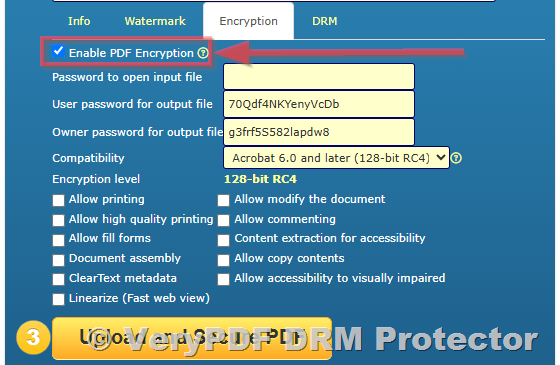
By default, some PDF encryption may still be set to 128-bit RC4, a standard used in older versions of Adobe Acrobat. However, VeryPDF DRM Protector supports stronger encryption — specifically, 256-bit AES, the current industry standard for secure digital content.

How to Enable 256-bit AES:

To upgrade your encryption level, follow these steps:

  1. Visit https://drm.verypdf.com/online/

  2. Under Encryption, enable PDF Encryption.

  3. In the Compatibility dropdown, select “Acrobat 9.0 and later (256-bit AES)”.

Your protected PDF will now be encrypted with the stronger 256-bit AES standard, offering better protection against cracking or brute-force attacks.


3. Subscription Options: From Monthly to Yearly

The author expressed interest in starting with the Starter Plan at $99.95/month to evaluate the platform. This is a great way to try out the features and see how they fit into your workflow.

Switching to a Yearly Plan:

If you decide to commit long-term, simply cancel your monthly subscription and subscribe to the yearly plan through your account dashboard. Should you require assistance with this process, our customer service team is ready to help.


4. Integrating DRM Protection Into Your eBook Sales Process

The most important part of this discussion revolves around how to apply DRM protection to an eBook and automate the process of delivering protected copies to each individual customer. Below are the answers and recommendations tailored to this scenario.


4a. Reader-Friendly Display: Single or Two-Page View

Many eBooks, especially those with rich visual formatting, benefit from offering readers the option to view two pages side-by-side, just like a physical book.

Solution:

VeryPDF is currently upgrading its Online PDF Viewer to support both single-page and double-page views. Once this feature is live, your customers will have the flexibility to choose their preferred reading format.


4b. Selling via Your Own Store: How to Protect and Distribute Your Book

The customer’s plan is to sell their PDF eBook through a private online store. There are two main approaches:

Manual Distribution (Simple Setup):
  1. Go to https://drm.verypdf.com/online/

  2. Upload your PDF.

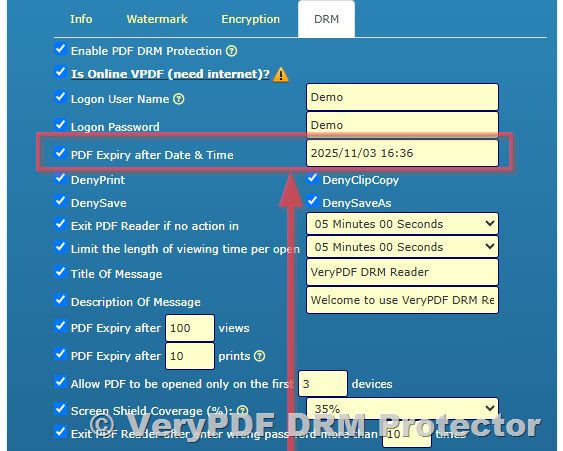
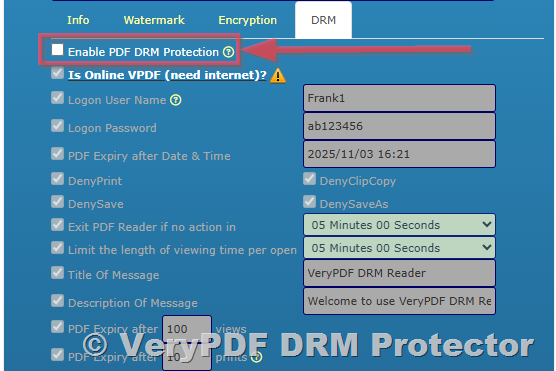
  3. Apply the DRM settings once.

  4. Generate a unique secure URL for reading the protected file online.

  5. After a customer makes a purchase, send them the unique link manually.

Automated Distribution (Recommended for Scaling):

If you’re expecting frequent sales, we highly recommend using the VeryPDF DRM API:

  1. Your developer integrates the VeryPDF DRM API into your store’s backend.

  2. When a customer makes a purchase, the system:

    • Uploads the original PDF.

    • Applies your pre-set DRM settings.

    • Generates a unique, secure URL or encrypted PDF specific to that customer.

  3. This unique link is automatically emailed to the customer or shown on a payment success page.

This method ensures that each buyer receives a separate, protected version of your eBook, all without manual intervention.


4c. Device Restriction: One or Two Devices per Reader

Another essential concern for authors and publishers is how to prevent buyers from sharing their access with friends or uploading it to pirated websites.

Current Option:
  • DRM-protected content can be restricted by IP address, ensuring the content is accessed from the same device or network.

Coming Soon:
  • Device Locking: We’re introducing a feature where the first one or two devices that open a protected PDF are automatically registered. After that, the file becomes unreadable on any other device. This makes unauthorized sharing almost impossible.

Stay tuned or reach out to our team if you would like early access to this feature.


Conclusion: Start Protecting and Selling Your PDF eBooks with Confidence

The VeryPDF DRM Protector provides a complete and scalable solution for authors and publishers who want to protect their digital books from piracy while maintaining an easy-to-use experience for legitimate readers.

Whether you’re just starting with a monthly trial or planning to automate an entire storefront, we’re here to support your goals. From advanced encryption and viewing options to sales automation and device locking, VeryPDF DRM gives you the control you need to protect your creative work.


Ready to Get Started?

Visit https://drm.verypdf.com/online/ and secure your first PDF today.

If you need help setting up your account, integrating with your store, or configuring advanced DRM settings, don’t hesitate to reach out — our technical support team is always happy to assist.