How to Place Custom Stamps on Your PDF Documents Based on Document Type with VeryPDF PDF Stamper Command Line

How to Place Custom Stamps on Your PDF Documents Based on Document Type with VeryPDF PDF Stamper Command Line

Every Monday morning, I used to get buried in a stack of PDFscontracts, reports, and invoices all needing custom stamps. Whether it was adding a company logo, a date, or a specific note, it felt like an endless task. But then I stumbled across VeryPDF PDF Stamper Command Line, and things got a whole lot easier.

How to Place Custom Stamps on Your PDF Documents Based on Document Type with VeryPDF PDF Stamper Command Line

This powerful tool allows you to stamp your PDFs automatically, which can be a game-changer for anyone dealing with high volumes of PDF documents. Whether you’re a legal professional managing contracts, an accountant working with invoices, or a business owner adding watermarks to reports, VeryPDF PDF Stamper Command Line can save you hours of repetitive work.

The Power of VeryPDF PDF Stamper Command Line

VeryPDF PDF Stamper Command Line is a must-have tool for anyone who needs to efficiently place custom stamps on PDF documents. Whether it’s adding images, text, graphics, or even watermarks, this software makes the process incredibly easy.

I discovered the tool when I was looking for a way to quickly add logos to a batch of invoices. I had been manually stamping them, which was tedious and time-consuming. After trying out the PDF Stamper Command Line, I was immediately impressed by its versatility.

Key Features That Make It Stand Out

1. Image Stamping

With VeryPDF PDF Stamper, you can easily stamp your PDFs with custom images, whether they’re logos, signatures, or any other graphics. You can upload images in a variety of formats like JPEG, PNG, TIFF, and BMP.

What stood out to me was the ability to adjust the image size on the fly. No more resizing images manually before stamping them. The tool automatically adjusts the image to fit your PDF.

2. Text and Watermarks

If you need to add text-based stamps, this tool offers a ton of flexibility. You can choose from multiple fonts, adjust the size, and even rotate your text stamps at any angle. I found this super useful when adding dates or page numbers to large document sets.

Moreover, the tool lets you apply dynamic text stampssuch as the document’s author, title, or subjectadding extra convenience to document management.

3. Multi-Page and Batch Stamping

When dealing with hundreds of documents, the ability to batch-process files is a lifesaver. I used the ‘-PDFs’ parameter to batch-stamp a whole folder of PDFs at once. Instead of manually opening each file, I set it up to apply the same stamp to every document in seconds. You can even specify which pages to stamp using the page range settings, perfect for larger files with multiple pages.

How It Saved Me Time

I’ll admit, I was initially skeptical about how much time this tool could save. But after testing it with just a handful of files, I quickly realised the power of automation. A task that used to take me hours could now be done in minutes.

For example, using the ‘opacity’ function, I could apply transparent text or image watermarks to my documents, protecting sensitive data without compromising readability. And with the encryption function, I could secure my files with passwords, preventing unauthorized access.

Why I Choose VeryPDF Over Other Tools

I’ve tried several other PDF editing tools before, but none of them offered the same level of customization or batch-processing capabilities as VeryPDF PDF Stamper Command Line. Other tools required third-party software to resize images or adjust settings, but VeryPDF had everything built-in.

The ability to place stamps exactly where I wantedwhether at the header, footer, or any custom positionwas also a huge plus. I didn’t need to waste time figuring out complex positioning settings.

Practical Use Cases

Here are a few scenarios where I’ve found VeryPDF PDF Stamper Command Line to be particularly useful:

  • Legal teams can use it to stamp scanned contracts with dates, case numbers, or signatures quickly.

  • Accounting departments can apply invoice numbers and company logos to large batches of invoices.

  • Marketing teams can add watermarks to PDFs to protect sensitive reports or presentations.

  • Schools or universities can mark educational documents with custom stamps, including approval stamps or department logos.

Conclusion: A Must-Have for PDF Management

For anyone who handles large volumes of PDFs, VeryPDF PDF Stamper Command Line is an invaluable tool. It’s not only easy to use but also offers incredible flexibility with custom stamps, batch processing, and advanced encryption features.

If you’re tired of manually adding stamps or watermarks, I highly recommend giving it a try. It has saved me countless hours, and I’m sure it can do the same for you.

Click here to try it out for yourself: https://www.verypdf.com/app/pdf-stamp/


Custom Development Services by VeryPDF

VeryPDF offers comprehensive custom development services to meet your unique technical needs. Whether you need specialized PDF processing solutions for Linux, macOS, Windows, or server environments, VeryPDF’s expertise spans a wide range of technologies.

VeryPDF’s services include custom utilities based on Python, PHP, C/C++, and JavaScript, as well as solutions for generating PDF, EMF, and image formats. They also specialize in document conversion, barcode recognition, OCR, and even security features like encryption and digital signatures.

If you need custom PDF solutions tailored to your workflow, get in touch with VeryPDF’s support center at http://support.verypdf.com/ to discuss your project.

FAQ

Q1: Can I use VeryPDF PDF Stamper with encrypted PDFs?

Yes, the tool supports encrypted PDFs. You can apply stamps and even set passwords for output files.

Q2: How do I batch stamp multiple PDF files at once?

Simply use the ‘-PDFs’ parameter to process a whole folder of PDFs, saving you time on repetitive tasks.

Q3: Can I add custom images as stamps?

Absolutely! You can stamp your PDFs with custom images in various formats like JPEG, PNG, and TIFF.

Q4: Is there a way to apply dynamic text stamps to documents?

Yes, the tool allows you to use dynamic text stamps, including document details like title, author, or subject.

Q5: How do I secure my PDFs after stamping them?

You can use the encryption function to set open and owner passwords and control permissions such as preventing editing or printing.


Tags or Keywords

  • VeryPDF PDF Stamper Command Line

  • Custom PDF stamps

  • Batch PDF processing

  • PDF watermark creator

  • PDF encryption tools

How to Use VeryPDF PDF Stamper Command Line to Automate Your PDF Protection Process

How to Use VeryPDF PDF Stamper Command Line to Automate Your PDF Protection Process

If you’re dealing with sensitive documents, you know how important it is to make sure they are secure. You don’t want your PDFs floating around unprotected, easily edited or copied.

How to Use VeryPDF PDF Stamper Command Line to Automate Your PDF Protection Process

As a regular user of PDFs for work, I’ve faced this issue countless times. When managing contracts, invoices, or confidential reports, I needed a quick, reliable way to stamp each document with watermarks, page numbers, or logos. And I wasn’t interested in opening Adobe Acrobat or manually editing each document.

That’s when I discovered the VeryPDF PDF Stamper Command Line. It was a game-changer. I could now automate the stamping of PDFs, adding protection and customisation without wasting time.

Why You Need VeryPDF PDF Stamper Command Line

The VeryPDF PDF Stamper Command Line is an incredibly useful tool, designed to let you automate the stamping process for PDF files with ease. Whether you’re trying to brand documents with your logo, add page numbers, or insert a watermark for security, this tool has it all.

One of the best parts? It doesn’t require any fancy third-party apps. You can stamp text, images, or even graphics directly onto your PDF files with a simple command line, and the tool supports all kinds of PDFs, including encrypted ones.

Key Features of VeryPDF PDF Stamper Command Line

Here are a few features that stood out to me:

  • Text Stamps: You can add text in any font, size, and colour. You can even rotate it to any angle, which is fantastic for making your stamps more versatile. For example, I used a custom text stamp for my contracts that included the text “Confidential” in bold red at a diagonal angle.

  • Image Stamps: Need to add your company logo? No problem. You can upload an image in a variety of formats (JPEG, PNG, TIFF, etc.), and adjust its size, opacity, and rotation to suit your needs. I added my logo as a watermark to every page of a contract and could adjust it to be semi-transparent, so it didn’t distract from the document’s content.

  • Batch Processing: The tool supports batch stamping. Imagine trying to stamp hundreds of contracts one by one. No thanks! With VeryPDF PDF Stamper, I could process an entire folder of PDFs in one go, saving me hours of work.

  • Encryption Options: Need extra security? This tool lets you apply password protection to your stamped PDFs. I’ve used this feature to ensure only authorised personnel could open or edit certain documents.

  • Page Range Settings: Let’s say you want to add stamps only on specific pages. The tool allows you to choose page ranges so you can stamp a set of pages without affecting the rest.

Real-World Use Cases

I’ve found a few scenarios where this tool truly shines:

  1. Legal Contracts: Every Monday, I had a stack of PDF contracts that needed my signature and a confidentiality watermark. Instead of opening each document in Adobe Acrobat and manually adding the stamp, I used the command line tool to batch process them in minutes. Now, it’s automated.

  2. Invoices: When sending out invoices, I wanted to make sure they had a consistent look and feel. By adding page numbers and my company logo to the footer, I could quickly apply these customisations to multiple invoices without hassle.

  3. Confidential Reports: Sometimes, I need to protect the contents of a report by adding a watermark. This tool allowed me to add dynamic text like the document’s title, “Confidential,” and even adjust the opacity so it wasn’t too overpowering.

Core Advantages of VeryPDF PDF Stamper Command Line

  • Flexibility and Precision: You can adjust every aspect of your stampsize, position, opacity, rotation, font style, and more.

  • No Need for Adobe Acrobat: You don’t need to open each file in Acrobat or any other program. This is a command-line tool, meaning you can run scripts and automate the whole process.

  • Batch Processing: It’s a huge time-saver if you have many PDFs to process. You can even set specific pages or ranges of pages to stamp.

  • Security: You can apply password encryption and set permissions, ensuring only authorised users can view or edit your PDFs.

My Personal Experience

When I started using the VeryPDF PDF Stamper Command Line, the first thing I noticed was how easy it was to integrate into my daily workflow. No more wasting time manually stamping or worrying about someone else editing my PDF files. It saved me hours every week, and it felt incredibly satisfying knowing I could set up everything with a simple script.

The batch processing feature was particularly helpful. I was working with a client that needed 200 invoices stamped with a page number and logo, and I had them ready in less than 30 minutes. The amount of time it saved was invaluable.

One of the moments that really stood out to me was when I had to protect a report with sensitive data. I could easily encrypt the PDF and apply a watermark that ensured the document couldn’t be altered or shared without permission.

Conclusion

If you’re dealing with multiple PDFs and need a reliable, fast way to stamp, watermark, and secure them, I highly recommend VeryPDF PDF Stamper Command Line. Whether you’re working in legal, finance, or any field where document security is crucial, this tool will streamline your workflow and enhance your productivity.

Click here to try it out for yourself: https://www.verypdf.com/app/pdf-stamp/

Start automating your PDF protection today!


Custom Development Services by VeryPDF

VeryPDF offers comprehensive custom development services to meet your unique technical needs. Whether you require specialized PDF processing solutions for Linux, macOS, Windows, or server environments, VeryPDF’s expertise spans a wide range of technologies and functionalities.

From developing utilities based on Python, PHP, C/C++, to providing solutions for barcode recognition, OCR, and digital signatures, VeryPDF has the technical capabilities to customise its products to fit your requirements.

Contact VeryPDF through their support centre at http://support.verypdf.com/ to discuss your project needs.


FAQ

Q1: Can I add multiple stamps to the same PDF using this tool?

Yes, you can add multiple stamps at once, whether it’s text, images, or graphics.

Q2: Does it support encrypted PDFs?

Absolutely. The tool can stamp encrypted PDFs, and it even lets you set passwords for the output files.

Q3: Can I batch stamp multiple PDFs?

Yes, you can batch process a folder full of PDFs and apply the same stamps to all of them.

Q4: Is it possible to add dynamic information like the document’s author or title?

Yes, you can add dynamic text stamps that pull information like the author, title, and subject.

Q5: Do I need Adobe Acrobat to use this tool?

No, this is a command-line tool that doesn’t require Adobe Acrobat.


Tags/Keywords

  • PDF stamp creator

  • PDF watermark creator

  • automate PDF protection

  • batch processing PDFs

  • PDF security tool

VeryPDF PDF Stamper Command Line for Creating Digital Signatures and Watermarks

Title: VeryPDF PDF Stamper Command Line for Creating Digital Signatures and Watermarks

Meta Description: Learn how VeryPDF PDF Stamper Command Line can help you easily create digital signatures and watermarks, saving time on PDF management tasks.

VeryPDF PDF Stamper Command Line for Creating Digital Signatures and Watermarks


Every Monday morning, I would stare at a massive stack of PDFs waiting to be processed. Contracts, reports, and invoices they all needed my signature, a date stamp, or some other form of annotation. The idea of manually adding signatures and watermarks across pages made my head spin. I needed something quick, reliable, and efficient to get the job done. That’s when I found VeryPDF PDF Stamper Command Line.

It promised to streamline the entire process with just a few commands. It sounded too good to be true, but after testing it out, I quickly realised this tool would save me hours every week.

Why VeryPDF PDF Stamper Command Line?

At first glance, VeryPDF PDF Stamper Command Line might seem like a simple PDF watermark creator, but it’s a whole lot more than that. It’s a powerful tool that allows you to stamp PDFs with text, images, graphics, and even custom watermarks, all while maintaining your document’s integrity. And the best part? It works directly through the command line, which means you can automate the whole process.

Here’s a breakdown of what makes this tool a game-changer:

1. Custom Stamps for PDFs

With VeryPDF PDF Stamper, I could add text, images, and graphic shapes to PDFs without breaking a sweat. Need to add a company logo? Just select the image, set the size, and stamp it wherever you want. It’s that simple. No third-party apps required to resize images either everything happens seamlessly within the tool.

2. Batch Processing

One of my favourite features is the ability to batch process PDFs. I could apply the same watermark across hundreds of PDFs at once a huge time-saver. For instance, if I needed to add a confidentiality watermark to all my contracts for the month, I could do it in one go, rather than having to open each document manually. This saved me hours!

3. Text and Image Flexibility

The tool offers incredible flexibility with text stamps. I could choose the font, size, style, and colour, and even rotate the text to any angle. I often need to apply dynamic text like dates or custom messages, and VeryPDF’s dynamic text stamps made that possible. Plus, it supports encrypted PDFs, so your stamped documents remain secure.


Real-World Examples

To give you an idea of how this tool worked in my day-to-day tasks, let me share a few examples:

Adding Watermarks for Confidentiality

For one of my clients, I needed to add a confidential watermark to a batch of legal contracts. The contracts were scanned PDFs, and I couldn’t afford any errors. Using VeryPDF PDF Stamper, I easily stamped the word “Confidential” across the background in semi-transparent text. The process was flawless no formatting issues, no errors.

Digital Signature Stamping

When I had to sign multiple documents for a project, I was able to create a digital signature stamp and apply it to all necessary documents with a single command. This saved me from printing, signing, and scanning the documents again. Plus, it’s a much more secure option than manually handling paper signatures.

Adding Logos & Branding

For marketing materials, I regularly had to add our company’s logo to PDFs. Instead of manually dragging the logo into each document, I simply set up the tool to automatically place the logo in the header of every PDF I processed. This made branding tasks faster and more efficient.


Core Advantages of VeryPDF PDF Stamper Command Line

Here’s why I recommend this tool:

  • Time Efficiency: Automating repetitive tasks like watermarking and adding signatures saved me significant time.

  • Batch Processing: Apply changes to hundreds of PDFs in seconds.

  • Flexibility: Easily adjust the size, position, and opacity of stamps.

  • Security: Supports encrypted PDFs, so your stamps are secure.

  • Comprehensive Features: From adding dynamic text to applying Bates numbering, it does it all.


Conclusion: Is VeryPDF PDF Stamper Right for You?

If you’re tired of wasting time manually stamping PDFs or dealing with tedious watermarks and signatures, VeryPDF PDF Stamper Command Line is exactly what you need. I can personally vouch for how much it’s improved my productivity. Whether you’re in legal, finance, or marketing, this tool can automate your PDF tasks and save you hours every week.

I highly recommend it to anyone working with large volumes of PDFs.
Start your free trial today and see how much easier your PDF tasks can become: VeryPDF PDF Stamper Command Line


Custom Development Services by VeryPDF

VeryPDF offers tailored development solutions to meet unique technical requirements. Whether you need custom PDF processing tools for Linux, macOS, Windows, or server environments, they’ve got the expertise to deliver.

Services include:

  • Custom PDF utilities in Python, PHP, C++, and more.

  • Windows Virtual Printer Drivers for generating PDFs, images, and other formats.

  • Cloud-based solutions for document conversion, viewing, and digital signatures.

To discuss your specific project needs, visit VeryPDF Support Center.


FAQs

1. Can I add multiple stamps to one PDF?

Yes, you can add multiple stamps (text, image, graphics) to a single PDF. You can place them wherever you like on the page.

2. Does VeryPDF PDF Stamper support batch processing?

Absolutely! You can process multiple PDFs in one go, applying the same watermark or signature to all of them.

3. Can I use my own fonts and logos with VeryPDF PDF Stamper?

Yes, you can use custom fonts and logos for text and image stamps.

4. Is the software compatible with encrypted PDFs?

Yes, VeryPDF PDF Stamper can handle encrypted PDFs, so your documents remain secure even after stamping.

5. Do I need Adobe Acrobat to use VeryPDF PDF Stamper?

No, you don’t need Adobe Acrobat. The tool works independently and doesn’t require any other PDF software.


Tags/Keywords:

  • PDF watermark creator

  • Command line PDF stamper

  • Digital signature PDF tool

  • Batch process PDFs

  • PDF stamping software

[Solution] Keep One Copy of DRM Protected PDF with Different DRM Policies: Secure Your PDF Content with Tailored Access Controls for Unlimited Customers

In today’s digital world, protecting sensitive content like eBooks, reports, or any proprietary documents is crucial. Digital Rights Management (DRM) protection offers an effective solution to safeguard these documents from unauthorized access, copying, or distribution. However, many customers often have questions about how DRM works, particularly in terms of how it can be scaled and integrated into various business models. In this article, we’ll answer some common questions about DRM protection, how it works in practical scenarios, and how our solution can help protect your PDF files.

[Solution] Keep One Copy of DRM Protected PDF with Different DRM Policies: Secure Your PDF Content with Tailored Access Controls for Unlimited Customers

1. Does This Mean That For Each Customer, A New PDF File Should Be Created and Protected with You? But This Becomes Impossible with Many Customers?

When dealing with multiple customers, creating a new DRM-protected PDF for each one can seem like a daunting and impractical task. After all, if your customer base is large, the idea of manually generating a unique DRM-protected file for every customer would not only be time-consuming but could also quickly become impossible to manage efficiently.

However, you don’t have to worry about creating a new protected file for each customer. Our DRM Protector Application is designed to simplify this process, even for large volumes of customers. Instead of generating a new file for every customer, we can store a single copy of the DRM-protected PDF on our secure servers. Each customer’s access is controlled by a unique set of DRM policies and access rights, which are stored in our database.

This approach means that you only need to protect the PDF once, and the system will handle the unique access controls for each customer. These controls include:

  • Expiration dates: You can set specific times or dates after which the customer can no longer access the file.

  • Permissions: You can control whether customers can print, copy, or share the document.

  • Access Rights: You can assign different policies to different customers, such as allowing one customer to have read-only access, while giving another the ability to annotate or highlight text.

This solution not only saves you time but also ensures that your content remains secure and that every customer’s access is properly managed according to your chosen DRM settings.

If you’re interested in this custom solution, we can offer tailored services that meet your specific needs. There will be a development fee for deploying a custom version of the DRM solution to meet your requirements. For a more detailed quote, feel free to contact us, and we’ll provide you with all the necessary information.

2. Same Question to 1. Above: There Should Be a New Password for Each New Client After Payment and They Receive the DRM Protected File or an Online Link to It. Will You Do This? What Will Happen When My Client Reads a Little of the Book, Then Turns Off His Device and After Some Time Wants to Continue Reading? He Does Not Have to Pay for Each Login to Read.

We understand your concern about offering a seamless experience for customers who have purchased your eBook. After a customer has purchased the book, they will receive a unique access link to the DRM-protected file. This allows them to access the content without having to go through a payment process every time they log in. Here’s how it works:

  1. Purchase: The customer purchases the eBook online.

  2. Access: After payment, they receive a personalized URL to access the DRM-protected PDF file.

  3. Reading: The customer can open the link and start reading the document. If they close the file or turn off their device, they can return to the same link without paying again.

Importantly, the customer’s access to the file will not expire unless specific conditions in the DRM policy are met, such as:

  • Access expiration: You can set a date or time period after which the file will no longer be accessible.

  • Number of views: You can specify how many times the file can be opened or viewed by the customer.

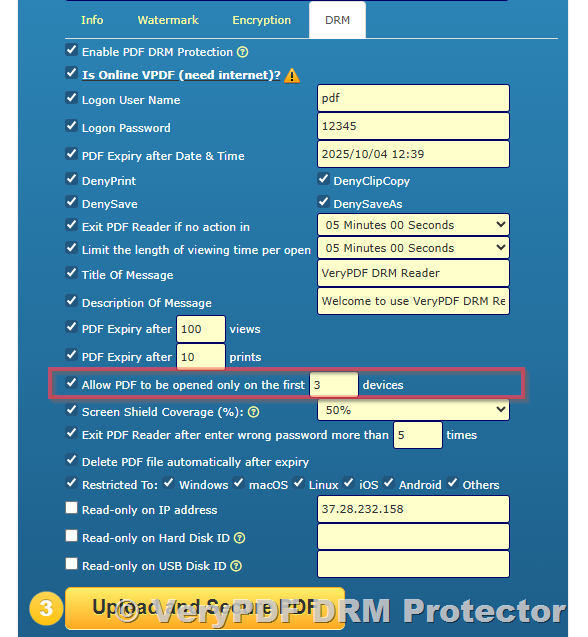
  • Device restrictions: Some DRM systems allow you to control how many devices can access the file.

If the customer returns later, they can continue reading without having to make a new payment or access a different version of the file. This system provides convenience for your customers while maintaining full control over how and when they can access the content. If their access expires or reaches the maximum number of views, they would need to make a new payment to gain access again.

3. How Is the Security of My Book File When It Is Uploaded to Your Server? Guarantee That the Content in It Will Not Be Used by Someone Else?

One of the biggest concerns when uploading any document to a server is its security. As a content owner, you want to make sure that no one can misuse, redistribute, or access your content without authorization. We take the security of your file very seriously and use multiple layers of protection to ensure your book or document is safe.

Here’s how we guarantee the security of your content:

Encryption

All DRM-protected PDF files are encrypted using industry-standard algorithms. This means that even if someone gains unauthorized access to your file, they will not be able to view or manipulate its content without the correct access permissions. Additionally, DRM-related passwords are stored using the MD5 encryption algorithm, which provides a secure method of storing access credentials.

Access Control

Only authorized users who meet the DRM policy requirements can access your protected PDF files. For instance, if your DRM settings restrict the file to a particular set of devices, regions, or IP addresses, only users meeting those criteria can open and view the file. Even if someone somehow gains access to the file, they will be unable to bypass the DRM protection or remove the encryption.

Confidentiality Assurance

We understand that your content is valuable and confidential. Therefore, we do not use, share, or distribute the original content of your file. Only the DRM-protected version is accessible, ensuring that your intellectual property is not compromised. The original document remains secure on our servers and cannot be accessed by unauthorized parties.

Furthermore, our servers are equipped with strong security measures to prevent data breaches and unauthorized access. We also follow best practices in terms of server and data management to ensure your content is always protected.

Conclusion

With the increasing demand for secure digital content, DRM protection offers a reliable solution for eBook authors, publishers, and any organization looking to protect sensitive documents. By using our DRM Protector Application, you can rest assured that your files will be securely protected without the need for creating multiple copies for each customer.

The solution allows you to:

  • Offer personalized access controls for each customer.

  • Protect your content from unauthorized access, copying, or sharing.

  • Provide a smooth and convenient experience for customers without requiring them to pay multiple times for access.

Our approach to DRM protection ensures that you can focus on your content and business, knowing that your files are safe and secure. If you have any questions or would like more information on how our solution can work for you, please do not hesitate to contact us. We are here to help you protect your intellectual property and ensure that your content remains safe from unauthorized access.

Block Copy-Paste and Print for Your Digital PDF Products with One Click

Block Copy-Paste and Print for Your Digital PDF Products with One Click

Meta Description:

Protect your PDF and eBook content from copying, printing, and unauthorised sharing with VeryPDF DRM Protector a simple one-click online DRM tool.


Ever had your digital product stolen or shared without permission?

I have.

I once launched an eBook on Amazon that I’d spent weeks putting together formatting, designing, and writing. Sales started rolling in, and I was pumped. But within a week, I found my content floating on shady websites and forums copied, shared, and rebranded by people who didn’t pay a penny.

Block Copy-Paste and Print for Your Digital PDF Products with One Click

That’s when I realised: passwords don’t cut it.

I needed a serious way to block copy-paste and printing of my PDF something beyond basic PDF protection, something made for digital sellers like me.

And that’s how I found VeryPDF DRM Protector for Amazon eBook Seller.


This tool changed everything

Let me keep it real I was sceptical. DRM usually means clunky installs, user logins, or needing to pay upfront. But VeryPDF DRM Protector was completely online, no downloads, and free to test.

And get this: you don’t need to create an account or enter credit card info to use it.

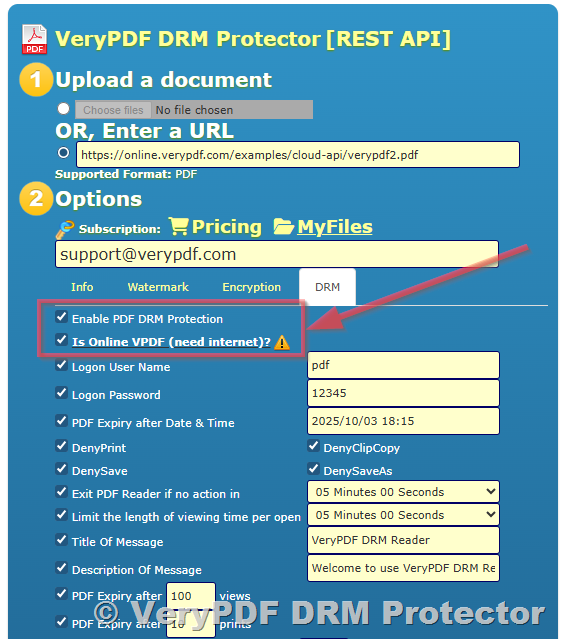
I uploaded my PDF, ticked a few boxes (no printing, no copy-paste, add watermark, etc.), hit ‘Protect’, and just like that, I had a fully DRM-wrapped file ready to distribute without fear.


Who is this tool actually for?

If you’re someone who:

  • Sells eBooks or training courses

  • Offers downloadable reports, guides, or regulatory documents

  • Shares client materials or pitch decks

  • Works in education, HR, finance, or law

…you’ll want this. Because once your content leaks, it’s game over.


What makes VeryPDF DRM Protector a beast?

1. Block copy-paste, printing, and downloads

That’s the main draw. With just one click, I disabled all the usual ways people rip content.

Even better: it doesn’t rely on just passwords this is real DRM, with AES 256-bit encryption (same level used by the NSA).

2. Add auto-generated watermarks

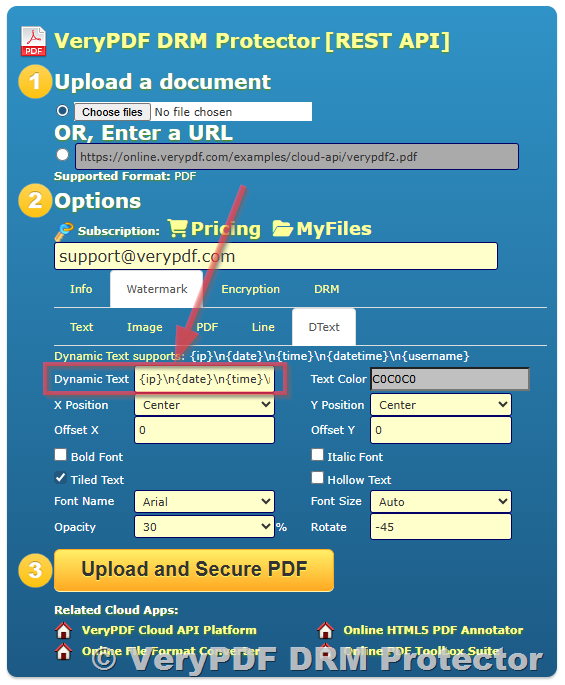
I set it to slap the recipient’s email address across every page dynamic watermarking that shows exactly who the leak came from. It made users think twice before sharing anything.

3. Revoke access anytime

Sent the wrong doc to the wrong person? Just kill the link. No drama.

You can even set your content to expire after a certain number of opens or days.

4. Real-time tracking + analytics

I could see:

  • Who opened the file

  • Where they were

  • How long they stayed

  • If they tried to print/download

No more guessing what happened after I sent a file.

5. Screenshot deterrence

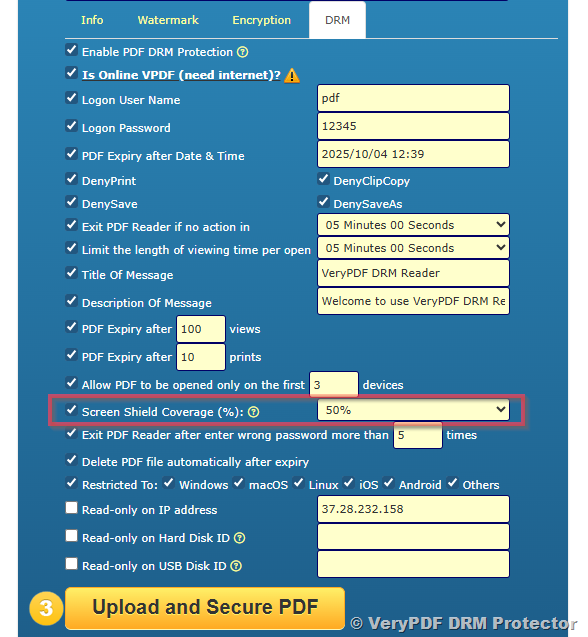
There’s a feature called Screen Shield that limits how much of the screen is visible at once great for discouraging screenshots. Sneaky but effective.


Use cases that actually matter

I’ve used this for:

  • Selling digital eBooks on Amazon

  • Sending protected whitepapers to clients

  • Sharing internal training manuals with contractors

  • Releasing course PDFs to students with expiry dates

A buddy of mine runs a coaching business he now sends all his material through VeryPDF DRM, and his content theft dropped to zero.


Where other tools flopped, this one nailed it

Before this, I tried using basic password protection in Adobe Acrobat but those PDFs were still printable and easy to screenshot.

Tried another DRM tool too required an installer, didn’t support mobile, and honestly, it felt outdated.

VeryPDF DRM Protector nailed it by being:

  • Browser-based

  • Zero-install

  • Mobile-friendly

  • Insanely easy to use


Final thoughts: is this worth using?

Absolutely.

If you’re tired of putting in all the work just to see your digital content floating around for free, you need this.

It’s the easiest way I’ve found to block copy-paste and print for your digital PDF products in one click.

I’d recommend it to any creator, trainer, or business owner dealing with sensitive content.

Try it now for free: https://drm.verypdf.com/


Custom Development Services by VeryPDF

Need something more tailored?

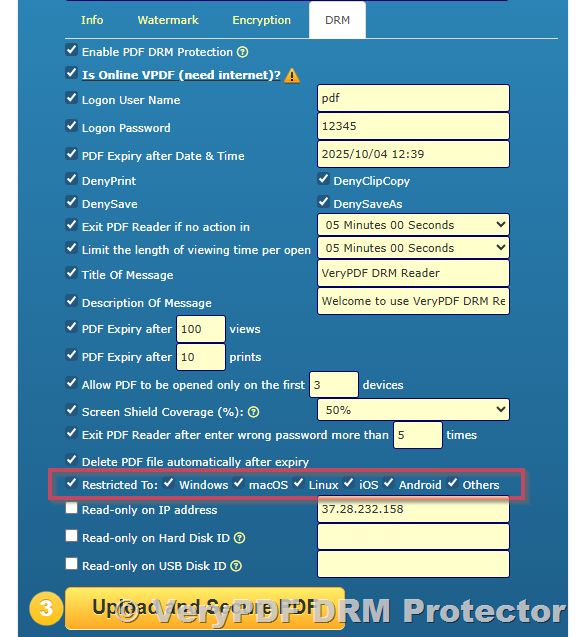
VeryPDF also builds custom DRM and PDF protection solutions for Windows, macOS, Linux, iOS, and Android.

Their tech covers:

  • PDF, PCL, Postscript, and Office file handling

  • Virtual printer drivers to intercept and convert print jobs

  • API monitoring and Windows hook layers

  • Document watermarking, barcode tech, and OCR

  • Cloud-based document management and security

  • DRM licensing, SSO integration, and TrueType font locking

If you’ve got a unique requirement, they’ll build it.
Talk to them here: http://support.verypdf.com/


FAQ

Q: Can users still take screenshots of my PDFs?

A: VeryPDF DRM Protector includes a Screen Shield feature that reduces viewable screen area to discourage screenshots.

Q: Do I need to install anything?

A: Nope. It works 100% online no downloads, plugins, or account setup.

Q: Can I track who opened my documents?

A: Yes. You get full analytics: who opened it, from where, for how long, and more.

Q: What file formats does it support?

A: PDFs, images, audio, video files, and more not just PDFs.

Q: Can I revoke access after sending a file?

A: Yes. You can disable access instantly or set it to expire after a time or number of views.


Tags / Keywords

  • block copy-paste PDF

  • protect PDF from printing

  • DRM for Amazon eBooks

  • secure PDF sharing

  • digital rights management tool