
At VeryPDF, we take account security seriously. To give our users an extra layer of protection, your account now supports two-factor authentication (2FA). Enabling 2FA ensures that even if someone obtains your password, they cannot access your account without a second verification step.
Here’s a step-by-step guide on how to enable and manage two-factor authentication from your account:
Step 1: Log in to Your Account
Start by logging in to your VeryPDF DRM Protector account as usual. Once logged in, navigate to your Profile section, where 2FA options are available.
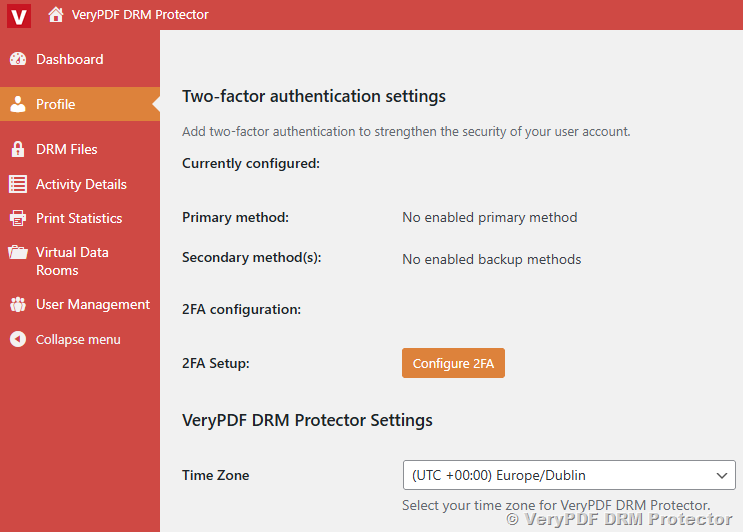
Step 2: Choose Your Two-Factor Authentication Method
You can select from several secure 2FA methods:
- Authenticator App (TOTP): Use apps like Google Authenticator, Authy, or any app that supports TOTP codes.
- Email Verification: Receive a one-time code directly in your registered email.
- Passkeys (Optional): For passwordless login, you can use a supported device key.
Simply choose the method that works best for you. For most users, an authenticator app is the fastest and most secure option.
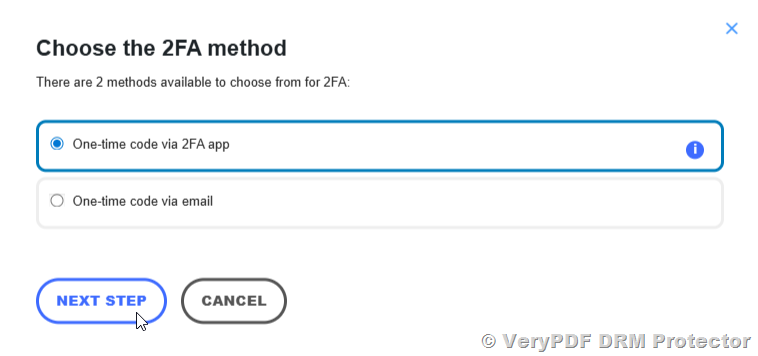
Step 3: Set Up Your 2FA Method
Follow the on-screen instructions to configure your chosen method:
- Authenticator App: Scan the QR code displayed on the screen with your app. Then enter the verification code generated by the app to confirm the setup.
- Email Verification: Enter the code sent to your registered email address.
- Passkeys: Follow the prompts to register your device securely.
The setup process is guided and requires no technical knowledge.
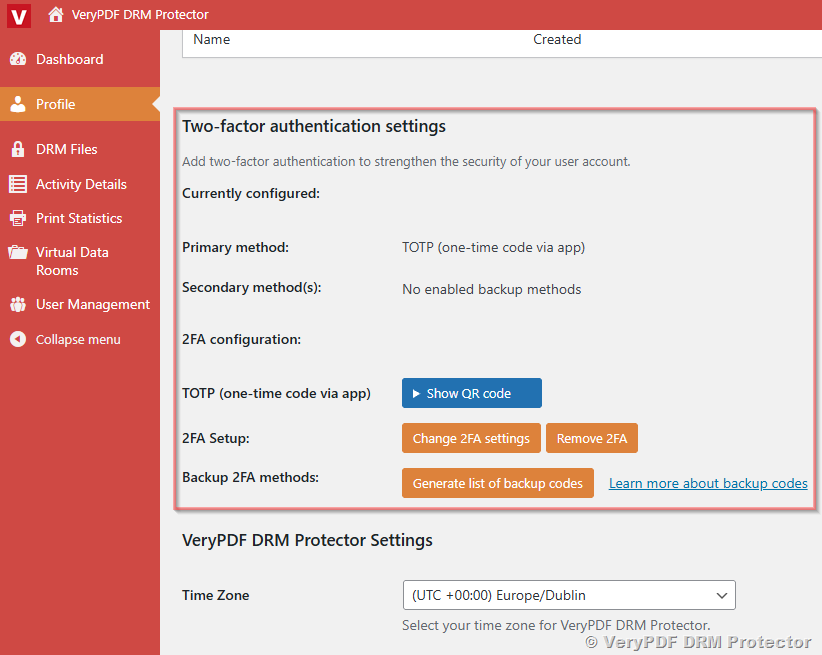
Step 4: Save Your Backup Codes
During setup, you will be provided with backup codes. These are 16-digit codes that you can use to access your account if you lose access to your 2FA device.
Important: Save these codes in a secure location. They are your safety net in case of device loss or change.
Step 5: Enable Two-Factor Authentication
Once your method is successfully configured and verified, click Enable Two-Factor Authentication to activate it on your account. From this moment on, each time you log in, you will be prompted for your chosen 2FA verification code in addition to your password.
Step 6: Manage Your 2FA Settings
You have full control over your two-factor authentication settings. From your account:
- Disable 2FA: If you ever need to temporarily turn it off, you can do so securely.
- Change 2FA Method: Switch between authenticator apps, email verification, or passkeys at any time.
- View Backup Codes: Access your backup codes whenever necessary.
Benefits of Enabling Two-Factor Authentication
- Enhanced Security: Protect your account from unauthorized access.
- Flexible Options: Choose the method that suits you best.
- Easy Recovery: Backup codes ensure you never get locked out.
Enabling two-factor authentication is a simple but powerful step to keep your VeryPDF DRM Protector account safe. Take a few minutes today to secure your account and enjoy peace of mind knowing your protected documents are even safer.
Related posts:
Complete Guide to PDF DRM Security, Watermarking, Integration, Licensing, Compliance & Scalable ...
The Complete Guide to PDF DRM Protection: Prevent Copying, Printing, Sharing, and Integrate Secure P...
How to Securely Sell and Distribute Your PDF Books Using VeryPDF DRM
VeryPDF DRM Protector Print Control: Restrict, Track, and Monitor PDF Printing with Detailed Statist...
How to Resolve "Maximum Allowed Devices" Errors in VeryPDF DRM Protector
VeryPDF DRM Protector MyFiles Actions Menu: Complete Guide to Secure PDF Management, Viewing, Sharin...
VeryPDF DRM Protector: Secure PDFs, Prevent Piracy, and Control Digital Content Access
Protecting Multiple PDFs in VeryPDF DRM Protector: Manual Uploads vs. User Portal Access vs. Full Au...
How to Enable Printing for DRM-Protected PDFs on Windows, macOS, iOS, iPadOS, and Android Devices
Related Posts
- VeryPDF Document Security & Virtual Data Room: Protect, Track, and Control Your Sensitive Documents
- Digital Rights Management (DRM) Software for Secure PDF & Document Protection | VeryPDF DRM Protector Features
- [Solution] VeryPDF DRM File Protection software allows you to protect numerous different file formats, including documents, images, videos and audio files
- [Solution] VeryPDF File Protection: Comprehensive DRM Solutions for Documents, Images, Videos, and Audio Files
- Free VeryPDF Reader and Free VeryPDF Web Viewer — The Ultimate Way to View and Protect DRM-Protected PDF Files
- User Management and User Portal Login in VeryPDF DRM Protector
- VeryPDF DRM Protector Print Control: Restrict, Track, and Monitor PDF Printing with Detailed Statistics, Print Limits, Secure Reports, and Virtual Printer Blocking
- New DRM Protection Features in VeryPDF DRM Protector: Screen Shield, Dynamic Watermarks, Device & OS Restrictions
- How to Protect a PDF File with DRM Options and View PDF File Access Statistics Report
- [Solution] DRM Software for Secure eBook Distribution: Starter Plan, Professional API Integration, Custom Features, Mandatory 30-Day License Revalidation, Hybrid Offline Reading, and Anti-Screenshot Tools
- VeryPDF DRM Protector: How to Protect eBooks with DRM, LMS Integration, and Secure Distribution
- VeryPDF Multi-DRM: Advanced Protection for Documents and Videos with Multi-DRM Technology
- Secure Document Sharing Solutions: Protect Sensitive Files with VeryPDF DRM Protector | Top Encryption Tools for Privacy
- VeryPDF DRM Protector Solution License Types – Pricing, Features & Benefits
- VeryPDF DRM Protector Document Security, DRM and Virtual Data Room APIs for Secure File Sharing, Access Control and Enterprise Content Protection
- How to Securely Sell and Distribute Your PDF Books Using VeryPDF DRM
- How to Enable Two-Factor Authentication on Your VeryPDF DRM Protector Account
- Import PDF as a Watermark with Transparency in VeryPDF DRM Protector
- VeryPDF Reader for Windows Now Fully Blocks Screenshots and Screen Recording – Ultimate PDF Protection on Windows
- How to Fully Protect Your PDF Workbooks and Block Virtual Printers Using VeryPDF DRM Protector (Business Plan)