How to Make a PDF Non-Editable (Read Only PDF) Without Passwords?

Why Passwords Fail to Make PDFs Uneditable?

Many PDF password protection tools claim to make PDF files uneditable. However, these solutions can be easily bypassed, rendering them ineffective. While Adobe Acrobat introduced the ability to set passwords for PDF files, these methods fall short when it comes to real security. Specifically, Adobe warns that some third-party PDF readers do not respect these settings, and bypassing editing restrictions is as easy as opening the file in another app.

If you are looking to protect your documents in a more secure and business-friendly way, relying on passwords alone is insufficient. Passwords are prone to attacks, can be shared, or even cracked by brute force. For businesses and individuals needing reliable document security, a more robust solution is essential.

Why Document Collaboration Platforms Fall Short?

Platforms like Google Docs and Adobe Document Cloud may seem like ideal solutions for sharing non-editable PDF files. However, they rely on client-side JavaScript, which can easily be tampered with, enabling unauthorized users to make copies and edit the document. Even with tools like two-factor authentication or password sharing restrictions, these platforms are inherently vulnerable to exploitation.

Therefore, a true solution to preventing unauthorized editing or sharing must go beyond the basic protections provided by these platforms.

How to Prevent PDF Editing Without Passwords?

The most secure way to stop unauthorized editing is to use a Digital Rights Management (DRM) solution, which removes the reliance on passwords. A DRM solution like VeryPDF DRM Protector offers encryption, device locking, and anti-copying controls, ensuring that PDF files cannot be edited or transferred without the proper license. Additionally, it provides features such as:

  • Prevention of unauthorized copying, printing, and screenshots
  • Device-locking to prevent document sharing between unauthorized devices
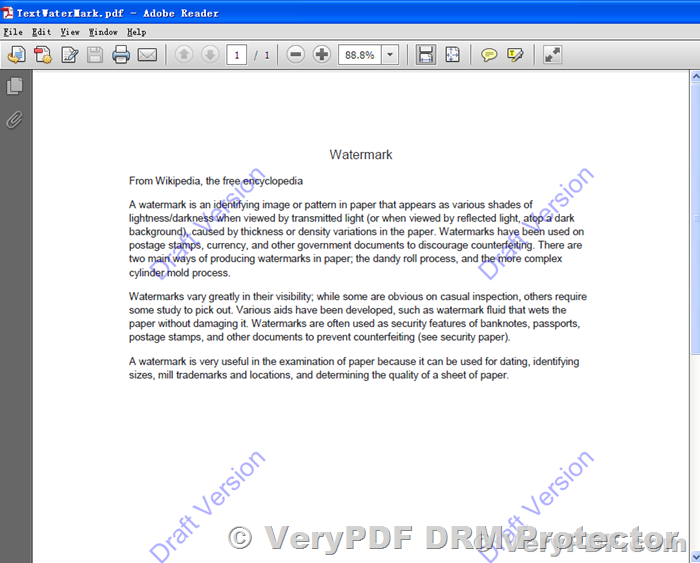
  • Dynamic watermarks to track unauthorized usage
How to Make a PDF Non-Editable (Read Only PDF) Without Passwords?

How to Make a PDF Uneditable with VeryPDF DRM Protector?

VeryPDF DRM Protector offers an easy and secure way to make your PDFs non-editable. Here’s how to protect your PDF file:

  1. Upload your PDF file to https://drm.verypdf.com/online/ and select ‘Make Secure PDF’.
  2. Choose the necessary protection options, such as disabling copying, printing, and screen capturing.
  3. Optionally, add a dynamic watermark to discourage sharing or to track unauthorized use.
  4. Press the “Publish” button to create the protected PDF.

With VeryPDF DRM Protector, your document is secured, preventing editing, copying, and unauthorized distribution. The protection cannot be bypassed, ensuring your PDF remains uneditable.

Why Make a PDF Non-Editable?

There are several reasons why you might want to prevent edits to a PDF:

  • Prevent accidental modification of important content.
  • Ensure that sensitive information, like financial details or legal contracts, cannot be altered.
  • Comply with regulatory requirements that demand documents remain unchanged.

Whether it’s to prevent errors or ensure compliance, making a PDF non-editable is essential for protecting sensitive documents.

VeryPDF DRM Protector: The Ultimate PDF Protection

VeryPDF DRM Protector doesn’t just make PDFs non-editable—it offers comprehensive control over how your documents are used. With this tool, you can:

  • Block copying, pasting, and screenshots.
  • Restrict document access to specific devices.
  • Set expiration dates or limit the number of prints.
  • Track document usage, including how many times it has been opened or printed.
  • Allow offline access while enforcing security.

For businesses and individuals seeking secure and permanent protection for their PDFs, VeryPDF DRM Protector is the most reliable choice. Try it for free online today!

FAQs

Does VeryPDF DRM Protector allow document collaboration?

No. Once you protect a PDF document with VeryPDF DRM Protector, the file cannot be edited or collaborated on. Instead, users can add annotations to PDFs without altering the original content.
How to Add Non-Removable Watermarks in Word Document with VeryPDF DRM Protector?

Why Microsoft Word Watermarks Are Ineffective?

Microsoft Word provides a simple feature to add watermarks such as “Confidential” or “Do Not Copy.” While these are easy to apply, they are equally easy to remove. Microsoft Word has no real editing protection, allowing users to delete watermarks effortlessly. This makes Word watermarks unsuitable for secure document sharing or distribution.

Key limitations include:

  • Trivial removal with a few clicks.
  • No support for dynamic watermarks.
  • Lack of customization for individual users.

As a result, Microsoft Word watermarks are ineffective for deterring unauthorized sharing or ensuring document security.

How to Add a Watermark in Word?

If you’re curious about how watermarks are added in Word, here are the steps:

  • Go to the “Design” tab and click “Watermark.”
  • Choose a pre-defined option or create a custom watermark.
  • For image watermarks, select “Picture Watermark” and upload an image.

However, these watermarks can be easily removed by selecting “Remove Watermark” under the same tab, highlighting their lack of security.

How to Add Non-Removable Watermarks in Word Document with VeryPDF DRM Protector?

Why PDF Is a Better Format for Secure Watermarking?

Unlike Word documents, PDFs are designed for sharing and offer better protection when combined with DRM tools. Standard PDF protections, however, are still vulnerable to editing and watermark removal.

To truly secure a PDF, you need a robust DRM solution like VeryPDF DRM Protector. This tool encrypts your files and applies non-removable watermarks, ensuring your documents remain secure and tamper-proof.

Securing PDFs with VeryPDF DRM Protector

VeryPDF DRM Protector enhances document security by encrypting PDFs into a proprietary .vpdf format. Users can only access these files through a secure viewer, which prevents unauthorized actions such as editing, printing, or screenshots.

Here’s how to apply a non-removable watermark with VeryPDF DRM Protector:

  1. Upload your PDF file to https://drm.verypdf.com/online/.
  2. Select the option “Make Secure PDF.”
  3. Add a text or image watermark in the relevant tabs.
  4. Customize the watermark’s position, opacity, and other settings.
  5. Click “Publish” to encrypt your document and apply the watermark.

Dynamic watermarking is another powerful feature of VeryPDF DRM Protector. It allows you to personalize watermarks with user-specific details, such as names or timestamps, automatically when the document is opened.

Additional Features of VeryPDF DRM Protector

Beyond watermarking, VeryPDF DRM Protector offers advanced features to secure your documents:

  • Restrict editing, copying, and sharing.
  • Lock files to specific devices, IP addresses, or countries.
  • Set expiration dates or access limits.
  • Monitor document access and track usage.
  • Instantly revoke access to specific documents or users.

The Verdict

Microsoft Word watermarks are insufficient for secure document sharing. For comprehensive protection, VeryPDF DRM Protector offers a superior solution with non-removable watermarks, dynamic personalization, and robust encryption.

Start your free trial today by visiting https://drm.verypdf.com/online/ and protect your sensitive documents with ease.

FAQs

What are the benefits of using watermarks?

Watermarks remind users of their obligations and help deter unauthorized sharing. However, for maximum effectiveness, use a DRM solution like VeryPDF DRM Protector.

Can watermarks in Word be protected?

No, Word watermarks are easily removable. Convert your document to PDF and use VeryPDF DRM Protector for secure watermarking.

How does VeryPDF DRM Protector prevent unauthorized sharing?

It encrypts PDFs, locks them to specific devices, and uses dynamic watermarks to personalize and protect documents from tampering.

How to Protect a Google Doc Without Passwords Using VeryPDF DRM Protector?

Why Google Docs Password Protection is Ineffective and Better Alternatives Exist

Google Docs has transformed workplace collaboration, enabling real-time editing and seamless sharing. However, these conveniences come with significant security risks. Sensitive documents stored on Google’s servers are constantly accessible and shareable, leaving them vulnerable to intentional leaks or unauthorized access. Even if you apply password protection, Google Docs’ built-in security features are often insufficient for comprehensive protection.

For businesses handling confidential information, a robust alternative is essential. This is where VeryPDF DRM Protector excels, offering advanced document protection without relying on passwords.

How to Protect a Google Doc Without Passwords Using VeryPDF DRM Protector?


Why Password Protecting Google Docs Falls Short

Password protection seems like a simple solution, but its limitations make it an inadequate choice for securing sensitive data. Here’s how you might attempt to password-protect a Google Doc:

  1. Download the document as a Microsoft Word or Excel file (File > Download > Microsoft Word/Excel).
  2. Apply password protection in Word or Excel by navigating to File > Info > Protect Document > Encrypt with Password.
  3. Re-upload the file back to Google Docs.

While this process adds a layer of security, it’s cumbersome and fraught with challenges:

  • Time-Consuming: Manually downloading, encrypting, and re-uploading files is inefficient.
  • Password Vulnerabilities: Passwords can be shared, leaked, guessed, or brute-forced.
  • User Mismanagement: Distributing and managing unique passwords for each recipient is a logistical headache.
  • Ineffective Against Insiders: Authorized users can still copy, print, or share the document.

Given these drawbacks, password protection is far from a comprehensive solution.


A Better Way: VeryPDF DRM Protector

VeryPDF DRM Protector provides a secure and user-friendly alternative to traditional password protection. Instead of relying on passwords, it uses encryption, licensing, and a secure viewer application to protect documents against unauthorized access, sharing, and usage.

Key Features of VeryPDF DRM Protector

  • Advanced Encryption: Safeguards documents with robust encryption protocols.
  • Secure Viewer: Ensures files can only be opened using the VeryPDF Secure Viewer, which disables copying, printing, and editing.
  • Granular Controls: Allows you to set permissions such as document expiration, print restrictions, and usage limits.
  • Anti-Screenshot Technology: Prevents users from capturing screenshots of the document.

How to Protect a Google Doc Using VeryPDF DRM Protector?

  1. Convert Google Docs to PDF:

    • Open your Google Doc and go to File > Download > PDF Document (.pdf).
  2. Protect the PDF with VeryPDF DRM Protector:

    • Upload your PDF file to VeryPDF DRM Protector Online and select “Make Secure PDF.”
    • Configure desired permissions, such as disabling printing or setting an expiration date.
    • Click “Publish” to encrypt the file.
  3. Distribute the Secure PDF:

    • Share the encrypted PDF (.vpdf) file via email, Google Drive, or any other platform.
    • Provide recipients with the VeryPDF Secure Viewer download link and a valid license to access the file.

By using VeryPDF DRM Protector, your documents are encrypted and access is restricted to authorized users and devices, eliminating the need for passwords.


Why Choose VeryPDF DRM Protector?

Simplicity

The process is intuitive and eliminates the complexity of password management. Protect your documents in just a few clicks.

Enhanced Security

Unlike traditional password protection, VeryPDF DRM Protector ensures that documents cannot be shared, copied, or accessed by unauthorized users.

Versatility

Compatible with multiple operating systems, including Windows, macOS, iOS, and Android. A web viewer ensures accessibility across devices.

Cost-Effective

VeryPDF DRM Protector offers robust security features at an affordable price, making it an ideal choice for businesses of all sizes.


FAQs

Can Google Docs’ built-in controls protect against unauthorized access?

No. Google Docs’ anti-copying and password controls are easily bypassed, making them ineffective for securing sensitive documents.

Is VeryPDF DRM Protector suitable for Google Workspace users?

Yes. While Google Docs is great for collaboration, you can use VeryPDF DRM Protector to securely distribute finalized documents without worrying about leaks or unauthorized access.

How do I try VeryPDF DRM Protector?

You can try VeryPDF DRM Protector for free online at https://drm.verypdf.com/online/. Start protecting your documents today!

Protect your documents with confidence. Choose VeryPDF DRM Protector—the smarter alternative to traditional password protection.

How to Secure Word Documents Without Passwords Using VeryPDF DRM Protector?

The Problem with Microsoft Word Password Protection and More Secure Alternatives

Microsoft Word password protection is a popular feature, but it has significant security flaws. Below, we explore the limitations of password protection and recommend VeryPDF DRM Protector, a more secure and effective solution for protecting sensitive documents. You can try it for free online at VeryPDF DRM Protector.

How to Secure Word Documents Without Passwords Using VeryPDF DRM Protector?


Problems with Password Protection

Passwords have been a method of securing information since ancient times, but they have always had weaknesses. Even today, passwords remain vulnerable to:

  • Brute Force Attacks: Automated tools can guess hundreds of password combinations per second.
  • Sharing or Leaks: Insiders may share passwords intentionally or accidentally.
  • Phishing Attacks: Cybercriminals can deceive users into revealing their passwords.

Despite these issues, many users still rely on Microsoft Word’s password protection. While easy to implement, this method is far from secure. Passwords can be removed, guessed, or bypassed, leaving sensitive information exposed.


Alternatives to Password Protection

1. Google Docs Sharing

Google Docs allows users to share documents via links or Google accounts, eliminating the need for passwords. However, link sharing is insecure because links can be forwarded, and account credentials are still protected by passwords, which are vulnerable to the same issues mentioned above.

2. PGP File Encryption

Encryption secures files with public and private keys. While effective at protecting documents in transit or at rest, encryption does not prevent users from sharing decrypted files.

3. Enterprise Rights Management Software (ERM)

ERM software, like Microsoft Azure Rights Management, offers protection for documents across platforms. However, these solutions are costly, complex, and can still be bypassed by unauthorized users using widely available tools.


The Best Solution: VeryPDF DRM Protector

For robust document protection, VeryPDF DRM Protector offers a secure and user-friendly solution. It eliminates the need for passwords and protects documents from unauthorized viewing, sharing, copying, editing, and printing.

Key Features of VeryPDF DRM Protector:

  • Advanced Encryption: Encrypts PDF files to prevent unauthorized access.
  • Secure Viewer Application: Ensures files can only be opened with the VeryPDF Secure Viewer, which disables editing, printing, and copying.
  • Screenshot Protection: Automatically greys out the screen when screen capture tools are detected.
  • Granular Controls: Allows you to set permissions such as document expiry, print restrictions, and usage limits.

How to Protect a Word Document with VeryPDF DRM Protector?

To use VeryPDF DRM Protector, follow these simple steps:

  1. Convert Your Word Document to PDF:
    • Open your Word document and click on “File > Export > Create XPS/PDF Document.”
  2. Secure Your PDF with VeryPDF DRM Protector:
    • Upload your PDF file to https://drm.verypdf.com/online/ and select “Make Secure PDF.”
    • Use the Writer application to configure permissions (e.g., disable printing or set an expiration date).
    • Click “Publish” to encrypt the file.
  3. Distribute the Secure PDF:
    • Share the encrypted PDF (.vpdf) file with your recipients.
    • Provide them with the VeryPDF Secure Viewer download link and a valid license for access.

Why Choose VeryPDF DRM Protector?

Simplicity

The process is intuitive and quick. No need for extensive setup or training.

Affordability

Unlike enterprise-grade solutions, VeryPDF DRM Protector provides robust protection at a reasonable cost.

Comprehensive Protection

Unlike traditional password protection, VeryPDF DRM Protector secures documents during transit, at rest, and even while in use.


Try VeryPDF DRM Protector for Free

Ready to secure your documents? Try VeryPDF DRM Protector for free online at https://drm.verypdf.com/online/.

Protect your documents with confidence. Choose VeryPDF DRM Protector—the smarter alternative to traditional password protection.