How to Lock a PDF from Editing, Copying, Sharing, Printing, and Protecting with DRM Security

Securing sensitive documents has become a key requirement for many organizations and professionals. PDF files are widely used for sharing reports, contracts, and confidential information, but they can still be vulnerable to unauthorized access, editing, copying, and distribution. Protecting PDFs with strong security controls is an effective way to reduce these risks and prevent unwanted modifications or misuse.

In this article, we will explore the best ways to lock a PDF, including using VeryPDF DRM Protector. This tool ensures that your PDF documents are protected from editing, copying, printing, or sharing. We’ll also discuss why DRM (Digital Rights Management) is the best protection software for creating secure PDF files and how it can help organizations ensure their documents remain safe.
How to Lock a PDF from Editing, Copying, Sharing, Printing, and Protecting with DRM Security

What Is a PDF Lock?

A PDF lock refers to the process of securing a PDF document to prevent unauthorized users from accessing or interacting with its contents. There are various methods to lock a PDF, ranging from basic password protection to advanced DRM-based security solutions. These locks can restrict actions such as editing, copying, printing, sharing, or even saving the file to another format.

One common form of protection involves encrypting the PDF with a password, but this method has several flaws. Passwords can be shared, cracked, or bypassed using free online tools. More advanced methods involve digital rights management (DRM) systems, which offer more secure and granular controls over how the PDF can be accessed and used.

Why Lock PDF Files?

Regardless of whether you’re a large enterprise or a small business, there comes a time when you need to protect a PDF document. This could be anything from a confidential report, a contract, meeting notes, or an unpublished eBook. When locking a PDF, the goal is typically to:

  • Prevent unauthorized editing.
  • Stop content from being copied and pasted.
  • Restrict the ability to print the document, either entirely or in limited ways.
  • Limit who can view or download the document, or ensure that it is locked to a specific device or location.
  • Prevent changes to display settings so that the content is presented in the intended way.

While there are various ways to achieve this, one of the most effective methods is using Digital Rights Management (DRM) software, which provides a layered approach to securing PDF files.

Methods to Lock PDF Files
1. Password Protection

The most common method of locking PDFs is by adding a password. However, while this method can be useful for basic protection, it is far from foolproof. Passwords can easily be shared or removed using free PDF password removal tools. Additionally, managing and securely distributing passwords can be a hassle, especially in a business setting.

2. PDF DRM Software

A more secure solution involves using Digital Rights Management (DRM) software, such as VeryPDF DRM Protector, to lock PDF files. DRM technology works by encrypting the document and tying access to a specific device, user, or IP address. This makes it virtually impossible for unauthorized users to bypass the restrictions, ensuring that your PDF files remain secure.

How to Lock a PDF from Editing, Copying, Sharing, and Printing

To lock your PDF from editing, copying, sharing, and printing, follow these simple steps using VeryPDF DRM Protector:

  1. Upload Your PDF File: Start by uploading your PDF document to VeryPDF DRM Protector.

  2. Select ‘Make Secure PDF’: After uploading, select the “Make Secure PDF” option, which will trigger the DRM protection process.

  3. Apply Restrictions: You can choose various restrictions for your PDF document, such as preventing copying, printing, or editing. You can also specify whether the file can be opened only on certain devices or restricted to specific IP addresses.

  4. Download Your Secure PDF: Once the restrictions are applied, you can download the protected PDF. The document will now be encrypted and locked according to the settings you selected.

With VeryPDF DRM Protector, you can also track how your PDF files are used, revoke access at any time, and prevent unauthorized sharing or copying of the content. Additionally, it ensures that users cannot convert the locked PDF into other formats like Word or save it as an unprotected file.

Why DRM Is the Best Protection for PDFs

Unlike simple password-based systems, DRM software like VeryPDF DRM Protector offers a much more secure and comprehensive approach to protecting PDF files. Here are some reasons why DRM is the best solution:

  • Device-Specific Locking: PDF DRM locks the document to a specific device, ensuring it cannot be shared or viewed on unauthorized machines.
  • No Passwords to Manage: With DRM, there is no password to distribute or remember. The document can be accessed only by authorized users, reducing the risk of password sharing.
  • Granular Control: DRM provides more granular control over how a document is used. You can set expiration dates, prevent screenshots, and restrict printing.
  • Revocable Access: Unlike password protection, which is permanent once shared, DRM allows you to revoke access to a document at any time, ensuring that you maintain control.
Key Takeaways for PDF Locking
  • Password protection is weak and can be easily bypassed, so it’s not recommended for securing sensitive documents.
  • DRM software offers a more secure and reliable way to lock PDFs from unauthorized access, editing, and sharing.
  • VeryPDF DRM Protector provides an easy-to-use solution to lock PDFs with advanced security features such as device-specific locking, tracking, and revocation of access.
FAQs

1. What is a PDF lock?
A PDF lock is a security measure used to protect PDF files from unauthorized access. It can prevent editing, copying, printing, or sharing the content.

2. Are cloud-based solutions effective for locking PDFs?
No, cloud-based solutions rely on passwords or JavaScript, which can be bypassed. DRM-based software is more secure as it does not depend on passwords or JavaScript and offers more control over document usage.

3. How can I make a PDF file read-only and prevent editing, copying, and printing?
You can lock a PDF file using DRM software such as VeryPDF DRM Protector, which will prevent editing, copying, and printing by enforcing restrictions that cannot be bypassed.

4. Can I lock a PDF file without using a password?
Yes, DRM software allows you to lock PDFs without passwords, ensuring that the document is tied to specific devices or IP addresses, and cannot be easily shared or cracked.

5. How does DRM protect my PDF files better than password protection?
DRM offers more robust security by encrypting the document and enforcing restrictions tied to devices, users, or locations. Unlike passwords, DRM cannot be shared or bypassed, providing a more secure and trackable solution.

6. Can I lock a PDF to a specific device?
Yes, VeryPDF DRM Protector allows you to lock a PDF to a specific device or IP address, ensuring that only authorized users can access the document.

7. Why should I use VeryPDF DRM Protector?
VeryPDF DRM Protector is the best choice for locking PDF files as it provides advanced features such as device-specific locking, expiry dates, non-removable watermarks, and revocable access, all of which ensure that your documents remain secure.
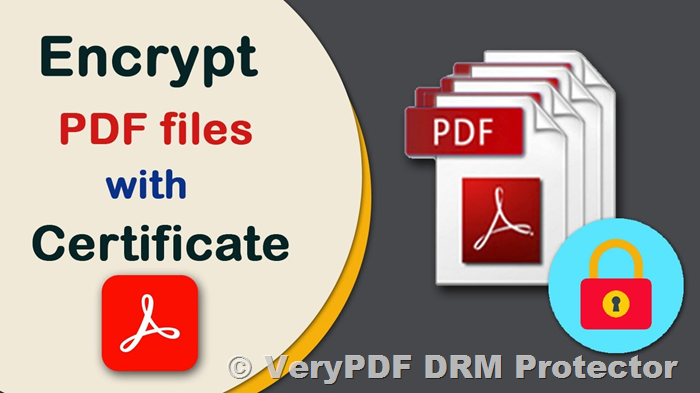
PDF Password or Certificate Encryption: Which Is Best?

In today’s digital age, the protection of confidential and sensitive information is more crucial than ever. Businesses and individuals alike are seeking robust methods to safeguard their PDF documents from unauthorized access, tampering, and misuse. When it comes to securing PDF files, you typically have two primary options: password encryption and certificate encryption. However, these traditional methods have limitations that may not provide the level of security needed for your documents, especially if they contain valuable business information, trade secrets, intellectual property, or personal data.

In this article, we will explore the pros and cons of PDF password encryption, certificate encryption, and a more advanced option: using a PDF DRM (Digital Rights Management) solution. We will also introduce you to VeryPDF DRM Protector, a powerful tool that offers a free online trial, allowing you to encrypt PDF files without the need for passwords or certificates.

PDF Password or Certificate Encryption: Which Is Best?

Understanding PDF Encryption: Passwords vs. Certificates

When you choose to encrypt a PDF file, you are essentially securing the document’s contents through encryption algorithms, such as AES 256-bit encryption. The encryption key is used to scramble the document’s contents, making them unreadable without the correct decryption key. This key is protected by either a password or a certificate.

  1. Password Encryption: Password encryption is the simplest and most commonly used form of securing PDF files. Many PDF software programs, including VeryPDF DRM Protector, offer password protection features that allow users to set a password to encrypt their PDFs. While this method is widely available and easy to use, it does come with several security concerns:

    • Password Sharing Risk: If someone shares the password with unauthorized individuals, the security of the document is compromised.
    • Crackable with Tools: Even the most robust passwords can be cracked using password recovery tools, especially if the password is simple or common.
    • No Device Locking: Passwords are not tied to a specific device, making it easy for users to share the encrypted file with others, bypassing the intended security.

    Therefore, while password protection may seem like a convenient solution, it has significant drawbacks, particularly if you’re looking to protect valuable or sensitive information.

  2. Certificate Encryption: Certificate encryption is a more secure alternative to password-based encryption. Certificates are part of Public Key Infrastructure (PKI) and provide a more secure way to exchange encryption keys. Instead of using a password, the encryption key is encrypted using the recipient’s public key, and only their private key can decrypt it. This method offers several advantages:

    • Stronger Security: Certificates are more secure than passwords because the private key used for decryption is never shared or exposed.
    • No Password Distribution: You don’t need to worry about securely sending passwords, as the encryption key is tied to the recipient’s certificate.
    • Digital Signatures: Certificates also allow for digital signatures, ensuring that the document has not been tampered with and confirming the origin of the file.

    However, certificate encryption has its challenges:

    • Complex Setup: Users must have a public/private key pair, and managing these certificates can be cumbersome.
    • Revocation Management: If a certificate is compromised or expires, it must be revoked and replaced.
    • Not Ideal for Public Distribution: If you are selling PDFs or distributing documents to a wide audience, certificate encryption might not be practical because you need to collect the recipient’s public certificate beforehand.

While certificate encryption is generally more secure than password encryption, it still comes with certain limitations, particularly when it comes to distributing documents to multiple users.

The Limitations of Traditional Encryption Methods

Both password and certificate encryption provide a level of security, but they also come with serious flaws that could leave your documents vulnerable. For example, once a user has the password or certificate to decrypt a PDF, they have full control over the document. They can share it with others, print it, or alter it. Additionally, password and certificate-based encryption does little to prevent unauthorized actions like copying, editing, or printing the document, which can compromise your intellectual property.

How to Secure PDFs Without Passwords or Certificates

If you’re looking for a more robust solution that addresses these concerns, VeryPDF DRM Protector offers a superior alternative. DRM, or Digital Rights Management, goes beyond simple encryption by providing comprehensive controls over the distribution and usage of your PDF files.

Key Features of VeryPDF DRM Protector:
  • No Need for Passwords or Certificates: VeryPDF DRM Protector allows you to encrypt PDF files without the need for passwords or certificates. The encryption is based on licensing controls, making it far more secure and less susceptible to bypassing.
  • Device Locking: The software locks the PDF files to specific devices, ensuring that only authorized users can access the document. This prevents unauthorized sharing and piracy.
  • Restrict Actions: You can set restrictions on editing, copying, printing, and saving PDFs. These controls are enforced and cannot be easily removed by users.
  • Track Usage: VeryPDF DRM Protector enables you to track when and where your PDF documents are opened, printed, or shared, providing an extra layer of security and insight into how your documents are being used.
  • Dynamic Watermarks: Add watermarks to your PDFs that can’t be removed, which helps deter unauthorized distribution and maintains document integrity.
How to Use VeryPDF DRM Protector

To start protecting your PDF files using VeryPDF DRM Protector, follow these simple steps:

  1. Upload Your PDF File: Visit VeryPDF DRM Protector’s online service and upload your PDF file.
  2. Select Security Settings: Choose the security features you want to apply, such as restricting printing, copying, or editing the document.
  3. Make Secure PDF: Click on the option to “Make Secure PDF,” and the encryption process will begin. The file will be encrypted and locked according to your chosen settings.
  4. Distribute the Secure PDF: Once the PDF is secured, you can share it with authorized users, knowing that the encryption and restrictions are firmly in place.
Try VeryPDF DRM Protector for Free

VeryPDF DRM Protector offers a free trial online, allowing you to test the service before making any commitments. This is an excellent way to experience the power of DRM encryption without any upfront costs. Simply visit https://drm.verypdf.com/online/ and get started today!

FAQs
  1. What is the difference between password and certificate encryption?

    • Password encryption requires users to provide a password to decrypt the file, while certificate encryption uses a public/private key pair to encrypt and decrypt the document. Certificates are generally more secure than passwords.
  2. Can DRM protect my PDF from being printed?

    • Yes, VeryPDF DRM Protector allows you to restrict printing, copying, and editing of the PDF, preventing unauthorized actions.
  3. Is it possible to track who accesses my PDF file?

    • Yes, with VeryPDF DRM Protector, you can track when and where your document is opened, printed, or shared.
  4. Do I need to install software to use VeryPDF DRM Protector?

    • No, VeryPDF DRM Protector offers an online service, meaning you can upload and secure your PDF files directly through your web browser.
  5. Can I lock my PDF to a specific device?

    • Yes, VeryPDF DRM Protector allows you to lock PDFs to specific devices, ensuring only authorized users can open them.
Conclusion

While password and certificate encryption offer basic security for PDF files, they are far from foolproof. If you need a more robust solution that provides transparent key management, device locking, and usage tracking, VeryPDF DRM Protector is the way to go. It offers advanced encryption without the need for passwords or certificates, providing stronger protection for your sensitive documents. Try it for free today and see the difference it can make in securing your PDFs.

How to Add a Permanent Confidential Watermark to Your PDF Document

In the digital age, protecting sensitive information has become a top priority for businesses, especially when it comes to document security. One of the most common methods for securing documents is the use of watermarks. Adding watermarks to PDF documents serves as a visual deterrent against unauthorized distribution and can help maintain confidentiality. However, the effectiveness of traditional watermarking techniques can often be undermined by easy removal methods. In this article, we will explore how to securely add permanent, non-removable watermarks to PDFs using VeryPDF DRM Protector, an advanced document protection tool.

How to Add a Permanent Confidential Watermark to Your PDF Document

What is a Watermarked PDF?

A watermarked PDF is a document that features either text or an image overlaid on its pages to signify its confidential or proprietary nature. This watermark can appear as a stamp or background image, and it serves as a visible reminder of the document’s restricted access and intended use. Watermarks are widely used to mark documents as confidential, draft, or restricted, but they are not always effective at preventing unauthorized sharing if not implemented correctly.

What is a Dynamic Watermark?

A dynamic watermark is a more sophisticated form of watermarking that uses placeholders or variables to insert specific data, such as a user’s name, email, or company, into the watermark. Unlike static watermarks that remain fixed, dynamic watermarks change based on the user accessing the document. For example, a dynamic watermark could display “Confidential: Viewable by John Doe only” when the document is opened by John Doe.

This type of watermarking is particularly useful in protecting sensitive documents that are distributed to multiple recipients, as it creates a unique watermark for each user.

What is a Confidential Watermark?

A confidential watermark, as the name suggests, is used to mark documents that are highly sensitive and should not be shared or distributed without permission. These watermarks can be in the form of text or images that clearly indicate the confidential nature of the document. For instance, a text watermark might read “Confidential – Do Not Distribute” or “Private – For Authorized Eyes Only.” This type of watermark serves as both a deterrent and a visual reminder to handle the document with care.

Why Use Watermarks?

Watermarks provide a simple yet effective way to protect digital documents from unauthorized distribution. They help in identifying the source of any leaked documents, and they can also serve as an effective branding tool. When applied properly, watermarks ensure that if a document is shared without permission, it can be traced back to the original recipient or source.

Dynamic watermarks are particularly useful in securing documents for external sharing. By adding user-specific watermarks, you can track who is accessing and sharing your files, providing an extra layer of security. For businesses, confidential watermarks also serve as a way to remind employees and clients of the sensitive nature of the information contained in the document.

How Easy Are Watermarks to Remove?

While watermarking can be a deterrent, many traditional watermarking methods, such as those used in Adobe Acrobat or MS Word, are not foolproof. Watermarks in PDF documents created with basic editing tools are often easy to remove using common PDF editing software or even image manipulation tools like Photoshop. This is a significant issue when protecting highly confidential information, as unauthorized individuals may easily remove the watermark and misuse the document.

To prevent this, you need a solution that provides secure, non-removable watermarks, even after the document is shared or printed. This is where VeryPDF DRM Protector comes into play.

How to Add a Permanent Watermark Using VeryPDF DRM Protector

VeryPDF DRM Protector offers an advanced solution for adding dynamic, non-removable watermarks to your PDF files. It provides a secure PDF viewer application and strong encryption, making it incredibly difficult to remove watermarks from protected documents. Here’s how you can watermark a PDF permanently using VeryPDF DRM Protector:

  1. Upload Your PDF File: Go to https://drm.verypdf.com/online/ and upload your PDF document.

  2. Select ‘Make Secure PDF’: Once your document is uploaded, select the “Make Secure PDF” option.

  3. Add Watermarks: You can now add a confidential watermark to your PDF. VeryPDF allows you to add both text and image watermarks. For dynamic watermarks, you can include variables like %UserName% or %Email% to personalize the watermark for each user.

  4. Customize Watermark Position and Opacity: You can adjust the position of the watermark on the page and set the opacity to ensure it’s visible but not intrusive.

  5. Apply Security Settings: VeryPDF also allows you to apply additional security settings, such as disabling printing, copying, and screenshots, to ensure that your document remains protected.

  6. Save the Document: Once you’ve added the watermark and set the desired security options, click “Publish” to encrypt and save the PDF as a .vpdf file, which can only be opened by authorized users using the VeryPDF secure PDF viewer.

With this method, the watermark becomes part of the document’s encryption, making it virtually impossible to remove, even with the most advanced PDF editing tools.

FAQs

1. How can I make sure my watermark is non-removable?

To ensure your watermark is non-removable, you need to use a PDF DRM solution like VeryPDF DRM Protector, which encrypts your PDF document and adds a watermark that cannot be removed with standard PDF editing tools.

2. Can I add dynamic watermarks to my PDFs?

Yes, VeryPDF DRM Protector allows you to add dynamic watermarks that include user-specific information, such as the user’s name, email, and company. This ensures that each recipient of the document sees a personalized watermark.

3. What is the difference between a static and a dynamic watermark?

A static watermark remains the same for every user and document copy, while a dynamic watermark changes based on the user viewing or printing the document, showing personalized information like the user’s name or email.

4. Is there a free trial for VeryPDF DRM Protector?

Yes, VeryPDF DRM Protector offers a free trial that you can access online at https://drm.verypdf.com/online/. This trial allows you to test the watermarking and document protection features before committing to the full version.

5. How does VeryPDF DRM Protector prevent watermark removal?

VeryPDF DRM Protector encrypts the document and converts it into a .vpdf format, which can only be opened using the secure VeryPDF reader. This prevents watermarks from being removed using traditional PDF editing tools or even OCR technology.

Conclusion

Watermarking is a crucial step in protecting your PDF documents from unauthorized sharing and distribution. However, traditional watermarking methods often fail to provide sufficient security, as they can easily be removed. VeryPDF DRM Protector offers a robust solution for adding dynamic, non-removable watermarks to PDFs, ensuring that your documents remain secure even after distribution. By using VeryPDF DRM Protector, you can maintain the confidentiality of your documents while discouraging unauthorized sharing.

The Best DRM Solution to Protect Research Data, PDF Documents, and Intellectual Property with VeryPDF DRM Protector

In the age of digital transformation, securing research data has become more critical than ever. Researchers, organizations, and institutions generate invaluable data that must be protected from unauthorized access, copying, editing, and sharing. This data is often shared for collaboration, review, or publication, but without proper security measures, it can easily fall into the wrong hands, leading to theft, misuse, or intellectual property theft. One of the most effective ways to protect research data is through Digital Rights Management (DRM) technology.

In this article, we will explore how to protect research data securely, outline the most effective strategies for data protection, and recommend VeryPDF DRM Protector as a robust solution to secure your research data from unauthorized access and misuse. You can try this powerful tool for free online at VeryPDF DRM Protector.

The Best DRM Solution to Protect Research Data, PDF Documents, and Intellectual Property with VeryPDF DRM Protector

The Importance of Protecting Research Data

When discussing data security, most people think of personal information or business data, but research data is just as valuable. Whether it’s clinical research, academic studies, or market research, this data represents years of hard work, analysis, and valuable insights that could be exploited if not adequately protected. Research data often contains sensitive information that could lead to financial, legal, or reputational harm if leaked.

However, the protection of research data is complicated by the fact that it needs to be shared with collaborators, stakeholders, and sometimes the public. This sharing introduces vulnerabilities and increases the risk of unauthorized access or misuse. To address this challenge, it is crucial to implement a reliable system that ensures that only authorized users can access and use the data, while preventing unauthorized sharing or copying.

Effective Strategies for Protecting Research Data

There are numerous strategies to safeguard research data, each with its strengths and weaknesses. Let’s break down some of the most effective methods:

1. Encryption and Password Protection

Encryption is one of the first lines of defense against unauthorized access. By encrypting research data, you ensure that only individuals with the correct decryption key can access it. However, simply using password protection for PDFs or files is often not enough, especially if weak passwords are used or if the encryption key is shared. Furthermore, users with access to the file can still share it freely, which doesn’t prevent unauthorized distribution.

Instead of relying on passwords, a more secure method is to use certificate encryption, which eliminates the need for password management and ensures a higher level of security. However, even with certificates, there are still challenges, especially in cases where data needs to be shared with external parties.

2. Access Control & DLP Systems

Access control systems, such as Microsoft Active Directory, limit access to data based on user credentials, groups, and permissions. These systems are effective in preventing unauthorized access within an organization. However, they do not provide sufficient protection when data is shared with external parties, and there may be limitations in controlling document usage beyond the internal network.

Additionally, Data Loss Prevention (DLP) systems are designed to monitor data flows within an organization and prevent leakage. However, DLP systems can be complex to set up and manage, and they do not typically offer robust document-level controls such as preventing editing, copying, or printing.

3. Digital Rights Management (DRM) for Research Data

For a more effective and comprehensive solution, DRM technology can provide a robust level of security for research data. DRM systems offer advanced copy protection and encryption features that can control how documents are accessed, shared, and used, both internally and externally.

VeryPDF DRM Protector is a powerful DRM solution that goes beyond simple encryption. It provides fine-grained controls over who can view, edit, print, or share your research data. By implementing DRM, you ensure that your research data remains protected throughout its lifecycle, no matter where it is shared.

How VeryPDF DRM Protector Secures Research Data

VeryPDF DRM Protector is an easy-to-use and effective tool that allows you to apply robust DRM protection to PDF files, ensuring that your research data is fully secured. It prevents unauthorized access, copying, editing, and printing while enabling you to track and control how your documents are used.

Here’s how you can use VeryPDF DRM Protector to protect your research data:

1. Upload Your PDF for Protection

To get started, simply upload your research PDF to VeryPDF DRM Protector. This can be done easily via the online interface without the need for installing any software.

2. Select the Protection Features You Want

Once your PDF is uploaded, you can select from a variety of DRM protection features, such as:

  • Preventing copying and pasting content
  • Disabling printing of the document
  • Restricting editing and modifying content
  • Locking the document to a specific device or location
  • Adding dynamic watermarks to prevent unauthorized sharing
  • Setting expiry dates for access
  • Tracking document usage
3. Apply Protection and Distribute Securely

After selecting your preferred protection settings, click on ‘Make Secure PDF’ to apply DRM controls to your document. The resulting file is now secured and can be safely shared with authorized users. The document will remain protected from unauthorized access, even if it is distributed externally.

Key Features of VeryPDF DRM Protector
  • Device Locking: Lock your PDFs to specific devices or locations to prevent unauthorized sharing.
  • Screenshot Protection: Prevent screen grabbing tools from capturing your document content.
  • Dynamic Watermarks: Add personalized watermarks that cannot be removed or altered.
  • Automatic Expiry: Set documents to expire after a certain date or after a predefined number of views or days.
  • Revoking Access: Instantly revoke access to a document at any time, preventing further usage.
  • No Password Management: No need to worry about complex passwords or certificates; access is managed through secure key delivery.
Frequently Asked Questions (FAQs)
Does encryption alone protect research data?

Encryption is essential for protecting data in transit and storage, but it does not stop unauthorized users from sharing or editing the decrypted document. A comprehensive solution like DRM is needed for full protection.

Can I prevent unauthorized editing of my research data?

Yes, DRM systems like VeryPDF DRM Protector allow you to restrict editing, copying, and printing, ensuring that your research data cannot be altered.

Can I protect my research data from screenshots?

Yes, with VeryPDF DRM Protector, you can block screen capture tools, preventing unauthorized screenshots of your research data.

How do I securely share my research data?

You can securely share your research data by using DRM technology to apply encryption and access controls. With VeryPDF DRM Protector, you can distribute your documents without fear of them being copied or modified.

Conclusion

When it comes to protecting research data, the stakes are high. While many solutions exist to secure data, only DRM technology offers the granular control needed to prevent unauthorized access, copying, editing, or sharing. VeryPDF DRM Protector provides an easy-to-use, robust solution to protect your research data from theft, misuse, or unauthorized distribution. Try it for free today at https://drm.verypdf.com/online/, and ensure your research remains secure and confidential.

How to Make a PDF Read-Only or Non-Editable with VeryPDF DRM Protector

In today’s world, document security is crucial, especially when dealing with sensitive or confidential information. PDFs are one of the most commonly used formats for sharing documents, but they are not immune to unauthorized edits or modifications. While many applications promise to make PDFs read-only or non-editable, they often fall short of delivering robust protection. In this article, we will explore why standard methods of making PDFs read-only often fail, and how you can truly secure your documents using VeryPDF DRM Protector—an advanced solution for making PDFs non-editable, unmodifiable, and secure against unauthorized access.

How to Make a PDF Read-Only or Non-Editable with VeryPDF DRM Protector

Why Make a PDF Read-Only?

There are several reasons why you may need to save or create a PDF that is read-only or non-editable. If you’re a business owner, for example, it’s important to ensure that documents shared with clients, employees, or partners cannot be tampered with or altered. This is particularly vital when the document contains important contracts, financial reports, or proprietary information.

Additionally, when dealing with forms, you may want to ensure that the data entered by the user remains unchanged after submission. Making a PDF read-only prevents any accidental or malicious edits, ensuring the integrity of the information.

However, as we will explore in this article, many common methods to create read-only PDFs, such as password protection, are ineffective against determined users.

The Weaknesses of Common Methods for Making PDFs Read-Only
1. Adobe Acrobat’s Password Protection:

One of the most popular methods to make a PDF read-only is by setting a password to restrict editing, copying, and printing. However, this solution is far from foolproof. The restrictions applied by Adobe Acrobat or similar tools are based on a security handler that does not use encryption to enforce permissions. As a result, these restrictions can easily be bypassed using free online tools or by opening the document in PDF readers that do not respect these limitations (e.g., Google Docs, Mac Preview).

2. Flattening PDFs to Images:

Another approach is flattening a PDF, which converts it into an image to prevent text from being edited. While this can prevent edits within the document, it is not foolproof. OCR (Optical Character Recognition) software can easily convert the image back into text, making the PDF editable once again. Additionally, this method does not prevent users from copying or printing the content.

3. Operating System-Level Restrictions:

Many operating systems (e.g., Windows or macOS) allow users to set a file to “read-only,” which prevents editing within the system. However, this is just a simple toggle that can be easily changed by anyone with the right permissions. It provides minimal security and is not suitable for protecting sensitive documents.

In short, while these methods may offer temporary or superficial protection, they can all be bypassed with ease by someone with the right tools or knowledge.

How to Make a PDF Non-Editable or Read-Only Permanently

If you are looking for a reliable and secure way to make a PDF non-editable permanently, the best solution is to use VeryPDF DRM Protector. Unlike traditional methods, VeryPDF DRM Protector provides a powerful encryption system that ensures your PDF files remain secure, non-editable, and protected against unauthorized access.

What is VeryPDF DRM Protector?

VeryPDF DRM Protector is a document security software designed to make PDFs truly uneditable and unmodifiable. Unlike other solutions that rely on passwords or simple encryption, VeryPDF DRM Protector uses a license-based DRM (Digital Rights Management) system to enforce restrictions, making it extremely difficult, if not impossible, to bypass.

Here’s how VeryPDF DRM Protector ensures the permanent protection of your PDFs:

  1. Encryption Without Passwords: Unlike Adobe Acrobat or other password protection systems, VeryPDF DRM Protector does not rely on passwords. Instead, it uses robust encryption to make sure your document is protected from unauthorized modifications.

  2. Secure PDF Viewer: PDFs protected with VeryPDF DRM Protector can only be viewed using the software’s secure PDF viewer. This ensures that your document cannot be opened by unauthorized users or modified by third-party applications.

  3. Unmodifiable Permissions: Permissions applied through VeryPDF DRM Protector cannot be removed, unlike the permissions set through Adobe Acrobat or other solutions. Users cannot copy, edit, print, or share your document without express permission.

  4. Advanced Document Tracking: With VeryPDF DRM Protector, you can track when and how your document is accessed. This includes monitoring views, prints, and other interactions with your document. You can even revoke access at any time.

  5. Prevent Screen Grabbing and OCR Recognition: VeryPDF DRM Protector goes a step further to prevent unauthorized users from taking screenshots or using OCR (Optical Character Recognition) to extract text from the PDF. This ensures your document remains protected from all forms of digital manipulation.

How to Make Your PDF Non-Editable Using VeryPDF DRM Protector

Making a PDF read-only or non-editable with VeryPDF DRM Protector is incredibly easy. Here’s a step-by-step guide:

  1. Upload Your PDF to the DRM Protector Platform:
    Go to VeryPDF DRM Protector online and upload the PDF file you wish to secure.

  2. Select ‘Make Secure PDF’:
    Once your PDF is uploaded, simply click on the ‘Make Secure PDF’ button to begin the protection process.

  3. Choose DRM Controls:
    You can customize the DRM settings according to your needs. Choose from options such as preventing editing, copying, printing, and screen grabbing. You can also set restrictions on how long the PDF can be accessed or locked to specific devices.

  4. Publish the Secure PDF:
    Once you have configured your desired settings, press the ‘Publish’ button to secure your PDF.

  5. Distribute the PDF Securely:
    After the document is secured, you can send it to authorized users. They will only be able to view the PDF using the secure viewer and will not be able to edit, copy, or share it.

Why Choose VeryPDF DRM Protector?
  • Comprehensive Security: VeryPDF DRM Protector provides a complete security solution that includes encryption, restricted viewing, and document tracking, ensuring that your PDFs remain protected from unauthorized modifications.
  • No Passwords Required: Unlike Adobe Acrobat or other password protection methods, VeryPDF DRM Protector eliminates the need for complicated password management, making it easier to distribute and manage protected PDFs.
  • Prevent Screenshots and OCR: With additional features like screenshot prevention and resistance to OCR, VeryPDF DRM Protector provides unparalleled protection against digital theft.
Free Trial Available

If you’re interested in securing your PDFs and preventing unauthorized access, VeryPDF DRM Protector offers a free trial that you can access online at drm.verypdf.com/online. This free trial gives you the opportunity to explore the full features of the software and test how it can protect your documents.

FAQs

What is a read-only PDF file?

A read-only PDF file cannot be edited or altered. While password protection methods can prevent editing, they are easy to bypass using various tools. For true protection, DRM encryption is required.

Can I make a PDF uneditable online?

Yes, but many online tools use weak security methods, such as simple password protection, which can easily be bypassed. For true security, you should use DRM software like VeryPDF DRM Protector.

How do I make a PDF form non-fillable?

You can flatten the form into an image to prevent editing, but this can be circumvented. VeryPDF DRM Protector allows you to make forms non-editable and secure.

Does VeryPDF DRM Protector prevent saving as and copying?

Yes, VeryPDF DRM Protector ensures that your PDF cannot be saved in an unprotected format, nor can it be copied, printed, or screen grabbed.

Can I use VeryPDF DRM Protector on Mac?

Yes, VeryPDF DRM Protector works across various platforms, including Windows, macOS, iOS, and Android, with both secure desktop and online PDF viewers.

For more information and to try VeryPDF DRM Protector for free, visit https://drm.verypdf.com/online/.