How to Protect Legal Documents by Rasterizing PDFs Using VeryPDF API

How to Protect Legal Documents by Rasterizing PDFs Using VeryPDF API

Secure legal documents by converting PDFs into uneditable images using VeryPDF’s Rasterize PDF API fast, reliable, and developer-friendly.

How to Protect Legal Documents by Rasterizing PDFs Using VeryPDF API


Every lawyer I know has one horror story about a client accidentally editing a legal PDF.

Maybe it’s a contract that got corrupted before a signature. Or a court document someone tried to “fix” with Adobe and wound up invalidating in the process.

For me, it was a scanned NDA that looked fine until a client sent back a version where someone had somehow typed over a clause. That’s when I knew I needed a way to lock down PDF content and not just password protect it. I wanted a way to make it visually unchangeable and ideally, automate the whole thing.

That’s when I found VeryPDF Rasterize PDF API, and honestly, it’s been a lifesaver.


What Does Rasterizing a PDF Actually Do?

First, let’s clear this up.

When you rasterize a PDF, you’re taking the vector-based content (the editable stuff like text, fonts, and paths) and converting it into a flat image.

Think of it like taking a screenshot of each page. After that, nobody’s editing anything. Not with Acrobat. Not with Word. Not even by accident.

Why does that matter?

Because in industries like law, finance, compliance, and healthcare, making sure a PDF can’t be altered is non-negotiable.


Why I Chose VeryPDF’s Rasterize PDF API

I was already familiar with VeryPDF from a couple of document automation projects. They’ve got a solid rep for developer-first tools that actually scale.

When I needed to rasterize a bunch of contracts, I didn’t want to manually drag-and-drop files. I needed:

  • A REST API I could call in code

  • Fast processing (some of these PDFs were 100+ pages)

  • Custom control over resolution, image size, and quality

  • And of course, security these docs can’t float around in unsafe clouds

VeryPDF’s Rasterize PDF API, part of their Cloud API toolkit, ticked every box.


How It Works (In Plain English)

You send a POST request to the VeryPDF API endpoint with:

  • Your API key

  • The PDF file URL

  • Your output settings (like image resolution, width, and quality)

The response?

A fully rasterized, image-only PDF that looks exactly like the original but can’t be edited.

Here’s a quick snapshot of how I used it:

https://online.verypdf.com/api/index.php?apikey=XXXXXXXXXXXXX&app=rasterpdf&outfile=out.pdf&infile=http://yourserver.com/mydoc.pdf&ImageRes=200&ImageWidth=1024&ImageQuality=70

That’s it. Within seconds, my contract was flattened into a clean, tamper-proof file.


Key Features I Rely On

True Content Protection

This is the core reason I use this API. When you rasterize, you eliminate text layers, font data, and vector paths.

No more hidden metadata, no more sneaky edits. It’s basically like giving someone a scanned image.

Bonus: Even screen-readers can’t extract text which is exactly what I need for confidential or regulated documents.

Customisation That Actually Matters

I don’t want bloated PDFs. So I love that I can control:

  • DPI resolution 150 for lightweight previews, 300 for legal archiving

  • Max width Perfect for shrinking large diagrams or layouts

  • Image quality Lower it for internal use, crank it for signatures or presentation

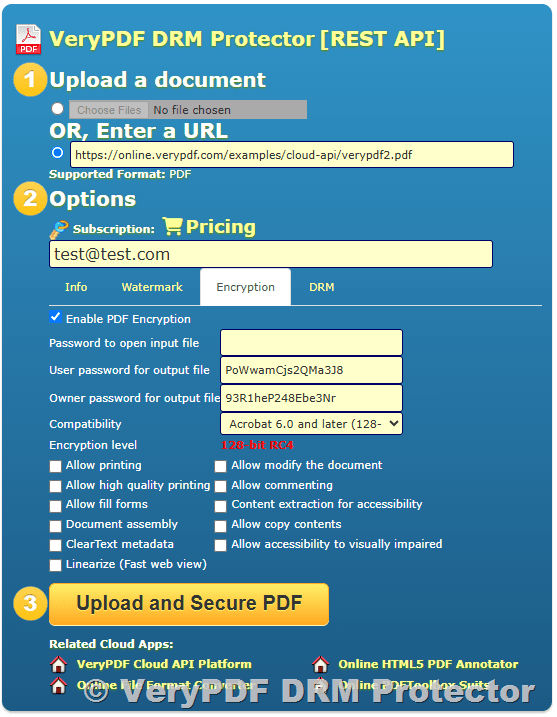
You can also add open passwords for another layer of access control, which is ideal if you’re emailing these to external counsel or clients.

Speed & Scale

I tested this API with batch processing of over 200 documents. Zero timeouts.

Some documents were turned around in 12 seconds.

Even when I threw a 500-page PDF at it, it never broke a sweat.

This is huge if you’re automating workflows with Zapier, Make, Python scripts, or your own SaaS tools.


Who This API Is Built For

This isn’t just a tool for coders. If you’re dealing with sensitive PDFs, this is for you.

  • Law firms securing contracts, affidavits, or discovery materials

  • Finance teams finalising audit reports and tax filings

  • HR departments issuing read-only versions of policy docs

  • Healthcare providers sharing scanned prescriptions or lab results

  • Tech teams needing to flatten PDF invoices before emailing clients

Honestly, if your PDF ever needs to be viewed but never touched, you’re the audience.


Real-Life Use Cases That Hit Hard

  • Securing Court Submissions: Rasterized files ensure opposing counsel can’t modify exhibits.

  • Policy Distribution in HR: Send company policies that can’t be tampered with by employees.

  • Invoice Archiving: Freeze vendor invoices to prevent post-facto editing or disputes.

  • Client-Facing Contracts: Share flat, image-only PDFs that retain formatting but offer no room for changes.


What Makes VeryPDF Different?

I’ve tried some of the “free” raster tools online. Most either watermark the output, time out on large files, or give you zero control over quality.

Here’s why I stick with VeryPDF:

  • Security: ISO 27001, GDPR, and HIPAA compliant huge for regulated industries

  • Dev Friendly: Their REST API comes with clean docs and real examples

  • Cloud Scale: Their infrastructure means your jobs aren’t sitting in a queue

  • No UI gimmicks: This is a serious tool, not a “lite” converter wrapped in ads


Here’s What I’d Tell You

If you’re handling legal, financial, or compliance documents and you want to ensure zero tampering this API does the job.

It’s the simplest way to lock down a PDF without jumping through Adobe hoops or installing clunky software.

No learning curve. No waiting. Just flat, frozen PDFs in seconds.

Start your free trial now and test it yourself:
https://www.verypdf.com/online/cloud-api/


VeryPDF Custom Development Services

If you’re running into edge cases or need something more tailored VeryPDF can probably build it.

They offer custom development for PDF tools across Windows, macOS, Linux, mobile, and cloud systems.

Need a virtual printer driver? Want to capture print jobs or build a PDF viewer with document security? Or maybe you need an OCR-powered workflow for scanned invoices?

They’ve got experience with everything from:

  • C++, Python, PHP, .NET, JavaScript

  • Virtual print drivers for PDF/EMF/TIFF

  • Document conversion, barcode tools, layout detection

  • File monitoring, PDF security, font tech, and DRM

Get in touch with their support team and throw your problem at them.

http://support.verypdf.com/


FAQs

1. Can rasterized PDFs still be searched or copied?

No. Once a PDF is rasterized, all content becomes image-only. No selectable text.

2. Is there a size limit for documents I upload?

Not really I’ve converted 500+ page PDFs without any issue. But always check your API plan’s limits.

3. Can I automate batch processing?

Absolutely. The REST API makes it perfect for running in loops or through automation tools.

4. What happens to confidential documents during processing?

All files are processed on encrypted, compliant infrastructure VeryPDF is ISO 27001 and GDPR compliant.

5. Is this better than just password-protecting PDFs?

Yes. Passwords can be cracked or shared. Rasterized PDFs are image-only and non-editable, period.


Tags / Keywords

  • rasterize PDF API

  • secure legal documents PDF

  • flatten PDF image-only

  • PDF REST API for developers

  • uneditable PDF conversion

  • protect PDF content

  • VeryPDF Cloud API

  • document automation legal

  • convert vector PDF to image

  • PDF security API

Comparing VeryPDF Rasterize API and Tabula for Secure PDF Data Handling

Comparing VeryPDF Rasterize API and Tabula for Secure PDF Data Handling

Not all PDF tools are built for security. Here’s why I switched from Tabula to VeryPDF Rasterize API for handling sensitive PDF data.


Every time I had to extract tables from confidential PDFs, I got nervous.

Comparing VeryPDF Rasterize API and Tabula for Secure PDF Data Handling

One wrong click, and boom sensitive info flying into the wrong hands.

Tabula was my go-to for a while. It’s great at getting structured data out of PDFs. But when you’re dealing with client contracts, legal docs, or compliance reports, there’s always that itch: “Is this secure enough?”

That nagging feeling pushed me to look for something tougher something with security and compatibility baked in. That’s when I landed on VeryPDF Rasterize PDF API. And honestly? It’s changed the way I handle sensitive documents for good.


Why I Needed More Than Just Table Extraction

Let’s be real tools like Tabula are solid… until they’re not.

They’re awesome when:

  • You’ve got clean, structured PDFs.

  • You’re dealing with non-confidential info.

  • You want something quick and easy.

But the moment your PDF has:

  • Confidential content

  • Complex vector graphics

  • Inconsistent formatting across platforms

it breaks. Or worse, it works, but your data’s exposed. No encryption. No rasterization. Just raw, editable data waiting to be scraped or tampered with.

I needed something tougher. Not just for converting PDFs but for locking them down. Making them read-only. Making sure nobody can edit or extract without permission.

That’s where VeryPDF Rasterize API came in.


What the Heck Is Rasterizing a PDF?

If you’ve never rasterized a PDF before, here’s the lowdown:

It turns your vector-based PDF which has editable text, paths, shapes into a flat image-based PDF. Think of it like taking a screenshot of every page, then turning those into a new PDF.

The benefits?

  • You can’t edit the text anymore.

  • You can’t scrape tables, copy/paste data, or run OCR without serious effort.

  • It looks identical everywhere Mac, Windows, Linux, whatever.

So instead of worrying about compatibility issues or unwanted edits, you get a locked-down, secure, and universal version of your file.


How I Integrated VeryPDF Rasterize PDF API

First off this thing is built for devs. You hit their REST API with a few parameters, and you’re good to go.

Here’s how I used it in one of my workflows:

  1. I uploaded a PDF containing financial reports from a client.

  2. Called the Rasterize API with:

    • ImageRes=200 for sharp clarity.

    • ImageWidth=1024 to balance file size and detail.

    • ImageQuality=70 to optimise speed + storage.

The result? A read-only, high-quality PDF that couldn’t be altered or mined for data. Sent it off to the client, and slept easy that night.

It was like sealing my PDF inside a bulletproof glass case.


Key Features I Actually Use (and Why They Matter)

Let’s break it down. These aren’t just nice-to-haves they solve real problems.

1. Customisable Image Quality

You set the resolution, width, and compression level.
Why it matters: I can tailor each output based on where it’s going. Internal use? Lower res. External client? Crank it up.

2. Encryption and Compliance Ready

GDPR, SOC 2, HIPAA it ticks all the boxes.
Why it matters: When you’re working with sensitive data, ticking these compliance boxes is the difference between closing deals and getting fined.

3. Fast and Global

Built on cloud infra, so it’s fast no matter where your users are.
Why it matters: I’ve worked with teams in Singapore, London, and New York. No delays, no dropouts.

4. API Simplicity

Their API documentation? Surprisingly clear.
Why it matters: I had this thing integrated in under 15 minutes. No exaggeration.


Who This Is Actually Built For

This tool isn’t for everyone. But if you fit into one of these buckets, it’s probably exactly what you need:

  • Legal teams locking down contracts and court documents.

  • Accountants handling financial data that can’t be altered.

  • Healthcare providers dealing with HIPAA-protected files.

  • Developers building secure document pipelines for SaaS tools.

  • Enterprises needing uniform PDF output across teams and geos.

Basically, anyone who wants control over their PDFs and isn’t cool with potential leaks.


VeryPDF Rasterize API vs. Tabula Let’s Get Honest

I’ve used both. Here’s how they stack up when it comes to secure PDF handling:

Security

  • Tabula: No encryption, no rasterization. Built for extraction, not protection.

  • VeryPDF Rasterize: Converts everything to non-editable image-based format. Encrypted. GDPR compliant.

Compatibility

  • Tabula: Can get messy with complex layouts or weird fonts.

  • VeryPDF: Doesn’t matter what’s in the PDF rasterization makes it bulletproof.

Speed and Automation

  • Tabula: GUI-based. Batch processing is a pain.

  • VeryPDF: API-driven. Automate it all. Set it and forget it.

Use Case Fit

  • Tabula: Great for extracting data.

  • VeryPDF: Perfect for securing and standardising docs.

Bottom line: I still use Tabula when I need data extraction. But when security and consistency matter more than data access? VeryPDF wins. Every time.


This Solves Real Problems

Before VeryPDF, I was:

  • Manually sanitising files

  • Worrying about PDF edits and leaks

  • Juggling different PDF viewers on different platforms

Now I:

  • Batch rasterize PDFs in minutes

  • Deliver secure, read-only documents to clients

  • Sleep better knowing nothing can be changed or leaked

If that sounds like your kind of upgrade, you should try it.


Start your free trial now and boost your document security:

https://www.verypdf.com/online/cloud-api/


Need a Custom Version? VeryPDF Can Build It

If you’ve got a unique workflow, or need a tool that doesn’t exist yet, VeryPDF’s got your back.

They offer custom builds for:

  • Windows, Linux, macOS, and mobile apps

  • Printer drivers that convert to PDF, EMF, and TIFF

  • Tools to monitor print jobs and intercept Windows API calls

  • OCR, barcode reading, table detection, and layout analysis

  • Secure document workflows digital signatures, DRM, and more

Whether you want to plug into an existing system or create something brand new, they can help you scope it, build it, and launch it.

Get in touch with them directly: http://support.verypdf.com/


FAQs

1. What is the VeryPDF Rasterize PDF API used for?

It converts vector-based PDFs into image-based PDFs for security and compatibility across platforms.

2. Can I still extract text or tables after rasterizing a PDF?

No. Once a PDF is rasterized, it’s effectively an image making it unreadable by text or table extraction tools like Tabula.

3. Is VeryPDF Rasterize API compliant with data security regulations?

Yes. It meets GDPR, HIPAA, ISO 27001, and SOC 2 standards.

4. Do I need to install anything to use this API?

No installation needed. It’s a cloud-based REST API. Just call it with your credentials and parameters.

5. Can I control the resolution and quality of the output?

Absolutely. You can set DPI, image width, and compression levels to fine-tune performance and output size.


Tags or Keywords

  • rasterize PDF API

  • secure PDF data handling

  • PDF to image conversion API

  • VeryPDF Cloud API

  • Tabula PDF alternative


VeryPDF Rasterize API vs Adobe Acrobat Which is Better for Batch PDF Processing

VeryPDF Rasterize API vs Adobe Acrobat: Which is Better for Batch PDF Processing

Trying to speed up batch PDF processing? See how VeryPDF Rasterize API stacks up against Adobe Acrobat for developers and automation pros.

VeryPDF Rasterize API vs Adobe Acrobat Which is Better for Batch PDF Processing


Every Monday at 9 a.m., I’d sit staring at a mountain of PDF files waiting to be processed.

Not one or two. Hundreds.

Marketing reports, scanned invoices, vector-heavy presentations you name it.

And here’s the kicker:

They all needed to be rasterized before uploading to our document archive. Why? Because without converting them to image-based PDFs, users on older systems couldn’t view them properly, and content was too easy to tamper with.

At first, I used Adobe Acrobat.

It worked until it didn’t.

Once the file count passed 50, Acrobat choked. The manual clicks, the lag, the crashes. It wasn’t built for volume or automation. I needed something developer-friendly, something faster, something I could trust in production.

That’s when I found VeryPDF Rasterize PDF API, tucked inside the VeryPDF Cloud API platform. Total game-changer.


What Is VeryPDF Rasterize PDF API?

If you’ve never heard of it, it’s part of the VeryPDF Cloud API toolkit basically a cloud-based Swiss Army knife for developers dealing with heavy PDF workflows.

This particular API takes any PDF and converts it into a raster-based PDF.

In plain English: it flattens everything into a non-editable image layer.

No vector graphics.

No extractable text.

No formatting issues.

Why does this matter?

Because once a PDF is rasterized:

  • It renders consistently on all devices

  • You can lock down the content so no one edits it

  • It’s ideal for archiving, sharing, and even compliance

Now, contrast that with Adobe Acrobat’s built-in rasterization which, by the way, is buried behind menus and not exactly scriptable unless you’re fluent in JavaScript automation or using Acrobat Pro on Windows.


Batch PDF Processing Without the Drag

Here’s how I used VeryPDF Rasterize PDF API to obliterate my Monday blues:

  1. Uploaded My PDFs to Cloud Storage

    I just pointed the API to my file URLs. Didn’t even need to download or move anything.

  2. Set Parameters in the API Call

    I customised resolution (ImageRes=200), max width (ImageWidth=1024), and compression quality (ImageQuality=70).

    It even handled password-protected PDFs with a simple OpenPassword parameter. Super handy.

  3. Got Output in Seconds

    No joke I had a 100+ page PDF rasterized and ready for download in under 10 seconds. Try doing that in Acrobat without breaking a sweat.

  4. Integrated with My Scripts

    Since it’s REST-based, I wrapped it in a Python script. Done. Fully automated batch rasterization, running on a cron job every Sunday night.


Why I Ditched Adobe Acrobat for Batch Jobs

Let me break it down:

Adobe Acrobat:

  • Built for manual use

  • Scripting is possible but clunky

  • GUI slows down batch work

  • Pricey if you need Pro features across multiple seats

  • Local processing = system bottlenecks

VeryPDF Rasterize PDF API:

  • Cloud-based (no local lag)

  • Simple REST API = easy to automate

  • Handles hundreds of files without choking

  • Flexible settings for resolution and compression

  • Works cross-platform with any language that can make HTTP calls

I didn’t just save time.

I bought back peace of mind.


Key Features That Actually Matter

Let’s zoom into the stuff that really made a difference for me:

Fast, Accurate Conversions

Even the most complex PDFs ones with weird fonts, mixed vector art, and layers came out pixel-perfect. No weird rendering glitches. No text getting eaten.

Developer-First Design

This is what sold me. The documentation? Solid. Sample code? Ready to go.

All I needed was my API key and a URL and I was pushing jobs within 15 minutes.

Global Infrastructure

No matter where my files were hosted US, EU, Asia the performance was snappy. The cloud platform clearly has some serious muscle.

Security Built In

GDPR? Covered. HIPAA? Yup. Encrypted file processing? Absolutely.

We deal with sensitive financial docs this was non-negotiable.


Who’s This For?

If you’re just trying to rasterize a couple PDFs once a month, sure stick with Acrobat.

But if you’re:

  • A developer who wants to automate PDF tasks

  • An IT lead managing document archives

  • A legal ops or finance team dealing with sensitive content

  • A product owner building PDF tools into SaaS apps

Then VeryPDF Rasterize PDF API is made for you.

You get control, speed, and scalability without babysitting a bloated desktop app.


Real-World Use Cases

I’ve used this in some pretty hairy situations:

  • Data rooms: We needed to protect contract text before sharing rasterizing killed editability.

  • Legacy system compatibility: Some old embedded viewers just wouldn’t handle vector PDFs. Raster fixes that.

  • Downsizing file size: By tweaking the image quality, I cut storage bloat by 60% on average.

  • Web-viewing: Image-based PDFs render better across different browsers and OS quirks.

And we’re not even using all of it yet there’s integration potential with digital signatures, watermarking, and more from the broader VeryPDF Cloud API suite.


Final Thoughts: Worth It?

Look I’m not here to bash Acrobat. It’s still a solid PDF editor. But for batch PDF processing and automation?

VeryPDF Rasterize PDF API wins.

No fluff. No bloated installs. No crashing during large jobs.

Just fast, reliable rasterization the way developers actually need it.

I’d recommend this to any team that’s drowning in PDFs and needs to get serious about automation.

Click here to try it out for yourself:

https://www.verypdf.com/online/cloud-api/


Need Something Special?

If you’re working with something niche custom formats, backend integrations, printer drivers, API interception you’re in luck.

VeryPDF offers tailored development services that cover:

  • PDF processing on Windows, Linux, macOS

  • Virtual Printer Drivers for PDF, EMF, image conversion

  • Print job capturing tools

  • Hooking Windows APIs to monitor file or print operations

  • Barcode recognition, OCR, and table extraction

  • Form generation and document layout tools

  • Secure document workflows (DRM, digital signatures)

  • Cloud-based viewing, printing, and conversion tech

  • Support for Python, PHP, C++, C#, JavaScript, .NET, and more

You can bring them your weirdest document challenge they’ve probably seen worse.

Need something custom? Hit up their support team:

http://support.verypdf.com/


FAQs

1. Can I rasterize password-protected PDFs?

Yes just include the OpenPassword parameter in your API call.

2. How is this different from converting a PDF to image files?

Rasterizing a PDF converts the entire document into an image within a PDF not separate image files.

3. Is there a limit to how many PDFs I can process?

There’s no hard limit it depends on your account tier. The cloud handles bulk loads well.

4. What programming languages can I use with the Rasterize API?

Anything that can send HTTP requests Python, JavaScript, PHP, C#, etc.

5. Can I reduce PDF file size with this API?

Yes tweak ImageQuality and ImageWidth to control compression and file dimensions.


Tags or Keywords

  • Rasterize PDF API

  • Batch PDF Processing

  • PDF to Image PDF

  • VeryPDF Cloud API

  • PDF Automation for Developers

How to Prevent PDF Files from Being Printed or Saved Locally

How to Prevent PDF Files from Being Printed or Saved Locally with VeryPDF Cloud DRM Protector

Every time I shared sensitive PDF files for work, there was that gnawing worry: what if someone prints them without permission or saves copies on their own devices? Whether you’re handling confidential contracts, proprietary reports, or intellectual property, once a PDF leaves your hands, control slips away. That’s a headache many professionals face especially in legal, finance, or creative industries. I’ve been there, hunting for a solution that stops unauthorized printing or local saving without complicating workflows.

How to Prevent PDF Files from Being Printed or Saved Locally

Enter VeryPDF Cloud DRM Protector. This tool changed how I safeguard my PDFs seriously, it’s like locking down a digital vault but without making access a pain for legitimate users.

What is VeryPDF Cloud DRM Protector and Who Needs It?

If you’re juggling sensitive documents that shouldn’t be freely shared or printed think law firms, publishers, financial analysts, or anyone dealing with confidential client data this software is made for you. VeryPDF Cloud DRM Protector offers a powerful way to enforce digital rights management (DRM) on your PDFs.

In plain terms, it lets you stop unauthorized printing, copying, editing, and even local saving of your PDF documents. Plus, it’s cloud-based, so you don’t need complex server setups. The tool fits teams and businesses that want to keep control no matter where the document travels on laptops, tablets, or even mobile phones.

Key Features That Made a Difference for Me

When I first started using VeryPDF Cloud DRM Protector, three features stood out and solved my biggest frustrations:

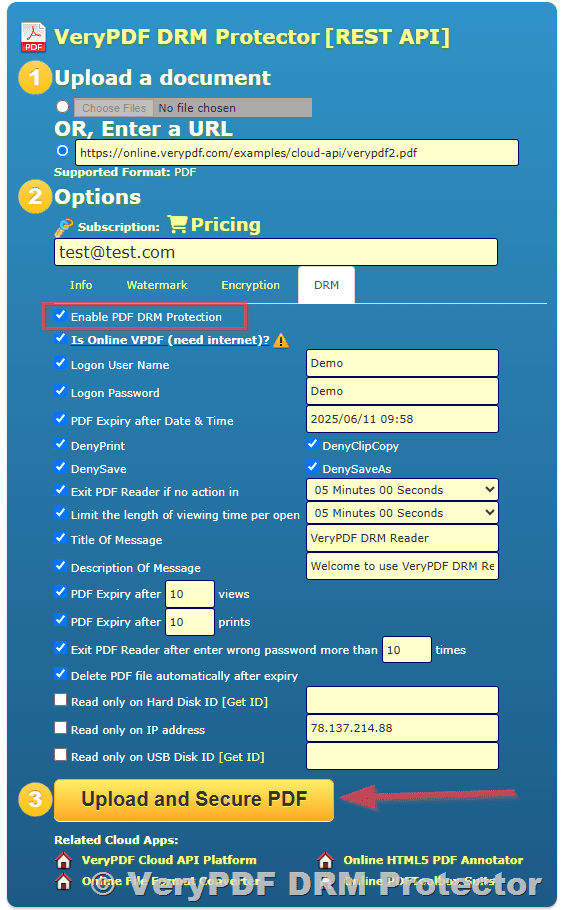
  • Stop Printing or Limit the Number of Prints

    This is a game changer. Instead of letting anyone print your PDF endlessly, you can either block printing altogether or set a strict limit on how many copies can be made. For example, when I shared sensitive reports with external consultants, I limited printing to one copy only. No more worrying about piles of untracked printouts circulating.

  • Prevent Saving or Editing Locally

    Many PDF tools claim to restrict editing, but most fail to stop savvy users from saving copies or using screen capture tools. VeryPDF goes a step further by blocking local saving and even stopping screen grabs through apps like Zoom or WebEx. This was a lifesaver during virtual meetings where document sharing was inevitable but I needed to ensure no screenshots got saved.

  • Dynamic Watermarks for Tracking

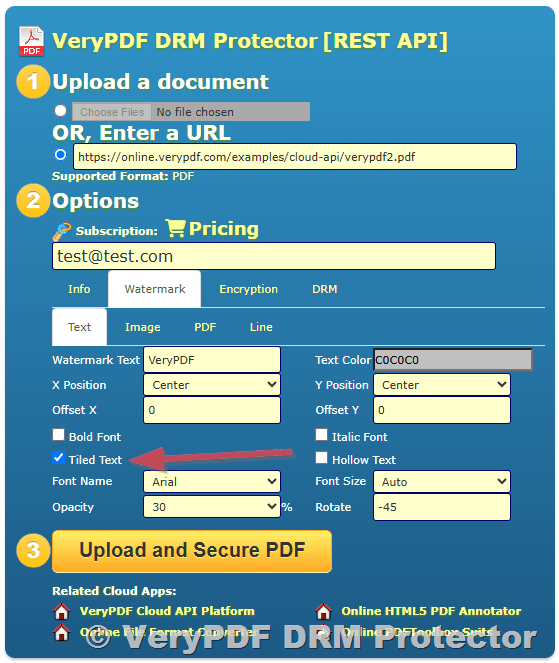
    The ability to add watermarks dynamically including usernames, date/time, or company info helped me personalise each copy sent out. This acts as a clear deterrent; people know their name is stamped on every page, making illegal redistribution traceable. It’s a subtle but powerful psychological nudge that really reduced casual leaks.

My Experience: How VeryPDF Cloud DRM Protector Saved Time and Headaches

I’ve used other PDF protection tools before, but they were either too clunky or didn’t hold up when tested by clever users. VeryPDF struck the right balance. Setting it up was straightforward just upload your PDF, define restrictions, assign users, and it’s good to go.

Here’s how it worked for me in real-life scenarios:

  • Sharing confidential contract drafts with clients? I locked the files to their specific devices, preventing forwarding or printing beyond set limits.

  • Distributing sensitive financial reports to auditors? I used auto-expiry settings to revoke access after 30 days or a set number of views, ensuring the data didn’t linger longer than necessary.

  • Hosting internal training materials? The dynamic watermark feature kept employees accountable when sharing knowledge.

Compared to free or basic PDF editors, VeryPDF’s government-grade encryption and granular control made it clear that this wasn’t just another plugin it’s serious protection that works.

Why This Tool Stands Out

  • Real-time Revocation: Lost control? You can instantly revoke access remotely, even if documents are already downloaded. This feature alone saved me once when a partner’s device was compromised.

  • Cross-Device Protection: It locks files to specific devices and locations, so even if someone shares the PDF, it won’t open elsewhere.

  • User Activity Tracking: You get detailed logs of who viewed or printed documents, what devices they used, and when. This audit trail is gold for compliance and accountability.

Many DRM tools either focus on media files or require complicated infrastructure. VeryPDF keeps it simple yet effective for PDF protection.

Who Should Use VeryPDF Cloud DRM Protector?

  • Legal Teams: Protect sensitive contracts, client data, and case files.

  • Publishers & Authors: Control eBook distribution and prevent piracy.

  • Financial Analysts: Secure reports containing confidential financial data.

  • HR Departments: Share confidential personnel files safely.

  • Educational Providers: Protect course materials and exams.

If your work involves sensitive PDFs that must not be printed, saved, or shared freely, this is the tool to check out.

Wrapping Up: My Personal Recommendation

If you’re tired of sending PDFs into the wild with no control over what happens next, VeryPDF Cloud DRM Protector is a no-brainer. It’s saved me countless hours of stress trying to track down leaked documents or deal with unauthorized prints. The ease of use combined with deep, robust protection means you don’t have to sacrifice convenience for security.

I’d recommend this to anyone who deals with large volumes of PDFs needing tight control from solo consultants to enterprise teams.

Start your free trial today and see how it transforms your PDF security game: https://drm.verypdf.com/


Custom Development Services by VeryPDF

VeryPDF doesn’t just offer off-the-shelf solutions; they also provide custom development tailored to your exact technical needs.

Whether you need PDF processing utilities on Linux, Windows, or macOS, or require tools built with Python, PHP, C/C++, or .NET, VeryPDF’s expertise covers a broad range of platforms and programming languages.

Some highlights of their custom services include:

  • Developing Windows Virtual Printer Drivers for creating PDFs, EMF, or images.

  • Capturing and monitoring printer jobs across Windows environments.

  • Building solutions with barcode recognition, OCR, and layout analysis for scanned documents.

  • Creating report and document generators customized for your workflows.

  • Implementing advanced PDF security features like DRM, digital signatures, and encryption.

  • Providing cloud-based solutions for document conversion, viewing, and rights management.

If you have unique requirements or want to automate complex PDF workflows, reach out to VeryPDF through their support centre: http://support.verypdf.com/


FAQs

Q1: Can VeryPDF Cloud DRM Protector stop people from taking screenshots of my PDFs?

Yes. It has advanced anti-screen capture features that block screen grabs during video calls and screen recording apps.

Q2: Is it possible to limit the number of times a PDF can be printed?

Absolutely. You can either block printing entirely or set a specific print limit per user or document.

Q3: Can I revoke access to a PDF after it’s been shared?

Yes. You can instantly revoke access to any document for all or specific users, regardless of where the file resides.

Q4: Does the tool support automatic document expiration?

Yes, documents can be set to expire on a fixed date or after a certain number of views, prints, or days.

Q5: What devices and platforms does VeryPDF Cloud DRM Protector support?

It supports Windows, macOS, iOS, Android, and most modern devices, locking files to specific devices and locations.


Tags / Keywords

  • PDF printing restrictions

  • PDF DRM protection

  • Prevent PDF local saving

  • Digital rights management PDF

  • Secure PDF sharing


If you’re looking for a straightforward way to prevent PDF files from being printed or saved locally, VeryPDF Cloud DRM Protector delivers. It’s not just about locking files down; it’s about regaining control, tracking usage, and protecting your work like it deserves.

How to Stop PDF Copy-Paste in Microsoft Edge and Chromium Browsers

How to Stop PDF Copy-Paste in Microsoft Edge and Chromium Browsers with VeryPDF Cloud DRM Protector

Every time I’ve shared sensitive PDF files with clients or colleagues, I’ve faced the nagging worry: what if someone just copies and pastes my content without permission? That nagging feeling hits hardest when using browsers like Microsoft Edge or Chromium, where copying text from PDFs is as easy as clicking and dragging. If you’ve been there, you know how frustrating it is to try and protect your documents in a world where “copy-paste” is just a click away.

How to Stop PDF Copy-Paste in Microsoft Edge and Chromium Browsers

This is exactly why I turned to VeryPDF Cloud DRM Protector. It’s a game changer for anyone who needs serious control over their PDFsespecially if you want to stop copy-paste in browsers like Edge and Chromium without annoying your legitimate users. Here’s how it worked for me and why I think it’s the best solution out there.

What is VeryPDF Cloud DRM Protector and Who Needs It?

VeryPDF Cloud DRM Protector is a cloud-based Digital Rights Management tool designed to lock down PDF documents and stop unwanted actions like copying, editing, and printing. This isn’t just about slapping a password on a file it’s about truly controlling how your documents are used, wherever they go.

Who’s this for? Honestly, anyone dealing with confidential PDFs, including:

  • Legal professionals sharing contracts and case files.

  • Publishers and authors worried about copyright infringement.

  • HR teams distributing sensitive internal documents.

  • Educational institutions controlling exam papers and course materials.

  • Businesses protecting proprietary reports, blueprints, or financials.

I found it incredibly useful in a few scenarios: sending contracts to clients who needed to view but not steal the content, sharing internal reports with a limited print count, and even locking down marketing materials to stop leaks.

Key Features That Make a Real Difference

Here’s what stood out when I first used VeryPDF Cloud DRM Protector:

  1. Stop Copying and Editing in Browsers

    The tool disables the copy-paste function directly inside Microsoft Edge and Chromium browsers. I tested it on PDFs viewed through these browsers, and no matter how hard I tried, copying text was blocked. This gave me peace of mind, knowing my content wouldn’t be lifted or altered without permission.

  2. Strong Encryption and Licensing Controls

    It uses US Government-level AES encryption so the security’s not just hype. Documents are locked with licensing controls that can restrict how many times a PDF can be viewed or printed. I liked how I could limit the number of prints per user, preventing abuse from those who might try to print and distribute physical copies.

  3. Dynamic Watermarks

    This was a neat touch. You can add watermarks with dynamic info like user names, email addresses, and timestamps. Every time someone opens or prints a file, their details appear on the document. It’s a great deterrent for leaks because everyone knows the file is traceable back to them. I’ve had clients compliment me on this transparencyit really shows you care about document security.

  4. Remote Revocation of Access

    One of the moments that truly sold me was when I could instantly revoke access to a documenteven after it had been sent out. Let’s say you send a proposal and then realise you need to pull it back; with VeryPDF, you just hit revoke, and bam, it’s done. No more chasing down unauthorized copies.

  5. Expiry Controls for PDF Access

    You can set documents to expire on a specific date, after a number of views, or prints. I used this feature when sending time-sensitive contracts. Knowing that the documents would self-destruct after a week or after three views made follow-ups smoother and more professional.

My Experience Compared to Other Solutions

Before trying VeryPDF Cloud DRM Protector, I’d dabbled with other PDF security tools. Most were clunky or only worked on desktop PDF readers, not browsers. Others relied on password protection, which was easily bypassed or shared around.

Compared to these, VeryPDF felt much more polished and modern. It’s cloud-based, so there’s no bulky software to install on users’ devices. Plus, it works seamlessly across different operating systems and browsers, which is crucial since my clients use a mix of Windows, macOS, and Chrome.

Another standout is the no-compromise approach to usability. Some DRM tools are so strict they frustrate legitimate users. VeryPDF strikes a good balanceyour PDFs stay fully accessible but are locked down enough to prevent unauthorized copying or printing. I didn’t get any complaints about user experience, which is rare with DRM solutions.

Practical Problems Solved

Here’s the bottom line: VeryPDF Cloud DRM Protector solves practical problems that keep business owners, legal teams, and content creators awake at night.

  • It stops copy-paste in browsers like Microsoft Edge and Chromium, preventing easy content theft.

  • It controls printing and sets expiration, so documents don’t live forever in the wild.

  • It lets you track and log usage, giving you insights into who’s viewing or printing your PDFs.

  • It offers dynamic watermarks, making document leaks traceable and discouraging misuse.

  • And if something goes wrong, you can revoke access instantly even after distribution.

Would I Recommend It? Absolutely.

If you’re dealing with sensitive PDFs and want to stop copy-paste in Microsoft Edge and Chromium browsers, I’d highly recommend giving VeryPDF Cloud DRM Protector a try.

It’s saved me hours of worrying about unauthorized sharing and helped me keep my documents secure without annoying my users.

Click here to try it out for yourself: https://drm.verypdf.com/

Start your free trial now and boost your PDF security like a pro.


Custom Development Services by VeryPDF

If your document security needs go beyond the out-of-the-box features, VeryPDF also offers custom development services. Whether you need solutions tailored for Linux, macOS, Windows, or server environments, their expertise covers a broad range of technologies including Python, PHP, C/C++, Windows API, iOS, Android, JavaScript, .NET, and more.

From creating Windows Virtual Printer Drivers that output to PDF and image formats to advanced monitoring and interception of print jobs across all Windows printers, VeryPDF can build highly specialised tools to fit your workflow.

They also provide custom solutions for barcode recognition, OCR table extraction, report generators, and digital signature integration. For complex enterprise needs or niche applications, they’re open to discussing custom projects to ensure your PDF and document management runs exactly how you want it.

To explore tailored options, reach out via their support centre at http://support.verypdf.com/.


Frequently Asked Questions

Q: Can VeryPDF Cloud DRM Protector stop users from copying text in all browsers?

A: It specifically targets major browsers like Microsoft Edge and Chromium-based browsers, effectively blocking copy-paste and other unauthorized actions within those environments.

Q: Is the document encryption strong enough for confidential business files?

A: Yes, it uses AES encryption of the same strength used by US Government agencies, ensuring your PDFs stay secure.

Q: Can I control how many times a PDF can be printed?

A: Absolutely, you can set print limits or completely disable printing depending on your needs.

Q: What happens if I need to revoke a document after sharing it?

A: You can instantly revoke access to the document for all users or specific users, no matter where the file is located.

Q: Does the DRM protection affect the user experience?

A: The protection is designed to be seamless. Legitimate users can view and interact with the PDF normally within the allowed restrictions.


Tags / Keywords

  • stop PDF copy-paste Microsoft Edge

  • PDF DRM protection

  • secure PDF in Chromium browser

  • prevent PDF editing and printing

  • VeryPDF Cloud DRM Protector