How to Save a Google Doc as a PDF and Protect It with VeryPDF DRM Protector?

Google Docs is a versatile and user-friendly word-processing tool, perfect for creating and sharing documents. However, when it comes to securely distributing your files, converting them to PDF format is essential. PDFs ensure your document’s formatting remains intact across devices and offer better security options. In this guide, we’ll explore how to save a Google Doc as a PDF, protect it, and why VeryPDF DRM Protector is the ultimate solution to prevent unauthorized access and misuse.
How to Save a Google Doc as a PDF and Protect It with VeryPDF DRM Protector?


Why Save a Google Doc as a PDF?

PDFs are widely recognized for their universality, fixed layout, and enhanced security options. Converting your Google Doc to a PDF ensures:

  • Consistent Formatting: The layout remains unchanged across devices and platforms.
  • Better Compatibility: PDFs are easily viewable on almost all devices.
  • Enhanced Security: PDF files can be protected against editing, copying, and printing, especially when paired with a robust DRM solution like VeryPDF DRM Protector.

How to Save a Google Doc as a PDF?

Google Docs offers several built-in methods to save your documents as PDFs. Here are the most effective options:

1. Using the Download Function

  1. Open your Google Doc.
  2. Click File > Download > PDF Document (.pdf).
  3. Select a location to save your file and click Save.

2. Printing to PDF

This method provides a preview of your document and allows you to customize the layout:

  1. Open your Google Doc and press Ctrl + P (or select the printer icon).
  2. Under the printer dropdown, choose Save as PDF.
  3. Adjust settings like page range and layout, then click Save.
  4. Select your destination folder and confirm.

3. Saving as PDF on Mobile

  1. Open the Google Docs app and access your document.
  2. Tap the three dots in the top-right corner and select Share and export.
  3. Choose Save as > PDF Document (.pdf) and press OK.
  4. Select your download location and save the file.

The Importance of PDF Security

While PDFs from Google Docs retain formatting, they lack robust security by default. Even if you restrict sharing or editing in Google Docs, these controls do not carry over to PDFs. This leaves your document vulnerable to:

  • Unauthorized Sharing: PDFs can be easily copied or shared.
  • Content Modification: Without protection, anyone can edit your document.
  • Piracy and Misuse: Sensitive information may be distributed without consent.

Why VeryPDF DRM Protector is the Solution?

VeryPDF DRM Protector goes beyond traditional password protection, offering advanced Digital Rights Management (DRM) to ensure your PDF files remain secure. Here’s how it works:

Key Features of VeryPDF DRM Protector

  • No Passwords: Eliminates risks associated with shared or cracked passwords.
  • Advanced Encryption: Ensures files can only be accessed on authorized devices.
  • Comprehensive Restrictions:
    • Block copying, editing, printing, and screenshots.
    • Add dynamic watermarks displaying user information.
    • Set expiry dates or limit document access by views/prints.
  • User Access Control: Restrict access based on location, device, or user account.
  • Revocation Capabilities: Manually revoke access anytime.

How to Protect Your PDF with VeryPDF DRM Protector?

  1. Convert Your Google Doc to PDF: Use one of the methods outlined above.
  2. Apply DRM Protection:
    1. Right-click the PDF and select Make Secure PDF.
    2. Choose restrictions such as disabling printing or adding watermarks.
    3. Click Publish to output the protected file as .vpdf.
  3. Distribute Securely: Use the DRM admin portal to assign licenses to authorized users.

Why VeryPDF DRM Protector Stands Out?

Unlike web-based DRM tools, VeryPDF DRM Protector uses a secure desktop application for added protection. It encrypts your document locally, ensuring no unprotected files are exposed online. Additionally, it prevents unauthorized access by locking files to specific devices and users.


FAQs

Can I Convert Google Docs to PDF Without Downloading?

You can use the print-to-PDF feature, but a file will still be saved locally.

Why Save a Google Doc as a PDF?

PDFs offer fixed formatting and enhanced security, making them ideal for sharing sensitive or professional documents.

How Secure Are Password-Protected PDFs?

Passwords can be easily shared or cracked. DRM solutions like VeryPDF DRM Protector provide more reliable protection.


Saving a Google Doc as a PDF is straightforward, but securing it requires more effort. With VeryPDF DRM Protector, you can ensure your documents are safe from unauthorized access, misuse, and piracy.

Take a free trial today at https://drm.verypdf.com/online and protect your PDFs with confidence!
How to Password Protect an Excel File and Ensure Maximum Security?

Microsoft Excel is a cornerstone of modern office work. From managing budgets to analyzing statistical data, its flexibility makes it indispensable. However, its popularity also raises a critical concern: how do you protect sensitive Excel files from unauthorized access, editing, and sharing?

This article delves into Excel’s built-in protection features, why they fall short, and how VeryPDF DRM Protector offers a robust alternative.

How to Password Protect an Excel File and Ensure Maximum Security?


Why Protect Excel Worksheets?

Excel is used by over 66% of professionals regularly, often handling sensitive data like financial reports, client details, and proprietary analysis. Unprotected Excel files are vulnerable to:

  • Unauthorized access: Shared files can easily fall into the wrong hands.
  • Accidental editing: Mistakes can disrupt data integrity.
  • Unauthorized copying and distribution: Confidential information may be misused or leaked.

To mitigate these risks, protecting your Excel files is crucial.


Can Excel Spreadsheets Be Protected?

Excel provides several native security features:

  1. Password Protection: Add open or edit passwords.
  2. Worksheet and Cell Protection: Prevent changes to specific sections.
  3. Read-Only Mode: Restrict editing but not copying or exporting.

However, these methods are inherently flawed.


The Problem with Excel’s Password Protection

Excel’s password-based protection is easily bypassed:

  • Cracking Tools: Passwords can be removed using simple software.
  • Editable Copies: Users can export to PDF or copy to another format.
  • No Encryption for Editing: Editing restrictions are not backed by encryption, making them easy to remove.

If security is a priority, you need a better solution.


How to Protect Excel Files with Passwords

1. Password Protect an Excel File from Opening

  • Open the file and navigate to File > Info > Protect Workbook > Encrypt with Password.
  • Set a strong password and save the file.

2. Set Read-Only Mode

  • Save the file as File > Save As > Tools > General Options.
  • Add a password under “Password to Modify.”

3. Protect a Worksheet

  • Go to Review > Protect Sheet, set a password, and customize restrictions.

4. Lock Specific Cells

  • Unlock all cells first (Ctrl+A > Format Cells > Protection > Uncheck Locked).
  • Select the cells to protect, lock them, and enable sheet protection.

Why Excel’s Built-In Protection Falls Short

Despite these measures, Excel files remain vulnerable:

  • Editable in Other Applications: Google Sheets removes all protection when opened.
  • Simple Bypass: Change the file extension and edit XML files to disable restrictions.
  • Password Vulnerability: Passwords can be phished, shared, or cracked.

For sensitive data, relying solely on Excel’s security features is insufficient.


Protecting Excel Spreadsheets Without Passwords

For robust protection, convert your Excel files to PDFs and use a dedicated DRM solution like VeryPDF DRM Protector.

Why Use VeryPDF DRM Protector?

  • No Passwords: Eliminates password sharing and cracking risks.
  • Advanced Encryption: Files are encrypted and can only be opened by authorized devices.
  • Comprehensive Restrictions:
    • Prevent copying, editing, printing, and screenshots.
    • Add non-removable watermarks.
    • Set expiry dates for time-sensitive documents.
  • User Access Control: Limit access by device, location, or user account.

How to Use VeryPDF DRM Protector?

  1. Convert Excel to PDF: Use File > Save As > PDF.
  2. Apply DRM Protection:
    • Right-click on the PDF and select “Make Secure PDF.”
    • Choose restrictions (e.g., disable printing or copying).
    • Publish the file, saving it as a .vpdf format.
  3. Share Securely: Use the DRM admin portal to assign user licenses.

FAQs

Can VeryPDF DRM Protector Protect Native Excel Files?

No, VeryPDF DRM Protector secures files in PDF format, which offers better encryption and control.

How Do I Restrict Editing Without Passwords?

Export your Excel file to PDF and apply DRM controls using VeryPDF DRM Protector.

Is Excel’s Read-Only Mode Secure?

No. Users can easily bypass read-only mode by saving a copy or exporting to another format.


The Best Way to Protect Your Excel Files

Excel’s native protection is suitable for preventing accidental edits but is not designed for securing sensitive or confidential data. For real security, convert your files to PDF and protect them with VeryPDF DRM Protector.

Take a free trial today at https://drm.verypdf.com/online and experience peace of mind knowing your files are safe from unauthorized access and misuse.

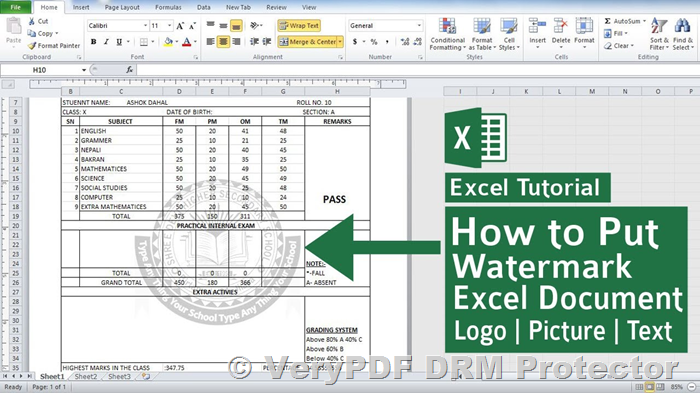
How to Insert a Watermark in Excel and Prevent Removal, add or insert a watermark in Excel & make it permanent

Watermarks are an essential tool for many businesses and individuals to protect intellectual property, ensure confidentiality, and maintain brand visibility. While most commonly associated with text documents and images, watermarks are equally important for spreadsheets like those created in Microsoft Excel. This guide explains how to add a watermark in Excel, the limitations of Excel’s built-in watermarking methods, and a more secure alternative using VeryPDF DRM Protector, which allows you to try its robust features for free online at
https://drm.verypdf.com/online/.

How to Insert a Watermark in Excel and Prevent Removal, add or insert a watermark in Excel & make it permanent


Adding Watermarks in Excel

Since Excel does not have a built-in watermark feature, users must rely on workarounds like using the header and footer tools to insert image or text watermarks.

1. Add a Picture Watermark Using Headers and Footers

  1. Open Excel and select the Insert tab on the ribbon.
  2. Choose Text > Header & Footer.
  3. In the Header & Footer Tools, click Picture, then browse to select an image watermark.
  4. Adjust the watermark’s transparency and size using Format Picture to achieve a subtle background effect.

2. Insert a Text Watermark

  1. In the Header & Footer section, type the desired text watermark (e.g., “Confidential” or “Draft”).
  2. Highlight the text and use the Home tab to adjust font style, size, and color.
  3. Press Enter multiple times to reposition the watermark if needed.

3. Add Watermarks to Excel Charts

  1. Right-click the chart background and select Format Chart Area.
  2. Choose Picture or Texture Fill and upload the watermark image.
  3. Adjust the image transparency and scaling for the desired effect.

Limitations of Excel’s Watermarking Capabilities

Despite the ease of adding watermarks in Excel, their effectiveness is limited:

  • Easily Removed: Users can delete watermarks by editing the header or footer.
  • Edit Protection Bypass: Even with editing restrictions, uploading an Excel file to platforms like Google Sheets can strip both protection and watermarks.
  • No Dynamic Watermarks: Excel lacks the ability to create personalized watermarks for individual users.

How to Prevent Watermark Removal: VeryPDF DRM Protector?

For businesses and individuals requiring stronger security, Excel’s native options fall short. VeryPDF DRM Protector is a powerful alternative for adding dynamic, irremovable watermarks and securing sensitive Excel content exported as PDFs.

Key Features of VeryPDF DRM Protector

  • Irremovable Watermarks: Watermarks applied to PDFs cannot be edited or deleted.
  • Dynamic Variables: Automatically include user-specific data, such as names and timestamps, for personalized watermarking.
  • Customizable Options: Adjust watermark transparency, size, and position to suit your document’s needs.
  • Dual Watermarks: Separate watermarks for viewing and printing ensure complete coverage.
  • Advanced Security: Prevent editing, copying, and sharing of protected documents.
  • Remote Control: Revoke document access or set expiry dates to maintain full control over sensitive files.

How to Add a Permanent Watermark with VeryPDF DRM Protector?

  1. Convert your Excel file to PDF using File > Export > Create PDF/XPS Document.
  2. Open the PDF in VeryPDF DRM Protector and select Make Secure PDF.
  3. Add a text or image watermark, adjusting position, opacity, and dynamic variables.
  4. Save and encrypt the file.

Why Choose VeryPDF DRM Protector?

VeryPDF DRM Protector ensures your watermarks are truly permanent, offering an unparalleled level of security compared to Excel’s built-in features. It is ideal for safeguarding sensitive information, protecting intellectual property, and preventing unauthorized sharing.

Try VeryPDF DRM Protector for Free

Experience the benefits of secure watermarking with a free trial of VeryPDF DRM Protector. Visit
https://drm.verypdf.com/online/ to explore its powerful features and protect your Excel content with confidence.


FAQs

Can I create a transparent watermark in Excel?

Yes, but you must use image editing software to make an image transparent before inserting it into Excel’s header or chart background.

How do I prevent watermarks from being removed in Excel?

Excel’s native format does not support irremovable watermarks. Convert your Excel files to PDF and use VeryPDF DRM Protector for robust watermark security.

Does VeryPDF DRM Protector work with XLSX files?

No, it supports only PDF files. Convert your Excel spreadsheets to PDF for optimal protection.


Conclusion

Excel’s native watermarking methods are limited and easy to bypass, making them unsuitable for sensitive or confidential content. For secure, permanent watermarking, VeryPDF DRM Protector offers a reliable and scalable solution. Protect your documents today with VeryPDF DRM Protector and enjoy peace of mind knowing your content is safe from unauthorized use.

Finding the Right DRM Protection for Your eBook and Workbook: A Solution for Startups

As a startup, protecting your intellectual property, especially your first eBook and fillable workbook, is essential. However, navigating the world of digital rights management (DRM) can be confusing, particularly when you’re unsure about the scale of your business or sales. At VeryPDF, we understand the concerns that come with securing your digital content, and we aim to provide flexible, accessible solutions for creators in every stage of their journey.

Finding the Right DRM Protection for Your eBook and Workbook: A Solution for Startups

The Challenge for Startups: Balancing Cost and Protection

For entrepreneurs working on their first eBook and workbook, an important question arises: do you really need an expensive DRM solution when you’re just starting out? With unpredictable sales and the uncertainty of early-stage business growth, committing to a $100 monthly protection fee can seem daunting, especially if you expect only a small number of sales initially.

At VeryPDF, we believe that protecting your content shouldn’t break the bank. While the premium DRM solutions can provide comprehensive security features, it’s crucial to find a balance that suits your budget and requirements. That’s where we come in with a solution that allows you to scale up as your business grows.

VeryPDF DRM Protector: A Scalable Solution

We recommend starting with the VeryPDF DRM Protector, which can protect your eBook, workbook, and other digital content from unauthorized use. For startups, we understand that you might not need all of the advanced features right away. That’s why we suggest trying the tool for a few months before making a full commitment. You can experience the robust protection features and assess how well they align with your needs as your sales increase.

Why Try the Paid Version?

  • Enhanced Protection: The paid version offers advanced security features such as setting expiration dates, limiting the number of views per user, and user-specific passwords—important tools if you plan to safeguard sensitive content.
  • Scalability: You can start with a short-term subscription, ensuring that you get the protection you need without committing long-term while you grow. This approach allows you to make adjustments based on your evolving needs.
  • Easy Integration: The DRM Protector is designed to work seamlessly with eBooks and fillable PDFs. It’s a comprehensive solution that ensures your digital content remains secure no matter how it’s distributed.

Get Started With VeryPDF DRM Protector

To make the process easier, here’s how you can get started:

  1. Subscribe to the DRM Protector: You can subscribe for a short-term plan via VeryPDF DRM Protector Purchase.
  2. Protect Your PDF: Once you subscribe, you can start protecting your files via the online platform: VeryPDF DRM Online.

By trying the DRM solution for a few months, you’ll be able to evaluate its effectiveness in protecting your eBook and workbook, giving you peace of mind as you navigate your business’s early growth.

Conclusion: Finding the Right DRM for Your Needs

As a startup, it’s essential to choose a DRM solution that provides the right balance of security and affordability. VeryPDF’s DRM Protector is a flexible option that can scale as your business grows, and it’s ideal for creators who are just starting and need to ensure their digital content remains safe. Whether you’re selling a handful of copies or preparing for larger-scale distribution, the solution will support your needs at every step.

We understand that every business is unique, and we’re here to help. Feel free to contact us for more information, and let us assist you in securing your digital content effectively as your business evolves.

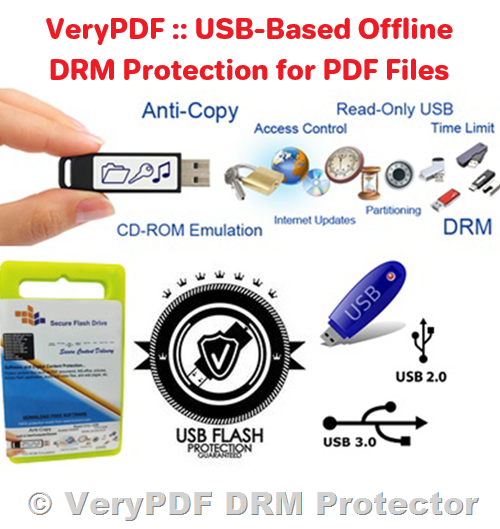
USB-Based Offline DRM Protection for PDF Files: The Perfect Solution for Secure Document Distribution

In an increasingly digital world, businesses are prioritizing the security of their documents more than ever. Whether it’s for protecting sensitive client data or safeguarding proprietary information, ensuring that PDFs are accessible only by authorized users has become essential. For those who require offline solutions, particularly when USB devices or hard drives are used as the main medium for distribution, offline DRM protection is the most effective way to go.

USB-Based Offline DRM Protection for PDF Files: The Perfect Solution for Secure Document Distribution

Offline DRM Protection: The Key to Secure PDFs

While web-based security solutions offer certain advantages, they are not suitable for every situation, especially when internet access is unreliable or when users are working in isolated environments. For many businesses, offline solutions, such as USB or other device-bound DRM (Digital Rights Management), are crucial for controlling how their PDFs are accessed.

For instance, one customer recently reached out to VeryPDF with the specific requirement of protecting PDFs offline, by binding the files to USB devices or similar storage media. This allows the customer to ensure that the PDFs could only be opened on authorized devices, further restricting unauthorized sharing or distribution.

The customer’s needs were clear: they required a system that would provide access management, such as the ability to:

  • Set expiration dates for PDF access, ensuring that documents are only available for a limited period.
  • Limit the number of views each user could have, preventing excessive distribution or repeated viewing.
  • Utilize both master and user password options, adding an extra layer of security for sensitive documents.

VeryPDF’s DRM Solutions: Tailored for USB Offline Protection

In response to these needs, VeryPDF offers an offline DRM solution that provides all of these functionalities. The VeryPDF DRM Protector software can generate DRM-protected PDFs that can be bound to specific USB devices. This solution guarantees that the encrypted PDF files will only be accessible when connected to the authorized device, preventing unauthorized access, even if the files are copied or shared.

For more details about this solution, the VeryPDF DRM USB Portable product is an ideal option. It allows businesses to secure PDF documents by linking them to USB devices, ensuring that the documents are protected from unauthorized users, and can only be viewed on the authorized USB device.

Learn more about VeryPDF DRM USB Portable

Custom Built Solutions to Meet Your Needs

VeryPDF also offers a custom-built version of the DRM USB Portable that is specifically tailored to meet the needs of organizations requiring additional functionality or compatibility with their unique USB devices. This custom version allows for:

  • Unlimited PDF Protection: No limitation on the number of encrypted PDFs you can create.
  • Flexible Development: Seamless integration with your specific USB devices, ensuring compatibility with your infrastructure.

If you’re interested in a custom solution or need more information about pricing and development timelines, please feel free to contact us. We will be happy to discuss how we can best support your needs.

Conclusion

In today’s world of digital document sharing, securing PDFs has become a priority for many organizations. Offline DRM solutions offer the perfect combination of security, control, and convenience for businesses that need to ensure their documents are protected from unauthorized use, especially in environments where internet access is not feasible or desired.

If your business requires a solution for offline DRM protection, consider exploring VeryPDF’s DRM USB Portable solution or reach out for a custom-built version that will perfectly suit your needs.

Feel free to contact us for further details, and let us help you secure your PDF documents effectively.