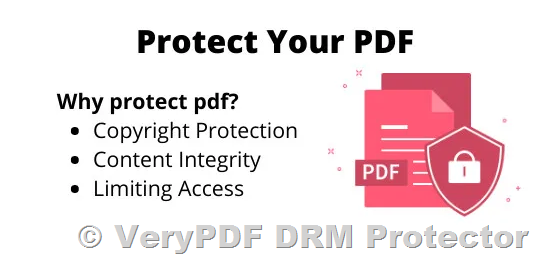
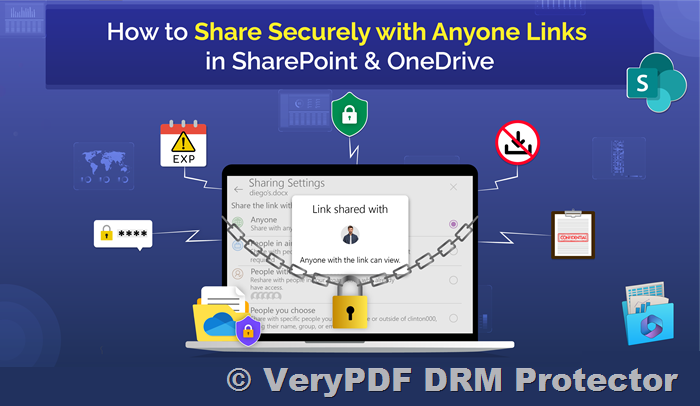
Protect your PDF content with VeryPDF Online DRM Protector: The best online anti-screenshot and anti-screen capture software to protect your PDF files

In the digital age, protecting intellectual property has never been more critical. VeryPDF Online DRM Protector offers an innovative solution to safeguard your PDF documents from unauthorized access and sharing. Among its many advanced features, the tool excels in preventing screenshots and other forms of unauthorized duplication. This article provides an in-depth look at how VeryPDF Online DRM Protector secures your content with cutting-edge technology and robust security measures.

https://drm.verypdf.com/online/

1. Active Window Focus Protection

VeryPDF DRM Protector ensures that your PDF document remains protected whenever it is not the active window. If the focus shifts away from the DRM Protector’s viewer, the tool automatically activates protective measures to shield the document. This ensures that users cannot capture the content using external screen-recording software or overlapping windows.

Protect your PDF content with VeryPDF Online DRM Protector: The best online anti-screenshot and anti-screen capture software to protect your PDF files

2. Screenshot Shortcut Detection

To prevent unauthorized screenshots, VeryPDF DRM Protector actively monitors common screenshot shortcuts. When a user attempts to take a screenshot, the software detects the action in real-time and immediately secures the PDF document, rendering it inaccessible during the attempt.

3. Mouse Movement Monitoring

The tool also protects content when the user’s mouse moves outside the browser window. By detecting mouse activity outside the viewing area, VeryPDF DRM Protector promptly secures the document, preventing screen captures from external devices or applications.

4. Mac-Specific Screenshot Prevention

For macOS users, VeryPDF DRM Protector extends its functionality to monitor keyboard inputs. When a screenshot shortcut is pressed, the tool reacts instantly to safeguard the document. This ensures that the content remains protected across different operating systems.

5. Export Restriction in Safari

On macOS, VeryPDF DRM Protector also prevents users from exporting the PDF as a separate file through Safari’s “Export as PDF” feature. By blocking such actions, it ensures that the content cannot be duplicated or distributed in unauthorized formats.

6. Printing Restrictions

The software blocks users from printing PDF documents, eliminating the risk of unauthorized physical copies. This adds an extra layer of protection for sensitive or proprietary content.

7. Tiled Watermark for Accountability

VeryPDF DRM Protector allows copyright owners to embed tiled watermarks, such as the recipient’s name, across the document. Even if a user attempts to photograph the content, the embedded watermark makes it possible to trace the source of any unauthorized distribution.

8. Document Expiry Dates

With VeryPDF DRM Protector, copyright owners can set an expiration date for their documents. Once the expiration date is reached, the document becomes inaccessible and is automatically destroyed. This feature is particularly useful for time-sensitive content.

9. View Limits

To further control access, owners can specify the maximum number of times a document can be opened. After exceeding this limit, the document becomes inaccessible and may automatically self-destruct, providing an additional safeguard against overuse.

10. Time-Limited Viewing Sessions

Owners can define the duration for which a document can be viewed in a single session. For example, a document can be set to close automatically after five minutes of viewing, ensuring controlled access and preventing prolonged exposure.

11. Unbreakable Encryption

VeryPDF DRM Protector uses 256-bit AES encryption to secure documents. This level of encryption ensures that the protected PDF files are virtually impossible to decrypt without proper authorization, providing unparalleled content security.

12. Other Noteworthy Features

  • Real-time analytics to monitor document usage.
  • Cross-platform compatibility for seamless performance on Windows, macOS, and mobile devices.
  • Integration capabilities with various content delivery systems.

Conclusion

VeryPDF Online DRM Protector is a powerful tool for safeguarding your PDF documents against unauthorized use, sharing, and duplication. Its robust screenshot prevention features, combined with additional protections like watermarks, viewing restrictions, and advanced encryption, make it an ideal solution for businesses, publishers, and individuals looking to protect their intellectual property.

If you’re looking for a comprehensive DRM solution, VeryPDF Online DRM Protector offers the security and flexibility you need to ensure your content remains protected in today’s fast-paced digital landscape.

VeryPDF Online DRM Protector: Securely Share Individual PDF Exams with Students

In today’s digital classrooms, securely sharing educational materials is more important than ever. Teachers often face the challenge of distributing sensitive resources, such as exam papers, without the risk of unauthorized saving or sharing. For instance, a teacher might need to share 200 individual PDF exams with their students but wants to ensure these files cannot be screen-captured or saved. This is where VeryPDF Online DRM Protector becomes a game-changer for schools.

VeryPDF Online DRM Protector: Securely Share Individual PDF Exams with Students


Why Choose VeryPDF Online DRM Protector for Schools?

Educational institutions deal with sensitive files like exams, answer sheets, and exclusive teaching resources. Protecting these materials ensures that their integrity is maintained, and they are accessible only to authorized users. VeryPDF Online DRM Protector provides robust tools to secure individual PDF exams and other materials from unauthorized access.


Key Features for Schools and Educators

  1. Prevent Screen Capture and File Saving
    VeryPDF Online DRM Protector applies advanced Digital Rights Management (DRM) protections to individual PDF files. These protections ensure that:

    • Students cannot capture screenshots of the documents.
    • Files cannot be saved, downloaded, or copied.
    • Only authorized users have access to the PDFs.
  2. Batch Upload and Encrypt PDF Files
    Educators can upload and encrypt multiple PDFs at once. For example, a teacher can process up to 60 exam papers simultaneously, streamlining the workflow for handling large volumes of files.
  3. Generate Secure Links for Students
    The platform generates unique URLs for each PDF, enabling teachers to share individual exam links with students directly. This ensures controlled access to specific resources.
  4. Set Time-Limited Access
    Teachers can set time-based restrictions on the shared PDF links, ensuring that students only have access for the intended duration.
  5. Browser-Based Access
    Students do not need to install additional software. All protected PDF files can be accessed securely through a web browser.

How to Use VeryPDF Online DRM Protector to Share Exams with Students

  1. Batch Upload PDFs
    Visit VeryPDF Online DRM Protector and click “Choose Files” to upload individual PDF exam files. You can upload up to 60 files in one batch.
  2. Encrypt Files with DRM
    The platform automatically applies DRM protections, ensuring that the PDFs are secure from copying, printing, or unauthorized saving.
  3. Generate and Share Secure Links
    Once encryption is complete, the platform provides individual URLs for each PDF exam. Teachers can share these links with students via email or a learning management system.
  4. Manage and Monitor Access
    Ensure that the email address used to purchase VeryPDF Online DRM Protector is entered on the webpage. This ensures files remain accessible for your intended timeframe and prevents automatic deletion.

Use Case: Sharing Exams Securely with Students

Consider a scenario where a teacher needs to share 200 individual PDF exams with their students. Using VeryPDF Online DRM Protector, they can:

  • Upload and encrypt the PDFs in smaller batches (up to 60 files at a time).
  • Protect each file against copying, screen capturing, or saving.
  • Share unique, secure URLs for each exam directly with the students.

This approach ensures that the integrity of each exam is maintained, and students can only access the files under controlled conditions.


Why Schools Love VeryPDF Online DRM Protector

  • User-Friendly Interface: Teachers can secure and share files with just a few clicks, no technical expertise needed.
  • Comprehensive Protection: Ensures exams and materials are safe from unauthorized use.
  • Customizable Options: Generate unique, time-limited links tailored to your needs.
  • Affordable for Schools: Budget-friendly pricing makes it an excellent choice for educational institutions of all sizes.

Conclusion

VeryPDF Online DRM Protector is the perfect tool for securely sharing individual PDF exams and other educational resources with students. Its advanced DRM protections and batch encryption features make it an essential solution for schools. Whether you’re protecting exams, assignments, or teaching materials, this tool provides peace of mind for educators.

Start using VeryPDF Online DRM Protector today and secure your PDF documents with ease. Visit VeryPDF Online DRM Protector to learn more or contact us for support.

VeryPDF DRM Protector Now Supports Batch Upload and Encryption for PDF Files

We are excited to announce a new feature in VeryPDF DRM Protector – the ability to batch upload and batch encrypt PDF files. This update is designed to help educators securely protect and encrypt multiple exam or assignment PDFs at once, saving time and effort when dealing with large numbers of files.

VeryPDF DRM Protector Now Supports Batch Upload and Encryption for PDF Files

Batch Upload PDF Files

The batch upload feature allows you to upload multiple PDF files at once, making it incredibly convenient for teachers who need to encrypt a large number of files. This is particularly useful when you have a set of exam papers or study materials that need to be protected before sharing with students.

Key Features of Batch Upload:

  • Maximum file size: Each file can be up to 50MB. If your PDF file exceeds 50MB, please feel free to contact us for assistance.
  • File limit: You can upload up to 60 files at a time. For larger quantities, please divide them into smaller batches to avoid uploading errors.

How to Use Batch Upload

  1. Visit the following page: https://drm.verypdf.com/online/
  2. Click on the “Choose Files” button. This will allow you to select multiple PDF files from your computer.
  3. Ensure that the number of files selected does not exceed 60. Uploading too many files at once may cause extended processing times, potentially leading to timeout errors.
  4. Once the files are uploaded and processed, you will receive a list of URLs for each protected PDF. Please save this list to a local file, as it will be helpful for sharing the links with your students later.

Important Reminder:

  • Please make sure to enter the email address associated with your purchase of VeryPDF DRM Protector on the web page. Without this, your protected files will be automatically deleted from the system after two hours.

Batch Encrypt PDF Files

After uploading the PDFs, you can easily apply encryption protection to the files in bulk. The DRM protection ensures that only authorized users can access and view the files, which is crucial when dealing with confidential or sensitive educational materials.

This feature allows educators to:

  • Protect PDF exam papers, assignments, or teaching materials with a unique password.
  • Restrict actions like copying, printing, or editing the content of the PDFs.
  • Ensure that the files remain secure and cannot be shared or accessed without proper authorization.

Conclusion

With the new batch upload and batch encryption features in VeryPDF DRM Protector, protecting multiple PDF files has never been easier. This is an essential tool for teachers who need to secure large numbers of PDF documents quickly and efficiently. If you have any questions or encounter issues while using the feature, please don’t hesitate to reach out. We are always happy to help.

Thank you for using VeryPDF DRM Protector – ensuring the security of your educational content has never been simpler!

How to Share the Encrypted PDF Files to your clients or students?

If you want to share encrypted PDF files with your students or clients, you have four methods to choose from:


A. Share the Same Encrypted PDF File with All Recipients

Advantages:
This method is straightforward as there is only one encrypted PDF file to manage. For example, if you need to stop sharing this file, you can simply delete it from the server, and no one will be able to access it anymore.

Disadvantages:
All recipients will see the same encrypted PDF file. For instance:

  • Everyone sees the same copyright watermark in the PDF.
  • Everyone shares the same limit on the number of views or prints.
  • Everyone has the same expiration date for accessing the PDF, and so on.

Steps to use this method:

  1. Open the PDF DRM Protector webpage: https://drm.verypdf.com/online/
  2. Select the PDF file to upload, or provide the URL of the PDF file.
  3. Set the parameters to protect the PDF, for example:
    • On the Watermark > Text page, select the “Tiled Text” option to set a copyright watermark. This watermark will be tiled across all pages of the PDF. Screenshots or photos of the PDF will also contain this watermark.
      How to Share the Encrypted PDF Files to your clients or students?The encrypted PDF file will include copyright text. If you set this text to the recipient’s name, even if the recipient shares the PDF file, screenshot, or photo with others, you can easily trace who leaked the document’s content, making it easier to hold them legally accountable.A screenshot is provided below for your reference,

      How to Share the Encrypted PDF Files to your clients or students?
    • On the Encryption page, set encryption parameters. The default parameters are also acceptable.
    • On the DRM page, set parameters like Username, Password, PDF Expiry after Date & Time, etc. If you’re sharing one PDF file with multiple users, avoid using parameters like PDF Expiry after XXX views or PDF Expiry after XXX prints, which might affect other users.

      How to Share the Encrypted PDF Files to your clients or students?
  4. Click the “Upload and Secure PDF” button.
    • For trial users: The following type of link will be generated, and the PDF will be placed in the “public” directory. Files in this directory will be automatically deleted after 2 hours.
      https://online.verypdf.com/app/reader3/reader.php?url=https://online.verypdf.com/u/public/api/20241210-062522-6399857294.vpdf&username=admin&password=Demo
    • For paid users: The following type of link will be generated, and the PDF will be placed in the “pdfdrm” directory. Files in this directory will remain permanently available.
      https://online.verypdf.com/app/reader3/reader.php?url=https://online.verypdf.com/u/pdfdrm/20241210-062556-2003058472.vpdf&username=admin&password=Demo
  5. You can now share the generated link with all recipients via email. If the link seems too long, you can use VeryPDF Free URL Shortener Service to create a shorter version of the link for easier sharing. Here is the link for the VeryPDF Free URL Shortener Service: https://drm.verypdf.com/url/index.php
  6. Done.

B. Manually Create and Send Encrypted PDF Files to Each Recipient

Advantages:
Each recipient will receive a unique encrypted PDF file. For example:

  • Each person sees a different copyright watermark in their PDF.
  • Each person has different limits on the number of views or prints.
  • Each person has a different expiration date for accessing the PDF.

Disadvantages:
This method is slightly more tedious as you need to encrypt each file one by one. It is suitable for sending files to fewer than 10 recipients. If you have more than 10 recipients, this method may become time-consuming.

The process is similar to Method A, but you can set different copyright watermarks, view limits, print limits, and expiration dates for each recipient.


C. Batch Create and Automatically Send Encrypted PDF Files to Each Recipient

Advantages:
Each recipient will receive a unique encrypted PDF file, with different copyright watermarks, view limits, print limits, and expiration dates.

Disadvantages:
This method requires custom development and some programming skills, making it suitable for developers.

If you need to send files to more than 10 recipients and require different watermarks, expiration dates, view limits, or print limits for each recipient, we can develop this functionality for you free of charge.


D. Integrate with WordPress or Other Content Management Systems for Automated PDF Encryption


Advantages
:
This method allows for full automation when sharing encrypted PDF files with customers. When a customer purchases an eBook or document from your website, you can use our REST API to dynamically encrypt the PDF file, retrieve the encrypted PDF URL, and automatically send it to the customer. This method streamlines the process and ensures a seamless experience for both the seller and the buyer.

Disadvantages:
This method requires integration into your website or content management system, and some technical skills are necessary. However, we provide full technical support to help you integrate this functionality into your system.

If you’re interested in this method, please contact us, and we will provide complete technical assistance to help you integrate automated PDF encryption into your website.


Let us know if you need any further assistance!

How to Add Repeated and Tiled Watermark to PDF Pages?

Adding watermarks to a PDF is an effective way to protect your documents from unauthorized distribution or copying. If you want to add a repeated, tiled watermark to a PDF file, you can easily do so with VeryPDF’s online tool. Follow these simple steps to create a PDF with a watermark that repeats across the pages:

How to Add Repeated and Tiled Watermark to PDF Pages?

Step-by-Step Guide

  1. Go to the VeryPDF Watermark Tool
    Open your web browser and go to the following link:
    VeryPDF Online Watermark Tool.
  2. Navigate to the “Watermark” Section
    Once you’re on the website, find the “Watermark” option in the menu and click on it. Then, choose the “Text” option to add a text watermark to your PDF.
  3. Enter Your Watermark Text
    In the “Watermark Text” field, enter the text you want to appear as your watermark. For example, you can enter names like “VeryPDF,” “Michael,” “David,” or any other text relevant to your PDF document.
  4. Enable the “Tiled Text” Option
    Check the box for the “Tiled Text” option. This ensures that the watermark will repeat and tile across the page, covering the background in a consistent pattern.


    How to Add Repeated and Tiled Watermark to PDF Pages?
  5. Set the Font Size
    Adjust the “Font Size” to your preferred value. A good starting point is a font size of 20, but feel free to experiment with different sizes to achieve the look you want.
  6. Adjust the Opacity
    Set the “Opacity” to control the transparency of the watermark. A typical setting might be 30, but you can adjust it based on how visible you want the watermark to be.
  7. Rotate the Watermark (Optional)
    If you want your watermark to appear at an angle, set the “Rotate” value to 45 or another number. This will rotate the watermark text to your desired angle.
  8. Configure Encryption and DRM Options (Optional)
    If you want to add extra protection to your PDF, you can explore the “Encryption” and “DRM” tabs for additional security features. These options help protect your document from unauthorized access and distribution.
  9. Upload Your PDF and Add the Watermark
    Once you’ve set your watermark and other options, click the “Upload and Secure PDF” button. This will upload your PDF, apply the watermark, and secure the document with the settings you’ve configured.
  10. Download the Watermarked PDF
    After the process is complete, you will be able to download the protected PDF file with the repeated and tiled watermark.

Conclusion

Adding a repeated and tiled watermark to your PDF document is an excellent way to maintain brand identity or protect sensitive content. With VeryPDF’s online watermark tool, you can easily personalize your document by adding text watermarks, adjusting their appearance, and securing your files. Give it a try and safeguard your documents with ease!