How to Block Screen Recording PDF Files In Corporate Networks Using DRM Policy Enforcement

How to Block Screen Recording PDF Files In Corporate Networks Using DRM Policy Enforcement

Secure your corporate PDFs from screen recording and unauthorized sharing with VeryPDF DRM Protector, enforcing strict DRM policies across networks.

How to Block Screen Recording PDF Files In Corporate Networks Using DRM Policy Enforcement


Every Monday morning, I used to dread the thought of sending out sensitive PDFs to our partners and teams.

Even with password-protected files, I knew there was always a risksomeone could screenshot, copy, or redistribute confidential reports.

Our corporate network policies were strong, but PDFs were slipping through the cracks.

We needed a solution that didn’t just lock files with a password but actively controlled how they were accessed, used, and shared.

That’s when I discovered VeryPDF DRM Protector.


Why VeryPDF DRM Protector is a Game-Changer

VeryPDF DRM Protector — Secure PDF Sharing is designed for businesses, legal teams, finance departments, and any organisation that handles sensitive documents.

Unlike traditional PDF security tools, it doesn’t just prevent copying; it actively enforces DRM policies.

Here’s what makes it stand out:

  • Secure Document Sharing: You can upload PDFs to the cloud and create a secure URL link for sharing.

  • User Controls: Limit the number of views, set expiration dates, require passwords, and even restrict access to specific devices or locations.

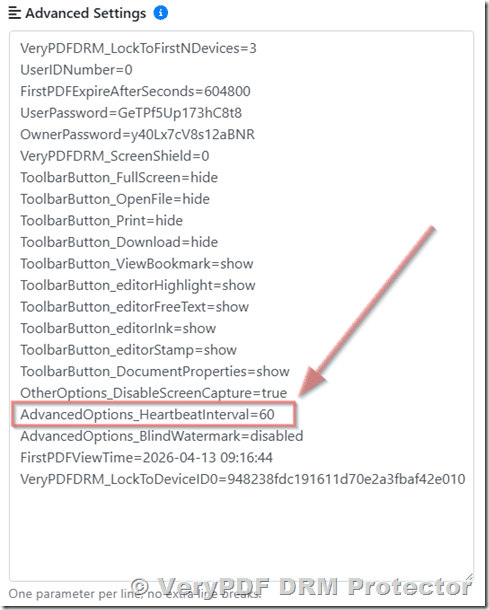
  • Anti-Screenshot Measures: Prevent screen recording or copying of protected content.

  • Mobile Friendly: Users can securely view documents on phones or tablets, with automatic QR codes for quick access.

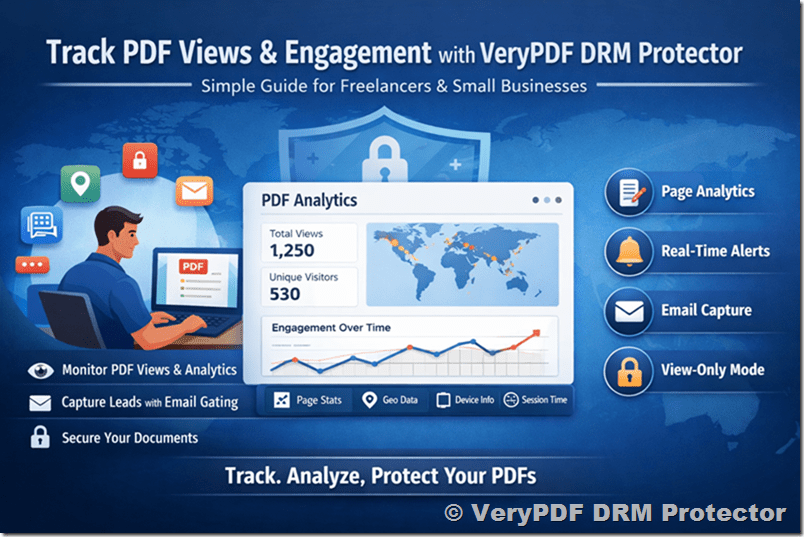
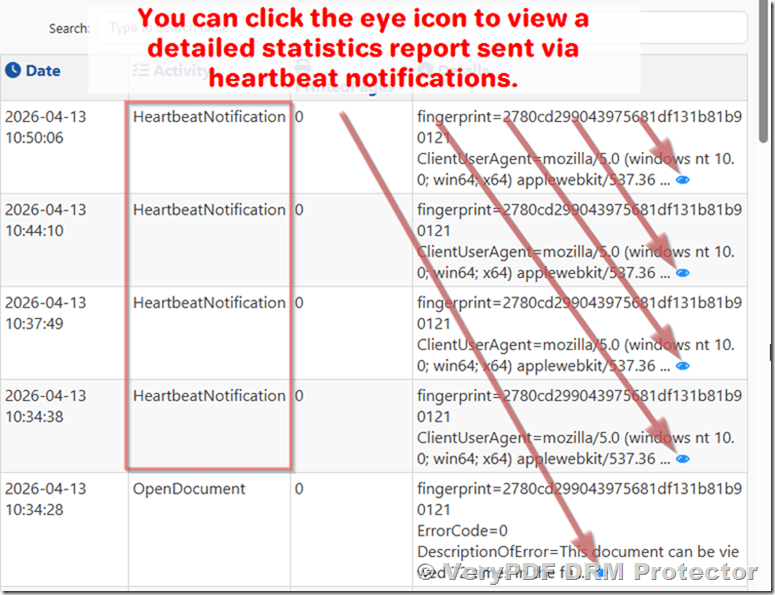
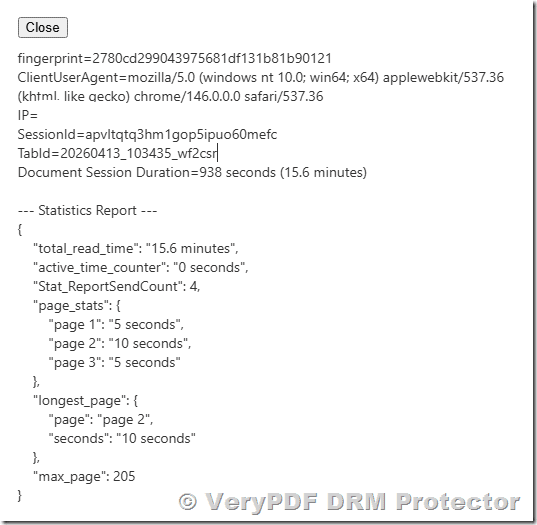
  • Tracking and Revocation: Monitor views and prints, then revoke access instantly if needed.

When I first tried it, I was impressed by how easy it was to implement on our network. Drag-and-drop uploading, multiple files per link, and automatic QR codes made distributing documents effortless.


Real-Life Use Cases

1. Legal Teams:

I remember our legal department struggling to share contracts with external clients. Even with secure email, PDFs could be forwarded without permission.

With VeryPDF DRM Protector, each contract could be:

  • Locked to the recipient’s device

  • Set to expire after review

  • Watermarked dynamically with their name and email

This reduced leaks and ensured compliance with confidentiality agreements.

2. Corporate Finance:

Our finance team often shared quarterly reports with stakeholders.

Using DRM policy enforcement, we could stop unauthorized copying, printing, and even screen recording of sensitive numbers.

We could also track which stakeholders accessed reports and when, giving us an audit trail for compliance purposes.

3. Remote Teams and Partners:

Sharing files across departments or with external vendors used to be risky.

By locking PDFs to specific devices and enforcing location restrictions, we could ensure sensitive documents stayed within our network.

Even if a device was compromised, the document couldn’t be opened elsewhere.


Key Features That Saved Me Hours

1. Expiry and Access Controls

Setting document expiration is a lifesaver.

I no longer have to manually track who should have access and for how long.

Documents can automatically:

  • Expire on a specific date

  • Expire after a number of views

  • Expire after a number of prints

2. Device and Location Locking

I remember distributing a confidential R&D report.

Even if someone tried to open it on a personal laptop or from outside the office, DRM enforcement blocked access.

This level of control is impossible with standard password protection.

3. Anti-Screenshot and Printing Limits

With screen recording becoming common, preventing screenshots is crucial.

VeryPDF DRM Protector stops users from taking screenshots or recording the screen.

For printing, I could limit the number of prints, enforce black-and-white output, and watermark every print with the user’s info.

4. Monitoring and Revocation

One feature that blew me away was live tracking.

I could see:

  • Who opened a document

  • When and where it was accessed

  • How many times it was viewed or printed

If a user left the company, revoking access was instantaneous.

No more worrying about old employees or partners having lingering access.

Comparison with Other Tools

Before this, we tried solutions like Adobe PDF password protection and standard document sharing platforms.

Problems:

  • Users could easily forward files with passwords

  • No control over printing or screenshots

  • Limited tracking and no live revocation

VeryPDF solved all these pain points.

It’s not just a “protection tool”; it’s a full-fledged policy enforcement platform for corporate PDFs.


Implementing VeryPDF DRM Protector in Your Network

Here’s how we rolled it out:

  1. Upload your PDFs to the VeryPDF DRM web portal.

  2. Set policies for each document:

    • Device and location restrictions

    • View and print limits

    • Dynamic watermarks

    • Expiration dates

  3. Share the secured link with authorised users.

  4. Monitor usage and revoke access if necessary.

The process took under an hour to set up for our first batch of documents, and we saw immediate improvements in document security.


Why I Recommend VeryPDF DRM Protector

If your business shares sensitive PDFs across departments, partners, or clients, this tool is a must-have.

It solves real problems:

  • Prevents unauthorized access, sharing, and screen recording

  • Tracks usage for compliance and auditing

  • Locks documents to devices and locations

  • Automates expiry and revocation

From my experience, implementing VeryPDF DRM Protector gave our team confidence in sharing confidential documents, without the constant worry of leaks.

I’d highly recommend this to anyone who deals with large volumes of sensitive PDFs.

Start securing your documents today: https://drm.verypdf.com/


Custom Development Services by VeryPDF

VeryPDF offers tailored development services to meet complex document management needs.

They can create custom solutions for Linux, Windows, macOS, iOS, Android, and server environments, using technologies like Python, PHP, C/C++, .NET, JavaScript, and HTML5.

Specialised services include:

  • Windows Virtual Printer Drivers to capture and convert print jobs into PDF, TIFF, or JPG

  • Document analysis for PDFs, PCL, PRN, Postscript, EPS, and Office files

  • Barcode recognition and OCR table extraction

  • Document security and DRM enforcement

  • Cloud-based PDF sharing, viewing, and digital signature integration

For bespoke needs, contact VeryPDF through their support centre: https://support.verypdf.com/


FAQs

1. Can VeryPDF DRM Protector prevent screen recording?

Yes. It stops unauthorized screen capture, recording, and screenshots, even on mobile devices.

2. Can I set documents to expire automatically?

Absolutely. Documents can expire on a fixed date, after a number of views, or after a number of prints.

3. Does it work on mobile devices?

Yes. Documents are mobile-friendly, and users can access them via QR codes or secure browser viewing.

4. Can I track document usage?

Yes. You can monitor views, prints, device types, and locations in real-time.

5. Is it possible to revoke access after sharing?

Yes. Access can be revoked instantly for individual users, specific documents, or all documents globally.

6. Can documents be locked to specific locations or networks?

Yes. You can restrict access based on IP address ranges or country locations.


Tags / Keywords

  • Block screen recording PDF

  • DRM policy enforcement

  • Secure PDF sharing corporate

  • Prevent PDF leaks

  • VeryPDF DRM Protector

  • PDF security for businesses

  • Track PDF usage

How to Protect PDF From Screenshot Tools On Windows Mac Linux And Mobile Devices Using DRM

How to Protect PDF From Screenshot Tools On Windows Mac Linux And Mobile Devices Using DRM

Protecting sensitive PDFs in a world where screenshots and screen recordings are just a click away has always been a headache for me. I remember a day when a confidential client proposal I sent via email was later shared without permissionsomeone had simply taken screenshots. That experience made me realize I needed a more robust solution, one that doesn’t rely on trusting users alone. That’s when I discovered VeryPDF DRM Protector.

How to Protect PDF From Screenshot Tools On Windows Mac Linux And Mobile Devices Using DRM

Why Traditional PDF Security Isn’t Enough

Most people think setting a password on a PDF is enough. I used to think the same. But passwords are easily shared, cracked, or bypassed. Similarly, conventional PDF editing restrictionslike “no printing” or “no copying”are often ineffective. Users can simply take a screenshot or use screen recording tools to capture the content.

The reality? If your PDF is truly sensitive, you need a solution that controls access no matter where the file goes. Enter VeryPDF DRM Protector, a tool designed to enforce document rights, prevent unauthorized use, and protect intellectual property.

Discovering VeryPDF DRM Protector

I first came across VeryPDF DRM Protector when I was looking for a cloud-based solution that works across devicesWindows, Mac, Linux, iOS, and Android. The goal was simple: share sensitive documents securely while retaining control over how they are accessed and used.

The setup was surprisingly easy. I could drag and drop PDFs from my PC or phone, even connect cloud services like Dropbox or OneDrive. Each file could be assigned a view limit, a password, or an expiry date. I could even share multiple files at once via email with a QR code for mobile access. It felt like every PDF I protected came with its own set of smart rules.

Key Features I Can’t Live Without

Here’s why I now rely on VeryPDF DRM Protector for all sensitive PDFs:

1. Stop Unauthorized Access Anywhere

One of my biggest frustrations was losing control once a document left my inbox. VeryPDF DRM Protector solved that. I could:

  • Lock files to authorized devices so only specific computers or mobile devices could open them.

  • Restrict location access based on IP or country, perfect for clients in multiple regions.

  • Instantly revoke access for individual users or groups, no matter where the file resides.

This was a game-changer during a project with a remote legal team. Even if someone tried to forward the PDF, they couldn’t open it outside approved devices.

2. Prevent Screenshots and Screen Grabs

This was the feature that truly sold me. No matter how tech-savvy the recipient was, I could stop them from taking screenshots or screen recordings. In addition, I could:

  • Control printingallow it, limit the number of prints, or disable it entirely.

  • Add dynamic watermarks with user name, date, and email, which discouraged sharing printed copies.

I tested this with a high-stakes financial report. Even when a colleague tried to use print-to-PDF tools or copy content, the system blocked it. Peace of mind doesn’t get better than that.

3. Detailed Tracking and Audit Logs

I love data, and seeing exactly how documents were used added a whole new layer of control:

  • Track views and prints, including which device and OS were used.

  • Receive alerts if someone attempted unauthorized access.

Once, a PDF I shared with a consulting partner showed multiple view attempts from an unknown IP. I immediately revoked access, preventing any potential leak. This level of insight is something standard PDF security just can’t provide.

4. Flexible Expiry and Sharing Options

Every document has a lifecycle, and VeryPDF lets me manage it perfectly:

  • Set expiry by date, number of views, or prints.

  • Share via URL or secure email, complete with QR codes for mobile-friendly access.

  • Offer temporary access to contractors without giving permanent control.

I’ve shared reports with clients who only needed access for a week, and the system automatically disabled the PDF afterward. No reminders, no manual workeverything was automatic.

5. Cloud and Offline Access

I was initially worried about offline access for meetings. VeryPDF has me covered with Safeguard Portable, which lets you share encrypted PDFs on a USB stick, complete with a secure viewer. No Internet, no problem. Even at trade shows or client offices, the files were secure.

Why I Prefer VeryPDF Over Other Tools

I’ve tried other DRM and secure PDF platforms, and here’s what sets VeryPDF apart:

  • True cross-platform supportWindows, Mac, Linux, iOS, Android.

  • No compromise on security, whether in the cloud or offline.

  • Granular controlsprinting, screenshots, device locking, location restrictions.

  • Ease of usesimple drag-and-drop interface, no complicated setup.

Unlike other platforms where security could be bypassed with plugins or third-party tools, VeryPDF enforces DRM at every level. It’s peace of mind for anyone handling sensitive documents.

Real-World Use Cases

I’ve used VeryPDF DRM Protector in several scenarios:

  • Legal Teams: Protect contracts, NDAs, and sensitive client documents across multiple locations.

  • Financial Reports: Distribute quarterly earnings securely to investors while preventing leaks.

  • Publishing: Share premium content online without the risk of piracy.

  • Healthcare: Safely share patient records with external consultants while staying compliant with privacy regulations.

If your work involves confidential PDFs, this tool is designed to make your life easier.

Conclusion: My Recommendation

Protecting PDFs from screenshots and unauthorized access used to feel impossible. After months of using VeryPDF DRM Protector, I can honestly say it’s transformed how I share sensitive documents.

The ability to lock files to devices, prevent screen captures, track usage, and set automatic expiry has made my workflows smoother and my documents safer. I’d highly recommend this to anyone who deals with large volumes of PDFs, whether you’re a lawyer, financial advisor, publisher, or corporate professional.

Click here to try it out for yourself: https://drm.verypdf.com/

Start your free trial now and gain full control over your PDFs.

Custom Development Services by VeryPDF

VeryPDF offers comprehensive custom development services for organisations with unique technical needs. Whether you require specialised PDF processing solutions for Windows, Mac, Linux, or server environments, VeryPDF’s expertise spans a wide range of technologies.

They can develop utilities using Python, PHP, C/C++, Windows API, Linux, Mac, iOS, Android, JavaScript, C#, .NET, and HTML5. VeryPDF also creates Windows Virtual Printer Drivers for generating PDFs, EMF, and image formats, and tools to monitor and capture printer jobs.

Additional services include:

  • Document analysis and conversion (PDF, PCL, PRN, Postscript, EPS, Office formats)

  • Barcode recognition and generation

  • OCR and table recognition for scanned documents

  • Report and document form generation

  • Image and PDF management tools

  • Cloud-based solutions for conversion, viewing, and digital signatures

  • PDF security, DRM, TrueType font technology, and printing control

For custom solutions, contact VeryPDF through their support center: https://support.verypdf.com/

FAQs

1. Can VeryPDF DRM Protector prevent screenshots on all devices?

Yes. It prevents screenshots on Windows, Mac, Linux, iOS, and Android, ensuring your PDFs are protected no matter where they’re viewed.

2. How can I share PDFs with temporary access?

You can set expiry by date, number of views, or number of prints, making temporary access simple and automated.

3. Does it work offline?

Yes. With Safeguard Portable, you can share encrypted PDFs via USB sticks without needing an internet connection.

4. Can I revoke access after a PDF is shared?

Absolutely. You can revoke access instantly for all users or individual recipients, no matter where the file is located.

5. Are dynamic watermarks available?

Yes. You can add watermarks that display the viewer’s name, date, company, and email to discourage sharing.

6. Is the software easy for non-technical users?

Yes. Files can be uploaded via drag-and-drop, and sharing is as simple as sending a link or email with a QR code.

Tags/Keywords

PDF screenshot protection, secure PDF sharing, DRM PDF security, VeryPDF DRM Protector, PDF access control, PDF expiry, PDF watermarking, PDF device locking, prevent PDF leaks, secure document distribution

Why Your PDF Cannot Copy Text When Protected and How DRM Lockdown Prevents Unauthorized Access

Why Your PDF Cannot Copy Text When Protected and How DRM Lockdown Prevents Unauthorized Access

Learn why PDF text copying fails when protected and how VeryPDF DRM Protector secures your documents from unauthorized access.

Why Your PDF Cannot Copy Text When Protected and How DRM Lockdown Prevents Unauthorized Access


Every time I tried to share a confidential report with a client, I ran into the same frustration: they could open the PDF, but copying text was blockedor worse, they could bypass protection and share it with others. It’s a headache that anyone dealing with sensitive documents has faced. How do you share documents without losing control? That’s exactly where VeryPDF DRM Protector comes in.

I discovered this tool while trying to send financial reports and legal contracts to external partners without worrying about leaks. VeryPDF DRM Protector isn’t just a standard PDF password systemit’s a full-on DRM solution that controls exactly how your documents are accessed, viewed, and shared.


How VeryPDF DRM Protector Works

At first glance, it looks simple. You upload a PDF, set access permissions, and share it via a link. But behind the scenes, it locks the document with strong encryption, enforces device restrictions, and even tracks how the document is used.

Here’s why it stood out for me:

  • Drag-and-drop simplicity: I could upload multiple files from my laptop, phone, Dropbox, or OneDrive in seconds. No complicated setup.

  • Custom access controls: I could set view limits, expiration dates, and even passwords for each document. One report was set to expire after three days, another after ten views, giving me complete peace of mind.

  • Mobile-friendly viewing: Clients could view protected PDFs on any device. QR codes included in email invites made opening files on phones effortless.


Stopping Unauthorized Access

Before I started using VeryPDF DRM Protector, I relied on Adobe’s password-protected PDFs. That works in theory, but it’s easy to share the password, and suddenly your confidential report is circulating freely. With VeryPDF, even if someone tried to copy or print a protected PDF, it wouldn’t work.

Some of the standout security features I experienced firsthand:

  • Device locking: Each PDF is locked to authorised devices. A client can’t just forward the file to a colleagueit won’t open on another computer.

  • Location restrictions: I could restrict PDFs to specific networks or countries. For sensitive legal documents, this was a lifesaver.

  • Dynamic watermarking: Every view or print included a watermark with the viewer’s name, email, and timestamp. This subtle detail alone discourages anyone from taking screenshots or sharing copies.

It’s the little things that make a big difference. I remember sending a draft contract to an external counsel and later seeing exactly who viewed it and when. The transparency reduced so many follow-up emails and reminders.


Controlling Expiry and Prints

Another feature that blew me away was the automatic expiry system. Documents can:

  • Expire on a fixed date

  • Expire after a certain number of days

  • Expire after a number of views or prints

For example, I shared an investor pitch that automatically became inaccessible after five days. No more chasing people to delete files manually. I also set print limits for sensitive financial tables. Any print attempts beyond the limit were blocked, and all allowed prints were logged.

Compared to standard PDF protections, which often just prevent editing, this level of control is on a whole new level. I could finally distribute content without worrying about rogue copies floating around.


Real-World Use Cases

Legal Teams: Law firms frequently deal with client documents that must remain confidential. I’ve used VeryPDF DRM Protector to share contracts and court filings with external counsel securely. Knowing the files can’t be copied or forwarded reduces anxiety for everyone involved.

Finance Departments: Sharing quarterly reports with stakeholders or investors is always risky. With DRM Protector, I set expiry dates and view limits so sensitive numbers never linger longer than intended.

Publishing and Education: E-books and course materials can be shared online without fear of piracy. Students access materials through secure links or USB drives, but they can’t redistribute them.

Corporate Collaboration: Departments can share strategy documents internally and externally while keeping tight control over who sees what and where.


Advantages Over Other Tools

Other tools often advertise ‘secure PDFs,’ but they rarely prevent real-world leaks. Adobe’s password system is bypassable. Collaboration platforms like Google Docs allow sharing but can’t prevent screenshots, copying, or offline distribution.

With VeryPDF DRM Protector:

  • Documents can’t be copied, edited, or printed without permission.

  • You can revoke access anytime, regardless of where the file is stored.

  • Cloud-based and offline options ensure secure access even when the internet isn’t available.

I remember one instance when a confidential strategic plan needed to be shared at a trade show. I used the Safeguard Portable option on USB drives. Attendees could open the PDFs offline, but the documents were still protected with DRM. That was a game-changer.


Tracking and Insights

One feature I didn’t expect to appreciate so much was tracking. You can:

  • See who opened your documents

  • Track device type and location

  • Monitor prints

I once noticed unusual activity on a file and immediately revoked access to one user. The document remained accessible to everyone else, but I had full control over security. It’s like having a real-time report on your PDF’s journey.


Conclusion: Why I Recommend VeryPDF DRM Protector

Sharing PDFs used to feel riskyuntil I started using VeryPDF DRM Protector. It solves practical problems like unauthorized copying, uncontrolled printing, and accidental distribution. I’ve regained control over sensitive documents and reduced stress in every sharing scenario.

I’d highly recommend this to anyone who deals with large volumes of PDFs, especially in legal, finance, and publishing sectors. If you want to ensure your documents remain confidential, secure, and fully under your control, this is the tool you need.

Start your free trial now and boost your productivity: https://drm.verypdf.com/


Custom Development Services by VeryPDF

VeryPDF offers comprehensive custom development services tailored to your technical needs. Whether you need specialised PDF processing on Linux, macOS, Windows, or server environments, VeryPDF has you covered.

Their services include development with Python, PHP, C/C++, Windows API, Linux, Mac, iOS, Android, JavaScript, C#, .NET, and HTML5. VeryPDF also creates Windows Virtual Printer Drivers for PDF, EMF, and image formats and tools to capture or monitor print jobs from any Windows printer.

Other offerings include:

  • Secure document analysis and processing (PDF, PCL, PRN, Postscript, EPS, Office)

  • Barcode recognition and generation, OCR, and OCR table extraction

  • Custom report and form generation, graphical and image conversion tools

  • Cloud-based solutions for secure document conversion, viewing, and digital signatures

  • PDF security, DRM protection, and Office document printing

For custom solutions, contact VeryPDF’s support center: https://support.verypdf.com/


FAQs

1. Can VeryPDF DRM Protector prevent users from copying text from PDFs?

Yes. The software enforces DRM controls that stop copying, editing, and screen captures, ensuring your content remains secure.

2. Can I revoke access to a document after sharing it?

Absolutely. You can revoke access for all users or individual users instantly, regardless of where the document is stored.

3. Can I set expiry dates or view limits for PDFs?

Yes. Documents can automatically expire on a set date, after a number of views, prints, or days.

4. Is it mobile-friendly?

Yes. Protected PDFs can be accessed on any device, and email invites include QR codes for easy mobile viewing.

5. Can I track who viewed or printed my documents?

Yes. You can monitor document usage, see the device and location, and track prints, giving you full insight into document activity.

6. Can PDFs be locked to specific devices or locations?

Yes. VeryPDF DRM Protector allows device and IP location locking to ensure only authorised users can access your PDFs.


Tags / Keywords

PDF copy protection, DRM PDF security, secure PDF sharing, revoke PDF access, prevent PDF distribution, digital rights management, VeryPDF DRM Protector, document encryption, mobile PDF protection, PDF expiry control

How to Stop PDF Copy and Paste Functions In Distributed Team Environments Using DRM Tools

How to Stop PDF Copy and Paste Functions In Distributed Team Environments Using DRM Tools

Learn how VeryPDF DRM Protector prevents PDF copy and paste in team environments, securing sensitive documents with encryption, expiry, and access controls.

How to Stop PDF Copy and Paste Functions In Distributed Team Environments Using DRM Tools


Every Monday morning, I used to dread checking my inbox and shared drives. PDFs from different teams and clients were scattered everywhere, and I had no real control over who was copying, sharing, or printing them. Some sensitive contracts ended up in the wrong hands, and tracking their usage was a nightmare. Sound familiar?

That’s when I discovered VeryPDF DRM Protector a game-changer for anyone who needs to securely share PDFs across distributed teams. This isn’t just another PDF security tool. It’s a full suite for controlling document access, stopping copy-paste actions, and ensuring sensitive data doesn’t leak.


Why VeryPDF DRM Protector Stands Out

When I first tried VeryPDF DRM Protector, I was blown away by how user-friendly it was. Drag-and-drop uploading from my PC, phone, Dropbox, or OneDrive made adding documents almost effortless. But what really impressed me was the level of control I had once the PDF was protected.

The tool is designed for teams, legal departments, financial firms, and any organisation dealing with confidential documents. If you’ve ever worried about shared PDFs being copied, redistributed, or printed without permission, this is exactly what you need.

Some key features that changed the game for me:

  • Stop copying and pasting: You can disable the ability to copy text or images from your PDFs completely. This feature alone has saved me from countless potential leaks when working with external contractors.

  • Print control: You can either prevent printing entirely or limit the number of prints. Plus, every printed page can carry dynamic watermarks showing the viewer’s name, company, and timestamp. It makes unauthorised redistribution nearly impossible.

  • Expiry and revocation: Documents can automatically expire after a fixed date, a number of views, or a number of prints. And if a team member leaves or a contract ends, I can revoke access instantly no chasing people down or deleting files manually.


Real-World Use Cases

Here’s how I used it in my workflow:

1. Team Collaboration Without Risk:

Our distributed marketing team often shares creative assets like brand guidelines and campaign plans. Before VeryPDF, any PDF sent via email could be copied or forwarded. Now, every shared PDF is locked down I know exactly who viewed it and where.

2. Secure External Sharing:

I had to share financial reports with our auditors. With DRM Protector, I sent them as a secure link, limited to two views each, and set to expire after one week. The peace of mind knowing the data couldn’t be copied or leaked was priceless.

3. Mobile-Friendly Access:

Many team members access documents on the go. VeryPDF DRM Protector works flawlessly on mobile devices. The email invites even include a QR code to open the document on any device no app installation needed.


How It Compares to Other Tools

I tried using Adobe PDF password protection and some cloud collaboration tools before. The problem? Anyone with the password could copy or share the PDF. VeryPDF DRM Protector uses US government-strength encryption and device-locked keys, so the document only opens on authorised devices.

Unlike Google Docs or other online collaboration systems, where users can sometimes bypass controls, VeryPDF ensures online and offline security. You can’t copy, screenshot, or forward the document without leaving a trace.


Core Advantages That Make My Life Easier

  • Dynamic watermarking: Every document can show personalized watermarks, making unauthorised sharing traceable.

  • Location and device restrictions: PDFs only open on approved devices and locations. This is especially helpful for teams working remotely or in regulated industries.

  • Tracking and logging: I can see who opened the document, when, and what device they used. It’s like having a security camera for your PDFs.

  • Flexible sharing options: Upload multiple files at once, send email invites, or share via a secure link. Everything is controlled from one dashboard.


Personal Experience

The first time I implemented VeryPDF DRM Protector for a large project, I noticed an immediate reduction in accidental leaks. Team members felt safe accessing documents, and I felt secure knowing my intellectual property was protected.

I remember one particular project where sensitive contract templates were shared with multiple regional offices. Previously, tracking who had access or whether they had copied the content was impossible. With DRM Protector, I set view limits, expiry dates, and even restricted printing. Weeks later, when reviewing logs, I saw exactly how the documents were used and no unauthorised sharing occurred.

It’s also a massive time-saver. Instead of manually checking who received or printed a document, I can do it in a few clicks. The ability to instantly revoke access is a relief when someone leaves the company or a contract ends.


Conclusion

If you’re dealing with confidential PDFs in a distributed team environment, VeryPDF DRM Protector is a must-have. It stops copy and paste, prevents unauthorised sharing, controls printing, and lets you track and revoke access anytime.

I’d highly recommend this to anyone responsible for sensitive documents legal teams, finance departments, marketing managers, or even educators sharing premium content.

Start your free trial now and boost your productivity: https://drm.verypdf.com/


Custom Development Services by VeryPDF

VeryPDF offers custom development services to meet unique technical needs. Whether you need PDF processing solutions for Windows, macOS, Linux, or server environments, VeryPDF can create tailored tools for your workflow.

Services include utilities built with Python, PHP, C/C++, Windows API, Linux, Mac, iOS, Android, JavaScript, C#, .NET, and HTML5. This covers everything from Windows Virtual Printer Drivers generating PDF/EMF/image formats, to monitoring and intercepting print jobs from all Windows printers.

VeryPDF also supports barcode recognition, layout analysis, OCR, document form generators, image conversion, and cloud-based document security solutions. For complex projects, their team can ensure compliance, protect intellectual property, and even build DRM-protected secure viewers for offline use.

Contact VeryPDF to discuss your project: https://support.verypdf.com/


FAQ

1. Can VeryPDF DRM Protector stop PDFs from being copied or pasted?

Yes, the tool prevents text and image copying, ensuring that your sensitive content cannot be extracted.

2. Can I control who prints my PDFs?

Absolutely. You can disable printing completely, limit the number of prints, and add dynamic watermarks to each print.

3. Can I revoke document access after sharing?

Yes, you can revoke access for individual users, all users, or specific documents at any time, even after distribution.

4. Does it work on mobile devices?

Yes, documents are mobile-friendly, and email invites include QR codes for easy access on smartphones and tablets.

5. Can I set documents to expire automatically?

Yes, PDFs can expire on a fixed date, after a number of views, or after a number of prints.


Tags or Keywords

  • PDF copy protection

  • Secure PDF sharing

  • Document DRM

  • Stop PDF redistribution

  • VeryPDF DRM Protector

  • Mobile-friendly PDF security

  • Expiring PDF links

How to Prevent PDF Copy and Extraction Through Encrypted DRM Containers and Secure Viewers

How to Prevent PDF Copy and Extraction Through Encrypted DRM Containers and Secure Viewers

Secure your PDFs from copying, printing, and distribution using VeryPDF DRM Protector with encrypted containers and controlled viewing.

How to Prevent PDF Copy and Extraction Through Encrypted DRM Containers and Secure Viewers


Every Monday morning, I used to dread the thought of emailing sensitive reports to clients, only to wonder if they’d forward them, copy content, or extract data without permission.

Even with password-protected PDFs, it felt like locking a door with the key left under the matanyone with the password could bypass controls.

I needed a real solution to prevent PDF copy and extraction without making it cumbersome for my team or clients.

That’s when I discovered VeryPDF DRM Protector — Secure PDF Sharing, a tool that completely changed how I handle confidential documents.


Why VeryPDF DRM Protector Works

VeryPDF DRM Protector isn’t just another PDF security tool.

It’s designed for professionals and businesses that need tight control over how PDFs are viewed, shared, and distributed.

Think legal teams, financial analysts, HR departments, and publishersanyone dealing with sensitive information.

Instead of relying on passwords that can be shared, it uses encrypted DRM containers and secure viewers to control access even offline.

Here’s what makes it stand out:


Key Features That Solve Real Problems

1. Encrypted PDF Containers

With VeryPDF DRM Protector, every PDF is wrapped in a secure container.

This means:

  • No one can copy text or images from your PDFs.

  • Editing, extracting, or screen grabbing is blocked automatically.

  • Access is tied to specific devices or locations, so sharing a password won’t let someone bypass the controls.

I remember sending a financial report to an external consultant.

Normally, I’d worry they might save it and forward it to unauthorized parties.

With DRM Protector, the report could only be opened on their assigned laptop, and I could track exactly when they viewed it.

2. Control Views, Prints, and Expiration

This feature alone saved me hours in document management.

You can:

  • Limit the number of views per user.

  • Restrict printing, or allow a certain number of high-quality prints.

  • Set documents to expire after a specific date, number of views, or prints.

I used this for a client contract that needed to be reviewed multiple times but couldn’t be retained indefinitely.

Setting an automatic expiry removed the headache of manually requesting document deletion.

3. Dynamic Watermarking

Every document can carry a watermark customised with the viewer’s details:

  • Name, email, company, date, time, and even device information.

It’s subtle but effective.

I once sent a sensitive proposal to a potential partner; the watermark ensured that if a page was leaked, I could trace it back immediately.

It’s a simple way to discourage unauthorized sharing without making documents hard to read.

4. Device and Location Locking

I’ve always worried about PDFs being accessed from personal devices or public networks.

With DRM Protector, you can restrict usage by:

  • Device ID, so only approved computers or tablets can open documents.

  • IP address or country restrictions to enforce corporate network policies.

This has been a lifesaver when working with remote teams or third-party consultants.

Even if a document fell into the wrong hands, it would be useless outside the approved environment.

5. Revocation and Tracking

Life happens: people leave companies, contracts end, or sensitive information needs to be withdrawn.

DRM Protector allows you to:

  • Revoke access for individual users or entire groups instantly.

  • Track views, prints, and device usage for compliance and auditing.

I once had a scenario where a contract was prematurely distributed by mistake.

With a few clicks, I revoked access to all users, and no copies could be accessed afterward.

The peace of mind is incredible.


Comparing VeryPDF DRM Protector With Other Solutions

I’ve tried standard PDF password protection, Adobe DRM, and even cloud-based collaboration tools like Google Docs.

  • Passwords: too easy to share, offering zero control once distributed.

  • Google Docs: fine for collaboration, but anyone can copy, screenshot, or bypass controls.

  • Adobe DRM: better, but less flexible in setting device and location restrictions.

VeryPDF DRM Protector sits in a sweet spot: strong encryption, flexible control, offline capability, and easy tracking.


Real-World Use Cases

Here’s how I and others have benefited:

  • Legal Teams: Share contracts and case files externally while preventing leaks.

  • Financial Institutions: Secure annual reports, investment proposals, and client statements.

  • Publishers: Sell eBooks and whitepapers online without risk of piracy.

  • HR Departments: Distribute employee records internally while preventing unauthorized sharing.

  • Consultants and Agencies: Share project files with clients while retaining full control over access.

It’s especially useful when sharing via email, cloud links, or even USB devices.

Yes, DRM Protector supports USB distribution with offline viewing, which means you can hand over a “physical” copy with all the same digital controls.


How It Changed My Workflow

Since integrating VeryPDF DRM Protector, I’ve seen tangible improvements:

  • Reduced document leakage incidents to zero.

  • Saved hours previously spent chasing unauthorized copies.

  • Gained a clear audit trail for compliance reporting.

  • Eliminated the fear of sharing confidential documents externally.

I no longer hesitate before sending sensitive files to clients or collaborators, and that peace of mind is priceless.


Conclusion: Why I Recommend It

If you’re tired of PDFs being copied, printed, or extracted without permission, VeryPDF DRM Protector — Secure PDF Sharing is a game-changer.

It combines encryption, device locking, dynamic watermarking, expiry controls, and trackingall in one easy-to-use platform.

Whether you’re a small business, law firm, or global enterprise, this tool gives you control, security, and compliance without frustrating your users.

Click here to try it out for yourself: https://drm.verypdf.com/

Start securing your PDFs today and regain control over your sensitive information.


Custom Development Services by VeryPDF

VeryPDF offers comprehensive custom development services for your unique technical requirements.

From Linux, macOS, and Windows solutions to server environments, VeryPDF handles a wide array of functionalities.

Their expertise covers:

  • Development in Python, PHP, C/C++, Windows API, Linux, Mac, iOS, Android, JavaScript, C#, .NET, and HTML5.

  • Creating Windows Virtual Printer Drivers capable of generating PDF, EMF, and image formats.

  • Monitoring and intercepting print jobs across all Windows printers in multiple formats.

  • Processing PDF, PCL, PRN, Postscript, EPS, and Office documents.

  • OCR, barcode recognition, layout analysis, and OCR table recognition for scanned PDFs and TIFFs.

  • Cloud solutions for document conversion, secure viewing, and digital signatures.

For specialised needs or custom projects, contact VeryPDF via their support center: https://support.verypdf.com/


FAQ

1. Can DRM Protector stop users from taking screenshots?

Yes. It blocks screen capture and copying entirely, so sensitive content remains protected.

2. Can I set different expiry dates for different users?

Absolutely. You can control access per user, per file, with flexible expiry options.

3. Does it work offline?

Yes. With Safeguard Portable, you can share PDFs via USB with full DRM controls, no internet required.

4. Can I track who accessed my documents and when?

Yes. Every view, print, and device usage is logged for audit and compliance purposes.

5. Is it mobile-friendly?

Definitely. Users can view protected PDFs on any mobile device via email invites and QR codes.

6. Can I revoke access after sharing a document?

Yes. You can revoke access instantly for all users or individually, even after distribution.


Tags or Keywords

  • PDF DRM protection

  • Secure PDF sharing

  • Prevent PDF copying

  • Encrypted PDF viewer

  • Document access control

  • PDF file security

  • Protect confidential documents

  • Digital rights management