How to Use DRM PDF Copy Protection to Secure Engineering Documents and Prevent IP Theft

How to Use DRM PDF Copy Protection to Secure Engineering Documents and Prevent IP Theft

Secure your engineering documents and intellectual property with VeryPDF DRM Protector, ensuring full control over PDF sharing and usage.

How to Use DRM PDF Copy Protection to Secure Engineering Documents and Prevent IP Theft

Every week, I used to sweat over whether our engineering blueprints or sensitive design documents might end up in the wrong hands.

Emailing PDFs or sharing them through cloud drives felt like leaving a door wide openanyone with a forwarded link could access them.

The fear of IP theft, unauthorized printing, or uncontrolled distribution was real, especially for high-stakes engineering projects.

That’s when I stumbled upon VeryPDF DRM Protector Secure PDF Sharing.

It completely changed how we handle confidential documents, and honestly, it’s been a game-changer.

Why VeryPDF DRM Protector Works for Engineering Teams

If you’re like me, protecting intellectual property is non-negotiable.

This tool lets you create secure URLs for PDFs, upload them from multiple sourcesPC, Dropbox, OneDrive, even mobileand share them safely with colleagues, clients, or external partners.

No more worrying about leaked files or forwarded emails.

What drew me in immediately was how easy it is to use.

A simple drag-and-drop interface means no complex setup.

I could upload multiple files at once, set viewing limits, and even schedule an expiration date for sensitive documents.

And yes, every link comes with a QR code for mobile access, which made it surprisingly convenient for our field engineers who aren’t always at their desks.

Key Features That Make It Stand Out

1. Strong Access Control

The biggest win for us has been controlling who can view, print, or share documents.

With traditional PDF passwords, you have no control once someone gets a copy.

VeryPDF DRM Protector uses US Gov-strength encryption, DRM licensing controls, and device locking.

This means a document shared with an engineer on a tablet won’t work if the file is moved to a colleague’s device.

We can even restrict access by location or IP rangea feature that’s saved us from potential leaks when documents were sent to overseas contractors.

2. Dynamic Watermarks & Print Management

Printing sensitive designs is a huge risk.

With VeryPDF, we can:

  • Disable printing entirely, or

  • Limit the number of prints,

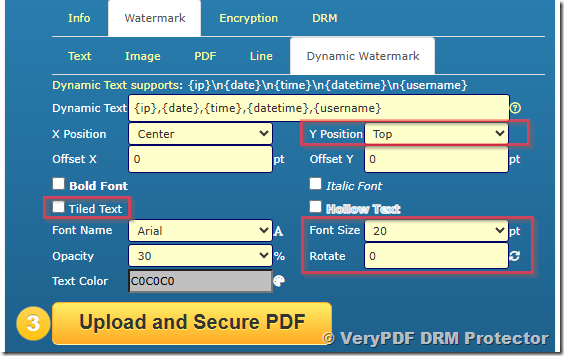
  • Add dynamic watermarks with user-specific info like name, company, date, and time.

I remember sending a blueprint to a partner firm.

A few days later, I could see exactly when and where it was opened, and the watermarked PDF prevented unauthorized copies from circulating.

It’s like having eyes on the document, even when it’s outside your office.

3. Automated Expiry & Revocation

One of the features that gives me peace of mind is automatic expiration.

You can set PDFs to expire after a set number of views, prints, or days.

If a contractor’s access needs to be revoked, you can instantly deactivate the document for all users or just specific individuals.

We had a situation where a contract with an external engineering consultancy ended abruptly.

Instead of scrambling to retrieve all sent files, I revoked access in seconds.

That’s the kind of control over IP that makes DRM worth every penny.

4. Cloud and Offline Flexibility

We often operate in environments with patchy internet.

VeryPDF DRM Protector works online via browser, with the Safeguard Web Viewer, and offline through Safeguard Portable USBs.

This is huge for secure presentations at client sites or remote facilities.

All controlswatermarking, access limits, location restrictionsstay intact, even without an internet connection.

Real-Life Impact

Before implementing this, our team spent hours manually checking who had access to what, sending reminders to delete old files, or even printing hard copies to maintain control.

Now?

We simply upload the PDF, set the parameters, and let the DRM system enforce security.

Time saved: dozens of hours per month.

Stress reduced: immeasurable.

Confidence in sharing: priceless.

Compared to other solutions like standard PDF passwords or shared drives, VeryPDF actually prevents document theft, not just hopes for compliance.

It’s a level of protection that feels like it was made specifically for engineers handling sensitive IP.

Who Benefits Most

  • Engineering firms protecting blueprints and schematics.

  • R&D teams sharing confidential product designs.

  • Consultancies distributing sensitive client reports.

  • Manufacturers securing process documentation.

  • Universities and research labs handling proprietary research papers.

Basically, anyone who needs total control over document access, printing, and distribution will benefit.

Conclusion: My Recommendation

Using VeryPDF DRM Protector has completely reshaped our document-sharing workflow.

We no longer worry about unauthorized distribution, leaked IP, or uncontrolled printing.

I’d highly recommend this to anyone who deals with confidential engineering documents or sensitive PDFs.

If you want to regain control over your intellectual property and share documents safely, click here to try it out for yourself: https://drm.verypdf.com/.

Start your free trial now and experience the peace of mind that comes with full document protection.


Custom Development Services by VeryPDF

VeryPDF offers custom development services to meet your unique technical needs.

Whether you require specialized PDF processing for Windows, Linux, macOS, or server environments, VeryPDF’s expertise spans multiple technologies:

  • Development in Python, PHP, C/C++, Windows API, Linux, Mac, iOS, Android, JavaScript, C#, .NET, HTML5

  • Windows Virtual Printer Drivers generating PDF, EMF, and image formats

  • Tools to capture and monitor printer jobs and intercept file access

  • Document analysis and processing for PDF, PCL, PRN, Postscript, EPS, and Office documents

  • OCR and table recognition for scanned TIFF and PDF documents

  • Development of report and document generators, graphical/image conversion tools, and cloud solutions for document viewing, conversion, and digital signatures

  • DRM, PDF security, digital signatures, and TrueType font technology

For custom solutions, reach out via VeryPDF Support Center to discuss your project requirements.


FAQs

Q1: Can I prevent users from forwarding my PDF to others?

A1: Yes. VeryPDF DRM Protector locks access to authorized users and devices, preventing sharing with unauthorized parties.

Q2: Can I track who opens my PDF and when?

A2: Absolutely. The software logs document views, prints, and device information for complete transparency.

Q3: Is it possible to set an expiration date on PDFs?

A3: Yes. You can expire documents based on a fixed date, number of views, prints, or days used.

Q4: Can this tool work offline?

A4: Yes. With Safeguard Portable, PDFs can be distributed securely on USB devices with full DRM controls, even without internet access.

Q5: Can I watermark PDFs dynamically?

A5: Definitely. You can add user-specific information like name, company, and date to discourage unauthorized sharing.

Q6: Does it support mobile devices?

A6: Yes. PDFs are mobile-friendly, with QR codes for easy access on smartphones and tablets.


Tags/Keywords

  • DRM PDF copy protection

  • Secure PDF sharing

  • Protect engineering documents

  • Intellectual property protection

  • VeryPDF DRM Protector

  • PDF security software

How to Prevent PDF From Screen Capture Using Invisible Watermarking and Access Logging Systems

How to Prevent PDF From Screen Capture Using Invisible Watermarking and Access Logging Systems

Learn how VeryPDF DRM Protector secures PDFs with invisible watermarking, access logging, and device/location restrictions for safe sharing.

How to Prevent PDF From Screen Capture Using Invisible Watermarking and Access Logging Systems


Every week, I used to deal with sensitive contracts, reports, and confidential PDFs that needed to go out to clients and partners.

The tricky part? I had no way of controlling what happened after I hit “send.”

I’d spend hours preparing documents, only to worry that someone could screenshot, copy, or forward them without my knowledge.

The frustration of constantly chasing down unauthorized copies was real.

I needed a system that actually put me back in control, and that’s when I discovered VeryPDF DRM Protector Secure PDF Sharing.


Why I Chose VeryPDF DRM Protector

I stumbled upon VeryPDF DRM Protector while searching for a solution to prevent PDF from screen capture.

Unlike standard PDF password protection, which is easy to bypass if someone shares a password, VeryPDF offered a way to truly control document access.

Here’s what makes it different:

  • Invisible Watermarking: Each PDF can embed dynamic watermarks with details like user name, email, company, date, and time.

  • Access Logging Systems: I can track every view and print, seeing which devices and operating systems were used.

  • Device & Location Locking: Documents can only be opened on authorised devices and specific locations.

I’ll admit, at first, I was skeptical. I’d used tools promising “secure sharing” before, only to find that PDFs could still be copied, printed, or screenshotted.

VeryPDF’s combination of DRM encryption, dynamic watermarks, and usage logging finally gave me confidence that my documents were truly protected.


Core Features That Make a Difference

1. Invisible Watermarks That Don’t Distract

The first time I shared a PDF with VeryPDF DRM Protector, I was amazed at the invisible watermarking feature.

No visual clutter, no blocking the content, yet each page carried unique user-specific info that could trace any leak back to the source.

How I used it:

  • Shared a financial report with external partners.

  • Each PDF had the recipient’s name and email embedded invisibly.

  • When someone tried to screenshot, the watermark allowed me to identify exactly who had accessed the file.

It’s like having a silent security guard inside the PDF itself.

2. Control Every Action: Printing, Copying, and Expiry

One of the biggest headaches with sharing documents externally is the inability to control printing or copying.

VeryPDF lets me:

  • Disable printing entirely or limit the number of prints.

  • Stop copying or editing the content.

  • Set automatic expiry, so documents disappear after a fixed date, a number of views, or prints.

I used this for a sensitive legal contract I sent to a client.

Instead of worrying about them printing multiple copies and distributing them, I set a view limit and expiration date.

Once the limit was reached, access automatically revoked no follow-up emails or reminders needed.

3. Real-Time Access Logs

With standard PDFs, there’s no way to know what happens after sharing.

VeryPDF DRM Protector gives me visibility into:

  • Who opened the document.

  • Which device and operating system was used.

  • When and how many times the document was printed or viewed.

This logging system is a game-changer.

In one instance, a team member tried to access a document from an unauthorized location.

The system flagged the activity, and I immediately revoked access.

Knowing exactly how documents are used reduces stress and prevents intellectual property leakage.

4. Seamless Sharing Across Devices and Platforms

Another huge benefit is how mobile-friendly the system is.

I can share a PDF via a secure URL with email invites containing a QR code.

Recipients can open the document on phones, tablets, or PCs without installing any software.

For teams working remotely, or with external partners, this feature has saved me countless follow-ups and troubleshooting calls.

5. Offline Sharing via USB

Sometimes, internet access isn’t available, or I need to share files in meetings or events.

VeryPDF offers Safeguard Portable, allowing secure PDFs on USB sticks.

All DRM protections, including watermarks, expiry, and device locks, are maintained offline.

It’s perfect for conferences or clients in areas with unreliable connectivity.


How This Compares to Other Tools

I’ve tried Adobe PDF password protection, Google Drive sharing, and other “secure” platforms.

Here’s what stood out with VeryPDF:

  • Adobe: Users can forward passwords or print unlimited copies. Control is lost immediately.

  • Google Docs: Easy collaboration but limited real security; screenshots are trivial.

  • VeryPDF DRM Protector: Locks usage, monitors access, and prevents screen capture. True control stays with me, not the recipients.


Who Should Use VeryPDF DRM Protector

This tool is ideal for anyone sharing confidential PDFs, including:

  • Legal teams sending contracts or case files.

  • Financial services distributing reports or audit documents.

  • Publishers selling PDFs online.

  • HR departments handling sensitive employee data.

  • Consultants sharing proprietary reports with clients.

Basically, if you care about protecting PDF content and controlling access, this tool is a must-have.


Use Cases That Worked for Me

  • Sharing client proposals without worrying about forwarding.

  • Distributing internal HR policies to remote staff with strict expiry.

  • Sending product roadmaps to partners while preventing leaks.

  • Hosting sensitive research reports online with invisible watermarks and view tracking.

Every time I’ve deployed VeryPDF DRM Protector, it’s reduced anxiety over unauthorized access.

It also saves hours of manual monitoring and follow-ups.


Summary & Recommendation

If you’ve ever worried about how to prevent PDF from screen capture, I can confidently say that VeryPDF DRM Protector is the real deal.

From invisible watermarks to real-time access logging, device locking, and offline sharing via USB, this tool gives you total control over your PDFs.

I’d highly recommend this to anyone dealing with sensitive, confidential, or proprietary documents.

It’s not just about securityit’s about peace of mind.

Click here to try it out for yourself: https://drm.verypdf.com/


Custom Development Services by VeryPDF

VeryPDF offers comprehensive custom development services tailored to your unique PDF and document security needs.

Whether you need solutions for Linux, macOS, Windows, or server environments, VeryPDF can design custom tools using Python, PHP, C/C++, Windows API, Linux, Mac, iOS, Android, JavaScript, C#, .NET, and HTML5.

Custom solutions include:

  • Windows Virtual Printer Drivers generating PDF, EMF, and image formats.

  • Printer job capture and monitoring to intercept jobs from all Windows printers.

  • System and application API hooks for file access tracking.

  • Document processing for PDF, PCL, PRN, Postscript, EPS, and Office files.

  • Barcode recognition and generation, OCR, table extraction, and layout analysis.

  • Secure document management, DRM, cloud conversion, digital signatures, and PDF/Office printing.

For tailored solutions, contact VeryPDF through their support center: https://support.verypdf.com/


FAQ

1. Can VeryPDF DRM Protector prevent screenshots?

Yes. Dynamic watermarks and device restrictions make screen capture traceable, deterring unauthorized sharing.

2. Can I track who views my PDFs?

Absolutely. The software logs document views, prints, devices, and locations in real-time.

3. Does it work offline?

Yes. Safeguard Portable allows secure sharing via USB with all DRM protections intact.

4. Can I limit printing or set expirations?

Yes. You can disable printing, limit the number of prints, and set document expiry by date, view count, or print count.

5. Is it mobile-friendly?

Yes. Recipients can view documents via secure URLs on any mobile device, with QR code support for easy access.


Tags / Keywords

  • prevent PDF from screen capture

  • secure PDF sharing

  • DRM PDF protection

  • invisible watermark PDF

  • PDF access logging

  • protect confidential PDFs

  • document DRM

  • secure document distribution

How to Block Screen Recording PDF Content With Behavioral Monitoring and DRM Enforcement Rules

How to Block Screen Recording PDF Content With Behavioral Monitoring and DRM Enforcement Rules

Learn how VeryPDF DRM Protector prevents PDF screen recording and enforces secure sharing with DRM rules and behavioral monitoring.

How to Block Screen Recording PDF Content With Behavioral Monitoring and DRM Enforcement Rules


Every week, I found myself dealing with sensitive PDF documents that needed to go out to clients or third-party partners.

And every week, there was that nagging worrywhat if someone screenshotted or copied the content without permission?

I had tried password-protected PDFs and even some popular cloud sharing tools, but they didn’t cut it.

Passwords could be shared, links forwarded, and once the file left my control, I had zero visibility over what happened next.

That’s when I discovered VeryPDF DRM Protector — Secure PDF Sharing.

At first, I thought it was just another PDF protection tool, but it turned out to be a full-on solution for controlling how PDFs are viewed, shared, and used, even outside my organisation.


Why VeryPDF DRM Protector is a Game-Changer

From the start, what grabbed me was how simple it was to use.

You just drag and drop your PDF files, upload them from your computer, phone, Dropbox, or OneDrive, and instantly create a secure link.

No complicated setups, no confusing optionsjust real control over your content.

It’s mobile-friendly too.

Every link comes with an automatic QR code, making it easy for my team to access documents on their phones or tablets without compromising security.

The target audience here is anyone who handles sensitive documents:

  • Legal teams sharing contracts or case files.

  • Financial departments sending confidential reports.

  • Publishers distributing paid digital content.

  • Companies sharing sensitive strategy documents with external partners.

Basically, if you care about preventing unauthorized access and screen recording, this tool is for you.


How I Used Behavioral Monitoring to Stop PDF Screen Recording

The first feature I fell in love with was behavioral monitoring.

VeryPDF doesn’t just encrypt filesit watches how they’re used.

I could track every time a document was opened, printed, or even attempted to be copied.

This gave me a real-time look into document behaviour, something I never had with standard PDF passwords.

Here’s what made a big difference for me:

  • Stop unauthorized screen recording: The software detects when users try to screen grab or record, blocking it automatically.

  • Dynamic watermarks: Every page I shared had user-specific details like name, email, or company. Even if someone tried to photograph the screen, the watermark made it traceable back to them.

  • Device and location locking: Only approved devices and locations could open the PDF. I could restrict access to my office network or specific IP addresses, preventing accidental leaks when documents traveled outside trusted environments.

I remember a client meeting where I handed over a strategic report digitally.

Normally, I’d stress about someone photographing it, but with VeryPDF, I could set the document to prevent screenshots and enforce DRM rules.

I even logged who accessed it and whenproof that the content was only seen by authorised people.


Core Features That Saved Me Hours

Beyond screen recording prevention, there are several other standout features:

  • View limits and expiration dates: I can control how many times a PDF can be viewed or set it to expire after a few days.

  • Printing restrictions: Either prevent printing entirely or limit the number of prints, even adding dynamic watermarks when printing is allowed.

  • Instant access revocation: If a user leaves the company or a contract ends, I can instantly revoke access to their documents, no matter where the file is stored.

  • Secure cloud or USB sharing: Documents can be shared via a secure URL or a USB stick with built-in DRM, making offline distribution safe too.

Compared to other tools I tried, VeryPDF’s DRM enforcement is rigid without being complicated.

Other platforms often let files slip through once someone shares a password or link, but VeryPDF keeps control firmly in my hands.


Real-World Use Cases

In my experience, the software shines in scenarios like these:

  • Legal firms sharing sensitive contracts with clients or co-counsels.

  • Financial services sending confidential reports to partners or auditors.

  • Corporate strategy teams distributing sensitive presentations across departments and external stakeholders.

  • Publishers and content creators selling PDFs online without worrying about piracy.

Even for daily operations, it removed the anxiety of sending sensitive PDFs outside my organisation.

Knowing that I could track use, prevent unauthorized copying, and enforce device-specific access was a game-changer.


Why Behavioral Monitoring + DRM Rules Work Better Than Traditional Protection

Before using VeryPDF, I relied on simple passwords and generic encryption.

The problem?

  • Passwords could be shared.

  • Files could be printed or screenshotted freely.

  • No tracking or revocation once documents were out.

VeryPDF DRM Protector combines behavioral monitoring with strict DRM rules, so you actually retain control over your PDFs.

It’s not just about locking filesit’s about managing how they’re used, where, and by whom.


My Recommendation

For anyone dealing with sensitive documents, VeryPDF DRM Protector is a must-have.

It lets you share PDFs securely while blocking screen recording, controlling access, tracking usage, and enforcing expiry rules.

If you’ve ever stressed about leaked reports, client contracts being screenshotted, or sensitive financial documents being copied, this tool is the solution.

Click here to try it out for yourself: https://drm.verypdf.com/

Start protecting your PDFs today, and regain full control over your confidential content.


Custom Development Services by VeryPDF

VeryPDF also provides custom development services tailored to your technical needs.

Whether you need PDF processing tools for Windows, Linux, or macOS, or integrations with Python, PHP, C/C++, Java, .NET, or HTML5, VeryPDF can create solutions for you.

Some highlights include:

  • Windows Virtual Printer Drivers to generate PDF, EMF, or image files.

  • Printer job capturing and monitoring, including PDF, PCL, PostScript, TIFF, and JPG formats.

  • Document format analysis (PDF, PCL, PRN, EPS, Office documents).

  • Barcode recognition, OCR, and OCR table extraction.

  • Cloud-based solutions for document conversion, digital signatures, and secure PDF viewing.

For custom DRM workflows or secure document sharing setups, VeryPDF can design solutions that match your exact requirements.

Reach out via their support center: https://support.verypdf.com/


FAQs

1. Can VeryPDF DRM Protector prevent screen recording on all devices?

Yes. It enforces device-level controls, ensuring only authorised devices can open protected PDFs, and blocks screen recording attempts.

2. How do dynamic watermarks work?

Dynamic watermarks automatically insert user and system information, such as name, email, or date, into each page of the PDF. This discourages sharing and makes unauthorized use traceable.

3. Can I revoke access after sharing a PDF?

Absolutely. You can revoke access for individual users or all users instantly, even if the document has already been downloaded.

4. Is it possible to share PDFs offline securely?

Yes. Using Safeguard Portable, PDFs can be distributed on USB sticks with DRM controls, allowing offline access while still preventing copying, printing, and unauthorized sharing.

5. How does VeryPDF DRM Protector handle document expiry?

You can set PDFs to expire on a specific date, after a number of views or prints, or after a certain period of use. This is fully automatic and requires no manual intervention.


Tags/Keywords

  • PDF DRM protection

  • Prevent PDF screen recording

  • Secure PDF sharing

  • Document behavioral monitoring

  • Digital rights management PDF

  • Secure external document distribution

  • PDF access control

How to Disable PDF Sharing Instantly Using Easy No Coding DRM Solutions for Any PDF File

How to Disable PDF Sharing Instantly Using Easy No Coding DRM Solutions for Any PDF File

Discover how to stop unauthorized PDF sharing instantly with VeryPDF DRM Protectorsecure, no-coding DRM for any PDF file.

How to Disable PDF Sharing Instantly Using Easy No Coding DRM Solutions for Any PDF File


Every Monday morning, I used to dread the same scenario: clients, colleagues, or students emailing me PDFs that were instantly forwarded, printed, or shared without permission.

No matter how many password protections I applied, there always seemed to be a workaround.

I knew I needed a way to disable PDF sharing instantly, but without diving into complicated coding or IT setups. That’s when I stumbled upon VeryPDF DRM Protector, and honestly, it changed the way I manage PDFs completely.


Why Traditional PDF Security Falls Short

Before discovering VeryPDF, I relied on standard password-protected PDFs.

Sounds secure, right? Well, in practice, not so much.

Passwords can be shared.

Users can copy, print, or even screenshot sensitive content.

And don’t even get me started on collaboration tools like Google Docsgreat for working together, but a nightmare for confidential documents.

What I wanted was true control over PDF sharing, even after the file had left my hands. I needed a solution that works across devices, locations, and users.


How VeryPDF DRM Protector Solves the Problem

VeryPDF DRM Protector is a no-coding, web-based DRM solution for PDFs.

It lets you upload a PDF, set permissions, and share a secure linknot a copy of the file.

Here’s why I was impressed:

  • Easy drag-and-drop upload You can upload PDFs from your PC, phone, Dropbox, or OneDrive. No IT skills needed.

  • Limit views and access You can decide how many times a PDF can be viewed, set expiration dates, and even restrict by device or location.

  • Dynamic watermarks Each PDF can display user-specific information like name, email, or date, discouraging screen grabs or unauthorized printing.

  • Revoke access instantly Mistakenly shared a file? You can revoke it for everyone or just a specific user, no matter where the file is.

I remember one time I had to send an urgent report to a client. I set it to expire after 3 views, added dynamic watermarks, and shared the link. By the next day, I noticed the client had accessed it once, and I revoked access just to be safe. It was effortless, and I didn’t have to chase anyone down for compliance.


Real-Life Use Cases

I quickly realised that VeryPDF DRM Protector isn’t just for corporate clientsit’s for anyone handling sensitive PDFs.

  • Education Teachers can share exam papers without worrying students will circulate them.

  • Legal teams Lawyers can send contracts and evidence securely without fear of leaks.

  • Finance Accountants and auditors can control who sees financial statements.

  • Publishing Authors can sell eBooks and secure their intellectual property.

  • Business communications Teams can distribute internal reports across departments and external partners safely.

In my own workflow, I started using it to share draft proposals with clients. Before, I’d stress over whether someone might forward a draft to a competitor. Now, I share a secure link, and I’m in control until the file expires or I revoke access.


Core Advantages That Make It Stand Out

Here’s what makes VeryPDF DRM Protector a cut above the rest:

  • No software installs required Works in a browser, on any device.

  • Offline access possible PDFs can be shared via a USB with Safeguard Portable, still fully protected.

  • Granular permissions Control printing, copying, and screenshots, plus set expiry based on days, views, or prints.

  • Detailed usage tracking You can see when and where documents were accessed and printed.

  • Flexible sharing Share securely with individuals, teams, or the public while retaining full control.

I found the mobile-friendly interface especially useful. During client calls, I could instantly generate a secure PDF link on my phone, send it via email, and track if it was openedall in real time.

Compared to traditional solutions like Adobe PDF password protection or Google Docs, VeryPDF DRM Protector delivers actual control rather than superficial security.

No more worrying if someone copied a password or forwarded a filethey simply cannot bypass the system.


Step-by-Step Example of Using VeryPDF DRM Protector

  1. Upload your PDF Drag and drop your file into the web portal.

  2. Set restrictions Choose number of views, expiry date, and permissions (printing, copying, screenshot prevention).

  3. Personalize watermarks Add dynamic variables like username, email, or date.

  4. Share securely Send the link via email or generate a QR code for mobile viewing.

  5. Track & revoke Monitor access in real-time and revoke if needed.

In practice, this workflow has saved me hours of follow-up emails and security headaches. One project alone involved sharing 15 PDFs with multiple clientswhat used to take a full day to manage securely now took under an hour.


My Verdict

If you deal with sensitive PDF files, whether in business, legal, finance, or education, VeryPDF DRM Protector is a game-changer.

It solves practical problems:

  • Preventing unauthorized sharing

  • Controlling printing and editing

  • Monitoring and revoking access

  • Enforcing expiration and usage policies

I’d highly recommend this to anyone who wants instant control over PDF sharing without coding.

Click here to try it out for yourself: https://drm.verypdf.com/


Custom Development Services by VeryPDF

VeryPDF offers custom development services tailored to your technical needs. Whether you need PDF processing on Linux, macOS, Windows, or servers, VeryPDF can deliver.

Their expertise covers:

  • Programming languages & platforms: Python, PHP, C/C++, Windows API, Linux, macOS, iOS, Android, JavaScript, C#, .NET, HTML5

  • Windows Virtual Printer Drivers: Generate PDF, EMF, image formats; capture and monitor print jobs

  • Document processing: PDF, PCL, PRN, Postscript, EPS, Office formats

  • OCR and barcode recognition: For scanned TIFF and PDF files

  • Document tracking & security: DRM, digital signatures, encryption, TrueType fonts

  • Cloud-based solutions: Conversion, viewing, signature enforcement

For custom PDF or document solutions, contact VeryPDF support at https://support.verypdf.com/ to discuss your project requirements.


FAQ

Q1: Can I revoke access to a PDF after sharing?

Yes. VeryPDF DRM Protector allows you to revoke access instantly for all users or selected individuals, even if the file is already on their device.

Q2: Can I limit how many times a PDF can be viewed or printed?

Absolutely. You can set limits on views, prints, or both, ensuring full control over your document.

Q3: Is it mobile-friendly?

Yes. PDFs can be viewed on any device, with email invites containing QR codes for easy access.

Q4: Do I need any software installed to use VeryPDF DRM Protector?

No. It’s web-based and requires no downloads. Offline sharing is also possible with Safeguard Portable.

Q5: Can I add personalized watermarks?

Yes. You can add dynamic watermarks including user names, email addresses, company name, or timestamps to protect your content further.


Tags / Keywords

  • disable PDF sharing instantly

  • PDF DRM protection

  • secure PDF distribution

  • control PDF access

  • protect PDF files

  • VeryPDF DRM Protector

How to Protect PDF From Screenshot Using Anti Capture Detection and Secure Viewing Containers

How to Protect PDF From Screenshot Using Anti Capture Detection and Secure Viewing Containers

Protect PDFs from unauthorized screenshots and secure document sharing with VeryPDF DRM Protector for safe online and offline distribution.

How to Protect PDF From Screenshot Using Anti Capture Detection and Secure Viewing Containers


Every time I’ve shared sensitive PDFs with clients or partners, I’d catch myself worrying: “Did they just screenshot my document?”

I’ve lost count of the times confidential contracts, reports, or strategy documents were unintentionallyor worse, intentionallycaptured and circulated. Traditional password-protected PDFs felt like paper with holes in it. Anyone with a basic trick could bypass them.

That’s when I discovered VeryPDF DRM Protector, a tool that completely changed how I handle sensitive PDF sharing. It’s not just about password protection; it’s about controlling exactly how your document is used, who can see it, and where it can go.


Why I Needed a Strong PDF Screenshot Prevention Tool

In my line of work, I often share contracts, financial reports, and marketing strategies with both internal teams and external partners. The challenge was always the same: once a PDF left my hands, I had no control over it.

Even with encrypted PDFs or secure email attachments, screenshots were impossible to stop. The moment someone hit “Print Screen,” the confidentiality of the document vanished. I needed a tool that could:

  • Prevent screen capture and printing without permission.

  • Enforce viewing controls like expiry dates or limited views.

  • Track and log who viewed the document and when.


Discovering VeryPDF DRM Protector

I stumbled upon VeryPDF DRM Protector while researching secure document sharing solutions. From the first moment, I was impressed by its combination of online and offline controls, all packaged in a simple drag-and-drop interface.

The tool caters to anyone dealing with sensitive PDFs:

  • Legal teams managing contracts or case files.

  • Finance teams sharing confidential reports.

  • Publishers or authors distributing protected eBooks.

  • Corporate teams sharing internal documents with partners.

It supports secure online sharing, USB-based offline sharing, and even mobile-friendly access, making it versatile for almost any business scenario.


Core Features That Made a Difference

1. Anti Capture Detection and Screen Grab Prevention

This was a game-changer for me. VeryPDF DRM Protector prevents any attempt to screenshot, print to file, or copy your document. Unlike standard PDF passwords that can be easily bypassed, this system locks the content:

  • Screen captures are blocked entirely.

  • Printing can be disabled or restricted with dynamic watermarks.

  • Access is tied to authorized devices, so even if a file is copied, it won’t open elsewhere.

I remember sending a marketing strategy to an external consultant. With traditional PDFs, I’d have panicked if it got leaked. With VeryPDF, I knew the document was safe, even when opened on their laptop.


2. Secure Online and Mobile Access

The drag-and-drop upload is simple: I just upload PDFs from my PC, OneDrive, or Dropbox, and instantly get a shareable link.

  • Email invites contain QR codes for mobile access.

  • Mobile-friendly viewers make it easy for clients or colleagues to review files on the go.

  • Automatic expiration controls ensure files are only accessible for a set number of views or days.

I’ve used this feature multiple times for client contracts. I can set them to expire after a week, and even track when each document was viewed. It’s a level of control that standard PDF sharing never offered.


3. Dynamic Watermarks and Usage Tracking

One subtle but powerful feature is dynamic watermarking.

  • User name, email, date, and even company name can appear on the PDF when viewed or printed.

  • Every actionviews, prints, attempted screenshotsis logged.

I once sent a pricing proposal to multiple partners. With watermarks, I could see who opened the document, when, and even which device was used. This gave me complete visibility, and a deterrent against unauthorized sharing.


4. Expiry Controls and Access Revocation

VeryPDF DRM Protector lets me set documents to:

  • Expire on a specific date.

  • Expire after a number of views or prints.

  • Revoke access instantly for all or selected users.

This came in handy during a sensitive merger discussion. We had to share draft agreements with multiple parties, but the documents had a tight lifecycle. With VeryPDF, I could revoke access instantly after each stage of the review. No manual chasing, no risk of outdated files being misused.


5. Offline Secure Sharing via USB

For some projects, internet access is a concern. VeryPDF has a solution called Safeguard Portable, which packages your document, keystore, and viewer on a USB stick.

  • Works completely offline.

  • Expiry, watermarking, and location locks still apply.

  • Ideal for meetings, conferences, or events where network access is restricted.

I tested this at a private investor meeting. The team received USB sticks with the proposal files. Even without Wi-Fi, the documents were fully secure, with no risk of copying or screenshots. It was impressive.


Comparing With Other PDF Security Solutions

I’ve tried Adobe PDF password protection, Google Docs, and other cloud-sharing tools. Each had its weaknesses:

  • Adobe PDF: Passwords can be shared; screenshots and prints are not restricted.

  • Google Docs: Collaboration tools allow edits and copying; security can be bypassed.

  • Traditional cloud storage: Anyone with a link could forward it to others.

VeryPDF stands out because it enforces strict controls while keeping access convenient. It’s the first tool that allowed me to truly control my PDFs after distribution, rather than just trusting recipients.


How VeryPDF DRM Protector Fits Into Everyday Workflows

  • Legal teams: Protect sensitive contracts, enforce expiry, track views.

  • Finance: Secure financial reports and projections from leaks.

  • Publishers: Sell eBooks securely without worrying about piracy.

  • Corporates: Share internal presentations or strategy documents externally with complete control.

I started using it for a small pilot within my team. Within weeks, we were sharing 50100 sensitive documents monthly, with zero leaks. The ability to track usage, prevent screenshots, and revoke access made me confident in every share.


Personal Takeaways

Using VeryPDF DRM Protector has reshaped how I handle sensitive documents. Here’s what stands out:

  • Peace of mind: I don’t worry about screenshots, prints, or file sharing.

  • Complete visibility: I know who accessed a file and when.

  • Flexibility: Online, mobile, or offline USB sharing covers every scenario.

  • Control: Dynamic watermarks, expiry dates, and device/location locks keep documents secure.

If you deal with confidential PDFs regularly, this tool isn’t optionalit’s essential.


Start protecting your PDFs today. Click here to try it out for yourself: https://drm.verypdf.com/


Custom Development Services by VeryPDF

VeryPDF offers comprehensive custom development services tailored to your technical requirements. Their expertise spans Linux, macOS, Windows, server environments, and cloud solutions, supporting multiple languages and frameworks including Python, PHP, C/C++, Windows API, Linux, Mac, iOS, Android, JavaScript, C#, .NET, and HTML5.

They specialise in:

  • Windows Virtual Printer Drivers for PDF, EMF, and image formats.

  • Monitoring and capturing printer jobs, saving output to PDF, PCL, TIFF, and JPG.

  • Document format processing, including PDF, PCL, PRN, EPS, and Office files.

  • OCR and table recognition for scanned PDFs and TIFFs.

  • Document security technologies, DRM protection, digital signatures, and PDF printing solutions.

  • Cloud-based document workflows, including secure viewing, conversion, and signature solutions.

For tailored solutions, contact VeryPDF at: https://support.verypdf.com/


FAQs

1. Can VeryPDF DRM Protector prevent all screenshots?

Yes. It blocks screen capture attempts, including print-to-file operations, ensuring your PDFs cannot be copied without authorization.

2. Can I track who viewed my PDF and when?

Absolutely. Every document access, print, and view is logged with device and OS information.

3. Is mobile access supported?

Yes. Files are mobile-friendly, with QR code-based access for smartphones and tablets.

4. Can I set PDFs to expire automatically?

Yes. Documents can expire based on fixed dates, number of views, or number of prints.

5. Can I share PDFs offline securely?

Yes. Safeguard Portable allows you to distribute documents via USB with full DRM protection, offline.

6. Can I revoke access after sharing?

Yes. You can revoke access for all users or specific individuals instantly.


Tags/Keywords:

PDF screenshot prevention, secure PDF sharing, document DRM, anti capture PDF, VeryPDF DRM Protector, secure PDF distribution, protect PDFs online