How to Stop PDF Copy and Paste Even Inside Browsers Using Web DRM and Encrypted Content Delivery

How to Stop PDF Copy and Paste Even Inside Browsers Using Web DRM and Encrypted Content Delivery

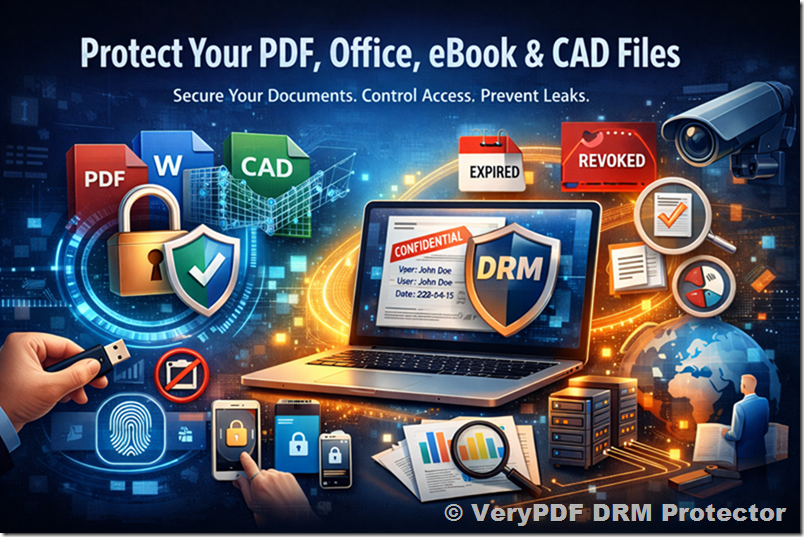
Protect your PDFs online with VeryPDF DRM Protector, preventing copy, paste, and unauthorized sharing even in web browsers.

How to Stop PDF Copy and Paste Even Inside Browsers Using Web DRM and Encrypted Content Delivery


Every time I sent a PDF to a client or colleague, I’d get that nagging worry: “Did they share this with someone else?”

Even with password-protected files, copying, pasting, or taking screenshots felt inevitable.

And worse, when documents were opened in browsers, I had zero control. It was a constant headache for anyone handling sensitive PDFs.

That’s when I discovered VeryPDF DRM Protector — Secure PDF Sharing, and honestly, it changed the way I manage documents forever.


Why I Needed a Stronger PDF Protection Solution

In my line of work, documents often include confidential contracts, pricing sheets, and proprietary guides.

I tried standard protections like PDF passwords, Adobe encryption, and even Google Drive’s link-sharing restrictions.

All of them had weaknesses:

  • Passwords can be shared.

  • Copy-paste is still possible in some viewers.

  • Browser-based viewing often bypasses security.

  • No control over printing, screenshots, or offline usage.

I needed a solution that didn’t just limit access but actually controlled how my PDFs were used, regardless of device, browser, or location.


Discovering VeryPDF DRM Protector

I stumbled upon VeryPDF DRM Protector while researching enterprise-grade PDF security tools.

The platform promised web-based PDF protection with encryption, dynamic access controls, and DRM enforcementeven inside browsers.

It sounded like the full solution I had been hunting for.

The setup was surprisingly simple:

  • Drag and drop your PDF files or upload them from multiple sources (PC, cloud storage, phone).

  • Set view limits, passwords, or expiration dates.

  • Share via email invites, which automatically include a QR code for mobile viewing.

From the very first upload, I realised this wasn’t just a “locker” for PDFsit was a control centre.


Key Features That Blew Me Away

1. Stop Copying, Editing, and Printing

Once I applied VeryPDF DRM Protector, my PDFs became effectively immune to unauthorized actions.

I could:

  • Prevent users from copying content or taking screenshots.

  • Disable printing entirely or limit the number of prints.

  • Apply dynamic watermarks with user-specific info (like name, email, and date) on every view or print.

I remember sending a confidential pricing document to a distributor. Normally, I’d worry it could be leaked or printed multiple times.

With VeryPDF, I limited it to two prints per user and tracked each attempt. Peace of mind like I’ve never had before.


2. Web-Based Access Without Sacrificing Security

One of my biggest frustrations was browser-based viewing. Most tools either expose the document entirely or don’t work well on mobile.

VeryPDF changed that:

  • Protected PDFs are delivered in encrypted chunksjust a few pages at a time.

  • Users can only log in on one device at a time, preventing account sharing.

  • Works seamlessly across desktop and mobile browsers.

During a recent client presentation, I shared a contract via web link. The client could view it securely on their tablet without installing anything, and I retained full control over usage.


3. Expiration, Revocation, and Location Locking

This feature alone made me stop sleeping on PDF security.

VeryPDF allows me to:

  • Expire documents after a specific date, number of views, or prints.

  • Revoke access instantly for one user or all users.

  • Restrict access based on country, IP range, or device.

For example, when a partner left my company, I simply revoked their access with a click. No need to chase down files they might have downloaded months ago.


4. Secure Sharing on USB and Offline

Sometimes, I need to share documents at events where internet access is unreliable.

VeryPDF Safeguard Portable lets me distribute files via USB with full DRM controls:

  • Expiration, user watermarks, and device locks all work offline.

  • Users don’t need to install software or plugins.

This worked perfectly at a recent industry conference where I handed out sample reportssecurely.


How VeryPDF DRM Protector Compares to Other Tools

I’ve tried Adobe PDF password protection, Google Docs sharing, and other DRM tools.

  • Adobe PDFs: Easy to bypass; passwords shared freely.

  • Google Docs: Collaboration-focused, but security is weak; copying and screenshots still possible.

  • Other DRM systems: Often clunky, device-limited, or too expensive.

VeryPDF combines flexibility, security, and control, all in one system.

It’s the first tool where I can truly share a document without losing control.


Who Should Use VeryPDF DRM Protector

This isn’t just for legal teams or finance departments. Anyone who shares sensitive documents externally will benefit:

  • Corporate teams sharing contracts, financial statements, or reports.

  • Publishers selling PDFs online.

  • HR departments sharing onboarding documents.

  • Consultants sending confidential proposals to clients.

  • Education providers distributing exam papers or course material.

Basically, if you care about preventing PDF copy and paste even inside browsers, this is your tool.


My Take: Practical Problems Solved

After using VeryPDF DRM Protector for several months, here’s what I love most:

  • No more sleepless nights worrying about leaked PDFs.

  • Total control over document expiry, printing, and sharing.

  • The ability to track and log usage in real time.

  • Secure sharing across devices, offline or online.

It’s a complete shift from “hope they don’t share it” to absolute confidence in document security.

I’d highly recommend this to anyone who deals with sensitive PDFs and wants real control, not just password locks.

Click here to try it out for yourself: https://drm.verypdf.com/


Custom Development Services by VeryPDF

VeryPDF offers tailored development services to fit your specific PDF and document management needs.

Whether you need Linux, macOS, Windows, or server solutions, their expertise covers Python, PHP, C/C++, Windows API, Linux, Mac, iOS, Android, JavaScript, C#, .NET, and HTML5.

Some highlights include:

  • Windows Virtual Printer Drivers to generate PDF, EMF, and image formats.

  • Printer job capture tools to intercept and save print jobs in multiple formats.

  • System and application hooks to monitor Windows APIs.

  • Document analysis: PDF, PCL, PRN, Postscript, EPS, Office formats.

  • OCR and barcode solutions for scanned TIFFs and PDFs.

  • Cloud-based document conversion, viewing, and digital signature solutions.

  • PDF security, DRM, and rights management systems.

For custom projects, reach out to VeryPDF via their support centre: https://support.verypdf.com/


FAQs

Q1: Can VeryPDF DRM Protector prevent copying from PDFs opened in a browser?

Yes. Protected PDFs are delivered in encrypted chunks, and copying, pasting, or screen capture is blocked.

Q2: Can I set an expiration date for my PDFs?

Absolutely. You can expire files by fixed date, number of views, prints, or days of use.

Q3: Is mobile access supported?

Yes, protected PDFs are mobile-friendly and include QR code access for easy viewing.

Q4: Can I revoke access after sharing a document?

Yes, you can revoke access instantly for individual users or all users, even after distribution.

Q5: Does VeryPDF support offline document sharing?

Yes, with Safeguard Portable, documents can be shared securely on USB sticks without internet access.


Tags / Keywords

  • PDF copy and paste protection

  • Secure PDF sharing

  • Web DRM PDF

  • Encrypted PDF delivery

  • Document security software

  • PDF access control

  • VeryPDF DRM Protector

Why PDF Copy Protection Is Necessary for Businesses And How DRM Provides Complete Security

Why PDF Copy Protection Is Necessary for Businesses And How DRM Provides Complete Security

Secure your PDF documents before they slip out of control.

Why PDF Copy Protection Is Necessary for Businesses And How DRM Provides Complete Security

Every time I’ve sent out sensitive PDFs to clients or partners, I’ve held my breath, hoping the files wouldn’t end up in the wrong hands.

We’ve all been theresending a confidential report or proposal only to worry someone might forward it, print it, or edit it without permission.

For businesses handling proprietary content, contracts, or legal documents, these risks aren’t minorthey’re costly. That’s where PDF copy protection and DRM solutions like VeryPDF DRM Protector make all the difference.


Why PDF Copy Protection Matters for Businesses

When I first started sharing important documents digitally, I assumed password protection was enough.

It wasn’t. I quickly discovered that anyone with the password could forward the PDF, take screenshots, or even bypass the restrictions entirely.

Suddenly, sensitive information could leak, revenue could be lost, and legal liabilities increased.

PDF copy protection isn’t just about locking a fileit’s about controlling how it’s used, where it’s accessed, and who sees it.

Businesses in legal, finance, publishing, and corporate strategy rely on this level of control to prevent unauthorized sharing, editing, and printing.

Without proper protection, even the most trusted employees or partners could accidentallyor intentionallyexpose confidential material.


How I Discovered VeryPDF DRM Protector

I first stumbled upon VeryPDF DRM Protector when a client needed a way to share financial reports across multiple offices and external partners without risking leaks.

The software promised complete PDF security, not just passwords, and I was intrigued.

After testing, I realised it wasn’t over-complicated, unlike other DRM solutions I’d tried.

You could upload PDFs from your PC, phone, Dropbox, or OneDrive, and create a secure URL for each documentready to share online.

It’s designed for anyone who needs secure document sharing: corporate teams, legal firms, publishers, and even freelancers who send sensitive proposals.

It also works for businesses distributing digital products, ensuring revenue isn’t lost through piracy.


Key Features That Made a Difference

1. Full Control Over Document Access

The first thing I noticed was the ability to set view limits, passwords, and expiration dates for each file.

I could allow a client to view a contract five times only, or let an external auditor access a financial report for three days, after which the file expired automatically.

No manual follow-ups, no worrying if someone saved the PDF and shared itthey simply couldn’t.

Other tools fall short here: standard PDF passwords can be shared, and basic encryption can be bypassed.

With VeryPDF, you can also revoke access instantly, whether it’s a single user or all users holding a file.

That level of control was a game-changer in my workflow.


2. Dynamic Watermarks and Print Restrictions

Another feature that saved me headaches was dynamic watermarking.

Every document could display the viewer’s name, company, email, or even the date and time, directly on the pages or printouts.

This meant if a leak ever happened, I could trace the source immediately.

Printing could also be restricted completely, or limited to a certain number of prints.

Before, I had to rely on trust. Now, trust was backed by technology.


3. Device and Location Locking

One of the most impressive features is device and location locking.

Documents are tied to authorized devices, so even if a file was copied to another laptop, it wouldn’t open.

You can also restrict access based on IP ranges or country locations, which is perfect for companies with strict compliance needs.

I remember sending a sensitive HR document to an overseas officepreviously, I would have been worried about it being downloaded and shared freely.

With VeryPDF DRM Protector, I set it to open only on office laptops within the country.

Peace of mind doesn’t get better than that.


4. Tracking and Analytics

Ever wondered if someone actually opened the document you sent?

With VeryPDF DRM Protector, you can track views, prints, devices used, and operating systems.

I found this especially useful when distributing proposals to multiple clientsI could follow up more intelligently, knowing exactly who interacted with the files.


5. Cloud and USB Distribution

Whether it’s cloud access via a browser or offline distribution via USB sticks, VeryPDF has you covered.

For remote teams or offline events, protected USBscomplete with a secure viewer and keystoreallow documents to be shared safely without an internet connection.

This flexibility is unmatched by traditional secure file sharing platforms, which often require everyone to be online.


Real-World Use Cases

I’ve used VeryPDF DRM Protector in several scenarios:

  • Legal Teams: Sharing sensitive contracts and case files with clients and partners while ensuring no leaks.

  • Financial Departments: Distributing reports internally and externally with automatic expiry and print limits.

  • Publishing Companies: Selling eBooks and reports online while preventing piracy.

  • Corporate Strategy: Sharing confidential plans with board members, restricting use to specific devices and locations.

Every time, the same pattern repeated: the software saved time, prevented leaks, and gave full control over sensitive content.


Core Advantages Over Other Tools

  • Complete document control: No more shared passwords that anyone can use.

  • Automatic expiration: No manual reminders or follow-ups.

  • Tracking and analytics: Know exactly who accessed what, when, and where.

  • Device and location restrictions: Tighten security for remote or external users.

  • Offline access with USB: Distribute without internet dependency.

Compared to other DRM solutions or password-based systems, VeryPDF offers both flexibility and ironclad security, all while being surprisingly easy to use.


Why I Recommend VeryPDF DRM Protector

If your business regularly shares PDFs with clients, partners, or internal teams, you cannot rely on simple passwords anymore.

VeryPDF DRM Protector gives you true PDF copy protection, secure sharing, and peace of mind.

I’ve personally seen it prevent document leaks, save time, and reduce compliance risks.

Click here to try it out for yourself: https://drm.verypdf.com/

Start your free trial now and experience how effortless secure PDF sharing can be.


Custom Development Services by VeryPDF

VeryPDF offers tailored solutions for your unique document and PDF processing needs.

Whether it’s Windows, macOS, Linux, mobile devices, or cloud environments, their team can develop custom utilities in Python, PHP, C/C++, .NET, JavaScript, and more.

Services include:

  • Virtual Printer Drivers for PDF, EMF, and image formats.

  • Printer job monitoring and interception, saving print jobs in secure formats.

  • Hook layers for file access or application monitoring.

  • OCR, barcode recognition, layout analysis, and PDF table extraction.

  • Cloud-based solutions for secure conversion, viewing, and digital signing.

  • Document security technologies like DRM, digital signatures, and TrueType font protection.

For specific project needs or bespoke development, contact VeryPDF via https://support.verypdf.com/.


FAQs

1. Can VeryPDF DRM Protector prevent unauthorized PDF sharing?

Yes, it enforces both online and offline DRM controls, preventing users from forwarding, printing, or copying protected PDFs.

2. Is it possible to set expiration dates for documents?

Absolutely. You can set documents to expire after a certain number of views, prints, or on a fixed date.

3. Can I track how my documents are being used?

Yes. VeryPDF provides logs for views, prints, devices, and operating systems, allowing you to monitor document usage in real time.

4. Does the software work on mobile devices?

Yes, protected documents are mobile-friendly and can be accessed via a browser, with QR codes for easy device switching.

5. Can I revoke access after sharing a document?

You can instantly revoke access for individual users, multiple users, or all users at once, regardless of where the files are located.


Tags or Keywords

  • PDF copy protection for businesses

  • Secure PDF sharing

  • Document DRM software

  • Protect PDF from copying

  • Secure external document distribution

  • PDF security solutions

How to Prevent PDF From Screen Capture Using Device Authentication and Screen Security APIs

How to Prevent PDF From Screen Capture Using Device Authentication and Screen Security APIs

Learn how VeryPDF DRM Protector prevents screen captures, enforces device authentication, and secures PDF sharing for confidential documents.

How to Prevent PDF From Screen Capture Using Device Authentication and Screen Security APIs


Every time I had to share sensitive PDF reports with clients or colleagues, I felt a knot in my stomach.

One wrong click, one leaked password, and months of confidential work could end up in the wrong hands.

It didn’t matter if the PDF was encrypted or password-protectedthe moment someone could take a screenshot or share the file, control was lost.

I needed a way to stop PDFs from being copied or screenshotted, without making sharing a pain for legitimate users.

That’s when I discovered VeryPDF DRM Protector.

It completely changed the way I distribute PDFs securely, combining device authentication with powerful screen security APIs.


Why VeryPDF DRM Protector Stands Out

I’ve tried password-protected PDFs, common digital rights management tools, and even secure cloud drives.

The problem? Users could still take screenshots, share passwords, or print documents freely.

VeryPDF DRM Protector is different. It doesn’t just lock the fileit locks the use of the file itself.

Here’s what makes it work for me:

  • Device Authentication: Each document is tied to specific devices.

    Even if someone tried to copy a file to another computer, it simply wouldn’t open.

  • Screen Security APIs: Screen capture tools, recording software, and even print-to-PDF attempts are blocked.

    You literally control what the user sees and what they can do with it.

  • Dynamic Watermarks: Every time a document is opened or printed, a watermark with the user’s name, date, and company info appears automatically.

    This simple feature has stopped multiple leaks in their tracks in my team.


Core Features I Rely On Daily

1. Secure External Document Sharing

I frequently share proposals, contracts, and confidential reports with clients and partners.

With VeryPDF, I can:

  • Stop unauthorized sharing

  • Prevent copying, editing, and screen grabs

  • Control printing or limit the number of prints

  • Lock use to devices and even geographic locations

I remember sending an urgent contract to a partner overseas.

Normally, I’d worry about someone forwarding it to the wrong person.

With VeryPDF, I could restrict access to their device and region only.

No worries, no follow-ups needed.

2. Automatic Expiry and Access Revocation

Some documents are only relevant for a short period.

Previously, I’d email reminders to colleagues to delete outdated files.

Now, I just set expiry dates, or limits on views or prints.

Once a contract or report hits its limit, the PDF self-destructs access-wise.

I’ve also revoked access for former employees instantlyno phone calls, no stress.

3. Cloud and Offline Flexibility

Sometimes I need online access, other times offline.

VeryPDF handles both perfectly:

  • Web Viewer for browser access anywhere

  • USB distribution with built-in secure viewer for offline use

I once had a client at a conference without internet.

I sent the USB-protected PDF, and they could open it safely without risking exposure.

This level of flexibility is rare.


Real Use Cases Where VeryPDF DRM Protector Shines

  • Legal Teams: Sharing contracts securely with external counsels without risk of leaks.

  • Finance Departments: Distributing quarterly reports to investors while preventing unauthorized copying.

  • Publishing Companies: Selling PDFs online with full control over use, print, and resale.

  • Corporate Training: Distributing internal manuals that must remain confidential.

  • Events & Conferences: Sharing sensitive presentation slides offline with secure USBs.

I personally use it every week when sending financial projections to stakeholders.

The confidence of knowing nobody can take screenshots or redistribute documents is priceless.


Advantages Over Other Tools

  • Adobe Passwords vs. VeryPDF: Adobe can be bypassed if a user shares a password. VeryPDF locks files to devices.

  • Generic DRM: Many DRMs allow printing or exporting. VeryPDF prevents screen capture entirely.

  • Cloud Drives: Services like Google Docs or OneDrive are great for collaboration but are weak on screenshot prevention. VeryPDF enforces both online and offline protection.

It’s the difference between “secure collaboration” and “true secure sharing.”

With VeryPDF, I finally feel in control, not my users.


How I Implement It in My Workflow

  • Step 1: Drag and drop PDFs to VeryPDF DRM Protector.

  • Step 2: Set user-specific limits, expiration, and device locks.

  • Step 3: Share via link, email, or USB with embedded secure viewer.

  • Step 4: Track usage in real-timeviews, prints, device info.

I even integrate it into my team’s document distribution workflow.

Now, compliance checks are automated, and there’s a clear audit trail for every sensitive file.


Why I Recommend VeryPDF DRM Protector

If you deal with sensitive PDFs, whether client contracts, investor reports, or internal policies, you need control.

I’d highly recommend VeryPDF DRM Protector to anyone who wants to:

  • Prevent screen capture

  • Control device-specific access

  • Track and revoke document usage

  • Share securely online and offline

It’s straightforward, powerful, and honestly, a relief for anyone tired of chasing leaks.

Click here to try it out for yourself: https://drm.verypdf.com/


Custom Development Services by VeryPDF

VeryPDF offers flexible custom development services for businesses needing tailored PDF and document security solutions.

Whether you need server-side PDF processing, custom Windows Virtual Printer Drivers, or mobile-friendly DRM solutions, their team can help.

Services include development using Python, PHP, C/C++, Windows API, Linux, macOS, iOS, Android, JavaScript, C#, .NET, and HTML5.

They also handle document analysis, barcode recognition, OCR table extraction, dynamic watermarking, cloud integration, and secure document distribution.

If your project has unique requirements, VeryPDF can build custom solutions to meet them.

Contact them at https://support.verypdf.com/ for a consultation.


FAQs

Q1: Can VeryPDF DRM Protector stop screenshots on all devices?

Yes. The software uses screen security APIs and device authentication to prevent screenshots, screen recording, and unauthorized printing on all supported devices.

Q2: How does device locking work?

Each PDF is tied to authorized devices. If someone tries to open the PDF on an unapproved device, access is denied.

Q3: Can I share PDFs offline securely?

Absolutely. Using VeryPDF’s Safeguard Portable, PDFs can be distributed via USB with built-in protection, without needing an internet connection.

Q4: How are documents revoked if needed?

You can instantly revoke access for individual users or all users, for single or multiple PDFs, through the DRM Protector interface.

Q5: Is it possible to track document usage?

Yes. You can monitor views, prints, and device details in real-time, giving you full insight into who accessed the document and when.


Tags / Keywords

  • prevent PDF screen capture

  • secure PDF sharing

  • document DRM

  • device authentication for PDFs

  • secure external document distribution

How to Block Screen Recording PDF Content Using Time Based DRM Session Controls and Restrictions

How to Block Screen Recording PDF Content Using Time Based DRM Session Controls and Restrictions

Learn how VeryPDF DRM Protector prevents screen recording of PDFs with time-based DRM controls, safeguarding your documents from unauthorized use.

How to Block Screen Recording PDF Content Using Time Based DRM Session Controls and Restrictions


Every time I sent sensitive reports or contracts via email, I’d lie awake worrying someone might screenshot or record them without permission. It’s one thing to email a file with a password, but another entirely to trust that it won’t be copied, shared, or misused. I’ve lost track of the times colleagues or clients accidentally forwarded confidential PDFs, or worse, saved a copy to pass along.

For anyone managing sensitive documentslegal teams, financial departments, publishers, or consultantsthis is a real problem. Traditional PDF security measures like password protection are no longer enough. Enter VeryPDF DRM Protector, a tool I recently discovered that completely changed how I handle secure PDF sharing.


Why I Chose VeryPDF DRM Protector

I first came across VeryPDF DRM Protector when I was researching ways to prevent screen recording and unauthorized sharing of internal documents. The platform immediately stood out for a few reasons:

  • Ease of use I could upload multiple PDFs at once through drag-and-drop or directly from cloud services like Dropbox and OneDrive.

  • Mobile-friendly viewing My team often works from tablets and phones, and every protected document could be viewed seamlessly on any device.

  • Granular control I could set expiration dates, limit views, and even control printing, something that other tools didn’t offer without complicated setup.

The product caters to anyone who shares confidential or sensitive PDFs: corporate teams, law firms, publishers, educators, and consultants who need to ensure that documents are only accessible to authorised recipients.


Key Features That Made a Difference

1. Stop Screen Recording and Copying

One of the standout features is the ability to prevent screen grabs and recording entirely.

Before using VeryPDF, I tried several methods: watermarking, password protection, even third-party screen blockers. None were foolproof. VeryPDF’s DRM system, however, blocks the content dynamically. The PDF can only be viewed in a secure environment, so even if someone tries to record their screen, the content appears blank or distorted. For instance, during a client presentation, I could share a proposal via a link and relax, knowing it couldn’t be copied or recorded.

2. Time-Based Session Controls

I often need to send documents that are relevant for a specific period, like quarterly reports or temporary contracts. VeryPDF lets you:

  • Set a fixed expiration date

  • Limit access to a certain number of views

  • Automatically revoke access after a set number of prints

This was a lifesaver. I sent a draft contract to an external legal adviser and set it to expire in 5 days. After that, even if they still had the link saved, the document became inaccessible. No more chasing down files or worrying about outdated versions floating around.

3. Device and Location Locking

Another feature I absolutely loved was device and location locking. Before this, sharing PDFs externally felt like giving someone a loaded gunthey could open it anywhere. With VeryPDF, I could restrict a document to specific devices and IP ranges. My team could only access certain reports from our corporate network or approved devices. This gave me peace of mind when collaborating with remote partners.

4. Dynamic Watermarking

VeryPDF also supports dynamic watermarking, which inserts real-time data like username, email, and date directly into the PDF. This feature discouraged leaks because if a document appeared somewhere it shouldn’t, I knew exactly who viewed it. One memorable use case: a draft whitepaper went to multiple reviewers. Each copy had a unique watermark, and a few careless forwards were immediately traceable.


How VeryPDF DRM Protector Changed My Workflow

Before using VeryPDF, sending PDFs securely involved multiple steps: zipping files, adding passwords, checking that recipients were using compatible viewers. It was cumbersome and still didn’t guarantee document safety.

With DRM Protector, I can:

  • Upload PDFs in seconds via drag-and-drop or from cloud storage

  • Share them with a simple link, even to mobile devices

  • Set expirations, view limits, and print restrictions in one go

  • Track every view and print, giving me real-time insights into document usage

It’s honestly saved me hours of work each week, reduced mistakes, and completely eliminated the stress of “what if someone shares this without permission?”

Compared to other tools like Adobe DRM or standard password protection, VeryPDF offers stronger encryption, offline controls, and complete revocation capability. You don’t just hope a file remains privateyou enforce it.


Real-World Use Cases

  • Legal Teams: Sharing draft contracts or confidential legal opinions with clients or opposing counsel without risk of unauthorized copying.

  • Corporate Finance: Distributing quarterly financial reports to board members or investors with time-limited access.

  • Publishing: Selling eBooks or research papers while preventing piracy and unauthorized distribution.

  • Education: Sending exams, study guides, or sensitive course materials to students with expiration dates and view limits.

  • Consultants: Sharing sensitive strategy documents with clients securely without worrying about forwarding or leaks.


Conclusion: Why I Recommend VeryPDF DRM Protector

If you deal with sensitive PDFs and want complete control over who sees, prints, or records them, VeryPDF DRM Protector is a game-changer.

It addresses real problems: preventing screen recording, enforcing expiration, locking access to devices, tracking usage, and revoking access instantly. In my experience, it’s the only tool that consistently delivers reliable PDF security without complicating workflows.

I’d highly recommend this to anyone who deals with large volumes of PDFs and wants to keep confidential information safe. Click here to try it out for yourself: https://drm.verypdf.com/


Custom Development Services by VeryPDF

VeryPDF offers custom development services tailored to your specific needs. Whether you require PDF processing tools for Linux, macOS, Windows, or server environments, their team can create solutions using Python, PHP, C/C++, Windows API, Linux, Mac, iOS, Android, JavaScript, C#, .NET, and HTML5.

Some of the custom solutions include:

  • Windows Virtual Printer Drivers that output PDF, EMF, or image formats

  • Monitoring and capturing printer jobs across all Windows printers

  • Hook layers to intercept Windows APIs, including file access

  • OCR and OCR table recognition for scanned PDFs and TIFFs

  • Document DRM, digital signatures, and secure external distribution

  • Cloud-based document conversion, viewing, and PDF security tools

For tailored solutions, contact VeryPDF at https://support.verypdf.com/ to discuss your project requirements.


FAQ

1. Can VeryPDF DRM Protector prevent screen recording on all devices?

Yes, the software uses secure viewers and DRM controls to block screen recording across Windows, macOS, and mobile devices.

2. How does time-based DRM session control work?

You can set documents to expire after a certain date, number of views, or prints, ensuring limited access automatically.

3. Can I revoke access after sharing a document?

Absolutely. VeryPDF allows you to revoke access instantly for individual users or all users, even if the document is already downloaded.

4. Does VeryPDF support mobile viewing?

Yes, all protected PDFs are mobile-friendly and can be opened via browser or email link with QR codes for easy access.

5. How does dynamic watermarking help protect documents?

Dynamic watermarks insert user-specific info like name, email, or date into the PDF. This discourages leaks and allows you to trace any unauthorized distribution.

6. Can I restrict document access by location or device?

Yes, you can lock access to specific devices and IP ranges, ensuring only authorized users in permitted locations can view the PDFs.


Tags or Keywords

  • Secure PDF sharing

  • Prevent screen recording PDF

  • Time-based DRM session controls

  • PDF document protection

  • VeryPDF DRM Protector

  • Expiring PDF access

  • Mobile-friendly PDF security

How to Protect PDF From Screenshot by Watermarking the Viewer With Real Time User Identity Tags

How to Protect PDF From Screenshot by Watermarking the Viewer With Real Time User Identity Tags

Secure your PDFs from screenshots and unauthorized sharing with VeryPDF DRM Protector, adding dynamic watermarks with real-time user identity.

How to Protect PDF From Screenshot by Watermarking the Viewer With Real Time User Identity Tags


Every time I sent a sensitive PDF to a client or colleague, I couldn’t shake the worry: could someone just screenshot it, share it, or even print it without permission?

I remember one Friday afternoon, sending a proposal to a potential partner, only to realise there was no way to track if it got shared or copied. That’s when I started looking for a real solutionsomething more robust than just password protection.

That’s how I discovered VeryPDF DRM Protector. It’s not just another PDF security tool; it’s a complete system for protecting, tracking, and controlling how your PDFs are accessed. I’ve been using it for months now, and the difference in my workflow and peace of mind has been massive.


Why You Need Secure PDF Sharing

In many industries, from legal firms to creative agencies, sensitive documents are shared constantly. Contracts, drafts, confidential reportsthey all carry risk if they fall into the wrong hands.

Most traditional methods like PDF passwords or standard encryption feel flimsy. Passwords can be shared. Files can be downloaded and circulated without you knowing. Even read-only PDFs don’t stop screenshots. That’s where VeryPDF DRM Protector shines.


Discovering VeryPDF DRM Protector

When I first tried it, the setup was surprisingly simple. I could drag and drop files from my PC, phone, or even cloud services like Dropbox and OneDrive. Within minutes, I had a secured PDF ready to share as a link.

What makes it stand out is the dynamic watermarking feature. Every PDF can display real-time user infolike the recipient’s name, email, company, date, and timeon every page. So if someone attempts a screenshot, the watermark acts as a visible deterrent and traceable proof.


Key Features That Changed How I Handle PDFs

1. Dynamic Watermarking With Real-Time User Identity

This is the game-changer. Every PDF I share now has a watermark tailored to the individual viewer.

  • Shows the user’s name, email, company, and timestamp.

  • Appears both on-screen and when printed.

  • Discourages screenshots or unauthorized sharing.

For example, I sent a draft proposal to three different clients. Each copy displayed their own details dynamically. When one client jokingly tried to screenshot it during a video call, I instantly knew it would be traceable.

2. Control Document Access and Expiry

It’s not just about stopping screenshots; it’s about full control.

  • Set view limits per user.

  • Add password protection.

  • Expire documents after a set number of days, views, or prints.

I once shared a PDF for a limited-time project proposal. With VeryPDF, I set it to expire after three views. Once the limit was reached, the document became inaccessible automaticallyno chasing emails or reminders needed.

3. Mobile-Friendly, Seamless Sharing

Sharing PDFs used to be a hassle on mobile devices. With VeryPDF, all documents are mobile-friendly. Email invites include a QR code so recipients can open the PDF securely on any device.

This has been a lifesaver for quick approvals when clients are on the go.

4. Revoke Access Instantly

One of my biggest fears was sending a document and later realising it shouldn’t be available anymore.

VeryPDF allows instant revocation of access for individual users or all recipients, no matter where the document is stored. That kind of control is rare and incredibly valuable.

5. Detailed Tracking and Logs

Now I can actually see how my PDFs are used. VeryPDF logs:

  • Who viewed or printed the document.

  • On which device and OS.

  • When exactly it happened.

It’s like having a digital audit trail without manually asking for confirmation.


Real-World Use Cases

Legal Teams Contracts, NDAs, and court documents can now be shared securely, with watermarking to prevent leaks.

Marketing Agencies Creative drafts and campaigns are safe from internal leaks or external circulation before launch.

Consulting Firms Client proposals, financial models, and sensitive reports can be shared online while controlling expiry, prints, and access.

Corporate Training Materials Protect internal PDFs from being downloaded, shared, or misused outside the company.

Event or Conference Materials Share digital brochures via USB drives securely with offline access.


How VeryPDF DRM Protector Compares

I’ve tried other PDF security tools before. Most were either too complicated, didn’t prevent screenshots, or had weak logging features.

  • Adobe password protection: easy to bypass, no user tracking.

  • Cloud collaboration platforms: great for editing but terrible for secure distribution.

  • Standard PDF encryption: prevents editing but not screenshots or printing without control.

VeryPDF solves all of these problems in one package. It’s like combining security, tracking, and user control into a single, easy-to-use system.


My Personal Experience

Since using VeryPDF DRM Protector, my workflow has been smoother and my documents safer.

I remember sharing a financial report with a client overseas. I set:

  • Limited views: 2 per user

  • Watermarks with their name and email

  • Expiry in 7 days

Not only did I get peace of mind, but when I checked the logs, I could see exactly who accessed it and when. This level of transparency is priceless, especially when dealing with sensitive business materials.

Another time, I used the USB-based secure sharing feature for a live event. I handed out USBs containing protected PDFs. Each file was locked with dynamic watermarks, offline access, and expiry controls. The feedback was amazingrecipients could access the files instantly, but I knew they couldn’t share them freely.


Conclusion

VeryPDF DRM Protector solves real problems: protecting PDFs from screenshots, controlling access, logging usage, and revoking permissions at any time.

I’d highly recommend this to anyone who deals with confidential documents or sensitive business materials.

It’s easy to use, mobile-friendly, and offers peace of mind that no other PDF security tool I’ve tried provides.

Click here to try it out for yourself: https://drm.verypdf.com/


Custom Development Services by VeryPDF

VeryPDF offers comprehensive custom development services for businesses needing tailored PDF solutions.

Whether you need utilities for Linux, macOS, Windows, or server environments, VeryPDF can build tools using Python, PHP, C/C++, Windows API, Linux, Mac, iOS, Android, JavaScript, C#, .NET, and HTML5.

Their expertise includes:

  • Windows Virtual Printer Drivers generating PDF, EMF, and image formats.

  • Capturing and monitoring printer jobs across all Windows printers.

  • File and API monitoring using system-wide hooks.

  • Document processing for PDF, PCL, PRN, Postscript, EPS, and Office files.

  • Barcode recognition, OCR, and table recognition.

  • Report and form generators, image conversion, cloud-based PDF solutions, DRM, digital signatures, and document printing.

For custom technical needs, contact VeryPDF here: https://support.verypdf.com/


FAQ

1. Can VeryPDF DRM Protector prevent screenshots completely?

While no software can physically stop someone from photographing a screen, dynamic watermarking deters unauthorized sharing and makes screenshots traceable to the user.

2. Can I set PDFs to expire automatically?

Yes, you can set expiry based on views, prints, days, or a fixed date.

3. Is VeryPDF DRM Protector mobile-friendly?

Absolutely. PDFs can be viewed securely on any device, with QR codes for quick access.

4. Can I revoke access after sharing a document?

Yes, access can be revoked instantly for individual users or all recipients.

5. Does it track PDF usage?

Yes, you can see detailed logs including who viewed, printed, device type, and timestamps.


Tags or Keywords

  • Protect PDF from screenshot

  • Secure PDF sharing

  • PDF watermarking software

  • DRM for PDF

  • VeryPDF DRM Protector