
VeryPDF DRM Protector provides a secure and reliable way to protect sensitive documents—such as textbooks, training materials, internal manuals, and confidential reports—from unauthorized sharing and misuse. When a PDF is protected with VeryPDF DRM, it becomes a .vpdf encrypted file, which can only be opened and printed using the official VeryPDF Reader.
If you are using a MacBook or a macOS desktop system, this guide will walk you through the full process of installing the Mac version of VeryPDF Reader, opening your protected PDF, and printing it safely and correctly.
1. Download the Mac Version of VeryPDF Reader
To open and print your protected .vpdf documents, you must first install the correct VeryPDF Reader for macOS.
- Open the official download page:
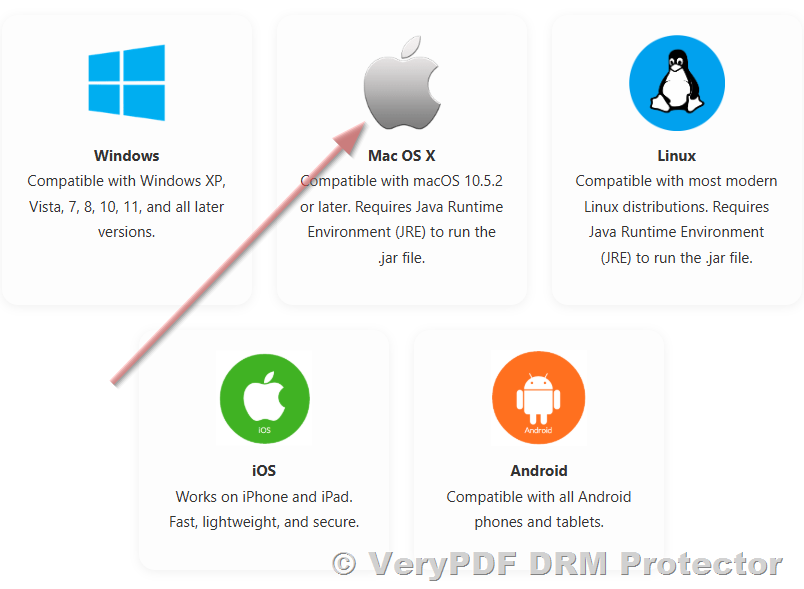
https://drm.verypdf.com/downloads/ - Scroll to the bottom of the page and look for the “Mac OS X” icon.
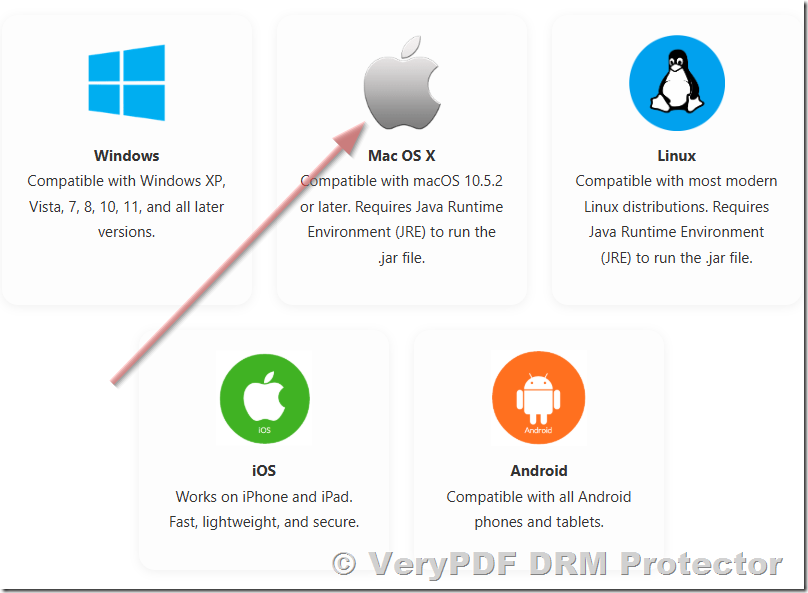
- Click the icon to download the macOS package.
For convenience, here is the direct download link:
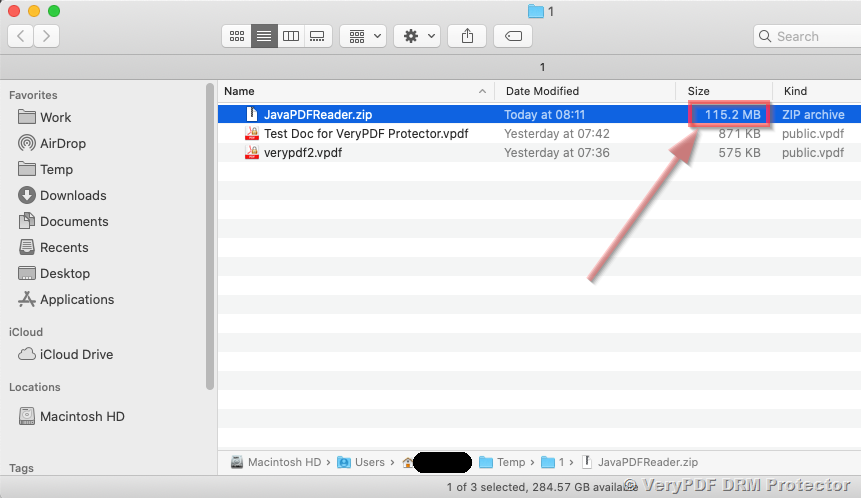
https://www.verypdf.com/dl2.php/JavaPDFReader.zip
This ZIP package contains everything needed to run VeryPDF Reader on macOS.
2. Install Java Runtime Environment (JRE)
The macOS version of VeryPDF Reader is built on Java technology.
Inside the downloaded ZIP package, you will find:
- OpenJDK8U-jdk_x64_mac_*.pkg
- RunPDFReader.command
- Supporting application files
Before launching the reader, you must install Java as follows:
- Unzip the downloaded ZIP file into a folder.
- Double-click the file:
OpenJDK8U-jdk_x64_mac_*.pkg - Follow the installation steps displayed on the macOS installer.
- When installation completes, Java will be available system-wide.
This step is required because the protected PDF reader depends on this exact Java runtime version.
3. Launch the VeryPDF Reader for macOS
Once Java is installed, you can start the protected PDF reader:
- In the same extracted folder, locate the file:
RunPDFReader.command
- Double-click to run it.
If macOS shows a security warning (macOS Gatekeeper), simply:
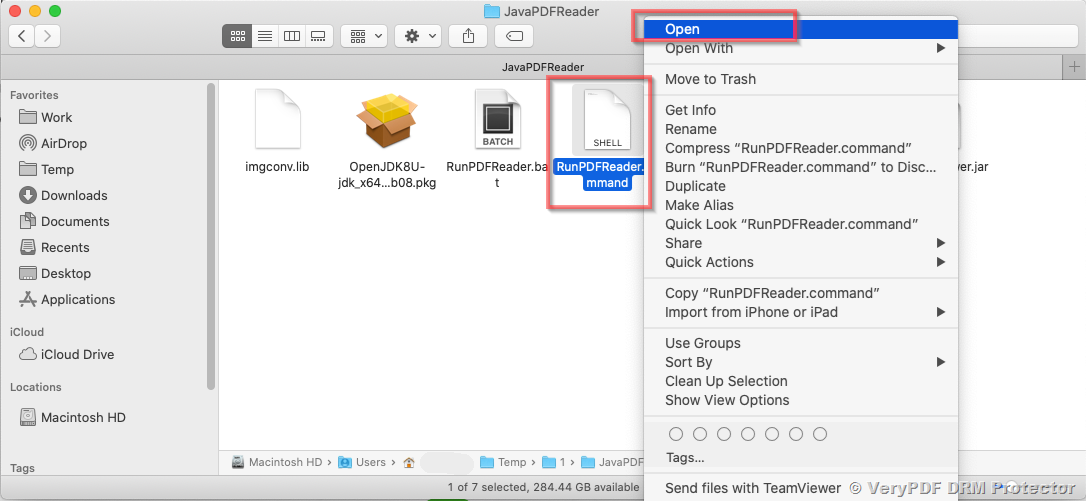
- Right-click the file
- Choose Open
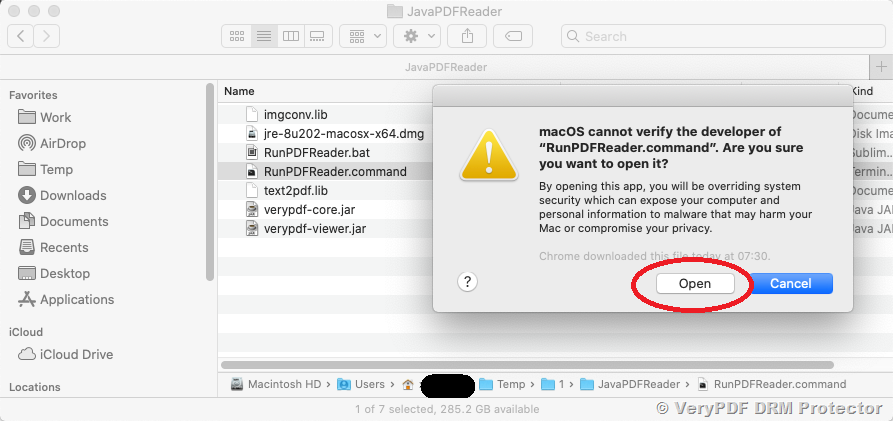
- Confirm again when macOS asks whether you want to continue
The VeryPDF Reader interface will then launch normally.
Screenshot: The file size is more than 100MB.
Step 1. Run the OpenJDK8U-XXXX installer to install Java on your system.
Step 2. Right-click the RunPDFReader.command file and choose Open.
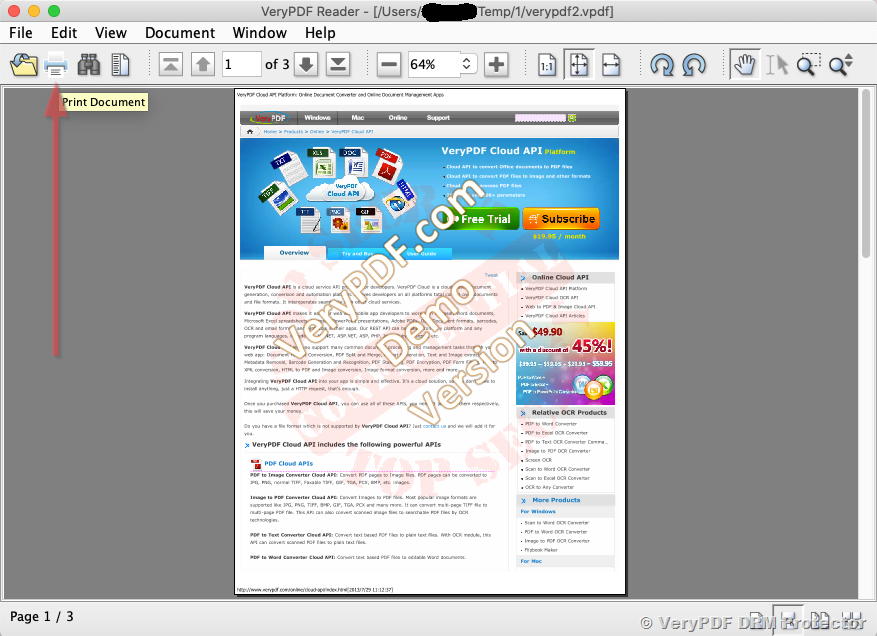
Step 3. The VeryPDF Reader for macOS application will open.
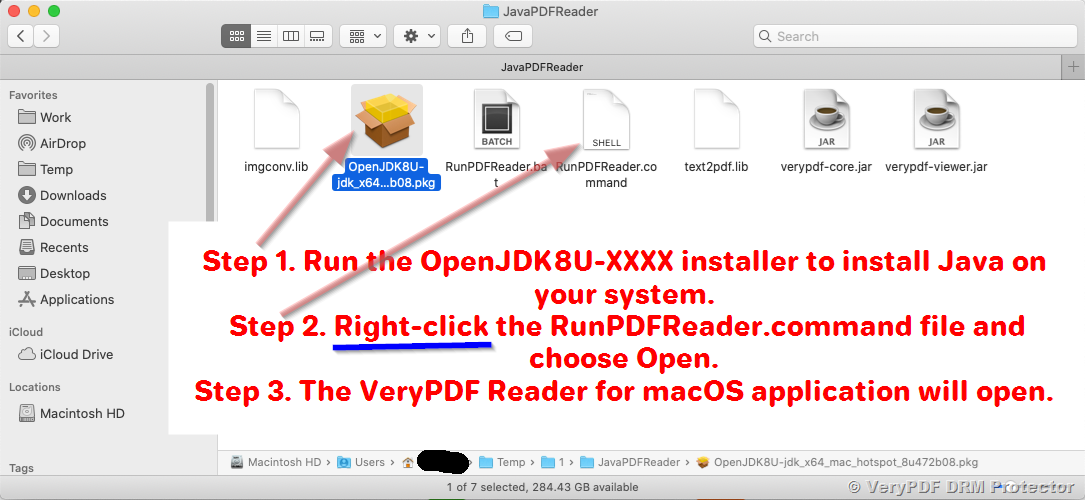
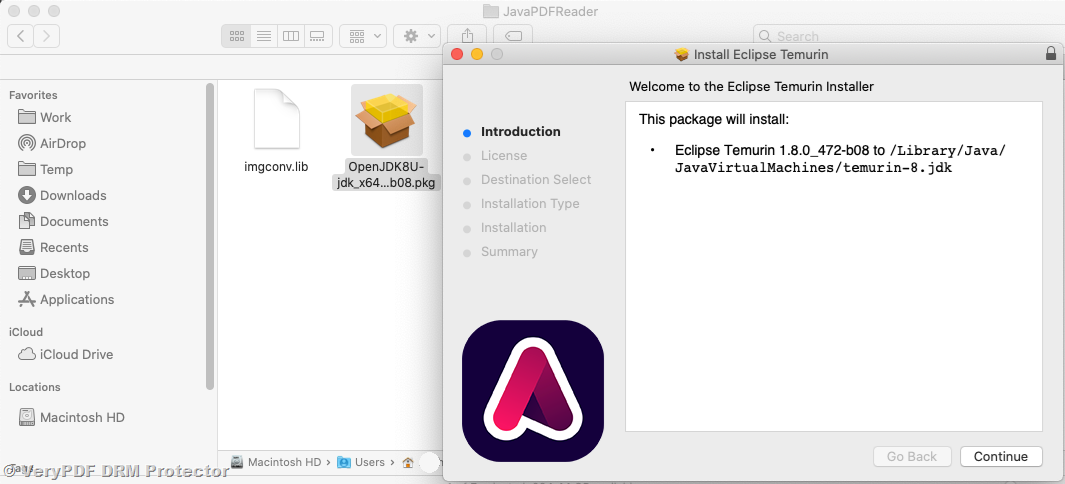
Screenshot: Right-click the RunPDFReader.command file and choose Open,
Screenshot: Click “Open” button to run VeryPDF Reader for macOS application,
4. Open Your DRM-Protected PDF (.vpdf File)
VeryPDF DRM Protector converts your original PDF into a secure .vpdf file that can only be opened after user authentication and license verification.
Inside the VeryPDF Reader:
- Select File → Open
- Choose your .vpdf file
- If required, enter your login information or license credentials
Once verification succeeds, the document will be displayed in the reader.
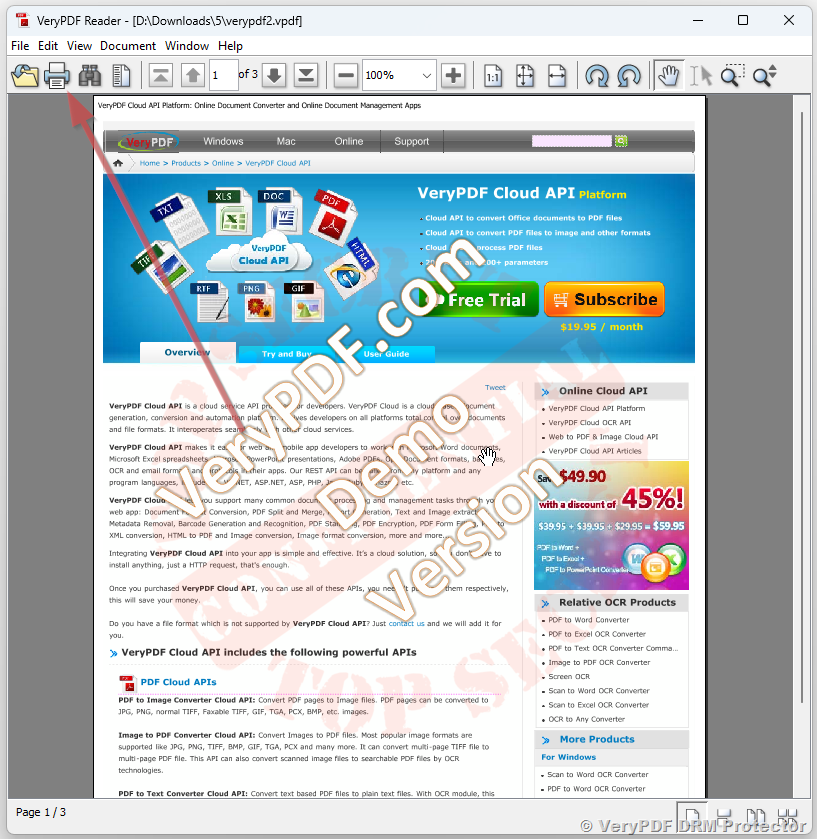
5. Print Your Protected PDF on macOS
If printing is allowed by the DRM permissions set by the document owner, you can print normally:
- Go to File → Print
- Choose your printer from the list
- Adjust print settings (pages, orientation, copies, etc.)
- Click Print
The VeryPDF DRM Protector will enforce all security settings, including:
- Whether printing is allowed
- How many times printing is permitted
- Watermarking or tracking options (if enabled)
If printing is disabled by the document license, the Print menu will appear disabled or will show a message indicating that printing is not permitted.
✅ How to Open a Mac App from an Unknown Developer
Because the macOS version of VeryPDF Reader is not distributed through the Mac App Store, macOS Gatekeeper may display a warning such as:
“VeryPDF Reader can’t be opened because it is from an unidentified developer.”
This is normal and can be resolved easily:
Method 1: Open Anyway (Recommended)
- Right-click (or Control-click) on the file
RunPDFReader.command - Select Open
- macOS will show a warning message again. Click Open to confirm.
- The app will launch normally.
This method tells macOS that you trust this specific application.
Method 2: Allow from System Settings
If macOS blocks the app automatically:
- Open System Settings → Privacy & Security
- Scroll down to the section “Security”
- You will see a message:
“RunPDFReader.command was blocked because it is from an unknown developer” - Click “Allow Anyway”
- Run the file again, and click Open when prompted.
Important Note
This does not disable macOS security. It only allows this one trusted app (VeryPDF Reader) to run on your device.
✅ How to Fix “RunPDFReader.command” Cannot Be Executed Due to Access Privileges
On some macOS systems, double-clicking RunPDFReader.command may show an error:
“The file ‘RunPDFReader.command’ could not be executed because you do not have appropriate access privileges.”
This issue occurs because the command file does not have executable permissions. You can fix this easily:
Method 1: Grant Execute Permission Using Finder (No Terminal Required)
- Right-click (or Control-click) RunPDFReader.command
- Select Get Info
- Scroll to the bottom and find Permissions
- Make sure your user account has Read & Write access
- Close the window, then try running the file again
If it still doesn’t run, use Method 2.
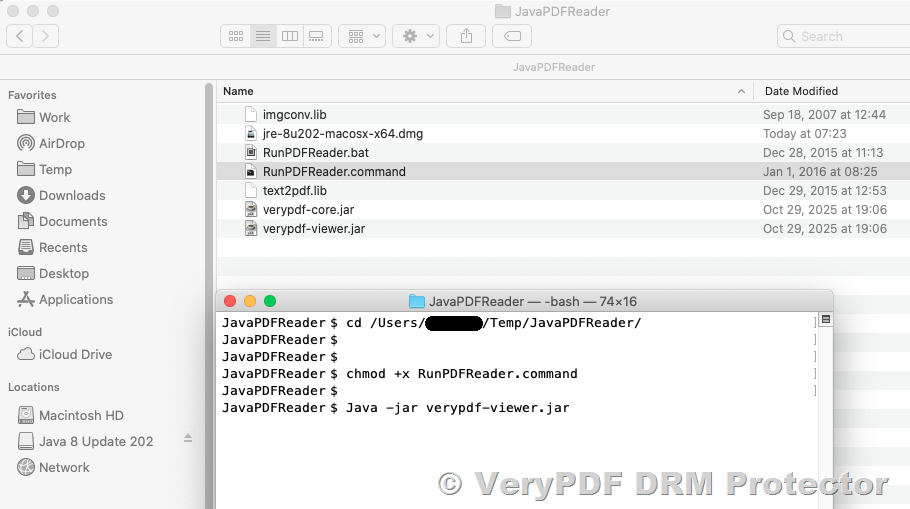
Method 2: Enable Execute Permission Using Terminal (Recommended)
- Open the Terminal app
- Navigate to the folder where the file is located, for example:
- cd ~/Downloads/JavaPDFReader
- Run the following command to grant executable permission:
- chmod +x RunPDFReader.command
- Now double-click RunPDFReader.command again
This will allow macOS to execute the file normally.
Why This Happens
macOS sometimes removes executable permissions from downloaded files (especially command scripts) for security reasons. Running the chmod +x command simply restores the correct permission so the VeryPDF Reader can start.
✅ Alternative Method: Run VeryPDF Reader Directly Without Fixing Permissions
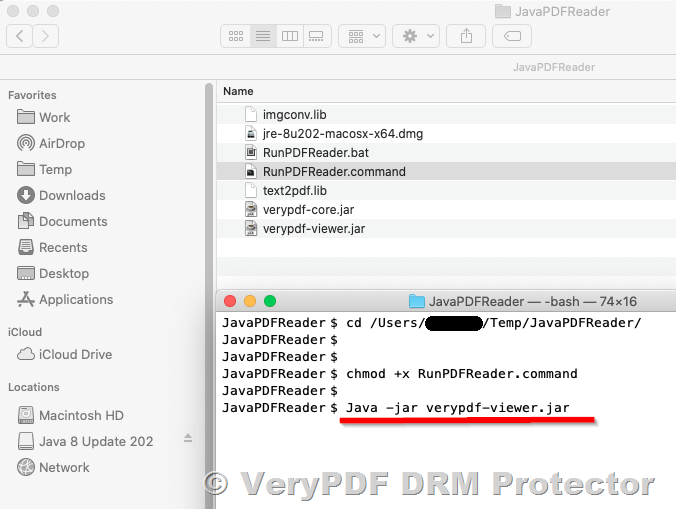
If you prefer not to modify the permissions of RunPDFReader.command, you can start the VeryPDF Reader directly using Java. This method bypasses the .command file entirely and is often the quickest solution.
Steps:
- Open the Terminal app on macOS.
- Navigate to the folder where you extracted the reader, for example:
- cd ~/Downloads/JavaPDFReader
- Run the Java viewer directly:
- java -jar verypdf-viewer.jar
The VeryPDF Reader will launch immediately, and you can open your .vpdf protected files normally.
Why Use This Method?
- No need to adjust file permissions
- No need to fix Gatekeeper warnings
- Works even when .command files are blocked by macOS
- 100% reliable as long as Java is installed
This method is especially helpful for users who want a fast, clean way to launch the protected PDF reader without dealing with .command execution issues.
6. Troubleshooting Tips
If you encounter any issues, here are the most common solutions:
➤ The Reader does not start
- Ensure Java was installed correctly
- Right-click RunPDFReader.command → Open
➤ macOS says the app is from an “unidentified developer”
macOS Gatekeeper sometimes blocks unsigned apps.
Solution:
- Right-click → Open
- Confirm to run anyway
➤ The .vpdf file does not open
- Make sure you are using the correct username/password
- Ensure your license has not expired
- Verify you opened the file inside VeryPDF Reader (not Preview or Adobe Reader)
➤ Printing button is disabled
This means printing is not allowed by the DRM license set by the creator. You must contact the document provider to adjust permissions.
Conclusion
Printing DRM-protected PDFs on macOS is straightforward when using the official VeryPDF Reader application. By installing the included Java runtime and launching the reader through the provided script, you can securely open, view, and print your protected documents while preserving all DRM restrictions set by the document owner.
If you need additional help with installation or printing, VeryPDF support is always available to assist you.