Restrict Access to PDF Documents with Hardware-Based Licensing and No External Keys

Restrict Access to PDF Documents with Hardware-Based Licensing and No External Keys

When it comes to protecting sensitive digital documents, it’s not always enough to simply add a password or a watermark. As professionals, we often need stronger, more secure ways to ensure that our PDFs are only accessed by those authorized to view them. This can be especially challenging when you need to share important files, but you don’t want to risk unauthorized access or distribution. I’ve been in this exact situation, struggling to find a solution that would keep my PDFs safe while making the process of protecting them straightforward.
Restrict Access to PDF Documents with Hardware-Based Licensing and No External Keys

That’s when I discovered the power of hardware-based licensing for PDF documents, a solution I now rely on to keep my files secure without the need for external keys. If you’ve ever been frustrated by external password management or insecure file sharing, this solution could be just what you need.

How I Found the Solution

As someone who regularly deals with confidential documents, I was searching for a way to restrict access to my PDF files without the hassle of managing passwords or external key distribution. After researching, I came across VeryPDF’s DRM Protector, a software that integrates hardware-based licensing to control access to PDFs. What caught my attention was that it does not rely on external keys, but rather uses the system’s hardware to enforce security. This unique approach seemed like a game-changer for securing documents more efficiently.

Product Features and How It Works

VeryPDF DRM Protector offers several powerful features, but the hardware-based licensing is the one that truly stands out. Here’s how it works: instead of embedding external keys or requiring online authentication, the software ties the licensing directly to the hardware of the device. This means that only authorized devices can access the PDF, making it much harder for unauthorized users to bypass security measures.

For example, let’s say you’re a lawyer who regularly shares sensitive contracts with clients. With traditional methods, you might protect your PDFs with a password, but what if that password is shared or cracked? With VeryPDF DRM Protector, you can restrict access to the file based on the specific hardware of the user’s device, ensuring that the document can only be opened on authorized machines. This drastically reduces the risk of leaks or unauthorized distribution.

Key Features of VeryPDF DRM Protector

  • Hardware-based Licensing: The standout feature is the ability to restrict access to PDFs based on the device’s hardware. This eliminates the need for external keys or passwords, making the process more secure and user-friendly.

  • No External Keys Required: Unlike traditional DRM solutions that rely on third-party keys or online authentication, this solution is hardware-dependent, ensuring that only specific devices can view the document. For businesses, this means fewer management headaches.

  • Granular Access Control: You can set specific permissions for your PDF files, such as preventing printing, copying, or editing. This ensures that your document remains secure in all aspects.

My Experience with VeryPDF DRM Protector

After testing VeryPDF DRM Protector, I was impressed by how easy it was to implement. Unlike other DRM solutions I had used in the past, I didn’t have to juggle with external keys or worry about remote servers for authentication. The hardware-based licensing just worked seamlessly, and I could rest assured that only authorized devices could access my documents.

The most impressive feature for me was the simplicity of the setup process. Within minutes, I was able to apply restrictions to my PDF files, and the entire process was smooth and intuitive. This saved me a significant amount of time compared to more complex security setups I had used before.

Why VeryPDF DRM Protector is the Right Solution for You

For anyone dealing with sensitive documents, VeryPDF DRM Protector offers a secure, easy-to-use solution that prevents unauthorized access without the need for external keys. Whether you’re a lawyer, an accountant, or a business owner, this tool can help you keep your documents secure with minimal hassle. The hardware-based licensing method is particularly valuable for those who want to keep things simple but secure.

In comparison to other tools that require external keys or online authentication, VeryPDF DRM Protector is both easier to manage and more secure, as it eliminates many potential points of failure. It’s an ideal solution for those who prioritize document security without the extra burden of key management.

Conclusion and Recommendation

If you need a reliable way to protect your PDFs from unauthorized access, VeryPDF DRM Protector is the solution you’ve been looking for. With its innovative hardware-based licensing and granular access controls, you can secure your documents in a way that’s both user-friendly and highly effective. I highly recommend giving it a try to see how it can enhance the security of your documents, especially if you’re working in a field that requires handling sensitive information.

For more information, visit VeryPDF DRM Protector, and see how it can help you safeguard your PDFs without the complexity of external keys.


Target Keywords: Restrict access to PDF documents, hardware-based licensing, PDF security, DRM Protector, document protection
How to Send a PDF That Only Opens on Three Devices with No Need for Activation Files

How to Send a PDF That Only Opens on Three Devices with No Need for Activation Files

In today’s digital world, sending important documents securely is a challenge. Whether you are sharing confidential contracts, academic papers, or personal reports, you want to ensure that the file stays protected and is only accessible to a limited group of people. But how do you guarantee that your PDF will only open on three devices, with no need for activation files or complicated setups?

How to Send a PDF That Only Opens on Three Devices with No Need for Activation Files

This question had been bugging me for a while, especially as I started working more with clients in the education and legal sectors. I often had to send PDFs containing sensitive information, and I needed a way to restrict access to only a few trusted devices. After trying various methods, I found that the solution was far simpler than I thought, thanks to VeryPDF DRM Protector.

The Solution: VeryPDF DRM Protector

VeryPDF DRM Protector is a powerful tool designed to protect your PDFs with advanced security measures. The key feature that caught my attention was its ability to restrict a PDF to open only on a specified number of deviceswithout the need for cumbersome activation files. This solution is especially useful for professionals who need to share sensitive information with a small group of individuals but want to ensure that it stays secure.

Who Can Benefit from VeryPDF DRM Protector?

VeryPDF DRM Protector is ideal for anyone who needs to protect PDF files and restrict access to them. This includes:

  • Legal Professionals: Lawyers and legal teams can use this to send confidential documents that should only be viewed by a limited group, ensuring that important case files don’t fall into the wrong hands.

  • Educators: Teachers can share educational content or materials with students, knowing that the PDF will only be accessible on the devices they choose.

  • Business Owners: Entrepreneurs and managers can share reports or financial documents with colleagues or partners, keeping sensitive data safe from unauthorized access.

The beauty of this tool is its versatility. Whether you are in education, law, or business, if you need to securely share PDFs with a limited number of users, VeryPDF DRM Protector is an excellent solution.

Key Features and How I Used Them

Let me walk you through some of the core features of VeryPDF DRM Protector and how they helped me streamline my document security process.

1. Device Limitation

The standout feature for me was the ability to set a PDF to only open on three devices. When I first heard about this, I thought it might require complex configuration or activation steps, but it was remarkably easy to implement. I simply uploaded my PDF to the DRM Protector platform, set the number of allowed devices to three, and provided the users’ email addresses. From there, the document was securely locked to those three devices. The best part? No activation files were needed! The document automatically recognized the devices, ensuring a seamless experience for everyone involved.

For instance, I had to share a contract with a legal team. Using this feature, I could ensure that only the three lawyers working on the case could access the document, preventing any unauthorized sharing.

2. Watermarking

Another feature that I found incredibly useful was the dynamic watermarking option. This allowed me to add a personalized watermark to each page of the PDF, which displayed the recipient’s name and email address. It’s a subtle but effective way to deter unauthorized sharing, as it’s immediately clear who the document belongs to. When I sent a sensitive financial report to a partner, this feature gave me peace of mind knowing that even if someone tried to take a screenshot or share the file, they couldn’t do so without revealing their identity.

3. Access Control

VeryPDF DRM Protector also allows you to set detailed access controls. You can define who can view, print, copy, or modify the document. For my purposes, I often restrict printing and copying to ensure that the contents of the PDF can’t be duplicated or altered. This feature was especially useful when I was sharing an educational material with a colleague. I could restrict access to view-only, which made it impossible for them to alter or redistribute the file.

Why VeryPDF DRM Protector Stands Out

While there are other tools available for protecting PDFs, I found that VeryPDF DRM Protector excels in several areas:

  • Simplicity: The user interface is intuitive, and the entire processfrom uploading the PDF to setting security parametersis quick and easy.

  • Affordability: Compared to some of the other DRM solutions out there, VeryPDF offers a cost-effective option without sacrificing features.

  • Flexibility: The ability to lock a PDF to specific devices without activation files makes this tool stand out. Other solutions often require extra steps or complicated activation processes, but VeryPDF simplifies everything.

Conclusion: A Must-Have for Secure PDF Sharing

In summary, if you need to send a PDF that only opens on three devices and want to avoid the hassle of activation files, VeryPDF DRM Protector is an excellent choice. It combines simplicity, flexibility, and security in a way that most other tools fail to do. Whether you’re a lawyer, educator, or business professional, this tool will help you protect your sensitive documents from unauthorized access.

I highly recommend giving it a tryhead over to VeryPDF DRM Protector and see for yourself how easy it is to secure your PDFs. You’ll be surprised at how much peace of mind you can get from knowing your documents are protected.

Using VeryPDF DRM to Enforce PDF Restrictions on Device Count and Expiration Date

Using VeryPDF DRM to Enforce PDF Restrictions on Device Count and Expiration Date

As a small business owner, I constantly face challenges when it comes to protecting the sensitive documents I share with clients and partners. Whether it’s a contract, a financial report, or a presentation, ensuring that my intellectual property is secure from unauthorized access and misuse is crucial. I used to rely on traditional password protection, but it always felt like a temporary solution. Documents would still be shared freely, and I often worried about them landing in the wrong hands. This all changed when I discovered VeryPDF DRM (Digital Rights Management), a powerful tool that has completely transformed the way I secure my PDFs.

Using VeryPDF DRM to Enforce PDF Restrictions on Device Count and Expiration Date

The Solution VeryPDF DRM:

I first stumbled upon VeryPDF DRM when I needed a more robust solution to prevent unauthorized access to my PDF documents. The tool promised to offer more than just encryption; it allows you to set strict restrictions on how your PDFs are accessed, including enforcing device limits and setting expiration dates. This was exactly what I was looking for.

For businesses that handle confidential documentsbe it legal firms, financial institutions, or even educational institutionsVeryPDF DRM offers a comprehensive solution to protect PDF files. The tool ensures that documents cannot be opened on more devices than you specify, and it also allows you to set expiration dates on PDFs, ensuring that access is only granted for a specific time window.

Core Features of VeryPDF DRM:

One of the key features I found most helpful was the ability to limit the number of devices on which a PDF could be opened. This restriction is especially useful when sharing contracts or sensitive documents with clients. I no longer need to worry about multiple copies of a document being circulated or stored in unauthorized places.

Another feature that stood out to me was the expiration date option. When working with time-sensitive documents, like an exclusive offer or a confidential proposal, setting an expiration date ensures that the document will automatically become inaccessible after a certain period. This gives me complete control over my documents even after they’ve been sent.

Here’s a personal example: I was sending a contract to a potential client, but I didn’t want them to have access to it forever. With VeryPDF DRM, I set an expiration date of two weeks, ensuring that they could review the contract but wouldn’t be able to share it or keep it beyond the agreed period. Not only did this give me peace of mind, but it also impressed my client with the level of professionalism and security I provided.

User Experience and Time Savings:

Using VeryPDF DRM has been incredibly straightforward. The interface is user-friendly, and setting up document restrictions is a breeze. The first time I used it, I was able to apply both device restrictions and expiration dates to my document within minutes. The software also offers a cloud-based version, which I found useful as I can manage my documents from anywhere, on any device.

One feature that really saved me time was the batch processing option. I no longer had to manually apply restrictions to each document; I could select multiple PDFs and apply the same restrictions in one go. This was especially helpful when I had to send out several contracts and non-disclosure agreements to clients.

When comparing VeryPDF DRM to other DRM tools I had tried in the past, the ease of use, combined with the affordable pricing and high level of customization, made it clear that this was the solution I had been looking for. Other tools I tested either lacked essential features like device limits or were overly complicated to set up, which ultimately made them impractical for my business needs.

Conclusion Why I Recommend VeryPDF DRM:

In conclusion, VeryPDF DRM has solved a number of problems for me. I can now enforce device restrictions and expiration dates on my PDFs, giving me full control over how my documents are accessed and shared. The tool is not only easy to use but also efficient and affordable, making it the perfect solution for businesses looking to protect their sensitive documents.

If you’re looking for a way to ensure that your PDF files remain secure, I highly recommend trying VeryPDF DRM. It’s simple, effective, and provides a level of control that’s hard to match with other tools. You can learn more and start using the software for free by visiting VeryPDF DRM.

Target Keywords:

  • PDF DRM for Device Count and Expiration Date
  • Enforcing PDF Restrictions for Business Documents
  • Protect PDF Files from Unauthorized Sharing

How to Restrict a PDF File to Open Only on One Authorized Computer System Using DRM

How I Locked My Sensitive PDF to One Authorized Computer Using VeryPDF DRM

Every company has that one documentmaybe it’s a confidential contract, a sensitive financial report, or internal training materialsthat you absolutely can’t risk getting leaked. For me, it was a proprietary pricing model I had spent weeks refining. The last thing I wanted was someone forwarding it or saving it on a USB drive and walking out the door. But how do you make a PDF file viewable only on one authorized computer system and nowhere else?

How to Restrict a PDF File to Open Only on One Authorized Computer System Using DRM

That was the headache I faced last month. I had tried password protection and watermarking in the past, but they felt more like a polite request than a real defense. People could still share the file, crack the password, or take screenshots. I needed a stronger solutionsomething that locked my PDF so tightly that even if someone copied the file, it would be completely useless on any other machine.

Discovering the Right DRM Tool

I stumbled upon VeryPDF DRM Protector after a long night of Googling everything from “PDF open on one computer only” to “restrict PDF to hardware ID.” I’ll be honest, I wasn’t expecting muchmost tools I had seen were either overly complicated or way too expensive for a small business like mine.

But VeryPDF’s DRM solution caught my eye because it had one feature I hadn’t seen anywhere else: binding a PDF to a single computer using a hardware fingerprint. That was exactly what I needed.

What It Does and Who It’s For

VeryPDF DRM Protector is designed for people like mecreators, educators, business owners, and content distributors who want full control over their digital documents. If you’re sharing sensitive files with clients, partners, or employees, and you need to ensure those files stay private and unshareable, this is your tool.

Some common use cases?

  • Teachers sharing proprietary online courseware

  • Legal teams distributing confidential case documents

  • SaaS companies handing off license agreements or setup guides

  • Freelancers protecting intellectual property sent to clients

Core Features That Impressed Me

Let me break down the three features that sold me:

1. Hardware-Bound PDF Locking

This is the game-changer. When I protected my PDF with VeryPDF, it generated a file that would only open on one specific computer. It captures the machine’s hardware info (like CPU ID, BIOS serial, etc.) and ties the file to that system. When someone tries to open it elsewhere, they just get an error. That’s true digital ownership.

2. Expiry Date and Access Control

I also set an expiration date on the PDFsomething that came in handy when I was sharing a time-sensitive proposal. You can define how long someone has access (say 7 days), or even limit the number of views. The file self-destructs after that. I no longer had to send follow-up emails asking people to delete something. The document deleted itself from usefulness.

3. Online Management Portal

What I really appreciated was the clean, no-frills online dashboard. I could upload my PDF, configure the settings, and generate a download link for the recipientall within minutes. No messy installations or learning curves. And if I ever needed to revoke access, I could do that remotely with a single click.

What Sets It Apart

I’ve tried Adobe’s DRM tools and some of the bigger players in this space. They’re powerful, surebut they’re also bloated, expensive, and often require the recipient to install proprietary software. VeryPDF is simple. Lightweight. Affordable. It gets out of the way and just works.

More importantly, it works without trusting the recipient. That’s huge. With traditional tools, you rely on the user to follow instructions. With VeryPDF DRM, the file won’t even open unless it’s on the right machine. End of story.

Final Thoughts and Why I Recommend It

VeryPDF DRM Protector solved a problem I’d struggled with for years. It gave me peace of mind knowing that my most sensitive PDFs can’t be shared, copied, or stoleneven accidentally. That level of control is priceless when your business depends on keeping information secure.

If you’re looking for a practical way to lock your PDF file to a specific computer, I strongly recommend giving this tool a try. It’s easy to use, surprisingly powerful, and you don’t have to be a tech wizard to get it working.

You can check it out and try the demo at https://drm.verypdf.com/.

Target Keyword: restrict a PDF file to open only on one authorized computer system

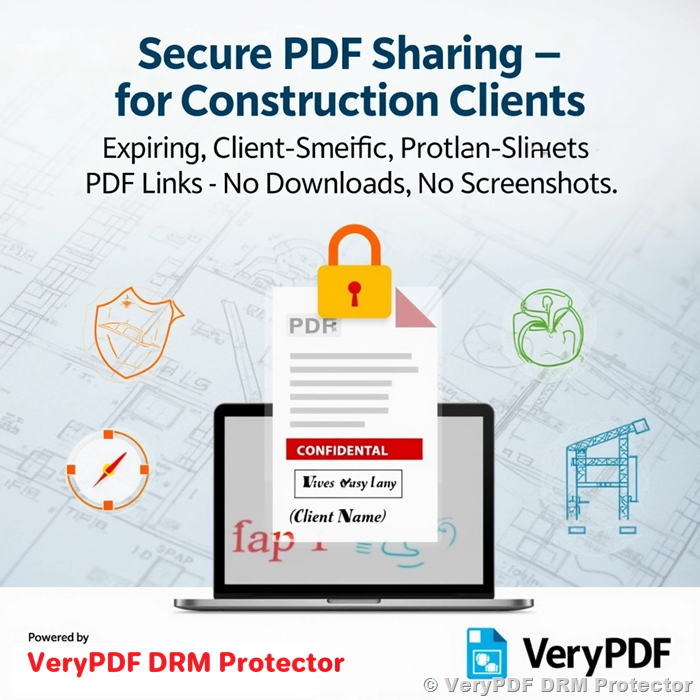
Secure PDF Sharing for Construction Companies: Best Solutions for Expiring, Client-Specific Links

The Challenge: Sharing View-Only PDFs with Clients

Construction companies frequently need to share sensitive documents like project plans, contracts, and invoices with clients. However, ensuring that these files remain view-only—without allowing downloads, sharing, or screenshots—can be challenging. Additionally, having expiring links with the option to extend access is crucial for maintaining control over document distribution.

Key Requirements:
  1. Unique, client-specific links (e.g., containing the client’s name).

  2. Automatic link expiration after a set period.

  3. Option to extend access if needed.

  4. Strict security—prevent downloads, sharing, and screenshots.

  5. Cost-effective or free solution (if possible).

Secure PDF Sharing for Construction Companies: Best Solutions for Expiring, Client-Specific Links

Best Way to Share Expiring, Client-Specific PDF Links?

For a construction company handling sensitive project documents, securely sharing view-only PDFs with clients is a top priority. The challenge is to ensure that clients can view the documents but cannot download, share, or take screenshots. Additionally, having control over the document’s viewing period, with the option to extend access when necessary, is crucial.

Key Requirements for Secure PDF Sharing

When sharing confidential documents, it is essential to implement the following security measures:

  1. Unique Client-Specific Links – Each client should receive a personalized link that includes their name or unique identifier.

  2. Automatic Link Expiration – The link should automatically expire after a predefined period to prevent unauthorized access.

  3. Access Control & Extension Option – The ability to extend the viewing period if needed should be available to the administrator.

  4. Prevention of Download & Sharing – Clients should not be able to download, copy, or share the PDF files with others.

  5. Screenshot Protection – The system should include anti-screenshot mechanisms to ensure sensitive data remains protected.

Solutions for Secure PDF Sharing

Several online platforms claim to offer secure document sharing with restricted access. However, many of them do not provide comprehensive protection against downloads, sharing, or screenshots. Some potential options include:

  • Google Drive & Dropbox (With Restrictions) – You can share PDFs as view-only, but clients may still take screenshots or use browser extensions to bypass restrictions.

  • Adobe Document Cloud – Offers limited protection features but lacks advanced DRM capabilities.

  • Custom Website with PDF Viewer – This requires technical expertise and still might not prevent screen capture.

The Best Solution: VeryPDF DRM Protector

A more reliable approach is to use a professional DRM (Digital Rights Management) solution like VeryPDF DRM Protector (https://drm.verypdf.com/), which provides:

  • Expiring Links: Generate unique, client-specific links that expire after a set time.

  • Strict View-Only Access: Prevents downloads, copy-pasting, and printing.

  • Anti-Screenshot Protection: Blocks screen capture attempts.

  • Viewing Period Control: Easily extend or revoke access when needed.

  • Custom Watermarks: Adds dynamic watermarks with client details to deter sharing.

Why Choose VeryPDF DRM Protector?

Unlike generic file-sharing services, VeryPDF DRM Protector is specifically designed to secure PDFs against unauthorized access and distribution. It ensures that only authorized clients can view documents, while providing the flexibility to manage access duration and security settings effectively.

For businesses in the construction industry handling confidential blueprints, contracts, or project documentation, VeryPDF DRM Protector is a cost-effective and highly secure solution to prevent information leaks and unauthorized sharing.

View-Only Access – Clients can only view the PDF in a browser, with no download or print options.
Dynamic Watermarking – Adds client-specific details (e.g., name, email) to deter unauthorized sharing.
Link Expiration – Set automatic expiration dates for documents.
Access Extension – Easily prolong viewing time if needed.
Anti-Screenshot Protection – Prevents screen capture attempts (via browser restrictions).
No Software Installation Needed – Fully web-based (SaaS).

How It Works:
  1. Upload your PDF to drm.verypdf.com.

  2. Set Permissions – Disable printing, downloading, and copying.

  3. Add Client-Specific Watermark (e.g., “Prepared for John Smith”).

  4. Generate a Unique, Expiring Link – Share via email.

  5. Monitor Access – Revoke or extend availability as needed.

Pricing & Alternatives
  • VeryPDF DRM Protector offers flexible pricing, including pay-as-you-go options.

  • Free Alternatives? Most free tools (Google Drive, Dropbox) lack strong DRM controls. Paid alternatives like Adobe Acrobat Pro or Locklizard are more expensive and complex.

Try it for Free

For construction firms needing secure, expiring PDF links with strict view-only access, VeryPDF DRM Protector SaaS is the best balance of security, usability, and cost.

You can test VeryPDF DRM Protector for free at https://drm.verypdf.com/ to see how it can enhance your document security.

By implementing VeryPDF DRM Protector, you can ensure complete control over your shared PDFs while maintaining strict security measures.