Accuracy Benchmarks Handwritten vs Printed Number Extraction in Financial PDFs

Accuracy Benchmarks: Handwritten vs Printed Number Extraction in Financial PDFs

Discover the accuracy benchmarks between handwritten and printed number extraction in financial PDFs with VeryPDF Table Extractor. Improve your PDF data extraction today.

Accuracy Benchmarks Handwritten vs Printed Number Extraction in Financial PDFs


The Struggle of Extracting Financial Data from PDFs

Every day, I’m faced with a task that many of us in finance dread: extracting numbers from PDFs. Whether it’s invoices, balance sheets, or complex financial reports, most of these come in a PDF format. The trouble? These documents are often cluttered with data tables, some neatly printed, others written by hand. And while most PDFs are designed for human eyes, they’re a nightmare for data extraction.

You’ve probably been there staring at a table full of handwritten or printed numbers, wondering if there’s an easy way to pull that data out and into something more usable, like Excel. Well, here’s the thing: there is a solution, and it’s not as complicated as it sounds. Enter VeryPDF Table Extractor. Let me explain how this tool saved me hours of work and why it could do the same for you.


How I Found VeryPDF Table Extractor

I stumbled upon VeryPDF Table Extractor while searching for an easy-to-use tool to extract tables from PDFs. I was working on a client project, analysing a stack of financial reports in PDF format. Some tables were easy to work with neat, printed numbers. But others? A mess of handwritten figures that made my eyes hurt.

The thought of manually transcribing those numbers into Excel was enough to make me want to quit. But that’s when I discovered VeryPDF Table Extractor. This tool promised to automate the extraction of data tables from PDFs, whether the numbers were printed or handwritten.

What Does VeryPDF Table Extractor Do?

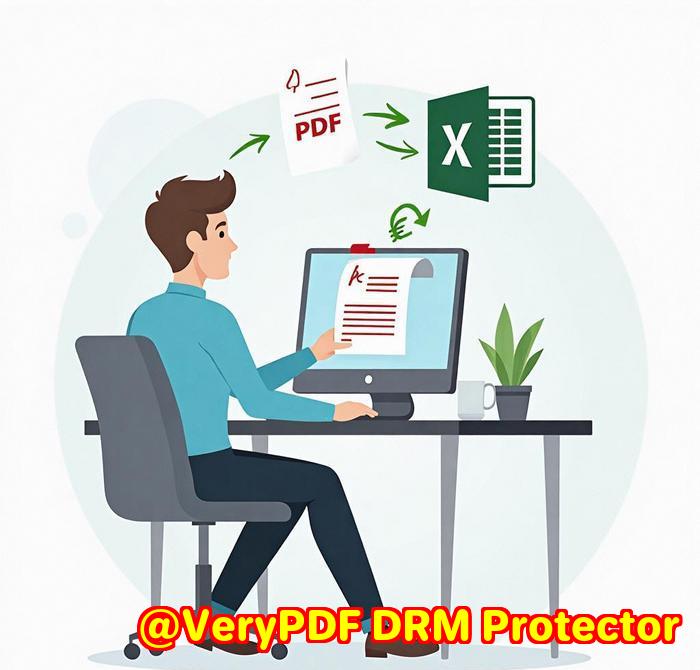
In short, it’s a game-changer. VeryPDF Table Extractor is an online tool that converts PDF files with tables into fully editable Excel spreadsheets. It works on any platform (Windows, macOS, Linux), and it’s accessible directly through your browser no downloads, no installations. Just upload a PDF, select the table, and boom the data is ready for download in Excel, CSV, XML, or HTML formats.

It’s designed for anyone who deals with data locked in PDFs. This includes accountants, financial analysts, researchers, and pretty much anyone who works with PDF documents and needs to extract structured data. The tool is especially handy if you’re dealing with documents that mix printed and handwritten content something I frequently encountered when working with handwritten invoices and financial statements.


Key Features of VeryPDF Table Extractor

Let me walk you through a few features that really stand out.

1. Automatic Table Recognition

This is where VeryPDF Table Extractor truly shines. The tool automatically detects tables in your PDFs. Whether it’s printed tables or handwritten data (like those numbers in a financial report), it can pull out the relevant details with impressive accuracy.

2. Multi-Format Support

After extracting the table, you can export it in multiple formats like XLSX, CSV, XML, and HTML. For me, this flexibility was a lifesaver. I could easily import the data into Excel or manipulate it in a CSV file, depending on the needs of the project.

3. Accuracy in Extracting Handwritten Numbers

One of the biggest concerns I had was the accuracy of extracting handwritten numbers. Handwriting can be messy and inconsistent, but VeryPDF Table Extractor handled this surprisingly well. It uses advanced algorithms to recognize and extract even imperfectly written numbers, saving me the hassle of manual transcription.

4. No Installation Required

Let’s face it: the last thing anyone wants is another desktop application to install. VeryPDF Table Extractor is an online tool, so there’s nothing to download. Just upload your file and go.


My Personal Experience with VeryPDF Table Extractor

I’ll be honest: I was sceptical at first. How could an online tool handle complex financial data with precision, especially when it came to handwritten numbers? But after using it, I’m hooked.

The interface is incredibly intuitive. All I had to do was upload the PDF, select the table I wanted to extract, and hit “Preview & Export”. The extracted data was almost perfect, and I only needed to make minor adjustments to a few of the more difficult handwritten numbers. The time I saved was incredible. What used to be a 2-hour task of manually entering numbers was reduced to just a few minutes of fine-tuning.


Why I Recommend VeryPDF Table Extractor

If you’re someone who regularly works with PDFs, especially financial documents with both handwritten and printed data, I’d highly recommend VeryPDF Table Extractor. It’s efficient, accurate, and saves you a ton of time.

Whether you’re an accountant, a financial analyst, or anyone who needs to extract structured data from PDFs, this tool is a must-have in your toolkit. Stop wasting hours on manual data entry give VeryPDF Table Extractor a try and see how much easier your workflow can be.

Start your free trial now and boost your productivity: https://table.verypdf.com/


VeryPDF’s Custom Development Services

If you need a more tailored solution, VeryPDF also offers custom development services. From creating utilities for specific operating systems (Linux, macOS, Windows) to building specialised PDF processing solutions for your unique needs, their team has got you covered.

They can develop PDF extraction tools based on technologies like Python, C++, and .NET, and can even work on systems that require custom-built APIs for automating tasks. If you have a project in mind, don’t hesitate to reach out to their support team at http://support.verypdf.com/.


FAQ

Q1: How accurate is the data extraction for handwritten numbers?

A1: VeryPDF Table Extractor handles both printed and handwritten numbers with impressive accuracy, but some very messy handwriting may require minor adjustments.

Q2: Do I need to install any software to use VeryPDF Table Extractor?

A2: No, it’s an online tool. You can access it directly through your browser on any platform (Windows, macOS, Linux).

Q3: What formats can I export the extracted data to?

A3: You can export the data in XLSX, CSV, XML, or HTML formats.

Q4: Can I automate the extraction process using an API?

A4: Yes, VeryPDF offers full automation via their API, making it easy to integrate the extraction process into your workflows.

Q5: Is there a free trial for VeryPDF Table Extractor?

A5: Yes, you can start a free trial to test out the tool and see how it works for your needs.


Tags/Keywords:

  • PDF table extraction

  • Extract PDF to Excel

  • Handwritten number extraction

  • Convert PDF to Excel online

  • PDF data extraction tool


With VeryPDF Table Extractor, your PDF extraction tasks just became a whole lot easier. Try it out today and experience the difference.

The perfect tool for law firms to combine or extract pages from legal PDFs

The Perfect Tool for Law Firms to Combine or Extract Pages from Legal PDFs

Looking for an efficient way to manage legal PDFs? Discover how VeryPDF PDF Split-Merge can save time for law firms by splitting and merging legal documents effortlessly.


Struggling with Managing Legal PDFs?

As a lawyer or someone working in the legal field, you’re probably all too familiar with the chaos that comes with handling large PDF files. Every now and then, you need to extract specific pages or merge documents, and if you don’t have the right tool, this process can be incredibly time-consuming.

The perfect tool for law firms to combine or extract pages from legal PDFs

I used to spend hours manually splitting legal contracts and merging pages into a single documentuntil I found the VeryPDF PDF Split-Merge tool.

It was a game-changer for me, and I believe it will be for you too.


How VeryPDF Solves the Problem for Law Firms

At first glance, VeryPDF PDF Split-Merge seems like just another tool in the sea of PDF editors. But here’s the deal: it’s specifically built for people who work with large volumes of PDFs, such as lawyers, paralegals, and administrative assistants at law firms.

This tool can quickly split a PDF into individual pages, extract specified pages, or even merge several PDFs into oneall without losing any form fields, annotations, or bookmarks.

I first stumbled upon it when I was knee-deep in a massive case file, and I needed to extract certain pages from a multi-chapter legal document. The time crunch was real, and I had no time for complicated workflows or spending hours trying to get the job done.

What Does VeryPDF PDF Split-Merge Do?

Here’s the rundown:

  1. Split PDFs:

    If you’ve ever had to deal with a long PDF, you know the struggle of searching through dozens of pages to find what you need. With VeryPDF, you can split a multi-page PDF into single-page files or create smaller PDFs by every set number of pages. Imagine how much time this saves when dealing with case files or court documents.

  2. Merge PDFs:

    Merging PDFs can be a real headache. With VeryPDF, you can easily combine multiple PDFs into a single file, ensuring the page order is exactly as you need it. Even better, it allows for cross-merging, which is useful if you need to alternate pages from different files.

  3. Delete Pages or Extract Specific Pages:

    Sometimes, you don’t need the whole document. With this tool, you can delete specific pages or extract only the pages you need. This is particularly useful when you’re working with large contracts or court filings and you just need the crucial bits.

  4. Retain Bookmarks & Form Fields:

    One of the biggest hassles of working with PDFs is making sure that any bookmarks or form fields are preserved. VeryPDF makes sure your PDF’s integrity is kept intactno lost links, no missing fields.


Personal Experience: A Real-World Example

Let me share a quick story from my time working with legal documents. I had a client who needed to send only certain sections of a legal report, but they didn’t want to manually copy and paste. The task was straightforward: extract specific chapters, merge them, and send them off. Without VeryPDF PDF Split-Merge, I would have had to either painstakingly copy each page or use a more complicated tool.

Instead, I simply:

  • Split the document into chapters by using the split by bookmarks feature.

  • Merged the selected chapters into a single document with cross-merge.

  • Sent the new, neatly packaged PDF to the client.

All of this was done in minutes.


Why I Recommend VeryPDF PDF Split-Merge

As someone who deals with large volumes of PDF documents, this tool has been a lifesaver. The core advantage of VeryPDF PDF Split-Merge is how simple and fast it is to use. Whether you’re splitting, merging, or extracting, the interface is intuitive. There’s no steep learning curve, and you can get started right away.

I’d highly recommend this to anyone working in legal professions, whether you’re dealing with contracts, case files, or court reports. The ability to efficiently manage PDFs can make a huge difference in productivity. I’ve personally saved countless hoursand countless headachesby using this tool.

Click here to try it out for yourself: VeryPDF PDF Split-Merge


FAQs

1. How do I split a PDF by bookmarks?

You can split a PDF based on its bookmarks by simply selecting the ‘split by bookmarks’ option. This way, each section of your document will become a separate file.

2. Can I merge multiple PDFs into one document?

Yes, merging PDFs is easy. Just select the files, drag them into the tool, and it will automatically merge them into one document in the desired order.

3. Is it necessary to have Adobe Acrobat for this?

No, VeryPDF PDF Split-Merge does not require Adobe Acrobat or any other Adobe software. It’s a standalone tool that works without the need for any external applications.

4. Can I extract just certain pages from a document?

Absolutely. You can extract specific pages from a PDF by simply specifying the page numbers you want.

5. Does this tool preserve annotations in PDFs?

Yes, it retains any annotations or form fields, so you don’t lose any of the original document’s details when splitting or merging files.


Tags

  • PDF Split

  • Legal PDF Tool

  • PDF Merge

  • Split PDF by Bookmarks

  • Law Firm Productivity


VeryPDF Custom Development Service

If you have any specific technical needs or need a more customised solution, VeryPDF offers custom development services. Feel free to get in touch with us at http://support.verypdf.com/ for more information.

How to merge multiple invoices into one PDF for easy bookkeeping and archiving

How to Merge Multiple Invoices into One PDF for Easy Bookkeeping and Archiving

Tired of juggling multiple invoice PDFs? Here’s how merging them into one file can simplify your bookkeeping and archiving. Try it out with VeryPDF PDF Split-Merge.

How to merge multiple invoices into one PDF for easy bookkeeping and archiving

Introduction: The Struggle with Multiple Invoices

Ever find yourself drowning in a sea of scattered invoices, trying to keep track of payments, deadlines, and record-keeping? If you’re managing a small business or even handling personal expenses, you know the hassle of keeping multiple PDFs organized. Each invoice comes in its own file, and when it’s time to archive them or track your expenses, it’s a nightmare trying to find everything you need in one place.

That’s exactly where VeryPDF PDF Split-Merge comes in. This tool saved me hours of work when I needed to merge a bunch of invoice PDFs into one neat file for easy tracking and archiving.

Why I Turned to VeryPDF PDF Split-Merge

I’ve always been the type of person who prefers a simple, no-fuss solution. When I first started managing a few side projects, I quickly realised how inefficient it was to keep invoices in multiple files. It was overwhelming and not very practical for bookkeeping or when I needed to quickly pull up records for tax season.

After some trial and error with a few tools, I stumbled upon VeryPDF PDF Split-Merge, and it was exactly what I needed. The process of merging PDFs into one document has never been easier. Now, I can stay organised, and I’m no longer frustrated by trying to manage piles of digital paperwork.

How VeryPDF PDF Split-Merge Works

Key Features That Make a Difference

1. Merge PDFs Quickly

This feature is a game-changer. You can merge as many PDF files as you want into a single PDF in just a few clicks. No more opening multiple files and trying to remember which one goes first. Whether you’re dealing with just a couple of invoices or dozens, it’s all done in a flash.

2. Retain Important Data

What I really love is that the tool retains all the bookmarks, AcroForms, and annotations. If you’ve added notes or filled in forms, you won’t lose any of that data when merging. The PDFs remain intact, just neatly combined into one file.

3. Customizable Merge Options

VeryPDF allows you to cross-merge two PDF files. For instance, if you have invoices for multiple clients, you can easily merge them by alternating pages, so each client’s invoice comes in the order you prefer. It’s perfect for keeping things organised and professional.

Real-Life Use Cases

I primarily use this tool for merging invoice PDFs for my side projects. As a freelancer, I get invoices from different clients, and I need to keep track of them for tax purposes. Instead of digging through dozens of files, I just merge them all into one PDF, add a table of contents, and I’m done. This simple step has saved me hours of work when it’s time to send over financial reports or simply file everything away for future reference.

Let’s say you’re managing a small team and each team member submits their invoices monthly. Merging these individual files into one easy-to-navigate document helps streamline your bookkeeping process, making it much easier when it’s time for accounting or audits.

The Core Advantages of VeryPDF PDF Split-Merge

  • Ease of Use: No complicated setup, and no need to install heavy software like Adobe Acrobat.

  • Speed: Merging multiple PDFs is quick and painless, saving you significant time.

  • Retention of Data: It preserves all forms, annotations, and links, so you won’t lose any important details.

  • Cost-Effective: Unlike many PDF tools out there, VeryPDF offers a straightforward, affordable solution without hidden fees.

I’ve used many PDF tools in the past, and none have been as reliable or straightforward as VeryPDF PDF Split-Merge. For someone like me who needs to keep documents organised but doesn’t want to get bogged down with technicalities, this is a lifesaver.

Why You Should Give It a Try

If you find yourself regularly dealing with invoice PDFs or need a way to streamline your document management, I highly recommend VeryPDF PDF Split-Merge. It’s an easy solution for anyone in need of a more organised, less time-consuming approach to handling invoices and other PDF documents.

Click here to try it out for yourself: VeryPDF PDF Split-Merge

FAQs

1. How can I merge invoices from different clients into one PDF?

Simply upload all your invoice PDFs into the tool and select the order in which you want them merged. You can even customise the merge order, so your invoices appear in the exact sequence you prefer.

2. Does VeryPDF PDF Split-Merge preserve annotations on the PDFs?

Yes, it does! All your annotations, bookmarks, and form fields will be preserved when merging.

3. Can I split a PDF back into individual invoice pages?

Absolutely! You can split PDFs by pages or even by specific bookmarks, which makes it easy to extract just the invoices you need.

4. Is this tool compatible with both Windows and Mac?

Yes, VeryPDF PDF Split-Merge works on Windows. If you’re on Mac, you might need to check out their alternative solutions, as this specific tool supports Windows.

5. Is it possible to automate the merging process with this tool?

Yes, if you’re tech-savvy, you can use the command line operations to automate the merging process.

Tags or Keywords

  • Merge multiple invoices

  • PDF invoice merge tool

  • Easy PDF merging

  • Organise PDF files

  • Manage invoices digitally

VeryPDF Custom Development Services

Need a custom solution? VeryPDF provides tailored development services to meet your unique technical needs. If you require a specific PDF processing feature, don’t hesitate to contact VeryPDF at support.verypdf.com. We can help you design the right solution for your needs!


By using VeryPDF PDF Split-Merge, you can stop stressing over multiple invoices scattered across your computer and get back to what really matters. Whether you’re a freelancer, accountant, or anyone dealing with a lot of digital paperwork, this tool will make your life so much easier. So go ahead, streamline your workflow and keep things organised with a single PDF file.

VeryPDF PDF Split-Merge The most cost-effective PDF tool for power users

VeryPDF PDF Split-Merge: The Most Cost-Effective PDF Tool for Power Users

Discover how VeryPDF PDF Split-Merge can save you time and effort when handling PDFs. This tool is perfect for those who need to split and merge PDFs without Adobe software.

VeryPDF PDF Split-Merge The most cost-effective PDF tool for power users


Introduction: The Dread of PDF Overload

We’ve all been there. You’re at work, and suddenly you’re faced with a giant PDF file that needs to be split into multiple parts. Or maybe you need to merge several smaller files into one. If you’re not using the right tools, this can feel like a nightmare.

I used to dread these tasks too. The old method of manually extracting pages, saving them, and reassembling documents was a time-consuming process. But, after stumbling upon VeryPDF PDF Split-Merge, my PDF woes were a thing of the past. Here’s how this tool helped meand it could help you too.


The Solution: VeryPDF PDF Split-Merge

When I first discovered VeryPDF PDF Split-Merge, I was immediately struck by how simple it made splitting and merging PDFs. As someone who handles a large number of PDF files daily, I needed a tool that could do all the heavy lifting without bogging me down with complicated settings. That’s exactly what VeryPDF offers.

Key Features

  • Split PDFs: Split a multi-page PDF into single-page files, or split by a set number of pages.

  • Merge PDFs: Combine multiple PDF files into a single document, keeping everything in order.

  • Cross-Merge PDFs: This is an awesome feature where you can merge PDFs page-by-page (think: alternating pages from two PDFs).

  • Delete PDF Pages: If you only need certain pages, you can quickly remove others without fuss.

What’s even better? You don’t need Adobe Acrobat or any other bulky software to make it all happen. It’s light, fast, and extremely user-friendly.


The Power Users Who Need This Tool

So, who needs VeryPDF PDF Split-Merge? Let’s take a look at some of the typical users and situations:

  • Legal Teams: Handling contracts that are often scanned as PDFs. They need to split or merge documents to streamline workflows.

  • Students and Academics: Often working with multiple PDFs that need to be combined for reports or research.

  • Corporate Admins: They need to organize a large volume of documents, split files for email, or merge documents for presentations.

  • Freelancers: People who deal with clients’ documents constantly, especially when managing project files or contracts.

If you’re someone who deals with any of these scenarios, you’re going to love what VeryPDF PDF Split-Merge can do for you.


Core Advantages: Why VeryPDF?

Let me tell you why this tool is my go-to PDF manager.

  • No Adobe Required: A major pain point I used to face was needing Adobe Acrobat for simple tasks. Not anymore. VeryPDF PDF Split-Merge works smoothly without any of that.

  • Fast & Efficient: Whether you’re splitting hundreds of pages or merging multiple files, the speed is impressive. It takes care of all that background work, so you don’t have to.

  • Perfect for Bulk Work: I often have to deal with batches of PDFs. The batch processing feature has saved me hours over the years.

  • Keeps Everything Intact: Unlike some other tools, VeryPDF ensures that the bookmarks, forms, and annotations stay intact after splitting or merging. It’s a small detail, but it makes all the difference.

Personal Experience: The Time-Saving Advantage

I use VeryPDF PDF Split-Merge multiple times a week, and the results are always the sameimpressive speed and zero headaches. One time, I had to prepare a presentation with documents from several sources. Merging and splitting all those files would’ve taken hours with any other tool. But with VeryPDF, I had everything sorted in under 30 minutes. The ability to merge files by alternating pages (cross-merging) was a game-changer for that project.

Summary & Recommendation

In summary, VeryPDF PDF Split-Merge is a must-have tool for anyone who needs to work with PDFs regularly. It’s cost-effective, fast, and intuitive. Plus, you don’t need any expensive Adobe products to get the job done. Whether you’re splitting PDFs into individual pages, merging multiple files, or just tidying up documents, this tool does it allwithout any fuss.

I’d highly recommend this to anyone who handles large volumes of PDFs on a regular basis. Trust me, it’ll save you hours.

Start your free trial now and boost your productivity: VeryPDF PDF Split-Merge


FAQ

Q1: Can I split a PDF by a specific number of pages?

Yes! You can easily split your PDF file by every specified number of pages using VeryPDF PDF Split-Merge.

Q2: Does it work on Mac or just Windows?

Currently, it’s designed for Windows operating systems, but it supports both 32-bit and 64-bit versions of Windows 98 through Windows 11.

Q3: Can I delete specific pages from a PDF?

Absolutely. You can delete individual pages or a page range from your PDF without any hassle.

Q4: Does it support batch processing?

Yes, it’s perfect for batch processing. If you’re dealing with multiple PDFs, you can process them all in one go.

Q5: Are the annotations and bookmarks preserved when splitting or merging?

Yes, VeryPDF PDF Split-Merge ensures that any annotations, bookmarks, and form fields are retained during the process.


Tags & Keywords

  • PDF Split

  • Merge PDF files

  • Split PDFs into single pages

  • Cross-merge PDFs

  • Batch process PDFs


VeryPDF Custom Development Service

Need a more tailored solution? VeryPDF offers custom development services to meet your unique technical requirements. If you have specific needs or ideas for automating your PDF workflow, get in touch with the VeryPDF team today: VeryPDF Custom Services.

Best solution for teachers to split PDF textbooks into chapters without losing formatting

The Best Solution for Teachers to Split PDF Textbooks into Chapters Without Losing Formatting

Discover how to split PDF textbooks into chapters seamlessly, preserving formatting and links. The best solution for teachers to handle large PDFs efficiently.

Best solution for teachers to split PDF textbooks into chapters without losing formatting


Introduction: Tired of Manually Sorting Through Huge PDF Textbooks?

Every teacher knows the struggle of working with large PDF textbooks. You’re teaching from a PDF that’s over 100 pages long, and you need to break it into chapters, but there’s one big problem: the formatting, links, and bookmarks get all messed up during the process. It’s frustrating, right?

Imagine you’ve spent hours preparing a lesson, only to discover that when you split the PDF, all your carefully formatted content is jumbled. Pages look weird, the bookmarks are gone, and links are broken. This not only wastes time but also makes your materials look unprofessional.

If you’re in the same boat, I’ve been there too. But let me tell you, there’s a solution. And it’s simpler than you think. Let me introduce you to VeryPDF PDF Split-Merge, the tool that’s been a game-changer for teachers like us.


How I Found the Solution: No More Messy PDF Splitter Tools

I remember the first time I needed to split a PDF textbook into chapters for a class. I used a few free tools online, but every single time, the result was a disaster. Text was misaligned, and my bookmarks vanished into thin air. The last straw was when I split the PDF only to find out that the hyperlinks I had embedded for additional reading no longer worked.

That’s when I came across VeryPDF PDF Split-Merge. It promised to split PDFs without messing up the formatting or losing anything important. I decided to give it a try, and boy, am I glad I did. Here’s how it works.


How VeryPDF PDF Split-Merge Works: A Teacher’s Best Friend

VeryPDF PDF Split-Merge is designed to make the process of splitting and merging PDFs super simple while keeping everything intactno more headaches. The tool works with PDFs of all sizes, and here’s what I love about it:

  • Split by Bookmarks: You can split your PDF based on bookmarks, meaning each chapter or section becomes a separate PDF file. For example, if you’ve got a textbook with chapters marked as bookmarks, VeryPDF will turn each chapter into its own file without altering the structure.

  • Preserve Formatting: Unlike other tools, VeryPDF keeps the formatting of your PDF intact. All the links, form fields, and annotations stay where they should be. For teachers who rely on these features, this is a lifesaver.

  • Multiple Split Options: Want to split a document every 10 pages? Or maybe only extract certain pages? This tool gives you all the flexibility you need, whether it’s by pages, bookmarks, or even custom ranges.

I remember a time when I had to prepare separate PDFs for each student from a single textbook. Instead of manually copying pages and worrying about broken links, VeryPDF let me split the file into smaller, perfectly formatted PDFs with just a couple of clicks.


Core Advantages of VeryPDF PDF Split-Merge

Let me break down why this tool is worth your time:

  • No Need for Adobe Acrobat: You don’t need Adobe Acrobat or any other expensive software to split or merge your PDFs. This means you can get the job done without relying on costly tools.

  • Ease of Use: The user interface is incredibly simple. Even if you’ve never used a PDF splitter before, you’ll figure it out in no time. The drag-and-drop feature is a big plus.

  • Preservation of Original Structure: One of the biggest selling points for me is how it keeps everything intact: the formatting, the bookmarks, the links. It’s seamless. If you’ve used other tools that break these features, you’ll immediately notice the difference.

  • Fast and Efficient: It doesn’t take ages to process your PDFs. Whether you’re splitting a large textbook or just a few pages, it’s quick and responsive.

For teachers dealing with long textbooks, instructional guides, or exam papers, this tool is a dream come true. No more manual formatting, no more mistakes.


Why I Recommend VeryPDF PDF Split-Merge

In my experience, VeryPDF PDF Split-Merge has saved me hours of work and stress. If you’re a teacher who frequently deals with long PDFs, textbooks, or any kind of documents that need splitting into chapters, you need to try this tool.

It’s easy to use, reliable, and does exactly what it promises: split PDFs without messing up the formatting, hyperlinks, or bookmarks.

So, if you want to save time and keep your documents in perfect shape, I highly recommend you give it a go.

Click here to try it out for yourself!


FAQs

1. How do I split a PDF by chapters using bookmarks?

It’s simple! Just upload your PDF to VeryPDF PDF Split-Merge, select the “split by bookmarks” option, and the tool will automatically separate your chapters based on the bookmarks you’ve set.

2. Will the hyperlinks remain active after splitting?

Yes, all hyperlinks and form fields will remain intact. The tool ensures that the structure and content of your PDFs are preserved, including clickable links.

3. Can I merge multiple PDFs into one?

Absolutely! You can merge multiple PDFs in any order you choose, making it easy to consolidate documents for distribution or printing.

4. Is VeryPDF PDF Split-Merge free to use?

There’s a free trial version available, which lets you explore the features before committing to a purchase.

5. Can I use VeryPDF PDF Split-Merge on Mac?

Currently, this tool is designed for Windows users. However, you can try using a Windows emulator or check out alternative tools for Mac users.


Tags or Keywords

  • PDF textbook splitting

  • Split PDF without losing formatting

  • PDF chapter splitting tool

  • Best PDF splitter for teachers

  • PDF split merge tool


VeryPDF’s Custom Development Service

VeryPDF also offers custom development services to meet your unique technical needs. If you have specific requirements or a special project, feel free to contact VeryPDF at http://support.verypdf.com/.


By using VeryPDF PDF Split-Merge, you’re not just splitting PDFs; you’re saving valuable time and ensuring that your documents stay organised and professional. Whether you’re working with textbooks, lecture notes, or any long PDF, this tool will streamline your workflow.