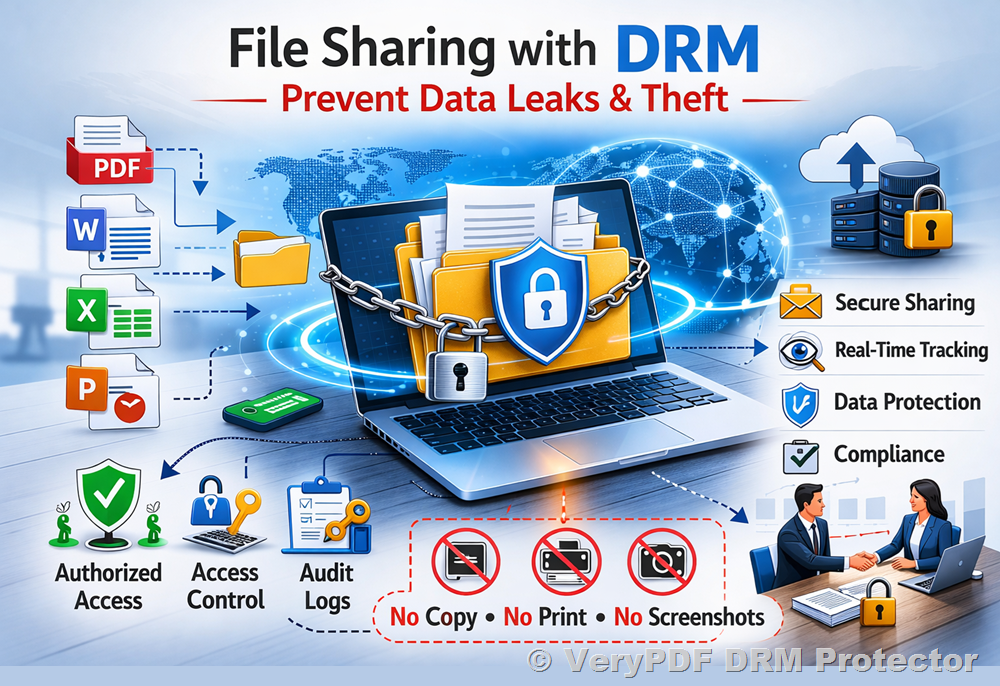
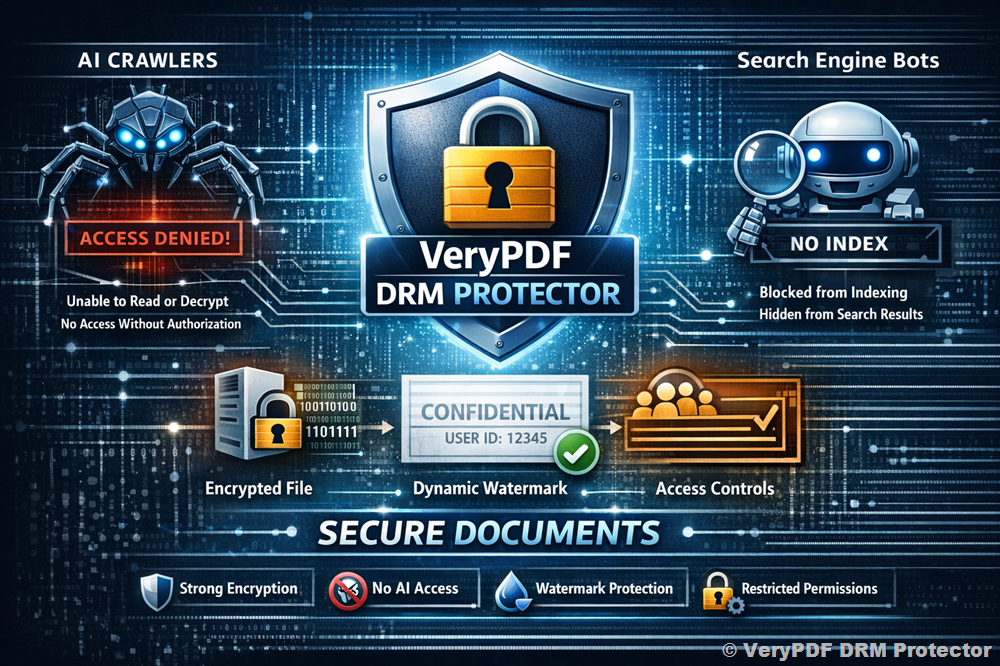
Stop PDF screenshot leaks in legal workflows with DRM dynamic watermark protection

Stop PDF Screenshot Leaks in Legal Workflows with DRM Dynamic Watermark Protection

Prevent PDF screenshot leaks in legal workflows with VeryPDF DRM Protector’s Screen Shield and dynamic watermarking for ultimate document security.

Stop PDF screenshot leaks in legal workflows with DRM dynamic watermark protection


Every week, I used to spend hours sending sensitive contracts and legal documents to clients and colleagues, only to worry endlessly about what might happen if someone captured a screenshot and shared it outside our team. In law firms, confidentiality isn’t just a nice-to-haveit’s the backbone of trust and compliance. The idea that a single screenshot could jeopardise a case or leak critical financial information kept me up at night.

After one particularly stressful incident where a junior associate accidentally shared a draft contract that got circulated without approval, I realised I needed a stronger, smarter way to protect our PDFs. That’s when I discovered VeryPDF DRM Protector with its Screen Shield feature.

How VeryPDF DRM Protector Changed My Workflow

VeryPDF DRM Protector is designed specifically to prevent PDF screenshots and leaks by using a combination of Screen Shield technology and dynamic watermarking. It’s perfect for legal teams, financial advisors, educators, and anyone handling highly sensitive documents. The platform allows you to control exactly how recipients interact with your PDFs while keeping your information secure.

I started using it with a batch of financial reports that were due for client review. The setup was surprisingly simple. I uploaded my PDFs directly to VeryPDF DRM Protector and enabled the Screen Shield. The software allows you to reduce the visible area of a document with a movable filter so that only a portion of the page is viewable at a time. This might sound minor, but in practice, it dramatically discourages anyone from attempting to screenshot the file.

Key Features That Made a Difference

  1. Screen Shield for Screenshot Prevention

    • When someone tries to take a screenshot, the Screen Shield automatically hides or blurs the content.

    • The viewable area can be adjusted (20%, 35%, or 50%), so you decide how much information the recipient sees at a time.

    • I tested this feature by sharing a sensitive client report, and even my team members admitted it felt nearly impossible to screenshot anything meaningful.

  2. Dynamic Watermarking

    • Each recipient sees their own email, IP address, or timestamp embedded in the document.

    • This isn’t just cosmetic; it makes the user think twice before attempting to copy or leak information.

    • I loved that I could combine this with the Screen Shield, so every visible snippet had a personalised watermark. It instantly elevated our document security.

  3. Access Control and Revocation

    • Files can be accessed by invitation only, with optional email verification or password protection.

    • If a document was mistakenly shared, I could revoke access instantly, even after the recipient had already opened it.

    • In one scenario, a PDF draft was accidentally sent to the wrong email. With VeryPDF DRM Protector, I revoked access in seconds, preventing potential leakage.

Why VeryPDF Stands Out Compared to Other Tools

I’ve tried other PDF protection tools before, but they often fell short:

  • Traditional DRM tools let recipients download PDFs to view offline, meaning screenshots or copying was still possible.

  • Standard watermarks were easy to remove or crop out.

  • Basic PDF passwords could be shared or cracked.

VeryPDF DRM Protector addresses these gaps by combining real-time Screen Shield technology, dynamic watermarking, and robust access controls. The result? Even highly motivated recipients would face major hurdles if they tried to leak a document.

Real-World Use Cases

  • Legal Teams: Protect draft contracts, intellectual property filings, and court documents. I personally started using it for NDAs and settlement agreements. The peace of mind was worth every minute.

  • Financial Advisors: Protect sensitive reports like investment analyses, quarterly financial statements, and tax filings. Previously, emailing these documents felt risky; now, I have a controlled environment.

  • Educational Institutions: Exam questions, answer sheets, or research papers can be secured so students cannot screenshot or redistribute materials.

How It Saved Me Time and Stress

Before using VeryPDF DRM Protector, I would spend hours following up on every email, checking who had access, and fretting over potential leaks. Now, I can set permissions, schedule expirations, and track every view in real time. I remember one late Friday when I received an instant notification that a client had viewed a draft contract. Instead of worrying, I reviewed the analytics, noted how much time they spent, and knew exactly what they sawall from my dashboard.

It’s also incredibly efficient for version control. I can replace a PDF with a new version, fix typos, or update clauses without resending an entirely new file. It keeps everything organised and secure, which is especially crucial in high-volume workflows like law firms and accounting offices.

Conclusion: Practical Security You Can Trust

If you deal with sensitive PDFs regularly, I can’t stress enough how much peace of mind VeryPDF DRM Protector provides. It solves the practical problem of screenshot leaks while giving you full control over access, viewing, and tracking. For anyone in legal, finance, or education, it’s a game-changer.

I’d highly recommend this to anyone who deals with large volumes of confidential PDFs. Click here to try it out for yourself: https://drm.verypdf.com/

Custom Development Services by VeryPDF

VeryPDF offers tailored development services to fit your technical requirements. Whether you need custom PDF processing utilities for Linux, macOS, Windows, or server environments, the team has the expertise.

Their offerings include Python, PHP, C/C++, Windows API, Linux, Mac, iOS, Android, JavaScript, C#, .NET, and HTML5 development. VeryPDF specialises in Windows Virtual Printer Drivers for PDF, EMF, and image formats, as well as capturing and monitoring print jobs in formats like PCL, Postscript, TIFF, and JPG.

They also provide solutions for system-wide and application-specific hook layers to monitor Windows APIs, including file access APIs. Beyond PDF security, their services extend to OCR, barcode recognition, document form generation, image conversion, cloud solutions for document viewing, and DRM protection.

If you need a customised solution, reach out to VeryPDF through the support centre: https://support.verypdf.com/

FAQ

Q1: Can VeryPDF DRM Protector stop all types of screenshots?

A1: Yes, with Screen Shield enabled, content is automatically blurred or hidden when a screenshot attempt is detected. While no system is entirely foolproof, this significantly deters unauthorised copying.

Q2: Can I control who views my PDF?

A2: Absolutely. You can set access via invitations, email validation, passwords, and even revoke access after sending.

Q3: Does it work with other document types besides PDFs?

A3: Yes. VeryPDF DRM Protector supports Word, Excel, PowerPoint, images, and even videos for secure viewing in the browser.

Q4: How does dynamic watermarking enhance security?

A4: It embeds recipient-specific information like email, IP, and timestamp directly into the document. This discourages leaks and makes tracing unauthorized sharing easier.

Q5: Can I replace a PDF after sending it?

A5: Yes. You can replace the file with a new version while maintaining access controls and tracking. Perfect for correcting typos or updating content.

Tags or Keywords

  • PDF screenshot protection

  • DRM dynamic watermark

  • Secure PDF viewer

  • Legal document security

  • Prevent PDF leaks

How to prevent PDF screenshots in the insurance industry with DRM restrictions

How to Prevent PDF Screenshots in the Insurance Industry with DRM Restrictions

Protect sensitive insurance documents with VeryPDF DRM Protector and its Screen Shield, stopping unauthorized screenshots and securing client data.

How to prevent PDF screenshots in the insurance industry with DRM restrictions


Every time I sent a confidential insurance policy or client report over email, I felt that pit in my stomach.

Even if the recipient promised discretion, I knew screenshots could be taken in seconds, potentially leaking sensitive data.

As someone handling financial documents and client records daily, this was a nightmare I couldn’t ignore.

I had tried simple password protection and file encryption, but they didn’t stop people from snapping screenshots.

That’s when I discovered VeryPDF DRM Protector, specifically its Screen Shield feature, designed to prevent exactly that.

The first time I tested it, I could immediately see the difference files became much harder to misuse, and I finally felt in control of my documents.


Why Insurance Professionals Need PDF Screenshot Protection

Insurance documents often contain:

  • Personal client information (names, addresses, social security numbers)

  • Financial statements or investment data

  • Policy terms, pricing, or proprietary calculations

If these documents fall into the wrong hands, it can lead to regulatory problems, privacy violations, and financial losses.

Even trusted employees or clients might accidentally leak data via screenshots.

The reality is simple: traditional PDF protections don’t stop someone determined to capture your screen.

I personally experienced this when sending quarterly performance reports.

Despite using standard PDF encryption, I noticed screenshots cropping up in unintended places a client forwarding confidential summaries to a third party.

It was frustrating because I knew the content was safe on paper, but not in the digital environment.


How VeryPDF DRM Protector Solves Screenshot Risks

VeryPDF DRM Protector is a full-featured tool for securing PDFs, but its Screen Shield functionality is a game-changer for the insurance sector.

Here’s how I used it to protect sensitive files:

  1. Screen Shield for Partial Viewing

    • Instead of showing the entire page, the software reduces the viewable area.

    • Recipients only see a portion of the page at a time.

    • I set my insurance contract previews at 35% viewable, which meant anyone attempting screenshots would have to stitch multiple images together making casual leaks impractical.

  2. Automatic Screenshot Detection

    • When someone tries to take a screenshot, Screen Shield automatically blurs or hides content.

    • I tested it on multiple computers and browsers. Each time, content became unreadable when a print-screen attempt occurred.

    • This gave me peace of mind knowing even savvy users couldn’t bypass protections easily.

  3. Zoom and Navigation Restrictions

    • Zoom In and Zoom Out buttons can be disabled.

    • For insurance documents, this ensures that clients cannot isolate text sections and screenshot them clearly.

    • During a training session for my team, enabling these restrictions meant sensitive premium tables remained hidden unless the entire workflow was followed properly.

  4. Dynamic Watermark Integration

    • Watermarks add another layer of deterrence by including the recipient’s email, IP, or timestamp.

    • I sent an internal audit report using Dynamic Watermark. Anyone thinking of taking a screenshot would see their details embedded which dramatically reduced the desire to capture the file.


Real-Life Scenarios in Insurance

Here’s how I applied these features across daily operations:

Policy Distribution:

When sending clients new policies, I enabled Screen Shield so only a section of the document was visible at a time.

Previously, PDFs could be forwarded freely with no trace.

Now, even if a client tried to share screenshots, the content was partially obscured and watermarked, discouraging misuse.

Internal Training Documents:

For sensitive internal strategy PDFs, I disabled printing and downloading.

Employees could view content securely in a browser without ever having the ability to save a full copy.

This drastically reduced the risk of internal leaks during remote training sessions.

Financial Reports:

Quarterly reports with sensitive financial data were always at risk of leaking outside the company.

Screen Shield limited the viewable area and blurred content when a screenshot was attempted.

Combined with Dynamic Watermarking, this created a visual deterrent that made me confident sharing reports even with external auditors.


Core Advantages I Experienced

  • Enhanced Security: Partial viewing and screenshot protection made it much harder for unauthorized users to steal content.

  • Customizable Access: I could set permissions, revoke access, or even schedule files to expire.

  • Real-Time Tracking: Notifications when someone viewed files allowed me to audit access instantly.

  • Ease of Use: Uploading PDFs and sharing them with clients or team members was straightforward. Integration with Dropbox, OneDrive, and Google Drive made my workflow smoother.

Compared to other PDF security tools I tried, VeryPDF stood out because it didn’t just encrypt files it actively discouraged screenshot theft.

Other solutions lacked the nuanced Screen Shield and dynamic watermark combination, leaving gaps I couldn’t afford in an insurance environment.


Personal Recommendation

If you handle sensitive insurance documents, I can’t overstate the importance of stopping screenshots.
VeryPDF DRM Protector with Screen Shield is the tool that finally gave me confidence to share confidential information safely.

I’ve used it for months with contracts, internal reports, and client communications.

Each time I send a document, I know it’s being viewed in a controlled environment.

I’d highly recommend this to anyone who deals with large volumes of sensitive PDFs especially in insurance.

Click here to try it out for yourself: https://drm.verypdf.com/

Start protecting your files immediately and reduce the risk of unauthorized sharing.


VeryPDF Custom Development Services

VeryPDF offers comprehensive custom development services tailored to your technical needs.

Whether you need specialized PDF processing solutions for Linux, macOS, Windows, or server environments, VeryPDF can deliver.

Our services cover:

  • Utilities in Python, PHP, C/C++, Windows API, Linux, Mac, iOS, Android, JavaScript, C#, .NET, HTML5

  • Windows Virtual Printer Drivers generating PDF, EMF, and image formats

  • Printer job capture & monitoring, intercepting jobs from all Windows printers into PDF, EMF, PCL, Postscript, TIFF, and JPG

  • Hook layers to monitor and intercept Windows APIs, including file access

  • Document analysis: PDF, PCL, PRN, Postscript, EPS, Office documents

  • Barcode recognition and generation, OCR, table recognition

  • Report and form generation, image and document management, and cloud-based solutions for document conversion, viewing, and digital signatures

  • PDF security, DRM protection, and watermarking

For custom solutions, reach out to VeryPDF’s support centre: https://support.verypdf.com/


FAQs

1. Can VeryPDF DRM Protector stop screenshots on all devices?

Yes, Screen Shield protects against screenshots on desktops and common browsers. Mobile devices have limited support depending on platform restrictions.

2. Can I revoke access after sending a PDF?

Absolutely. You can revoke access anytime if files are sent to the wrong person.

3. Is Dynamic Watermarking customizable?

Yes, you can include email addresses, IPs, date/time, and fully adjust watermark appearance.

4. Does this affect legitimate viewing experience?

Minimal impact. While the viewable area is limited, recipients can still read documents comfortably. Screen Shield is recommended for highly sensitive files.

5. Can I track who has viewed my files?

Yes, you get detailed analytics: who viewed, how long, location, frequency, and whether files were printed or downloaded.


Tags / Keywords

PDF screenshot protection, insurance PDF security, DRM PDF, VeryPDF DRM Protector, Screen Shield, confidential document protection, dynamic watermark, secure file sharing, prevent PDF leaks, sensitive PDF management

Protect medical PDF test results from screenshot theft with DRM and access control

Protect Medical PDF Test Results from Screenshot Theft with DRM and Access Control

Secure sensitive medical PDF results with VeryPDF DRM Protector, preventing screenshots and controlling access for maximum privacy.

Protect medical PDF test results from screenshot theft with DRM and access control


Every Monday morning, I used to get dozens of emails with PDF test results from patients.

Some were confidential, some highly sensitive, and all of them required careful handling.

The real nightmare? Knowing that once a PDF left my inbox, anyone could screenshot it, share it, or even leak it without permission.

Medical test results, lab reports, and other personal documents can be mishandled so easily.

Even encrypted PDFs weren’t safe once openedsomeone could simply press the print screen button and share it with zero traceability.

That’s when I discovered VeryPDF DRM Protector with its Screen Shield feature.

It completely changed how I manage confidential PDFs and keeps sensitive information safe even after sharing.


Why Traditional PDF Security Isn’t Enough

Before I found VeryPDF DRM Protector, I used password-protected PDFs and Adobe’s built-in restrictions.

Sure, they could prevent opening the file without a password, but they couldn’t stop screenshots.

I’ve had colleagues complain about PDFs being copied and sent to unauthorized parties.

Even when watermarks were applied, screenshots were easy to capture and crop.

I needed something stronger, something that actually discourages screenshot theft and enforces access control in real time.

That’s exactly where Screen Shield comes in.


How VeryPDF DRM Protector Works

At first glance, the interface looks simple.

But beneath the surface, it packs powerful tools for controlling who can see your PDFs and how.

Screen Shield:

  • Reduces the visible area of a PDF so only part of the page is shown at a time.

  • Prevents screenshots by blurring or hiding content when a capture attempt is detected.

  • Works alongside dynamic watermarks, adding the recipient’s email, IP, or viewing time directly onto the file.

I started using it with my medical reports.

Instead of sending the entire page, patients could only see a portion at once.

The Screen Shield automatically hides sensitive sections if they try to capture the screen.

It even blocks advanced screenshot software that normally bypasses basic protections.


Core Features I Can’t Live Without

1. Access Control and Recipient Verification

I can now control exactly who can view my files.

  • Invite-only access: Only specific emails can open the PDF.

  • Password or additional validation for extra security.

  • Revoke access instantly if something goes wrong.

This feature saved me during a recent incident where a test result was mistakenly sent to the wrong recipient.

I revoked access before any harm was done.

2. File Tracking and Analytics

I get real-time notifications when a PDF is opened.

  • Who viewed it

  • When and for how long

  • Whether they attempted to print or download

For healthcare documents, this is a game-changer.

I now know exactly how my files are accessed and can audit every view.

3. Easy Cloud Integration and File Versioning

I upload files directly from Dropbox, Google Drive, or OneDrive.

If a report has a typo, I replace it with a new version instantly without sending a new link.

Patients always have access to the most up-to-date information.


Real-Life Scenarios Where This Shines

Scenario 1: Protecting Lab Results

Before, patients could easily screenshot lab results and share them publicly.

With Screen Shield, only a portion of the document is visible, making screenshots incomplete and useless.

Scenario 2: Confidential Medical Reports

Internal hospital documents often need restricted viewing.

Dynamic watermarking ensures every page is marked with the recipient’s info.

This discourages sharing because the traceable watermark leaves a clear trail.

Scenario 3: Academic Medical Research PDFs

When sharing pre-publication research with collaborators, leaks are a huge concern.

Screen Shield plus access controls ensures only verified researchers can view the content, and any attempts at unauthorized capture are blocked.


Advantages Over Other Tools

  • Adobe PDF Restrictions: Only block printing/copying; screenshots remain possible.

  • Standard Watermarking: Easy to crop or remove.

  • VeryPDF DRM Protector: Combines encryption, rights management, and real-time screenshot prevention.

  • Dynamic Watermarks + Screen Shield: Harder to bypass and leaves an audit trail.

For me, the biggest win was peace of mind.

I no longer stress about whether a confidential medical PDF might be shared without permission.

It’s like having a security guard built into every PDF I send.


Custom Development Services by VeryPDF

VeryPDF offers tailored solutions to meet any technical requirement.

From Linux servers to Windows environments, their expertise spans Python, PHP, C/C++, Windows API, Mac, iOS, Android, JavaScript, C#, .NET, and HTML5.

They develop Virtual Printer Drivers for PDF, EMF, and images, and tools for capturing and monitoring printer jobs.

Their document processing capabilities include PDF, PCL, PRN, Postscript, EPS, and Office formats, along with barcode recognition, OCR, table extraction, and document conversion.

VeryPDF also offers cloud-based solutions for digital signatures, DRM protection, and content tracking.

If you have a unique workflow or need advanced customisation, you can contact their support team here: https://support.verypdf.com/


FAQs

1. Can Screen Shield prevent all types of screenshots?

Yes. It obscures content during screen capture attempts and blocks most screenshot software.

2. Will my recipients be able to print the PDF?

You control permissions. You can disable printing entirely or allow it selectively.

3. Can I revoke access after sending a file?

Absolutely. You can revoke access anytime, preventing unauthorized viewing.

4. How does dynamic watermarking work?

It automatically overlays recipient-specific info such as email, IP, and timestamp on the document.

5. Is this suitable for non-medical PDFs?

Yes. It works for intellectual property, financial documents, exam papers, or any sensitive content.


Tags or Keywords

  • Prevent PDF screenshots

  • Medical PDF security

  • DRM for PDFs

  • Screen Shield protection

  • Secure PDF sharing


I’d highly recommend VeryPDF DRM Protector to anyone handling sensitive PDFs, especially medical professionals.

It’s simple to use, highly effective, and provides a level of security traditional PDF tools can’t match.

Click here to try it out for yourself: https://drm.verypdf.com/

Start your free trial now and secure your confidential documents with peace of mind.

How to Set Expiry Dates and Access Limits for PDF Documents to Control Distribution and Enhance Security

How to Set Expiry Dates and Access Limits for PDF Documents to Control Distribution and Enhance Security

When I first started selling digital content online, I thought a simple password on a PDF was enough. Wrong. Within days, my file was circulating in forums I’d never heard of. That sinking feeling taught me one thing: if you don’t control access, you don’t control your work. And if you’re in publishing, education, or corporate training, losing control over your documents means losing money, trust, and compliance.

That’s where VeryPDF DRM Protector came in for me. It wasn’t just another “PDF locker” that slapped a password on files. This was full-on digital rights management (DRM) for PDFs device binding, expiry dates, access limits, revocation, watermarks, and more. In short, it gave me levers to pull so I could decide exactly how, when, and where my PDFs could be used.

How to Set Expiry Dates and Access Limits for PDF Documents to Control Distribution and Enhance Security


Why Expiry Dates and Access Limits Matter

Think about it.

  • You send a confidential training manual to your staff. One person leaves the company, and suddenly it’s floating in the wild.
  • You sell an eBook. Instead of one paying customer, it’s being read by dozens of freeloaders who got it from a shared folder.
  • You share sensitive financial docs with a partner. Six months later, they’re still sitting in their inbox a compliance nightmare.

Passwords won’t solve this. Watermarks won’t stop it. You need hard-coded rules inside the PDF itself:

  • Who can open it
  • Where they can open it
  • How many times they can use it
  • And when the file dies, no matter where it’s sitting

That’s what expiry dates and access limits are about.


My First Experience With VeryPDF DRM Protector

I remember uploading my first PDF into VeryPDF DRM Protector. The dashboard felt refreshingly straightforward: set permissions, lock to device, add a watermark, done. The magic was in the details.

For my eBook, I wanted readers to access it only on one device, and I wanted the license to expire after 30 days. In the past, I’d tried cheaper “PDF lockers,” but people would just share the unlocked file. With DRM Protector, I tested the sharing myself sent the file to another computer. Dead on arrival. It simply wouldn’t open. That’s when I knew I’d found the tool I’d been missing.


Key Features That Changed the Game

Device Binding

This was huge. When someone opens a protected file for the first time, the system fingerprints their device. If I say “1 device only,” that’s it. They can copy the file, email it, throw it in Google Drive it won’t open anywhere else. If I want to be generous, I can allow 2 or 3 devices (laptop + tablet, for example). But I’m in control.

For academic publishers, this is gold. No more students buying one copy of a textbook and sharing it with an entire WhatsApp group. For corporate trainers, it’s peace of mind knowing training materials won’t leak beyond employees.

Expiry Dates & Usage Limits

This is my favourite part. I can set a PDF to self-destruct after:

  • A fixed date (say, end of quarter)
  • A set number of days (30-day rental)
  • A number of views or prints

I once ran a course where students needed access to slides for exactly 14 days. Before, I’d spend hours chasing expired links. With DRM Protector, I set “14-day expiry” at upload. Done. No nagging, no chasing, no excuses.

Dynamic Watermarks

The watermarks aren’t static images. They’re dynamic pulling in live data like name, email, timestamp. So when someone screenshots or prints, it’s tagged to them. That alone discourages leaks. I had one client who tried forwarding a watermarked doc their name across every page made it awkward. Exactly as intended.

Revocation on Demand

Here’s where it gets powerful. Let’s say I’ve shared a confidential file and then realise the recipient shouldn’t have access anymore. With one click, I revoke it. Even if the PDF is sitting on their desktop, it’s now useless. That’s the kind of control you want when mistakes happen.


Who Actually Needs This?

This isn’t just for tech geeks. If you deal with PDFs and care about security, you’re the audience.

  • Universities: Stop students from sharing digital textbooks or lecture notes.
  • Authors & eBook sellers: Protect premium content and guarantee revenue.
  • Corporations: Safeguard internal reports, training manuals, or R&D papers.
  • Law firms & accountants: Share sensitive documents without worrying about compliance leaks.
  • Freelancers & agencies: Distribute work to clients with confidence that files won’t get reshared.

For me, it was digital publishing. For you, it might be HR documents, contracts, or client deliverables. Same need, different use case.


Why I Ditched Other Tools for VeryPDF

I’ve tried the “cheap” PDF protectors. Passwords get cracked. Watermarks get cropped. And once a file is out, it’s out.

The difference with VeryPDF DRM Protector was control doesn’t stop once the file leaves your hands. The lock lives inside the document. That means:

  • No file sharing
  • No expired documents hanging around
  • No uncontrolled copies floating in the wild

Other tools were fine until someone wanted to push boundaries. DRM Protector stops them cold.


Custom Development Services from VeryPDF

Now, here’s something not many people know: VeryPDF doesn’t just offer off-the-shelf software. If you need custom development, they’ve got you covered.

They can build PDF processing solutions for Linux, macOS, Windows, or server setups. Whether it’s Python, PHP, C#, C/C++, or .NET, they’ve got teams that can deliver.

Some highlights of what they can do:

  • Create Windows Virtual Printer Drivers that generate PDFs, EMF, or image formats
  • Build tools to capture and monitor print jobs (handy for compliance-heavy industries)
  • Develop API-level hooks to monitor file access at the system level
  • OCR solutions for scanned PDFs or TIFFs, including table recognition
  • Barcode recognition and generation for documents and labels
  • Conversion tools for Office files, Postscript, PCL, EPS, and more
  • Cloud-based solutions for document viewing, conversion, DRM, or digital signatures
  • PDF security tech: DRM protection, digital signatures, font handling, watermarking

So if your problem isn’t solved by the box product, you can literally have them tailor a tool to your exact need. I’ve seen them customise a driver for a client who needed PDFs auto-routed into a workflow with zero manual steps.

If you’ve got specific technical requirements, you can hit them up at their support centre: https://support.verypdf.com/


Conclusion

Looking back, the biggest shift for me was realising PDF security isn’t just about stopping theft. It’s about control. Who opens it. Where they open it. How long they can keep it.

VeryPDF DRM Protector gave me that control. It let me protect my eBooks, enforce expiry dates, lock files to devices, and revoke access when needed.

If you’re tired of chasing down leaks, losing revenue, or stressing about compliance, I’d recommend giving it a shot.

Start your free trial today: https://drm.verypdf.com


FAQs

1. Can I let users open a PDF on more than one device?

Yes. You decide the number of devices (1, 2, 3, etc.). Beyond that, the PDF won’t open.

2. What happens when a PDF expires?

The file becomes unreadable. Even if copied or saved locally, it’s dead.

3. Can I stop people from printing my files?

Yes. You can block printing entirely or set a limited number of prints.

4. Do I need to re-protect files for each user?

No. Protect once, then assign licences to multiple users with different rules.

5. Can I revoke access after sharing a file?

Absolutely. Revocation works instantly, even if the file is already downloaded.


Tags

  • PDF DRM security
  • set PDF expiry date
  • restrict PDF access
  • protect eBooks from sharing
  • control PDF distribution

And that’s the whole point: with expiry dates and access limits, you’re finally the one holding the keys, not your audience. With VeryPDF DRM Protector, you can lock down your PDFs with precision.

Strategies for Universities to Secure Research Papers and Theses Against Theft or Unlicensed Distribution

Strategies for Universities to Secure Research Papers and Theses Against Theft or Unlicensed Distribution

Discover how universities can protect research papers and theses with VeryPDF DRM Protector, stopping theft, sharing, and unlicensed distribution.


The problem no one talks about

I remember sitting in a professor’s office a few years ago.

Stacks of printed theses lined the bookshelves, while USB drives passed between students like trading cards.

One student whispered, “I got last year’s paper. Just change a few paragraphs and you’re good.”

Strategies for Universities to Secure Research Papers and Theses Against Theft or Unlicensed Distribution

That’s the nightmare every university faces.

Professors and researchers spend monthsor even yearsdeveloping groundbreaking work.

And yet, in the blink of an eye, it gets copied, shared on forums, uploaded to cloud drives, or even sold online.

Theft of intellectual property in universities isn’t rareit’s rampant.

And once your thesis or research leaks, there’s no way to put the genie back in the bottle.

That’s where I hit a wall and started looking for a tool that could actually stop this madness.


The turning point: finding VeryPDF DRM Protector

I’d tried the usual stuffpassword-protected PDFs, watermarks, restricted downloads.

Let me tell you straight: none of that works.

Passwords get cracked in minutes.

Watermarks? Easy to crop or blur.

And “restricted” PDFs? Copy-paste still gets around it.

So when I stumbled across VeryPDF DRM Protector (https://drm.verypdf.com), I didn’t expect much.

But what caught my eye was device bindinga feature that makes a PDF usable only on the authorised device.

That’s a game-changer.

Think about it: even if someone shares the file by email, USB, or Google Drive, it’s useless.

If it’s locked to my laptop, it won’t open on yours. Period.

That was the “aha” moment for me.


What makes VeryPDF DRM Protector different

Here’s what stood out when I started using it in real projects:

1. Device Binding that kills file sharing

  • First time a student opens the PDF, the system locks it to that device.
  • You can allow one, two, or three deviceshandy if someone uses both a laptop and tablet.
  • After that, no other hardware can open the file.

I tested this by sending the same PDF to my phone, my iPad, and a friend’s laptop.

Guess what? None of them opened. Only my original machine could access it.

That’s the kind of control professors have been dreaming about.

2. Full control over document use

With DRM Protector, I could stop:

  • Copy-paste of content.
  • Printingor limit it to a set number of pages.
  • Screen grabs.

This matters in academic circles.

Students can’t just copy a chapter into Word and call it their own.

They can’t mass-print and distribute material behind your back.

3. Expiry dates and auto-revoke

I once shared a restricted research draft with a few colleagues.

Instead of chasing them to delete it later, I set an auto-expiry.

On the deadline date, the document simply stopped opening.

Universities could use this feature for:

  • Draft papers during peer review.
  • Theses under embargo before official publication.
  • Course material accessible only during the semester.

4. Dynamic watermarks that scare off leaks

Imagine a student screenshots a thesis and posts it on Reddit.

With DRM Protector, that page carries their name, email, date, and time.

It’s like a digital fingerprint.

Leaks don’t just get tracedthey get stopped before they start.

Nobody wants their personal info stamped on every page of a pirated PDF.

5. Real-time tracking

I can see:

  • Who opened the file.
  • When they opened it.
  • What device they used.
  • How many times they printed it.

That kind of visibility is gold for compliance.

Universities can finally prove that only authorised users accessed restricted research.


Who actually needs this

This isn’t just for professors sitting on piles of old dissertations.

The audience is much broader:

  • University professors who need to share draft research papers securely.
  • Graduate schools managing theses and dissertations.
  • Academic publishers worried about unauthorised sharing of digital textbooks.
  • Corporate research teams protecting patents, formulas, or product designs.
  • Libraries and archives distributing sensitive material under controlled access.

Basically, anyone who creates or distributes intellectual property in digital format.


Real-world use cases

Let me paint some scenarios.

  • A PhD candidate submits her thesis.

    Instead of emailing a Word doc, the university shares a DRM-protected PDF.

    Only her supervisor’s authorised device can open it.

  • A professor assigns digital reading material for his course.

    Each student gets access tied to their university login and device.

    No more passing around free copies to friends.

  • A research lab distributes confidential trial data to external partners.

    The PDF expires automatically after 30 days, cutting off access once the project ends.

  • A university publisher sells eBooks to students.

    Each purchase is tied to the buyer’s device.

    Sharing becomes impossible, and revenue loss shrinks dramatically.


Why VeryPDF over the others

I’ve tried a few “free” DRM tools out there.

They’re clunky, full of loopholes, and in most cases, bypassable.

Here’s why I stick with VeryPDF DRM Protector:

  • Military-grade encryption (not the cheap kind you find in free software).
  • One-time setup: protect once, distribute many times with unique licences.
  • Cross-platform: Windows, macOS, and beyond.
  • Flexibility: you decide how strict or lenient the controls should be.

Most importantly, it actually works in real-world university environments.

No gimmicks, no fake promises.


Wrapping it up

Universities pour billions into research.

The last thing you want is to see your intellectual property stolen, shared, or sold without permission.

With VeryPDF DRM Protector, I’ve seen firsthand how easy it is to lock down theses, research papers, and course materials.

No more guessing if your PDF password is strong enough.

No more chasing people to delete old drafts.

No more sleepless nights worrying about leaks.

If you’re in academia and care about protecting your work, I’d highly recommend giving this tool a try.

Click here to try it yourself: https://drm.verypdf.com


Custom Development Services by VeryPDF

Not every university has the same security needs.

That’s why VeryPDF also offers custom-built solutions.

Their team can develop specialised tools for Windows, macOS, Linux, or even mobile.

They work with languages like Python, PHP, C/C++, .NET, and JavaScript to deliver tailored applications.

Some standout areas include:

  • Virtual printer drivers that capture any print job and save it as PDF, EMF, or image formats.
  • Print monitoring tools to track or intercept printing across campus.
  • Hooking into system APIs to watch for file access and block unauthorised use.
  • OCR and layout analysis for scanned documents.
  • Barcode recognition and generation for library and archive systems.
  • Cloud-based document conversion and digital signature tools.
  • Advanced DRM, encryption, and digital watermarking.

If you’ve got unique requirements, reach out at https://support.verypdf.com/ to discuss a tailored solution.


FAQ

1. Can students still print a DRM-protected thesis?

Yes, but only if you allow it. You can block printing entirely or set a limit on how many times a file can be printed.

2. Does device binding mean I can’t switch computers?

You can. Administrators can approve moving a licence from one device to another if needed.

3. Will DRM Protector work on Mac or mobile devices?

Yes, but you can restrict use to Windows-only if your institution wants tighter control.

4. What happens if a PDF gets shared after its expiry date?

It won’t open. Once the expiry is set, the file becomes useless past that deadline.

5. Can I track if someone tries to break the protection?

You’ll see access logs for every user, including failed attempts. That visibility is crucial for compliance and security.


Tags / Keywords

  • university research paper protection
  • secure academic theses PDF
  • DRM for academic publishing
  • protect university intellectual property
  • prevent unauthorised distribution of PDFs

And that’s itstrategies for universities to secure research papers and theses against theft or unlicensed distribution start with choosing the right tool.

For me, the answer has been VeryPDF DRM Protector.