How to Protect a Google Doc Without Passwords Using VeryPDF DRM Protector?

Why Google Docs Password Protection is Ineffective and Better Alternatives Exist

Google Docs has transformed workplace collaboration, enabling real-time editing and seamless sharing. However, these conveniences come with significant security risks. Sensitive documents stored on Google’s servers are constantly accessible and shareable, leaving them vulnerable to intentional leaks or unauthorized access. Even if you apply password protection, Google Docs’ built-in security features are often insufficient for comprehensive protection.

For businesses handling confidential information, a robust alternative is essential. This is where VeryPDF DRM Protector excels, offering advanced document protection without relying on passwords.

How to Protect a Google Doc Without Passwords Using VeryPDF DRM Protector?


Why Password Protecting Google Docs Falls Short

Password protection seems like a simple solution, but its limitations make it an inadequate choice for securing sensitive data. Here’s how you might attempt to password-protect a Google Doc:

  1. Download the document as a Microsoft Word or Excel file (File > Download > Microsoft Word/Excel).
  2. Apply password protection in Word or Excel by navigating to File > Info > Protect Document > Encrypt with Password.
  3. Re-upload the file back to Google Docs.

While this process adds a layer of security, it’s cumbersome and fraught with challenges:

  • Time-Consuming: Manually downloading, encrypting, and re-uploading files is inefficient.
  • Password Vulnerabilities: Passwords can be shared, leaked, guessed, or brute-forced.
  • User Mismanagement: Distributing and managing unique passwords for each recipient is a logistical headache.
  • Ineffective Against Insiders: Authorized users can still copy, print, or share the document.

Given these drawbacks, password protection is far from a comprehensive solution.


A Better Way: VeryPDF DRM Protector

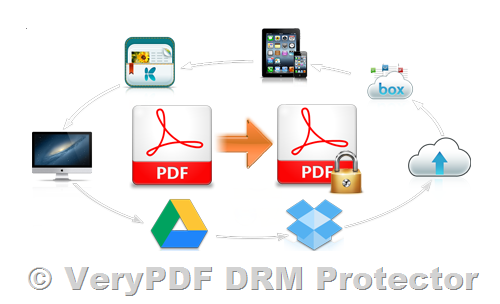
VeryPDF DRM Protector provides a secure and user-friendly alternative to traditional password protection. Instead of relying on passwords, it uses encryption, licensing, and a secure viewer application to protect documents against unauthorized access, sharing, and usage.

Key Features of VeryPDF DRM Protector

  • Advanced Encryption: Safeguards documents with robust encryption protocols.
  • Secure Viewer: Ensures files can only be opened using the VeryPDF Secure Viewer, which disables copying, printing, and editing.
  • Granular Controls: Allows you to set permissions such as document expiration, print restrictions, and usage limits.
  • Anti-Screenshot Technology: Prevents users from capturing screenshots of the document.

How to Protect a Google Doc Using VeryPDF DRM Protector?

  1. Convert Google Docs to PDF:

    • Open your Google Doc and go to File > Download > PDF Document (.pdf).
  2. Protect the PDF with VeryPDF DRM Protector:

    • Upload your PDF file to VeryPDF DRM Protector Online and select “Make Secure PDF.”
    • Configure desired permissions, such as disabling printing or setting an expiration date.
    • Click “Publish” to encrypt the file.
  3. Distribute the Secure PDF:

    • Share the encrypted PDF (.vpdf) file via email, Google Drive, or any other platform.
    • Provide recipients with the VeryPDF Secure Viewer download link and a valid license to access the file.

By using VeryPDF DRM Protector, your documents are encrypted and access is restricted to authorized users and devices, eliminating the need for passwords.


Why Choose VeryPDF DRM Protector?

Simplicity

The process is intuitive and eliminates the complexity of password management. Protect your documents in just a few clicks.

Enhanced Security

Unlike traditional password protection, VeryPDF DRM Protector ensures that documents cannot be shared, copied, or accessed by unauthorized users.

Versatility

Compatible with multiple operating systems, including Windows, macOS, iOS, and Android. A web viewer ensures accessibility across devices.

Cost-Effective

VeryPDF DRM Protector offers robust security features at an affordable price, making it an ideal choice for businesses of all sizes.


FAQs

Can Google Docs’ built-in controls protect against unauthorized access?

No. Google Docs’ anti-copying and password controls are easily bypassed, making them ineffective for securing sensitive documents.

Is VeryPDF DRM Protector suitable for Google Workspace users?

Yes. While Google Docs is great for collaboration, you can use VeryPDF DRM Protector to securely distribute finalized documents without worrying about leaks or unauthorized access.

How do I try VeryPDF DRM Protector?

You can try VeryPDF DRM Protector for free online at https://drm.verypdf.com/online/. Start protecting your documents today!

Protect your documents with confidence. Choose VeryPDF DRM Protector—the smarter alternative to traditional password protection.

How to Secure Word Documents Without Passwords Using VeryPDF DRM Protector?

The Problem with Microsoft Word Password Protection and More Secure Alternatives

Microsoft Word password protection is a popular feature, but it has significant security flaws. Below, we explore the limitations of password protection and recommend VeryPDF DRM Protector, a more secure and effective solution for protecting sensitive documents. You can try it for free online at VeryPDF DRM Protector.

How to Secure Word Documents Without Passwords Using VeryPDF DRM Protector?


Problems with Password Protection

Passwords have been a method of securing information since ancient times, but they have always had weaknesses. Even today, passwords remain vulnerable to:

  • Brute Force Attacks: Automated tools can guess hundreds of password combinations per second.
  • Sharing or Leaks: Insiders may share passwords intentionally or accidentally.
  • Phishing Attacks: Cybercriminals can deceive users into revealing their passwords.

Despite these issues, many users still rely on Microsoft Word’s password protection. While easy to implement, this method is far from secure. Passwords can be removed, guessed, or bypassed, leaving sensitive information exposed.


Alternatives to Password Protection

1. Google Docs Sharing

Google Docs allows users to share documents via links or Google accounts, eliminating the need for passwords. However, link sharing is insecure because links can be forwarded, and account credentials are still protected by passwords, which are vulnerable to the same issues mentioned above.

2. PGP File Encryption

Encryption secures files with public and private keys. While effective at protecting documents in transit or at rest, encryption does not prevent users from sharing decrypted files.

3. Enterprise Rights Management Software (ERM)

ERM software, like Microsoft Azure Rights Management, offers protection for documents across platforms. However, these solutions are costly, complex, and can still be bypassed by unauthorized users using widely available tools.


The Best Solution: VeryPDF DRM Protector

For robust document protection, VeryPDF DRM Protector offers a secure and user-friendly solution. It eliminates the need for passwords and protects documents from unauthorized viewing, sharing, copying, editing, and printing.

Key Features of VeryPDF DRM Protector:

  • Advanced Encryption: Encrypts PDF files to prevent unauthorized access.
  • Secure Viewer Application: Ensures files can only be opened with the VeryPDF Secure Viewer, which disables editing, printing, and copying.
  • Screenshot Protection: Automatically greys out the screen when screen capture tools are detected.
  • Granular Controls: Allows you to set permissions such as document expiry, print restrictions, and usage limits.

How to Protect a Word Document with VeryPDF DRM Protector?

To use VeryPDF DRM Protector, follow these simple steps:

  1. Convert Your Word Document to PDF:
    • Open your Word document and click on “File > Export > Create XPS/PDF Document.”
  2. Secure Your PDF with VeryPDF DRM Protector:
    • Upload your PDF file to https://drm.verypdf.com/online/ and select “Make Secure PDF.”
    • Use the Writer application to configure permissions (e.g., disable printing or set an expiration date).
    • Click “Publish” to encrypt the file.
  3. Distribute the Secure PDF:
    • Share the encrypted PDF (.vpdf) file with your recipients.
    • Provide them with the VeryPDF Secure Viewer download link and a valid license for access.

Why Choose VeryPDF DRM Protector?

Simplicity

The process is intuitive and quick. No need for extensive setup or training.

Affordability

Unlike enterprise-grade solutions, VeryPDF DRM Protector provides robust protection at a reasonable cost.

Comprehensive Protection

Unlike traditional password protection, VeryPDF DRM Protector secures documents during transit, at rest, and even while in use.


Try VeryPDF DRM Protector for Free

Ready to secure your documents? Try VeryPDF DRM Protector for free online at https://drm.verypdf.com/online/.

Protect your documents with confidence. Choose VeryPDF DRM Protector—the smarter alternative to traditional password protection.

How to Prevent Users from Removing Security from PDF Files: A Guide to Permanent Protection with VeryPDF DRM Protector

Ensuring the security of your PDF documents is crucial in protecting sensitive and classified information. However, safeguarding these documents from unauthorized access and modification can be difficult. If you’ve searched for “PDF security,” you might have come across various methods and online tools designed to bypass or remove PDF protection with just a few clicks. This poses a significant threat, especially for organizations handling confidential materials.

In this article, we’ll explore why traditional PDF security measures often fail, how unauthorized users can easily remove these protections, and introduce a more robust solution—VeryPDF DRM Protector—which guarantees permanent protection for your documents.

How to Prevent Users from Removing Security from PDF Files: A Guide to Permanent Protection with VeryPDF DRM Protector

Why Traditional PDF Protection Methods Fail?

There are several ways to secure PDF documents, with password protection being the most common. However, relying on passwords and certificates alone is not sufficient for safeguarding sensitive content.

1. Password Protection

PDF password protection comes in two types:

  • Open Password: This password is used to open and encrypt the PDF.
  • Permissions Password: This password controls how a user interacts with the document (editing, printing, copying, etc.).

Unfortunately, these passwords are easy to bypass. Even complex passwords can be cracked by password removal tools like those from VeryPDF PDF Password Remover, which employ various methods to guess the password. More importantly, anyone who has access to the password can share it along with the document, compromising the security.

2. PDF Certificates

PDF certificates offer a slightly more secure alternative, as they use public key infrastructure (PKI) for encryption. However, they are not designed to prevent editing. Once the document is decrypted, the recipient can freely manipulate it, rendering certificates ineffective in stopping unauthorized access or modification.

In addition, managing certificates can be complex, as the sender must have the recipient’s public key beforehand to secure the document.

3. Online Tools for Bypassing PDF Security

Numerous online services allow users to upload PDFs and remove password protections or permissions. These tools make it alarmingly easy to bypass even the most advanced security measures, including the so-called “password-protected” PDFs and “certificate-encrypted” files.

In practice, this means that documents intended for confidential use can be quickly shared, edited, or printed by unauthorized parties.

Best Practices to Prevent PDF Security Removal

While traditional PDF protection methods often fall short, there are some best practices you can follow to improve the security of your PDFs:

  • Use a Unique, Complex Password: Apply a unique, long, and complex password for each document.
  • Regularly Update Certificates: Ensure certificates are revoked and securely managed.
  • Strong Encryption: Always use strong encryption methods, such as AES-256.
  • Educate Your Team: Train employees on the importance of PDF security and the risks of removing protection.
  • Use a Secure Environment: Store PDFs in secure locations and ensure access is protected by multi-factor or biometric authentication.
  • Use Watermarks: Add watermarks that contain recipient information to discourage unauthorized sharing.

While these practices help reduce risks, they do not provide foolproof protection. Authorized users can still remove security, share documents, or edit them using other methods.

How to Prevent PDF Security Removal with VeryPDF DRM Protector?

To effectively prevent users from removing PDF security and ensure that documents remain protected, you need a more robust solution than traditional password protection and certificates. VeryPDF DRM Protector provides the ultimate solution by offering Document Rights Management (DRM) for your PDF files.

Unlike password-based solutions, VeryPDF DRM Protector does not rely on passwords for security. Instead, it uses advanced encryption, licensing, and DRM controls to ensure that documents cannot be edited, copied, printed, or shared, regardless of the user’s location or the device they are using.

Key Features of VeryPDF DRM Protector

  • Device-Specific Encryption: Files are locked to specific devices, ensuring that only authorized devices can access the document.
  • No Content Extraction: The software disables copy-pasting, screenshots, and printing, preventing unauthorized extraction of content.
  • Editing Restrictions: Users cannot edit the document, only annotate or highlight text in a secure viewer.
  • Dynamic Watermarks: Watermarks are added to documents, making it easy to trace any unauthorized distribution.
  • Expiration and Revocation: Set expiration dates or revoke access to documents at any time.
  • Real-Time Monitoring: Track who accessed the document, how many times it was opened, and when.

How to Use VeryPDF DRM Protector to Secure Your PDFs?

  1. Select the PDF: Right-click on the PDF file in File Explorer and select “Make Secure PDF” from the VeryPDF DRM Protector menu.
  2. Apply Security Settings: Choose the relevant protection options. This includes adding dynamic watermarks with recipient information to discourage sharing.
  3. Disallow Screen Captures: To prevent screenshots, select the option “Disallow Screen Capture” and “Add Screen Mask” to block unauthorized capturing of content.
  4. Publish the Document: After applying the desired settings, press “Publish” to save the document in a secure .vpdf format.
  5. Distribute the Document: Send the encrypted .vpdf file to the recipient along with the secure PDF viewer application and their corresponding license.
  6. Secure Viewer: The recipient can only view the document in the secure viewer, which does not allow editing, copying, or printing. Additionally, screenshots and file exports are disabled.

With VeryPDF DRM Protector, you can be confident that your PDFs are protected from unauthorized access and modification. Unlike traditional password-based methods, this DRM solution ensures that your content remains secure, even if the document is shared or downloaded.

Try VeryPDF DRM Protector for Free

If you are looking for a more secure way to protect your PDF documents, try VeryPDF DRM Protector for free online at https://drm.verypdf.com/online/. This free trial allows you to experience firsthand how it can safeguard your sensitive documents from unauthorized sharing, editing, and copying.

Conclusion

Traditional PDF security measures, such as password protection and certificates, offer limited protection and can be easily bypassed. Even with best practices in place, there is still a risk that your documents can be accessed, modified, or shared by unauthorized users.

VeryPDF DRM Protector provides the most reliable and secure method for preventing unauthorized access to your documents. By using encryption, secure licensing, and DRM controls, you can rest assured that your sensitive PDFs will remain protected. Take control of your document security today with VeryPDF DRM Protector, and try it for free at https://drm.verypdf.com/online/.

Why Adobe Experience Manager and Adobe Document Cloud Fall Short for Document Security, and How VeryPDF DRM Protector Offers a Superior Solution

In today’s digital age, safeguarding sensitive or confidential documents is paramount for businesses and enterprises. Many organizations turn to Adobe Experience Manager and Adobe Document Cloud to manage and protect their documents. However, both of these solutions may not offer the level of security needed to protect intellectual property from unauthorized access, sharing, or theft. In this article, we’ll explore the security challenges within Adobe’s systems and present a more reliable alternative: VeryPDF DRM Protector.

Why Adobe Experience Manager and Adobe Document Cloud Fall Short for Document Security, and How VeryPDF DRM Protector Offers a Superior Solution

Adobe Experience Manager and its Document Security Shortcomings

Adobe Experience Manager is a robust content management and digital asset management system that businesses use to create, manage, and distribute content. While it offers role-based access controls and confidentiality settings to secure documents, its actual document protection features leave much to be desired.

How Adobe Experience Manager Document Security Works

Adobe Experience Manager applies policies to documents, particularly PDFs, using Adobe LiveCycle Rights Management. This system encrypts documents and applies restrictions on actions like editing, printing, and copying. However, the reliance on username/password combinations for access means there are weaknesses that can be exploited. For instance, these credentials can be shared, and security measures like two-factor authentication (2FA) can be bypassed, especially with VPNs or shared login credentials.

Moreover, Adobe Experience Manager’s protection features lack offline support, which can be a serious limitation. The security mechanisms also fail to prevent the most basic method of content sharing: screenshots. Anyone with access to the document can simply take a screenshot, thus easily bypassing the protection.

The Drawbacks of Adobe Experience Manager for Sensitive Documents

  • It cannot prevent screenshots or screen recording, which are among the most common ways to share sensitive content without authorization.
  • While Adobe LiveCycle Rights Management offers some level of encryption, its DRM can be bypassed by hackers, rendering it vulnerable.
  • Document policies often fail in real-world usage scenarios, like with Microsoft Office documents, where third-party extensions can disable protections or stop working due to updates.

Adobe Document Cloud: A Risky Solution for Document Security

While Adobe Document Cloud offers various PDF management tools, including Acrobat Sign and Adobe Acrobat, its document protection features also have significant security vulnerabilities.

Encryption and Security Issues

Adobe Document Cloud encrypts documents both in transit and at rest using TLS and AES 256-bit encryption. However, the real problem lies in the document protection once it’s uploaded to the cloud. Adobe Acrobat relies on a password-based system for content restrictions, which can easily be bypassed by authorized users. Once a document is decrypted, it can be shared, printed, or edited without much effort, even by those who shouldn’t have access.

The Weakness of Adobe Document Cloud’s PDF Protection

  • Password Protection: Passwords can be shared, and editing or printing restrictions can be easily removed by an authorized user.
  • Web Viewer Vulnerabilities: The browser-based PDF viewer is particularly insecure. Users can bypass restrictions by using third-party tools, including OCR extensions or screen recording apps.
  • Limited Control Over PDF Security: Users can download PDFs from the cloud and remove security features using standard PDF password removal programs, further weakening the document’s protection.

VeryPDF DRM Protector: The Ultimate Solution for Secure Document Protection

While Adobe Experience Manager and Adobe Document Cloud have their limitations, VeryPDF DRM Protector provides a much more secure and reliable way to protect your documents. Unlike Adobe’s systems, VeryPDF DRM Protector does not rely on passwords or certificates for document security. Instead, it uses a combination of AES 256-bit encryption, device-specific licensing, DRM controls, and a secure viewer application.

Key Features of VeryPDF DRM Protector

  • Device-Specific Encryption: Files are locked to specific devices, and users can only open a document on a device where the license is activated. The license file cannot be copied or transferred to another device, ensuring that only authorized devices can access the content.
  • No Content Extraction: VeryPDF DRM Protector disables copy-pasting, screenshots (even third-party screen capture tools), and printing. This prevents the document’s content from being stolen or shared without authorization.
  • Editing Restrictions: The secure viewer used by VeryPDF DRM Protector does not have editing capabilities, ensuring that the document cannot be modified.
  • Watermarking: VeryPDF DRM Protector adds a dynamic watermark to each document that includes identifiable information (e.g., name or email address). This makes it easy to trace any unauthorized sharing or distribution.
  • Expiration and Revocation: You can set a document to expire after a certain period or after a set number of views or prints. Additionally, you can manually revoke access to documents at any time.
  • Monitoring and Reporting: VeryPDF DRM Protector offers real-time monitoring of document usage. You can track how many times a document was opened or printed, by whom, and from where.

Why VeryPDF DRM Protector is the Best Choice

With its robust and user-friendly security features, VeryPDF DRM Protector is the perfect solution for protecting sensitive documents from unauthorized access and sharing. Unlike Adobe’s solutions, which are riddled with vulnerabilities and lack control over content extraction, VeryPDF provides comprehensive protection for PDF files.

Moreover, VeryPDF DRM Protector is easy to use, and it doesn’t require plugins or third-party extensions that can fail due to system conflicts or updates. You can also integrate it into your website for seamless document delivery to authorized users, further enhancing security.

Try VeryPDF DRM Protector Today

If you’re looking for a more secure way to protect your digital content, we highly recommend trying VeryPDF DRM Protector. It offers superior document protection without the flaws found in Adobe’s solutions. You can try it for free online at https://drm.verypdf.com/online/ and experience firsthand how it can safeguard your sensitive documents from unauthorized sharing, editing, and copying.

Conclusion

While Adobe Experience Manager and Adobe Document Cloud offer some document security features, they fall short when it comes to preventing unauthorized access and sharing. With VeryPDF DRM Protector, you can ensure your documents remain safe from unauthorized users, hackers, and even authorized users who may inadvertently share them. Take control of your document security today by trying VeryPDF DRM Protector for free. Protect your valuable intellectual property with confidence!