How to Revoke Document Access and Protect Your PDFs with VeryPDF DRM Protector

The importance of protecting PDF files cannot be overstated. Whether you are a publisher, business, or individual, safeguarding your sensitive documents from unauthorized access, distribution, or editing is essential. However, protecting documents goes beyond just preventing unauthorized access — sometimes, it’s also about having the capability to revoke access when necessary. This article discusses why revoking document access is crucial and how to achieve it effectively using VeryPDF DRM Protector.
How to Revoke Document Access and Protect Your PDFs with VeryPDF DRM Protector

Why Revoking Document Access is Crucial

In the world of document security, much focus is placed on preventing unauthorized access, editing, and sharing of files. However, as Bruce Schneier, a renowned security expert, suggests, no security system is foolproof. While preventive measures are essential, you also need to account for the possibility of misuse or mistakes. Document revocation plays a key role here. It ensures that, in the event of a document being misused, leaked, or shared inappropriately, you can take swift action to remove access and protect your content.

Planned vs. Unplanned Document Revocation

Document revocation can generally be divided into two categories: planned and unplanned. Planned revocation occurs when a document has outlived its usefulness. For instance, expired documents or outdated training materials may need to be revoked to avoid the distribution of incorrect information. In contrast, unplanned revocation may be necessary when a document has been shared with the wrong person, misused, or compromised.

Using VeryPDF DRM Protector to Revoke Document Access

One of the most efficient ways to manage document revocation is by using a robust Digital Rights Management (DRM) solution, such as VeryPDF DRM Protector. This software provides an easy-to-use interface that allows you to encrypt your PDF files and apply granular controls that protect your documents from unauthorized access, copying, printing, and editing. Furthermore, it provides you with the capability to revoke document access at any time, whether on a per-user or per-device basis.

How to Protect Your PDF with VeryPDF DRM Protector

To get started with document protection using VeryPDF DRM Protector, simply upload your PDF file to https://drm.verypdf.com/online/ and select ‘Make Secure PDF’. This will encrypt your document and allow you to set specific usage controls, such as restricting the ability to print, copy, or forward the document.

Revoking Access to Documents with VeryPDF DRM Protector

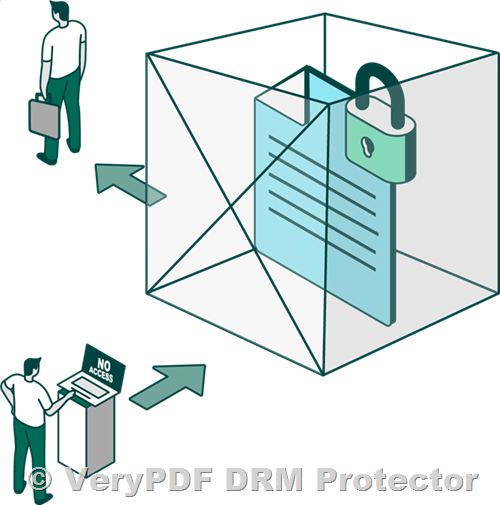
Revoking document access is a seamless process with VeryPDF DRM Protector. If you need to stop a document from being accessible to certain users, you can do so through the admin system. Here’s how:

  • Revoke Access for All Users: If you need to prevent access to a document entirely, simply open the ‘Documents’ tab, select the document, and click ‘Grant or Revoke Access.’ You can then choose to revoke access for all users.
  • Revoke Access for Specific Users: If only certain users should lose access, you can select the specific users and revoke access to just them.
  • Revoke Access for Specific Devices: If a device is lost or compromised, you can suspend the device’s access to the protected document.

Why Choose VeryPDF DRM Protector?

There are several DRM solutions available on the market, but VeryPDF DRM Protector offers several unique advantages:

  • Comprehensive Document Protection: It combines encryption with usage restrictions, tracking, and revocation, offering the most robust solution for PDF security.
  • Real-Time Document Revocation: With VeryPDF DRM Protector, you can revoke document access in real-time, even after a document has been distributed.
  • Easy-to-Use Interface: The user-friendly interface makes it simple for even non-technical users to encrypt and protect their documents.
  • Free Trial Available: You can try the software for free by visiting https://drm.verypdf.com/online/ and see how it works for you.

Conclusion

Document revocation is an essential feature of any comprehensive document protection strategy. Whether you need to revoke access because of outdated content or to mitigate the risk of unauthorized distribution, VeryPDF DRM Protector provides the tools necessary to manage document access effectively. By choosing VeryPDF DRM Protector, you are ensuring that your documents are secure and that you maintain control over who can access them, even after they’ve been distributed. Start protecting your PDFs today by visiting https://drm.verypdf.com/online/ and enjoy a free trial.
How to Protect PDF Files: Exploring Different Methods

Introduction: Why Protect PDF Files?

The protection of sensitive documents is of utmost importance, especially when it comes to PDF files. Whether you’re sharing confidential reports, proprietary information, or intellectual property, safeguarding PDFs from unauthorized access and distribution is crucial. PDFs are widely used across industries, and they often contain sensitive information such as financial reports, legal documents, and personal data. Without proper protection, these files are vulnerable to unauthorized access, copying, and distribution. In this article, we explore different methods to protect PDF files, with a special focus on the use of Digital Rights Management (DRM) software as the most effective solution.

How to Protect PDF Files: Exploring Different Methods

Methods to Protect PDFs

1. Protect PDF with Passwords

Password protection is one of the most basic and common ways to secure PDF documents. By encrypting the file with a password, only users with the correct credentials can access the file. However, this method has some limitations. While passwords can prevent unauthorized access, they do not prevent users from sharing passwords, and they don’t stop screen capture, printing, or copying the content. Thus, password protection is not a comprehensive solution for PDF security.

2. Protect PDF with Watermarks

Watermarking is another technique for deterring unauthorized sharing or distribution of PDF documents. Visible watermarks can include copyright symbols or confidentiality labels, while invisible watermarks embed unique identifiers into the document, helping to track the file if it’s leaked. Watermarking is effective in marking ownership of digital content, but it doesn’t prevent unauthorized access or viewing of the file itself.

3. Protect PDF with Encryption

Encryption is a more robust security measure, where the PDF file is encoded using encryption algorithms like AES (Advanced Encryption Standard). Encryption ensures that even if a file is intercepted, it cannot be accessed without the proper decryption key. However, encryption alone may not prevent unauthorized access if the decryption key is shared or compromised. Encryption provides an extra layer of security but does not offer granular control over document distribution and usage.

Why Choose DRM Software for Protecting PDFs?

Digital Rights Management (DRM) software offers comprehensive and advanced protection for PDF files by controlling access, usage rights, and distribution. Unlike basic password protection or watermarking, DRM solutions provide a more granular approach to securing PDFs. DRM not only encrypts documents but also allows content owners to enforce policies such as limiting views, printing, copying, and sharing. It’s a more complete and secure way to safeguard intellectual property, particularly for businesses and content creators who want to monetize or protect their digital content.

Key Benefits of DRM Software
  • Granular Control: DRM allows content owners to define specific access and usage rights for individual users or groups, ensuring that sensitive information remains secure.
  • Tracking and Reporting: DRM solutions offer insights into who accessed a file, when it was accessed, and any unauthorized activities, helping businesses maintain compliance.
  • Flexibility: DRM software is adaptable to different types of content and industries, providing tailored protection solutions.
  • Compliance: DRM ensures that content protection meets regulatory requirements for industries like healthcare, finance, and legal sectors.

How to Protect Your PDFs Using VeryPDF DRM Protector

One of the best tools for securing your PDF files is VeryPDF DRM Protector. Unlike third-party software such as Adobe Acrobat, VeryPDF offers a robust solution that allows you to protect your PDF files effectively. You can try this tool for free online at https://drm.verypdf.com/online/.

Here’s how to protect your PDF using VeryPDF DRM Protector:

  1. Upload your PDF file to https://drm.verypdf.com/online/.
  2. Choose the “Make Secure PDF” option.
  3. Set the appropriate protection options (such as limiting printing, copying, or sharing).
  4. Download your protected PDF file, now secured with DRM technology.

Conclusion

In today’s digital world, protecting PDF files is crucial to maintain confidentiality, safeguard intellectual property, and ensure compliance with regulatory requirements. While methods like password protection, watermarking, and encryption provide basic security, DRM software offers the most comprehensive solution. With DRM, content owners can control access, monitor usage, and prevent unauthorized distribution. VeryPDF DRM Protector provides an excellent, user-friendly way to protect your PDFs, and it can be tried for free online at https://drm.verypdf.com/online/. Give it a try and experience the full range of features that DRM protection can offer!

Why You Should Avoid Password Protecting Word Documents

When it comes to securing sensitive documents, Microsoft Word’s built-in password protection might seem like a good option, but it has serious flaws. While it can prevent unauthorized access to a document in some cases, it does not offer the level of security needed for business and legal purposes. This article explores the weaknesses of Word password protection and offers a better solution through VeryPDF DRM Protector, which provides far stronger protection for documents.

Why You Should Avoid Password Protecting Word Documents

How Does Microsoft Word Password Protection Work?

Microsoft Word has been the go-to word processing software for businesses worldwide, supporting a wide range of tasks from note-taking to legal documentation. However, when it comes to securing sensitive documents, Word’s password protection is not as secure as many users might think. Microsoft Word offers two types of password protection: one that encrypts the document, and another that restricts editing. Here’s how each works:

  • Encryption Protection: This option encrypts the document using a password. The document remains unreadable until the correct password is entered.
  • Editing Restriction: This does not use encryption but simply disables editing functions within the document. It limits users from typing, deleting, or altering the formatting.

The Problem with Password-Based Encryption

The primary issue with Word’s password protection is that it relies on human-created passwords. While encryption algorithms like AES are robust, the passwords chosen by users are often weak and easily cracked by modern password-cracking tools. Additionally, passwords are shareable, meaning that legitimate users can inadvertently or intentionally share them with unauthorized parties. This defeats the purpose of encryption, as documents can easily be copied, shared, or edited.

Why Password Protected Links Do Not Work

Another common method of sharing a password-protected document is by uploading it to cloud services like OneDrive, and sharing the link with a password requirement. However, this method is just as vulnerable as traditional password protection. The password can be shared, and once the document is downloaded, it is no longer secure. OneDrive’s editing and copying restrictions are also flawed, as users can still copy and paste content or take screenshots.

Why Restrict Editing in Word Doesn’t Help

Microsoft Word’s “Restrict Editing” feature might seem like a useful tool, but it offers very little protection. Although it can prevent users from editing a document, it doesn’t stop them from copying content, printing, or sharing the document in other ways. Users can easily bypass these restrictions by saving the document as a PDF, printing it, or copying and pasting its contents into another document.

How to Unlock a Password-Protected Word Document

If you’ve forgotten the password to a Word document, there are ways to recover it. For documents encrypted with a password, tools like Passware or Elcomsoft can use brute-force attacks to crack the password. However, the process can be time-consuming, especially for long or complex passwords. If you only applied editing restrictions, removing those can be done in seconds by copying the text, printing to PDF, or saving as a different file format.

How to Encrypt and Protect Documents More Effectively

While password protection in Word is inadequate for protecting sensitive documents, there are better alternatives. If you need to securely share documents and control how they are used, Digital Rights Management (DRM) is the ideal solution. DRM allows you to set up modular controls over documents, including encryption, restriction of copying or editing, and the prevention of screenshots and printing.

Why Choose VeryPDF DRM Protector?

VeryPDF DRM Protector offers a far more secure way to protect your documents. Unlike Word’s password protection, DRM doesn’t rely on passwords that can be shared or cracked. It uses AES 256-bit encryption and secure key management to control access to your documents. With VeryPDF DRM Protector, you can:

  • Prevent sharing: No one can share the document without permission.
  • Disable copy-pasting: Text and images cannot be copied.
  • Restrict editing: Users cannot modify the document.
  • Prevent printing: You can even prevent printing or allow degraded, watermarked prints.
  • Track usage: Monitor how and when the document is accessed.
  • Revoke access: If necessary, you can revoke access to a document remotely.

To use VeryPDF DRM Protector, simply upload your PDF file to https://drm.verypdf.com/online/ and select ‘Make Secure PDF.’ From there, you can apply all the necessary DRM restrictions. VeryPDF’s DRM solution ensures that your document is protected even after it leaves your hands, offering a level of control far beyond that of simple password protection.

Free Trial Available

You can try out VeryPDF DRM Protector online for free at https://drm.verypdf.com/online/. Explore how DRM can give you complete control over your documents, ensuring that your sensitive information remains secure and protected.

FAQs

1. How secure is an encrypted Word document?

Word encryption is only secure if the password is strong. However, since passwords can be shared and cracked, it’s not ideal for protecting sensitive information.

2. Does Word’s Restrict Editing feature work?

No, it only prevents editing within Word. Users can still copy, paste, and share the content in other ways.

3. Can I track the use of my documents?

Yes, with VeryPDF DRM Protector, you can track document usage and revoke access if needed.

Google Docs Watermark Security: Why Google Docs Watermarks Are Not Secure. Why It’s Easy to Remove & How to Protect Documents

Google Docs offers a watermarking tool, but how effective is it? In this article, we explore the vulnerabilities of Google Docs watermarks, how easily they can be removed, and how to apply a permanent watermark using VeryPDF DRM Protector.

Google Docs Watermark Security: Why Google Docs Watermarks Are Not Secure. Why It's Easy to Remove & How to Protect Documents

Why Watermarking is Important

Watermarking serves three primary purposes:

  • Copyright Protection: Watermarks help assert copyright and prevent plagiarism.
  • Prevent Unauthorized Sharing: Personalized watermarks deter unauthorized distribution.
  • Compliance and Reminder: Watermarks indicate document classification, such as “Confidential” or “Internal Use Only”.

The Drawbacks of Google Docs Watermarks

Despite its simplicity, Google Docs’ watermark feature has significant limitations:

  • Watermarks cannot be personalized at scale.
  • Watermarks are easily removed by altering the document URL or using browser developer tools.
  • There is no reliable way to enforce watermark retention in shared documents.

How to Watermark in Google Docs

  1. Open your document and select Insert > Watermark.
  2. Choose either text or image watermark.
  3. Share the document with recipients.

Warning: Recipients can easily remove the watermark by modifying the document URL or disabling JavaScript.

Secure Watermarking Alternative: VeryPDF DRM Protector

For secure, irremovable watermarks, you need a DRM solution like VeryPDF DRM Protector. This tool ensures that watermarks cannot be removed and that document access is fully controlled.

How to Make a Permanent Watermark with VeryPDF DRM Protector
  1. Upload your PDF file to VeryPDF DRM Protector and select “Make Secure PDF”.
  2. Navigate to the View Watermarks or Print Watermarks tab.
  3. Enable Text Watermark and enter your desired watermark text.
  4. Add dynamic variables like user name, email, and timestamp.
  5. Adjust font, opacity, position, and add an image watermark if needed.
  6. Click Publish to apply encryption and make the watermark permanent.

Why Choose VeryPDF DRM Protector?

  • Prevents unauthorized sharing, editing, copying, and printing.
  • Ensures watermark retention even after document downloads.
  • Supports dynamic and customized watermarks.
  • Offers a free trial online.
FAQs

Will watermarks remain intact if users download a document?
Yes, VeryPDF DRM Protector ensures that watermarks stay in place whether the document is accessed online or offline. The document’s security features remain unchanged regardless of where it is stored or viewed.

You can share watermarked documents just like any other file—via email (Outlook, Gmail, etc.), Google Drive, file-sharing platforms, or direct uploads to your website.

Is watermarking in Google Docs more secure than in Microsoft Word?
No, neither option provides effective security since watermarks in both Google Docs and Word documents can be easily removed or altered.

Do recipients need special software to view files protected with VeryPDF DRM Protector?
Yes, users must use a dedicated secure Viewer application to open protected documents. They can also access them through a supported web browser like Chrome.

Will Google Docs watermarks appear if I open the document in Microsoft Word?
Yes, watermarks from Google Docs can still be visible in Word, but they offer no real security since they can be removed just as easily in either platform.

Can I add a confidential stamp in Google Docs?
Yes, you can insert an image watermark that acts as a confidential stamp. However, it can still be erased with minimal effort. For secure watermarking, a DRM-protected PDF is the recommended solution.

Conclusion

Google Docs watermarks provide minimal security and can be easily removed. To ensure permanent watermarking and document protection, use VeryPDF DRM Protector. Try it for free today at VeryPDF DRM Protector Online.

Secure Membership Document Protection & Subscription Management

How Membership Organizations Can Restrict Member Access to Documents

Membership organizations thrive on providing exclusive, valuable information. However, with rampant digital piracy, how can associations prevent their content from being shared beyond their paying members? VeryPDF DRM Protector offers a robust solution to secure digital documents effectively.

Secure Membership Document Protection & Subscription Management

Challenges in Membership Content Protection

Membership organizations operate on a subscription model, offering exclusive content such as weekly bulletins, e-learning materials, and conference notes. However, if these materials are freely shared, members may question their subscription’s value.

Physical Delivery vs. Digital Distribution

Traditional physical document distribution offers some control but comes with high costs and logistical challenges. On the other hand, digital distribution provides instant access but requires robust security to prevent unauthorized sharing.

Why Password-Based Security Fails

Many organizations rely on Adobe PDF password protection, but this method is ineffective. Passwords can be easily shared, removed, or bypassed using third-party tools, leaving documents vulnerable.

Why Secure Data Rooms Are Not Enough

Secure data rooms offer restricted access but still depend on passwords, making them susceptible to unauthorized sharing. Additionally, web-based viewing allows for loopholes like printing to PDF or using browser plugins to bypass restrictions.

How VeryPDF DRM Protector Secures Documents

VeryPDF DRM Protector provides a specialized solution to safeguard membership documents effectively:

  • No More Passwords: Uses licensing instead of passwords, ensuring only authorized users can access documents.
  • Prevents Unauthorized Sharing: Blocks editing, copying, printing, and screenshotting, ensuring content remains secure.
  • Membership Tier Access: Grants different document permissions based on membership levels.
  • Subscription Expiry Control: Documents automatically expire if a member’s subscription ends.
  • Real-Time Usage Tracking: Monitor which documents are accessed most frequently.
  • Offline Secure Distribution: Provides secure document sharing via USB drives.
  • Integration with Membership Software: Automates access control using the VeryPDF DRM Protector API.
How to Secure Your Membership Documents with VeryPDF DRM Protector

Protecting your documents is simple with VeryPDF DRM Protector:

  1. Visit https://drm.verypdf.com/online/
  2. Upload your PDF file and select “Make Secure PDF”
  3. Configure access settings, including expiration dates and permissions
  4. Download and distribute your protected document securely
FAQs

Does VeryPDF DRM Protector support role-based access?
No, instead, it uses encryption and DRM controls for stronger security.

Can it integrate with membership management software?
Yes, it seamlessly integrates with your existing subscription platform.

Can I set country-specific restrictions?
Yes, access can be limited by country or IP address.

Does it prevent document downloads?
Yes, documents remain protected whether viewed online or offline.

Try VeryPDF DRM Protector for Free

Discover how VeryPDF DRM Protector can enhance your membership organization’s security. Get started with a free trial online at https://drm.verypdf.com/online/.