A Wake-Up Call for Every Udemy Course Creator: Why “Passive Protection” Is No Longer Enough, and How Smart Instructors Are Moving to DRM-Level Defense with VeryPDF DRM Protector
There is a moment every online instructor fears, but very few are prepared for.
It is not the moment you publish your first course.
It is not the moment you get your first sale.
It is not even the moment you receive your first negative review.
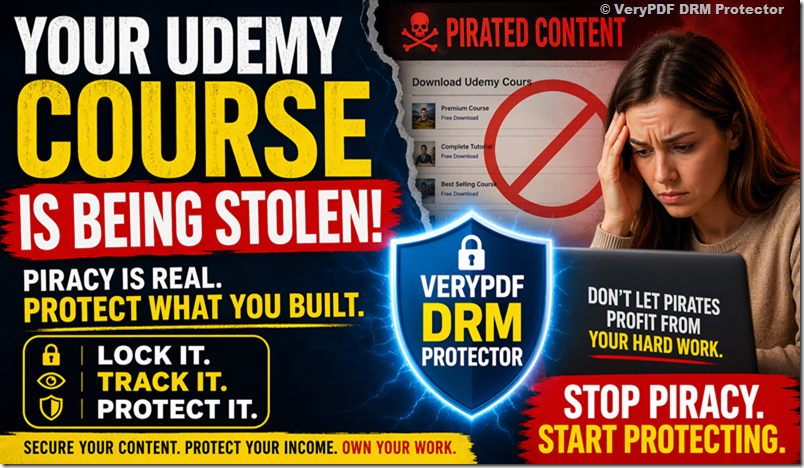
It is the moment you discover your course — something you spent weeks, months, or even years building — has already been copied, redistributed, and uploaded to piracy websites without your consent.
By the time you see it, the damage is already done.
This is exactly what happened to a Udemy instructor recently in a public post on the Udemy Community forum titled “My Udemy Course Has Been Pirated” by user Beti P, accessible here:
https://community.udemy.com/en/discussion/160921/my-udemy-course-has-been-pirated
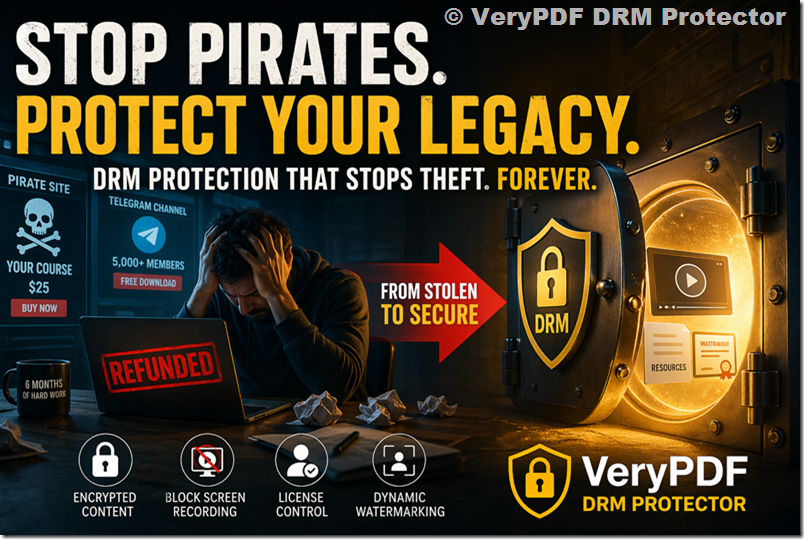
In her post, she explains how her newly launched course, “Baneful Magic for Protection and Power – Return to Sender,” was quickly pirated and uploaded to multiple unauthorized websites shortly after release. She describes how a suspicious account purchased her course using an email such as Xqrjbdsue5748@Hotmail.com, immediately requested a refund, and the content was then distributed across piracy platforms.
She also discovered that this was not an isolated case. Other instructors were experiencing the same issue simultaneously.
Her frustration is evident, and her questions reflect the reality of thousands of online educators:
- Has anyone successfully taken down pirated content from these sites?
- Is there a fast way to file DMCA or identify hosting providers?
- Are there tools or strategies to prevent future piracy?
Her final sentence is the most important:
“I’d appreciate any insight or moral support — it’s honestly so disheartening to see this happen right away.”
This is not just an emotional reaction.
This is a structural problem in the online education economy.
And every Udemy Course Creator needs to understand one thing very clearly:
If your content has value, it will be stolen.
The only question is whether you are prepared for it.
1. The Illusion of Platform Protection: Why Udemy Alone Is Not Enough
Most Udemy instructors operate under a comforting assumption:
“I publish on Udemy, so my content is safe.”
This assumption is understandable, but it is fundamentally incomplete.
Udemy provides a marketplace, hosting, payment infrastructure, and visibility. However, Udemy does not function as a full-scale digital rights management system for your intellectual property outside its ecosystem.
Once your course is consumed, downloaded (via screen recording), or accessed by a paying user with malicious intent, Udemy has limited control over where that content goes next.
The reality is simple:
Udemy protects distribution inside its platform, not outside of it.
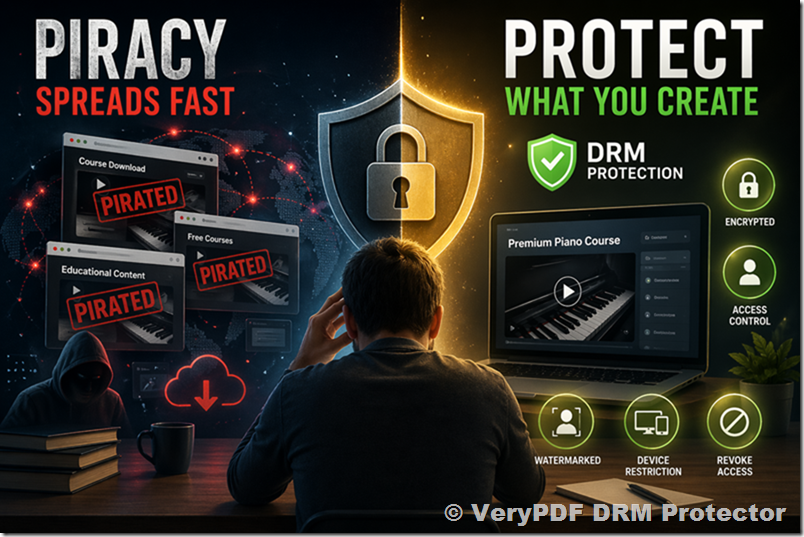
Once a pirate records or extracts your course, it becomes a digital asset that can be redistributed infinitely across forums, file-sharing platforms, private Telegram groups, torrent networks, and “free course” websites.
This is exactly what happened in Beti P’s case. Within days, her newly released content appeared on multiple unauthorized websites.
This is not rare. It is routine.
And it is accelerating.
2. The Real Mechanics of Modern Course Piracy
To understand why Udemy courses are so frequently pirated, you need to understand how modern piracy actually works.
It is no longer about hackers breaking encryption or stealing databases.
It is much simpler:
Step 1: Purchase the course using disposable or fake accounts
Step 2: Download or screen-record the content
Step 3: Request a refund (or use stolen payment methods)
Step 4: Upload the content to piracy sites
Step 5: Monetize indirectly through ads, SEO traffic, or file lockers
The instructor in the Udemy post mentioned a suspicious Hotmail account that purchased and refunded the course immediately. This is a classic pattern.
Piracy operators often automate this process at scale. They do not care about the refund. The real value is in the content extraction.
Once your course is extracted:
- It is re-uploaded within hours or days
- It spreads across multiple mirror sites
- It becomes nearly impossible to fully remove
- It continues circulating for years
This is why DMCA takedown requests alone are often insufficient.
You are not fighting one site.
You are fighting an ecosystem.
3. The Emotional Reality No One Talks About
What makes this situation worse is not just financial loss.
It is psychological impact.
When an instructor discovers piracy, the immediate reactions are often:
- Frustration: “I just launched this course”
- Betrayal: “Someone paid just to steal it”
- Helplessness: “What can I even do?”
- Exhaustion: “Is it even worth continuing?”
In Beti P’s post, the emotional tone is clear: disappointment and discouragement.
And this is important because piracy does not only steal revenue.
It steals motivation.
For many independent instructors, especially those building niche or deeply specialized content, this can lead to:
- Reduced willingness to publish new courses
- Lower investment in production quality
- Shift away from long-form educational content
- Abandonment of platform-based teaching entirely
This is the hidden cost of piracy.
It does not just take your content.
It changes your behavior as a creator.
4. Why DMCA Alone Is Not a Strategy
One of the most common responses to piracy is:
“Just file a DMCA takedown.”
This is partially correct, but incomplete.
Yes, DMCA can remove content from specific sites.
However, in practice:
- Sites re-upload content quickly
- Mirror domains appear constantly
- Hosting providers are often offshore or unresponsive
- Enforcement speed is slower than piracy replication
- New leaks appear faster than old ones are removed
In Beti P’s case, the instructor asked whether there is a fast way to identify hosts or remove content.
The underlying truth is:
DMCA is reactive, not preventive.
It is cleanup, not protection.
If your strategy begins after your content is stolen, you are always one step behind.
5. The Real Question Udemy Creators Should Be Asking
Most instructors ask:
“How do I remove pirated content?”
But the more important question is:
“How do I prevent high-quality extraction in the first place?”
This is where most creators reach a difficult realization:
You cannot rely on platform goodwill or post-incident legal action alone.
You need technical protection that travels with your content.
Not just hosting protection.
Not just marketplace protection.
But content-level protection.
6. Introducing a Different Approach: DRM-Level Content Protection
This is where VeryPDF DRM Protector becomes relevant.
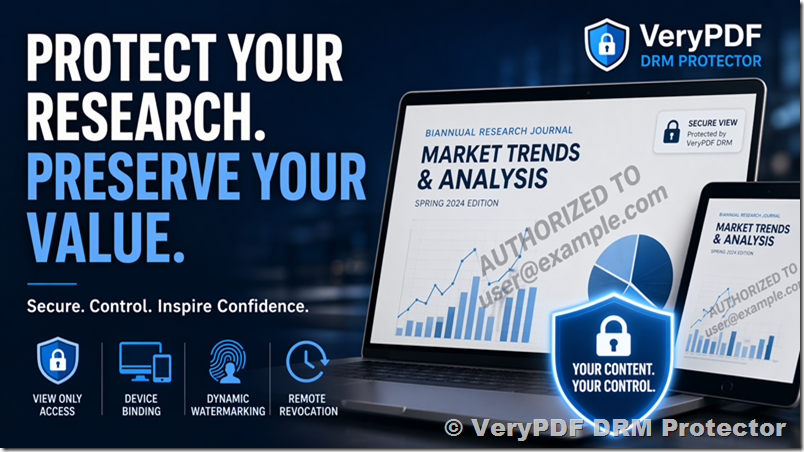
Unlike traditional “watermark-only” or “PDF password” solutions, VeryPDF DRM Protector is designed to enforce access control at the document and content level.
It focuses on a core principle:
Even if the file is accessed, it should not be freely reusable.
For Udemy Course Creators who distribute downloadable materials, PDFs, slides, training manuals, or supplementary resources, this distinction matters.
VeryPDF DRM Protector provides several key protection mechanisms:
6.1 Encrypted Content Access Control
Content is protected using strong encryption (including AES-level protection), ensuring that files cannot be opened outside authorized environments.
This is not just password protection.
It is structured access control tied to user authorization.
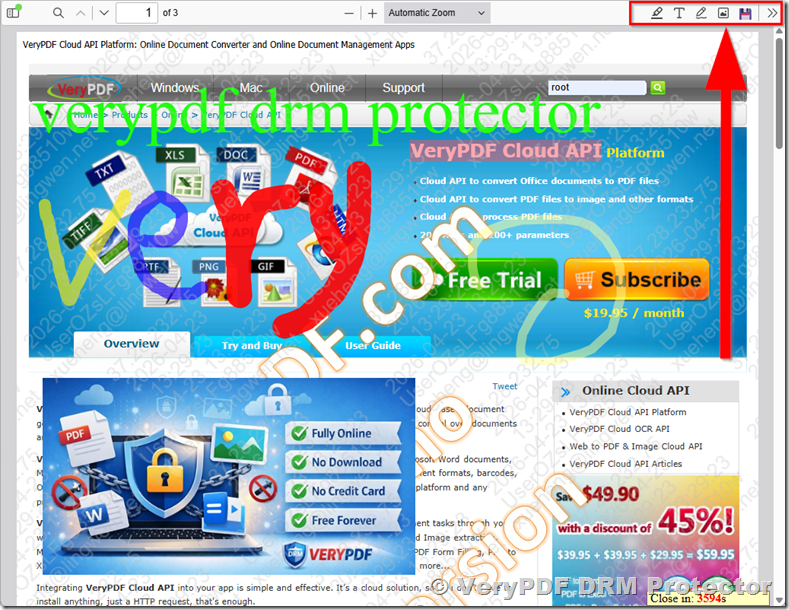
6.2 Dynamic Watermarking
One of the most powerful deterrents against piracy is traceability.
Dynamic watermarking allows each user’s content view to be marked with identifying information such as:
- Email address
- User ID
- Timestamp
- License information
If a leak occurs, the source can be traced.
Pirates hate traceability because it removes anonymity.
6.3 Access Revocation
One of the biggest weaknesses in traditional course distribution is permanence.
Once a file is downloaded, it often stays accessible indefinitely.
VeryPDF DRM Protector allows instructors to revoke access even after distribution.
This is crucial in cases like refund abuse or account compromise, similar to the pattern described in Beti P’s post.
6.4 View, Print, and Copy Control
In many piracy cases, the simplest attack vector is:
- Copy text
- Print PDF
- Screenshot or screen-record content
DRM-level control can restrict:
- Copy/paste functionality
- Printing permissions
- Unauthorized screen capture behavior (depending on environment)
6.5 Usage Analytics and Access Tracking
One of the most overlooked features in content security is behavioral visibility.
Understanding:
- Who accessed your content
- When they accessed it
- How often they accessed it
- From where they accessed it
This is critical for early detection of suspicious behavior patterns, such as mass downloading or automated scraping.
7. Why Udemy Course Creators Are High-Value Targets
There is a reason Udemy courses are heavily pirated:
They are structured, high-value, and easy to redistribute.
Unlike fragmented content, a full course includes:
- Complete learning pathways
- Ready-made curriculum
- Professional explanations
- Downloadable resources
To pirates, this is equivalent to a packaged digital product.
Even niche courses like the one mentioned by Beti P (“Baneful Magic for Protection and Power – Return to Sender”) are targeted because niche audiences are highly monetizable in underground communities.
The more specific your knowledge, the more valuable it becomes in unauthorized markets.
8. The Economic Reality: Piracy Scales Faster Than Creation
Let’s be blunt:
Creating a course takes weeks or months.
Pirating it takes hours.
That imbalance is the core problem.
Once your content is online:
- One pirate upload becomes 10 mirrors
- 10 mirrors become 100 reposts
- 100 reposts become search engine indexed content
At that point, removal becomes an endless cycle.
The only scalable defense is prevention or controlled access.
9. Why “Waiting Until You Are Targeted” Is a Costly Strategy
Many instructors adopt a reactive mindset:
“I will deal with piracy if it happens.”
The problem is that by the time it happens:
- Your content is already indexed
- Your revenue has already been impacted
- Your audience may already be accessing stolen versions
- Your brand authority may be diluted
Beti P’s experience demonstrates this clearly: piracy occurred almost immediately after launch.
This is increasingly common.
Piracy is no longer delayed.
It is fast.
10. A Strategic Shift: From Content Publishing to Content Ownership
Udemy Course Creators need to evolve their mindset.
You are not just publishers.
You are digital asset owners.
And digital assets require protection strategies similar to:
- Software licensing
- Enterprise document control
- Intellectual property enforcement systems
This is where DRM-based systems like VeryPDF DRM Protector align with modern content economics.
Instead of treating piracy as an external legal issue, you treat it as an internal access control issue.
11. Practical Integration: How Creators Can Use DRM in Real Workflows
A practical approach for Udemy creators includes:
- Protecting downloadable course PDFs
- Securing supplementary training materials
- Controlling distribution of worksheets, templates, and guides
- Embedding tracking into premium resources
- Issuing controlled access to high-value content outside Udemy
This creates a layered protection model:
Udemy platform + DRM protected assets + traceable distribution
12. Addressing the Common Objection: “Won’t This Be Too Complicated?”
Many creators hesitate because they assume DRM systems are complex.
In reality, modern DRM tools are designed for usability, not enterprise complexity.
The goal is not to block your students.
The goal is to prevent uncontrolled redistribution.
Most instructors find that once set up, DRM protection becomes a background process integrated into publishing workflows.
13. Reframing the Conversation: Piracy Is Not a Rare Event
The biggest misconception among instructors is that piracy is exceptional.
It is not.
It is routine.
The post by Beti P is not an isolated incident. It is a visible example of a systemic pattern affecting instructors across categories, from business to spirituality to technical education.
Once you accept this, the strategy changes.
You stop asking:
“Why did this happen to me?”
And start asking:
“How do I ensure this does not scale further?”
14. A Call to Udemy Course Creators
If you are building courses on Udemy, you are participating in one of the most powerful knowledge economies in the world.
But power attracts exploitation.
Your content is valuable because it is useful.
And anything useful will eventually be copied.
The question is whether you allow that copying to happen freely, or whether you introduce controlled boundaries.
The experience shared by Beti P is a warning, but also an opportunity.
It is a reminder that visibility without protection is vulnerability.
15. Conclusion: Protection Is No Longer Optional
The era where instructors could rely solely on platform trust is ending.
Piracy is faster, more automated, and more distributed than ever before.
DMCA alone is not sufficient.
Manual enforcement alone is not sufficient.
Hope alone is not sufficient.
What is required is structured content protection that operates at the file and access level.
This is where solutions like VeryPDF DRM Protector become relevant for modern Udemy Course Creators who want to preserve both their revenue and their intellectual ownership.
If you are investing time into creating educational content, then protecting that content is not an optional upgrade.
It is part of the creation process itself.
Because once your course leaves your hands, you should still control how it is used.
Not the pirates.
Not the redistribution networks.
Not the anonymous uploaders.
You.