As digital content creators, independent researchers, educators, and small business owners, one of the most significant challenges today is protecting valuable PDF files while selling them online. PDFs are widely used for distributing e-books, research papers, reports, training materials, and other digital content. However, without proper protection, these files can be easily shared, copied, or redistributed without your permission, potentially causing financial loss and intellectual property theft.
Once you secure your PDF using VeryPDF DRM Protector, you can prevent unauthorized access, enforce usage restrictions, and monitor how your content is consumed. But protecting the file is only part of the solution. The next critical question often arises: how can you sell these secured PDFs on your own website in a fully or semi-automated way, without manually sending each file to your customers?
In this article, we will provide a comprehensive guide to the available options for delivering DRM-protected PDFs to customers efficiently. We will cover manual, semi-automatic, and fully automatic delivery methods, and explain how to integrate them with a wide range of popular payment gateways. These include iDEAL (commonly used in the Netherlands), Stripe, PayPal, Square, Apple Pay, Google Pay, Skrill, Amazon Pay, and even bank transfer options that can trigger webhooks. By supporting multiple payment methods, you can provide a seamless purchasing experience for customers from different countries, while ensuring that each buyer receives secure and personalized access to your PDF files.
Whether you are running a small-scale shop, an online research platform, or a large educational content website, these strategies will help you maintain both security and convenience for your digital products, while scaling your sales efficiently.
Understanding DRM-Protected PDFs
DRM (Digital Rights Management) is a set of technologies and policies designed to protect digital content, including PDF files, from unauthorized access, copying, and redistribution. For content creators, independent researchers, educators, and businesses, DRM is essential to safeguard intellectual property and maintain control over how your PDFs are used.
With VeryPDF DRM Protector, you can apply advanced protection to your PDF files with ease. Key features include:
- Encrypt PDF files with strong protection: All your PDF content is encrypted using industry-standard algorithms, ensuring that only authorized users can open and read the file.
- Set access controls for specific users: You can assign unique usernames and passwords to each customer, restricting access so that your PDF cannot be shared with others.
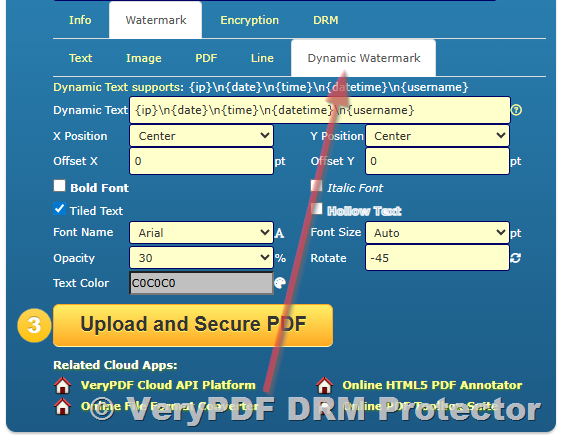
- Apply dynamic watermarks: Watermarks can include user-specific information such as name, email, or purchase ID, discouraging unauthorized distribution and making it easy to trace leaks.
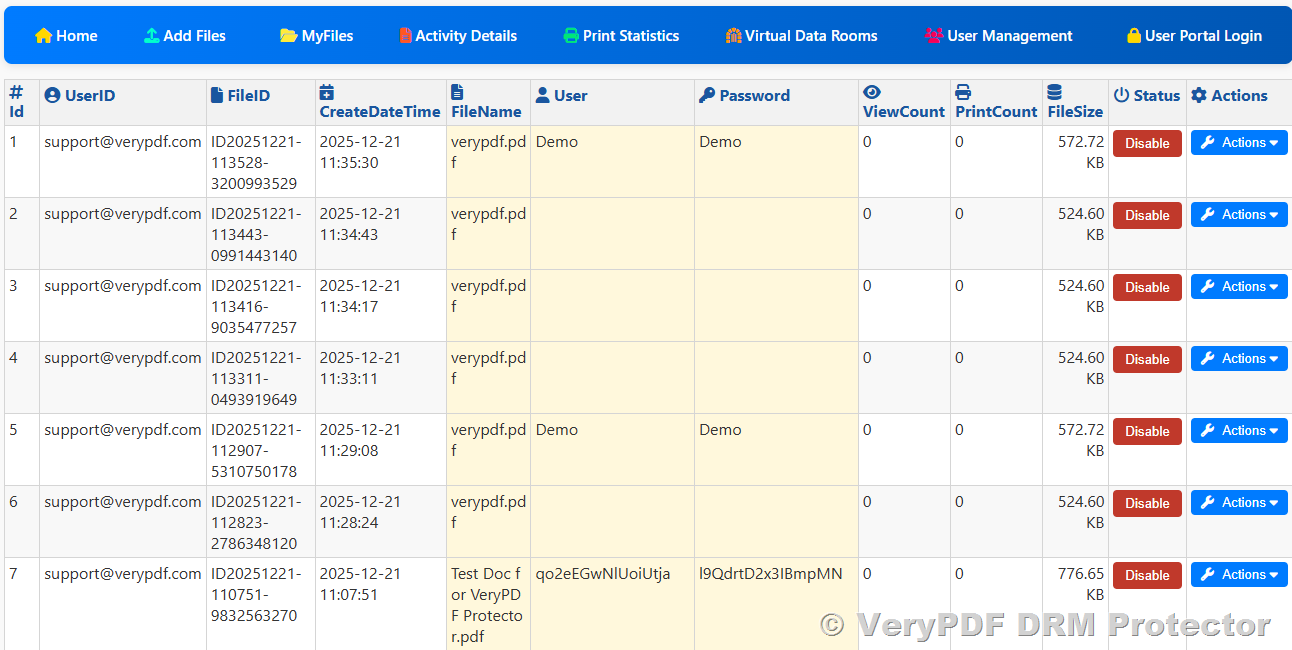
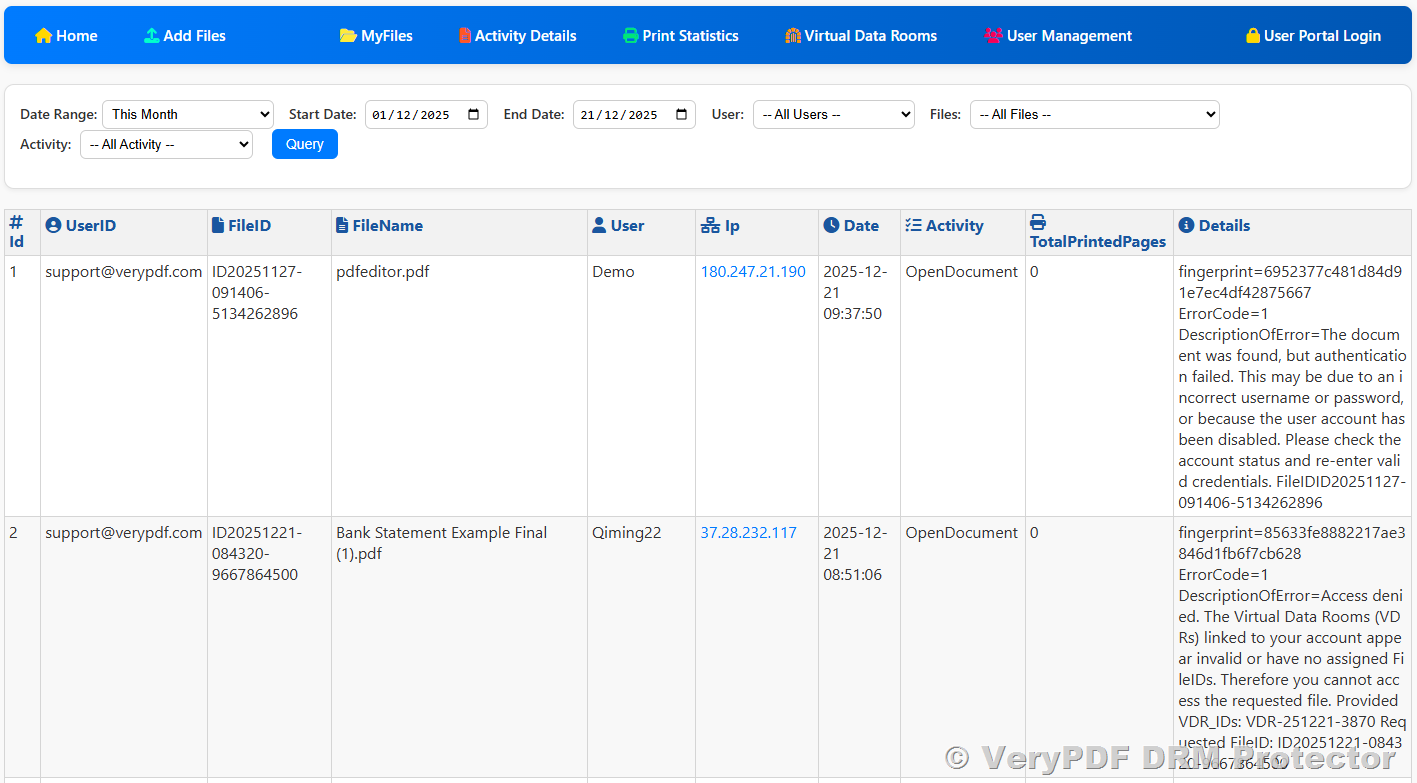
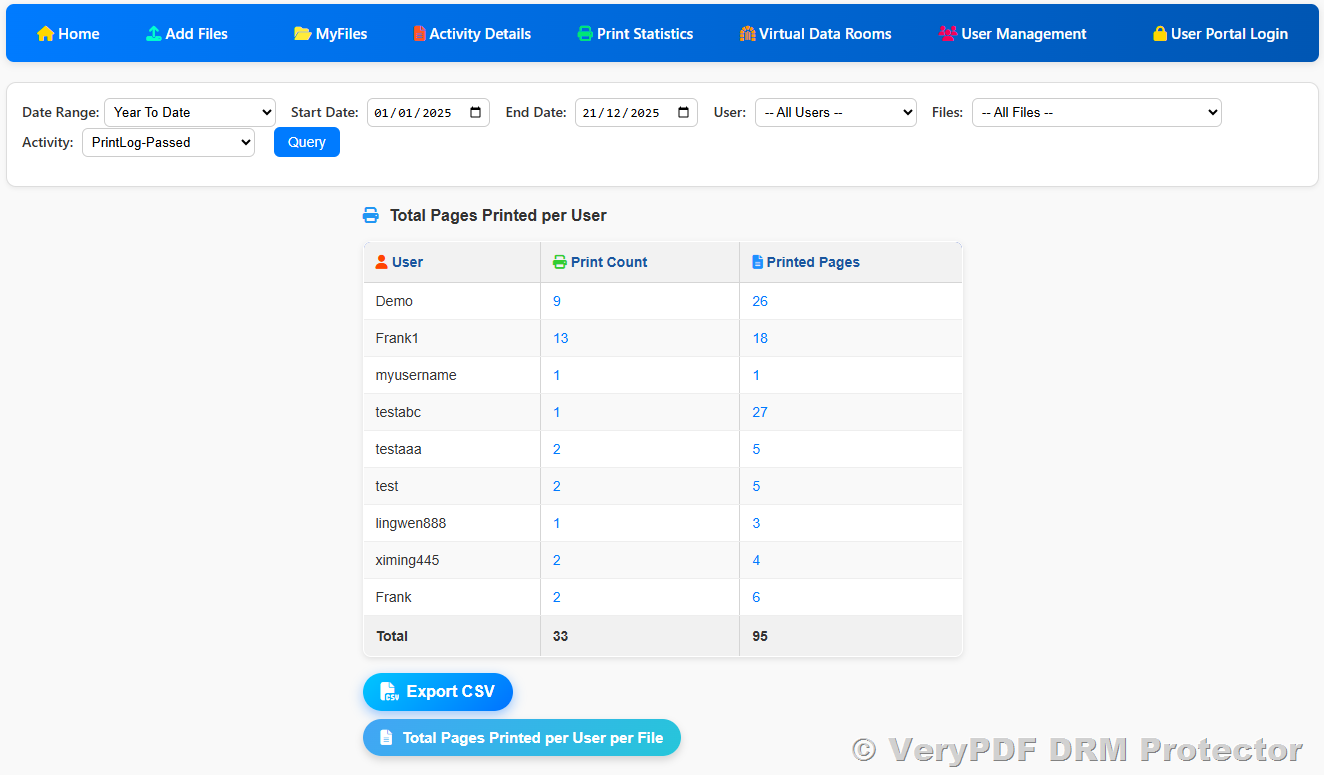
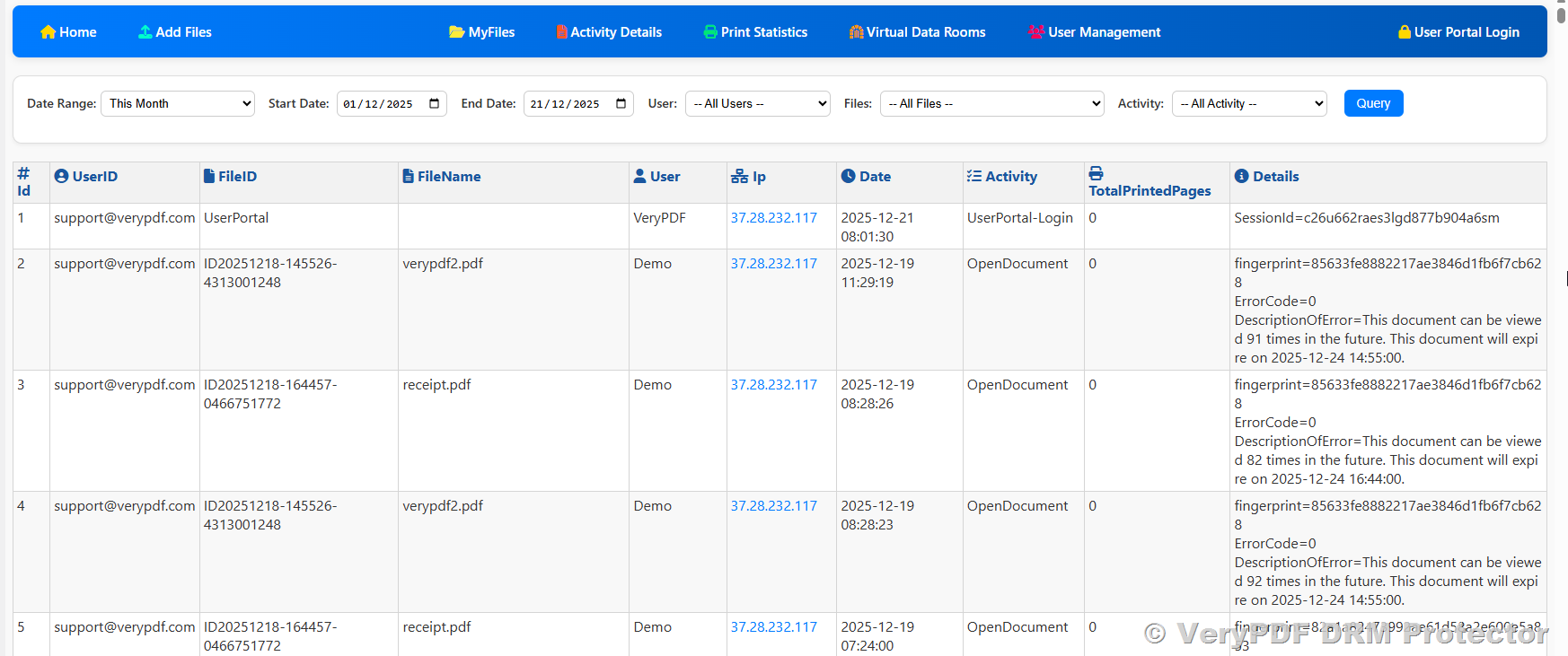
- Track usage and monitor PDF activity: DRM logs provide insights into when and how your PDFs are accessed, allowing you to monitor usage patterns and detect suspicious activity.
Once a PDF is protected with DRM, it cannot be simply shared like a normal file. Each customer requires a unique account or access credentials to open the file. This means that even if someone tries to forward the PDF to others, the unauthorized user will not be able to open it.
In practice, DRM protection ensures that your intellectual property remains secure while still being accessible to legitimate customers, giving you the confidence to sell digital content online without worrying about piracy or unauthorized sharing.
Options for Delivering DRM PDFs to Customers
Depending on your technical skills, website setup, and the scale of your business, there are three main ways to deliver DRM-protected PDFs to your customers. Each method balances ease of use, automation, and scalability differently.
1. Manual Delivery
The simplest method for delivering DRM-protected PDFs is manual sending. This is ideal for small-scale sales, one-off transactions, or when you have just a few customers. Here’s how it works step by step:
- Upload Your PDF to VeryPDF DRM Protector Online
- Visit https://drm.verypdf.com/online/
- Upload the PDF file you want to protect.
- Set Protection Parameters and DRM Policies
- Assign a unique username and password for each customer.
- Configure additional DRM settings, such as read-only mode, expiration date, and watermarking.
- Ensure that the PDF is fully encrypted to prevent unauthorized access.
- Send the Online Reading Link to Your Customer
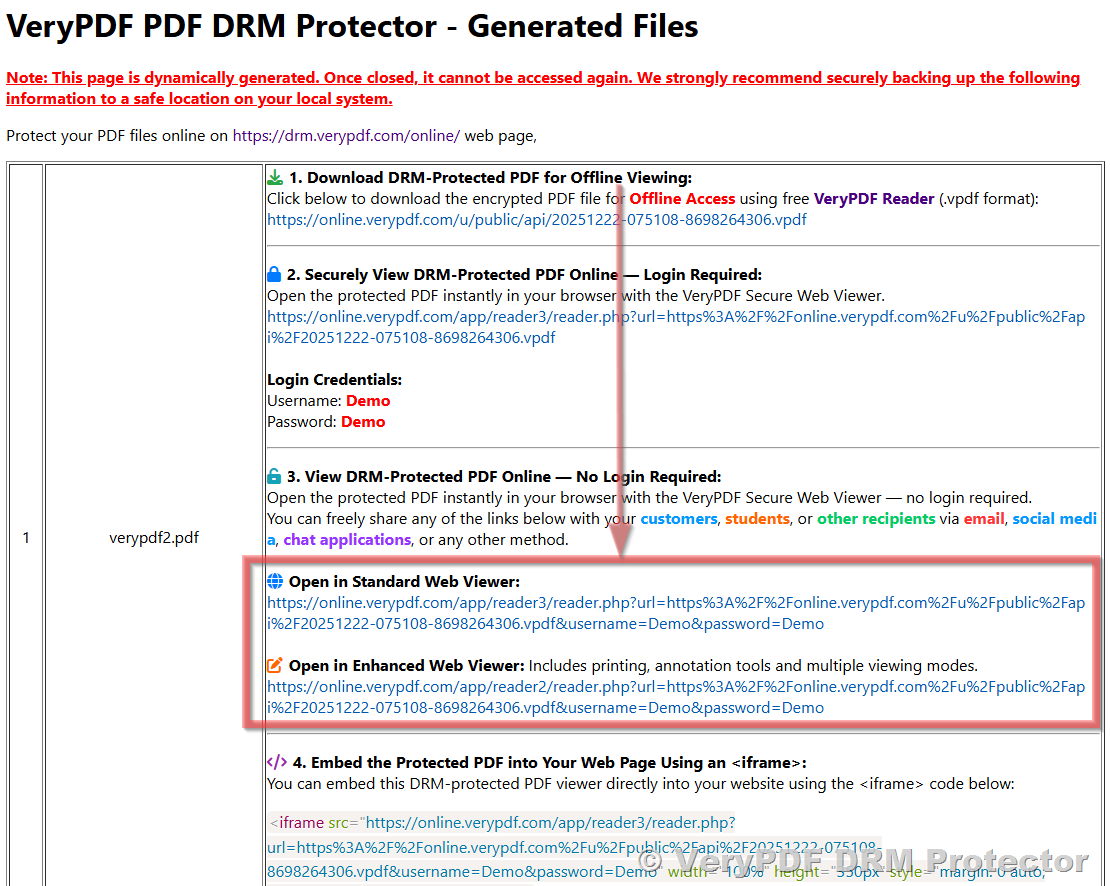
- Once the PDF is protected, you will get an online reading link.
- After the customer completes payment, send this link manually via email.
Pros:
- Very easy to set up; no programming skills required.
- Complete control over each delivery.
Cons:
- Not scalable for large numbers of customers.
- Time-consuming if you sell frequently or to many users.
- Human errors may occur when sending links or credentials.
Tips for Manual Delivery:
- Keep a record of which usernames/passwords have been assigned to which customers.
- Consider creating templates for emails to make sending links faster and more consistent.
- Use a secure email system to prevent credentials from being intercepted.
2. Semi-Automatic Delivery
For businesses expecting multiple customers or frequent sales, a semi-automatic delivery system is a practical solution. This method combines the security of DRM protection with partial automation, reducing manual work while ensuring each customer receives unique access credentials.
Here’s a detailed step-by-step process:
- Upload the PDF and Set Protection Parameters
- Begin by uploading your PDF to VeryPDF DRM Protector Online as in the manual process.
- Configure DRM settings such as read-only mode, expiration, watermarking, and assign protection policies.
- Pre-Create Multiple User Accounts
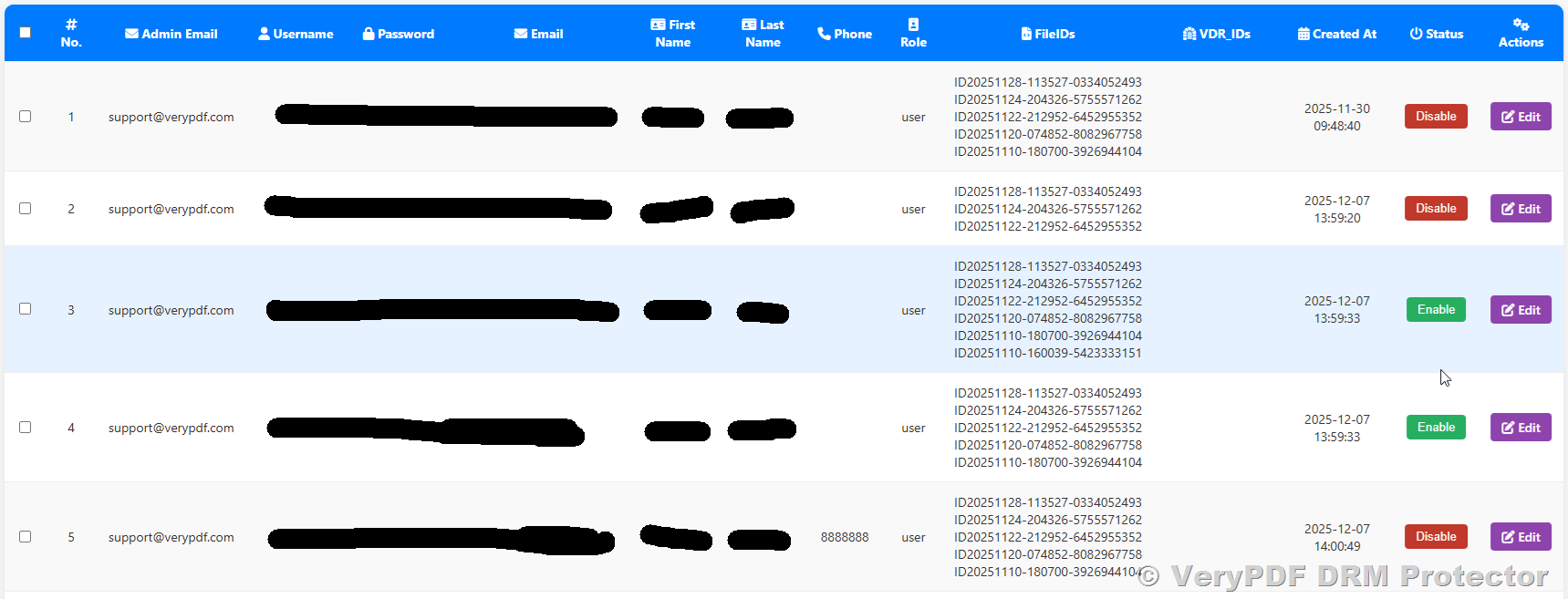
- In your VeryPDF account, go to User Management: https://drm.verypdf.com/wp-admin/admin.php?page=VeryPDFDRMUserManagement
- Create multiple usernames and passwords in advance. For example, you can generate 50 or 100 accounts for upcoming sales.
- Each account should have unique credentials, so no two customers share the same login.
- Automate Account Assignment After Payment
- When a customer completes payment, your website or e-commerce platform triggers a webhook or post-payment script.
- Your program selects a username/password from the pre-created pool (either randomly or sequentially).
- The system then automatically sends an email to the customer with their unique login credentials and the User Portal Login link ( https://online.verypdf.com/app/pdfdrm/login.php ).
Advantages of Semi-Automatic Delivery:
- Reduces the manual work of sending each file.
- Ensures unique access credentials for every customer, preventing unauthorized sharing.
- Requires minimal programming knowledge, as most e-commerce platforms support webhooks or post-payment notifications.
- Scales better than manual delivery, suitable for small to medium-sized operations.
Tips for Semi-Automatic Delivery:
- Monitor your pre-created accounts; replenish them regularly to avoid running out of available credentials.
- Use a secure email service to deliver credentials and PDF links.
- Consider adding dynamic watermarks with customer details in the PDF to discourage sharing.
- Test the webhook or script thoroughly before going live to ensure smooth delivery.
Explanation of the PHP Script
This PHP example shows how to semi-automatically deliver DRM-protected PDFs. It reads pre-created usernames and passwords from a CSV file, selects one account for the customer, and sends the login credentials via email using PHPMailer.
Key points:
- CSV accounts: Each line has username,password.
- Account assignment: Picks an available account and removes it from the CSV to prevent reuse.
- Email delivery: Sends the customer their unique credentials and PDF link automatically.
- Integration: Can be triggered by a webhook after payment, ensuring instant access.
This approach reduces manual work, ensures secure access for each customer, and is easy to scale for small to medium sales.
<?php
// Include PHPMailer library
use PHPMailer\PHPMailer\PHPMailer;
use PHPMailer\PHPMailer\Exception;

require 'path/to/PHPMailer/src/Exception.php';
require 'path/to/PHPMailer/src/PHPMailer.php';
require 'path/to/PHPMailer/src/SMTP.php';

// CSV file containing pre-created usernames and passwords
$csvFile = 'drm_users.csv'; // Format: username,password

// Customer email and PDF link (usually from your webhook or post-payment script)
$customerEmail = 'customer@example.com';
$strLoginURL = 'https://online.verypdf.com/app/pdfdrm/login.php';

// Read CSV and store usernames/passwords
$users = [];
if (($handle = fopen($csvFile, 'r')) !== false) {
    while (($data = fgetcsv($handle)) !== false) {
        $users[] = ['username' => $data[0], 'password' => $data[1]];
    }
    fclose($handle);
}

// Select an available account (here we just pick the first one; you can randomize or sequentially pick)
$account = array_shift($users);

// Optional: remove used account from CSV to prevent reuse
$tmpFile = 'drm_users_tmp.csv';
$fp = fopen($tmpFile, 'w');
foreach ($users as $u) {
    fputcsv($fp, [$u['username'], $u['password']]);
}
fclose($fp);
rename($tmpFile, $csvFile);

// Prepare email
$mail = new PHPMailer(true);

try {
    // SMTP settings (adjust according to your email server)
    $mail->isSMTP();
    $mail->Host = 'smtp.example.com';
    $mail->SMTPAuth = true;
    $mail->Username = 'your-email@example.com';
    $mail->Password = 'your-email-password';
    $mail->SMTPSecure = PHPMailer::ENCRYPTION_STARTTLS;
    $mail->Port = 587;

    // Email content
    $mail->setFrom('your-email@example.com', 'Your Company');
    $mail->addAddress($customerEmail);
    $mail->Subject = 'Your DRM-Protected PDF Access';
    $mail->isHTML(true);
    $mail->Body = "
        <p>Dear Customer,</p>
        <p>Thank you for your purchase! Here are your unique login credentials to access your DRM-protected PDF:</p>
        <ul>
            <li>Username: <strong>{$account['username']}</strong></li>
            <li>Password: <strong>{$account['password']}</strong></li>
        </ul>
        <p>Access your PDF here: <a href='{$strLoginURL}'>User Portal Login</a></p>
        <p>Please do not share your credentials with others.</p>
        <p>Best regards,<br>Your Company</p>
    ";

    $mail->send();
    echo "Email sent successfully to {$customerEmail}";
} catch (Exception $e) {
    echo "Email could not be sent. Mailer Error: {$mail->ErrorInfo}";
}
?>
3. Fully Automatic Delivery
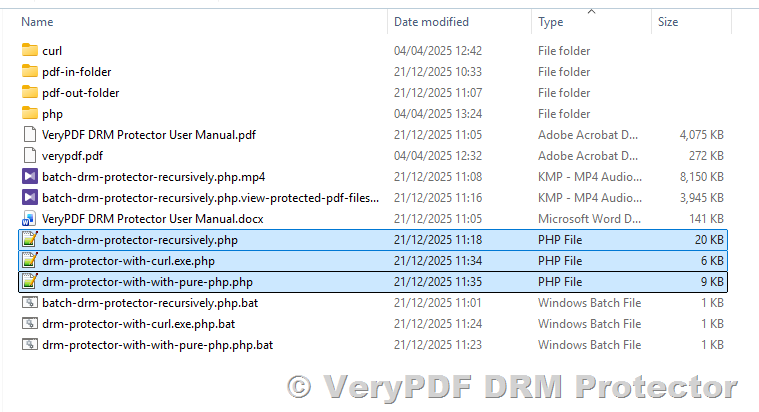
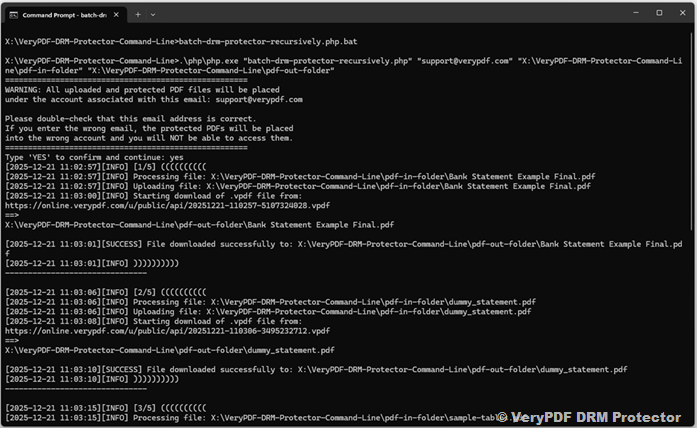
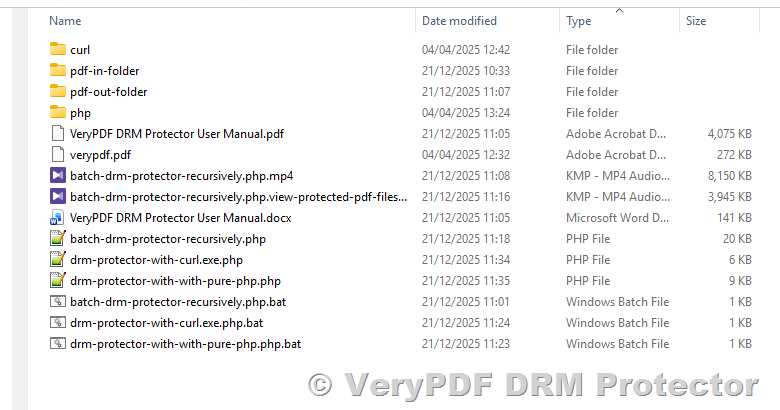
For businesses with high-volume sales or those seeking a completely hands-off workflow, fully automatic delivery is the most efficient solution. By integrating VeryPDF DRM Protector Command Line tools with our Web REST API, you can automate every step of PDF protection, credential generation, and delivery.
Here’s how fully automatic delivery works:
- Automatic PDF Protection
- Upload PDF files to your server or website.
- Using the VeryPDF DRM Protector Command Line or API, the PDF is automatically protected with encryption, access controls, and watermarking.
- This eliminates the need for manual uploading or DRM configuration.
- Dynamic User Account Generation
- When a customer completes payment, the system automatically generates a unique username and password.
- No need to pre-create accounts; each customer gets credentials dynamically, ensuring secure and personalized access.
- Immediate Delivery via Email
- After generating credentials, the system sends an email automatically to the customer.
- The email contains the login information and a link to access the DRM-protected PDF.
- This ensures customers can access their purchase instantly without waiting for manual processing.
- Integration with Payment Gateways
- The system can integrate with various payment gateways such as iDEAL, Stripe, PayPal, Square, Apple Pay, Google Pay, and others.
- Using webhooks or API notifications from the payment gateway, the automation script is triggered immediately after successful payment.
Advantages of Fully Automatic Delivery:
- Scalable: Ideal for large-scale online PDF sales with hundreds or thousands of customers.
- Hands-off Workflow: No manual intervention required after setup.
- Secure: Each customer receives unique credentials; unauthorized sharing is prevented.
- Flexible: Works with multiple payment gateways and can be customized for any website or e-commerce platform.
Requirements and Tips:
- This method requires programming knowledge (PHP, Python, or other languages).
- Familiarity with APIs and webhook integration is needed.
- Test the full workflow in a sandbox environment before going live.
- Maintain logs to monitor delivery, track usage, and troubleshoot potential issues.
For more information, example scripts, and downloads, visit VeryPDF DRM Protector Downloads.
Here is a simple PHP source code to upload and protect PDF files via VeryPDF DRM Protector REST API,
<?php
/**
 * DRM Protector Script using PHP cURL
 *
 * This script uploads a PDF file to VeryPDF DRM service,
 * applies DRM protection and watermarks, and saves the response.
 *
 * Usage: php drm-protector-phpcurl.php <email> <PDF file path>
 */

main();

/**
 * Main entry point of the script
 * Handles command line arguments, email confirmation, and DRM upload
 */
function main() {
    // Get confirmed email address from command line
    $email = getConfirmedEmailFromCLI();

    // Get and validate PDF file path from command line
    $pdfFilePath = getPdfFilePathFromCLI();

    // Ensure PHP curl extension is available
    ensureCurlExtension();

    // Prepare POST fields for cURL request
    $postFields = preparePostFields($pdfFilePath, $email);

    // Upload PDF via cURL and save response
    uploadPdfWithCurl($postFields);
}

/**
 * Get email from command line and require user confirmation
 * @return string Confirmed email address
 */
function getConfirmedEmailFromCLI() {
    global $argc, $argv;

    if ($argc < 3) {
        die("Usage: php drm-protector-phpcurl.php <email> <PDF file path>\n");
    }

    $email = $argv[1];

    // Display warning and instructions to the user
    echo "=====================================================\n";
    echo "WARNING: All uploaded and protected PDF files will be placed\n";
    echo "under the account associated with this email: $email\n\n";
    echo "Please double-check that this email address is correct.\n";
    echo "If you enter the wrong email, the protected PDFs will be placed\n";
    echo "into the wrong account and you will NOT be able to access them.\n";
    echo "=====================================================\n";

    // Prompt for confirmation
    echo "Type 'YES' to confirm and continue: ";
    $handle = fopen("php://stdin", "r");
    $line = fgets($handle);
    fclose($handle);

    if (trim(strtoupper($line)) !== 'YES') {
        die("Email not confirmed. Exiting.\n");
    }

    return $email;
}

/**
 * Get the PDF file path from command line and validate it exists
 * @return string Absolute path of the PDF file
 */
function getPdfFilePathFromCLI() {
    global $argv;

    $pdfFilePath = $argv[2];

    if (!file_exists($pdfFilePath)) {
        die("Error: The file '$pdfFilePath' does not exist. Please provide a valid file path.\n");
    }

    $realPath = realpath($pdfFilePath);
    if ($realPath === false) {
        die("Error: Cannot resolve real path of the file.\n");
    }

    return $realPath;
}

/**
 * Ensure the PHP curl extension is loaded
 */
function ensureCurlExtension() {
    if (!extension_loaded('curl')) {
        die("Error: PHP curl extension is not loaded. Please enable php-curl.\n");
    }
}

/**
 * Prepare POST fields array for the cURL request
 * @param string $pdfFilePath Absolute path to the PDF file
 * @param string $email Email address to associate with the DRM account
 * @return array POST fields for cURL
 */
function preparePostFields($pdfFilePath, $email) {
    $expiryDate = (new DateTime('+10 days'))->format('Y/m/d H:i');

    return [
        'InputFileType' => 'LocalFile',
        'Email' => $email,
        'EnablePDFEncryption' => 'on',
        'PasswordForInputPDFFile' => '',
        'UserPassword' => 'd58mG8bX0r8AsgiH',
        'OwnerPassword' => 'Z88hgBQ5esfP5eC7',
        'PDFCompatibility' => '6',
        'EnableDRMProtection' => 'on',
        'VeryPDFDRM_IsNeedInternet' => 'ON',
        'VeryPDFDRM_ClientTimeZone' => 'UTC',
        'Check_VeryPDFDRM_LogonID_01' => 'ON',
        'VeryPDFDRM_LogonID_01' => 'Demo',
        'Check_VeryPDFDRM_Password_01' => 'ON',
        'VeryPDFDRM_Password_01' => 'Demo',
        'Check_VeryPDFDRM_ExpireAfterDate' => 'ON',
        'VeryPDFDRM_ExpireAfterDate' => $expiryDate,
        'VeryPDFDRM_DenyPrint' => 'ON',
        'VeryPDFDRM_DenyClipCopy' => 'ON',
        'VeryPDFDRM_DenySave' => 'ON',
        'VeryPDFDRM_DenySaveAs' => 'ON',
        'Check_VeryPDFDRM_SetIdleTime' => 'ON',
        'VeryPDFDRM_SetIdleTime' => '300',
        'Check_VeryPDFDRM_CloseAfterSeconds' => 'ON',
        'VeryPDFDRM_CloseAfterSeconds' => '300',
        'Check_VeryPDFDRM_TitleOfMessage' => 'ON',
        'VeryPDFDRM_TitleOfMessage' => 'VeryPDF DRM Reader',
        'Check_VeryPDFDRM_DescriptionOfMessage' => 'ON',
        'VeryPDFDRM_DescriptionOfMessage' => 'Welcome to use VeryPDF DRM Reader...',
        'Check_VeryPDFDRM_ExpireAfterViews' => 'ON',
        'VeryPDFDRM_ExpireAfterViews' => '10',
        'Check_VeryPDFDRM_ExpirePrintCount' => 'ON',
        'VeryPDFDRM_ExpirePrintCount' => '10',
        'Check_VeryPDFDRM_SetInvalidPWCount' => 'ON',
        'VeryPDFDRM_SetInvalidPWCount' => '10',
        'Check_VeryPDFDRM_PDFExpiryDelete' => 'ON',
        'VeryPDFDRM_LimitIP' => '78.137.214.118',
        'TextWatermark_Text' => 'VeryPDF',
        'TextWatermark_Color' => 'C0C0C0',
        'TextWatermark_X' => '1',
        'TextWatermark_Y' => '1',
        'TextWatermark_OffsetX' => '0',
        'TextWatermark_OffsetY' => '0',
        'TextWatermark_IsTiledText' => 'ON',
        'TextWatermark_FontName' => 'Arial',
        'TextWatermark_FontSize' => '0',
        'TextWatermark_Opacity' => '30',
        'TextWatermark_Rotate' => '-45',
        'ImageWatermark_File' => "https://www.verypdf.com/images/coffee.jpg",
        'ImageWatermark_X' => '1',
        'ImageWatermark_Y' => '1',
        'ImageWatermark_OffsetX' => '0',
        'ImageWatermark_OffsetY' => '0',
        'ImageWatermark_Width' => '0',
        'ImageWatermark_Height' => '0',
        'ImageWatermark_Scale' => '100',
        'ImageWatermark_Opacity' => '10',
        'ImageWatermark_Rotate' => '0',
        'PDFWatermark_File' => "https://www.verypdf.com/images/pdf/StandardBusiness.pdf",
        'PDFWatermark_PDFPage' => '1',
        'PDFWatermark_X' => '1',
        'PDFWatermark_Y' => '1',
        'PDFWatermark_OffsetX' => '0',
        'PDFWatermark_OffsetY' => '0',
        'PDFWatermark_Width' => '100',
        'PDFWatermark_Height' => '100',
        'PDFWatermark_Scale' => '100',
        'PDFWatermark_Opacity' => '50',
        'PDFWatermark_Rotate' => '0',
        'LineWatermark_X1' => '0',
        'LineWatermark_Y1' => '100',
        'LineWatermark_X2' => '1000',
        'LineWatermark_Y2' => '100',
        'LineWatermark_Opacity' => '50',
        'LineWatermark_Rotate' => '0',
        'LineWatermark_Width' => '1',
        'LineWatermark_Color' => 'FF0000',
        'LocalFile[]' => new CURLFile($pdfFilePath)
    ];
}

/**
 * Upload the PDF file using cURL and save the response
 * @param array $postFields POST fields including PDF file and DRM settings
 */
function uploadPdfWithCurl($postFields) {
    $url = 'https://online.verypdf.com/app/pdfdrm/web/upload.php';

    $ch = curl_init();
    curl_setopt($ch, CURLOPT_URL, $url);
    curl_setopt($ch, CURLOPT_POST, true);
    curl_setopt($ch, CURLOPT_POSTFIELDS, $postFields);
    curl_setopt($ch, CURLOPT_SSL_VERIFYPEER, false);
    curl_setopt($ch, CURLOPT_SSL_VERIFYHOST, 0);
    curl_setopt($ch, CURLOPT_RETURNTRANSFER, true);
    curl_setopt($ch, CURLOPT_FOLLOWLOCATION, true);
    curl_setopt($ch, CURLOPT_CONNECTTIMEOUT, 30);
    curl_setopt($ch, CURLOPT_TIMEOUT, 300);

    echo "Uploading file: " . $postFields['LocalFile[]']->name . "\n";

    $response = curl_exec($ch);
    if ($response === false) {
        $err = curl_error($ch);
        curl_close($ch);
        die("cURL error: $err\n");
    }

    $httpCode = curl_getinfo($ch, CURLINFO_HTTP_CODE);
    curl_close($ch);

    file_put_contents('output.html', $response);
    echo "HTTP status: $httpCode\n";
    echo "Response saved to 'output.html'\n";


    // Extract all URLs starting with https://online.verypdf.com/u/
    preg_match_all('/https:\/\/online\.verypdf\.com\/u\/[^\s"\'<>]+/i', $response, $matches);

    if (!empty($matches[0])) {
        // Remove duplicate URLs
        $uniqueUrls = array_unique($matches[0]);

        echo "Found URLs:\n";
        foreach ($uniqueUrls as $url) {
            echo $url . "\n"; // Output one URL per line
        }
    } else {
        echo "No matching URLs found in the response.\n";
    }
}
Integrating with Payment Methods
VeryPDF DRM Protector does not provide a built-in payment plugin, giving you the flexibility to use any e-commerce or payment system that suits your market and customers. This allows you to support multiple payment methods while maintaining full control over your DRM-protected PDFs.
Popular Payment Methods
Depending on your target audience, you can integrate with a variety of payment gateways, including:
- iDEAL – widely used in the Netherlands
- Stripe – supports credit/debit cards, Apple Pay, Google Pay
- PayPal – global digital wallet and payment platform
- Square – online payments for small businesses
- Skrill – for international transactions
- Amazon Pay – allows customers to pay using their Amazon account
- Bank Transfers / SEPA – can be integrated using webhook notifications
- Other local payment providers – depending on your country
Typical Workflow
Once a payment method is integrated, the workflow generally works like this:
- Customer Completes Payment
- The buyer pays using their preferred method (iDEAL, PayPal, Stripe, etc.).
- Payment Gateway Triggers Webhook or Notification
- The payment system notifies your server that the transaction is successful.
- Webhooks or API callbacks can be used to automatically trigger your delivery program.
- Automatic DRM Account Assignment
- Your program selects a unique DRM account (pre-created or dynamically generated).
- It applies the appropriate DRM settings for that user and prepares the protected PDF for access.
- Email Delivery to Customer
- The system automatically sends an email to the customer with their unique credentials and a link to access the DRM-protected PDF.
- Customers can start using the PDF immediately, ensuring a smooth user experience.
Best Practices for Integration
- Ensure secure webhooks: Use HTTPS and authentication tokens to prevent unauthorized triggering.
- Dynamic account generation: If using fully automated delivery, generate credentials on-the-fly for maximum security.
- Monitor transactions: Keep logs of payment notifications and PDF deliveries to detect any potential issues.
- Multi-gateway support: Offering several payment methods increases conversion rates and accommodates international customers.
By following this approach, you can sell DRM-protected PDFs securely and efficiently, while offering your customers a smooth, convenient, and trusted payment experience.
Benefits of Using VeryPDF DRM for PDF Sales
Using DRM (Digital Rights Management) for selling PDFs provides significant advantages for content creators, educators, and businesses. Here’s a closer look at the key benefits:
1. Protect Your Intellectual Property
Each customer receives unique login credentials or access rights, ensuring that your PDFs cannot be shared or redistributed without authorization. Dynamic watermarks can include the buyer’s name, email, or purchase ID, making it easy to trace leaks. This level of protection is essential for sensitive research, educational materials, e-books, and premium digital content.
2. Automated Delivery
With semi-automatic or fully automatic delivery methods, you can save significant time and effort. Instead of manually sending files to each buyer, your system can automatically assign DRM-protected PDFs and deliver them via email after payment. This reduces human error and ensures that customers receive access instantly, improving their overall experience.
3. Flexible Integration
DRM-protected PDF delivery can be integrated with any payment method capable of triggering a webhook, including iDEAL, PayPal, Stripe, Square, Apple Pay, Google Pay, bank transfers, and more. This flexibility allows you to cater to customers in different countries and provides a seamless purchasing process, increasing conversion rates and customer satisfaction.
4. Scalable Solution
Whether you sell to a handful of customers per month or thousands, DRM solutions can scale to meet your needs. Manual delivery works for small-scale operations, semi-automatic delivery suits medium volumes, and full API-based automation is perfect for large-scale online PDF sales. This scalability ensures that your business can grow without compromising security or efficiency.
Additional Benefits:
- Track usage and monitor PDF activity to understand customer behavior.
- Enforce expiration dates, read-only permissions, or download limits.
- Combine with marketing campaigns and subscription models to increase revenue.
By leveraging DRM for PDF sales, you can protect your content, streamline delivery, and scale your business confidently, all while providing a professional and secure experience for your customers.
Conclusion
Selling DRM-protected PDFs online doesn’t have to be complicated, even if you want to maintain full control over your digital content. While VeryPDF DRM Protector does not include a ready-made purchase plugin, you have multiple options to securely deliver your PDFs based on your business size, technical skills, and workflow preferences:
- Manual Delivery: Simple and straightforward, ideal for one-off sales or a small number of customers.
- Semi-Automatic Delivery: Reduces manual work by pre-creating user accounts and automating email delivery after payment, suitable for medium-scale operations.
- Fully Automatic Delivery: Using the VeryPDF DRM Protector Command Line and Web REST API, you can automate PDF protection, account creation, and email delivery, making it perfect for large-scale sales.
By combining robust DRM protection with automated workflows, you can:
- Ensure each customer receives unique and secure access.
- Prevent unauthorized sharing or redistribution.
- Offer a smooth and professional purchasing experience for your customers.
- Integrate seamlessly with a wide range of payment gateways, including iDEAL, Stripe, PayPal, and others.
With these tools and strategies, you can confidently sell your digital content online, protecting your intellectual property while scaling your business efficiently.
For more information, downloads, and API integration examples, visit: https://drm.verypdf.com/