Finding the Right DRM Protection for Your eBook and Workbook: A Solution for Startups

As a startup, protecting your intellectual property, especially your first eBook and fillable workbook, is essential. However, navigating the world of digital rights management (DRM) can be confusing, particularly when you’re unsure about the scale of your business or sales. At VeryPDF, we understand the concerns that come with securing your digital content, and we aim to provide flexible, accessible solutions for creators in every stage of their journey.

Finding the Right DRM Protection for Your eBook and Workbook: A Solution for Startups

The Challenge for Startups: Balancing Cost and Protection

For entrepreneurs working on their first eBook and workbook, an important question arises: do you really need an expensive DRM solution when you’re just starting out? With unpredictable sales and the uncertainty of early-stage business growth, committing to a $100 monthly protection fee can seem daunting, especially if you expect only a small number of sales initially.

At VeryPDF, we believe that protecting your content shouldn’t break the bank. While the premium DRM solutions can provide comprehensive security features, it’s crucial to find a balance that suits your budget and requirements. That’s where we come in with a solution that allows you to scale up as your business grows.

VeryPDF DRM Protector: A Scalable Solution

We recommend starting with the VeryPDF DRM Protector, which can protect your eBook, workbook, and other digital content from unauthorized use. For startups, we understand that you might not need all of the advanced features right away. That’s why we suggest trying the tool for a few months before making a full commitment. You can experience the robust protection features and assess how well they align with your needs as your sales increase.

Why Try the Paid Version?

  • Enhanced Protection: The paid version offers advanced security features such as setting expiration dates, limiting the number of views per user, and user-specific passwords—important tools if you plan to safeguard sensitive content.
  • Scalability: You can start with a short-term subscription, ensuring that you get the protection you need without committing long-term while you grow. This approach allows you to make adjustments based on your evolving needs.
  • Easy Integration: The DRM Protector is designed to work seamlessly with eBooks and fillable PDFs. It’s a comprehensive solution that ensures your digital content remains secure no matter how it’s distributed.

Get Started With VeryPDF DRM Protector

To make the process easier, here’s how you can get started:

  1. Subscribe to the DRM Protector: You can subscribe for a short-term plan via VeryPDF DRM Protector Purchase.
  2. Protect Your PDF: Once you subscribe, you can start protecting your files via the online platform: VeryPDF DRM Online.

By trying the DRM solution for a few months, you’ll be able to evaluate its effectiveness in protecting your eBook and workbook, giving you peace of mind as you navigate your business’s early growth.

Conclusion: Finding the Right DRM for Your Needs

As a startup, it’s essential to choose a DRM solution that provides the right balance of security and affordability. VeryPDF’s DRM Protector is a flexible option that can scale as your business grows, and it’s ideal for creators who are just starting and need to ensure their digital content remains safe. Whether you’re selling a handful of copies or preparing for larger-scale distribution, the solution will support your needs at every step.

We understand that every business is unique, and we’re here to help. Feel free to contact us for more information, and let us assist you in securing your digital content effectively as your business evolves.

USB-Based Offline DRM Protection for PDF Files: The Perfect Solution for Secure Document Distribution

In an increasingly digital world, businesses are prioritizing the security of their documents more than ever. Whether it’s for protecting sensitive client data or safeguarding proprietary information, ensuring that PDFs are accessible only by authorized users has become essential. For those who require offline solutions, particularly when USB devices or hard drives are used as the main medium for distribution, offline DRM protection is the most effective way to go.

USB-Based Offline DRM Protection for PDF Files: The Perfect Solution for Secure Document Distribution

Offline DRM Protection: The Key to Secure PDFs

While web-based security solutions offer certain advantages, they are not suitable for every situation, especially when internet access is unreliable or when users are working in isolated environments. For many businesses, offline solutions, such as USB or other device-bound DRM (Digital Rights Management), are crucial for controlling how their PDFs are accessed.

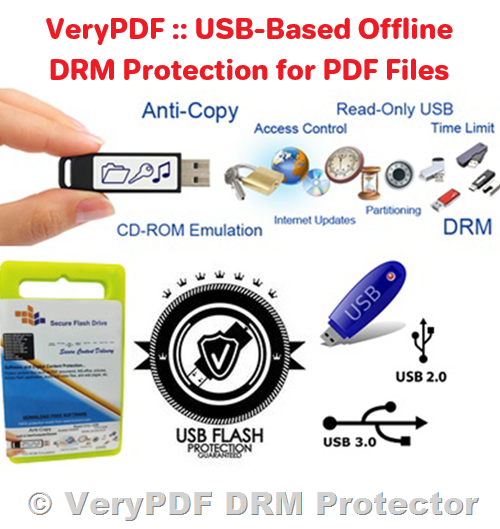
For instance, one customer recently reached out to VeryPDF with the specific requirement of protecting PDFs offline, by binding the files to USB devices or similar storage media. This allows the customer to ensure that the PDFs could only be opened on authorized devices, further restricting unauthorized sharing or distribution.

The customer’s needs were clear: they required a system that would provide access management, such as the ability to:

  • Set expiration dates for PDF access, ensuring that documents are only available for a limited period.
  • Limit the number of views each user could have, preventing excessive distribution or repeated viewing.
  • Utilize both master and user password options, adding an extra layer of security for sensitive documents.

VeryPDF’s DRM Solutions: Tailored for USB Offline Protection

In response to these needs, VeryPDF offers an offline DRM solution that provides all of these functionalities. The VeryPDF DRM Protector software can generate DRM-protected PDFs that can be bound to specific USB devices. This solution guarantees that the encrypted PDF files will only be accessible when connected to the authorized device, preventing unauthorized access, even if the files are copied or shared.

For more details about this solution, the VeryPDF DRM USB Portable product is an ideal option. It allows businesses to secure PDF documents by linking them to USB devices, ensuring that the documents are protected from unauthorized users, and can only be viewed on the authorized USB device.

Learn more about VeryPDF DRM USB Portable

Custom Built Solutions to Meet Your Needs

VeryPDF also offers a custom-built version of the DRM USB Portable that is specifically tailored to meet the needs of organizations requiring additional functionality or compatibility with their unique USB devices. This custom version allows for:

  • Unlimited PDF Protection: No limitation on the number of encrypted PDFs you can create.
  • Flexible Development: Seamless integration with your specific USB devices, ensuring compatibility with your infrastructure.

If you’re interested in a custom solution or need more information about pricing and development timelines, please feel free to contact us. We will be happy to discuss how we can best support your needs.

Conclusion

In today’s world of digital document sharing, securing PDFs has become a priority for many organizations. Offline DRM solutions offer the perfect combination of security, control, and convenience for businesses that need to ensure their documents are protected from unauthorized use, especially in environments where internet access is not feasible or desired.

If your business requires a solution for offline DRM protection, consider exploring VeryPDF’s DRM USB Portable solution or reach out for a custom-built version that will perfectly suit your needs.

Feel free to contact us for further details, and let us help you secure your PDF documents effectively.

[Solution] How to Publish, Sell, and Protect Ebooks Online: Protect Your Digital Downloads with Effective VeryPDF DRM Solutions

Selling ebooks online has become an increasingly popular business model, thanks to the ease of distribution and potential for wide reach. However, with the rise of piracy and unauthorized sharing, it’s crucial to take steps to ensure your digital products remain protected. In this guide, we will explore the essential steps for securely publishing and selling ebooks online, and recommend an effective DRM solution, VeryPDF DRM Protector, which can help safeguard your intellectual property.

[Solution] How to Publish, Sell, and Protect Ebooks Online: Protect Your Digital Downloads with Effective VeryPDF DRM Solutions

1. Choose the Right Ebook Content

When deciding what to sell as an ebook, the possibilities are endless. Common types of ebook content include:

  • Fiction: Novels, short stories, children’s books
  • Poetry: Haikus, spoken word, collections
  • Non-Fiction: Self-help, biographies, history, cookbooks, health guides
  • Educational: Textbooks, language learning materials, tutorials
  • Professional: Industry reports, marketing manuals, personal finance guides
  • Creative: Photography collections, craft patterns, DIY guides
  • Specialized Niche: Spirituality, ecology, etc.

Understanding the type of content you’re offering will inform how you market your ebook, the format you’ll use, and the platforms where you’ll sell it.

2. Choosing the Best Format for Your Ebook

There are various formats available for ebook publishing, and the right one depends on your goals and the platform you plan to use. The three main formats are:

  • ePub: Best for smaller, mobile-friendly devices but offers weak DRM protection.
  • PDF: Ideal for fixed layouts and higher security but lacks multimedia support.
  • Flipbooks: Interactive and multimedia-friendly but may not offer strong protection.

For maximum protection, PDF is the best format, especially when paired with robust DRM technology to prevent piracy and unauthorized sharing.

3. Marketing Your Ebook

Marketing plays a crucial role in ebook sales. Even the most well-written ebook won’t sell itself without a strategic marketing plan. Consider using:

  • Social Media: Build a presence on platforms like Instagram, Twitter, and Facebook.
  • Paid Advertising: Invest in Google Ads or Facebook ads targeting your audience.
  • Newsletters & Blogs: Engage with potential readers through email and blog content.
  • Video Content: Create promotional videos or book trailers to generate interest.

Effective marketing ensures your ebook reaches a wider audience, leading to higher sales.

4. Selecting the Right Publishing Platform

When it comes to selling your ebook, you can choose from a variety of platforms. Some of the most popular include:

  • Amazon Kindle Direct Publishing (KDP): While widely used, it has high competition and hefty fees.
  • Kobo, Google Play, and Apple Books: Alternatives to Amazon, each with its own benefits.
  • Your Own Website: Selling directly from your website allows you to keep all profits and avoid marketplace fees. You’ll need a secure payment system like PayPal or Stripe for smooth transactions.

However, even the best platforms come with piracy risks, so it’s vital to implement strong anti-piracy measures.

5. Protecting Your Ebook from Piracy

Piracy is one of the biggest threats to ebook sellers. Many platforms offer some form of protection, but it’s essential to ensure your ebook is properly safeguarded against unauthorized sharing. Here are some common DRM options:

  • Basic DRM Tools: Platforms like Amazon and Kobo offer some DRM protection, but it can be bypassed easily.
  • Password Protection: While it prevents unauthorized opening, it’s not foolproof as customers can share the password.
  • Watermarking: Social DRM adds visible or hidden watermarks to ebooks to trace the source if shared. However, it’s easy for users to remove.
  • Time-Limited Download Links: These provide a sense of security but can still be circumvented after the download is complete.

While these options may provide some level of protection, they often fall short in preventing piracy. A more effective solution is VeryPDF DRM Protector.

Why Use VeryPDF DRM Protector?

VeryPDF DRM Protector provides an advanced level of security for your PDFs, ensuring they cannot be easily copied, printed, or shared. Here’s how it helps:

  • Prevents Unauthorized Sharing: VeryPDF DRM Protector offers secure encryption and restrictions that prevent users from copying, printing, or extracting content from your PDFs.
  • Watermarking and Branding: You can add dynamic watermarks that include customer-specific information, discouraging piracy by identifying the source of unauthorized sharing.
  • Secure PDF Viewing: Users can only access your ebook through the VeryPDF DRM Protector secure reader, ensuring that the file is always under control.
  • Custom Branding: The software allows you to customize the viewer with your branding, offering a professional touch to your ebook’s presentation.
  • Free Trial: You can try VeryPDF DRM Protector online for free at https://drm.verypdf.com/online/.

By using VeryPDF DRM Protector, you can confidently publish and sell your ebook online, knowing that it’s secure from unauthorized distribution.

6. Registering Your Copyright

While copyright is automatically granted when you create an original work, registering it with the relevant authorities can strengthen your case if you need to pursue a copyright infringement case. Consider registering your ebook with the U.S. Copyright Office or the equivalent in your country to ensure your legal rights are protected.

7. Conclusion

Selling ebooks online can be a lucrative business, but piracy and unauthorized distribution are significant concerns. To ensure your ebooks are secure, consider using VeryPDF DRM Protector, which offers robust protection against copying, printing, and sharing. By following these steps—choosing the right content, format, platform, and protection—you can publish and sell your ebooks securely and maximize your profits.

To start protecting your ebook today, visit VeryPDF DRM Protector and try it for free!

Why Adobe PDF Encryption Is Not Secure & The Best Alternatives for Protecting Your PDF Files

When it comes to encrypting sensitive business documents, ensuring that PDF files are secure from unauthorized access, or selling PDF files online, it’s crucial to choose the right encryption method. Adobe Acrobat, a commonly used tool for protecting PDFs, has a variety of built-in encryption features. However, many users are unaware of the inherent flaws in Adobe PDF encryption. In this article, we’ll explore why Adobe PDF encryption isn’t as secure as it claims to be, the shortcomings of password protection, and how you can better protect your PDFs using alternative methods such as VeryPDF DRM Protector.

Why Adobe PDF Encryption Is Not Secure & The Best Alternatives for Protecting Your PDF Files

How Secure is Adobe PDF Encryption?

Adobe PDF encryption can seem like a viable option for protecting confidential documents, but it is far from foolproof. While Adobe employs the AES 256-bit encryption algorithm, the implementation of this encryption leaves a lot to be desired:

  1. Weak Password Protection: Adobe PDF encryption relies heavily on password protection. However, there’s nothing stopping a user from choosing a weak password. Adobe Acrobat might warn you about weak passwords, but it doesn’t prevent their use. This makes it easier for attackers to crack the password, especially if the password is simplistic.
  2. Password Sharing and Removal: The main problem with using passwords to encrypt PDFs is that once someone has access to the document, they can easily share the password with others, effectively bypassing security. Users can also remove the password entirely using free tools like Adobe Acrobat Pro or various online password removal tools.
  3. Permissions Can Be Easily Bypassed: Adobe offers the option to restrict permissions (e.g., preventing editing, copying, or printing) but these restrictions are not backed by encryption. They can be removed with minimal effort through third-party tools or by simply opening the document in other readers like Google Docs or Mac Preview that ignore these restrictions.

The Problems with Password Encryption

While password-based encryption in Adobe PDFs might sound secure, it is riddled with vulnerabilities:

  • Password Cracking: If someone uses a weak password, it becomes trivial for hackers to crack it using brute-force or dictionary attacks. Even strong passwords can eventually be cracked given enough time and computational power.
  • Password Management Nightmare: If you’re managing many PDF files, the need for different passwords for each file creates a logistical challenge. It’s easy to forget a password, store it insecurely, or use a password manager, all of which can lead to a security breach.
  • Phishing and Social Engineering: Even the strongest password can be stolen through phishing or social engineering attacks. If a user can be tricked into revealing their password, the entire document is compromised.

The Flaws of Adobe PDF Passwords

While Adobe Acrobat’s encryption uses two passwords (an “Open Password” to view the document and a “Permissions Password” to restrict actions like editing or printing), both of these have significant weaknesses:

  1. Open Password: Anyone with the open password can access the content of the document, and once they have access, they can remove the password and share the unprotected file with anyone.
  2. Permissions Password: This password only governs the ability to edit, copy, or print the document, but it’s not encrypted. Third-party applications can easily bypass these restrictions, rendering them useless.

Security Risks When Storing PDFs Locally or in the Cloud

Even if you encrypt a PDF with Adobe, storing it on a cloud server or locally does not guarantee its safety. Here’s why:

  • Exfiltration Attacks: Some encryption methods, such as AES-256 with Cipher Block Chaining (CBC), don’t offer integrity checks. This flaw can allow hackers to manipulate the document, even while it’s encrypted, or exfiltrate sensitive data without the user’s knowledge.
  • Malleability Attacks: The lack of integrity checks means that encrypted PDFs can be tampered with. Attackers can exploit this flaw to manipulate encrypted data, extract the contents, or change the document.

A More Secure Alternative: VeryPDF DRM Protector

Given the significant security flaws in Adobe’s encryption, it’s time to turn to more secure alternatives. VeryPDF DRM Protector offers a much more robust solution for encrypting and protecting PDF files.

With VeryPDF DRM Protector, PDFs are protected without the need for passwords, eliminating the risk of password sharing and removal. Here’s how it works:

  • No Passwords to Share or Crack: VeryPDF DRM Protector uses a unique combination of AES 256-bit encryption, licensing controls, and a secure viewer to lock PDFs to specific devices. Without the proper license, unauthorized users cannot open the document, making it impossible to bypass or share passwords.
  • Digital Rights Management (DRM): The software enforces restrictions such as disabling content extraction, editing, printing, and taking screenshots. These restrictions are enforced via a secure viewer, ensuring that the document remains protected no matter where it’s accessed.
  • Device-Specific Access: Each PDF document is locked to a specific device through a license file that can only be installed on one device. This makes it impossible for users to share the document across multiple devices.
  • Advanced Watermarking and Tracking: VeryPDF DRM Protector comes with a dynamic watermarking system that places permanent, user-specific watermarks on the document. This discourages unauthorized sharing and provides traceability, as you can see who accessed the document, how many times it was opened or printed, and from which location.

Why VeryPDF DRM Protector is the Superior Choice?

Unlike Adobe’s encryption, which is prone to password cracking and bypassing, VeryPDF DRM Protector offers comprehensive and tamper-proof document protection. Whether you’re sharing business files, selling eBooks, or safeguarding sensitive information, VeryPDF DRM Protector ensures your PDF files remain secure and inaccessible to unauthorized individuals.

Conclusion

In conclusion, while Adobe PDF encryption is widely used, it is far from secure. Password-based encryption, while convenient, leaves critical vulnerabilities open to exploitation, making it unsuitable for protecting sensitive or confidential documents. If you’re serious about safeguarding your PDFs, consider switching to VeryPDF DRM Protector, which offers advanced protection without relying on insecure passwords.

To experience a more secure approach to PDF encryption, try VeryPDF DRM Protector for free online at this link and discover how it can revolutionize the way you protect your files.


By opting for VeryPDF DRM Protector, you are taking a significant step toward securing your PDFs from unauthorized access, sharing, or manipulation. Start your free trial today and safeguard your documents with the most robust protection available.

How to Add an Expiring Timer to Excel Files – And Why VBA and Macros Don’t Work

Excel is a powerful tool for managing and sharing data, but what if you want to set an expiration date for your spreadsheets? Whether it’s to ensure the document is no longer accessible after a certain time, or to limit its use in the case of free trials or sensitive information, it’s important to understand the limitations of Excel’s built-in features. This article will walk you through the common methods for setting expiry timers in Excel, explain why VBA macros and scripts are ineffective, and recommend a more secure and reliable solution: VeryPDF DRM Protector.
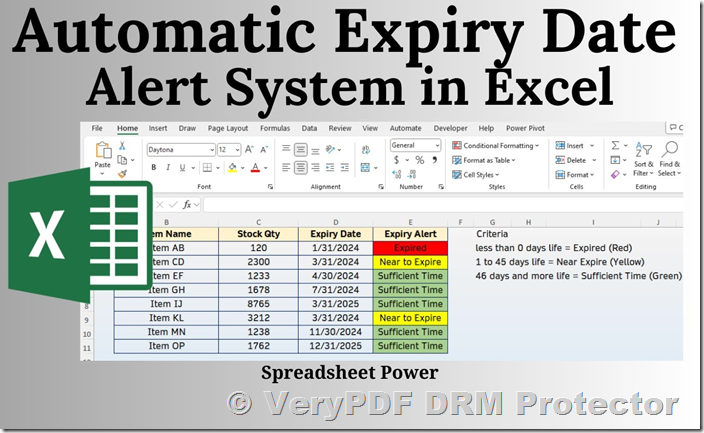
How to Add an Expiring Timer to Excel Files – And Why VBA and Macros Don't Work

Excel Expiry – Why It Doesn’t Work

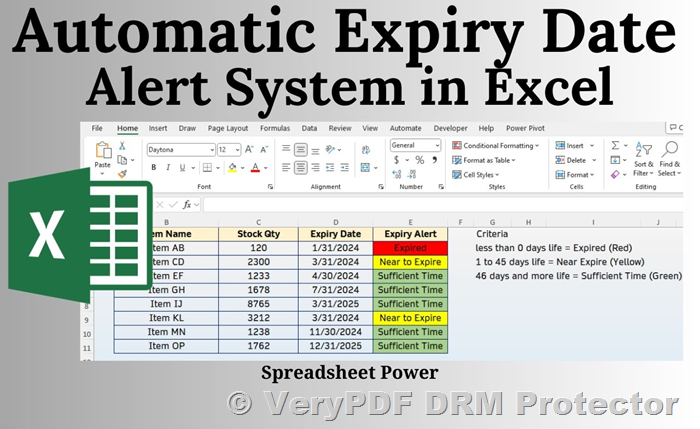
Excel does not offer an effective built-in feature for adding expiry timers. Although you can use VBA (Visual Basic for Applications) code to set an expiry date, this approach has several flaws that make it easy for users to bypass. Here are some ways in which VBA-based expiry timers can be defeated:

  • Disabling Macros: Most users, especially in corporate environments, disable macros due to security concerns, making expiry scripts ineffective.
  • Saving to Other Formats: Users can easily save the file in a different format (e.g., CSV or PDF), bypassing the expiry code completely.
  • Changing the System Clock: A user can alter their computer’s date and time settings to avoid triggering the expiry check.

Common Excel Expiry Methods and Their Limitations

While VBA code can technically add an expiry timer to an Excel workbook, there are significant security and practicality concerns. Let’s look at two common methods that attempt to expire Excel files:

1. Set Expiry Date via VBA

This method involves setting a specific date on which the workbook will expire. Here’s how it works:

  1. Open the Excel file and press Alt + F11 to open the VBA editor.
  2. In the editor, double-click ThisWorkbook and paste the following code:

Private Sub Workbook_Open()
  Dim exp_date As Date
  exp_date = "12/31/2020" 'update this
  If Date > exp_date Then
    MsgBox ("Spreadsheet has expired.")
    ActiveWorkbook.Close
  End If
  MsgBox ("You have " & exp_date - Date & " days left")
End Sub
  1. Save the file.

When the workbook is opened, it checks the current date against the expiration date. If the document has expired, it shows a message and closes the file. However, this method is easily bypassed if macros are disabled or the user changes their system date.

2. Expire Based on First Open Using VBA

This method expires the file a set number of days after the user first opens it. The steps are similar to the previous method, but the expiration countdown is dynamic and begins when the document is first opened:

  1. Press Alt + F11 to open the VBA editor.
  2. Double-click ThisWorkbook and paste the following code:

Private Const DAYS_UNTIL_EXPIRATION = 30
Private Sub Workbook_Open()

    Dim ExpDate As String

    On Error Resume Next
    ExpDate = Mid(ThisWorkbook.Names("ExpDate").Value, 2)
    If Err.Number <> 0 Then
        ExpDate = CStr(DateSerial(Year(Now), _
        Month(Now), Day(Now) + DAYS_UNTIL_EXPIRATION))
        ThisWorkbook.Names.Add Name:="ExpDate", _
        RefersTo:=Format(ExpDate, "short date"), _
        Visible:=False
        ThisWorkbook.Save
    End If

    If CDate(Now) > CDate(ExpDate) Then
        MsgBox "Your trial period is over.", vbOKOnly
        ThisWorkbook.Close savechanges:=False
    End If

End Sub
  1. Save the file.

This code calculates the expiration date based on the number of days from the first time the document is opened. When the user opens the document after the trial period has ended, they will receive a warning and the file will close. Again, this is easily bypassed if macros are disabled or the system clock is altered.

The Problem with VBA and Macros in Excel

Despite the functionality these VBA scripts offer, they have serious limitations:

  • Security Concerns: Many organizations disable macros because they pose a security risk, often being used to spread malicious code. If macros are disabled, the expiry timer doesn’t work.
  • Clock Manipulation: If users know the expiry is based on the system clock, they can simply change the clock back to a previous date, gaining unauthorized access to the spreadsheet.
  • File Format Conversion: Users can easily save the file in another format, such as CSV, bypassing the expiry code entirely.
  • User Experience: Manually adding VBA code to each document you want to expire is tedious, and users may find the process of enabling macros confusing or burdensome.

Why Excel Expiry Timers Are Not a Reliable Solution

Excel expiry methods based on VBA are insufficient for the following reasons:

  • They rely on macros, which most users disable due to security concerns.
  • Users can bypass the expiry by altering their system clock or saving the file in a different format.
  • Editing and copy-paste protections in Excel are weak, meaning users can create unauthorized copies of documents without expiry timers.
  • Excel Online (365) has a limited expiry feature that relies on OneDrive, but it doesn’t prevent users from making copies of the file, rendering the expiry meaningless.

The Solution: VeryPDF DRM Protector

While Excel’s native expiry timers are unreliable, VeryPDF DRM Protector offers a robust solution for expiring files and protecting sensitive data. With VeryPDF DRM Protector, you can enforce expiry dates that cannot be bypassed, even if the user changes their system clock or saves the document in a different format.

VeryPDF DRM Protector enables you to:

  • Set Expiry Dates: Define expiration based on a specific date or the number of days since the file was first opened.
  • Enforce Security Controls: Prevent unauthorized access by disabling copy-paste, editing, and printing.
  • Control Access Across Platforms: Unlike Excel’s VBA macros, the protections in VeryPDF DRM Protector work seamlessly across different devices and environments, including offline usage.
  • Revoke Access: You can manually revoke access to the document at any time, ensuring that users no longer have access even after the file has been distributed.
  • Track Usage: VeryPDF DRM Protector allows you to monitor document access, including who opened or printed the file and when.

Why Choose VeryPDF DRM Protector?

Unlike Excel expiry methods, VeryPDF DRM Protector does not rely on easily bypassed macros or scripts. It offers comprehensive protection against unauthorized copying, sharing, and expiration bypassing, making it the ideal solution for enforcing expiry dates on documents.

Key features of VeryPDF DRM Protector include:

  • Expiry Date Enforcement: Set expiration based on a specific date, number of opens, prints, or days since first use.
  • Dynamic Watermarking: Add dynamic watermarks to deter unauthorized sharing or screenshots.
  • Access Control: Lock documents to specific devices, users, or locations.
  • Post-Distribution Changes: Modify expiry dates or revoke access even after the document has been shared.

Try VeryPDF DRM Protector for Free

To experience the full range of features, you can try VeryPDF DRM Protector for free. Simply visit VeryPDF DRM Protector to start your free trial and discover how it can help you securely expire your Excel files and prevent unauthorized access.

Conclusion

While setting expiry timers in Excel via VBA macros and scripts may seem like a simple solution, it is far from foolproof. Users can easily bypass these restrictions by disabling macros, altering their system clock, or saving the file in a different format. To ensure your files expire reliably and securely, VeryPDF DRM Protector is the best choice. With its advanced security features, you can enforce expiry dates that cannot be bypassed and protect your documents from unauthorized use.

Take control of your data and prevent unauthorized access with VeryPDF DRM Protector today!