Why Edmodo LMS Teachers Trust VeryPDF DRM Protector to Secure Student Progress Reports in PDF Format

Why Edmodo LMS Teachers Trust VeryPDF DRM Protector to Secure Student Progress Reports in PDF Format

Protect student progress reports and PDFs seamlessly with VeryPDF DRM Protector, trusted by Edmodo LMS teachers for secure, controlled digital document sharing.

Why Edmodo LMS Teachers Trust VeryPDF DRM Protector to Secure Student Progress Reports in PDF Format


Every time I had to distribute student progress reports on Edmodo, I’d feel a pit in my stomach.

It’s one thing to upload a PDF to the LMS for students and parents, but another to know it could be easily downloaded, shared, or even printed without permission.

I needed a solution that went beyond simple password protectionsomething that gave me real control over who could access these sensitive reports.

That’s when I discovered VeryPDF DRM Protector.

At first, I was sceptical. I had tried other DRM tools before, but they were clunky, hard to integrate, and often created more headaches than they solved.

VeryPDF promised seamless integration with LMS platforms like Edmodo, Moodle, and Canvasand I was ready to see if it could deliver.


How VeryPDF DRM Protector Changed My Workflow

VeryPDF DRM Protector isn’t just another PDF locking tool.

It integrates with LMS, CMS, CRM, DMS, ERP, and eCommerce platforms, meaning I could protect documents directly from the systems I already used every day.

For an Edmodo teacher like me, that meant I could upload student progress reports, assign access rights, and let the software handle the rest automatically.

Here’s what stood out to me:

1. Dynamic Watermarking for PDF Security

The first thing I noticed was the dynamic watermarking feature.

Every report I uploaded had the student’s name, the teacher’s ID, and even the timestamp dynamically embedded into the PDF.

If someone tried to screenshot the report or share it without permission, their information was clearly visible on the document.

It’s a simple feature, but it completely changed how I felt about distributing sensitive materials online.

No more worrying that a PDF would circulate without control.

2. Granular Access Controls

VeryPDF allows you to set device limits, account limits, expiry dates, offline access permissions, and IP address restrictions.

For example, I could allow a student to open a PDF on their tablet or laptop but prevent printing or copying.

I could also ensure that the report expired after the semester ended, meaning old files couldn’t linger indefinitely.

Other DRM solutions I tried either lacked this level of detail or made it a nightmare to set up.

VeryPDF made it simple and intuitive.

3. Seamless Integration With LMS Platforms

Integration was a breeze.

I connected VeryPDF DRM Protector with Edmodo using their API and single sign-on (SSO) support.

Now, when I uploaded a PDF, the system automatically applied all DRM protections and delivered it to the correct student accounts.

No manual encryption, no exporting files back and forth.

It saved me hours every weekhours I could now spend actually teaching or providing feedback.


Real-World Use Cases That Worked for Me

Protecting Student Progress Reports

Before VeryPDF, I had to rely on PDFs with simple passwords, hoping students didn’t share them.

With dynamic watermarking and strict access controls, I finally had peace of mind.

Parents could view their child’s report, but they couldn’t print or forward it to others.

Sharing Study Materials and Resources

I also started using VeryPDF for distributing extra resources, like assignment guides and reading materials.

I could restrict access by class, set expiry dates, and even block downloads from certain countries.

It gave me a level of flexibility I hadn’t seen in any other tool.

Collaborating Across Departments

In cases where multiple teachers needed access to the same resources, VeryPDF made collaboration safe and trackable.

Each file had user-specific watermarks, so if anything leaked, we could trace it back to the source.

It helped maintain accountability and encouraged responsible sharing among staff.


Why I Prefer VeryPDF Over Other DRM Solutions

I’ve tried other DRM tools, and honestly, many fall short in real-world classroom settings.

  • Some are too complicated, requiring IT intervention for every change.

  • Others break file formatting or make PDFs slow to open.

  • A few don’t integrate well with LMS platforms, leaving you juggling multiple systems.

VeryPDF DRM Protector solved all these problems.

It was fast, reliable, and integrated directly with Edmodo without messing up my PDF layouts or forcing students to install extra software.

It also offered features I didn’t even know I needed, like IP blocking, offline access control, and detailed analytics on who viewed each document.


Core Advantages I Experienced

  • Complete Control: Decide exactly who sees your files and what they can do.

  • Dynamic Protection: Watermarks and DRM settings adapt to the user, device, and context.

  • Seamless Integration: Works with Edmodo, Moodle, Canvas, and even CRM or ERP systems.

  • Time-Saving Automation: Once set up, the system manages everything automatically.

  • Security Peace of Mind: AES encryption and DRM controls prevent unauthorized sharing.


Custom Development Services by VeryPDF

If your school or organisation has unique needs, VeryPDF can create custom solutions.

Whether it’s Python, PHP, C/C++, Windows API, Linux, Mac, iOS, Android, JavaScript, C#, .NET, or HTML5, their team can develop exactly what you need.

Some examples:

  • Virtual Printer Drivers: Convert any print job into PDF, EMF, or image formats.

  • Printer Job Capture: Automatically save print jobs from any Windows printer.

  • API & Hook Solutions: Monitor and intercept system or application API calls.

  • OCR & Document Analysis: Extract tables and text from scanned PDFs or TIFFs.

  • Cloud & Workflow Integration: Protect files stored in Google Drive, Dropbox, or integrate with ERP and CRM workflows.

If you have a custom project, contact VeryPDF through their support center: https://support.verypdf.com/


FAQs

1. Can VeryPDF DRM Protector integrate with Edmodo LMS?

Yes, it supports LMS platforms like Edmodo, Moodle, and Canvas via API and SSO.

2. Can I prevent printing and copying of PDFs?

Absolutely. VeryPDF allows you to block printing, copying, downloading, and screen sharing.

3. Does it support dynamic watermarks?

Yes, you can add user-specific, timestamped, and device-based watermarks for maximum protection.

4. Can I restrict access to certain countries or IP addresses?

Yes, you can control access by IP or region to prevent unauthorized distribution.

5. Is offline access possible with restrictions?

Yes, you can allow offline viewing while still enforcing DRM controls like expiry dates and watermarks.

6. Can I integrate it with other business systems?

VeryPDF DRM Protector supports CRM, ERP, DMS, eCommerce platforms, and custom applications through REST APIs.


Tags/Keywords

  • PDF DRM for teachers

  • Edmodo PDF protection

  • Student progress report security

  • Dynamic PDF watermarking

  • LMS PDF security

  • VeryPDF DRM Protector


I’d highly recommend VeryPDF DRM Protector to any teacher or educational professional dealing with sensitive student reports.

It transformed my workflow, gave me real peace of mind, and made secure sharing effortless.

Click here to try it out for yourself: https://drm.verypdf.com/

Sakai LMS Professors Save Time With VeryPDF DRM Protector Batch Protect Tools for Hundreds of PDF Course Files

Sakai LMS Professors Save Time With VeryPDF DRM Protector Batch Protect Tools for Hundreds of PDF Course Files

Save hours managing PDF course files with VeryPDF DRM Protector, designed for Sakai LMS, Canvas, Moodle, and other platforms, with batch protection and watermarking.

Sakai LMS Professors Save Time With VeryPDF DRM Protector Batch Protect Tools for Hundreds of PDF Course Files


Every semester, I used to spend countless hours uploading and protecting hundreds of PDF files for my courses on Sakai LMS.

It felt like an endless cycle: protect one file, download another, apply watermark, check permissions, repeat.

By the time I was done, I was exhausted and worried if I’d even secured the files correctly.

I knew there had to be a better way to manage course PDFs at scale without losing control over who could access them.

That’s when I discovered VeryPDF DRM Protector, and it completely changed the game for me.

This tool isn’t just a PDF security app; it’s a full-featured digital rights management system that integrates directly with LMS platforms like Sakai, Canvas, and Moodle.

It also works with CMS platforms such as WordPress, Joomla, and Drupal, plus CRM, DMS, ERP, and even eCommerce platforms.

In short, it allows professors, administrators, and content creators to batch-protect hundreds of PDFs in one go, while maintaining granular control over access and usage.


How I Started Using VeryPDF DRM Protector

When I first tried VeryPDF DRM Protector, I was impressed with the integration options.

I didn’t have to manually upload each file or create permissions one by one.

Through REST API connections, it linked directly to our Sakai LMS, meaning every PDF I uploaded could automatically be protected without extra clicks.

Here’s what made it stand out immediately:

  • Batch PDF Protection: I could select dozens, even hundreds of course files, and apply DRM settings simultaneously.

  • Dynamic Watermarking: Each PDF could include user-specific watermarks. No more worrying about students sharing screenshots or copies online; every file carries identifiable info.

  • Flexible Access Controls: I could set device limits, expiry dates, offline access, and even IP restrictions.

Before using this tool, I had tried other DRM and PDF protection software, but they were either too manual, required repetitive steps, or didn’t integrate with LMS platforms.

Some didn’t offer dynamic watermarking at all, which was a dealbreaker in an educational setting where content sharing is rampant.


Key Features That Changed My Workflow

1. Batch Protect Hundreds of PDFs in Minutes

Previously, protecting course PDFs was a slog. Each PDF needed individual settings, watermarking, and permission checks.

Now, I can upload an entire folder of lecture notes, research papers, or exam prep materials, and with a few clicks, they’re all protected.

This has saved me hours every week, especially during peak times when multiple courses start simultaneously.

2. Seamless LMS and Platform Integration

VeryPDF DRM Protector integrates not only with Sakai but also Canvas, Moodle, and WordPress-based course platforms.

Once connected, new PDFs added to the LMS automatically inherit DRM protections.

No manual intervention. No double-checking. Everything just works in real time.

I even integrated it with our cloud storage, so files stored in Google Drive or Dropbox are instantly secured.

3. Dynamic Text Watermarks for Maximum Security

The watermarking feature is clever and subtle.

Instead of a static label, each PDF displays the student’s name, email, or ID in a non-intrusive way.

Even if someone tries to screenshot a page, the watermark ensures that the source is traceable.

I remember testing this by sharing a PDF with a colleague; within seconds, I could see the watermark with their login info.

It was a moment where I realised the security potential wasn’t just theoreticalit actually works in real-world scenarios.

4. Advanced DRM Controls

The DRM settings are comprehensive:

  • Limit the number of devices each user can access a PDF from.

  • Restrict offline viewing for sensitive course files.

  • Apply expiry dates so content automatically becomes inaccessible after the semester.

  • Set country or IP restrictions to prevent external access.

These features give me confidence that no matter how many PDFs I distribute, the content is safe from leaks or unauthorized sharing.

5. Automating Content Protection Across Platforms

One of my favourite parts is using VeryPDF DRM Protector to integrate with other systems.

For example, after a student completes a course module in Sakai, I can automatically trigger DRM protection for related resources in our SharePoint repository.

This eliminates manual intervention and ensures that content security is consistent across all platforms.


Real-World Use Cases

1. University Professors

Managing dozens of PDF files per course, often multiple courses per semester, is time-consuming.

Batch protection, dynamic watermarking, and LMS integration allow professors to focus on teaching instead of administrative tasks.

2. Educational Institutions

Schools, colleges, and universities can secure curriculum materials, exam banks, and research papers.

Administrators can control access centrally and monitor who interacts with sensitive content.

3. Training Organizations

Companies offering employee training or certification courses can protect internal training manuals, slides, and assessment documents, ensuring content isn’t shared outside the organisation.

4. Publishers and Content Creators

Ebooks, worksheets, and digital guides can be securely distributed without worrying about piracy or unauthorized sharing.

5. Multi-Platform Integration

VeryPDF DRM Protector can integrate with cloud storage, LMS, CRM, ERP, and eCommerce platforms, making it perfect for organisations with complex workflows.


Why I Recommend VeryPDF DRM Protector

After using VeryPDF DRM Protector for several semesters, I’ve seen massive productivity gains.

No more repetitive manual PDF protection, no more anxiety about files being shared without permission.

The dynamic watermarking alone is a game-changer for academic environments.

It’s not just about security; it’s about streamlining workflows, saving time, and maintaining full control over content distribution.

If you’re an educator or content provider dealing with large volumes of PDFs, this tool will save you hours and reduce stress.

I’d highly recommend it to anyone who needs batch PDF protection, LMS integration, and dynamic watermarking.

Click here to try it out for yourself: https://drm.verypdf.com/

Start your free trial now and see how much time you can save managing PDFs.


Custom Development Services by VeryPDF

VeryPDF offers comprehensive custom development services to fit your technical needs.

Whether you need specialised PDF solutions for Windows, macOS, Linux, or server environments, VeryPDF’s team can create tailored utilities.

Their expertise includes:

  • Programming with Python, PHP, C/C++, JavaScript, C#, .NET, HTML5, iOS, Android.

  • Developing Windows Virtual Printer Drivers to generate PDF, EMF, and image formats.

  • Printer job capture and monitoring tools, saving jobs in PDF, EMF, PCL, Postscript, TIFF, and JPG.

  • Hook layers for Windows API monitoring, intercepting file access and print jobs.

  • Document processing for PDF, PCL, PRN, Postscript, EPS, and Office files.

  • OCR and table recognition for scanned PDFs and TIFFs.

  • Report and form generators, image conversion, and cloud-based document management solutions.

  • Advanced security, DRM, digital signatures, and TrueType font technologies.

For customised solutions or specific technical needs, reach out to VeryPDF via their support center: https://support.verypdf.com/.


FAQ

Q1: Can VeryPDF DRM Protector integrate with Canvas and Moodle?

A1: Yes, it seamlessly integrates with LMS platforms like Canvas, Moodle, and Sakai, allowing automatic PDF protection.

Q2: How does dynamic watermarking work?

A2: Each PDF is embedded with unique, user-specific information such as name, email, or ID. This makes unauthorized sharing traceable.

Q3: Can I set expiry dates for PDF access?

A3: Absolutely. You can configure expiry dates for individual files or entire folders, perfect for semester-based courses.

Q4: Is batch PDF protection possible?

A4: Yes, you can select hundreds of PDFs and apply DRM settings, watermarks, and access controls in one go.

Q5: Does it support offline access controls?

A5: Yes, you can allow or restrict offline access, ensuring sensitive content is secure even when students work without internet.

Q6: Can VeryPDF DRM Protector integrate with cloud storage?

A6: Yes, it works with Google Drive, Dropbox, OneDrive, and more, applying protections automatically to files stored in the cloud.


Tags or Keywords

  • Sakai LMS PDF protection

  • Batch PDF security for educators

  • DRM for universities

  • VeryPDF DRM Protector

  • Dynamic watermark PDF software

  • PDF course file security

  • LMS content protection

Digital Rights Management (DRM) Software for Secure PDF & Document Protection | VeryPDF DRM Protector Features

What is digital rights management (DRM)?

Digital Rights Management (DRM) enables you to set and control copyright protection and data privacy for your intellectual property, such as market research, eBooks, training materials, PDFs modules and reports. DRM protection enables you to prevent your digital files from unauthorized redistribution and restrict how your recipients can copy content.

DRM software includes security features for intellectual property protection, such as encryption, document tracking, access control and the ability to set permissions to prevent screenshots, apply copy protection and prevent download and print of your materials and PDFs.

Digital Rights Management (DRM) Software for Secure PDF & Document Protection | VeryPDF DRM Protector Features

VeryPDF DRM Protector Key Features

Secure & simple Digital Rights Management solution
Easily protect, monitor, and manage the distribution of your confidential materials and PDFs, all while ensuring security.

Control distribution of confidential documents
Prevent unauthorized sharing such as printing, copying, downloading, and enhance security with password protection for your sensitive documents.

Restrict and revoke access to your files
Control which users can access your documents and revoke the permissions anytime. You can also restrict forwarding and set expiration dates for access.

Track user activity with comprehensive analytics
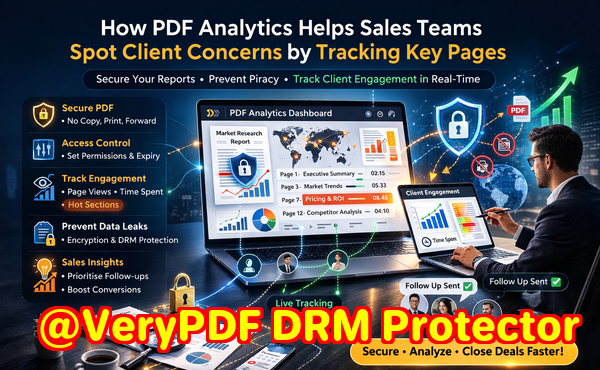
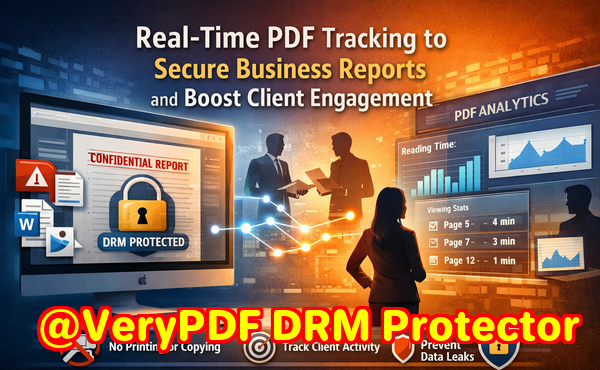
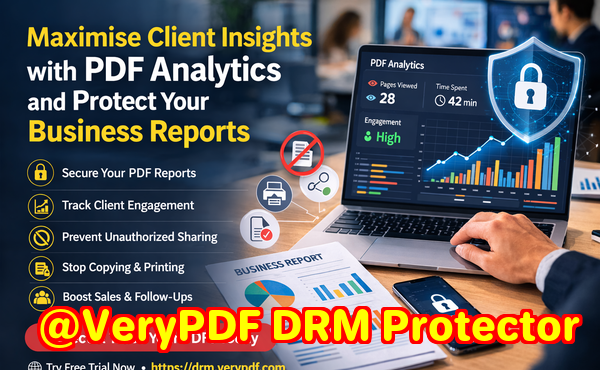
Gain detailed insights into who viewed your files, their location, the duration and frequency of their views, and whether the files were printed or downloaded.

Automatically watermark important documents
With dynamic watermarking, you can automatically watermark sensitive documents with the recipient’s email address and other information on the fly.

Document expiry and expire after opening
Set rules to automatically expire document or PDF access after a specified number of views, prints, days, or on a fixed date.

Discourage screenshots of your sensitive documents
Reduce the viewable area of documents to discourage screenshots using VeryPDF Screen Shield.

Comprehensive Tracking and Analytics
VeryPDF’s Report Center allows you to monitor the recipients accessing your files, as well as the frequency, duration, and location of access. This helps you to gauge interest levels and follow up with them at the right time.

Dynamic Watermarking
VeryPDF’s unique dynamic watermarking feature adds personalized watermarks to each document such as recipients’ email, IP address to discourage unauthorized sharing and increasing traceability. This feature helps protect sensitive information and enhances security, making it easier to identify potential leaks or unauthorized usage.

Secure Document Viewer
Our secure document viewer that enables users to preview documents without the need for downloading or exposing the file to potential risks. This feature enhances security by reducing the risk of unauthorized copying or distribution while still allowing users to review the contents of the document.

Document Security
Easily control access and distribution of your files after they are sent.

Access control
Control whether your files are accessible by invitation only, or via public links with email validation or an additional password.

Recipient identity verification
Recipients may be asked to verify their identity before they can view the file.

Revoke access
Revoke access any time errors occur or files are sent to the wrong person.

Easy cloud import
Upload multiple files from your computer or cloud storage – Dropbox, Box, OneDrive or Google Drive.

File replacement & versioning
Ability to replace files as a new version. Useful for typos and updating content even after hitting send.

File format previews
Preview of PDFs, images, Word, Excel, PowerPoint and even videos is supported.

Copy protection, print & download permissions
Files are displayed only in the browser and are protected from copy and paste attempts. You decide whether to allow printing or downloading.

Instant view notifications
Get an instant email notification when files are viewed.

Detailed file tracking and analytics
See who viewed your files, from where, for how long, how often, and whether they were printed or downloaded. Analytics can be exported as an Excel file.

Easy invite for recipients
From one guest to thousands – invitations are easily and automatically sent on your behalf.

Expiry date & time
Schedule a start and end date and time for file access, or set a file to self-destruct after viewing.

Dynamic watermarks
Automatically watermark documents with recipients’ email and other information on the fly. Watermarks are fully customizable.

Screen shield
Reduce the visible screen area of a file with a moveable filter to prevent screenshots.

Developer API
With the VeryPDF API, developers can create apps and integrate document security features into their apps and workflows.

Protect valuable documents
Common use cases for DRM include protection of ebooks, training and course materials and regulatory documents.

Multiple file formats supported
Protect PDF files, images, videos, audio files and more with VeryPDF’s integrated DRM solution.

Simple & easy-to-use
Get set-up in minutes with the full suite of VeryPDF’s document security features from one easy-to-use DRM solution.

Secure & compliant

Compliant
VeryPDF is compliant with ISO 27001, the gold standard in information security management. Our hosting infrastructure on Amazon Web Services, which is compliant with SOC 1 & 2, SAS70 Type II.

Securely hosted
Files are backed up with multiple redundant copies. Our infrastructure is protected by Web Application Firewalls. Automated scripts help to speed up protection against attacks.

Encrypted
All files are secured with envelope 256-bit AES encryption, which is certified for use by the NSA for top-secret information.

Frequently asked question

– What is Digital Rights Management?
Digital Rights Management (DRM) is a set of controls that govern who can open, copy, print or share a file. It enforces rules after download so documents cannot be freely forwarded or leaked.

– How does Digital Rights Management in VeryPDF protect files after download?
Files are encrypted and tied to user identity. Access can be time limited, device limited, watermarked and revoked at any time, even after download.

– Which file types work with VeryPDF’s Digital Rights Management?
These are the supported file formats/types on VeryPDF:
• Images (.JPG, .PNG, .GIF, .BMP)
• Portable Document Format (.PDF)
• Document ( .DOC, .DOCX, .MOBI, .ODT, .OTT, .EPUB, .XPS)
• Spreadsheet (.XLS, .XLSX, .ODS, .CSV, .TSV, .XLT)
• Presentation (.PPT, .PPTX, .PPTM, .PPSM, .POTM, .ODP, .OTP)
• Audio files (.MP3, .WAV, .WMA)
• Videos (.AVI, .MOV, .MP4, .MPG, .M4V, .3GP, .WMV, .WebM)
• Private notes (.TXT)

– Can I revoke access with Digital Rights Management after sharing?
Yes. You can expire links, remove individual users or disable a file entirely. Changes take effect the next time the recipient opens the document.

– Do recipients need to install software to view DRM protected files?
No. Recipients authenticate and view in a secure browser viewer or supported apps. There is no complex setup.

How to Protect a PDF File with DRM Options and View PDF File Access Statistics Report

Protecting PDF documents is essential when sharing sensitive or valuable content such as educational materials, research data, training guides, or corporate reports. VeryPDF DRM Protector offers a powerful way to control access, prevent unauthorized sharing, and monitor how your files are being used. With its easy-to-use online interface, you can enable DRM protection, configure access permissions, and track file usage statistics in just a few steps.

This guide walks you through the process of protecting your PDF files with DRM and viewing the access statistics report.


How to Protect a PDF File with DRM Options and View PDF File Access Statistics Report


Step 1: Register and Log Into Your Account
  1. Open your browser and go to https://drm.verypdf.com/wp-login.php.
  2. Click on “Register” to create a new account using your email address.
  3. After registration, check your email for confirmation details.
  4. Log in to your account with your email and password.

Your account will be the central place to manage PDF uploads, DRM settings, and file access reports.

How to Protect a PDF File with DRM Options and View PDF File Access Statistics Report


Step 2: Enter your Email address into Subscription Field
  1. Navigate to https://drm.verypdf.com/online/.
  2. In the “Subscription” field, enter the exact same email address you used when registering your account.
  3. Subscribing your email ensures that all PDF documents you upload and protect are linked correctly to your account.

How to Protect a PDF File with DRM Options and View PDF File Access Statistics Report


Step 3: Configure DRM Protection Options

Before uploading a file, you need to select the DRM policies to apply.

  1. On the Online Protection Page, locate the “Enable PDF DRM Protection” checkbox and make sure it is selected.
  2. Review and choose the available DRM settings, which can include:
  • Restrict Printing – Prevents users from printing your document.
  • Restrict Copying – Blocks copy-and-paste of text and images.
  • Expiration Settings – Define how long or how many times a file can be viewed.
  • Watermarking – Add dynamic or static watermarks to discourage screenshots or unauthorized sharing.
  • Dynamic Text Watermark – Display user-specific information (such as email, IP, or name) as a visible watermark to identify the source of leaks.
  • Screen Shield – Overlay a semi-transparent shield or dynamic text layer to reduce the risk of screen recording and screenshots.
  • Access Control – Limit viewing to specific email addresses, accounts, or predefined user groups.
  • Device Restriction – Bind documents to a particular device (such as one computer or mobile phone) to prevent multiple-device access.
  • Offline Access Control – Allow temporary offline reading with restrictions, ensuring that files cannot be shared outside the authorized device.
  • Open Limitations – Define how many times a document can be opened before access is revoked.
  • Time-Limited Access – Set start and end dates for access, making the document valid only during a specific time period.
  • Online Authentication – Require users to log in through the DRM server before viewing the document, ensuring identity verification.
  • Disable Save As – Prevent users from saving an unprotected copy of the file.
  • Dynamic Watermark Rotation – Apply watermarks that change position or angle during reading to further prevent clean screenshots.

These options give you flexible control over how your PDF can be used after it is distributed.

How to Protect a PDF File with DRM Options and View PDF File Access Statistics Report


Step 4: Upload and Protect Your PDF
  1. Use the upload function on the page to select a PDF document from your computer.
  2. Confirm that your DRM protection options are checked.
  3. Click “Upload and Secure PDF” button to submit your file for processing.
  4. Once uploaded, the system will generate a protected version of your PDF.
  5. You will receive a secure access link that you can distribute to authorized readers.

The uploaded file is now fully DRM-protected and linked to your account for monitoring.

How to Protect a PDF File with DRM Options and View PDF File Access Statistics Report


Step 5: View PDF File Access Statistics Report

VeryPDF DRM Protector not only secures your PDF but also gives you detailed insight into how it is accessed.

  1. Log back into your account.
  2. Go to https://drm.verypdf.com/wp-admin/admin.php?page=VeryPDFDRMFiles.
  3. This page displays the PDF File Access Statistics Report for all the PDFs you have protected.

The statistics report allows you to:

  • See how many times each protected file has been opened.
  • Identify which users have accessed your document.
  • Track access times and dates for better auditing and compliance.

This feature ensures you always have visibility and control over how your secure documents are being used.

How to Protect a PDF File with DRM Options and View PDF File Access Statistics Report


Conclusion

With VeryPDF DRM Protector, securing your PDF files and tracking their usage is straightforward. By registering an account, enabling DRM protection, uploading your document, and checking the access statistics, you gain full control over your digital documents.

Whether you are an educator sharing course materials, a business professional handling confidential files, or a publisher distributing premium content, VeryPDF DRM Protector gives you the tools to:

  • Protect your PDFs with strong DRM policies.
  • Control and customize access permissions.
  • Monitor usage with real-time statistics reports.

Start protecting your PDF files today by visiting https://drm.verypdf.com/.

If you encounter any problems while using our VeryPDF DRM Protector application, or if you need a custom-built feature tailored to your specific workflow, please don’t hesitate to contact us. Our support team is always ready to assist you and provide professional solutions. You can reach us directly at https://support.verypdf.com/.